
Don’t Migrate From Intel To Apple Silicon
Do a clean setup instead…
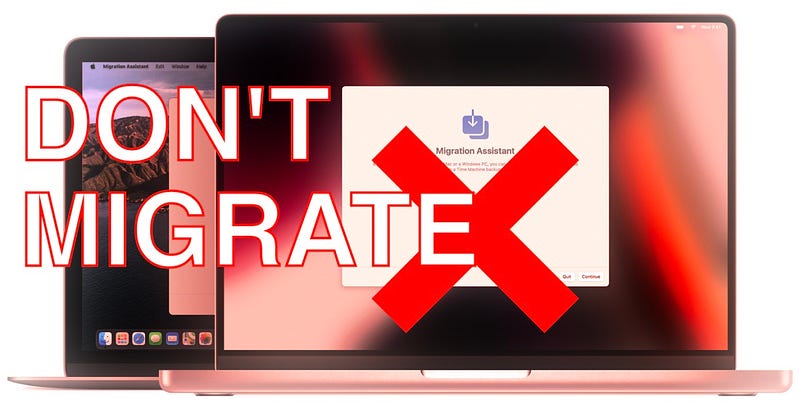
There are times when I realise even I lack common sense. And then there are times when I realise, so does everyone else, including Apple! I’ve been writing about Apple M1, testing it, using it, multiple versions of it even and over lengthy periods of time, but I only recently realised, I forgot one crucial aspect to mention. Heck, it deserves a lot more than a mention. It needs to be specifically called out — how you set up macOS on the M1 machines.
Apple very conveniently offers several setup avenues when first opening your shiny new laptop. Traditionally, I would say, none of those avenues are better or worse than the other, however when it comes to the M1, there are three setups I would highly discourage and frankly, I think Apple should too.
- Setup from a Time Machine backup
- Setup from a previous machine
- Setup from a Windows PC
Essentially, any option that the Migration Assistant offers, should be ignored when setting up a new M1 machine. The reasons might not be obvious at first, but after a good number of troubleshooting events and conversations with friends and colleagues also moving to M1, it became clear why I was having no problems, and they were having all the problems, some more exotic than others. The one crucial difference was that I always install my machines from scratch. Clean install. Every time. I never migrate. They, however, all migrated, and here’s a collection of issues they reported.
- Xcode and Git related issues in the command line.
- The oddest of npm errors you can imagine.
- Your IDE will throw the most cryptic compilation and runtime errors and might be sluggish.
- Your Homebrew packages will either crash or have weird behaviour.
- Device emulators may not run properly.
- Your battery-life will be diminished.
- Your entire machine could have odd spurts of sluggishness at seemingly random times.
It makes all the sense in the world
You see, traditionally speaking a migration happens from an Intel to another Intel machine, as in, the same x86 architecture. However, with the introduction of the Apple Silicon architecture, the migration makes a whole lot less sense. Thanks to Apple magic, it still tends to work, and for the most part, you might not immediately notice the cracks you just introduced with that setup, but even in the best-case scenario doing a migration like this will result in a less power-efficient and slower machine — all because of Rosetta 2.
Apple was smart enough to ensure that there is a bridge to allow people to adopt the new ARM-based machines and do so without any major software incompatibility, but Rosetta 2 does come at a cost: it uses more battery-life and apps run slower than if they were native Apple Silicon binaries. Maybe neither of those two aspects concern you too much right now, but why would you deliberately run a slower machine and waste battery-life for no good reason?
Migration Assistant will not replace Intel apps with Apple Silicon-optimised apps!
Things get even worse when it comes to developers like me. We use these machines at a level much closer to the metal than most users, even professionals. This means we have some pretty deep-running dependency-chains that either work or don’t. A migration will absolutely mess with that in ways you don’t want to spend debugging. Sure, there’s always the option of running stuff in Docker or an entirely new virtual machine setup, but why would you go through the pain of that when the real issue is just incompatible binaries you brought over from the x86 setup to begin with?
If you truly want to take advantage of Apple Silicon’s power, do yourself a favour and install everything from scratch.
Attila Vago — Software Engineer improving the world one line of code at a time. Cool nerd since forever, writer of codes and blogs. Web accessibility advocate, Lego fan, vinyl record collector. Loves craft beer!


