
Designing Responsive UI with Figma’s Variables and Modes
When I started exploring responsive user interface design, Figma quickly became my favorite tool. With the introduction of variables and modes, I discovered how much simpler it is to create adaptive layouts that look great on any screen size. In this article, I’ll share how I’ve used Figma’s variables and modes to effectively build responsive designs, along with practical tips you can apply to your own projects.

What Are Figma’s Variables and Modes?
Figma’s variables and modes are game-changers for creating dynamic and responsive designs:
- Variables: Variables allow you to define reusable values such as colors, typography styles, spacing units, or any other property you might want to standardize across your design. Instead of manually updating components one by one, you can update a variable and see the changes reflected everywhere.
- Modes: Modes are like contexts or states for variables. For instance, you can create light and dark modes for your design or define separate styles for mobile, tablet, and desktop views. Switching between modes enables you to preview how your design adapts across different scenarios.
Benefits of Using Variables and Modes for Responsive Design

- Consistency: Variables ensure uniformity in styles and spacing across your entire design system.
- Efficiency: Update a variable once, and it’s reflected everywhere—saving you hours of manual work.
- Flexibility: Modes make it easy to create adaptive designs for various screen sizes and environments.
- Collaboration: Variables and modes provide a shared foundation for team members, ensuring everyone works with the same assets and values.
Setting Up Variables and Modes for Responsive Design
Let’s break down the process of creating a responsive UI design in Figma using variables and modes:
Step 1: Define Your Variables
Start by identifying the core values you’ll use across your design. Here are some common categories:
- Colors: Primary, secondary, background, text, etc.
- Typography: font sizes, line heights, font weights.
- Spacing: margins, paddings, gaps.
- Breakpoints: Define widths for mobile, tablet, and desktop screens.
To create variables:
- Open the Variables Panel in Figma.
- Create a new variable collection, e.g., “Responsive UI.”
- Add variables for each category (e.g.,
primaryColor,baseFontSize,mobilePadding).
Step 2: Create Modes for Different Breakpoints
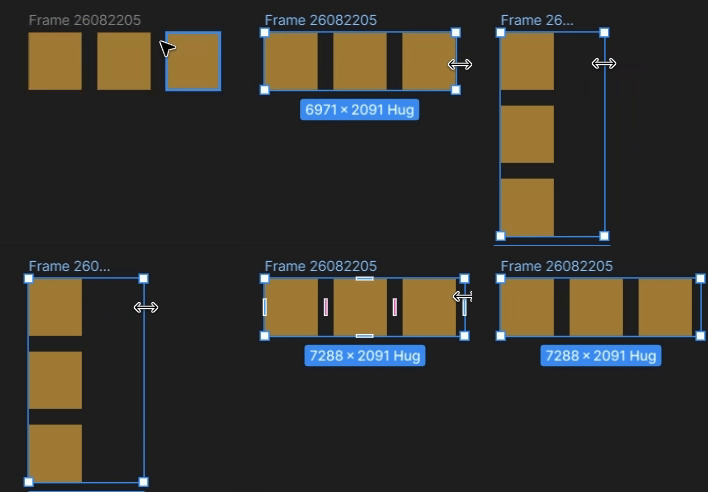
Modes allow you to define how variables behave in different contexts. For responsive design, you can create modes for:
- Mobile: Up to 768px
- Tablet: 769px to 1024px
- Desktop: 1025px and above
To set up modes:
- In the Variables Panel, add modes to your variable collection (e.g., “Mobile,” “Tablet,” “Desktop”).
- Assign different values to variables based on the mode. For example:
- Mobile mode:
baseFontSize = 14px - Desktop mode:
baseFontSize = 16px
Step 3: Apply Variables to Components
Use the variables to define styles for your components:
- Text Styles: Link font sizes, weights, and line heights to your typography variables.
- Colors: Assign color variables to buttons, backgrounds, and text elements.
- Spacing: Use spacing variables to maintain consistent gaps and margins.
This ensures that your components adapt automatically when you switch modes.
Designing Responsively with Components
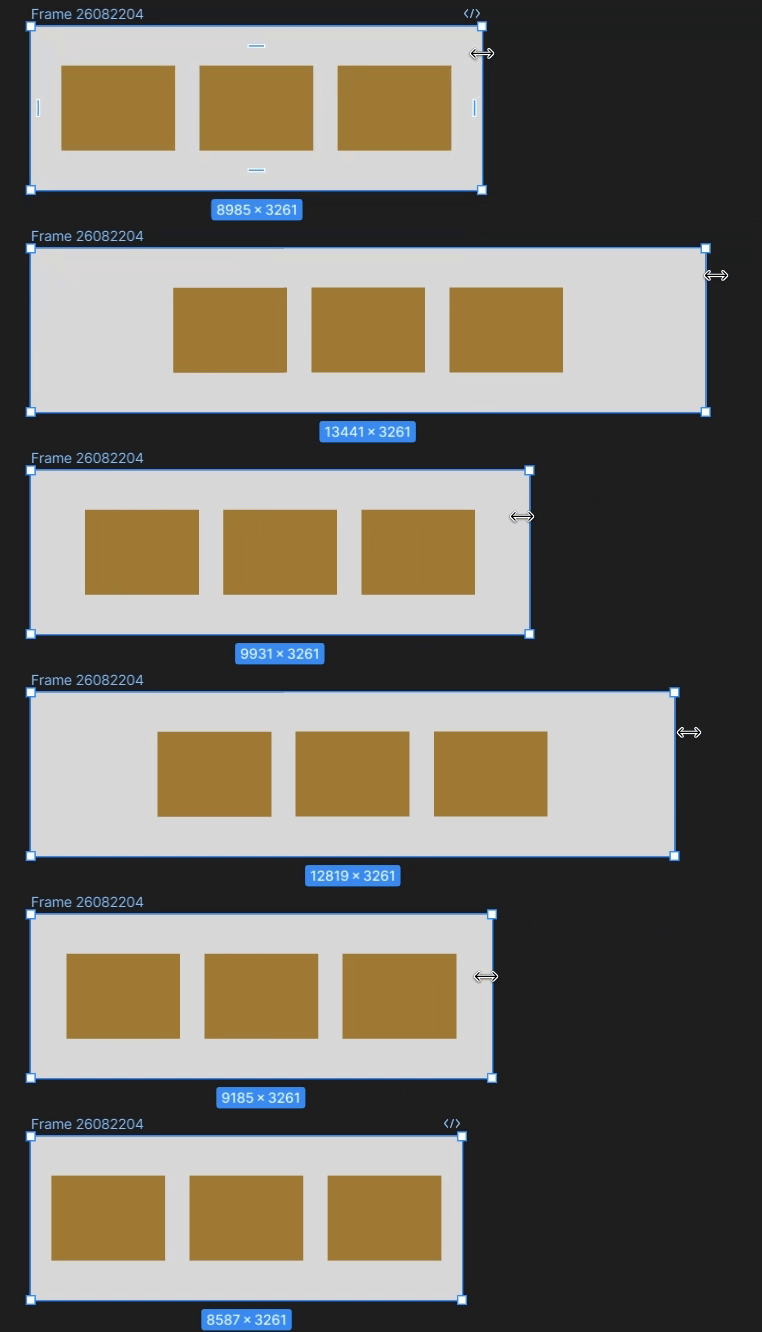
1. Use Auto Layout
Combine Figma’s Auto Layout with variables for responsive behavior:
- Create parent frames for your design components.
- Set constraints and padding using spacing variables.
- Use “Fill Container” or “Hug Contents” to make components responsive.
2. Test Across Breakpoints
Preview how your design looks in different modes:
- Switch between your defined modes in the Variables Panel.
- Use Figma’s prototype settings to test your design’s adaptability.
3. Nested Components
Leverage nested components to create reusable, adaptable designs. For instance:
- A button component with text size linked to typography variables.
- A card component that adjusts spacing and font sizes based on the mode.
Practical Example: Responsive Navigation Bar
Here’s how you can create a responsive navigation bar:
- Create the Base Structure
- Add a frame with Auto Layout.
- Include logo, navigation links, and a hamburger menu icon.
2. Define Variables
navPadding: 16px (mobile), 24px (tablet), 32px (desktop).linkFontSize: 14px (mobile), 16px (tablet and desktop).
3. Apply Modes
- Assign smaller padding and font sizes for the mobile mode.
- Use larger padding and font sizes for the desktop mode.
4. Test Responsiveness
Switch between mobile, tablet, and desktop modes to ensure the navigation bar adapts seamlessly.
Tips for Success
- Start with Mobile First: Design for the smallest screen size first and scale up.
- Use constraints: define how elements should behave when resizing.
- Preview Often: Regularly test your design in all modes to catch inconsistencies early.
- Document Your System: Maintain clear documentation for your variables and modes to make collaboration easier.
Final Thoughts
Figma’s variables and modes empower designers to create responsive UI designs more efficiently and effectively. By leveraging these features, you can ensure consistency, adaptability, and a smoother handoff to developers. Start experimenting with variables and modes today, and watch your designs come to life on screens of all sizes. If you’ve found this guide helpful, let me know in the comments, and feel free to share your own tips and experiences with Figma’s responsive design tools!