Create Stunning AI Art in Under 5 Minutes with Midjourney — Perfect for Absolute Beginners!
Unleash Your Inner Artist and Explore the Limitless Possibilities of AI Art
Are you interested in creating stunning art with the power of AI? Do you want to learn how to do it quickly and easily, without any previous experience or knowledge of coding? Look no further! With Midjourney, you can create your first AI art in under five minutes.
Midjourney is an AI-powered platform that allows you to create art using machine learning algorithms. It’s perfect for beginners who want to explore the possibilities of AI art without having to invest in expensive software or hardware. With Midjourney, you can create beautiful, unique art with just a few clicks of a button.
Resources for this post:
Here’s how to create your first AI art with Midjourney:
Step 1: Log in Discord
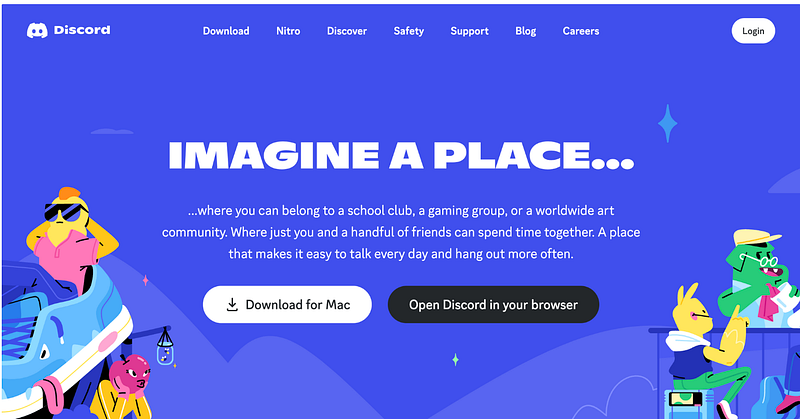
Discord is a popular communication platform designed for gamers, but it has evolved to be used by people of all backgrounds and interests. It allows users to create their own virtual “servers” or join existing ones, where they can communicate with other users via text, voice, and video.
If you do not already have a Discord account, go to https://discord.com/ and download it, or Open Discord in your browser.
Step 2: Go to Midjourney Website
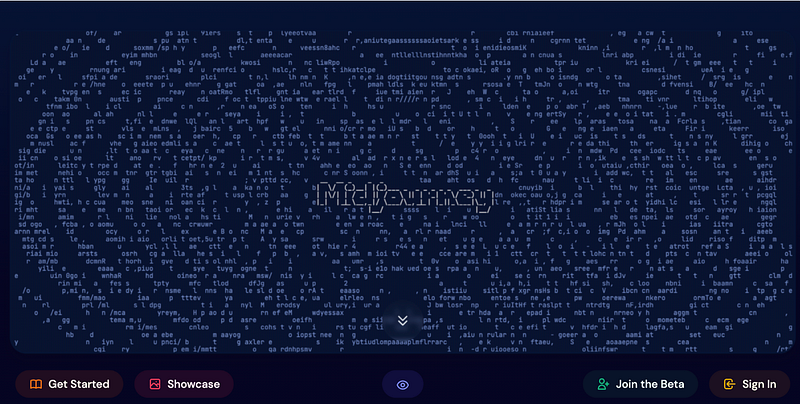
Go to midjourney.com and click Join the Beta on the lower right corner of the screen.
Step 3: Join Midjourney on Discord
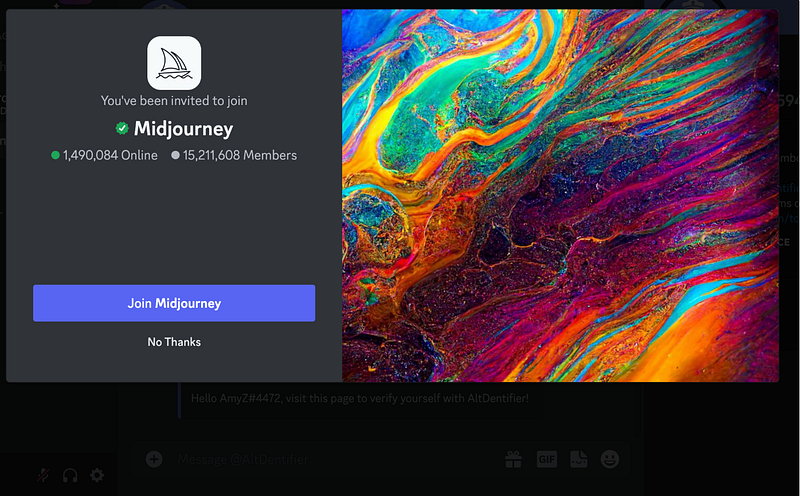
After clicking the Join the Beta button on Midjourney website, a window will pop up in Discord, saying “You’ve been invited to join Midjourney”. Simply click the purple Join Midjourney button.
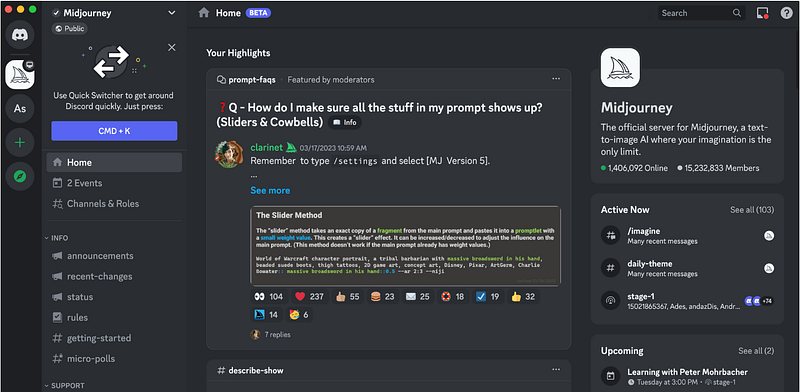
The Midjourney server will appear in your Discord.
Step 4: Enter a Newcomer Room
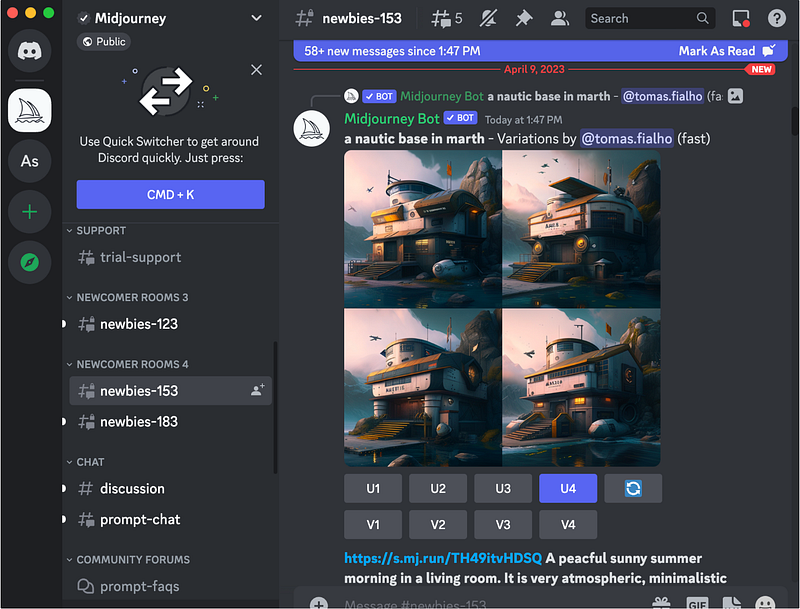
Next, enter a newcomer room by clicking a room name under NEW COMER ROOMS. I chose the room named newbies-153, but any newbies room should work. You can see AI art created by different people in the room. What you created in the newbie’s room is visible to others as well.
Step 5: Create a Conversation with Midjourney Bot
If you prefer to create AI art in private instead of a newcomers’ room, right-click Midjourney Bot and select Message. Please note that DMs with the Midjourney bot are public on the web gallery by default.
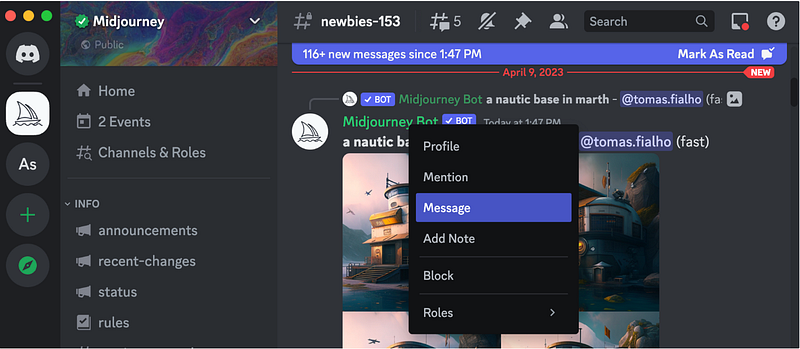
A direct message window with Midjourney Bot shows up.
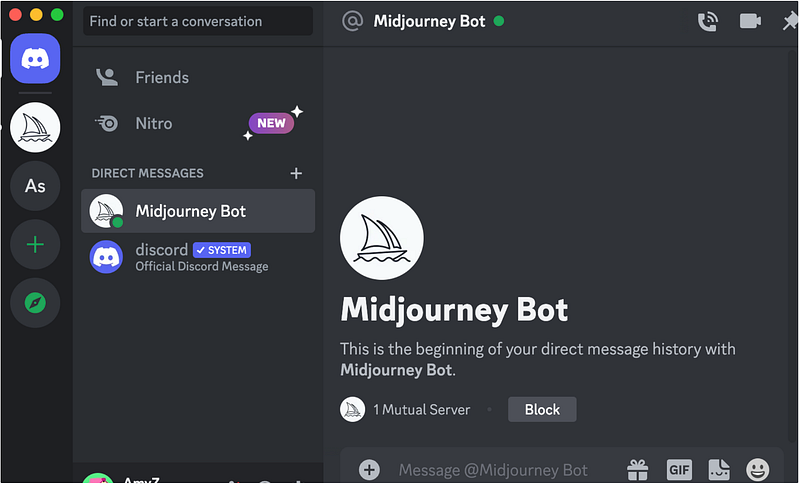
Step 6: Subscribe to Midjourney
At the time this tutorial was created in April 2023, Midjourney requires a subscription. The subscription page can be accessed by typing /subscribe in the message.
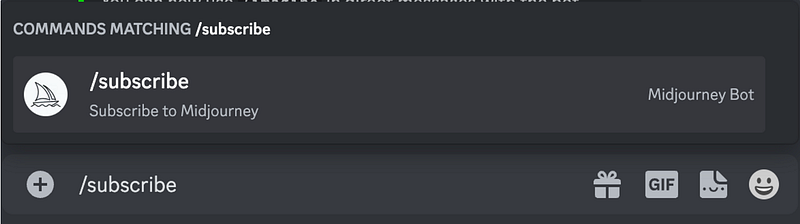
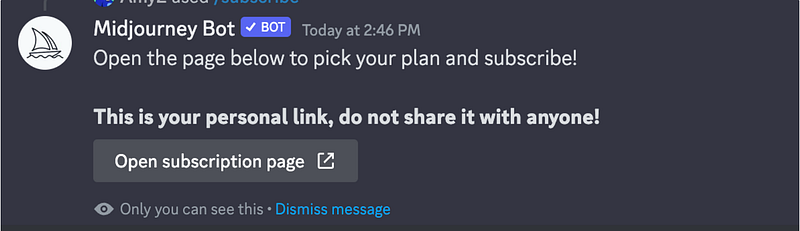
After pressing enter, Midjourney Bot will provide a personal link for the subscription. Click Open subscription page to open a new page in a browser.
The monthly plan starts at $10.00 per month.
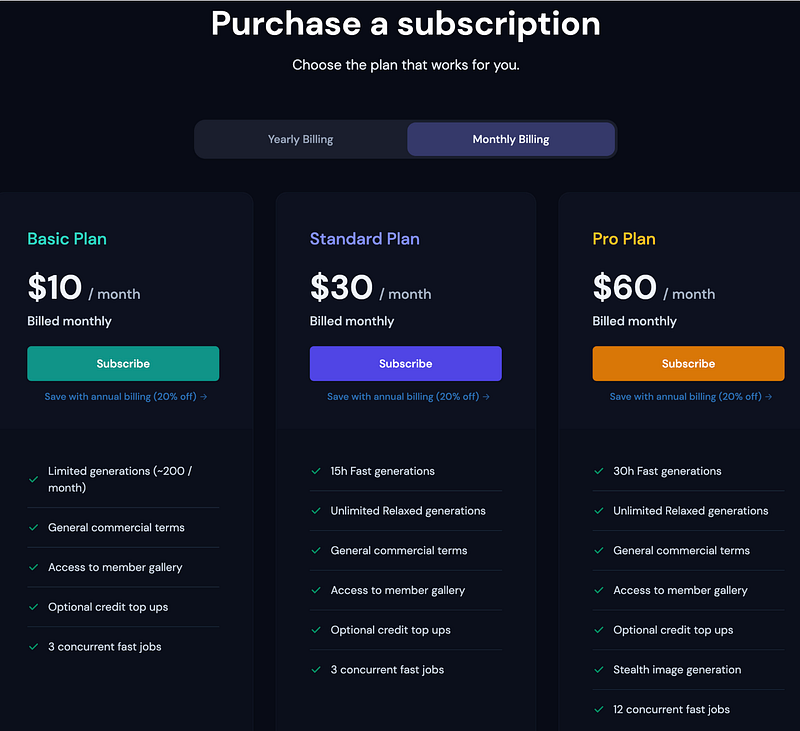
The yearly plan is 20% off the monthly plan yearly total.
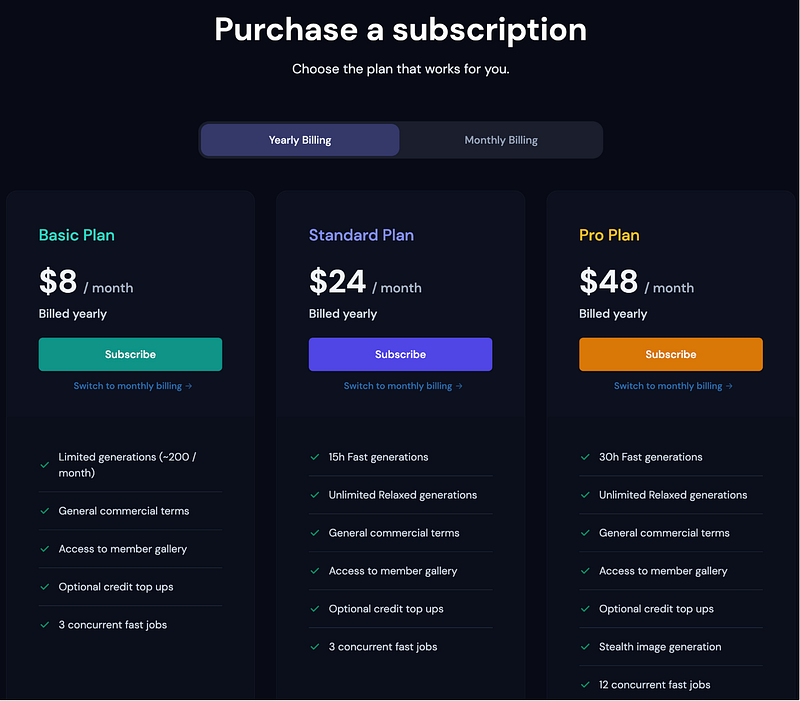
Choose a plan and finish purchasing the subscription. Then go back to the direct message with Midjourney Bot on Discord.
Step 7: Generate AI Art
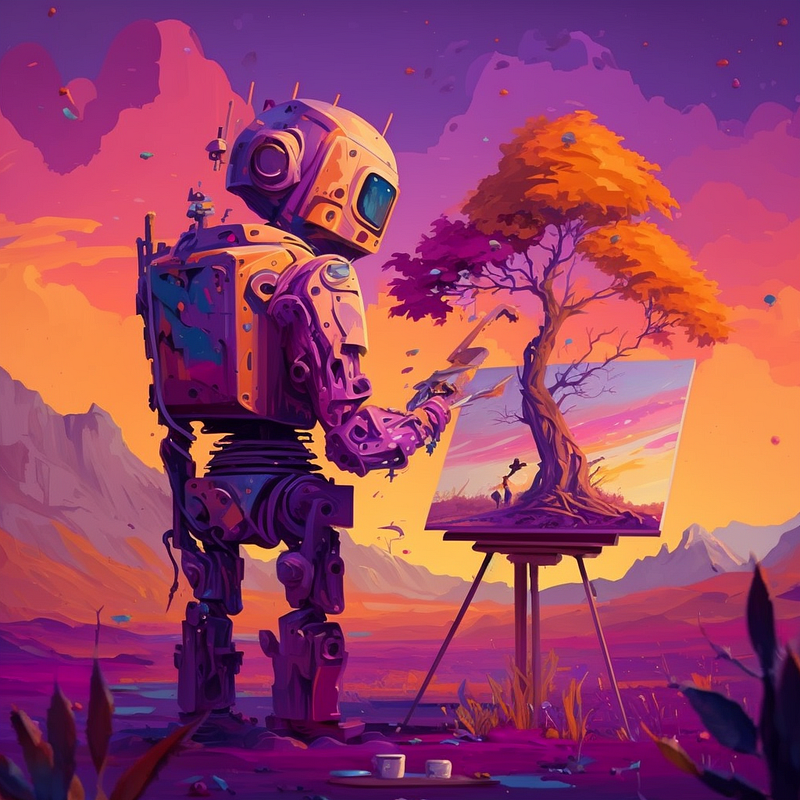
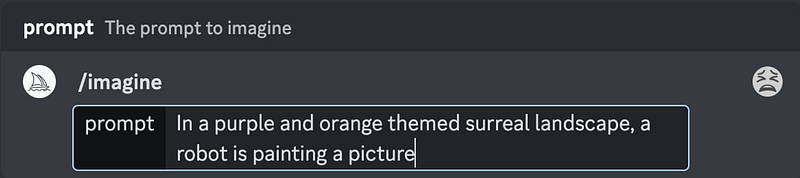
The AI art can be generated by writing prompts in the message. All the prompts start with /imagine. I used the prompt In a purple and orange themed surreal landscape, a robot is painting a picture.
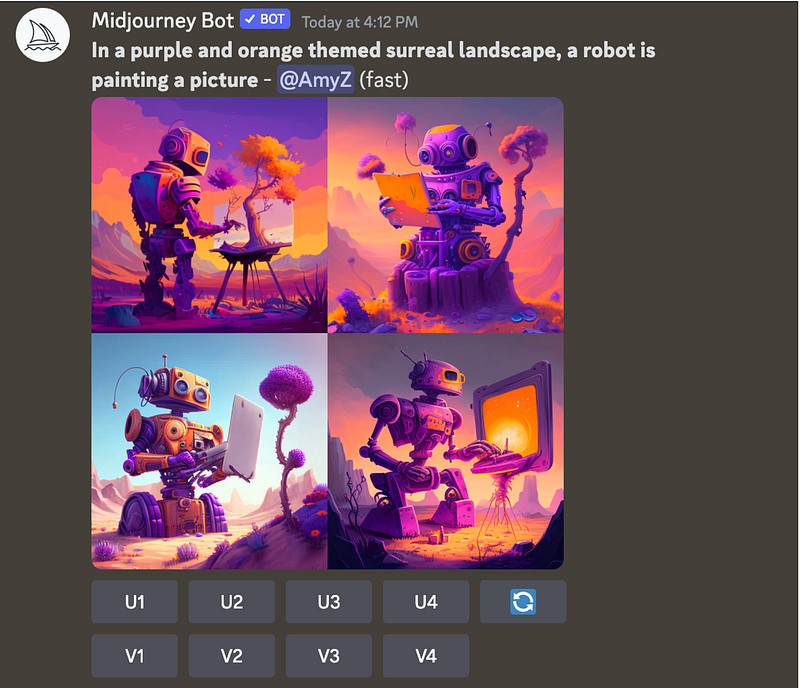
And here are the four generated images:
Step 8: Refine Images
There are two ways to refine the images, creating variations and upscaling the image to higher resolutions and more details.
Below the AI-generated images, there are two rows of buttons. The buttons starting with V indicate variations and the buttons starting with U indicate upscalings. The button with the blue square is for regenerating images.
I would like to create variations for the first image, so I clicked V1, and four new images that are slightly different from image 1 are created.
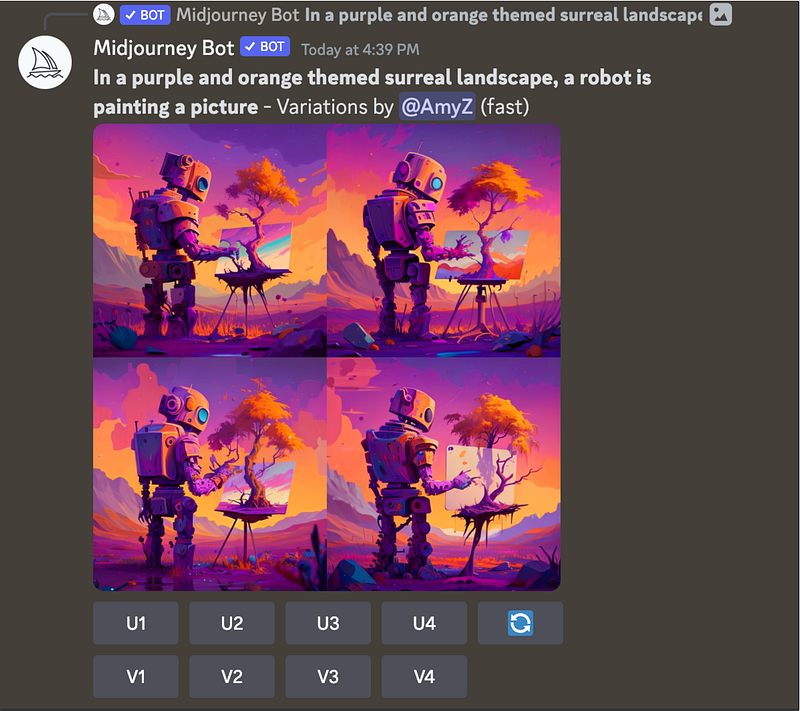
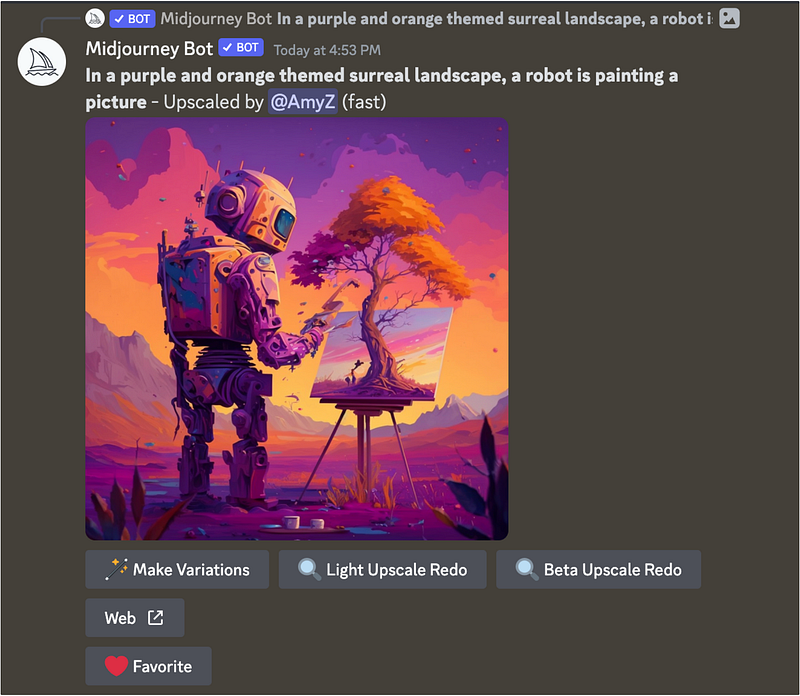
Out of the four variations, my favorite is the third one, so I clicked on U3 and upscaled it. The upscaled image has more details, including the colorful falling leaves. There are other options available for more variations and upscaling, but I am happy with this one and will use it as the final image.
Step 9: Download AI-generated Image
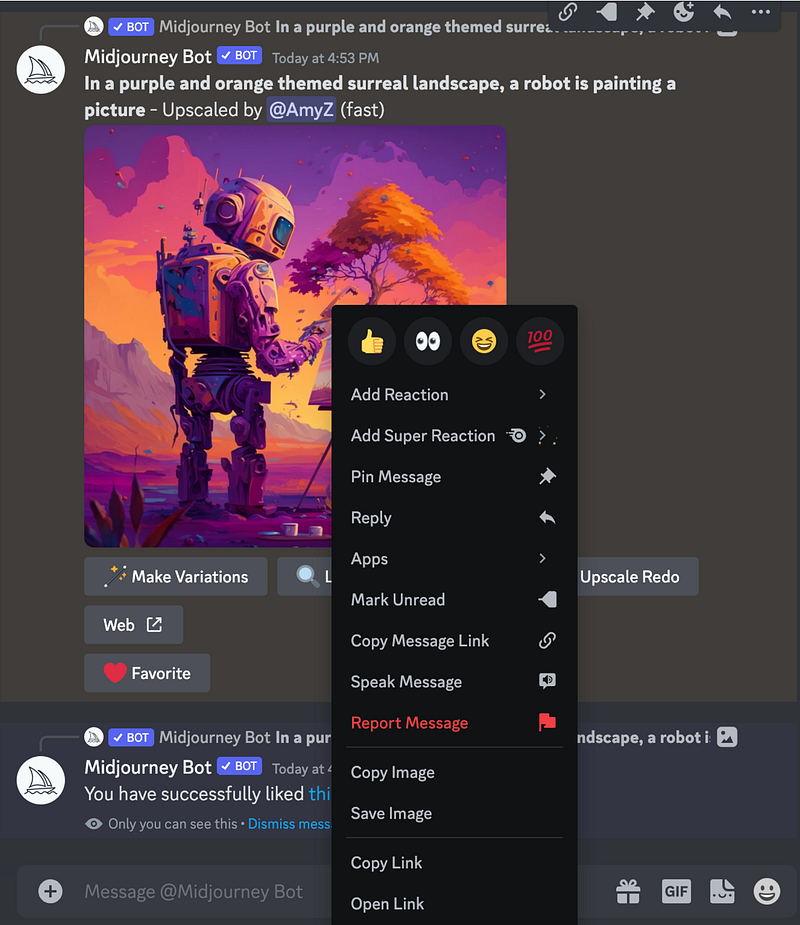
To save the image, we can either right-click on it and select Save Image or copy the link to the image and use it directly.
Midjourney is an excellent tool, but it requires a paid plan and can only be used through Discord. For those who prefer a free alternative, I will be creating a new tutorial on how to create AI art using a different tool. If you want to stay updated, please follow or subscribe to be notified when the new tutorial is available.
More tutorials are available on GrabNGoInfo YouTube Channel, GrabNGoInfo.com, and LinkedIn.
Recommended Tutorials
- GrabNGoInfo Machine Learning Tutorials Inventory
- Create Beautiful AI Art Using Python KerasCV StableDiffusion on Google Colab
- Topic Modeling with Deep Learning Using Python BERTopic
- Five Ways To Create Tables In Databricks
- Time Series Anomaly Detection Using Prophet in Python
- Multivariate Time Series Forecasting with Seasonality and Holiday Effect Using Prophet in Python
- Time Series Causal Impact Analysis in Python
- 3 Ways for Multiple Time Series Forecasting Using Prophet in Python