
Create a new Angular application
Angular is an open-source JavaScript framework. It provides a clear structure that helps developers with ease and build large-scale and maintainable applications. Most of the Tech giants from Social media to Health care use this framework to offer their services.
Let’s start our Angular journey by creating our first Angular application. It’s super simple. Follow these three steps:
- Install Node JS
- Install Angular CLI
- Use ng new command
Before we dive into each of these steps, do watch my youtube channel InterviewPro where I have created a video on creating the first Angular application with a detailed explanation. Also, don’t forget to subscribe :)
Link to video: https://youtu.be/BfdqjLT-zzQ?si=EcLenur_tdPhjTSx
Install Node JS:
Browse https://nodejs.org/en and move to the Downloads section in the navigation bar.
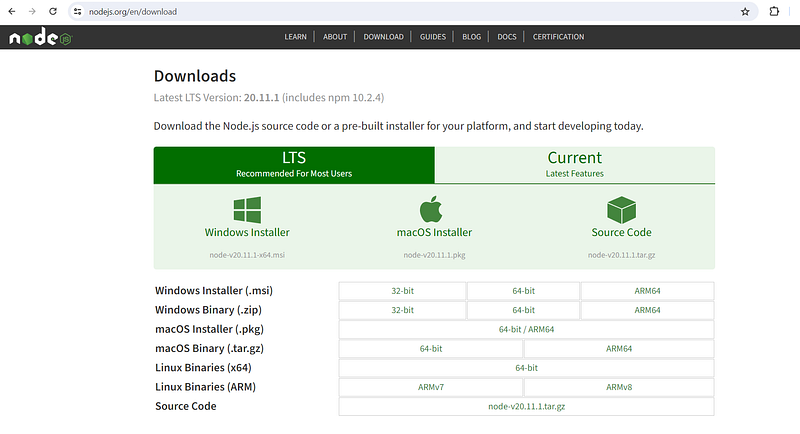
Based on your operating system 32-bit or 64-bit option for the respective operating system.
Once the download is completed, just click on the msi. This will open up Node.js setup wizard.
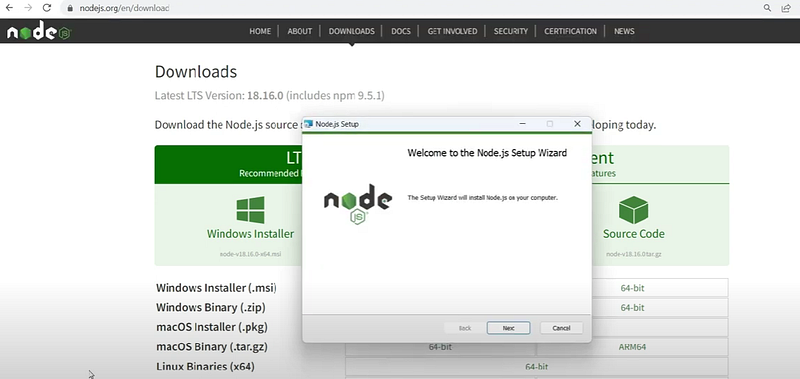
Click on Next.
Accept the terms and conditions.
Continue to click Next until you find the Install button.
This will start installing node js and it will take some time.
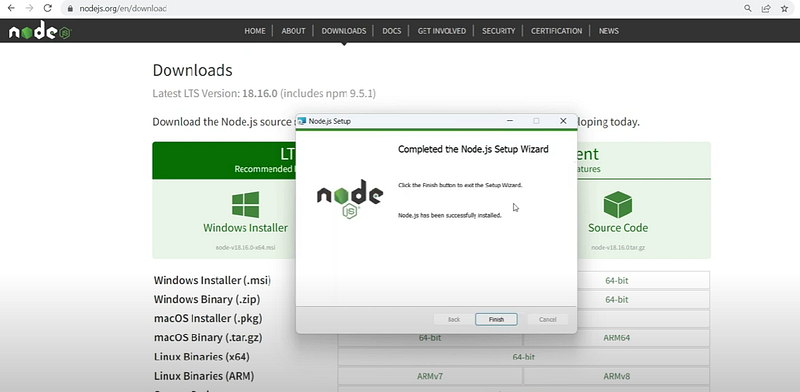
Once the installation is complete, click on Finish.
Node js is installed successfully.
To verify the installation, go to the command prompt and navigate to any folder of your choice.
Type the command
node -v
This command gives the version of the node js.
Along with node, npm will also be installed. To check npm version, use the command
npm -v
Install Angular CLI
Previously we used to create the Angular project manually and install all the required packages using npm. This process has been simplified with the introduction of Angular CLI (Command Line Interface).
Angular CLI will allow us to quickly create our project with all the files and necessary configurations with just one command.
First, install the angular cli package from npm using the command
npm i -g @angular/cli
- -i : install
- -g: global
This command will install angular CLI system-wide so that you don’t have to repeat this step every time you create a new project.
To check the version on angular cli, use the command
ng version
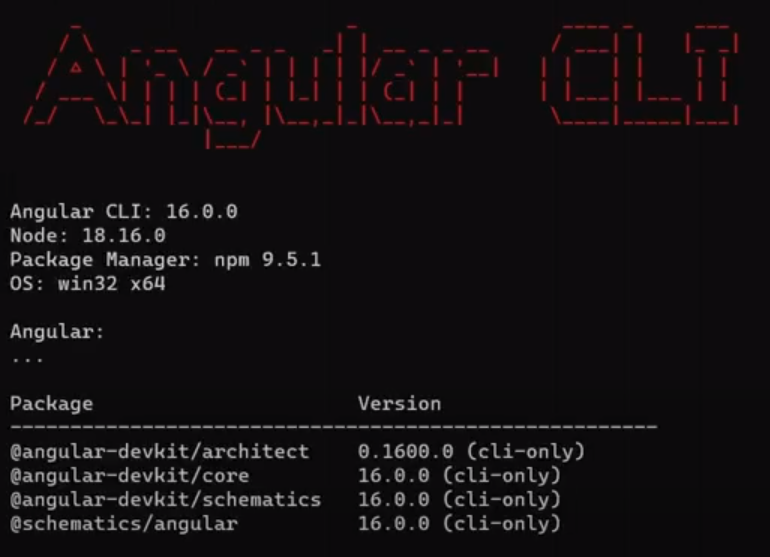
The version that we installed is 16.0.0. If the CLI is not properly installed, you will see an error “ng is not a recognized command”.
Use ng new command
The command to create a new project is
ng new
I will name it angular-tutorial. So my command looks like
ng new angular-tutorial
This command will ask a few questions on routing and styles. Just press y (yes) or select an option and press enter. This will start installing all the packages required to setup your Angular project.
Once the project is created, navigate to the project folder.
cd angular-tutorial
Now, to see how the project looks like, use the command
ng serve
This will build our application and render UI onto the browser.
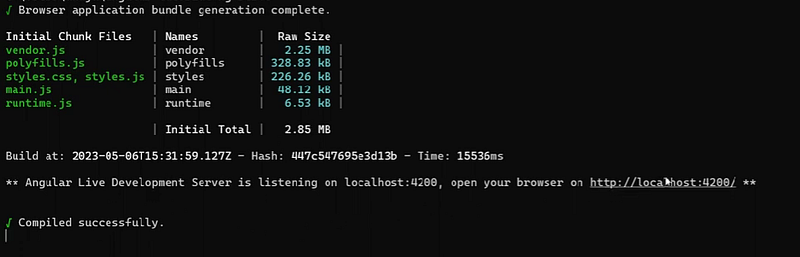
Click on the localhost link provided by the cli. This is what your application looks like.
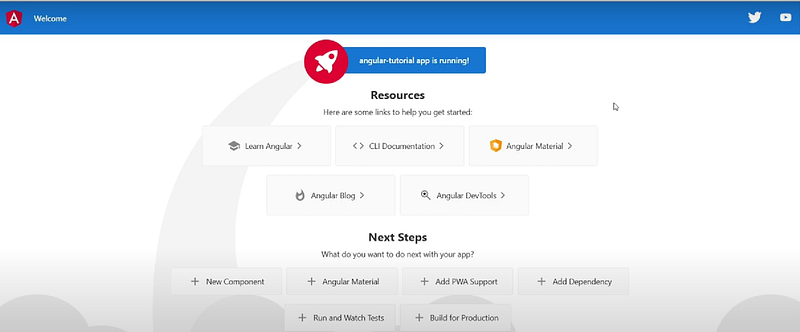
Congratulations! Your first Angular application is ready.
Coming up: Understanding Angular project structure
Keep following my articles to learn more about Angular and don’t forget to subscribe to my channel InterviewPro.
Thank you.


