
Consume Azure OpenAI API within Microsoft Azure Logic Apps
In recent years, artificial intelligence (AI) has become an integral part of the modern business landscape. Organizations around the world are using AI to automate routine tasks, generate insights from data, and create new products and services.
OpenAI, one of the leading AI research organizations, has partnered with Microsoft Azure to offer a suite of AI tools and services to Azure customers. In this blog post, we will explore how to leverage the power of Azure OpenAI within Microsoft Azure Logic Apps.
What is Azure OpenAI?
Azure OpenAI is a collaboration between Microsoft Azure and OpenAI to provide developers with access to state-of-the-art AI tools and services. Azure OpenAI offers a wide range of services, including language models, computer vision, decision-making, and robotic automation. These services can be used to build AI applications for a variety of industries, including healthcare, finance, and manufacturing.
One of the key benefits of Azure OpenAI is that it allows developers to leverage OpenAI’s research expertise without needing to have their own in-house AI research teams. This makes it easier for companies of all sizes to adopt AI and unlock its full potential.
Differences between Azure OpenAI and ChatGPT
ChatGPT is an AI language model developed by OpenAI, which is part of the Azure OpenAI suite of tools and services. ChatGPT is designed to understand and respond to natural language input, making it ideal for chatbots and other conversational interfaces.
While Azure OpenAI and ChatGPT are both AI tools and services, there are some key differences between them. One of the main differences is that Azure OpenAI is a suite of tools and services that includes language models, computer vision, decision-making, and robotic automation, while ChatGPT is focused specifically on natural language processing.
Another difference between Azure OpenAI and ChatGPT is their level of accessibility. Azure OpenAI is designed to be used by developers and data scientists, while ChatGPT is a pre-trained language model that can be used by anyone with basic programming knowledge. This means that while ChatGPT is easier to use, it may not be as flexible or customizable as the tools and services offered by Azure OpenAI.
While ChatGPT is part of the Azure OpenAI suite, it is focused specifically on natural language processing and is more accessible to non-technical users.
Azure OpenAI service models
Azure OpenAI offers several AI services that developers can use to build intelligent applications. These services are designed to solve a wide range of AI problems, from natural language processing to computer vision. The following are some of the key Azure OpenAI service models:
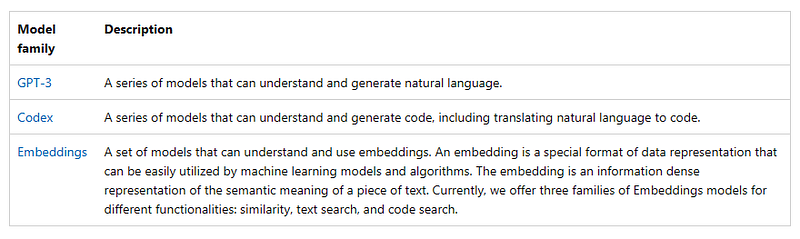
Azure OpenAI Service REST API
The REST APIs are broken up into two categories:
- Management APIs: The Azure Resource Manager (ARM) provides the management layer in Azure that allows you to create, update and delete resource in Azure.
- Service APIs: Azure OpenAI provides you with a set of REST APIs for interacting with the resources & models you deploy via the Management APIs.
In this post we will consider Service APIs and use them in an Azure Logic App.
Azure Logic App — Azure OpenAI
As an example, I developed an Azure Logic App to automatically answer OpenAI questions received via email.
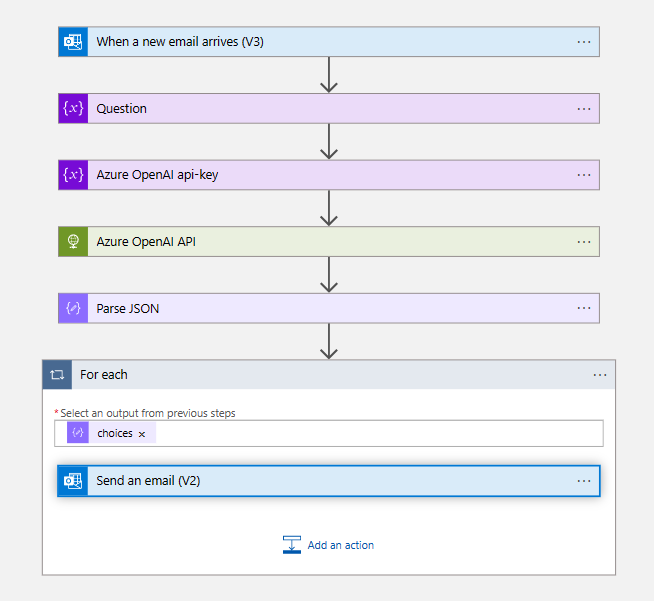
The email body of the new email is then passed to the “Question” variable. This triggers the “Azure_OpenAI_api-key” action to initialize the “api-key” variable with the OpenAI API key required to make requests to the OpenAI service.
The “Azure_OpenAI_API” action is then called, which sends a POST request to the OpenAI API with the email body as the question prompt. The response is a JSON object that is passed to the “Parse_JSON” action for parsing.
The “Parse_JSON” action extracts the answer text from the response JSON and passes it to the “For_each” action, which sends an email response to the original email address with the answer text included in the email body. The email is sent using the Office 365 API connection.
Here’s a table summarizing the main actions and triggers of this Logic App:
+-------------------------------------------------+----------------------+-------------------------------------------------------------------------------------------------------------+
| Trigger                                         | Action               | Description                                                                                                 |
+-------------------------------------------------+----------------------+-------------------------------------------------------------------------------------------------------------+
| When_a_new_email_arrives_(V3)                   | None                 | Listens for new emails in the "Inbox" folder with subject line containing "OpenAI question".                |
|                                                 | Question             | Assigns the email body to a "Question" variable.                                                            |
|                                                 | Azure_OpenAI_api-key | Initializes the "api-key" variable with the OpenAI API key required to make requests to the OpenAI service. |
|                                                 | Azure_OpenAI_API     | Sends a POST request to the OpenAI API with the email body as the question prompt.                          |
|                                                 | Parse_JSON           | Extracts the answer text from the response JSON and passes it to the "For_each" action.                     |
| For_each                                        | Send_an_email_(V2)   | Sends an email response to the original email address with the answer text included in the email body.      |
| When_a_new_email_arrives_(V3), Azure_OpenAI_API | None                 | Azure Office 365 connection used to access new email messages and to send email responses.                  |
+-------------------------------------------------+----------------------+-------------------------------------------------------------------------------------------------------------
Note: By using the Azure Key Vault connector in Logic Apps, you can securely retrieve the API keys from the Key Vault and use them in your Logic App. This eliminates the need to store the API keys directly in the Logic App, which further reduces the risk of exposure.
Using Azure Key Vault to store and manage your API keys is a good security practice that can help protect your data and applications. It’s not covered in this post.
Let’s analyze playbook details.
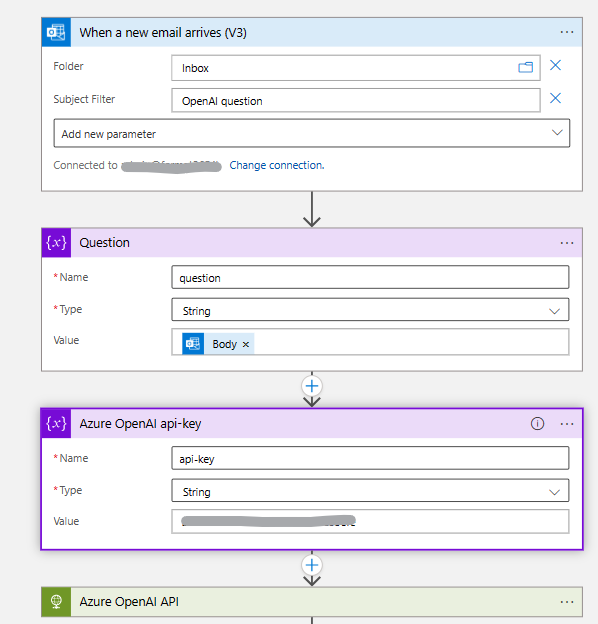
The trigger I utilized for this scenario was “When_a_new_email_arrives_(V3)”, but you have the flexibility to customize your playbook by selecting the relevant trigger. For instance, you can set up the trigger to initiate playbook execution when an email with a specific subject, such as “OpenAI question,” arrives in the connected mailbox.
In the next step playbook initialize a variable “question” with e-mail body estracted from step before.
Note: use a plaintext email in order to allow the correct evaluation of the “Question” variable. This step can be improved to extract the question without considering any signature present or to handle cases where the email is sent in html format.
Next step is to setup Azure OpenAI api-key for authetication.
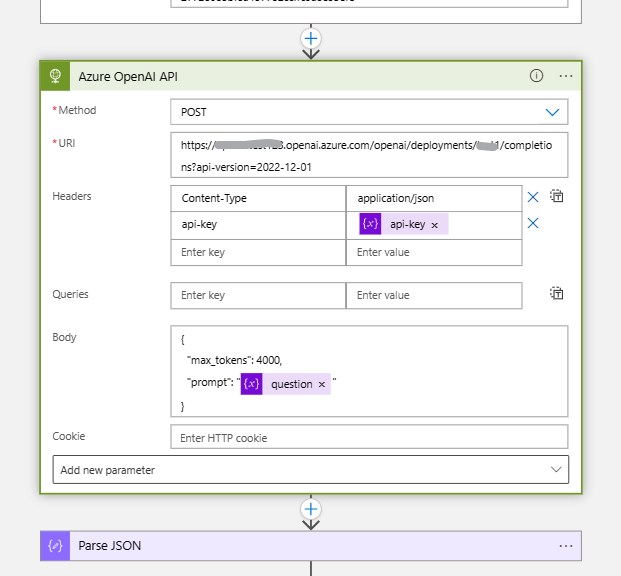
This is the most important step in our flow, HTTP post asking question to your Azure OpenAI istance.
- In the “HTTP” method, select “POST”.
- In the “URI” field, enter the URL for the Azure OpenAI API endpoint that you want to use.
Note: URI format is like:
get {your-resource-name} and {deployment-id} from you Azure OpenAI Playground. API version supported 2022-12-01
- In the “Headers” field, add the necessary headers for the API endpoint. These headers include at least your API key, content type (application/json).
- In the “Body” field, specify the data that you want to send in the POST request. This data should be formatted according to the API endpoint’s requirements. We use “question” variable discussed before.
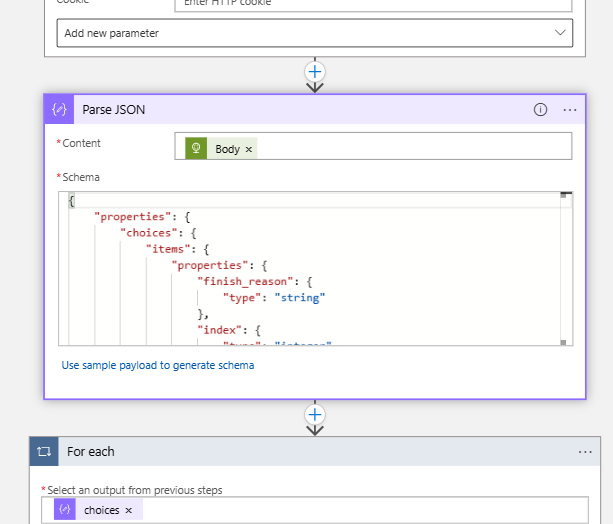
In order to consume Azure OpenAI output, JSON parsing step is required.
Tips: use following schema:
{
    "properties": {
        "choices": {
            "items": {
                "properties": {
                    "finish_reason": {
                        "type": "string"
                    },
                    "index": {
                        "type": "integer"
                    },
                    "logprobs": {},
                    "text": {
                        "type": "string"
                    }
                },
                "required": [
                    "text",
                    "index",
                    "finish_reason",
                    "logprobs"
                ],
                "type": "object"
            },
            "type": "array"
        },
        "created": {
            "type": "integer"
        },
        "id": {
            "type": "string"
        },
        "model": {
            "type": "string"
        },
        "object": {
            "type": "string"
        },
        "usage": {
            "properties": {
                "completion_tokens": {
                    "type": "integer"
                },
                "prompt_tokens": {
                    "type": "integer"
                },
                "total_tokens": {
                    "type": "integer"
                }
            },
            "type": "object"
        }
    },
    "type": "object"
}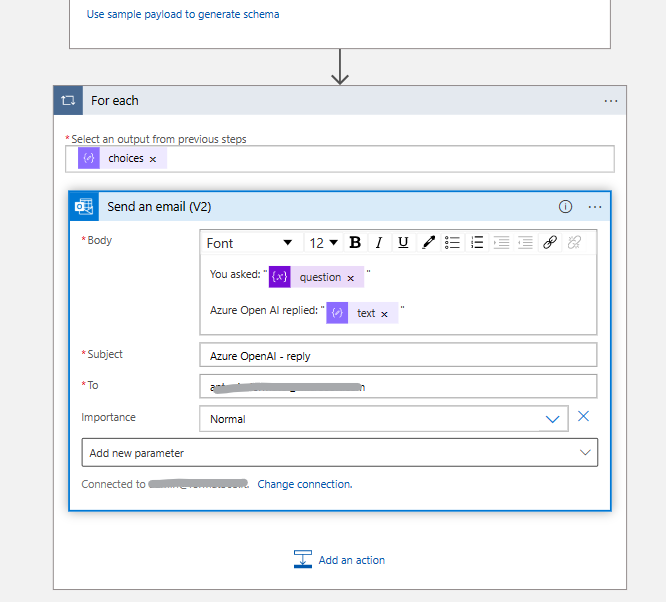
Final step: send e-mail with Azure OpenAI output, using block “Send an email (V2)”
Final result:
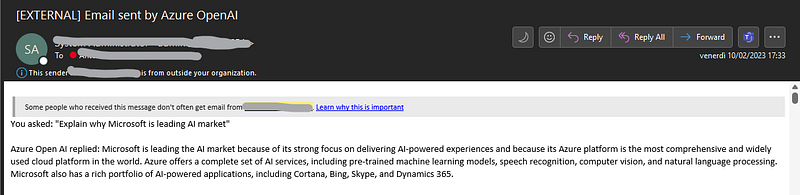
Please consider it’s just an example, let me know in comment how you are going to use Logic App to interact with Azure OpenAI.
You can get ARM template of this example playbook from my GitHub repo:
References:
Disclaimer: Opinions expressed are solely my own and do not express the views or opinions of my employer.


