
Comprehensive Guide to Looker Deployment and Best Practices — Part 2
In the previous installment of this Looker series, we delved into a couple of pivotal considerations while deploying Looker.
- The choice of Single Vs. Multiple Looker Environments
- When to Choose Single Vs. Multiple Looker Projects to Organize Content

In this Part 2 of this Looker series, I would be covering
- LookML Dashboard Vs. User Defined Dashboard
- CODEOWNERS: Enhancing Code Review and Accountability
LookML Dashboard Vs User Defined Dashboard
User-Defined Dashboards (UDD) are created and modified through Looker’s intuitive WYSIWYG interface. Their definitions are housed in Looker’s internal database instead of a text file; consequently, they are not subject to git version control.
On the other hand, LookML Dashboards are defined using a YAML file, facilitating seamless integration into git version control. This integration allows for efficient change management and tracking of version histories.
Although UDD and LookML Dashboards are functionally similar to the point where end-users will not see any difference, it’s crucial to decide which format to use for maintaining these dashboards. This decision becomes particularly important in a multistage Looker environment, where you may need to promote these dashboards from a lower development environment to a production environment.
Why does this matter? Looker does not provide out-of-the-box tools to migrate UDD dashboards between environments. If you’re using a LookML dashboard, no additional effort is required for migration since LookML dashboard definitions are part of the git repository. However, there are some potential downsides to maintaining dashboards in LookML format. It can be difficult to make updates, as you will be dealing with YAML code, which can be more challenging to modify than the UDD’s click, drag, and drop interface.
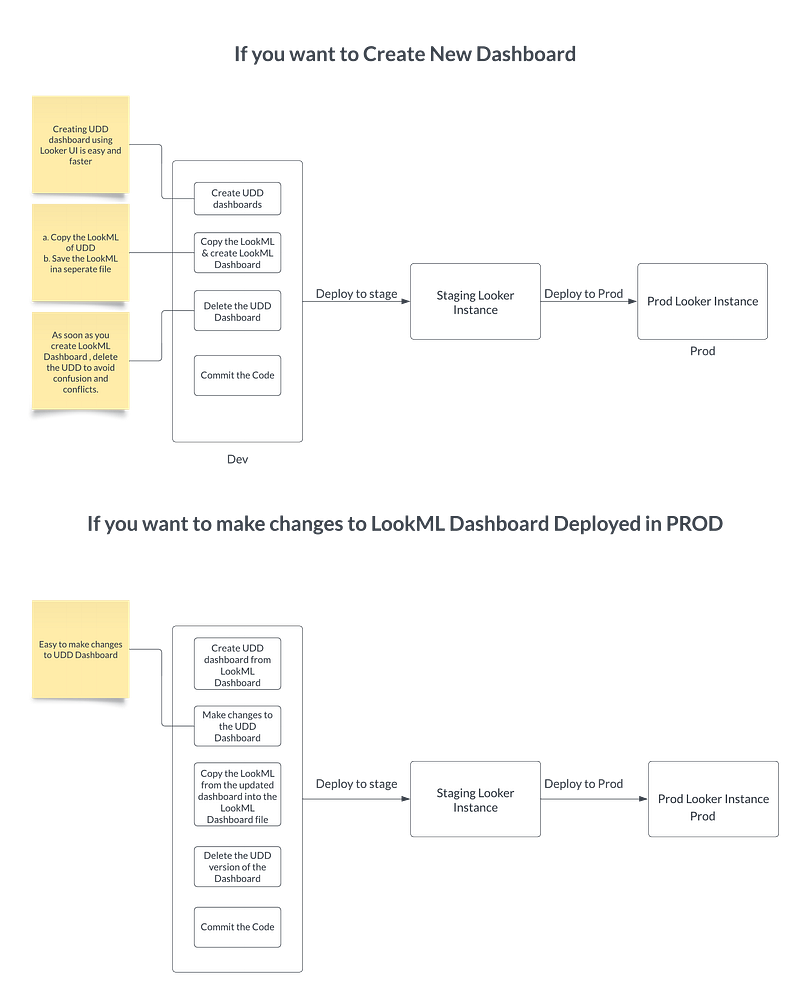
To make the most out of both formats, you can leverage functionality within Looker to convert dashboards from UDD to LookML and vice versa. This approach takes advantage of what each format does best. The trick is to convert to UDD when you want to make changes and, once done, save it as a LookML dashboard.
Consider LookML dashboards only if
- You have multiple environments and need to migrate from a lower to a higher environment.
- You want to version control the dashboards.
If neither of the above scenarios applies to you, choose UDD dashboards.
Use the below workflow to leverage both formats when you have multi Looker environments
CODEOWNERS: Enhancing Code Review and Accountability
The CODEOWNERS file in Git is utilized to designate individuals or teams accountable for code within a repository. Ownership can be assigned to a file or a directory within the repository. The CODEOWNERS file should be located in the repository’s root directory.
These specified owners are automatically summoned for review whenever a pull request is initiated. The settings can be configured so that owners are required to approve the pull request if there are any modifications to the files they are responsible for, especially if these changes need to be merged with the main branch.
If your repository contains Dashboards and Explores for various departments or business units, it’s crucial to establish a CODEOWNERS file that delineates the ownership of different code segments. While anyone can contribute to the code, the designated owner of a particular code segment is ultimately responsible for approving the alterations. Ideally, you should assign a subject matter expert within the respective business area to serve as the code owner.
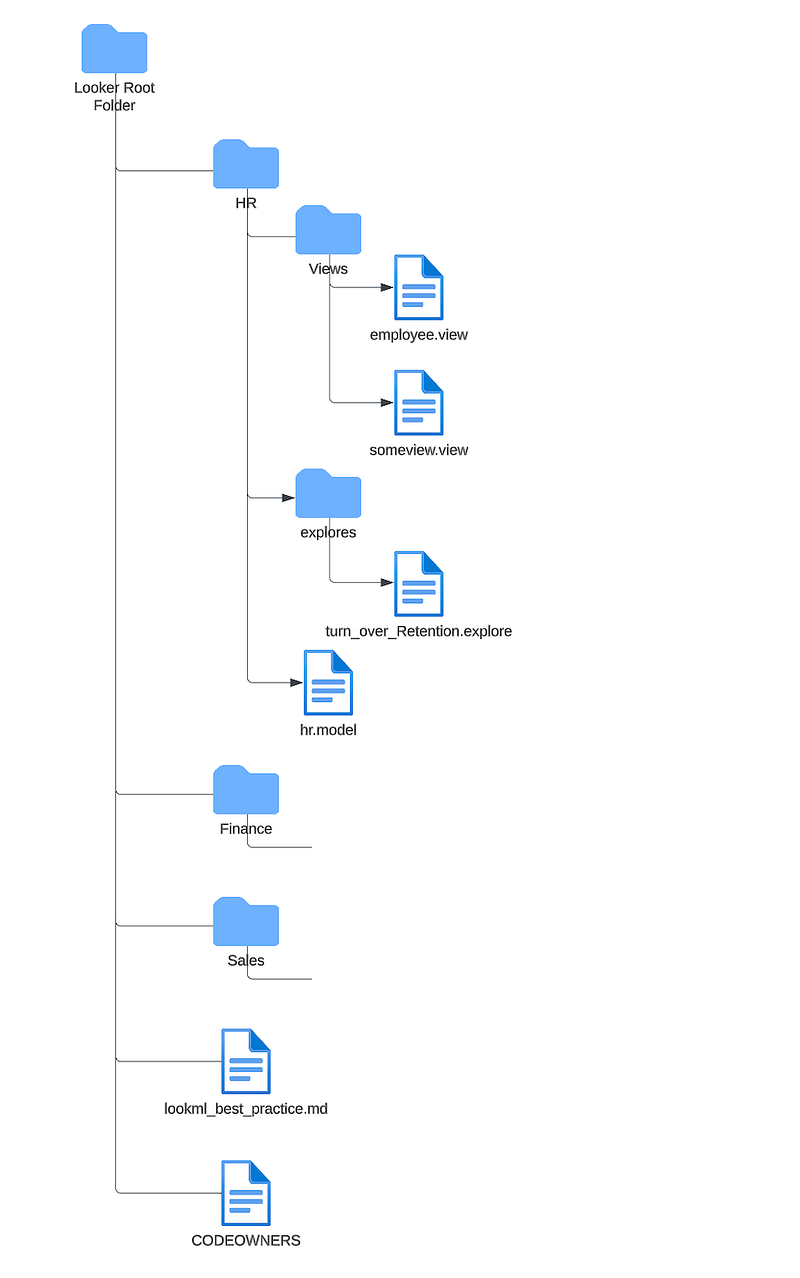
In the above LookML repo, individual folders have been established to accommodate the code for different departments. Additionally, there’s a “Common” folder intended to store definitions that are applicable company-wide. Other departments can reuse these definitions by leveraging the “extend” feature
# This is a sample CODEOWNERS file.
# It defines the code owners for certain files in the GitHub repository.

# The AnalyticsManagerTom is the default owner for all files in the repository.
* @AnalyticsMangerTom

# These owners will be the owners for their specific files and directories.
# They will take precedence over the default owner.

/HR/ @JanetheHRLead
/Finance/ @AlicetheFinanceLead
/Sales/ @BobtheSalesLead
Each departmental folder has a designated code owner. Furthermore, an owner is assigned to the entire codebase, who could be a team manager or an architect.
If you wish to make any alterations to files in the “Common” folder, the lookml_best_practice.md, or the CODEOWNERS file, approval from the team manager is required. If the changes pertain to department-specific folders, the respective code owner must approve them.
I hope you found this article valuable. Stay tuned for the next installment in this series, where I will cover some other considerations and best practices while deploying Looker.
I hope you found this article valuable. Part 3 of this series covers below topics
- Leveraging constants in Manifest Files
- Explore Setup — Best practices
If you have any further questions, suggestions, or just want to connect and continue the conversation, I would be delighted to hear from you on Linkedin


