
Commands History in Bash: 5 Questions To Help You Master It
Using and managing old Linux commands like a guru

When you are doing an operation under GUI, even if you know you did it before, you have to do it again in most cases.
Repeating yourself is not productive, is it?
The good news is, when you are doing an operation under a Linux terminal, you never have to repeat yourself.
The commands history mechanism in Linux will be your best friend if you use Linux long enough.
The reason is obvious, if you can quickly find an old command and execute it again, why bother to think about how to write it again?
This article will explain 5 essential questions about the commands history in Bash. Other Unix shell implementations may have something different but most of them are similar.
1. How Does the Commands History Mechanism Work
When a shell session is opening, all commands you executed were temporarily saved in memory.
So anytime you would like to check historical commands in the session, just execute the history command.
By default, bash will save 1000 recent records of commands. If you only want to check the latest N records, add the number N:
history NAfter you exit the session, the history of executed commands will be saved persistently into a file called .bash_history.
To locate this file, check the environment variable HISTFILE:
echo $HISTFILETo change the default behaviours, there are two commands:
history -c: clear the history in memoryhistory -w: save the in-memory history to the file
2. How To Execute a Historical Command
After executing the history command, the results list all the historical commands with their “id”. As the following screenshot:
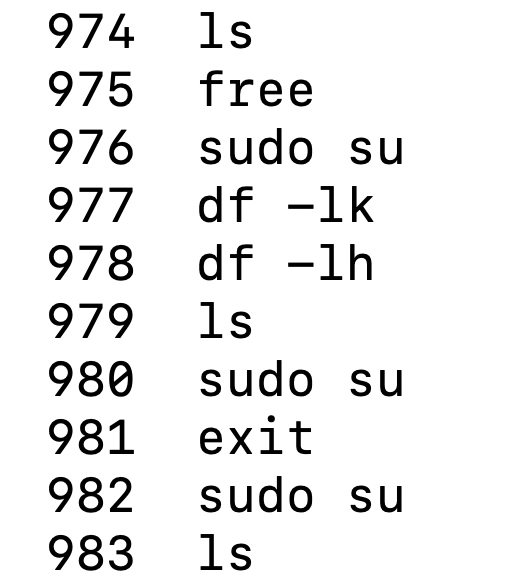
Therefore, it’s very convenient to execute an old command. Just an exclamation mark following its id.
For example, let’s execute the 980th command:
!980If you just want to execute the last command again, here is another trick:
!!
Yes, just use two exclamation marks. 😎
If you want to execute the 5th to last:
!-5Last but not least, you’re always free to use the up and down keys on your keyboard to go through historical commands one by one.
3. How To Search Historical Commands
There are 3 common ways to search historical commands in bash.
Searching history through grep commands
If you are familiar with grep commands, it’s very simple to search something you need. For example, the following is how to search all historical commands including “sudo”:
history|grep "sudo"Search history by the exclamation mark syntax
The ! has more power. Besides executing old commands, it can also help to find an old command.
For example, let’s find an old command which includes curl:
!curlThe above operation will execute the first found historical command immediately. It’s not safe if you only know it contains “curl” but can’t fully remember what it is.
So, adding a :p option to only print the found command is safer:
!curl:pInteractive searching
Another trick is pressing “Ctrl” and “R” at the same time to enter the interactive searching mode. Then type the keyword you want to search for. If multiple commands are matched, you can press “Ctrl+R” multiple times to switch to the previous matching command:

4. How To Print Date and Time for Historical Commands
When it comes to history, time is important. To display the execution time of historical commands, you can set an environment variable:
export HISTTIMEFORMAT='%F %T 'Now run the history command again and the list will include date and time with the specific format:

5. How To Control the Number of Historical Records
By default, the system will record 1000 recent commands. But this is the Linux world, everything can be customised by yourself for sure. 🙂
To customise it, you can change two relative environment variables:
HISTSIZE: To control the maximum number of historical records in memoryHISTFILESIZE: To control the maximum number of historical records in the.bash_historyfile
Thanks for reading. If you like it, don’t forget to follow me and join as a Medium member to enjoy more great articles.
Relative posts: