
Line Chart using React.js d3.js & TypeScript with the help of d3.bisector interaction — Part II
To create interactivity of the mouse following the plotted data there is a need to do a calculation of the closest point to the mouse. Luckily, d3 has a method d3.bisector that can help us with these calculations. In this two-part tutorial, I will show you how to work with d3.bisector.
In the first part of this two-part series, I was working with two linear scale values as the metric and in this part, part two I will be working with value and time metrics using d3.bisector.
I created each tutorial so it can be used as standalone and use the part I, if you need two linear scales as metrics, or part II for time, value metrics.
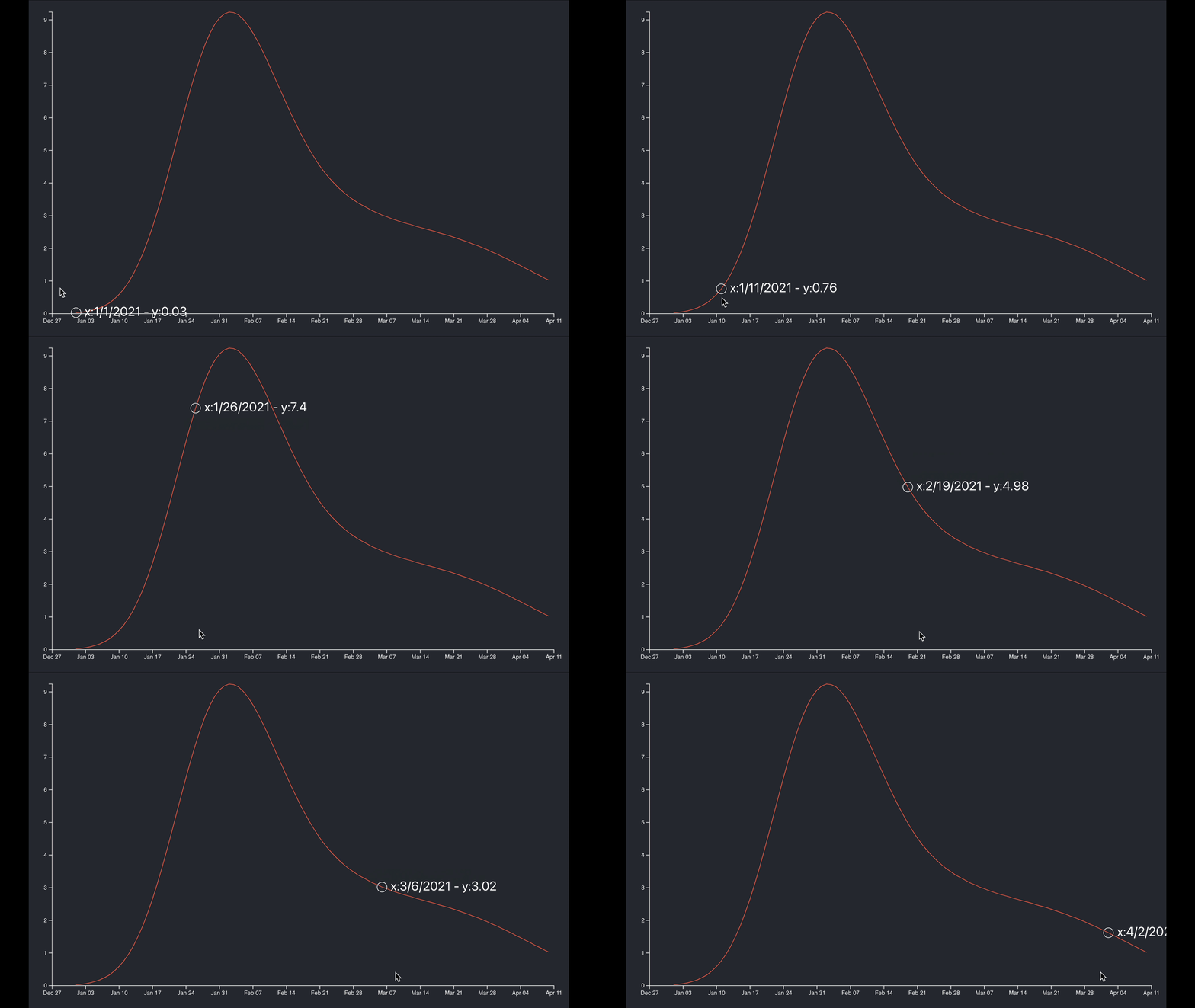
You can see the final result of this tutorial below;
Setting up your project
I will be using CRA (SPA) using the MHL template to get TS, SCSS, formatting, templates, linting, etc.
$ yarn create react-app bisector --template must-have-librariesAdd d3, d3-cloud and types;
$ yarn add d3 @types/d3data.csv
A good place to start when working with charts is from the data. The data is made out of three metrics: x, y values, and the date. We will be using here the date as time scale and the y-value.
/public/data/line.csv
x,y,date
1,0.03,1/1/2021
2,0.04,1/2/2021
3,0.06,1/3/2021
4,0.09,1/4/2021
5,0.13,1/5/2021
6,0.18,1/6/2021
7,0.25,1/7/2021
8,0.33,1/8/2021
9,0.45,1/9/2021
...
To creating the components we will be using my templates;
$ npx generate-react-cli component LineChartDateBisector --type=d3WidgetComponent$ npx generate-react-cli component LineChartDateBisectorWidget --type=d3WidgetThese templates will create for you the following files we need;
- widgets/LineChartDateBisectorWidget/types.ts
- components/LineChartDateBisector/LineChartDateHelper.tsx
- widgets/LineChartDateBisectorWidget/LineChartDateBisectorWidget.tsx
- components/LineChartDateBisector/LineChartDateBisector.tsx
types.ts
Next, we want to set some types for TypeScript. The Data object matches the data.csv metric format by setting up the y-value and date as the metrics. The Dimensions object will help us pass some props values from the widget to the actual chart components;
// src/widgets/LineChartWidget/types.tsexport namespace Types {
export type Data = {
date: string
y: number
}
export type Dimensions = {
width: number
height: number
margin: {
left: number
right: number
top: number
bottom: number
}
boundedWidth: number
boundedHeight: number
}
}LineChartDateBisectorHelper.tsx
In the LineChartDateBisectorHelper, I am setting some of the classes with private members so the class can be set so we can change the data metrics that the chart will be using. Other members can be set as static so the helper doesn’t need to be initialized.
The helper includes the layout, setting up dimensions and scales, take a look;
// src/component/LineChartDateHelper/LineChartDateHelper.tsx

import * as d3 from 'd3'
import { Types } from '../../widgets/LineChartDateBisectorWidget/types'

export default class LineChartDateBisectorHelper {
  private readonly metric: string[]

  constructor(metric: string[]) {
    this.metric = metric
  }

  static dateParser = d3.timeParse('%m/%d/%Y')

  // @ts-ignore
  public xAccessor = (d: Types.Data) => LineChartDateBisectorHelper.dateParser(d[this.metric[0]] as string)

  // @ts-ignore
  public yAccessor = (d: Types.Data) => d[this.metric[1]]

  static getDimensions = (width: number, height: number, left: number, right: number, top: number, bottom: number) => {
    const dimensions = {
      width,
      height,
      margin: {
        left,
        right,
        top,
        bottom,
      },
      boundedWidth: 0,
      boundedHeight: 0,
    }
    dimensions.boundedWidth = dimensions.width - dimensions.margin.left - dimensions.margin.right
    dimensions.boundedHeight = dimensions.height - dimensions.margin.top - dimensions.margin.bottom

    return dimensions
  }

  static getScales = (data: Types.Data[], width: number, height: number, metric: string[]) => {
    const helper = new LineChartDateBisectorHelper(metric)
    return {
      xScale: d3
        .scaleTime()
        .domain(d3.extent(data, helper.xAccessor) as [Date, Date])
        .range([0, width])
        .nice(),
      yScale: d3
        .scaleLinear()
        .domain([
          0,
          d3.max(data, (d) => {
            return Math.max(...data.map(helper.yAccessor), 0)
          }),
        ] as [number, number])
        .range([height, 0]),
    }
  }
}
For the yScale, I am using a scaleLinear and Math.max to calculate the value range. For xScale I will be using the scaleTime as its date values.
LineChartDateBisectorWidget.tsx
The LineChartDateBisectorWidget, is the parent component to hold the chart as well as any other elements that I need to interact with, for example, it can include other charts, lists, UI elements, and title elements.
The widget component loads the data and allows sharing the data between the components, so there is no need for redundancy. This can be tight in with the data management library like Redux or Recoil.
I am also setting up a loader to make sure the data is loaded. This can be replaced with a spinner or anything you need.
The dimensions are set as a reference and WindowDimensions a hook is used to listen to resize events from the DOM. It’s set as a ref so it can be used inside the useEffect, without the function being called all the time.
// src/widgets/LineChartWidget/LineChartDateBisectorWidget.tsx

import React, { useEffect, useRef, useState } from 'react'
import * as d3 from 'd3'
import { Types } from './types'
import useWindowDimensions from '../../hooks/WindowDimensions'

import LineChartDateBisectorHelper from '../../components/LineChartDateBisector/LineChartDateBisectorHelper'
import LineChartDateBisector from '../../components/LineChartDateBisector/LineChartDateBisector'

const LineChartDateBisectorWidget = () => {
  const [data, setData] = useState<Types.Data[]>([{ date: '', y: 0 }])

  const { width, height } = useWindowDimensions()

  const dimensions = useRef() as { current: Types.Dimensions }
  dimensions.current = LineChartDateBisectorHelper.getDimensions(width * 0.9, height * 0.9, 30, 50, 10, 20)

  // resize
  useEffect(() => {
    ((dimensions as unknown) as { current: Types.Dimensions }).current = LineChartDateBisectorHelper.getDimensions(width * 0.9, height * 0.9, 30, 50, 10, 20)
    // console.log(dimensions.current)
  }, [width, height])

  const loadData = () => {
    d3.dsv(',', '/data/line.csv', (d) => {
      return (d as unknown) as Types.Data[]
    }).then((d) => {
      setData((d as unknown) as Types.Data[])
    })
  }

  useEffect(() => {
    if (data.length <= 1) loadData()
  })

  return <>
    {data.length > 1
      ?
      <LineChartDateBisector
        dimensions={dimensions.current}
        data={data}
        propertiesNames={['date', 'y']}
      />
      :
      <>Loading</>}
    </>
}
export default LineChartDateBisectorWidget
WindowDimensions.tsx hook;
// src/hooks/WindowDimensions.tsximport { useState, useEffect } from 'react'function getWindowDimensions() {
const { innerWidth: width, innerHeight: height } = window
return {
width,
height,
}
}export default function useWindowDimensions() {
const [windowDimensions, setWindowDimensions] = useState(getWindowDimensions()) useEffect(() => {
function handleResize() {
setWindowDimensions(getWindowDimensions())
} window.addEventListener('resize', handleResize)
return () => window.removeEventListener('resize', handleResize)
}, []) return windowDimensions
}LineChartDateBisector.tsx
The LineChartDateBisector is the actual chart. Notice that I am creating: memoizedUpdateCallback with useCallback.
That way I can use them in multiple useEffects instead of copy-paste the code multiple times.
I keep track of data change, and the previous width and height of the document so I can redraw the chart on a resize event.
Inside memoizedUpdateCallback, I am drawing the chart and setting up the Peripherals.
Lastly, notice that I am setting most of the elements as JSX instead of adding them with d3 via append. d3 will append the text and circle once hover, but the rest is pure JSX.
// src/component/LineChart/LineChartDateBisector.tsx

import React, { useEffect, useCallback } from 'react'
import * as d3 from 'd3'
import { Types } from '../../widgets/LineChartDateBisectorWidget/types'
import LineChartDateBisectorHelper from './LineChartDateBisectorHelper'

const LineChartDateBisector = (props: ILineChartProps) => {
  const memoizedUpdateCallback = useCallback(() => {
    const scales = LineChartDateBisectorHelper.getScales(props.data, props.dimensions.boundedWidth, props.dimensions.boundedHeight, props.propertiesNames)
    const bounds = d3.select('#bounds')

    const helper = new LineChartDateBisectorHelper(props.propertiesNames)

    // draw chart
    const linesGenerator = d3
      .line()
      // @ts-ignore
      .x((d) => scales.xScale(helper.xAccessor(d)))
      // @ts-ignore
      .y((d) => scales.yScale(helper.yAccessor(d)))

    d3.select('#path')
      .attr('fill', 'none')
      .attr('stroke', 'tomato')
      // @ts-ignore
      .attr('d', linesGenerator(props.data))

    // Peripherals

    // yAxis
    const yAxisGenerator = d3.axisLeft(scales.yScale)
    bounds
      .select('#y-axis')
      // @ts-ignore
      .call(yAxisGenerator)

    // xAxis
    const xAxisGenerator = d3.axisBottom(scales.xScale)
    bounds
      .select('#x-axis')
      // @ts-ignore
      .call(xAxisGenerator)
      .style('transform', `translateY(${props.dimensions.boundedHeight}px)`)

    // @ts-ignore
    const bisect = d3.bisector((d) => {
      const currentDateSplit =  (d as {date: string}).date.split('/')
      const currentDate = {
        year: parseInt(currentDateSplit[2], 10),
        month: parseInt(currentDateSplit[0], 10),
        day: parseInt(currentDateSplit[1], 10),
      }
      return new Date(currentDate.year, currentDate.month, currentDate.day)
    })

    const focus = bounds
      .append('g')
      .append('circle')
      .style('fill', 'none')
      .attr('stroke', 'white')
      .attr('r', 8.5)
      .style('opacity', 0)

    const focusText = bounds
      .append('g')
      .append('text')
      .style('opacity', 0)
      .style('fill', 'white')
      .attr('text-anchor', 'left')
      .attr('alignment-baseline', 'middle')

    bounds
      .append('rect')
      .style('fill', 'none')
      .style('pointer-events', 'all')
      .attr('width', props.dimensions.width)
      .attr('height', props.dimensions.height)
      .on('mouseover', mouseover)
      .on('mousemove', mousemove)
      .on('mouseout', mouseout);

    function mouseover() {
      focus.style('opacity', 1)
      focusText.style('opacity', 1)
    }

    function mousemove(event: React.MouseEvent) {
      const [x, y] = d3.pointer(event)
      const x0 = scales.xScale.invert(x);
      const currentDateSplit = x0.toISOString().split('T')[0].split('-')
      const currentDate = {
        year: parseInt(currentDateSplit[0], 10),
        month: parseInt(currentDateSplit[1], 10),
        day: parseInt(currentDateSplit[2], 10),
      }

      let selectedData = props.data[props.data.length - 1]
      const i = bisect.right( props.data, new Date(currentDate.year, currentDate.month, currentDate.day) )
      if (i <= props.data.length - 1)
        selectedData = props.data[i]

      focus
        .attr('cx', scales.xScale(new Date(selectedData.date)))
        .attr('cy', scales.yScale(selectedData.y))
      focusText
        .html(`x:${  selectedData.date  }  -  y:${  selectedData.y}`)
        .attr('x', scales.xScale(new Date(selectedData.date))+15)
        .attr('y', scales.yScale(selectedData.y))
    }
    function mouseout() {
      focus.style('opacity', 0)
      focusText.style('opacity', 0)
    }

  }, [props.data, props.dimensions, props.propertiesNames])

  useEffect(() => {
    memoizedUpdateCallback()
  }, [memoizedUpdateCallback, props.data])

  return (
    <div id="div">
      <svg id="wrapper" width={props.dimensions.width} height={props.dimensions.height}>
        <g id="bounds" style={{ transform: `translate(${props.dimensions.margin.left}px, ${props.dimensions.margin.top}px)` }}>
          <path id="path" />
          <g id="x-axis" />
          <g id="y-axis" />
        </g>
      </svg>
    </div>
  )
}

interface ILineChartProps {
  dimensions: Types.Dimensions
  data: Types.Data[]
  propertiesNames: string[]
}

export default LineChartDateBisector
Few code lines I want to highlight, which is the core of dealing with date scale;
The d3.bisector allows finding the closest X index of the mouse. I am using the date split and creating a new date to match the format so the d3 bisector can compare the values. Having a different format of date between what you have in your data set and what d3.bisector will calculate will have your code fail silently.
    const bisect = d3.bisector((d) => {
      const currentDateSplit =  (d as {date: string}).date.split('/')
      const currentDate = {
        year: parseInt(currentDateSplit[2], 10),
        month: parseInt(currentDateSplit[0], 10),
        day: parseInt(currentDateSplit[1], 10),
      }
      return new Date(currentDate.year, currentDate.month, currentDate.day)
    })
The other difference between working with a linear scale and date is that on mouse move, to figure out the annotations we can recover the coordinate using invert and then convert the date format to toISOString and split the date from time and then I can use the bisect.right to calculate the closest right data to where the mouse is at.
    function mousemove(event: React.MouseEvent) {
      const [x, y] = d3.pointer(event)
      // recover coordinate we need
      const x0 = scales.xScale.invert(x);
      const currentDateSplit = x0.toISOString().split('T')[0].split('-')
      const currentDate = {
        year: parseInt(currentDateSplit[0], 10),
        month: parseInt(currentDateSplit[1], 10),
        day: parseInt(currentDateSplit[2], 10),
      }
App.tsx
On the entry point App.tsx, just include the widget;
// src/App.tsx

import React from 'react'
import './App.scss'
import LineChartDateBisectorWidget from './widgets/LineChartDateBisectorWidget/LineChartDateBisectorWidget'

function App() {
  return (
    <div className="App">
      <header className="App-header">
        <LineChartDateBisectorWidget />
      </header>
    </div>
  )
}

export default App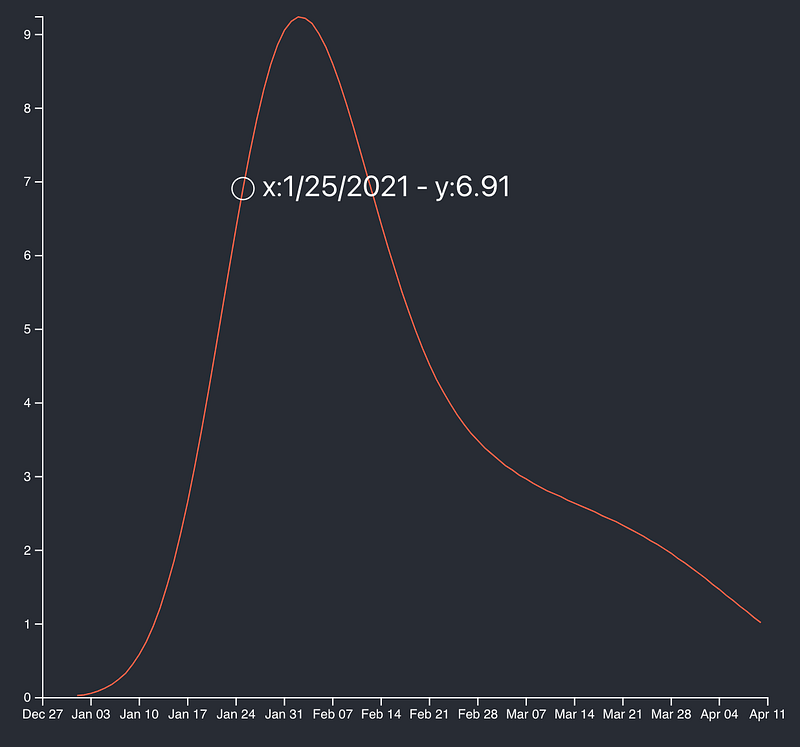
Summary
React and d3 are the two top libraries in their respective areas. Giving React control over the DOM with the help of memorizing methods and writing the elements as JSX, while letting D3 handle the heavy lifting for calculations and interactivity can help you get the best of both worlds and create great data visualization charts to help tell your story better.
Where to go from here
Need help with integrating React d3 project or learning? I am here to help.
- Take the React + d3 interactive course.
- Buy the d3 + React book.
- Read related articles: https://readmedium.com/setting-up-professional-react-project-with-must-have-reactjs-libraries-2020-9358edf9acb3
If you like this article, don’t be shy to clap 🙏✌