avatarTeri Radichel

Free AI web copilot to create summaries, insights and extended knowledge, download it at here

4209

Abstract

</a> </div><p id="2d16">If you are using that script or any other script that changes the colors in your editor do you actually know what that code is doing? Make sure you know if any vim colors files you download have any capabilities to take actions on your machine that you don’t want them taking or if they send any data to or from the Internet. That’s not good and certainly not necessary to set colors in your vim editor. <i>Not cool.</i></p><h2 id="955e">Vim documentation</h2><p id="471a">I had to search around for a bit to even find the documentation for vim colors but it seems to be here.</p><div id="f162" class="link-block"> <a href="https://vimdoc.sourceforge.net/htmldoc/syntax.html"> <div> <div> <h2>Vim documentation: syntax</h2> <div><h3>syntax.txt* For Vim version 7.3. Last change: 2011 Apr 01 VIM REFERENCE MANUAL by Bram Moolenaar Syntax highlighting *…</h3></div> <div><p>vimdoc.sourceforge.net</p></div> </div> <div> <div style="background-image: url(https://miro.readmedium.com/v2/resize:fit:320/)"></div> </div> </div> </a> </div><p id="28b5">I didn’t have time to read every bit of that but here’s the important bit as far as I can tell.</p><h2 id="2809">Highlight</h2><p id="f9a6">You use this highlight command to change colors of most things in a vim file. The abbreviated version is:</p><div id="8e9e"><pre><span class="hljs-symbol">:hi</span></pre></div><div id="8118" class="link-block"> <a href="https://vimdoc.sourceforge.net/htmldoc/syntax.html#:highlight"> <div> <div> <h2>Vim documentation: syntax</h2> <div><h3>syntax.txt* For Vim version 7.3. Last change: 2011 Apr 01 VIM REFERENCE MANUAL by Bram Moolenaar Syntax highlighting *…</h3></div> <div><p>vimdoc.sourceforge.net</p></div> </div> <div> <div style="background-image: url(https://miro.readmedium.com/v2/resize:fit:320/)"></div> </div> </div> </a> </div><h2 id="dda8">Group Names</h2><p id="5791">You follow hi with a group name which is the thing you’re trying to alter.</p><p id="f71d">You can find the full list of group names here — things like<i> Normal, Comment, Constant, String</i>, etc.</p><p id="8693"><a href="https://vimdoc.sourceforge.net/htmldoc/syntax.html#{group-name">https://vimdoc.sourceforge.net/htmldoc/syntax.html#{group-name</a>}</p><p id="c12e">So for example:</p><div id="db76"><pre><span class="hljs-symbol">:hi</span> <span class="hljs-title class_">Comment</span></pre></div><h2 id="b336">Colors</h2><p id="963d">The next thing you add to the line are the color options you want to set. For example, you want to make the foreground text for a comment LightGrey so you could add something like this:</p><div id="9dda"><pre>:hi Comment <span class="hljs-attribute">cftermfg</span>=LightGrey</pre></div><p id="409e">All the options like cftermfg and the list of colors for each option light White, Red, and LightGrey should be in the documentation. Which options work on your system is something you’ll need to test. I didn’t really take the time to understand the difference between the <i>gui</i> options and <i>cfterm</i> options because <i>cfterm</i> seemed to meet my needs for something simple at the moment.</p><h2 id="c601">The simplest color altering script:</h2><p id="6d2e">To be honest the whole setting of colors is more than I care to spend a great deal of time on right now so here’s my short cut.</p><p id="45cd">Essentially you can just set all the values to white and then start tweaking them to see what changes.</p><p id="7d53">Here I’ve set everything to white except for exceptions and errors which I set to yellow and comments which are light grey.</p><figure id="6fd1"><img src="https://cdn-images-1.readmedium.com/v2/resize:fit:800/1*A5MTTGmlEIRKSc51ADpjfQ.png"><figcaption></figcaption></figure><p id="d6ac">Now I can tweak individual items to test things out or just leave it all white mostly, which is what # Options I’m doing at the moment.</p><p id="3bc9">By the way I just manually set my background:</p><p id="80fd">In your terminal window if using a Mac:</p><p id="77ea"><i>&gt; Terminal &gt; Settings</i></p><figure id="ce5e"><img src="https://cdn-images-1.readmedium.com/v2/resize:fit:800/1*38Fjj2nOdF99-sXGDVyMXA.png"><figcaption></figcaption></figure><p id="b20e">Set the background color and other things here:</p><figure id="394b"><img src="https://cdn-images-1.readmedium.com/v2/resize:fit:800/1*QIvj1NWqs5sjBvkHnFEmkw.png"><figcaption></figcaption></figure><p id="6a67">But vim will override some of this when you open up or depending on what colors you choose it may be hideous or unreadable.</p><p id="2a21">The weird thing is that this isn’t working by default on my AWS EC2 instance at the moment. It was working, but now it’s not for some reason. I just added syntax: off to my vim colors to remove the syntax highlighting. I’ve been doing this so long it doesn’t really help me and is almost more of a distraction than anything.</p><p id="6097">I wrote about changing colors for an AWS Linux Terminal Window here:</p><div id="4390" class="link-block"> <a href="https://readmedium.com/changing-terminal-colors-on-amazon-linux-ce954d26a81f"> <div> <div> <h2>Changing Terminal Colors On Amazon Linux</h2> <div><h3>Differences when logging into a remote terminal</h3></div> <div><p>medium.com</p></div> </div> <div> <div style="background-image: url(https://miro.readmedium.com/v2/resize:fit:320/1*4oxP4LXk8l8c3mpRvO7ejg.png)"></div> </div> </div> </a> </div><p id="c45c">And turning off conflicting colors like those from Docker output here:</p><div id="4d04" class="link-block"> <a href="https://readmedium.com/changing-docker-output-colors-3b41528ca7c0"> <div> <div> <h2>Changing Docker Output Colors</h2> <div><h3>If you would prefer less rainbows on your screen</h3></div> <div><p>medium.com</p></div> </div> <div> <div style="background-image: url(https://miro.readmedium.com/v2/resize:fit:320/1*4oxP4LXk8l8c3mpRvO7ejg.png)"></div> </div> </div> </a> </div><p id="b847">It seems to me that a lot of the vim color scripts out there are way overly complicated but maybe I’m missing something magical.</p><p id="8b23">Welp, this works for me.</p><p id="3341">Follow for updates.</p><p id="4a3a">Teri Radichel | <i>© <a href="https://2ndsightlab.com/?source=post_page---------------------------">2nd Sight Lab</a> 2024</i></p><div id="8b5f"><pre><span class="hljs-section">About Teri Radichel: ~~~~~~~~~~~~~~~~~~~~</span> ⭐️ Author: Cybersecurity Books ⭐️ Presentations: Presentations by Teri Radichel ⭐️ Recognition: SANS Award, AWS Security Hero, IANS Faculty ⭐️ Certifications: SANS ~ GSE 240 ⭐️ Education: BA Business, Master of Software Engineering, Master of Infosec ⭐️ Company: Penetration Tests, Assessments, Phone Consulting ~ 2nd Sight Lab</pre></div><div id="caae"><pre><span class="hljs-section">Need Help With Cybersecurity, Cloud, or Application Security? ~~~~~~~~~~~~~~~~~~~~~~~~~~~~~~~~~~~~~~~~~~~~~~~~~~~~~~~~~~~~~</span> 🔒 Request a penetration test or security assessment 🔒 Schedule a consulting call 🔒 Cybersecurity Speaker for Presentation</pre></div><div id="3b5e"><pre>Follow <span class="hljs-keyword">for</span> more stories like <span class="hljs-keyword">this</span>: ~~~~~~~~~~~~~~~~~~~~~~~~~~~~~~~~~~~~~~~~~~~~~~~~~~~~~~~~~~~~~ ❤️ Sign Up my Medium Email List ❤️ Twitter: <span class="hljs-meta">@teriradichel</span> ❤️ LinkedIn: https:<span class="hljs-comment">//www.linkedin.com/in/teriradichel</span> ❤️ Mastodon: <span class="hljs-meta">@teriradichel</span><span class="hljs-meta">@infosec</span>.exchange ❤️ Facebook: 2nd Sight Lab ❤️ YouTube: @2ndsightlab</pre></div><figure id="5610"><img src="https://cdn-images-1.readmedium.com/v2/resize:fit:800/0*H9Ew1KCl-29nZiPR.jpeg"><figcaption></figcaption></figure></article></body>

Changing Vim Colors And Risks in Vim Colors Files from the Internet

Taking a look at how the VIM colors scripts work a bit more closely

~~~~~~~~~~~~~~~~~~~~~~~~~~~~~~~~~~~~~~~~~~~~~~~~~~~~~~~

⚙️ Check out my series on Automating Cybersecurity Metrics | Code.

🔒 Related Stories: Secure Code | Application Security | OS Security

💻 Free Content on Jobs in Cybersecurity | ✉️ Sign up for the Email List

~~~~~~~~~~~~~~~~~~~~~~~~~~~~~~~~~~~~~~~~~~~~~~~~~~~~~~~

To change the colors in your vi/vim editor you have a couple of options. You can choose one of the built in color profiles (all of which are quite busy for my taste) and use it. The least busy profile is named quiet. If I want to use that profile I edit this file:

~/.vimrc

I add this text:

colo quiet

You can also put a .vim file in the following directory on an AWS EC2 instance. This method may vary in other versions of linux:

~/.vim/colors

For example I can copy quiet.vim off my system to that directory and modify it and it will override the settings in the default directory if I set vim to use the quiet profile.

Alternatively I can create my own file:

~/.vim/colors/tr.vim

Then I can write my own colors profile and update my .vimrc to:

colo tr

vim colors files on the Internet ~ a warning

Alternatively I could download one of the many colors files off the Internet. When I took a look at various vim colors profiles on the Internet, I found really complex scripts. Do they really need to be that complicated?

For example, I found one beautiful vim colors profile called nord that mentions “public APIs.” Is this code actually reaching out to the Internet to update the colors in your editor or what is this??
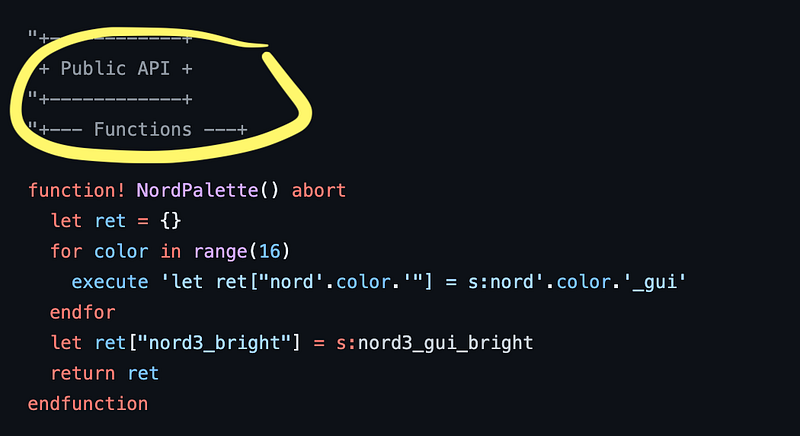
What is this? I don’t know but I don’t think I need to run a node app or JavaScript files to change vim colors but perhaps I’m missing out.
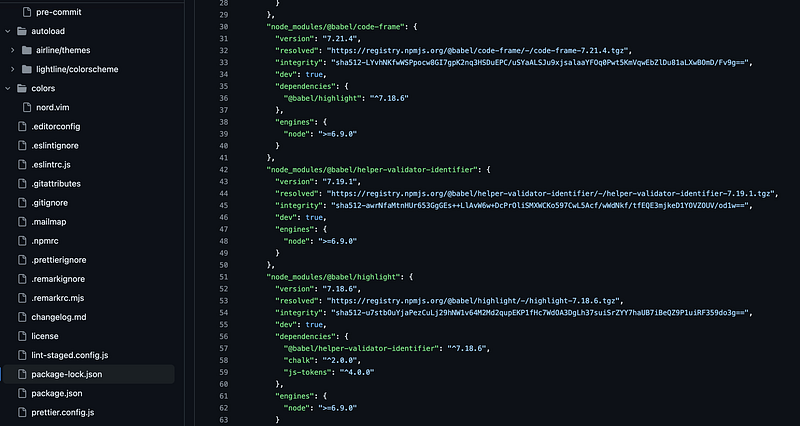
I didn’t have time to completely review this as there’s a mountain of code here just to change the colors in your editor. I could have sat there and figured out what this code is doing but I’m busy. I’d rather skip it and write my own profile as I’ll show you below.

If you are using that script or any other script that changes the colors in your editor do you actually know what that code is doing? Make sure you know if any vim colors files you download have any capabilities to take actions on your machine that you don’t want them taking or if they send any data to or from the Internet. That’s not good and certainly not necessary to set colors in your vim editor. Not cool.

Vim documentation

I had to search around for a bit to even find the documentation for vim colors but it seems to be here.

I didn’t have time to read every bit of that but here’s the important bit as far as I can tell.

Highlight

You use this highlight command to change colors of most things in a vim file. The abbreviated version is:

:hi

Group Names

You follow hi with a group name which is the thing you’re trying to alter.

You can find the full list of group names here — things like Normal, Comment, Constant, String, etc.

https://vimdoc.sourceforge.net/htmldoc/syntax.html#{group-name}

So for example:

:hi Comment

Colors

The next thing you add to the line are the color options you want to set. For example, you want to make the foreground text for a comment LightGrey so you could add something like this:

:hi Comment cftermfg=LightGrey

All the options like cftermfg and the list of colors for each option light White, Red, and LightGrey should be in the documentation. Which options work on your system is something you’ll need to test. I didn’t really take the time to understand the difference between the gui options and cfterm options because cfterm seemed to meet my needs for something simple at the moment.

The simplest color altering script:

To be honest the whole setting of colors is more than I care to spend a great deal of time on right now so here’s my short cut.

Essentially you can just set all the values to white and then start tweaking them to see what changes.

Here I’ve set everything to white except for exceptions and errors which I set to yellow and comments which are light grey.
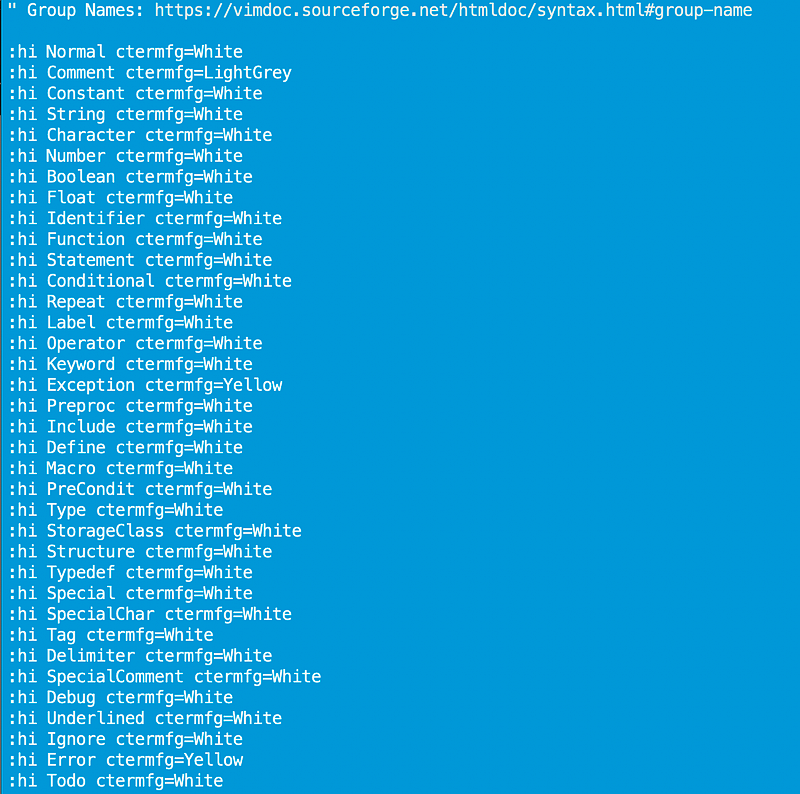
Now I can tweak individual items to test things out or just leave it all white mostly, which is what I’m doing at the moment.

By the way I just manually set my background:

In your terminal window if using a Mac:

> Terminal > Settings
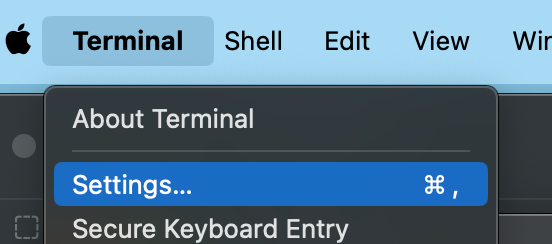
Set the background color and other things here:
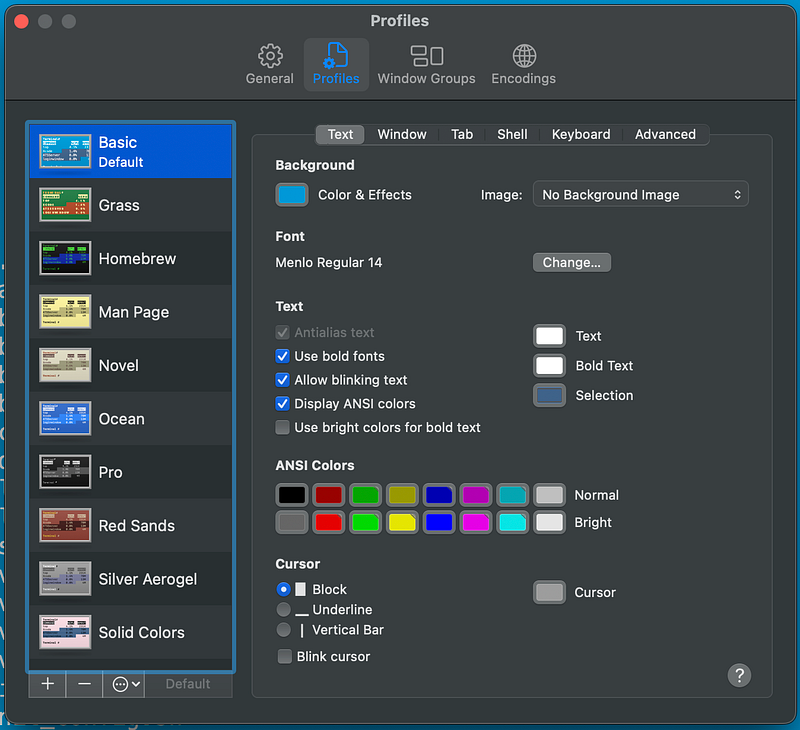
But vim will override some of this when you open up or depending on what colors you choose it may be hideous or unreadable.

The weird thing is that this isn’t working by default on my AWS EC2 instance at the moment. It was working, but now it’s not for some reason. I just added syntax: off to my vim colors to remove the syntax highlighting. I’ve been doing this so long it doesn’t really help me and is almost more of a distraction than anything.

I wrote about changing colors for an AWS Linux Terminal Window here:

And turning off conflicting colors like those from Docker output here:

It seems to me that a lot of the vim color scripts out there are way overly complicated but maybe I’m missing something magical.

Welp, this works for me.

Follow for updates.

Teri Radichel | © 2nd Sight Lab 2024

About Teri Radichel:
~~~~~~~~~~~~~~~~~~~~
⭐️ Author: Cybersecurity Books
⭐️ Presentations: Presentations by Teri Radichel
⭐️ Recognition: SANS Award, AWS Security Hero, IANS Faculty
⭐️ Certifications: SANS ~ GSE 240
⭐️ Education: BA Business, Master of Software Engineering, Master of Infosec
⭐️ Company: Penetration Tests, Assessments, Phone Consulting ~ 2nd Sight Lab
Need Help With Cybersecurity, Cloud, or Application Security?
~~~~~~~~~~~~~~~~~~~~~~~~~~~~~~~~~~~~~~~~~~~~~~~~~~~~~~~~~~~~~
🔒 Request a penetration test or security assessment
🔒 Schedule a consulting call
🔒 Cybersecurity Speaker for Presentation
Follow for more stories like this:
~~~~~~~~~~~~~~~~~~~~~~~~~~~~~~~~~~~~~~~~~~~~~~~~~~~~~~~~~~~~~ 
❤️ Sign Up my Medium Email List
❤️ Twitter: @teriradichel
❤️ LinkedIn: https://www.linkedin.com/in/teriradichel
❤️ Mastodon: @teriradichel@infosec.exchange
❤️ Facebook: 2nd Sight Lab
❤️ YouTube: @2ndsightlab

Vim
Colors
Code
Injection
Security
Recommended from ReadMedium