avatarThe Electronic Pen

Free AI web copilot to create summaries, insights and extended knowledge, download it at here

3012

Abstract

u can add the calendar name and a description.</p><p id="284c">Create a few calendars(you can always add more later) for categories of events.</p><p id="1696">Here are some example calendars:</p><ul><li>Routines</li><li>Meals</li><li>School</li><li>Work</li><li>Fun</li><li>Personal</li></ul><figure id="d688"><img src="https://cdn-images-1.readmedium.com/v2/resize:fit:800/1*yWKPvtOQQcd1s-rpGvXOeQ.png"><figcaption></figcaption></figure><p id="2da6">This just makes it easier to organize and visualize how you spend your time.</p><p id="2c63">To make the Google Calendar experience that much better, use a <a href="http://coolors.co">color palette</a> for your calendars.</p><figure id="71d8"><img src="https://cdn-images-1.readmedium.com/v2/resize:fit:800/1*y80PIzeSGYyXA3lzeP6SIA.png"><figcaption></figcaption></figure><p id="9640">This gives the whole thing a much more personalized, homey feel — making you more likely to use the site.</p><p id="0435">You can even change the color of your tasks, just by changing the ‘Task’ calendar color.</p><h2 id="8620">3 minutes — Build in your recurring events</h2><p id="5ec2">Now that you’re prepared, it’s time to build in recurring events.</p><p id="f886">Go through and add in things like meals, work, classes, and your morning/night routines.</p><figure id="4720"><img src="https://cdn-images-1.readmedium.com/v2/resize:fit:800/1*QJJvbQVwK1OBTzi9ys-VNg.png"><figcaption></figcaption></figure><p id="3442">Make sure to make them all repeat daily or whenever they repeat(ex. every Tuesday and Friday until December 6), so you don’t have to create them again every day.</p><figure id="0608"><img src="https://cdn-images-1.readmedium.com/v2/resize:fit:800/1*3s4ulnyFULTwRxsdEIBsFA.png"><figcaption></figcaption></figure><p id="87a5">Every day in the morning, or whenever you plan your day, you can add things into this empty, white space in your calendar.</p><p id="6103">You can follow this 3-step routine for that:</p><div id="d1e8" class="link-block"> <a href="https://theelectronicpen.medium.com/the-3-step-process-in-planning-your-day-with-google-calendar-baecace2fb53"> <div> <div> <h2>The 3-Step Process In Planning Your Day With Google Calendar</h2> <div><h3>The quick and efficient morning routine I use to plan a productive and fulfilling day, every day</h3></div> <div><p>theelectronicpen.medium.com</p></div> </div> <div> <div style="background-image: url(https://miro.readmedium.com/v2/resize:fit:320/1*sefX11wNdDZQvOrsYbJCQg.png)"></div> </div> </div> </a> </div><h2 id="0392">2 minutes — Install GCalPlus</h2><p id="5c9d">Now, you can stop here, but the next two steps are to get you even <i>more </i>out of Google Calendar.</p><p id="53ec">In this step, install the <a href="https://chrome.google.com/webstore/detail/gcalplus/mjelhipeelammmhpghkpigkdonihkakj">Chrome extension G

Options

CalPlus.</a></p><figure id="af39"><img src="https://cdn-images-1.readmedium.com/v2/resize:fit:800/1*3bWF7FuMmRrB7QArt_Xubg.png"><figcaption></figcaption></figure><p id="a29d">There are a bunch of features here, but the main ones I use are the ‘Show More All Day Events’ and controlling the two times at the bottom(in the above screenshot, they’re from 0am to 12pm).</p><p id="b8a1">This limits the times shown on your calendar, so you can just focus on the times that actually have events.</p><h2 id="b636">2 minutes — Learn the shortcuts and features</h2><p id="bd23">As with every software, shortcuts can be super helpful — but they’re a hassle to learn, and it can be really overwhelming to try to memorize the user manual or documentation.</p><p id="3da8">So, I compiled a few key Google Calendar shortcuts in <a href="https://readmedium.com/10-easy-google-calendar-shortcuts-to-power-up-your-productivity-f8b2de737bf0">this article</a>, which you can look over.</p><p id="025c">Choose just 2–3 shortcuts that stand out to you, ones that you make you say ‘Wait, I could just do <i>that </i>instead?!’ and try to use those.</p><p id="a2ad">Personally, I use the ‘T’ for today shortcut and the view shortcuts(mainly week view and 4 day view) the most.</p><p id="5b10">And to give you just a peak into some <a href="https://readmedium.com/7-google-calendar-tips-for-ultimate-productivity-31ae88534cf9?source=list-2b3ed9a5c87e--------1-------6a7159da50e2---------------------">more Google Calendar features and tips</a>, here are 3 ones you should know about:</p><ul><li>Create tasks by changing it from an event type to a task type when creating a calendar block. This allows you to cross of tasks like a nifty to-do list, and there’s also a simple Task Management system in the right hand sidebar.</li></ul><figure id="0ce7"><img src="https://cdn-images-1.readmedium.com/v2/resize:fit:800/1*YgHr4gSJXBKEKAnDrD-ONw.png"><figcaption></figcaption></figure><ul><li>Create events by clicking, holding, and dragging instead of just clicking once. This allows you some more flexibility in event duration.</li></ul><figure id="96c2"><img src="https://cdn-images-1.readmedium.com/v2/resize:fit:800/0*lAh08ktwRx8y__8o.gif"><figcaption></figcaption></figure><ul><li>Create all day events and tasks by clicking near the date, above the gridlines.</li></ul><figure id="fc06"><img src="https://cdn-images-1.readmedium.com/v2/resize:fit:800/1*0c-QdDEaH0vecycwOvUtPg.png"><figcaption></figcaption></figure><p id="a32d">All in all, there’s a lot more to explore with Google Calendar and time management in general.</p><p id="757d">There are a lot of <a href="https://readmedium.com/the-benefits-of-calendar-blocking-with-google-calendar-8dd0fc375d4d?source=list-2b3ed9a5c87e--------7-------6a7159da50e2---------------------">advantages and ways to do this</a>, but to keep it simple, just try to work on a project or goal at least once every day, and you’ll make consistent progress to being your best self.</p></article></body>

Build Your Google Calendar Productivity Powerhouse in 10 Minutes

From opening it for the first time to planning a truly productive day, here’s a step-by-step guide on setting up Google Calendar for calendar blocking
Made in Canva

Productivity is all about building systems to maximize your time, energy, and effort.

Google Calendar and the calendar blocking method are perfect for making the most of every day, every hour, even every minute — which makes it a great way to stay productive.

If you don’t know what Google Calendar and calendar blocking are, though, you can check out this intro article:

…and for more information, this playlist:

In this article, however, I’ll be walking you through a step-by-step process to setting up Google Calendar to work for you, all in just 10 minutes.

3 minutes — Create calendars

Open up Google Calendar and head straight to the ‘My calendars’ section in the left sidebar.
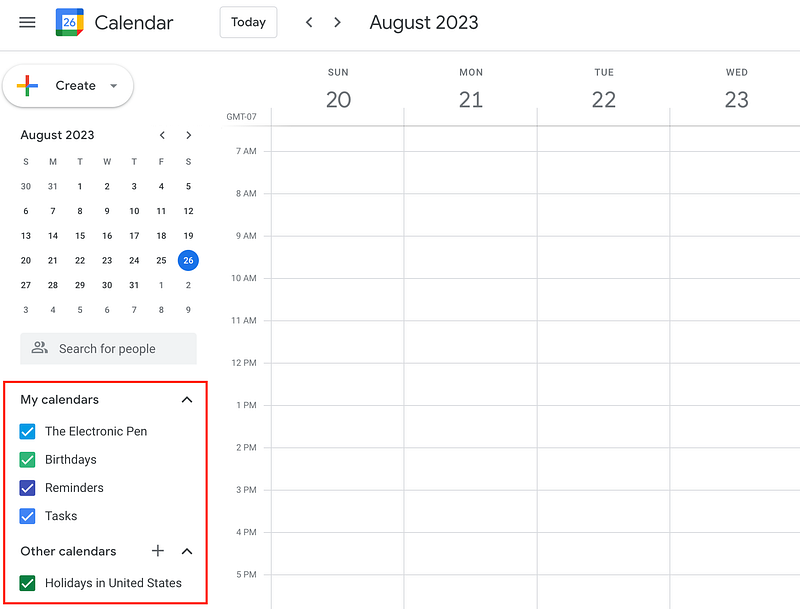
All images are screenshots from the author.

Then, click the ‘+’ next to ‘Other calendars’ and create a new calendar.
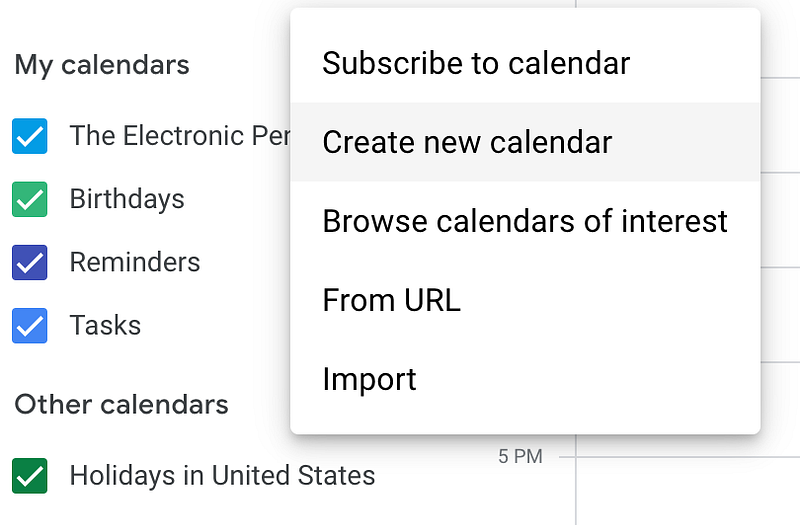
Here, you can add the calendar name and a description.

Create a few calendars(you can always add more later) for categories of events.

Here are some example calendars:

  • Routines
  • Meals
  • School
  • Work
  • Fun
  • Personal

This just makes it easier to organize and visualize how you spend your time.

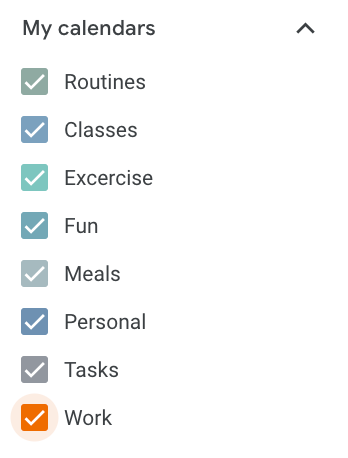
To make the Google Calendar experience that much better, use a color palette for your calendars.
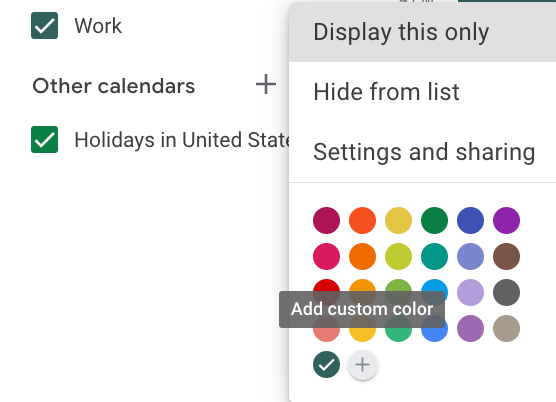
This gives the whole thing a much more personalized, homey feel — making you more likely to use the site.

You can even change the color of your tasks, just by changing the ‘Task’ calendar color.

3 minutes — Build in your recurring events

Now that you’re prepared, it’s time to build in recurring events.

Go through and add in things like meals, work, classes, and your morning/night routines.
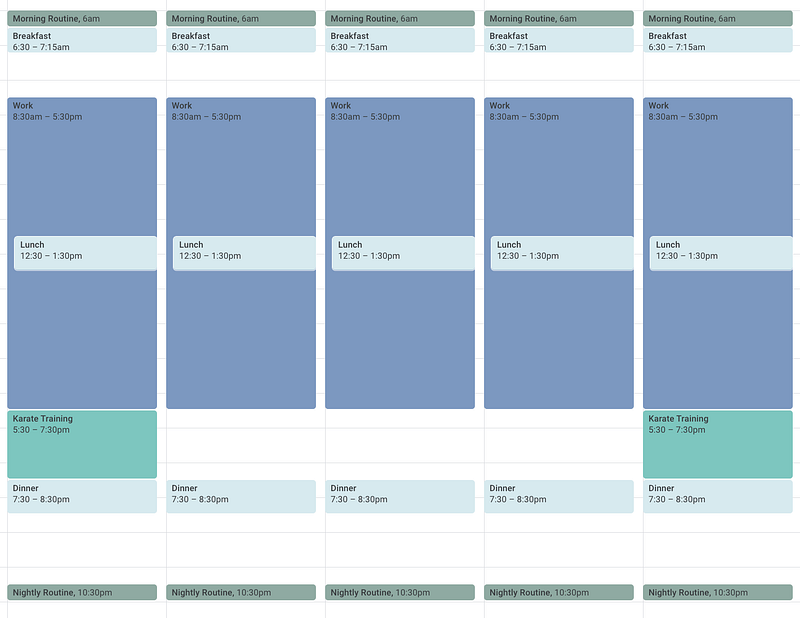
Make sure to make them all repeat daily or whenever they repeat(ex. every Tuesday and Friday until December 6), so you don’t have to create them again every day.
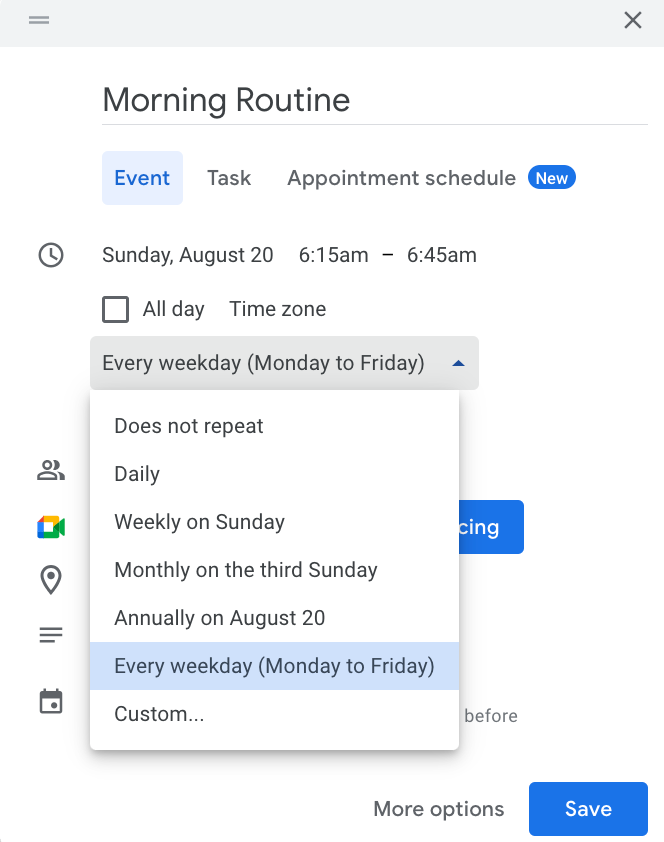
Every day in the morning, or whenever you plan your day, you can add things into this empty, white space in your calendar.

You can follow this 3-step routine for that:

2 minutes — Install GCalPlus

Now, you can stop here, but the next two steps are to get you even more out of Google Calendar.

In this step, install the Chrome extension GCalPlus.
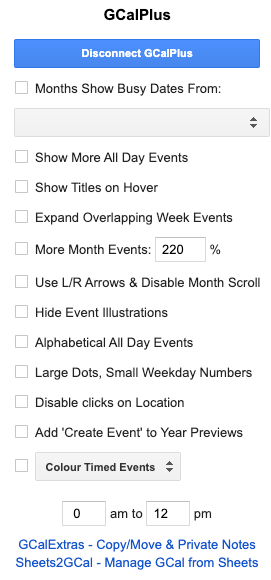
There are a bunch of features here, but the main ones I use are the ‘Show More All Day Events’ and controlling the two times at the bottom(in the above screenshot, they’re from 0am to 12pm).

This limits the times shown on your calendar, so you can just focus on the times that actually have events.

2 minutes — Learn the shortcuts and features

As with every software, shortcuts can be super helpful — but they’re a hassle to learn, and it can be really overwhelming to try to memorize the user manual or documentation.

So, I compiled a few key Google Calendar shortcuts in this article, which you can look over.

Choose just 2–3 shortcuts that stand out to you, ones that you make you say ‘Wait, I could just do that instead?!’ and try to use those.

Personally, I use the ‘T’ for today shortcut and the view shortcuts(mainly week view and 4 day view) the most.

And to give you just a peak into some more Google Calendar features and tips, here are 3 ones you should know about:

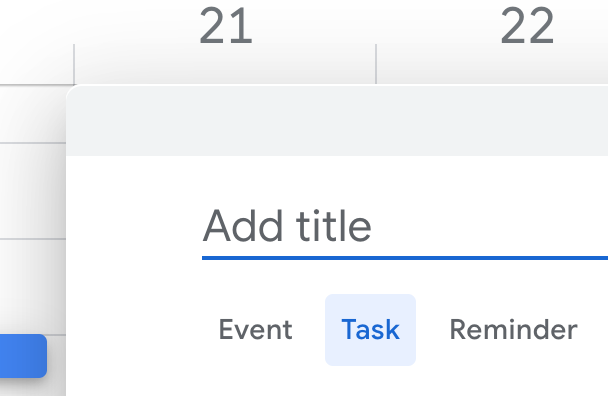
  • Create tasks by changing it from an event type to a task type when creating a calendar block. This allows you to cross of tasks like a nifty to-do list, and there’s also a simple Task Management system in the right hand sidebar.
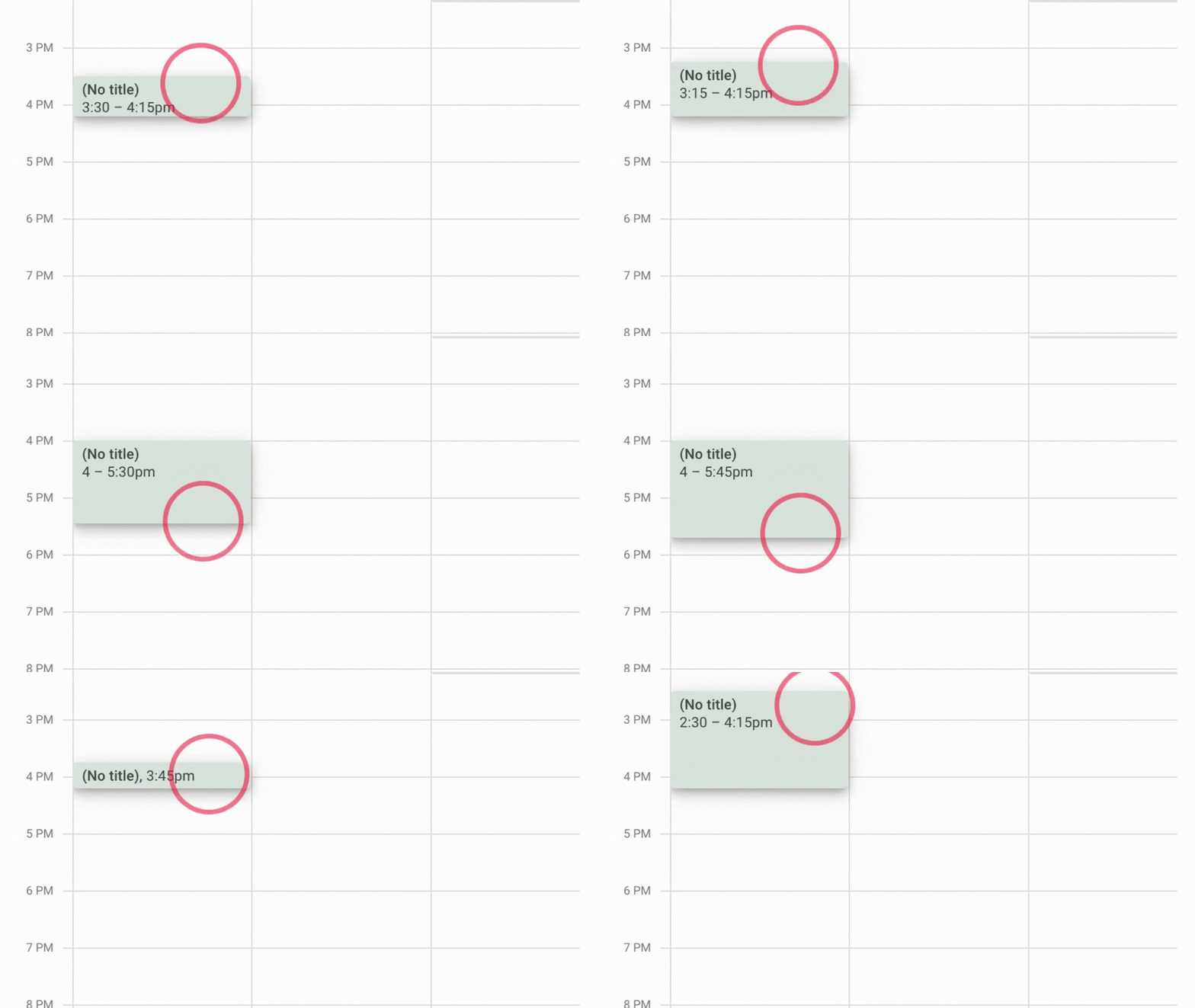
  • Create events by clicking, holding, and dragging instead of just clicking once. This allows you some more flexibility in event duration.
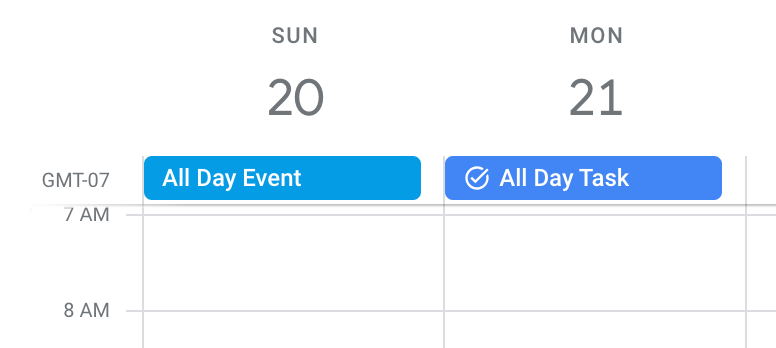
  • Create all day events and tasks by clicking near the date, above the gridlines.
All in all, there’s a lot more to explore with Google Calendar and time management in general.

There are a lot of advantages and ways to do this, but to keep it simple, just try to work on a project or goal at least once every day, and you’ll make consistent progress to being your best self.

Google Calendar
Productivity
Time Management
Productivity Tools
Self Improvement
Recommended from ReadMedium