avatarThe Electronic Pen

Free AI web copilot to create summaries, insights and extended knowledge, download it at here

1612

Abstract

.</p><h2 id="2377">‘/’ For Search</h2><p id="9438">Want to see exactly what day you had that meeting?</p><p id="b356">Or how many times you’ve taken an outdoor walk in the past few weeks?</p><p id="64c1">You can search all your events’ titles to find results fast.</p><p id="b8d1">Keep in mind your search term doesn’t have to match the title exactly — if you search ‘Meeting’, ‘meeting with john’ and ‘work meeting’ will both show up along with regular ‘meeting’ events.</p><h2 id="523e">‘Q’ For New All-Day Event</h2><p id="0ab6">Personally, I love using the all-day section for my tasks that I can simply knock off as I go along(it’s <a href="https://theelectronicpen.medium.com/the-3-step-process-in-planning-your-day-with-google-calendar-baecace2fb53">one of the three steps I use to plan my day every morning</a>).</p><p id="0595">This shortcut makes it a lot easier to do that, along with just normal all-day events — say, birthdays.</p><h2 id="ae39">‘+’ For Search For People</h2><p id="11ab">While not a feature I personally use, if you use Google Calendar for work or just have a lot of acquaintances connected with it, you can search your calendars for people easily by simply going ‘Shift =’</p><h2 id="af0b">‘P’ and ‘N’ For Navigation</h2><p id="8f07">‘P’ for going backwards(previous) and ’N’ for going forwards(next).</p><p id="f351">Keep in mind that the amount of days you’ll go forward/backward depends on your view.</p><p id="e39e">If you’re in the week view, you’ll go to the previous and next week.</p><p id="14f7">Day view, previous and next day.</p><p id="2130">4 days view, previous 4 day

Options

s and next 4 days.</p><h2 id="1d1b">‘E’ For Edit</h2><p id="c85d">To edit your last clicked/interacted with event, simply type ‘E’.</p><p id="619a">This is great for quick changes, adding descriptions, locations, links, etc.</p><h2 id="c14f">All View Shortcuts</h2><p id="0d9a">As a bonus, here are the shortcuts for all views in Google Calendar</p><figure id="099a"><img src="https://cdn-images-1.readmedium.com/v2/resize:fit:800/1*8auxFqtZpL6Wah3SqXKEJA.png"><figcaption></figcaption></figure><p id="434f"><b>Day</b> — D or 1</p><figure id="11c8"><img src="https://cdn-images-1.readmedium.com/v2/resize:fit:800/1*6CuSztaKedfdCyrVUIYckA.png"><figcaption></figcaption></figure><p id="5f42"><b>Week(my personal favorite/default)</b> — W or 2</p><figure id="258e"><img src="https://cdn-images-1.readmedium.com/v2/resize:fit:800/1*g2rQkUU8QdkpO7NCDJACgw.png"><figcaption></figcaption></figure><p id="de3b"><b>Month</b> — M or 3</p><figure id="8db0"><img src="https://cdn-images-1.readmedium.com/v2/resize:fit:800/1*m_U87bK2HdMz2-NHMkO6nw.png"><figcaption></figcaption></figure><p id="75ce"><b>4 Days</b> — X or 4</p><figure id="ca0b"><img src="https://cdn-images-1.readmedium.com/v2/resize:fit:800/1*H_cx88Pd0GJp0B3TunO16Q.png"><figcaption></figcaption></figure><p id="5db0"><b>List View/Schedule </b>— A or 5</p><figure id="fe77"><img src="https://cdn-images-1.readmedium.com/v2/resize:fit:800/1*PRTWcegZWfYtK0EL7ZO3Rg.png"><figcaption></figcaption></figure><p id="f009"><b>Year</b> — Y or 6</p><p id="723a">And, if you want more shortcuts, simply type ‘Shift-?’, or in other words, ‘Shift-/’.</p></article></body>

10+ Easy Google Calendar Shortcuts To Power Up Your Productivity

These handy tricks will streamline your entire planning process

Google Calendar seems like a simple tool at first.

Create events, maybe a task or too — pretty easy.

In reality, it can be turned into an entire life-managing software, with a bunch more features than you may have initially expected.

Today, I’ll be covering multiple shortcut and features that are tiny but time-saving, so you can further level up to a gCal pro.

‘T’ For Today

This allows you to go to the current date, and even the current time.
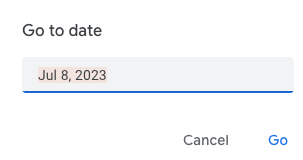
‘G’ For All Dates

Search whatever date you want for easy navigation.

This is a bit useless, but you can type in ‘today’ and it will also transport you to the current date.

‘C’ For New Event

This will create a new event after your current event.

It’s super helpful for planning out your entire day or even your entire week — no more mouse required.

‘/’ For Search

Want to see exactly what day you had that meeting?

Or how many times you’ve taken an outdoor walk in the past few weeks?

You can search all your events’ titles to find results fast.

Keep in mind your search term doesn’t have to match the title exactly — if you search ‘Meeting’, ‘meeting with john’ and ‘work meeting’ will both show up along with regular ‘meeting’ events.

‘Q’ For New All-Day Event

Personally, I love using the all-day section for my tasks that I can simply knock off as I go along(it’s one of the three steps I use to plan my day every morning).

This shortcut makes it a lot easier to do that, along with just normal all-day events — say, birthdays.

‘+’ For Search For People

While not a feature I personally use, if you use Google Calendar for work or just have a lot of acquaintances connected with it, you can search your calendars for people easily by simply going ‘Shift =’

‘P’ and ‘N’ For Navigation

‘P’ for going backwards(previous) and ’N’ for going forwards(next).

Keep in mind that the amount of days you’ll go forward/backward depends on your view.

If you’re in the week view, you’ll go to the previous and next week.

Day view, previous and next day.

4 days view, previous 4 days and next 4 days.

‘E’ For Edit

To edit your last clicked/interacted with event, simply type ‘E’.

This is great for quick changes, adding descriptions, locations, links, etc.

All View Shortcuts

As a bonus, here are the shortcuts for all views in Google Calendar
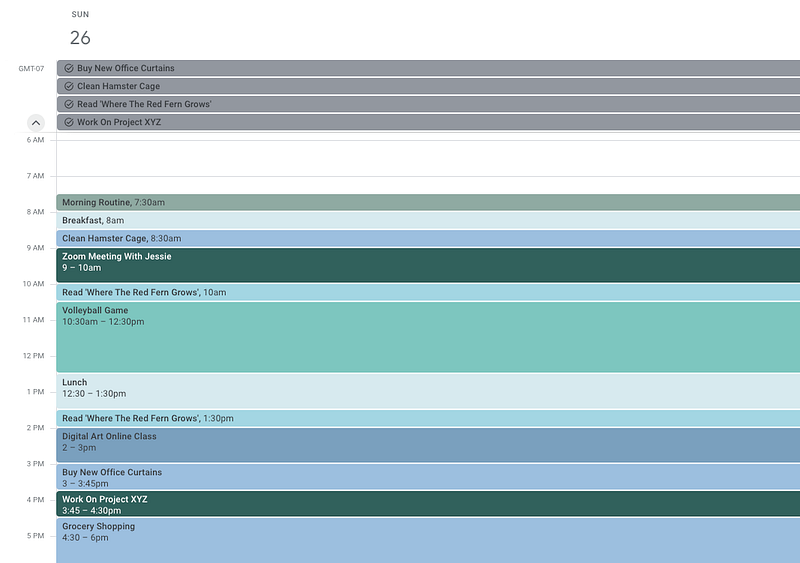
Day — D or 1
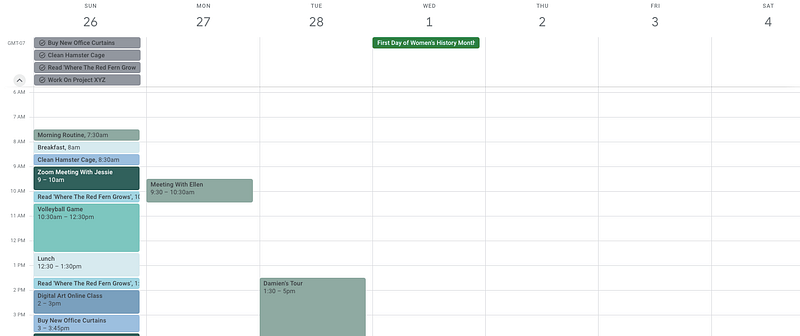
Week(my personal favorite/default) — W or 2
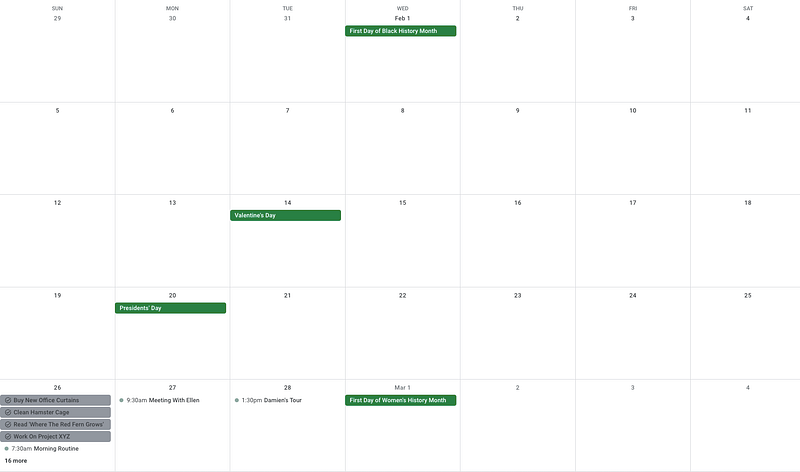
Month — M or 3
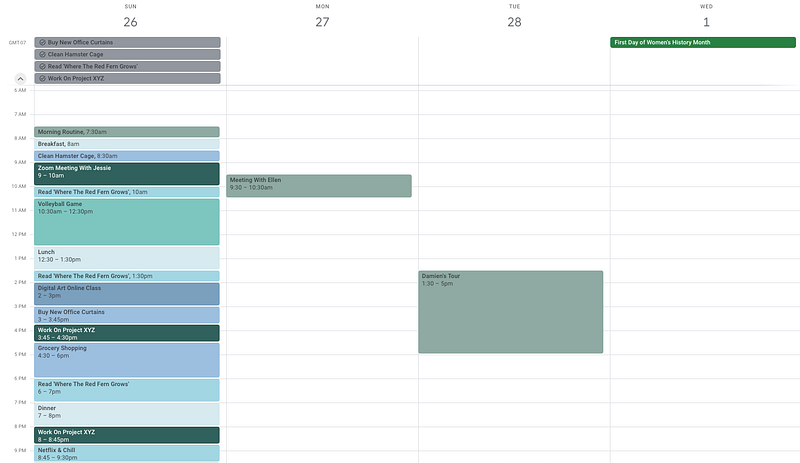
4 Days — X or 4
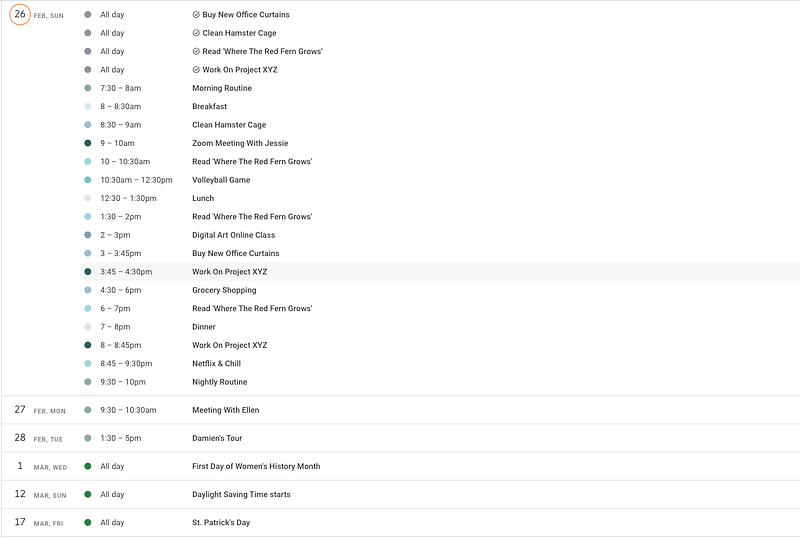
List View/Schedule — A or 5
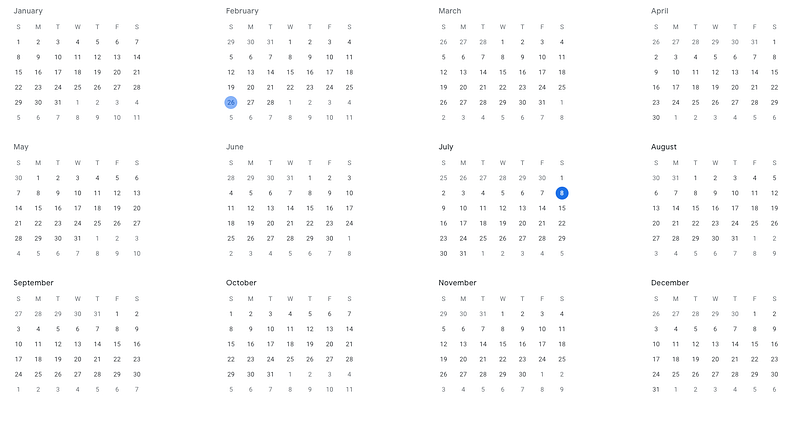
Year — Y or 6

And, if you want more shortcuts, simply type ‘Shift-?’, or in other words, ‘Shift-/’.

Google Calendar
Productivity
Productivity Hacks
Productivity Tools
Productivity Apps
Recommended from ReadMedium