
Bringing Spellcheck to Tableau with Python
In this post, I am going to explore another one of the pain points in Tableau Desktop. It seems like nearly every application nowadays, web or otherwise has spellcheck capability built in. I would argue as a society we are largely dependent on it now. One conspicuous place that it is missing from, where I still contribute a good chunk of free text, is Tableau. It can be found in various places in our workbooks from titles to text boxes. Catching mistakes is usually up to a peer review process or the good fortune of not having made any in the creation of your dashboards. I for one, have experienced firsthand a dashboard getting published out to end users and someone letting me know there is a spelling mistake contained within. Apparently, I am also not the only one, on the Tableau Community Ideas forum a spellcheck request has over 4,000 upvotes and was opened 10 years ago.
Knowing that a Tableau file is just XML underneath (as I have explored in previous posts such as https://readmedium.com/saving-time-with-python-and-tableau-cb7ac267e9c7) we can find certain elements within a Tableau file that we would like to check for spelling. Since an XML file is a large messy computer-generated file to begin with, trying to spell check it in its entirety would be mostly errors. So how do we actually find those text elements on our dashboards that we care about? Well, if we open the XML underneath, we can look through the structure and figure out how these tags get stored and where they fall in the tree.
Say I have this workbook I need to spell check, which has a dashboard with some titles and text on it.
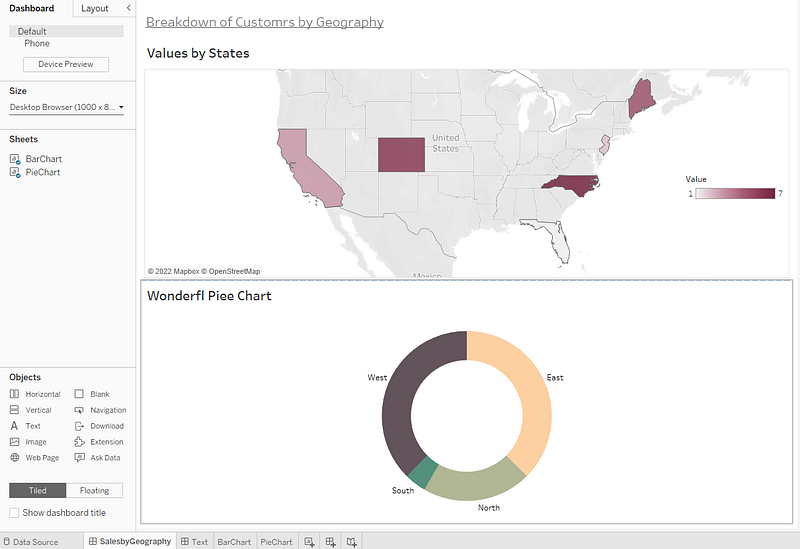
Here I have a few different text objects that I want to check. Each one of my worksheets has a title and I also have a text object on the top of my dashboard serving as the dashboard title. If open the .twb file and search for these strings, I can see that they occur in various places in the xml. The commonality I see is that they eventually get stored under a
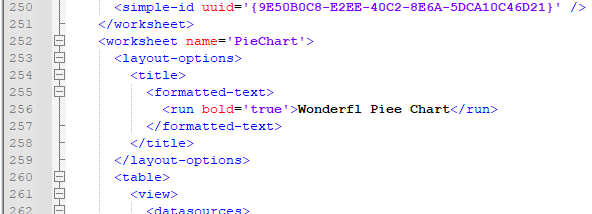
Seems easy enough, right? Let’s just find all instances of these tags. Well as with most efforts of reverse engineering the logic, there look to be a few exceptions to this rule. These elements are used in a few scenarios such as different device layouts, tooltips etc. In the example of device layouts, the titles are inherited from the main dashboard, and it would be duplicative to check them again, so we can ignore them. (Side note, tooltips are also stored in a duplicative and messier format so for now I am punting handling of these. We can circle back to this in another version.) So, finding the relevant elements requires not only matching the
So, let’s start exploring how we would handle this using python. The good thing is we have a few handy libraries to help get us started. I am going to use lxml for finding and traversing the XML structure, pyspellchecker to handle our spell-checking functions and regular expressions (re) to handle string manipulation. Below is the full function we will step through to handle the process.
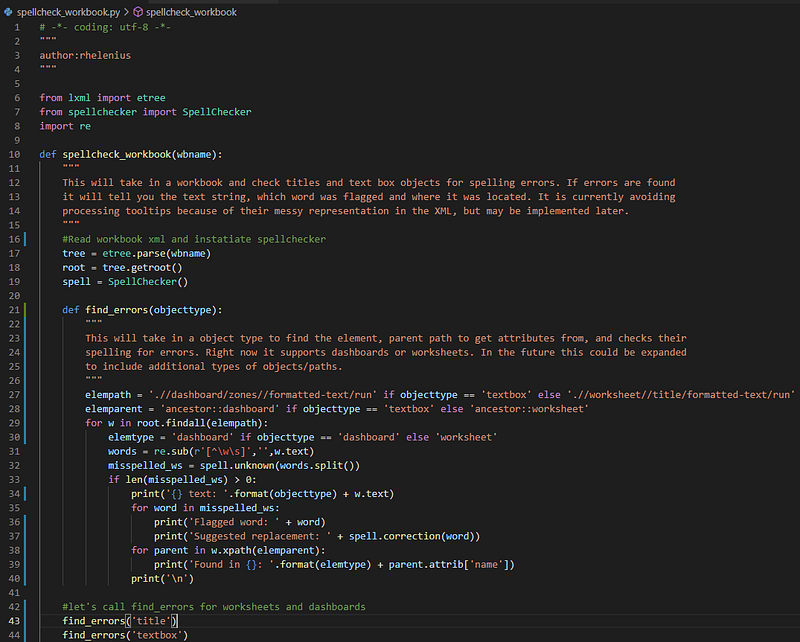
It can also be seen in full here at the GitHub gist.
Function to take in a Tableau workbook and spell check it. (github.com)
First, we import the libraries we talked about above and define our function, which takes in one argument, the workbook name we are going to spell check. Next, we read in the XML and get our spell checker ready. We can handle some more of the logic in a nested function to sort out the differences between whether our spelling object comes from a worksheet or a dashboard. Inside our nested function is where most of the logic takes place. We are going to take in an argument for what type of object we want to check spelling against. Right now, it supports dashboard text boxes or worksheet titles.
For worksheets and dashboards if we look back at the XML the path to these text nodes fall under the paths below.
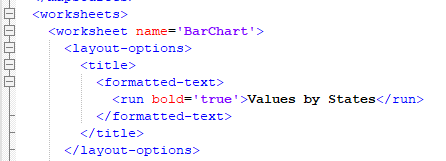
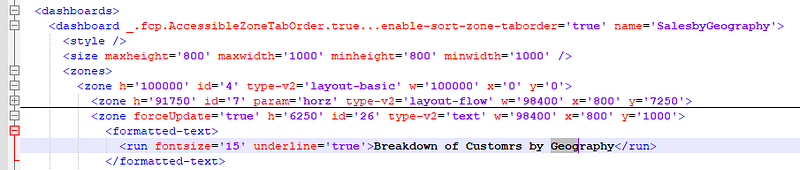
So, for these objects we want to follow this path using the findall function to trace the path down to the text values. As seen in the snippet below, worksheets is the top path, dashboards the bottom. A single or double // represents direct or all descendent levels while traversing, respectively.
.//worksheet//title/formatted-text/run.//dashboard/zones//formatted-text/runBased on the object type being passed we can set the correct path to search and also be able to get back to the respective parent elements for attribute retrieval, such as what was the name of the worksheet or dashboard this text appeared in.
Once we know the type, we can iterate through the document to find all the instances that occur. We then cleanup the strings to remove punctuation or special characters and split it out in words to be consumed by our spell checker by using our regex library. The line below will strip away any non-letters or spaces.
words = re.sub(r’[^\w\s]’,’’,w.text)We then feed our words to the spell checker for unknown occurrences of words using the unknown() function of spell checker. If we return any results, we then loop through and print the offending word then offer the spell checker’s ideal replacement using the correction() function.
In the last part we want to let the user know where this occurred, so they know where to go to fix it. We need to traverse backwards in the XML path here to find where it originated from and can use the ancestor feature of xpath to do that for us. For example, ancestor::worksheet will look backwards in that XML path to find the worksheet node where we can grab the name attribute from, likewise for dashboards.
Now that we have put it all together, we can call the function outside of it for each type (title and text box) and return all those results printed out for the user. We can then fire up a new file and call the main function giving it a workbook name.

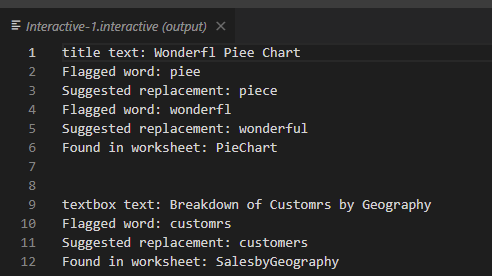
Depending on the workbook we then get a list of our results that look something like this. Finally, a way to spell check our workbooks! Notice it skips over the “Values by States” worksheet title, since it has no errors, but returned our “Wonderfl Piee Chart” title and our “Breakdown of Customrs by Geography” text box. Awesome!
So, we just worked around that pesky problem. We could take this further in the future in a few different ways. We can tackle the messiness of tooltips with some extra logic. We could also introduce interactivity by not only reading the file but also allowing the user to substitute or make edits as they are presented and writing the file back out. In future posts we can visit some of these topics and how to handle them, but for now hopefully this can catch a mistake or two before they go out.


