
Block Incoming Connections on a Mac
Somewhere along the way…these settings changed and inbound connections are allowed for the Google Chrome helper and other software
One of my posts on OS and IoT Security, Network Security, and Apple Mac Security
Free Content on Jobs in Cybersecurity | Sign up for the Email List
There used to be one switch to turn on or off allowing incoming connections on an Apple Mac. At one point I started using a VPN service that was actually recommended in a security class taught by the largest security training service in the world. I noticed that after I installed that VPN software, it turned off my setting to block incoming connections.
What? No. I immediately uninstalled that software and reported the problem, as I’m sure many people before me already had.
So I’ve always, always, always had the option on to block incoming connections. I know some new funky protocols use incoming connections and I think that is unnecessary and opens up security risks.
There are 65,535 accessible ports in either direction available for attackers to leverage if you have no firewall rules (not including 0 which is really not used though people like to get all technical about port 0 sometimes.)
If you disallow all inbound connections then you have essentially cut the number of ports to which an attacker can use to initiate sending traffic to your system in half. Or in other words, if you count each port as a risk you cut your risk by 50%.
If an attacker wants to connect to your system using some malware, they might set up something to listen for commands from a remote system. Let’s say they can run a web server that listens on port 9090. If you have all incoming traffic blocked they can’t do that. They will not be able to initiate sending traffic to your system.
What can they do instead? They get you to click on something that downloads and installs malware. The malware has to send outbound connections on whatever outbound ports you allow, which are typically more limited.
Your outbound ports are typically limited to things like 443 and 80 for websites and maybe some mail ports for end user computers. Your mail ports should be restricted to your specific mail servers. You should also restrict your DNS queries to your specific DNS servers.
What’s left? An attacker that gets malware on your system can send outbound traffic to a C2 server on port 443 or 80. They can’t “trigger” the traffic remotely so they have to periodically send out some traffic that makes a request for the next command. These periodic requests traffic beacons that you may be able to recognize and spot malware on your system.
You can use tools like RITA from Black Hills Information Security and Active Countermeasures to find beaconing on your network, among other things.
https://www.activecountermeasures.com/free-tools/rita/
If you allow remote systems to initiate traffic to your system, then attackers have a lot more options because typically you have to open a lot more ports inbound to allow return traffic on ephemeral ports. I wrote about ephemeral ports and stateful traffic on my other network security blog posts.
If you’re not checking for a pre-existing connection via a stateful traffic rule, then attackers can initiate traffic to that port. If you block “incoming traffic” or traffic initiated from an external source to your computer, then they cannot use all those open ephemeral ports on your firewall for outbound traffic to reach your computer via inbound connection.
What if you don’t even have a network firewall setup? Well you can still block any incoming connections to your laptop via this toggle from Apple on your Mac — which used to be one switch to control the whole system.
What happened somewhere along the way is that Apple started allowing you to be more specific about the types of incoming traffic you want to allow. While perusing the settings on my Mac, I noticed that, without my permission, somehow these settings changed and various software was allowed to make incoming connections to my laptop. What?
That seems wrong. Users should be asked before such changes are made and have to authorize those changes. Instead, they magically appeared on my system without me even being aware.
I took action to block incoming connections from these sources.
And yes, I know that breaks certain network protocols — I don’t like them and I’ve written about that before.
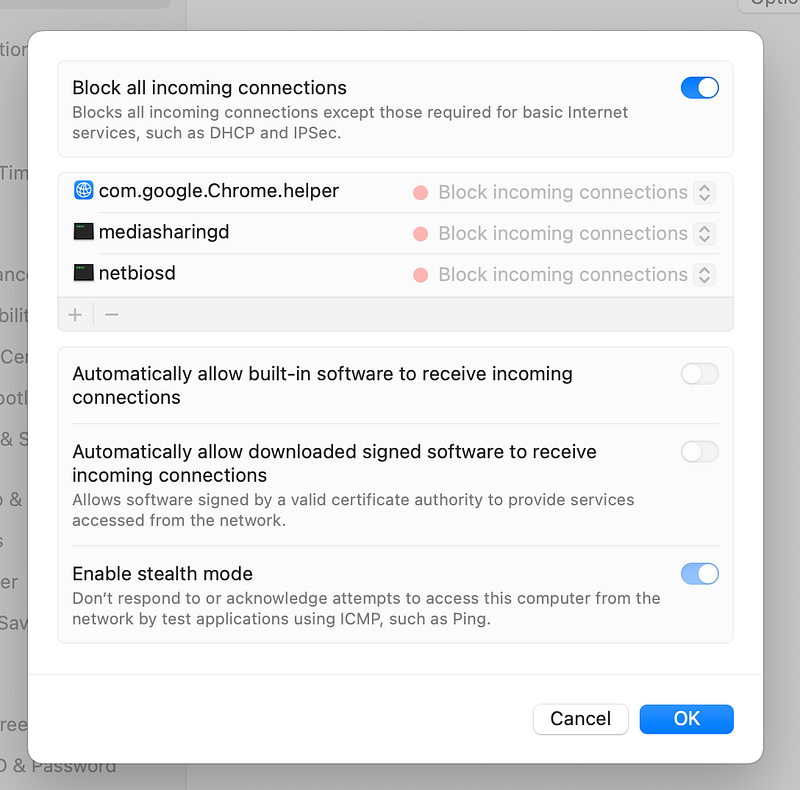
Unfortunately there are certain things which will require incoming connections. When you use DHCP it requires you to allow incoming connections as I’ve written about previously. You pretty much can’t get around using DHCP, but you can limit to the specific ports and the traffic to and from your router.
Additionally, some printer protocols require incoming connections. But if you use the limited WiFi access I wrote about in this post, you can limit that attack vector as well.
Only use the WiFi feature to print and only connect to that WiFi when you are actually printing. Otherwise, the printer is basically never connected to the local network. You also need to connect your printer to the network when you want to update the software.
I like that Apple allows you to be more specific about the inbound rules, however overall the Apple local firewall is pretty weak. That’s why I also use Little Snitch on top of that — another security tool I wrote about before. I do not like that settings randomly change without asking me.
You may notice that when you make changes like this, Google Chrome is a little slow to start up or connect at times. That’s because it has to figure out you blocked things you don’t want like bypassing your DNS settings:
Eventually it figures out the path it can (and is supposed to) use and things will work fine. This last time I rebooted my computer it felt like forever before my system actually started sending network traffic. I had tcpdump turned on and now traffic showed up when I ran dig or curl or tried to visit a web page. I tested some traffic and got a no route to host error. I wrote about routes here:
This is all very strange to me and I feel like I want to dig into exactly why that happens more but for now I have other things to do.
Finally, after maybe a minute or two the traffic started flowing.
I noticed odd things like when I start using tcp in a terminal window or make a DNS request using dig in a terminal window then suddenly the browser starts working again. Google has done some amazing things with scalable software systems, but I cannot say that network security is their strong suit. I hope they will stop doing things that make network security harder and cause traffic to simply be invisible to network devices when they roll out new features in the future.
Anyway, I’m blocking inbound traffic for now and testing it out to see if it causes any problems.
To get to this screen go to:
Apple Icon (top left) > About this Mac > More Info > Network > Firewall > Options
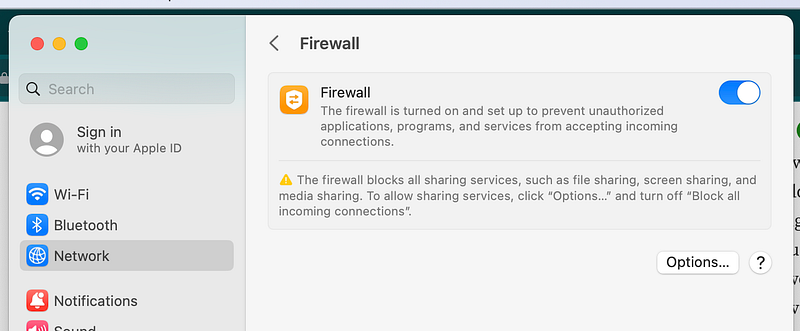
You may want to peruse all your settings and make sure they are as expected. After a recent update, Apple turned on Bluetooth which I always disable unless I am actively using it.
Follow for updates.
Teri Radichel | © 2nd Sight Lab 2023
The best way to support this blog is to sign up for the email list and clap for stories you like. If you are interested in IANS Decision Support services so you can schedule security consulting calls with myself and other IANS faculty, please reach out on LinkedIn via the link below. Thank you!
About Teri Radichel:
~~~~~~~~~~~~~~~~~~~~
Author: Cybersecurity for Executives in the Age of Cloud
Presentations: Presentations by Teri Radichel
Recognition: SANS Difference Makers Award, AWS Security Hero, IANS Faculty
Certifications: SANS
Education: BA Business, Master of Software Engineering, Master of Infosec
Company: Cloud Penetration Tests, Assessments, Training ~ 2nd Sight Lab
Like this story? Use the options below to help me write more!
~~~~~~~~~~~~~~~~~~~~~~~~~~~~~~~~~~~~~~~~~~~~~~~~~~~~~~~~~~~~~
❤️ Clap
❤️ Referrals
❤️ Medium: Teri Radichel
❤️ Email List: Teri Radichel
❤️ Twitter: @teriradichel
❤️ Mastodon: @[email protected]
❤️ Facebook: 2nd Sight Lab
❤️ YouTube: @2ndsightlab
❤️ Buy a Book: Teri Radichel on Amazon
❤️ Request a penetration test, assessment, or training
via LinkedIn: Teri Radichel
❤️ Schedule a consulting call with me through IANS ResearchMy Cybersecurity Book: Cybersecurity for Executives in the Age of Cloud



