avatarIris B. Stehn

Free AI web copilot to create summaries, insights and extended knowledge, download it at here

2457

Abstract

ork-related).</p><p id="7964">Not only for the items of today but everything that needs to be done. I always have an overview, because I work with Outlook all day, and it is synced with my mobile phone.</p><p id="223a">The <b>first folder, “important & urgent,”</b> contains all the important and urgent tasks that have to be done by myself.</p><p id="bad7">The <b>second folder, “urgent & not important,”</b> contains urgent tasks that are not important. I can probably delegate most of them to a Junior Consultant or another colleague.</p><p id="36fd">For the items in the <b>third folder, “important & not urgent,”</b> I create an entry in my calendar somewhere in the future — early enough if some new tasks pop in and I have to reschedule — and mark the items in the folder.</p><p id="7c77">The <b>fourth folder, “not important & not urgent,”</b> is for anything left but not important and not urgent. So these emails are just a reminder to not forget about something.</p><h2 id="953f">Step 2</h2><p id="5066">I continue with the<b> Pomodoro / 60–60–30 method. I </b>write down all my tasks as email drafts and prioritize them with a priority in the title.</p><p id="93f5">I use Microsoft Outlook because I work with it the whole day, and I can set reminders for the items.</p><figure id="f083"><img src="https://cdn-images-1.readmedium.com/v2/resize:fit:800/1*Pv7e-b4hVH2YUMm0lk7CZQ.png"><figcaption>screenshot by the author</figcaption></figure><p id="f700">Here you see how to set up a reminder.</p><figure id="9634"><img src="https://cdn-images-1.readmedium.com/v2/resize:fit:800/1*TEWntTHUX_nWbAB1XgpttA.png"><figcaption>screenshot by author</figcaption></figure><p id="8163">For bigger tasks or whole projects, I also use Jira user stories and tasks at work.</p><h2 id="cd4a">Step 3</h2><p id="58f6">Now we can start. Work with those items in your Outlook folders!</p><p id="6190"><b>I</b> <b>start with the second folder, “urgent & not important,” </b>because I can probably delegate most of them.</p><p id="8f8c">The earlier I delegate, the earlier it will be completed. I set deadlines for my colleagues and keep track of the item in my Outlook folder.</p><p id="8268"><b>I continue with the third folder, “important & not urgent,” </b>when the “urgent & not important” ones are delegated.</p><p id="ab61">Although this is not the most urgent folder: when the tasks are scheduled, my head is free for the urgent one

Options

s. Whenever I look in this folder, I see with one look if there are unscheduled tasks or emails, and I can schedule them.</p><p id="278b">If everything from the third folder is scheduled, <b>I continue to work on the first folder, “important & urgent.” </b>Here I use the “Eat the Frog” method and start with the most unpleasant task.</p><p id="5381">I continue with my items in order of priority by creating time slots of 60–60–30. I blocked two days a week with slots for that method (Monday and Thursday, each 2.5 hours long).</p><p id="2055">All other tasks are accomplished between my meetings. If I have days without many meetings, I create 2.5 hour-slots if possible to work efficiently on my tasks.</p><p id="be92">In the working slots, I close my Outlook and don’t answer the phone so that I can work without any disturbances.</p><p id="0a9a"><b>I work on the last folder, “not important & not urgent,”</b> only two times a week. I scheduled two 30-minute slots in my calendar on Wednesday and Friday every week.</p><p id="0d89">It has a specific color scheme, so I see it when I open my calendar. In those two slots per week, I complete as many tasks as possible from that folder, starting with whatever I want.</p><p id="76e7">I don’t need to prioritize here. If tasks remain open, I have a quick look if I can leave them in that folder, or if I have to move them to another folder or delete them.</p><h2 id="8728">Step 4</h2><p id="0320">I deleted my email draft when I finished a task. Real emails that are done are marked with the “complete”-arrow and moved to my topic-related Outlook folders for archiving purposes.</p><figure id="ace2"><img src="https://cdn-images-1.readmedium.com/v2/resize:fit:800/1*MIlgMJ8fKmnIutu_lBQRaA.png"><figcaption></figcaption></figure><blockquote id="cebe"><p>Do you have any Best Practices? Let me know in the comments how you use your time more efficiently!</p></blockquote><div id="6997"><pre><span class="hljs-keyword">Join</span> <span class="hljs-keyword">with</span> my link <span class="hljs-keyword">to</span> <span class="hljs-keyword">get</span> <span class="hljs-keyword">full</span> <span class="hljs-keyword">access</span> <span class="hljs-keyword">to</span> <span class="hljs-keyword">all</span> stories <span class="hljs-keyword">on</span> Medium!</pre></div><div id="d6a6"><pre><span class="hljs-keyword">About</span> Me — Iris B. Stehn ▪ Twitter ▪ Facebook</pre></div></article></body>

BUSINESS & IT

Best Practice in Time Management

Step-by-step guide

Photo by Jess Bailey on Unsplash

Recently, I wrote about the following TOP 3 Time Management Approaches:

  • Eisenhower Matrix
  • Pomodoro and 60–60–30 method
  • Eat The Frog

In this article, I want to explain my Best Practice in Time Management.

Best Practice — A Step-By-Step Guide

I recommend a combination of the TOP 3 time management approaches.

I tried many methods over the last 15 years. For myself, I can use this combination the most efficiently. I use this combination not only for work-related tasks but also for my private to-dos.

Step 1

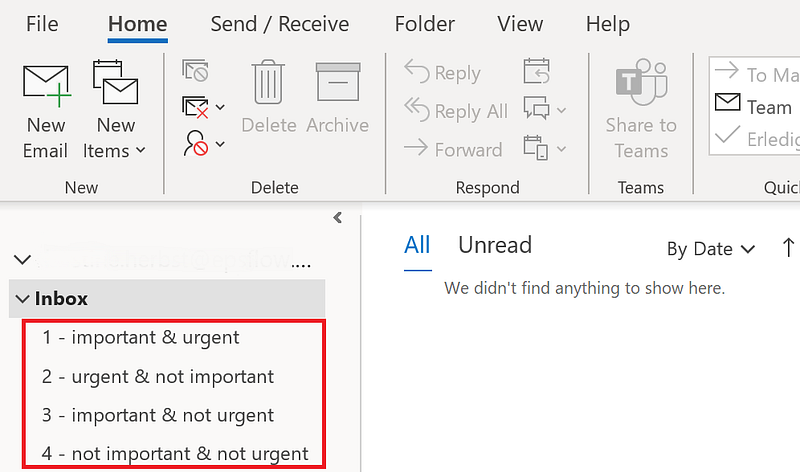
I created four folders in my mailing program Outlook. These four folders are named after the four categories of the Eisenhower Matrix:
Screenshot by author

I used these folders and moved my incoming emails to one of them after I had a quick look (“Inbox zero”).

The advantage is that I can use those four categories for all my to-dos (email drafts, see Step 2) as well as incoming emails — private as well as work-related).

Not only for the items of today but everything that needs to be done. I always have an overview, because I work with Outlook all day, and it is synced with my mobile phone.

The first folder, “important & urgent,” contains all the important and urgent tasks that have to be done by myself.

The second folder, “urgent & not important,” contains urgent tasks that are not important. I can probably delegate most of them to a Junior Consultant or another colleague.

For the items in the third folder, “important & not urgent,” I create an entry in my calendar somewhere in the future — early enough if some new tasks pop in and I have to reschedule — and mark the items in the folder.

The fourth folder, “not important & not urgent,” is for anything left but not important and not urgent. So these emails are just a reminder to not forget about something.

Step 2

I continue with the Pomodoro / 60–60–30 method. I write down all my tasks as email drafts and prioritize them with a priority in the title.

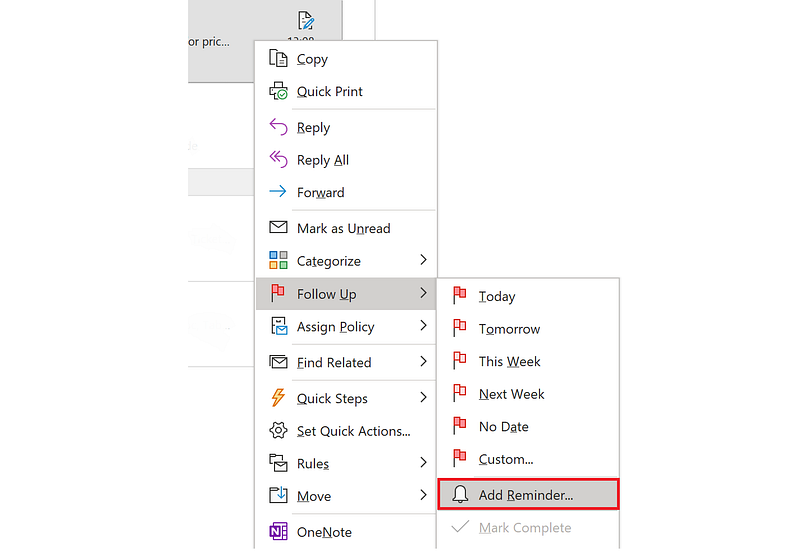
I use Microsoft Outlook because I work with it the whole day, and I can set reminders for the items.

screenshot by the author

Here you see how to set up a reminder.
screenshot by author

For bigger tasks or whole projects, I also use Jira user stories and tasks at work.

Step 3

Now we can start. Work with those items in your Outlook folders!

I start with the second folder, “urgent & not important,” because I can probably delegate most of them.

The earlier I delegate, the earlier it will be completed. I set deadlines for my colleagues and keep track of the item in my Outlook folder.

I continue with the third folder, “important & not urgent,” when the “urgent & not important” ones are delegated.

Although this is not the most urgent folder: when the tasks are scheduled, my head is free for the urgent ones. Whenever I look in this folder, I see with one look if there are unscheduled tasks or emails, and I can schedule them.

If everything from the third folder is scheduled, I continue to work on the first folder, “important & urgent.” Here I use the “Eat the Frog” method and start with the most unpleasant task.

I continue with my items in order of priority by creating time slots of 60–60–30. I blocked two days a week with slots for that method (Monday and Thursday, each 2.5 hours long).

All other tasks are accomplished between my meetings. If I have days without many meetings, I create 2.5 hour-slots if possible to work efficiently on my tasks.

In the working slots, I close my Outlook and don’t answer the phone so that I can work without any disturbances.

I work on the last folder, “not important & not urgent,” only two times a week. I scheduled two 30-minute slots in my calendar on Wednesday and Friday every week.

It has a specific color scheme, so I see it when I open my calendar. In those two slots per week, I complete as many tasks as possible from that folder, starting with whatever I want.

I don’t need to prioritize here. If tasks remain open, I have a quick look if I can leave them in that folder, or if I have to move them to another folder or delete them.

Step 4

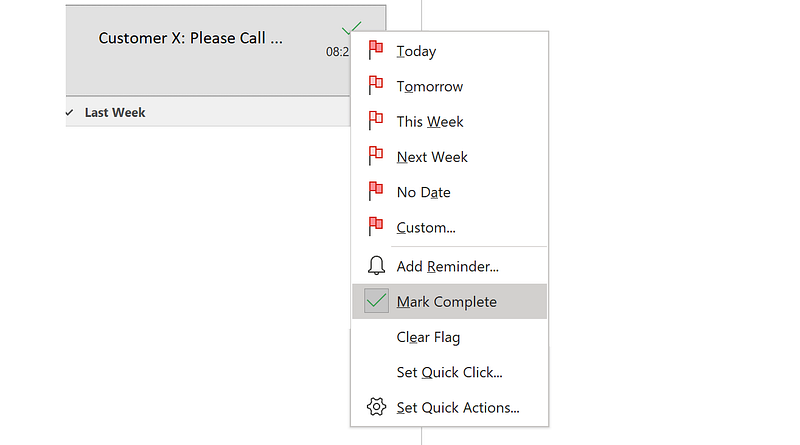
I deleted my email draft when I finished a task. Real emails that are done are marked with the “complete”-arrow and moved to my topic-related Outlook folders for archiving purposes.
Do you have any Best Practices? Let me know in the comments how you use your time more efficiently!

Join with my link to get full access to all stories on Medium!
About Me — Iris B. Stehn ▪ Twitter ▪ Facebook
New Writers Welcome
Time Management
Time Management Tips
Business Tips
Self Improvement
Recommended from ReadMedium