
Beginner’s Guide to Google Dorking: How to Search Smarter
A practical overview of 23 Google dorks to boost your everyday search skills.
Read for FREE as a non-member!
In this article, you will learn:
- A simple and beginner-friendly guide to Google search operators, covering syntax, descriptions, and practical examples.
- Which search operators Google has removed from its documentation and are no longer functional.
- How to combine various Google search operators to enhance your investigative skills.
What is Google Dorking
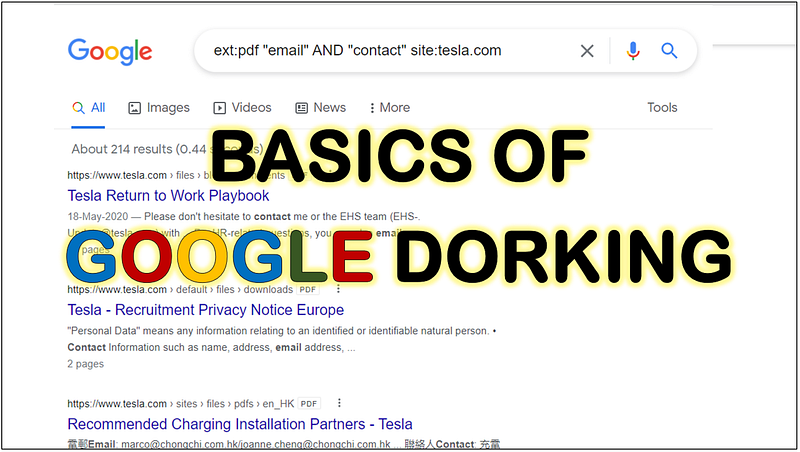
Google Dorking, also known as Google Hacking, is the practice of using search operators in Google to filter down very specific information.
The “Operators” are special characters and commands designed to refine and enhance online text searches.
Let’s get started!
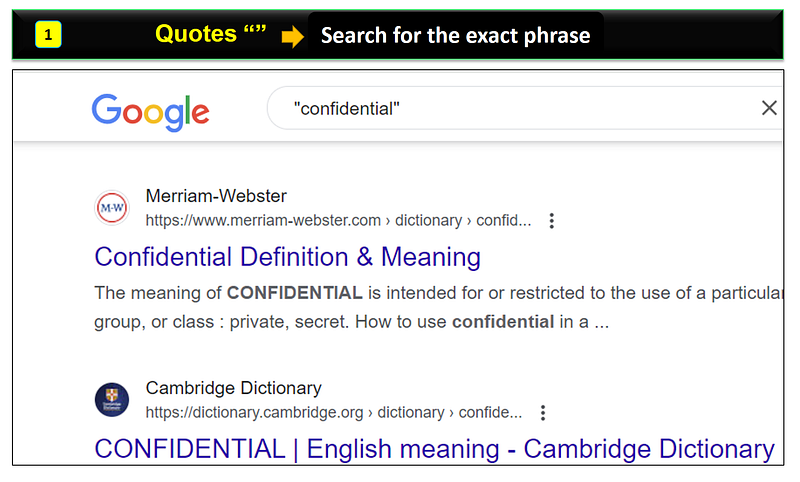
1. Quotation Marks “”
This search operator instructs Google to display results containing the exact phrase.
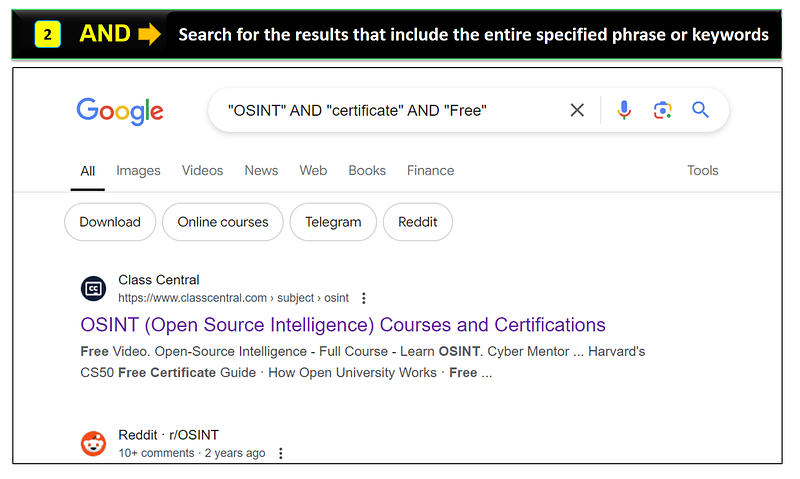
2. AND
Search for the results that include the specified keywords or entire given phrase.
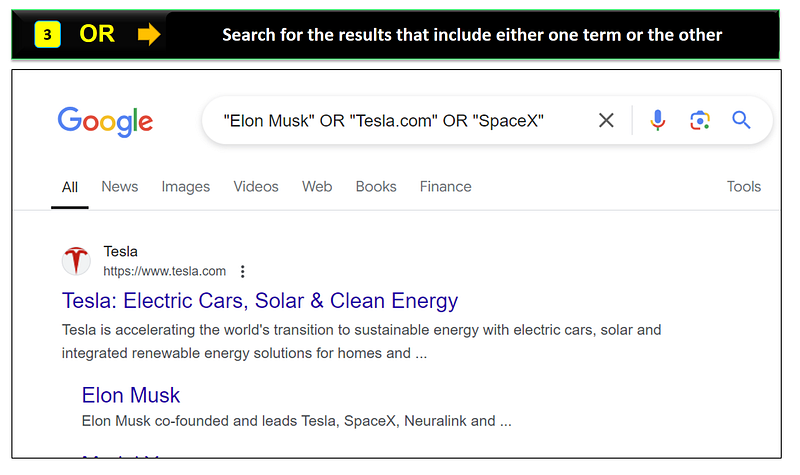
3. OR
Searches for either one keyword, phrase or the other.
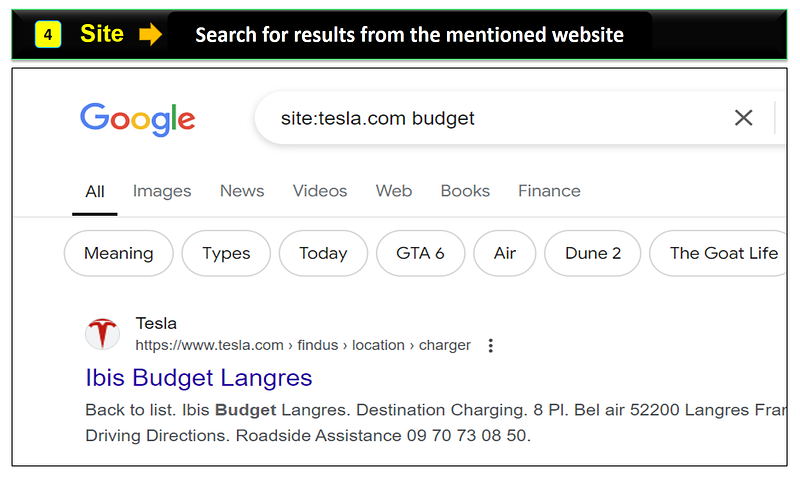
4. Site
This search operator is used to get results from the mentioned website.
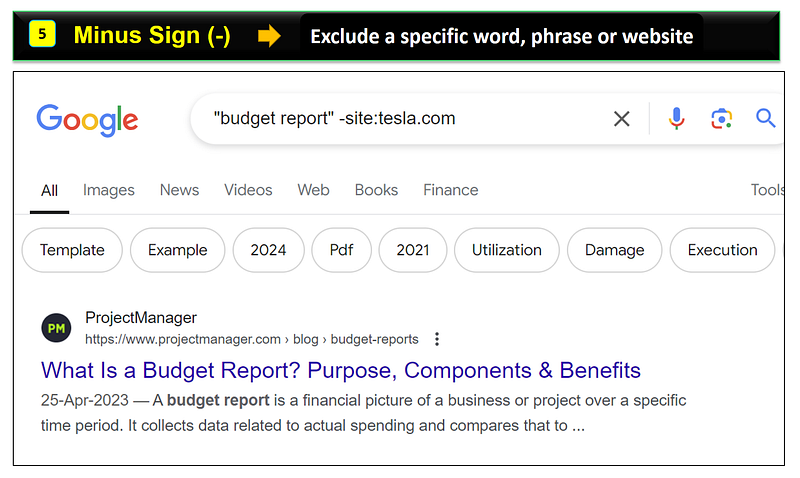
5. Minus Sign (-)
This search operator (-) allows you to exclude a specific word, phrase or website from the search results.
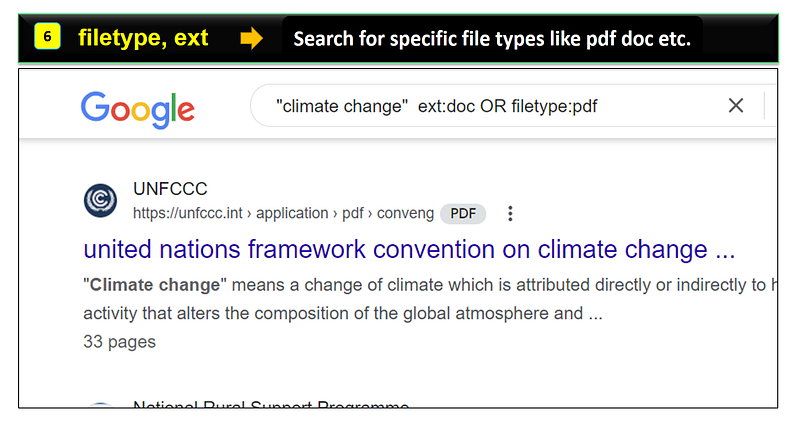
6. Filetype or Ext
Filetype or ext allows you to search for specific file types like PDF, DOC, DOCX, etc.
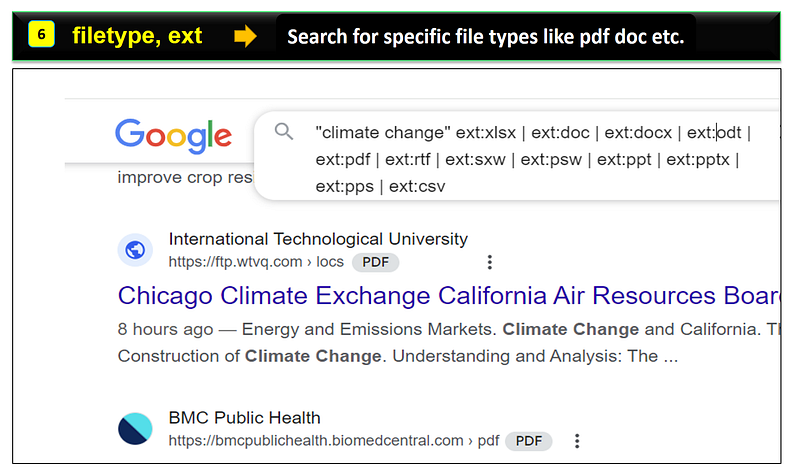
You can use vertical bar (pipe) as a logical “OR” operator to search a specific keyword or phrase in different file types, as shown below.
“climate change” ext:xlsx | ext:doc | ext:docx | ext:odt | ext:pdf | ext:rtf | ext:sxw | ext:psw | ext:ppt | ext:pptx | ext:pps | ext:csv
7. Before
Find results published before a specified date.
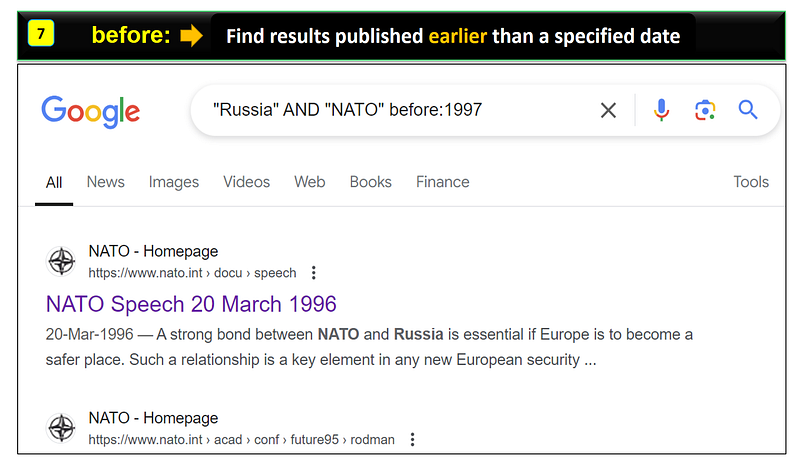
8. After:
Find results published after a specified date.
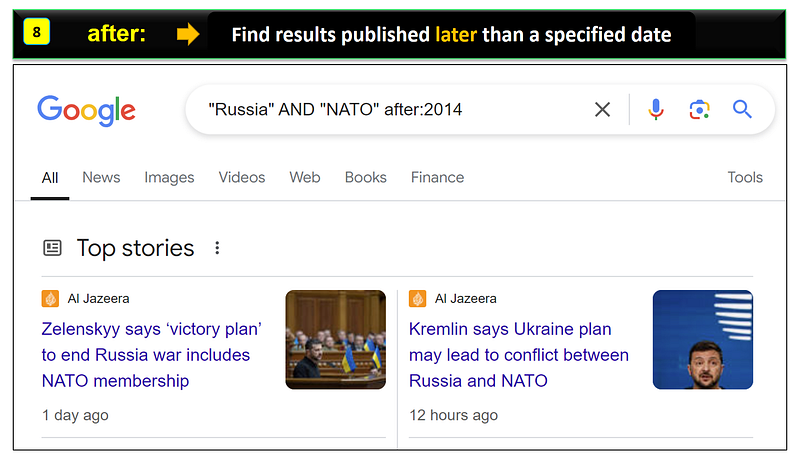
9. Intext:
This operator tells Google to search for pages where the specified keyword or phrase appears anywhere in the text of a webpage.
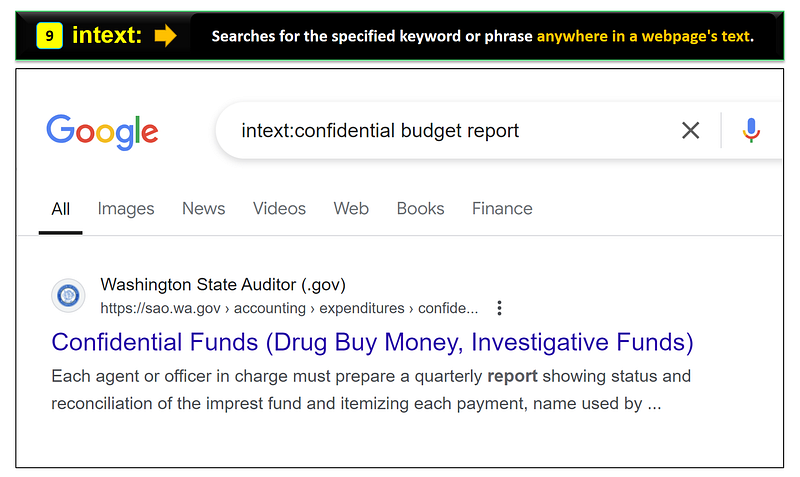
10. Allintext:
Find pages that include all the mentioned keywords or phrase in the body text of a webpage.
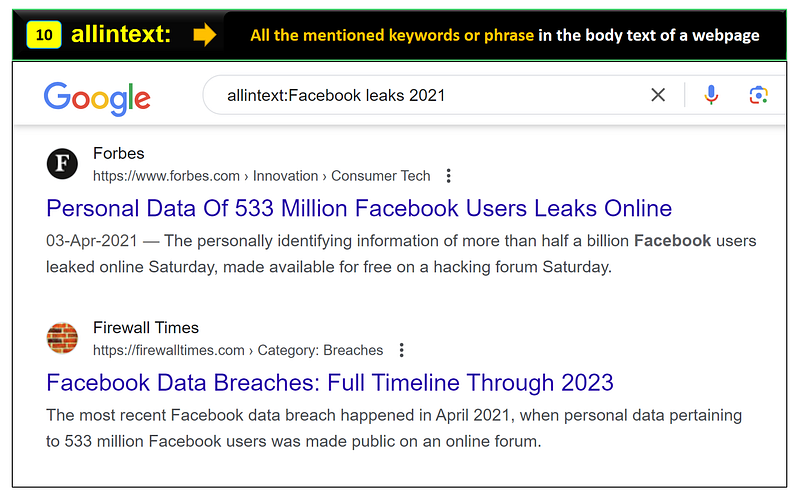
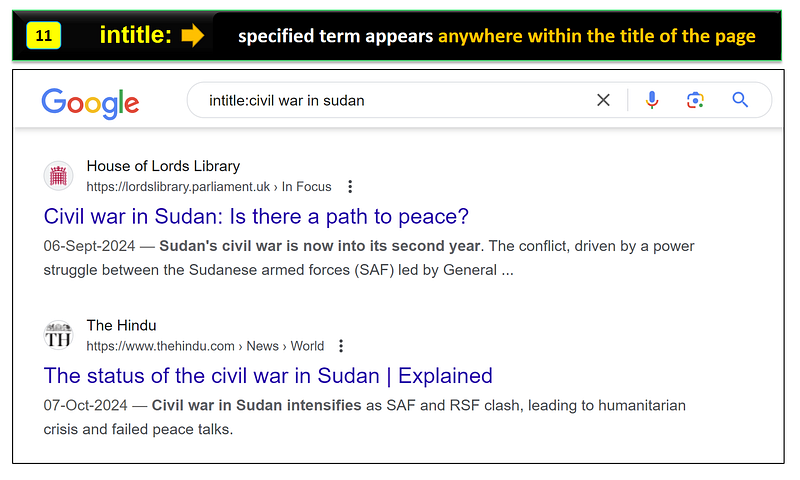
11. Intitle:
Search for pages that have specific keyword or phrase anywhere in the title of the page.
12. Allintitle:
Search for the web pages that contain the mentioned keyword or phrase exactly in the title and with the exact order specified.
However, the allintitle: operator ensures that all the specified words are present in the title, but it generally doesn’t guarantee they will appear in the exact order provided.
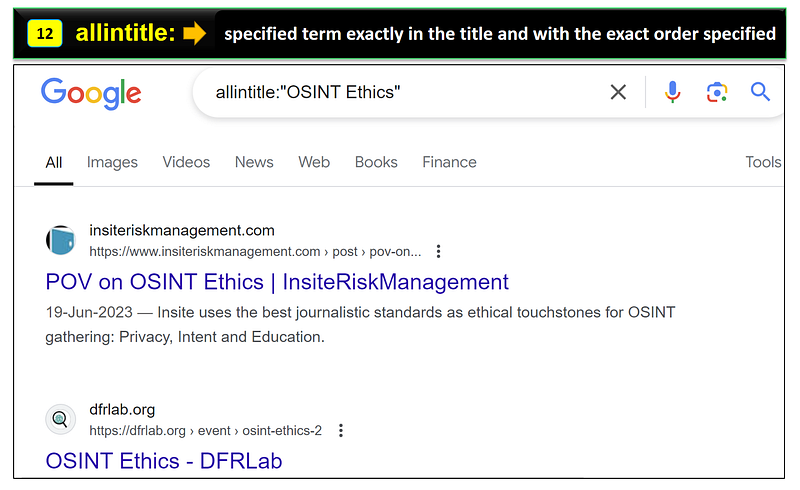
I would suggest to use the intitle:, when you want to find the webpages having the specified term anywhere in the title, regardless of the order.
13. Related:
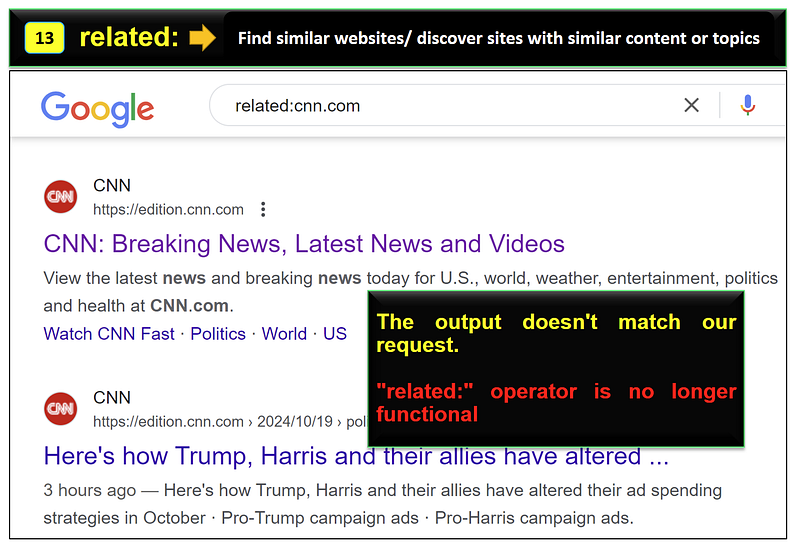
Find websites that similar to a specific URL.
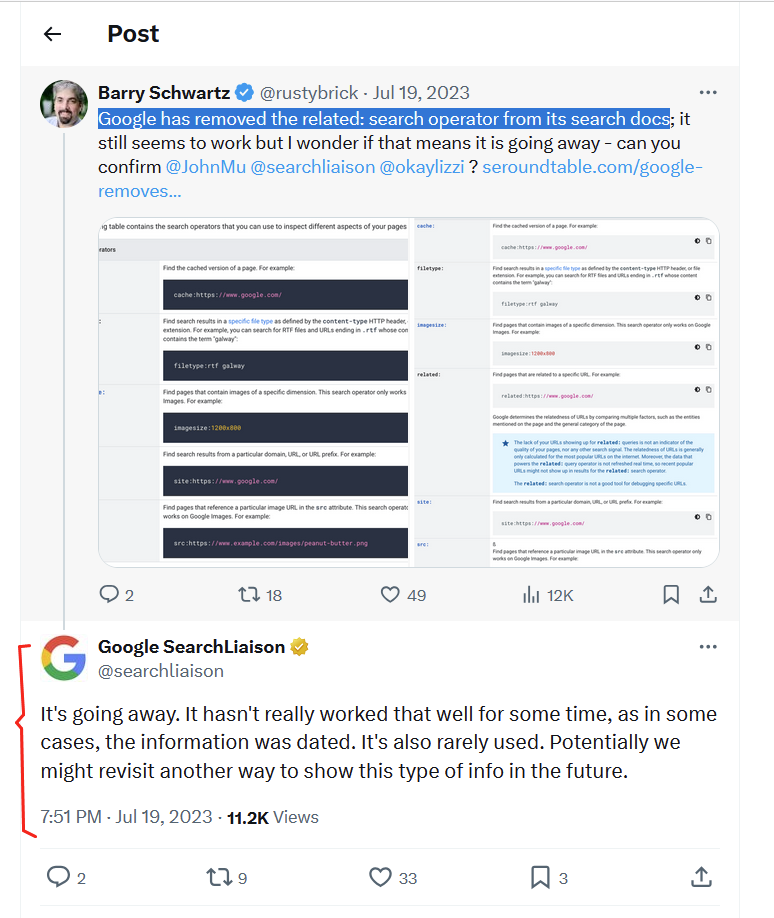
Google has removed the “related:” operator from its documentation, and it is no longer functional.
The output below indicates that the “related:” operator is no longer working.
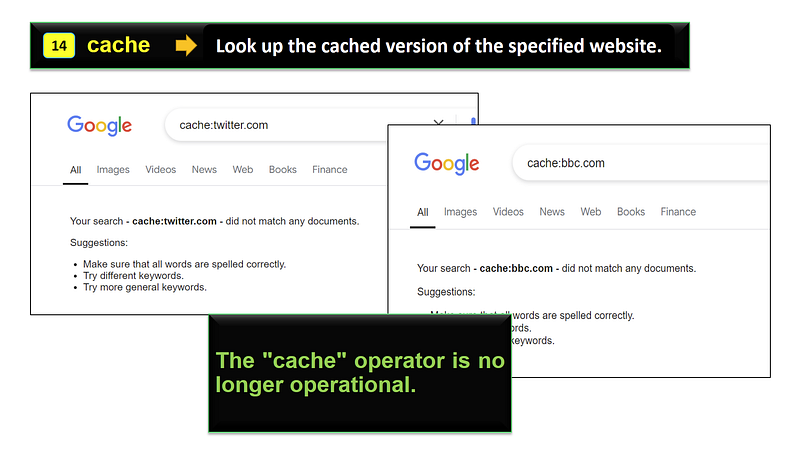
14. Cache
Look up the cached version of the specified website.
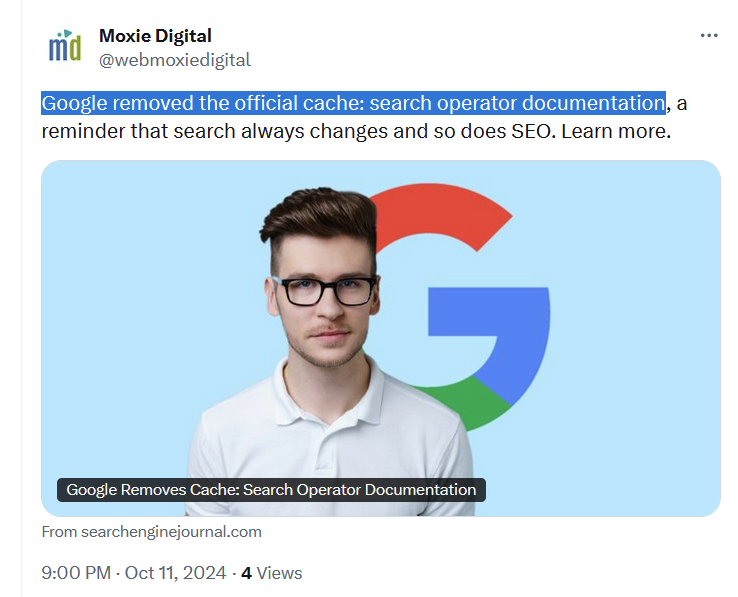
Unfortunately, this operator is no longer available.
The output below demonstrates that the “cache:” operator is no longer effective.
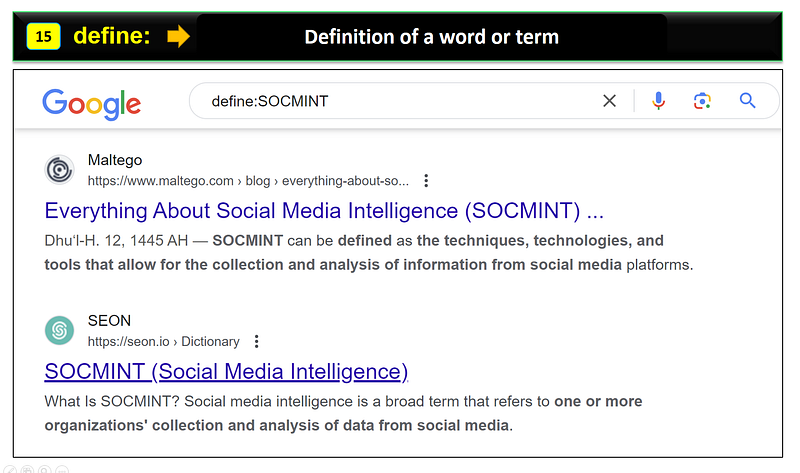
15. Define:
Provides the definition of a word or term
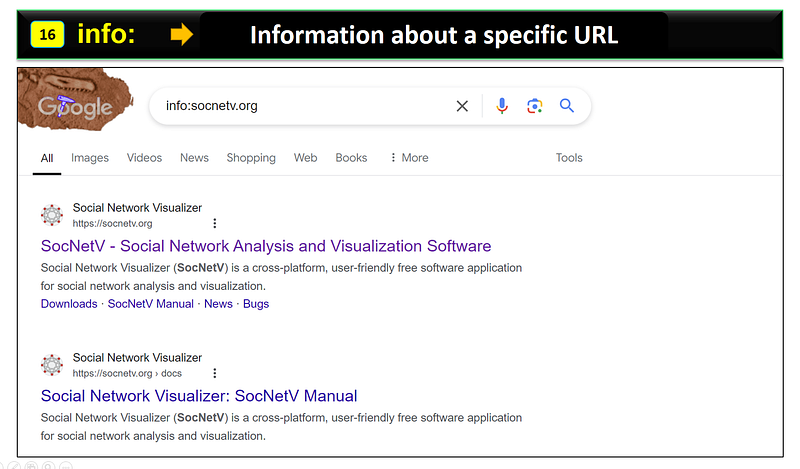
16. Info:
Search operator used to retrieve information about a specific URL.
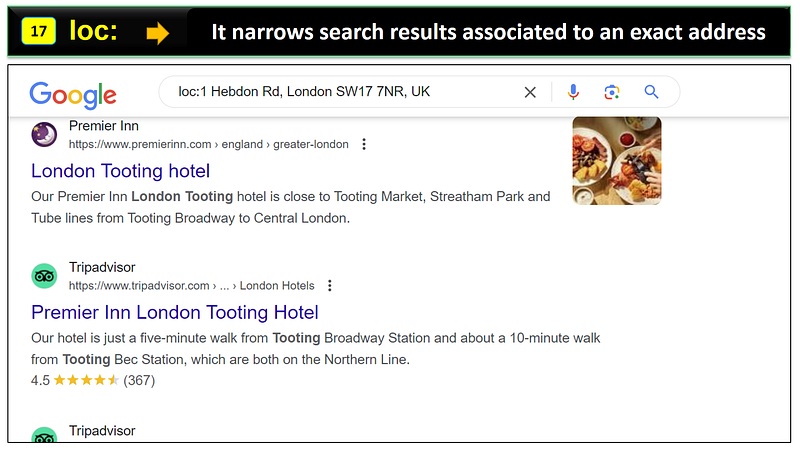
17. Loc:
This search operator return results for content tied to an exact address or specific geographic location.
It typically gives more precise results focused on the specified address, as shown below.
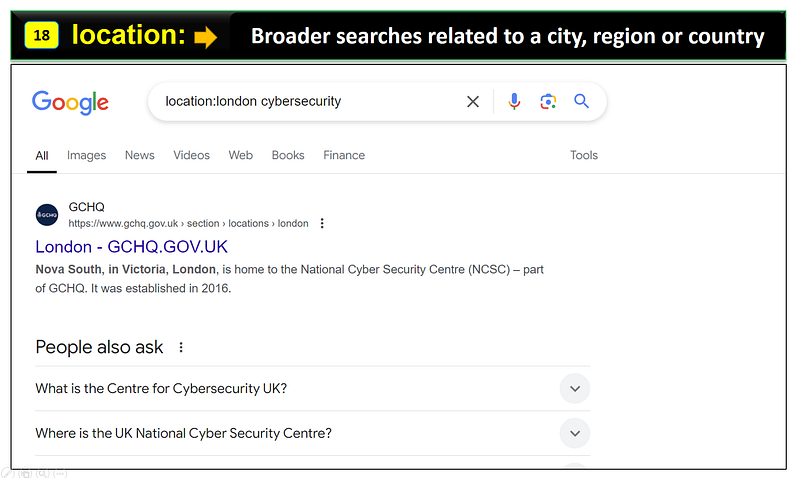
18. Location:
This search operator find general information related to a geographic area.
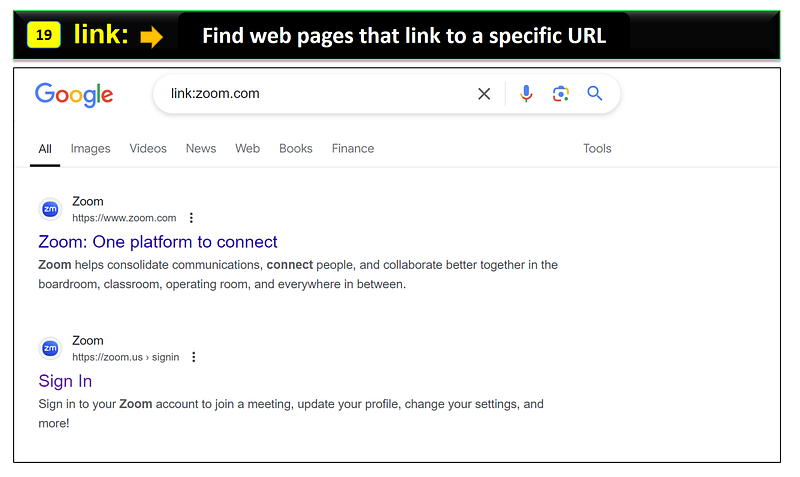
19. Link:
This operator search for pages that link to a specific URL, which could include blog posts, news articles, or other web pages.
20. Wildcard *
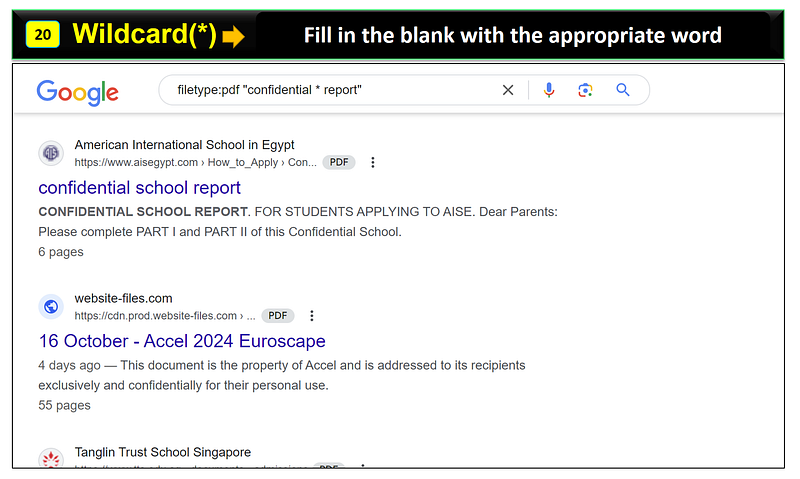
This operator (*) works like “fill-in-the-blank” tool, allowing Google to match any word to complete a phrase or sentence.
Means you are asking Google for help to fill the missing parts of a phrase when you are uncertain about a specific words.
Let me clarify it with an example.
Google query: filetype:pdf “confidential * report” Query explanation: In this search query we ask Google to fill the gap between “confidential” and “report” with any word, returning PDF files that match this pattern.
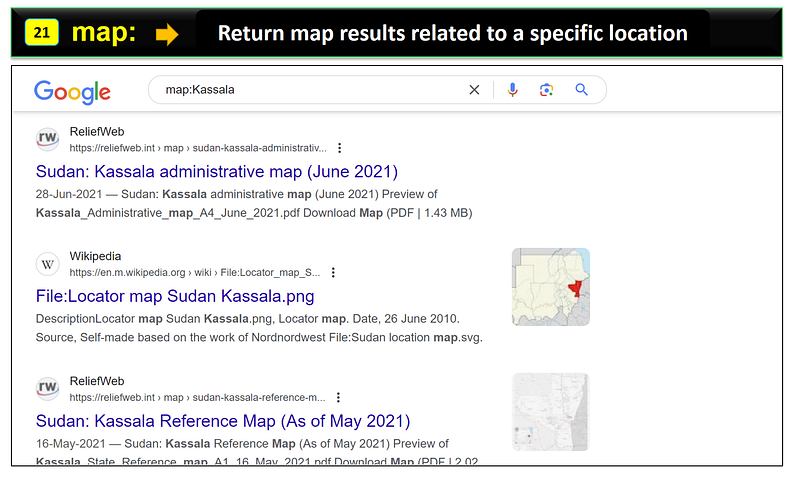
21. Map:
Display map results related to a specific location.
Combination of Google Advance Search Operators
At this point, you now understand the basics of Google Dorking. Let’s take a step forward and explore how to combine multiple search operators for specific investigative scenarios.
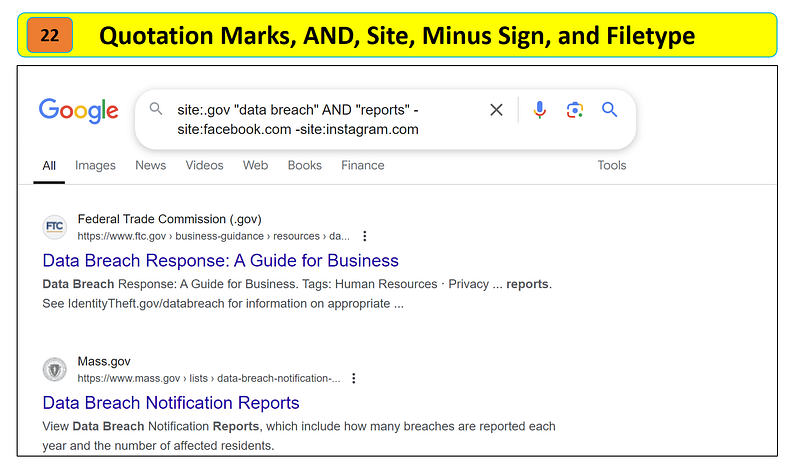
22. Quotation Marks, AND, Site, Minus Sign, and Filetype
Objective: Find “data breach reports” in PDF files from government websites, excluding results from Facebook and Instagram.
Google Query: site:.gov “data breach” AND “reports” -site:facebook.com -site:instagram.com
23. Before, Site and Quotation Marks
Objective: I want to find out in which year the BBC.com published the phrase “climate change” on their website.
Google Query: site:bbc.com “climate change” before:1999
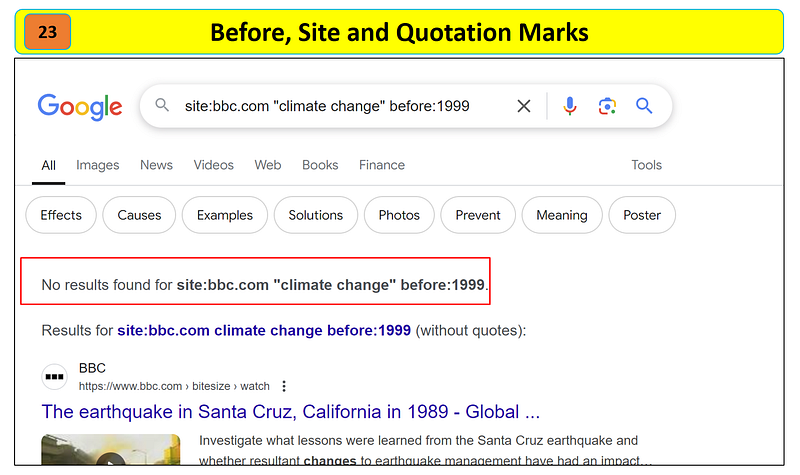
I didn’t get the desired results, so lets modify the Google query slightly.
Refined Query: site:bbc.com “climate change” before:2000
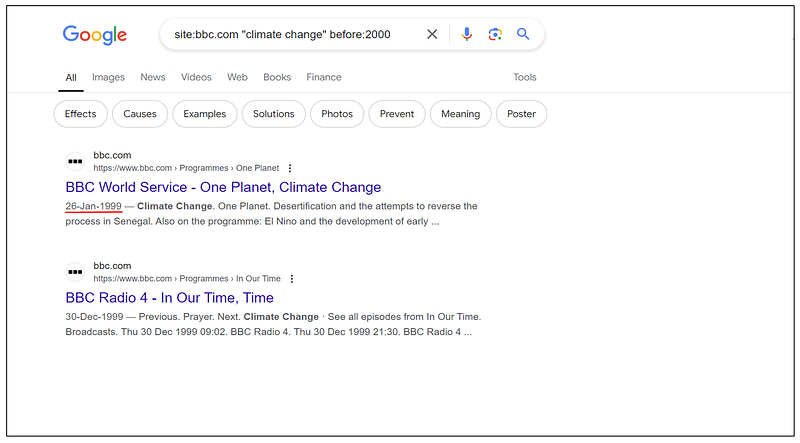
Outcome. Now this is impressive! We got only two results from Google, indicating that BBC.com first published the phrase “climate change” on 26 Jan 1999, as shown in the figure above.
You can further combine these Google dorks to align with your specific objectives.
The Road Ahead
Practice, practice and practice.
To gain expertise in Google Dorking, hands-on practice is essential.
These operators can significantly enhance your online searches, allowing you to uncover specific information efficiently.
Stay tuned for my upcoming articles, where i will demonstrate advanced Google Dorking techniques specifically tailored for journalists and researchers.
Furthermore, I will share insights on how to use AI tools like ChatGPT for advanced Google Dorking, empowering you to enhance your search skills to the next level.
Happy searching!


