
AWS Workshops DIY — EKS Workshop — 4. Exposing the Web Store Application Externally
Chapter 4 — By using a Layer-4 Network Load Balancer without Ingress (demonstrating both Instance mode and IP mode ingress traffic)
This fully functional microservices architecture-based web store application, frontend and backend inclusive, is a TRIPLE BONUS to keep handy in your pocket, to not only learn the art of microservices design and architecture but also how to implement it in Kubernetes, and most importantly how to host it in Amazon EKS cloud managed platform.
I am excited to move ourselves to a new module of the EKS Workshop, Fundamentals, and eager to complete the complement to Chapter 3. Deploying the Web Store Application Microservices Internally by exposing the web store to the outside world to enable some faux shopping practice(why not, ’tis Christmas season after all), with the help of an AWS Network Load Balancer in this chapter.
This is a simple and shortcut approach to exposing Kubernetes deployments via a Service of type LoadBalancer. In real-life production systems, the approach commonly includes Kubernetes Ingress, IngressGroup, and Ingress Controller (AWS Load Balancer Controller, formerly AWS ALB Ingress Controller), which will be covered in the following chapter.
Kubernetes Services, Load Balancing, Networking and Cloud Controller Manager — A Refresher
A refresher is quickly due since we’re delving hands-on into an advanced and complex area, Kubernetes Networking. The good news is that this workshop has done a good job of concisely explaining the general Kubernetes concepts and how AWS and Amazon EKS natively handle the Kubernetes networking-related resources, objects, controllers, and other constructs, and showing the implementation of how all of those come together hands-on.
The following references are worth knowing and reading before beginning the coding activity.
- Kubernetes Services, Load Balancing, and Networking — The official Kubernetes.io documentation page to build up general networking knowledge in Kubernetes. Pertaining to our context, it’s worth checking out the first three topics covering Service, Ingress, and Ingress Controllers.
- AWS Load Balancer Controller — The workshop page briefly explains what it is and how it is used.
- How AWS Load Balancer Controller works — For the curious mind, to understand in more depth than what’s covered in this EKS workshop pages. Focus on the right-hand side Table of Contents menu to relate to our work below.
- AWS Load Balancer Controller (Network Load Balancer) — More advanced knowledge stuff to relate to what’s happening in the
kubectl describe service ui-nlbbelow. The annotations in this command’s output are of interest to us since looking at them, the kubernetes.io Cloud Controller Manager Service Controller page, and the kubernetes.io Well-Known Labels, Annotations and Taints service.beta.kubernetes.io/aws-load-balancer-scheme page, we can connect the dots to understand the implementation of all these Kubernetes and AWS components and constructs.
Creating the Network Load Balancer — Instance Mode
We begin our work by firing the prepare-environment command as this workshop does for each lab chapter. This pretty much does everything we performed in Chapter 3 — it resets the environment by cleaning up resources from the previous sessions and creates the necessary infrastructure for this lab.
Essentially, the goal here is to expose and make the ui application available to the outside world for the end users. This is because the ui application will perform all communication to the other backend services using internal Kubernetes networking. This requires creating a new version of ui service called ui-nlb of type: LoadBalancer. Having installed the AWS Load Balancer Controller, the Kubernetes cloud controller component, it will provision a load balancer automatically with that simple directive.
The rest of the stuff is plain gravy. Once the Network Load Balancer is ready, on the browser, the URL displays the fully functional Web Store front we had deployed in the previous chapter. We’ve successfully connected the externally accessible frontend to the internally cluster-accessible backend. Congratulations!
# Ref: https://www.eksworkshop.com/docs/fundamentals/exposing/loadbalancer/

# Pre-Req: Create Amazon EKS Cluster following Chapter-2
# https://readmedium.com/aws-workshops-diy-eks-workshop-2-lets-cluster-with-eksctl-e129a4a3be9b

# NOTE:
# Once the cluster is ready the Instance mode works independent of the IP Mode
# as given in this code block

# Prepare the environment for this chapter
prepare-environment exposing/load-balancer

# Confirm all the microservices are only accessible internally
kubectl get svc -l app.kubernetes.io/created-by=eks-workshop -A

# Review the current UI service
# Observe line, type: ClusterIP
cat ~/environment/eks-workshop/base-application/ui/service.yaml

# Check the details of the UI Service object since it's already created
kubectl -n ui describe service ui

# Verify that the UI service endpoint above points to UI pods
# (only one pod running at this point)
kubectl get pods -n ui -o wide

# Review the additional new Service to provisions a load balancer
# Observe line with type: LoadBalancer
cat ~/environment/eks-workshop/modules/exposing/load-balancer/nlb/nlb.yaml

# Create the new UI Service object
# This Service by design creates a Network Load Balancer
# It listens on port 80 and forwards connections to the UI Pods on 8080
kubectl apply -k \
    ~/environment/eks-workshop/modules/exposing/load-balancer/nlb

# Now inspect the Service resources in the UI namespace
# Expect to see two separate resources
# (1) The new ui-nlb has type LoadBalancer
# (2) It also has an "external IP" value, takes few minutes to appear
# (3) EXTERNAL-IP field has the load balancer DNS name
# (4) This provides access to the application from the outside world
kubectl get service -n ui

# Examine the ui-nlb service deeper
# Annotations are of interest here
# See AWS Load Balancer Controller (Network Load Balancer) explanation above
kubectl describe service ui-nlb -n ui

# Examine the load balancer details to confirm
# - The NLB is accessible over the public internet
# - It uses the public subnets in the VPC
# - The DNSName key has the value reported in the previous command
aws elbv2 describe-load-balancers \
--query 'LoadBalancers[?contains(LoadBalancerName, `k8s-ui-uinlb`) == `true`]'

# Inspect the targets in the target group that was created by the controller
# Expect to see 3 targets (EC2 instances) registered to the load balancer
# The three targets are the three cluster nodes
ALB_ARN=$(aws elbv2 describe-load-balancers --query 'LoadBalancers[?contains(LoadBalancerName, `k8s-ui-uinlb`) == `true`].LoadBalancerArn' | jq -r '.[0]')
TARGET_GROUP_ARN=$(aws elbv2 describe-target-groups --load-balancer-arn $ALB_ARN | jq -r '.TargetGroups[0].TargetGroupArn')
aws elbv2 describe-target-health --target-group-arn $TARGET_GROUP_ARN

# Handy command to wait until the load balancer has finished provisioning
wait-for-lb $(kubectl get service -n ui ui-nlb -o jsonpath="{.status.loadBalancer.ingress[*].hostname}{'\n'}")

# Obtain the externally accessible load balancer URL
kubectl get service -n ui ui-nlb -o jsonpath="{.status.loadBalancer.ingress[*].hostname}{'\n'}"

# Voilà!
# Loading the URL pulls up the Retail Store Sample and it works perfectly!!
Creating the Network Load Balancer — IP Mode
We learned from the refresher section above that, AWS Load Balancer controller Ingress Traffic, supports two routing types:
- Instance mode — Ingress traffic starts at the load balancer and reaches the Kubernetes nodes through each service’s
NodePort. That’s why we saw the NLB above was pointing to all three nodes of the cluster, as well as, the NodePort port in theaws elbv2 describe-target-healthcommand. - IP mode — Ingress traffic starts at the load balancer and reaches the Kubernetes pods directly. For this work, CNIs must support directly accessible POD IPs via secondary IP addresses on ENI.
Take a quick read of the IP mode workshop page for more details.
To implement, the steps are basically the same as what we did in the case of the Instance Mode section above except for the annotation service.beta.kubernetes.io/aws-load-balancer-nlb-target-type key taking the value of ip instead of instance.
# Ref: https://www.eksworkshop.com/docs/fundamentals/exposing/loadbalancer/ip-mode

# Pre-Req: Create Amazon EKS Cluster following Chapter-2
# https://readmedium.com/aws-workshops-diy-eks-workshop-2-lets-cluster-with-eksctl-e129a4a3be9b

# NOTE:
# Once the cluster is ready the IP mode works independent of the Instance Mode
# as given in this code block

# Prepare the environment for this chapter
prepare-environment exposing/load-balancer

# Review the service manifest for ip mode
cat ~/environment/eks-workshop/modules/exposing/load-balancer/ip-mode/nlb.yaml

# Apply the manifest with kustomize
kubectl apply -k ~/environment/eks-workshop/modules/exposing/load-balancer/ip-mode

# Confirm the annotation has been updated
kubectl describe service/ui-nlb -n ui

# Let's look at the the targets in the target group of the load balancer
# Expect to see only one IP as the target, the IP of the ui pod
ALB_ARN=$(aws elbv2 describe-load-balancers --query 'LoadBalancers[?contains(LoadBalancerName, `k8s-ui-uinlb`) == `true`].LoadBalancerArn' | jq -r '.[0]')
TARGET_GROUP_ARN=$(aws elbv2 describe-target-groups --load-balancer-arn $ALB_ARN | jq -r '.TargetGroups[0].TargetGroupArn')
aws elbv2 describe-target-health --target-group-arn $TARGET_GROUP_ARN

# We can scale up the ui component to 3 replicas to create more pods
kubectl scale -n ui deployment/ui --replicas=3
kubectl wait --for=condition=Ready pod -n ui -l app.kubernetes.io/name=ui --timeout=60s

# Let's examine the targets of the load balancer after the scale out
aws elbv2 describe-target-health --target-group-arn $TARGET_GROUP_ARN

# Like before, wait until the load balancer finish the reconfiguration
wait-for-lb $(kubectl get service -n ui ui-nlb -o jsonpath="{.status.loadBalancer.ingress[*].hostname}{'\n'}")

# Obtain the externally accessible load balancer URL
kubectl get service -n ui ui-nlb -o jsonpath="{.status.loadBalancer.ingress[*].hostname}{'\n'}"

# Déjà vu  all over again!
# Loading the URL pulls up the Retail Store Sample and it works perfectly!!
Testing the Web Store Application UI
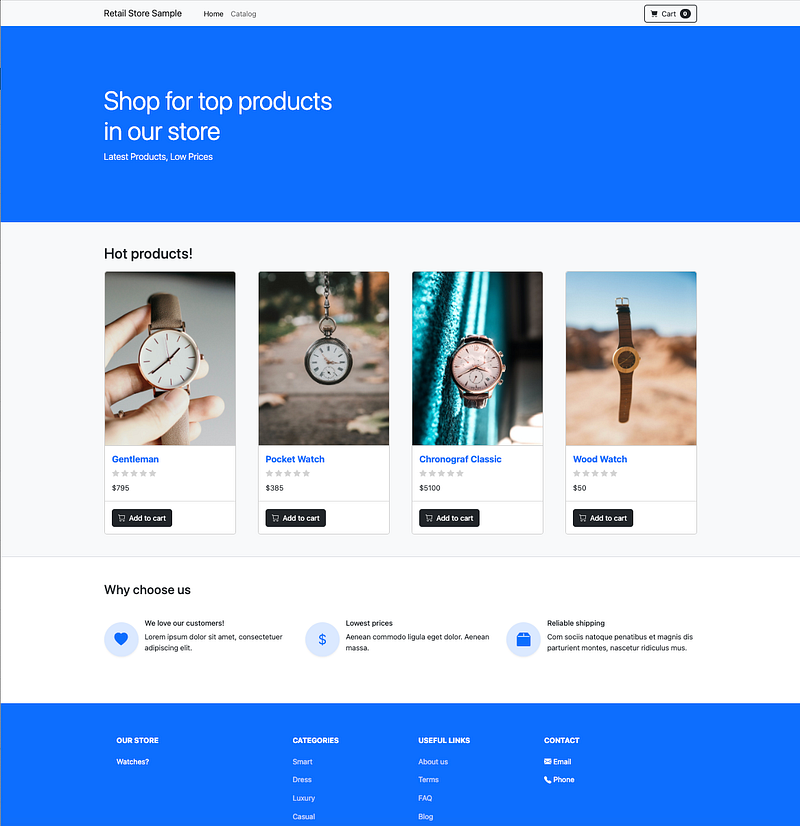
It is time to wrap up by successfully loading the Web Store application on a browser and checking it out to make sure the application is working as expected and in the process validating that the microservices are behaving and responding.
The screenshot below shows the first page of the store. In my checking, all the links, interfaces, and functionalities worked 100%, worked to the extent it’s designed to work like I was able to successfully add multiple products to the shopping cart and checkout. Overall impressed!
As I’ve mentioned before, this fully functional microservices architecture-based web store application, frontend and backend inclusive, is a triple bonus to keep handy in your pocket, to not only learn about the art of microservices design and architecture but also how to implement in Kubernetes and most importantly how to host it in Amazon EKS cloud managed platform.
Next Steps
We’re going to up the ante!
After learning how to implement an architecturally sound albeit basic way of hosting the backend internally in the Kubernetes cluster and then exposing the microservices application with the help of an external load balancer in the Amazon EKS platform, we’re going to design and architect in the right way using Kubernetes Ingress, IngressGroup, and Ingress Controller resources. The next chapter, Chapter 5, will do exactly that.
Stay tuned!
If you benefited from reading the post, please 👏 a few times before parting, and help others by sharing it; I highly appreciate that!
Please follow to stay in touch, track, and be the first to get notified of all future writings on AWS Cloud, Containers, Kubernetes, and Machine Learning. Also, check all my stories on The AWS Way publication.


