avatarGörkem Çetin

Free AI web copilot to create summaries, insights and extended knowledge, download it at here

5193

Abstract

</figure><figure id="7075"><img src="https://cdn-images-1.readmedium.com/v2/resize:fit:800/1*Q7J63MqsukUs9WrA01Yehw.png"><figcaption>We can run the create-tables script now.</figcaption></figure><figure id="be64"><img src="https://cdn-images-1.readmedium.com/v2/resize:fit:800/1*NqpB4Vf09m7ayuWCjKLEgA.png"><figcaption>There may be warnings but make sure there are no errors on the output.</figcaption></figure><p id="e1b1">When the script execution is done, database for SSC is ready.</p><p id="8a9e">Next step is Tomcat. I will install it as a Windows Service, so installer is great.</p><figure id="314b"><img src="https://cdn-images-1.readmedium.com/v2/resize:fit:800/1*0JOrGlw9vBdM2-hq_CDwjQ.png"><figcaption>Even it is a test environment and almost all of installations are not hardened, not installing manager is a good habit for reducing attack surface.</figcaption></figure><figure id="96a8"><img src="https://cdn-images-1.readmedium.com/v2/resize:fit:800/1*iXqQRk-HvFaWVC50mWVR5w.png"><figcaption>After the installation is complete do not start the Tomcat yet. There is some configuration to do.</figcaption></figure><p id="b362">You need to create a folder for SSC’s files and add this path to Tomcat, default location of this folder usually cause a chaotic situation. I almost always use following path for the <i>home </i>folder. The name of the folder is up to your creativity.</p><figure id="c888"><img src="https://cdn-images-1.readmedium.com/v2/resize:fit:800/1*3xK5NqtJoot7iM8WIdB2jg.png"><figcaption></figcaption></figure><figure id="cbed"><img src="https://cdn-images-1.readmedium.com/v2/resize:fit:800/1*U75KrORfeamNev0-M8MElg.png"><figcaption>Go to Tomcat’s service manager and add new home folder.</figcaption></figure><figure id="23aa"><img src="https://cdn-images-1.readmedium.com/v2/resize:fit:800/1*5lRvEvJbRBjWM7yf11m5OA.png"><figcaption>New path under Java Options and increase max memory pool</figcaption></figure><p id="1f93">After copying SSC .war file under Tomcat webapps folder, we are ready to start Tomcat.</p><p id="807b">Next step is basic configuration of SSC. Open your browser and go to <a href="http://localhost:8080/ssc">http://localhost:8080/ssc</a> . 8080 is the port I chose. It may be different if you choose another port.</p><figure id="1ad5"><img src="https://cdn-images-1.readmedium.com/v2/resize:fit:800/1*0rBYn0ILauZ_Zy3aSLkRbA.png"><figcaption>Click on “Administrators”. Setup will require a token. We can find the token in home folder we created before.</figcaption></figure><figure id="5bd8"><img src="https://cdn-images-1.readmedium.com/v2/resize:fit:800/1*SOHl9Xb85V1xGaCMWJrF0Q.png"><figcaption></figcaption></figure><figure id="7509"><img src="https://cdn-images-1.readmedium.com/v2/resize:fit:800/1*bJ1tiiFo57g1tGftaHhq7A.png"><figcaption>Good to go.</figcaption></figure><figure id="f524"><img src="https://cdn-images-1.readmedium.com/v2/resize:fit:800/1*mJ4oRSZ4J-Lc7oYnxu6xwA.png"><figcaption>You need to upload a valid license and agree the path you are using as home folder.</figcaption></figure><figure id="04cf"><img src="https://cdn-images-1.readmedium.com/v2/resize:fit:800/1*tjLnlIfMvmNwULvPi-1HvQ.png"><figcaption>I do not need “Global Search” or “Header Validation” for this test system.</figcaption></figure><figure id="abc9"><img src="https://cdn-images-1.readmedium.com/v2/resize:fit:800/1*H157FqIavj5oJmLkw5lbsw.png"><figcaption>You need to connect SSC with database schema you created before. Testing the connection and making sure that it works properly is important before going further, it won’t work without a database.</figcaption></figure><figure id="5e1d"><img src="https://cdn-images-1.readmedium.com/v2/resize:fit:800/1*S8V3SGXNXJCZ6vgaKGzGuA.png"><figcaption>Next step is seeding the database. The order of packets is <b>important</b>, so do not do this randomly. I modified the max_allowed_packet for these packets.</figcaption></figure><figure id="0963"><img src="https://cdn-images-1.readmedium.com/v2/resize:fit:800/1*X78bmulzBqJ4wP7zQnvSBQ.png"><figcaption>SSC basic setup is done, restart the Tomcat service and we are good to go.</figcaption></figure><figure id="6d7e"><img src="https://cdn-images-1.readmedium.com/v2/resize:fit:800/1*6sfUKkXGOPDTCQ8iHaDSlw.png"><figcaption>Default admin user’s password is “admin”. SSC will ask you to change it in first login, it is a high complexity password by default so new password must include upper, lower case letter, numbers and symbols. You know the drill.</figcaption></figure><p id="a787">SSC is ready to go.</p><h2 id="f441">3-Controller</h2><p id="aa5c">Scan Central Controller is similar with SSC, a java application running on Tomcat, but it is less customizable than SSC. It comes as a package from Microfocus.</p><p id="52c6">What You Need:</p><ul><li>JDK</li><li>Controller installation files</li></ul><figure id="433e"><img src="https://cdn-images-1.readmedium.com/v2/resize:fit:800/1*1iW5tayzmgjC8VlPt3iE2A.png"><figcaption>JDK is simple, follow the installer.</figcaption></figure><figure id="3e8a"><img src="https://cdn-images-1.readmedium.com/v2/resize:fit:800/1*MkcMB8suYK49hri6hJubaA.png"><figcaption>You need to create a home folder fo

Options

r controller too. I prefer a location directly under C. Naming of folder must not have spaces.</figcaption></figure><figure id="7487"><img src="https://cdn-images-1.readmedium.com/v2/resize:fit:800/1*FvxITEX4SpXmMRvq7j29pg.png"><figcaption>Extract the controller files to folder.</figcaption></figure><figure id="81b7"><img src="https://cdn-images-1.readmedium.com/v2/resize:fit:800/1*AjEZrb-hgF8nMow4-zBABg.png"><figcaption>I will set the controller as a service, Microfocus provides a script for this goal. I will name the service as “controller”</figcaption></figure><figure id="9f40"><img src="https://cdn-images-1.readmedium.com/v2/resize:fit:800/1*zyG_D9ce-JyK97ghDDcj3w.png"><figcaption></figcaption></figure><p id="e691">We are good to go, controller is ready.</p><h2 id="191f">4-Jenkins & Scan Central Client</h2><p id="5fb7">To translate the source code, you need Fortify SCA. Setup is same with sensor at this point, I will configure it as a client later. Please refer to “1-Sensor(s)” for details.</p><p id="f178">Jenkins is default too, I only changed the port and plugins that come with suggested settings. Jenkins requires JDK too. It is possible to follow <a href="https://www.jenkins.io/doc/book/installing/windows/">Jenkins’ documentation</a>.</p><figure id="d88b"><img src="https://cdn-images-1.readmedium.com/v2/resize:fit:800/1*zjNOzppYVRDMcbdTMoMpvA.png"><figcaption></figcaption></figure><figure id="30f5"><img src="https://cdn-images-1.readmedium.com/v2/resize:fit:800/1*S5P3sbFFMKxqeU7Hn1zuIg.png"><figcaption></figcaption></figure><p id="a0ef">4 machines for this system are ready now.</p><figure id="1874"><img src="https://cdn-images-1.readmedium.com/v2/resize:fit:800/1*gct236S3Nup3YDTLN2NdPA.jpeg"><figcaption></figcaption></figure><p id="5a47"><b><i>Don’t worry we will configure everything in the next post.</i></b></p><p id="33b1"><b>Organization of series</b> 1- <a href="https://readmedium.com/application-security-automation-66c8c3a9efac">Introduction</a></p><p id="9581">2- Installation (This post)</p><p id="ea21">3- <a href="https://readmedium.com/application-security-automation-part-3-5934b9444144">Configuration</a></p><p id="83d7">4- <a href="https://readmedium.com/application-security-automation-part-4-7c33d4c27540">Scanning</a></p><p id="7ffe">5- <a href="https://readmedium.com/application-security-automation-part-5-d7bb7942f428">Reviewing the findings</a></p><div id="1101" class="link-block"> <a href="https://www.linkedin.com/in/g%C3%B6rkem-%C3%A7etin-992419194/"> <div> <div> <h2>Görkem Çetin - Senior Cyber Security Consultant - Cyberwise | LinkedIn</h2> <div><h3>View Görkem Çetin's profile on LinkedIn, the world's largest professional community. Görkem has 8 jobs listed on their…</h3></div> <div><p>www.linkedin.com</p></div> </div> <div> <div style="background-image: url(https://miro.readmedium.com/v2/resize:fit:320/0*PZx_00LvAkFyv1mC)"></div> </div> </div> </a> </div><h2 id="3f10">More…</h2><div id="e1a2" class="link-block"> <a href="https://readmedium.com/application-security-automation-66c8c3a9efac"> <div> <div> <h2>Application Security Automation</h2> <div><h3>Automated Static Code Analysis</h3></div> <div><p>medium.com</p></div> </div> <div> <div style="background-image: url(https://miro.readmedium.com/v2/resize:fit:320/1*exgSa5xe9aoDPQhU39nWYA.png)"></div> </div> </div> </a> </div><div id="c698" class="link-block"> <a href="https://readmedium.com/2022-cio-agenda-the-action-plan-to-master-business-composability-18fdd191e485"> <div> <div> <h2>2022 CIO Agenda: The Action Plan to Master Business Composability</h2> <div><h3>With the post-pandemic economy taking shape, CIOs can evolve IT’s mission to shape the business.</h3></div> <div><p>medium.com</p></div> </div> <div> <div style="background-image: url(https://miro.readmedium.com/v2/resize:fit:320/0*U2vDKgSVl0YbUOTz.jpg)"></div> </div> </div> </a> </div><div id="8e08" class="link-block"> <a href="https://readmedium.com/what-are-the-differences-between-data-scientists-that-earn-500-and-225-000-yearly-ea60ccdf03d7"> <div> <div> <h2>What Are The Differences Between Data Scientists That Earn 500💲 And 225.000💲 Yearly?</h2> <div><h3>This article is about important talents, tools, features of the country, and features of the company for high income in…</h3></div> <div><p>medium.com</p></div> </div> <div> <div style="background-image: url(https://miro.readmedium.com/v2/resize:fit:320/1*kigSkk0txLLC_CtuebcVuA.gif)"></div> </div> </div> </a> </div></article></body>

Application Security Automation Part 2

Automated Static Code Analysis

Installation

Note that almost all of the installations and configurations are not hardened so if you create something similar on a production environment please do it in a more secure way (I will post about this topic later), this process is just for demonstrating this system and its potential capabilities on a local environment.

Lab Information

Windows 10, updated, local firewall disabled (all parts can be installed on Linux too), 4 machines in total on VMware.

  • 1 Sensor -> number of sensors can be increased
  • 1 SSC -> Requires a DB which I will install on same machine. In a production environment DB and application server should be on different machines.
  • 1 Controller ->Scan Central Controller
  • 1 Jenkins -> no nodes for now just a simple installation for testing

1-Sensor(s)

You need to install Fortify SCA first then modify it as a worker of Scan Central.

What You Need

  • Fortify SCA Installer exe
  • Valid Fortify License

Run the exe and the installer will lead you. I will point out some important decisions below. Check out the screenshot descriptions.
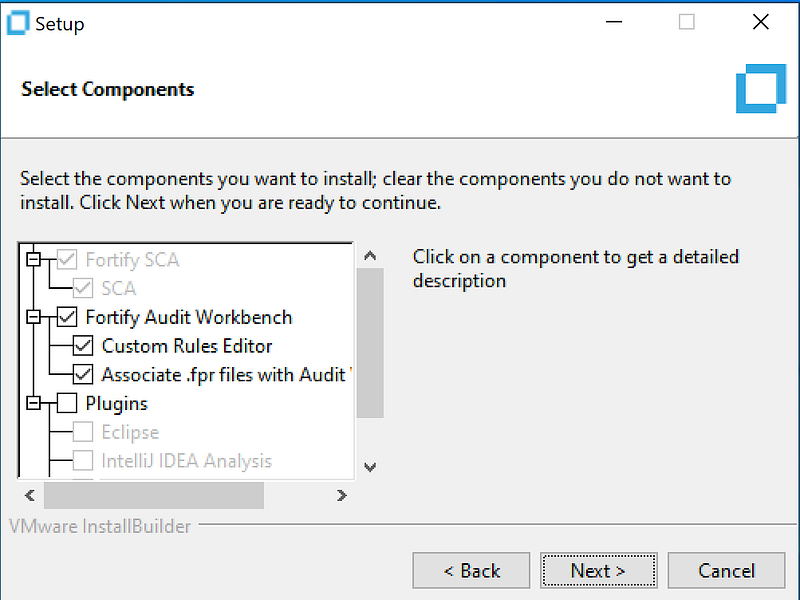
I don’t need IDE plugins because I will start scans from Jenkins. Audit Workbench is for examining results of scans which is .fpr files. It is totally optional.
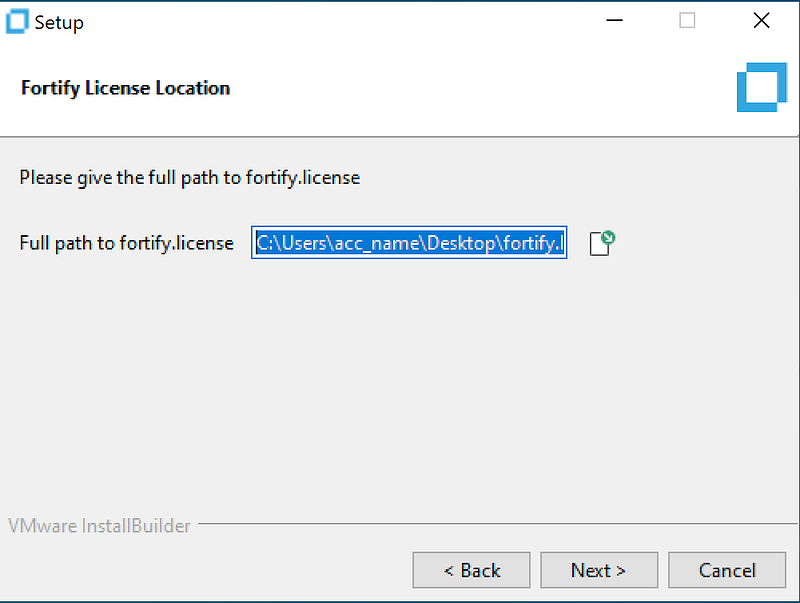
License file’s name should be fortify.license. Different names cause problems.
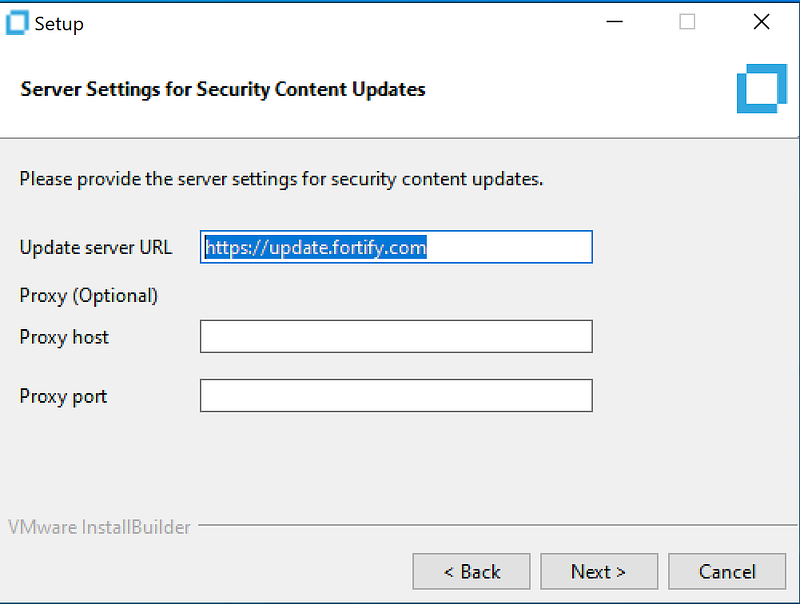
You need to access following URL for rules so if there is a proxy on your system, you should provide information about proxy.
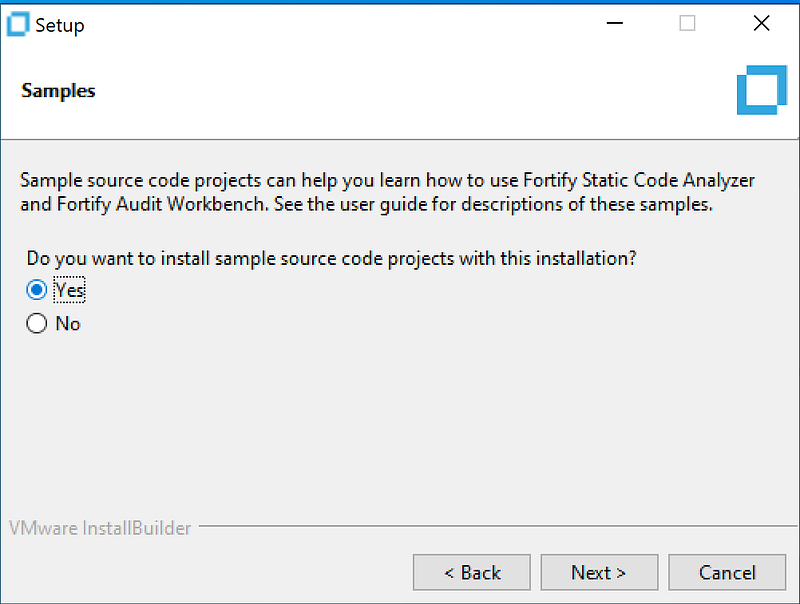
It is always good to have samples for testing.

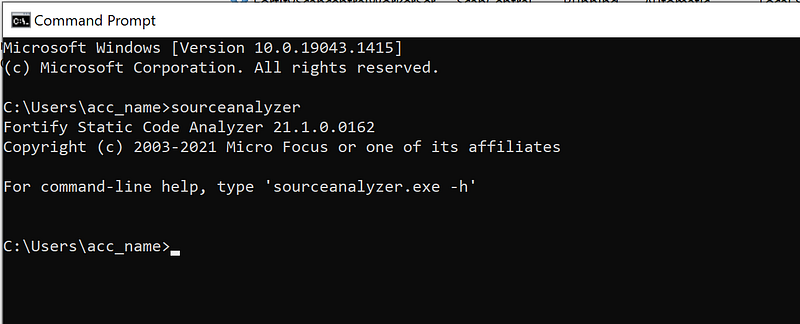
Installation is done, you have a working standalone SCA. “sourceanalyzer” is added to path so you can use it directly from command line. It is not a worker for Scan Central yet, we will configure it later in the upcoming posts.
2-SSC

You need to have a database and a Tomcat server for SSC. I will use MySQL. MsSQL and Oracle are supported too.

What You Need

  • MySQL installer
  • Tomcat installer
  • JDK for Tomcat
  • SSC files
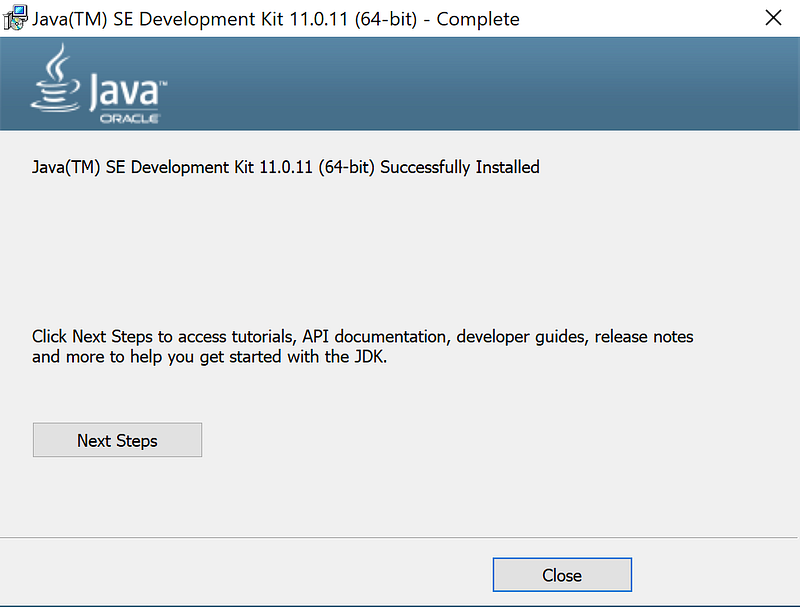
JDK is simple, follow the installer.
A simple non-secure default installation for testing purposes.

Important configurations for MySQL, other DB systems require different configurations.

I will use Workbench for creating tables and by default Workbench blocks UPDATE and DELETE so we need to disable it.
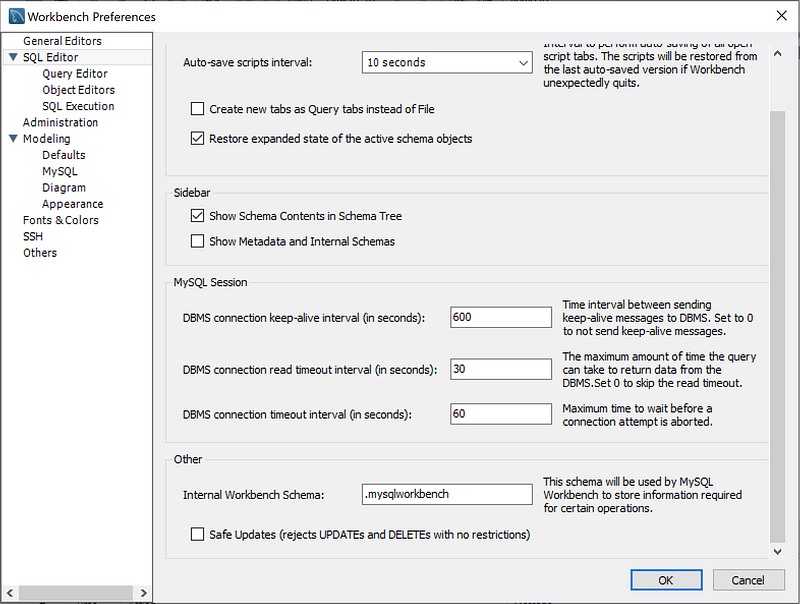
Edit > Preferences> SQL Editor > Others > Disable Safe Updates

After confirming the new preference, you need to restart Workbench.

You also need to change “max_allowed_packet” size because default size of MySQL is too small for SSC’s seeding packets. There are various ways to change this parameter, but I will change mine directly from my.ini.
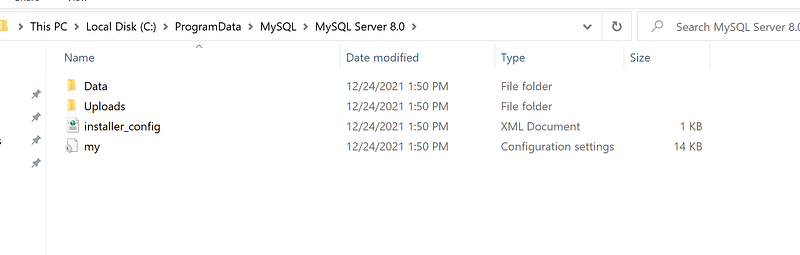

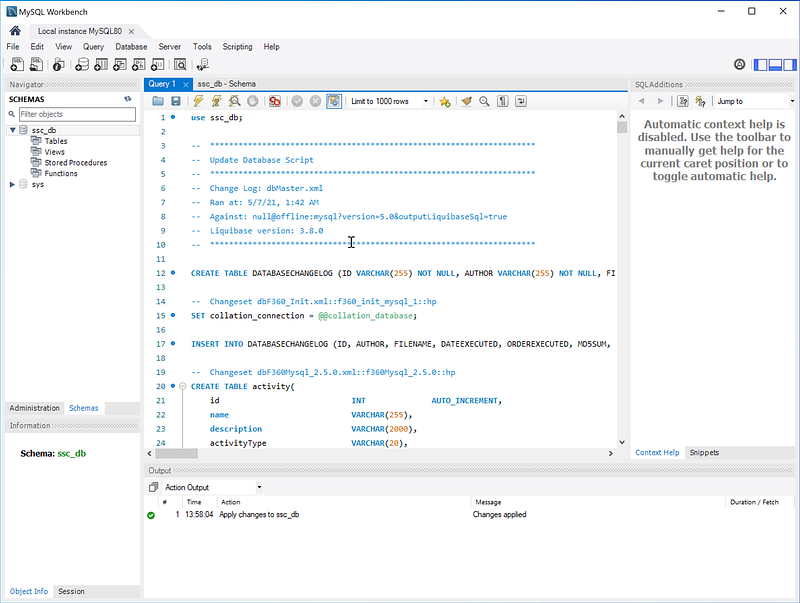
After restarting MySQL, it is ready for SSC tables. create_tables script can be found in SSC setup files.
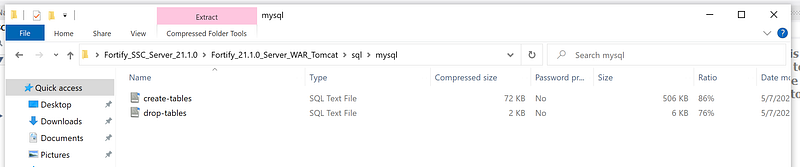
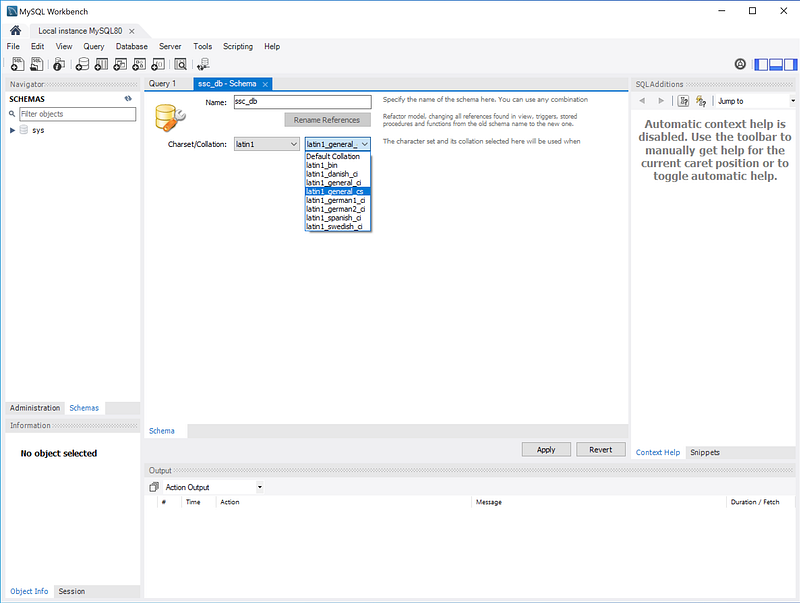
Fortify SSC requires case sensitive collation, and it is crucial. I will use latin1_general_cs
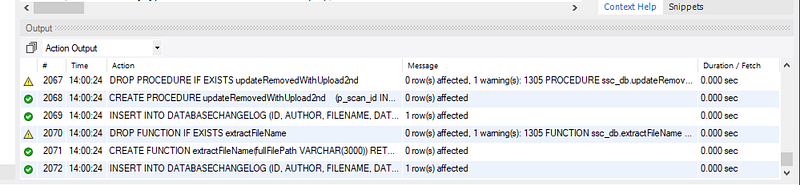
We can run the create-tables script now.
There may be warnings but make sure there are no errors on the output.

When the script execution is done, database for SSC is ready.

Next step is Tomcat. I will install it as a Windows Service, so installer is great.
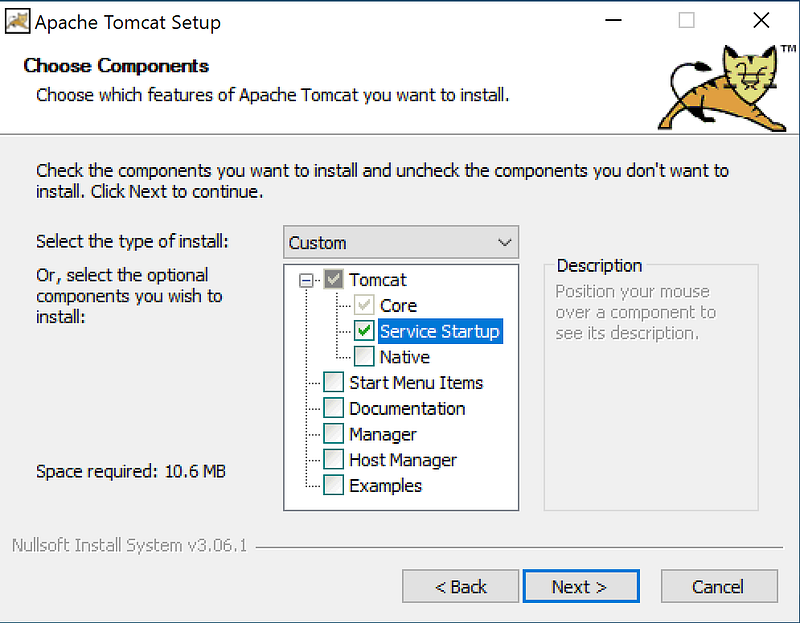
Even it is a test environment and almost all of installations are not hardened, not installing manager is a good habit for reducing attack surface.
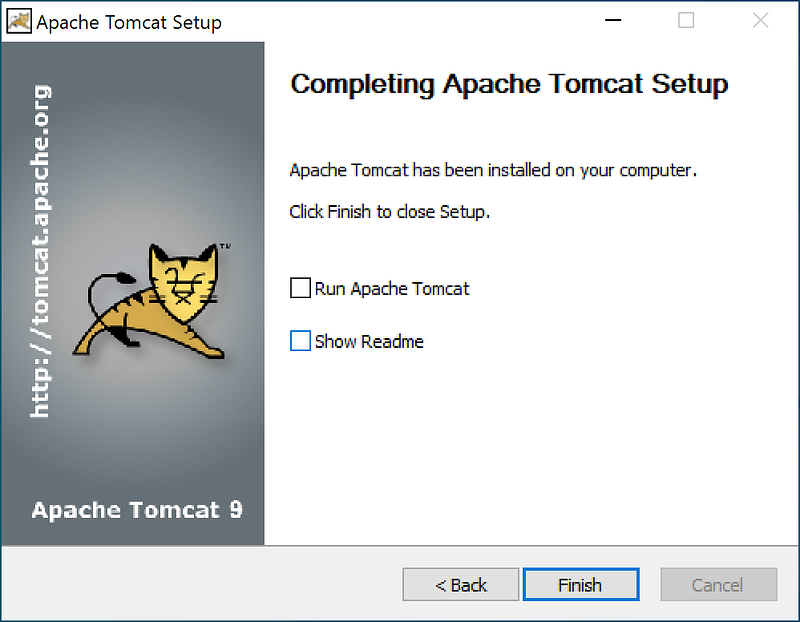
After the installation is complete do not start the Tomcat yet. There is some configuration to do.

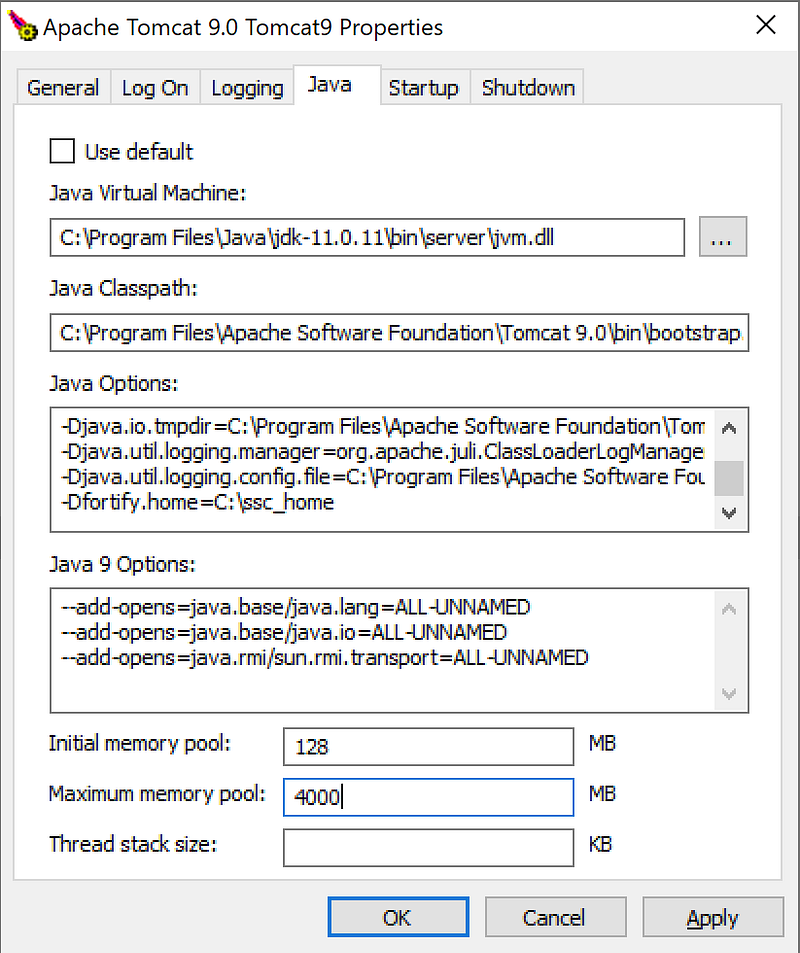
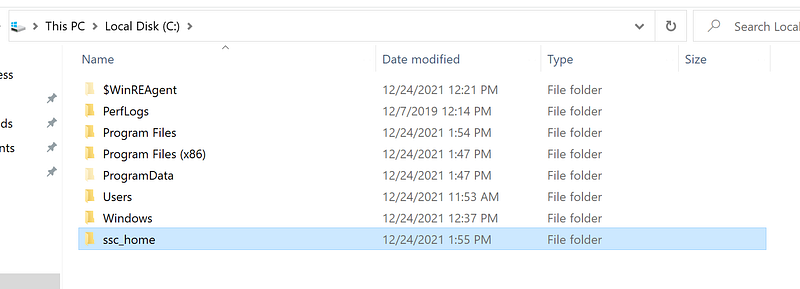
You need to create a folder for SSC’s files and add this path to Tomcat, default location of this folder usually cause a chaotic situation. I almost always use following path for the home folder. The name of the folder is up to your creativity.
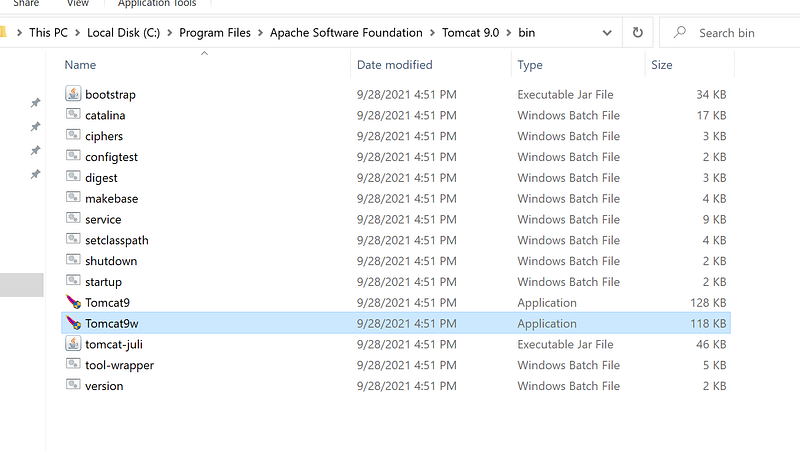
Go to Tomcat’s service manager and add new home folder.
New path under Java Options and increase max memory pool

After copying SSC .war file under Tomcat webapps folder, we are ready to start Tomcat.

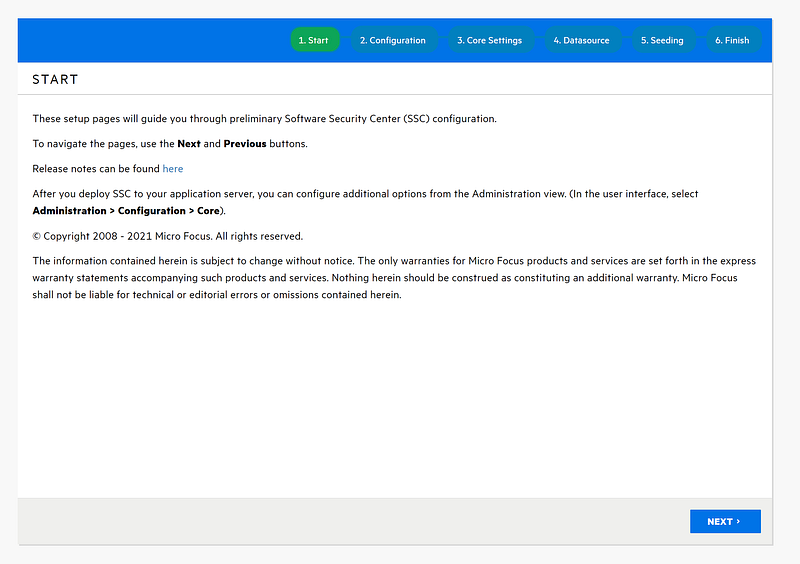
Next step is basic configuration of SSC. Open your browser and go to http://localhost:8080/ssc . 8080 is the port I chose. It may be different if you choose another port.
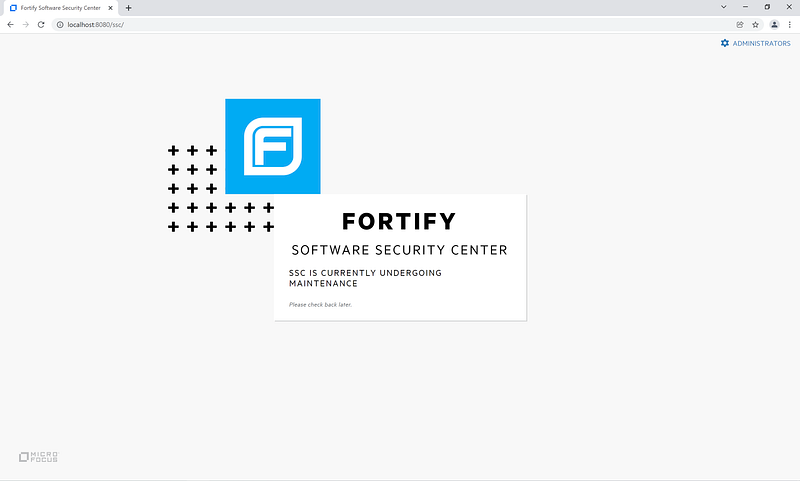
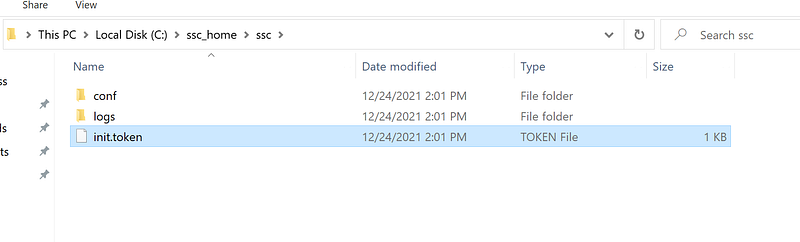
Click on “Administrators”. Setup will require a token. We can find the token in home folder we created before.
Good to go.
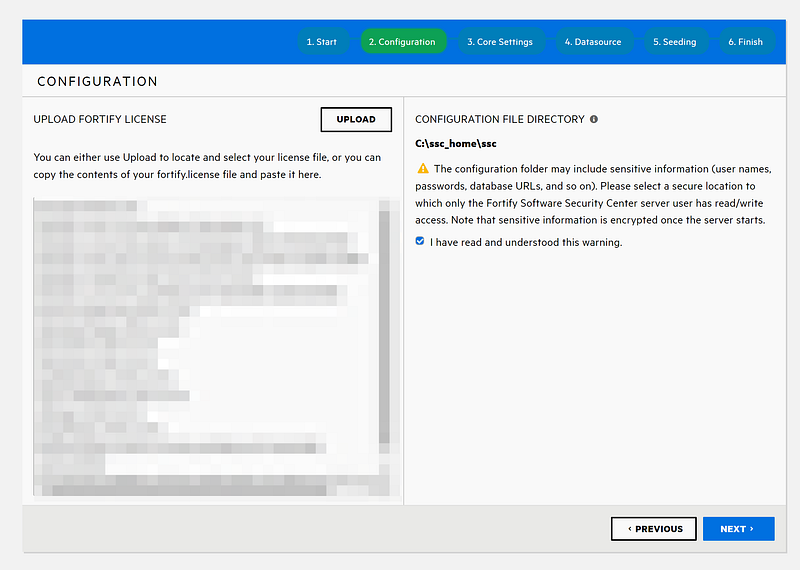
You need to upload a valid license and agree the path you are using as home folder.
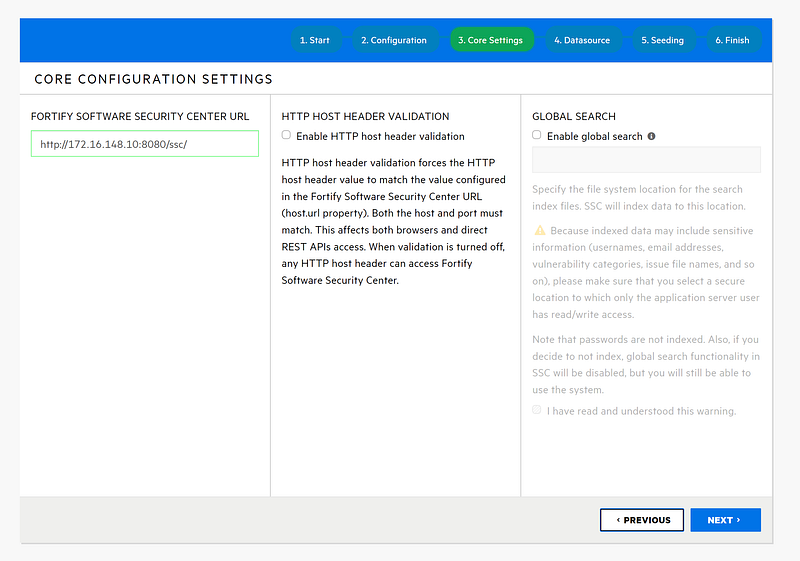
I do not need “Global Search” or “Header Validation” for this test system.
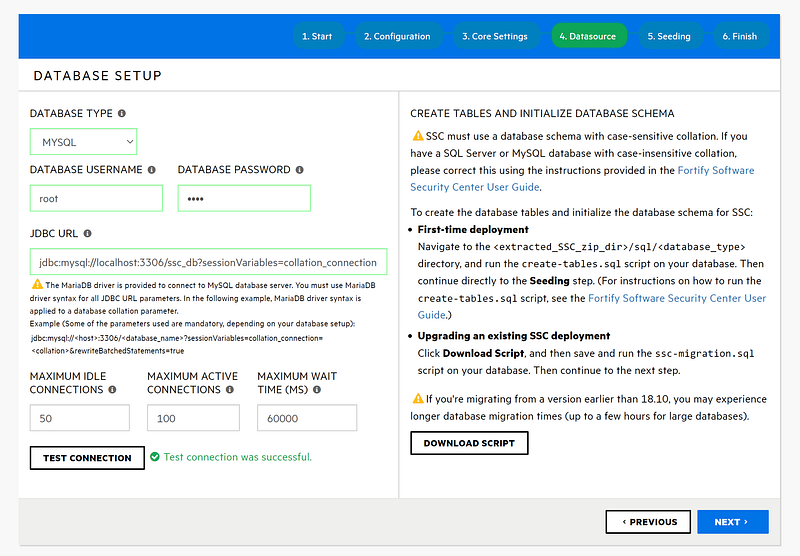
You need to connect SSC with database schema you created before. Testing the connection and making sure that it works properly is important before going further, it won’t work without a database.
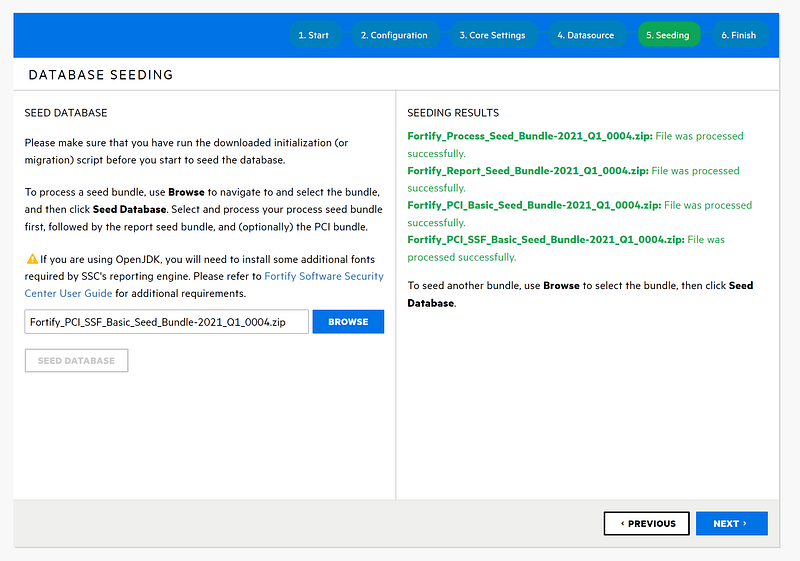
Next step is seeding the database. The order of packets is important, so do not do this randomly. I modified the max_allowed_packet for these packets.
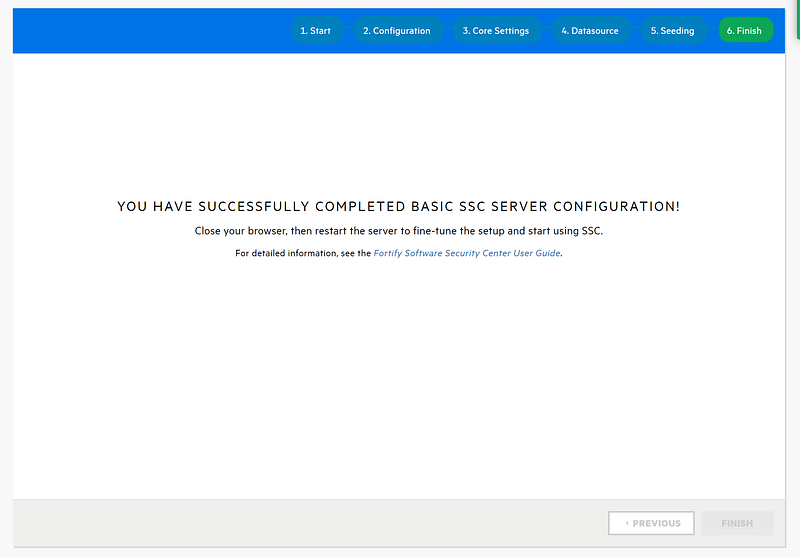
SSC basic setup is done, restart the Tomcat service and we are good to go.
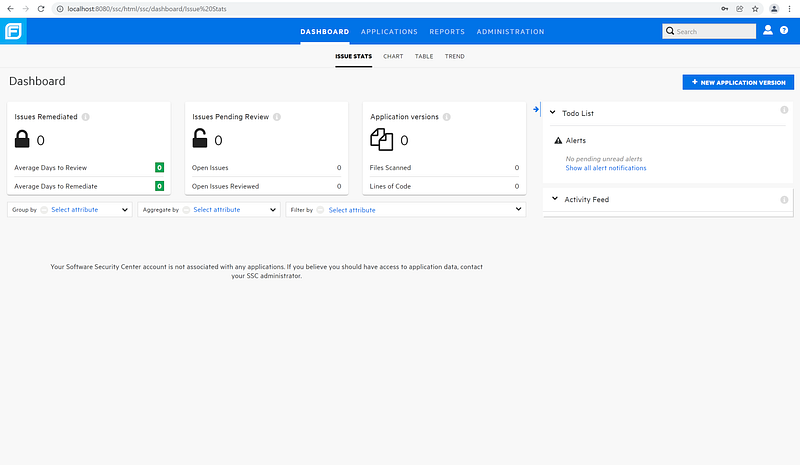
Default admin user’s password is “admin”. SSC will ask you to change it in first login, it is a high complexity password by default so new password must include upper, lower case letter, numbers and symbols. You know the drill.

SSC is ready to go.

3-Controller

Scan Central Controller is similar with SSC, a java application running on Tomcat, but it is less customizable than SSC. It comes as a package from Microfocus.

What You Need:

  • JDK
  • Controller installation files
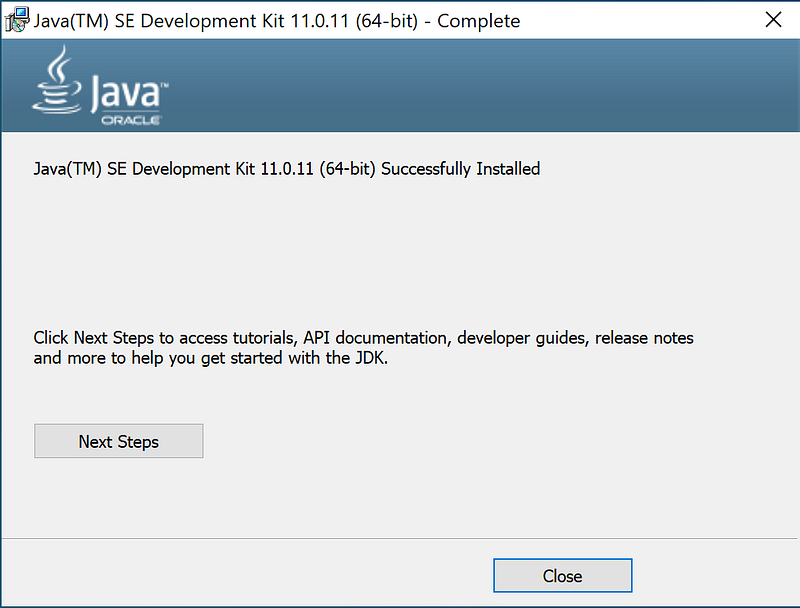
JDK is simple, follow the installer.
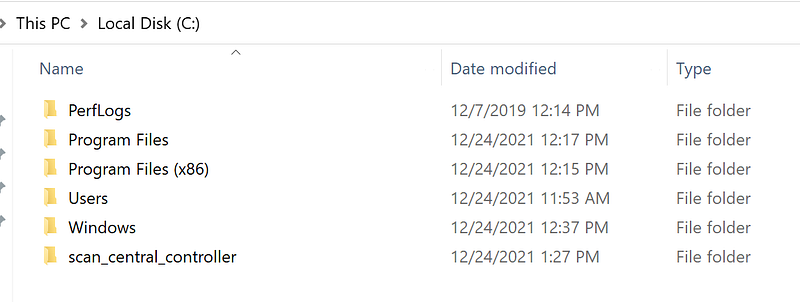
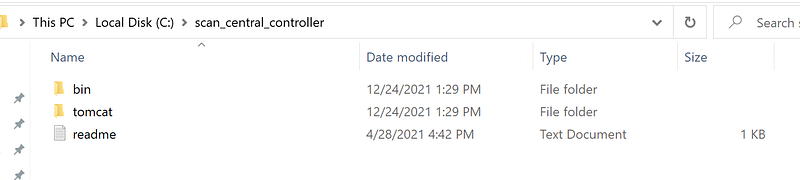
You need to create a home folder for controller too. I prefer a location directly under C. Naming of folder must not have spaces.
Extract the controller files to folder.
I will set the controller as a service, Microfocus provides a script for this goal. I will name the service as “controller”

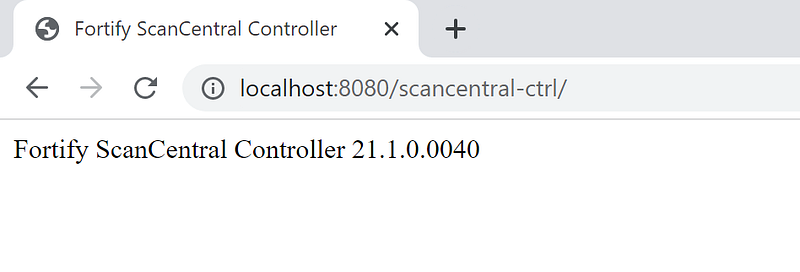
We are good to go, controller is ready.

4-Jenkins & Scan Central Client

To translate the source code, you need Fortify SCA. Setup is same with sensor at this point, I will configure it as a client later. Please refer to “1-Sensor(s)” for details.

Jenkins is default too, I only changed the port and plugins that come with suggested settings. Jenkins requires JDK too. It is possible to follow Jenkins’ documentation.
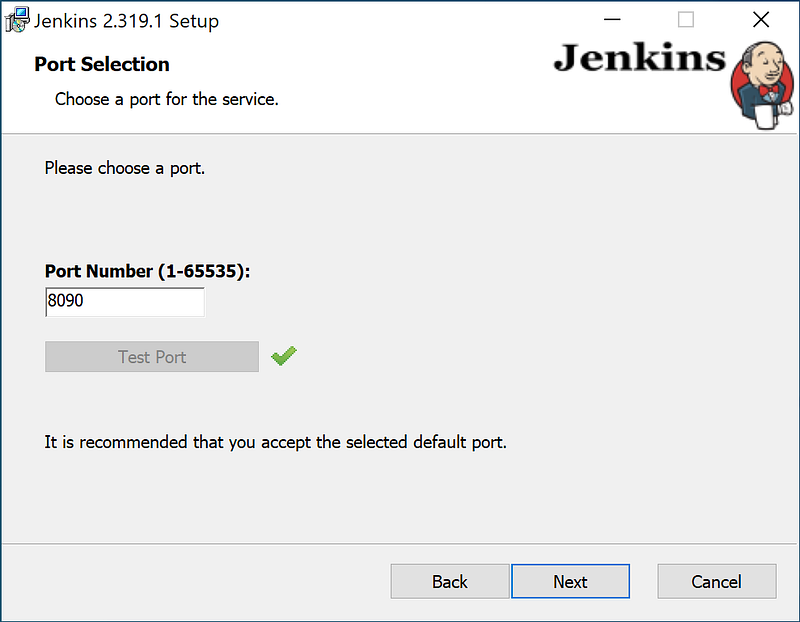
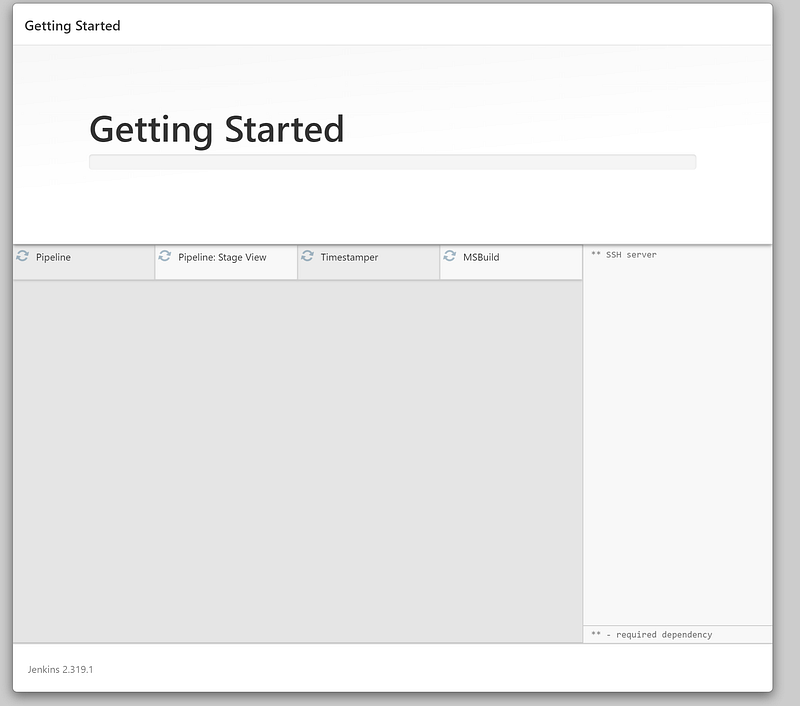
4 machines for this system are ready now.

Don’t worry we will configure everything in the next post.

Organization of series 1- Introduction

2- Installation (This post)

3- Configuration

4- Scanning

5- Reviewing the findings

More…

Cybersecurity
Appsec
Devsecops
Fortify
Databulls
Recommended from ReadMedium