
Apple Silicon M1: How to run x86 and ARM Virtual Machines on it?

Apple Silicon M1 is a new and emerging platform that quickly drafts more and more attention to it. I’ve recently written an article discussing why I personally think that some people might postpone migration to the Apple Silicon platform, but to be fair and honest with you I wanted to outline the options that I found out that will allow you to emulate Intel x86 Virtual Machines on your M1 MacBook or Mac Mini or run Linux ARM Virtual machines.
First of all, we should understand what are the exact possibilities we have when it comes to emulation. There are two CPU platforms we are interested in:
- ARM64
- Intel x86
Since Apple Silicon is an ARM platform (RISC) we can easily execute Virtual Machines created for an ARM platform without any additional conversions (no emulation).
But Intel x86 is a CISC platform and it means that emulation is necessary on Apple Silicon and it means that we cannot run the Virtual Machine at a native speed. Speed loss is unavoidable.
Virtualization or Emulation?
Before we further proceed to a discussion about which software you need to use to start up alternative operating systems on your Apple M1 Mac we need to understand the difference between virtualization and emulation and make a decision based on that.
Virtualization: creating a virtual copy of something (virtual computer hardware and devices, storage devices, and network resources). Virtualization means that we can run an additional instance of the same system.
Example: Running an x86 Virtual Machine on an x86 processor chip.
Emulation: Enabling one computer system to behave like another computer system. Emulation means the imitation of how a specific system works. In this case, we are emulating different CPU architecture which gives us additional flexibility but introduces an additional transition layer which slows down the process.
Example: Running an x86 Virtual Machine on an ARM chip.
Once we have that figured out let’s discuss the solutions available for virtualization of both ARM and x86 Virtual Machines.
Parallels

Parallels is one of the main solutions when it comes to running ARM versions of Linux or Windows 10 on your computer.
Currently, you need to sign up for a technical preview to get access to it, but at some point, it will be available for everyone once it’s out of beta. And it will cost money once it’s available for the general public.
Parallels is a good example of a virtualization solution. Since we are running an ARM version of Linux everything should run smoothly and without any transition.
UTM

UTM, on the other hand, is an emulation and virtualization solution.
This allows us to either run native ARM VMs or execute Intel x86 Virtual Machines by using emulation.
In my experience, using systems in emulation is not the best idea and should be only used when there is no native solution available. You might have some specific software you want to run on your Apple Silicon Mac that doesn’t have any Mac or ARM Linux solutions.
In this case, UTM is your primary solution for using Virtual Machines with a different CPU type. UTM is using QEMU as a back-end (e.g engine) to execute those Virtual Machines. We should say a few words about QEMU itself, right?
Bonus point: UTM allows you to run your Virtual Machines on iOS devices as well.
QEMU
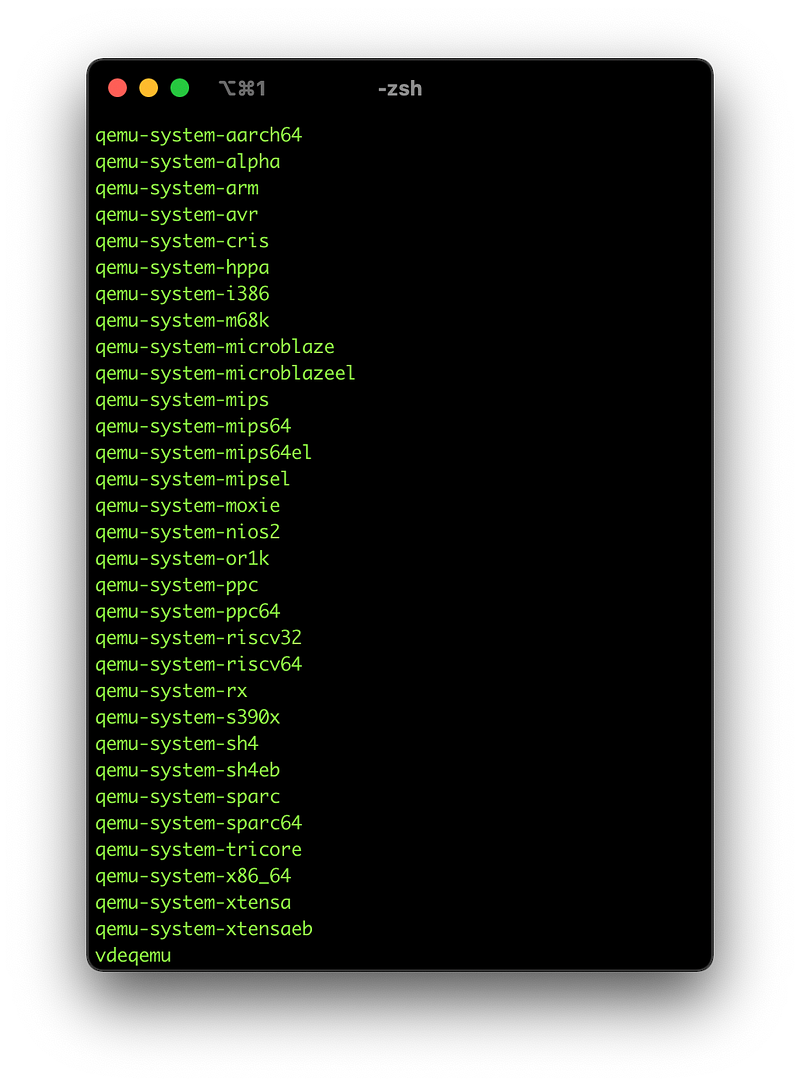
QEMU is like a king of emulation. It’s not a user-friendly solution and requires a basic understanding of how emulation works, how to create virtual disks, and how to run a specific hardware configuration.
But once you have that figured out you can easily execute Virtual Machines with your specific configuration.
As you can see from the screenshot there are many CPU types that QEMU can help you emulate. I’ve even used QEMU to create a virtual machine with a PowerPC processor type. And while it was slow, it actually worked.
How to install QEMU on your Mac? Easy. You just need to use a HomeBrew package manager and then install a package called “qemu”. You also need to have an Xcode installed on your system.
Here is an example of QEMU usage once it’s installed:
Create Disk Image: qemu-img create -f qcow2 macimage.img 10G
Run the VM: qemu-system-ppc -L pc-bios -boot d -M mac99 -m 512 -hda macimage.img -cdrom path/to/disk/image
This is just an example of creating a Virtual Disk for qemu and then executing a PowerPC Virtual Machine after defining a CPU, ROM type, and a path to an installation CD. This is just an example of how to use it. We can discuss the whole flow in the next article regarding emulation.
Are there more solutions based on QEMU? Of course!
ACVM

Meet ACVM. This is the most simple solution (or more like a simple front-end) for QEMU.
It’s only designed to run ARM64 Virtual Machines on your M1 Mac, but it’s powerful enough to help you with this task.
However, you still need to create a Virtual Disk yourself for that solution to work.
What about VirtualBox and VMWare?
VirtualBox is virtualization software. It was not intended or designed to run in CPU emulation mode. Looking for all the clues on the forums and online seems like x86 emulation support on ARM chips is not coming anytime soon to VirtualBox. Probably it will only remain on Intel Macs.
VMWare has announced that they are working on an emulation solution for Macs and we should see more news from them later this year.
Conclusion
Apple Silicon is an exciting ARM64 platform and it’s in active development. We should see more and more virtualization and emulation solutions appearing soon from the third-parties.
As of March 2021, Parallels and UTM are the most actionable and user-friendly solutions at this point. I use UTM for x86 emulation and Parallels for running ARM64 Linux images on it.
However, there are few more solutions worth noting, because not everything is about installing Windows or Linux on a virtual machine, sometimes you can use ready-to-go solutions like those:
- DOSBox: All-in-one solution for running your DOS applications. You don’t need to install DOS. All you need to do is mount your host hard drive and use it for running DOS applications. DOS is already included there.
- ToyVM: Apart from QEMU, there is also an Apple Virtualization framework that you could use for running ARM Virtual Machines. This is a command-line solution to make the execution of those Virtual Machines easier.
- SheepShaver: This is a run-time environment that allows you to run Mac OS 9 (Classic) on your Mac. It’s working perfectly fine on my Intel Mac, but so far I had no luck using it on my M1 MacBook Air. It’s either me not using it properly or it’s not ready for Apple Silicon.
- CrossOver / PlayOnMac: If you need to run your favorite Windows application and you are not willing to buy a separate Windows license, then solutions based on the WINE back-end might be worth trying. Instead of starting an actual Virtual Machine, those solutions are running a transition layer between your application and Mac OS and the binary translation from Win32 API. And yes, those two solutions are available for Linux too.
I also have a video on my YouTube channel where I’m showing UTM, Parallels, and those options above.
The goal of this article was to compile the list of solutions for running Windows and Linux apps on the Apple Silicon platform. Hopefully, it was useful for your specific workflow.


