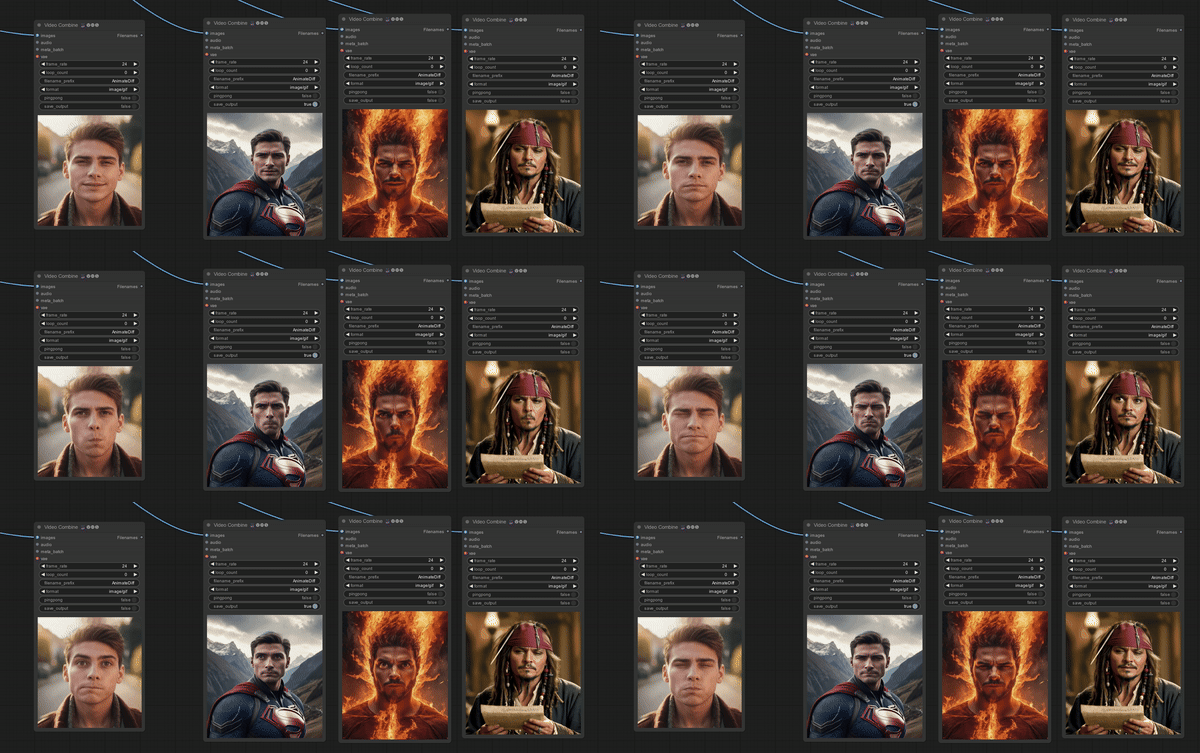
Animating Portraits with LivePortrait in ComfyUI: A Step-by-Step Guide
Do you remember the animated portraits in Harry Potter? Now there are tools to easily create a similar effect from any static image of a face, directly on your computer with LivePortrait.
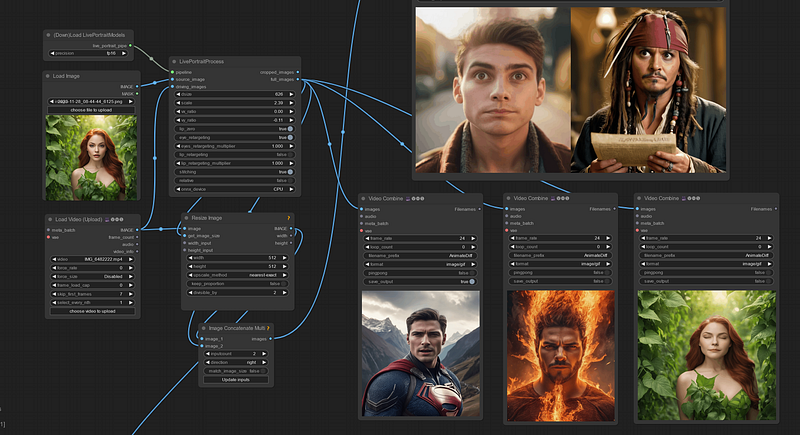
About LivePortrait
LivePortrait is a cool technique to animate a static image of a face by tracking the facial movements and expressions from an input video. It is relatively easy to use and is the PyTorch implementation of this paper.
This amazing model can be run directly using Python, but to make things easier, I will show you how to download and run LivePortrait using ComfyUI, the popular interface for generating AI images.
Download and install
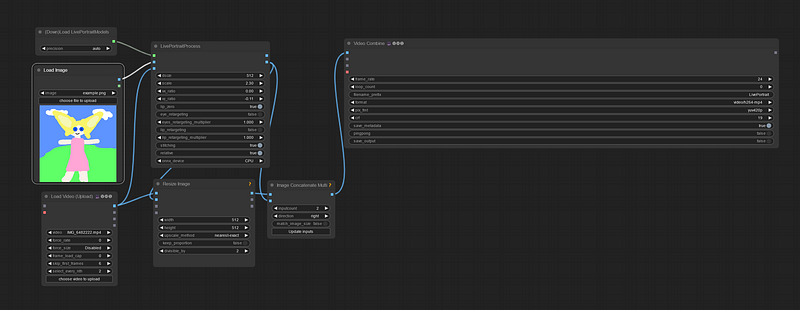
Assuming you have ComfyUI properly installed and updated, download the workflow liveportrait_example_01.json and load it in the UI.
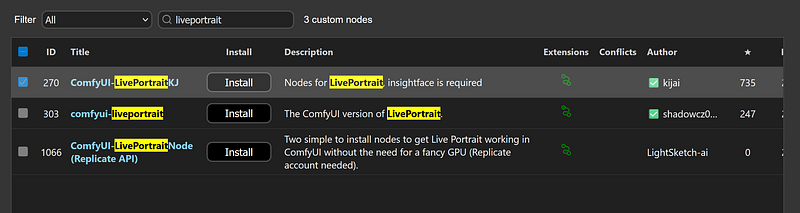
Next, use the ComfyUI-Manager to install the missing custom node made for LivePortrait: kijai/ComfyUI-LivePortraitKJ ; Alternatively, you can clone the repository into the ComfyUI/custom_nodes folder.
After the installation, the workflow will still not work because we need to download the required models into the correct folders.
In the README of the custom node, you will find all the information needed to install everything properly. In particular:
- Download these safetensors files from https://huggingface.co/Kijai/LivePortrait_safetensors/tree/main into
ComfyUI/models/liveportrait.
- Download and install Insightface: this model is mostly used for face detection. You can get the zip file and unzip it into
ComfyUI/models/insightface/buffalo_l. - Install Insightface: This is the most problematic step. On Windows, you you can try to run
python_embeded/python.exe -m pip install insightfacein your ComfyUI root folder, but it will probably fail. - If that's the case, follow the first point described in the Troubleshooting section of this (unrelated) repository. You will need to install Insightface manually using
python_embeded\python.exe -m pip install insightface-0.7.3-cp311-cp311-win_amd64.whldepending on your Python version.
IMPORTANT! Insightface cannot be used commercially, so keep this in mind when using this workflow. By replacing the buffalo_l models with an open-source alternative, commercial use should be allowed.
After everything is set up, restart ComfyUI, and the installation should complete without issues: the loaded workflow should not have any red nodes.
Animate!
Now the fun part starts — pick a portrait picture and a video of someone making expressive faces, preferably with a clear and high-quality view of the face.



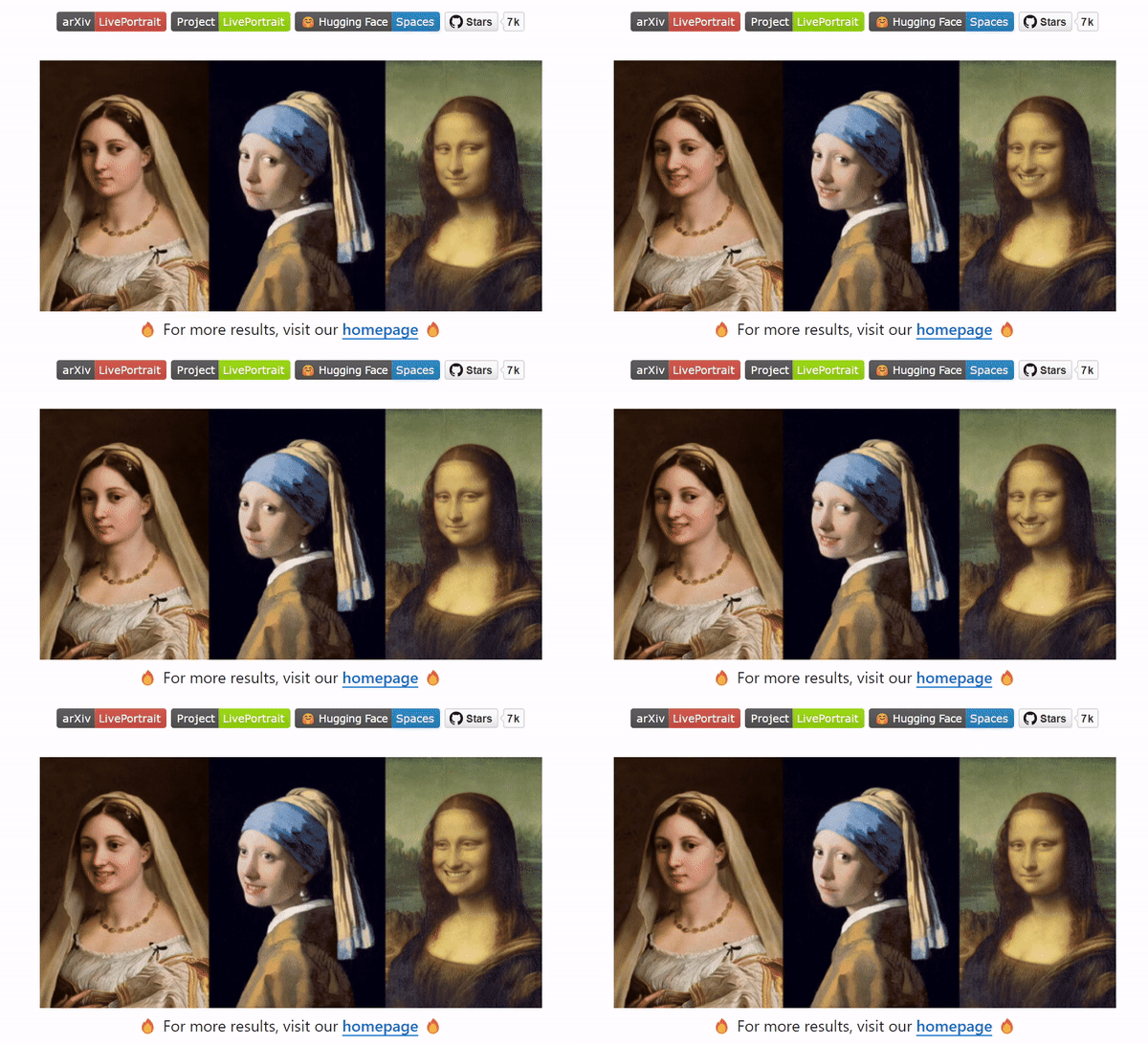
Load the image that you want to animate in the first node, and your input video in the Load Video node. For now, leave everything as is and hit “queue prompt.”
It will take a while to complete processing, depending on the performance of your GPU.
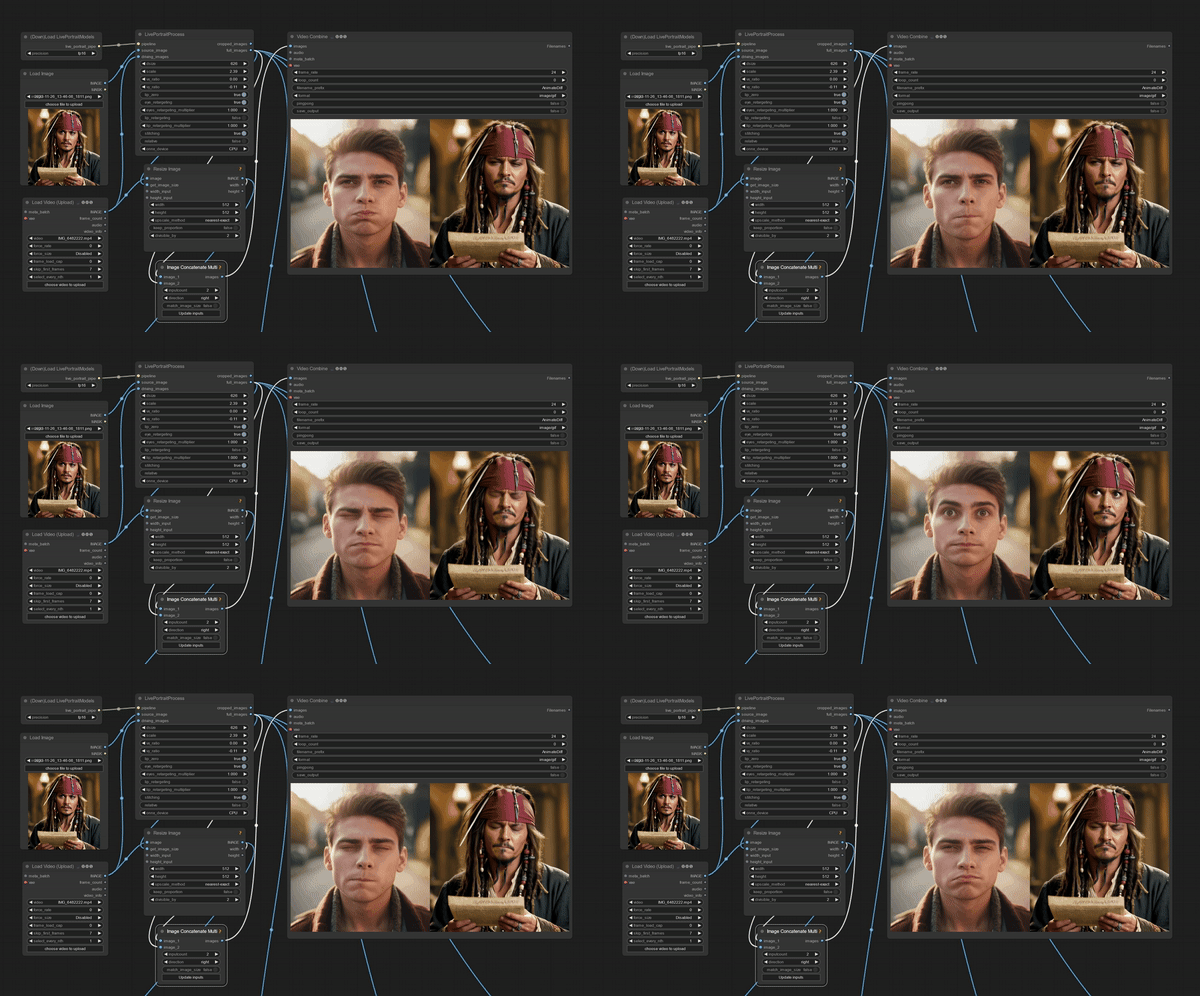
The output will be two videos side by side: the original one and the animated image, which should closely follow the facial expressions. It works really well with realistic images.
Overall, LivePortrait is an amazing tool, there’s no doubt, but it also makes it easy to manipulate images. It should be used responsibly, without abusing its capabilities, as with any other new technology. Having said that, enjoy animating your portraits!