
Technology
How to Create an Animated GIF to Captivate Your Audience
2 tools I’m using to express information in a more entertaining format

OK, so what exactly are animated GIFs?
They catch your eyes. They are portable. They are quiet; they do not interrupt you. They educate and pass on information. They make your content easier to remember by users. They are moving images called animated GIFs.
Twitter posts with images see 35% more retweets than those without. If you should pay close attention to how you select your image and set it, the natural consequence will be more audience engagement, social signals surrounding it, and more traffic.
GIFs (Graphic Interchange Format, an image type) are insanely popular. An animated GIF is a type of media file to express information in a more dynamic and entertaining format. It’s also interpreted as a video. Twitter posts with videos see 28% more retweets than those without.
GIFs do not have sound, are very small, and usually of shorter length compared to videos.
I use two tools to create GIF animations for my articles. Below is an explanation of how I’m doing it.
GIMP
GIMP (GNU Image Manipulation Program) is a free and open-source image editor available for GNU/Linux, OS X, Windows, and more operating systems. It supports the feature of creating and editing animated GIF.
Here are the steps to follow to create an animated gif with GIMP:
- Open GIMP after having it installed.
- File → Open as Layers → select the different images that you want them to be part of the animation, each one represents a layer in the final animation → click on “Open”
- Adjust the order of your images
- File → Export as → Gif image (*.gif) → enter a name for the animation that will be generated. It must have the suffix “.gif”
- Select “As animation”
- You can choose “loop forever” or not
- Enter the delay between frames in milliseconds. The delay is the time to wait after a frame is drawn and before displaying the next frame.
- Not selecting “Use delay for all frames”, will add a delay only after the first frame (layer). In my animations, I make sure that this option is selected.
- Click on “Export”
- Go to the folder where you have saved your generated animation, open it, and check if you want to change the delay between frames, add a new layer or any other kind of modification. In this case, you have to repeat the steps 1. to 10. with the adjustment that you want.
After creating 10 images from the following original static image, and importing them as 10 layers:
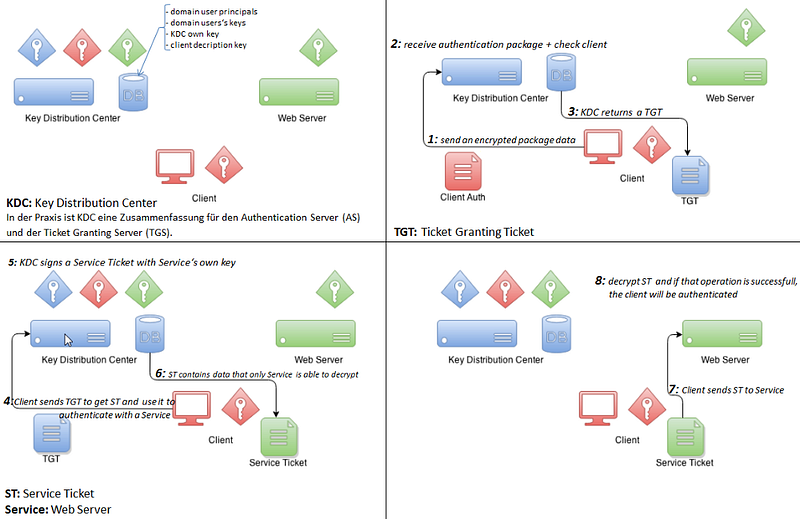
I’ve created the following animation with 1500 seconds as a delay between each frame:

With 22 layers, I’ve created the following animation. What’s funny about it is that the original static image (.png) was 189,9 KB and the animation is only 108,9 KB:

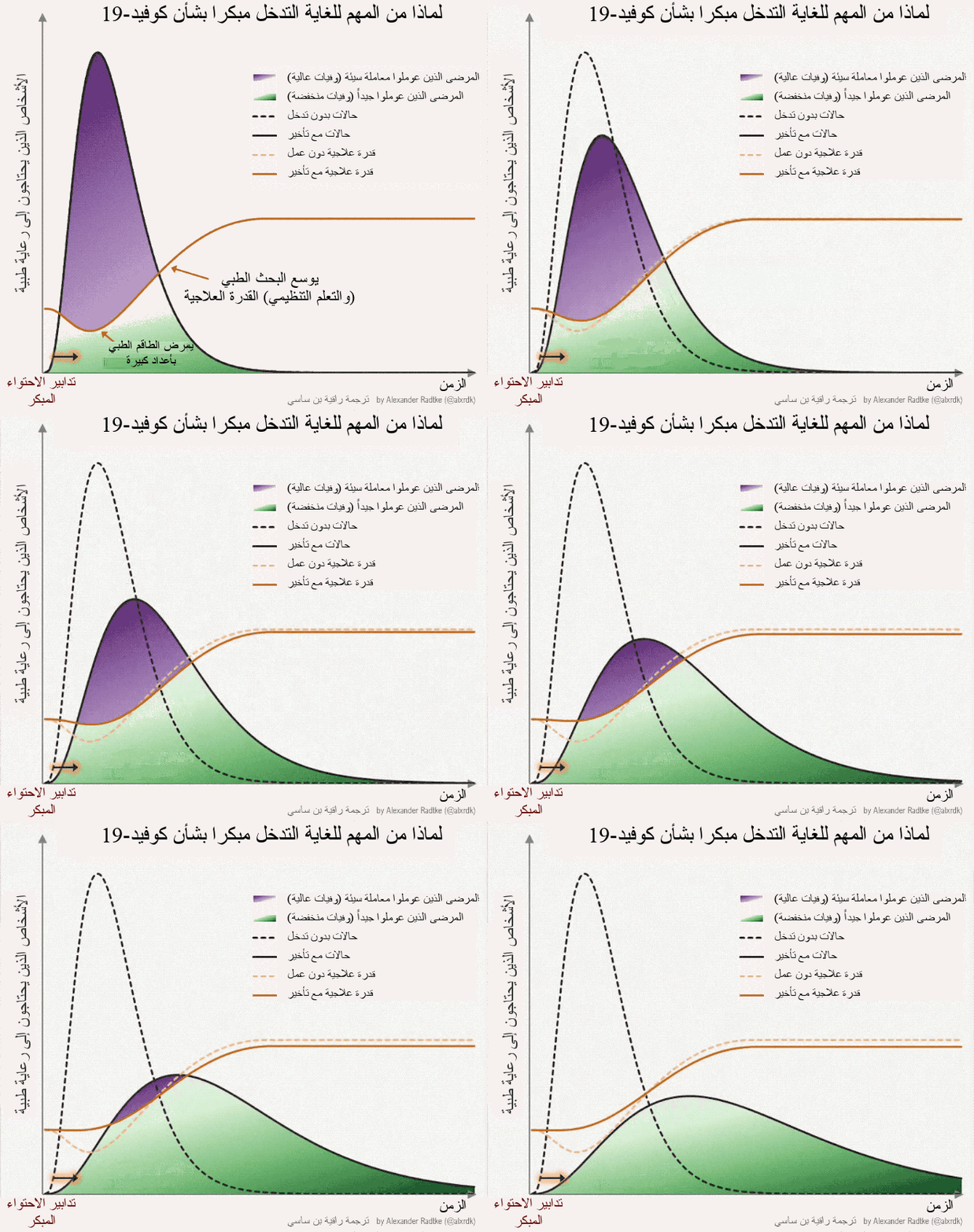
If you are ready for more challenge, you can try to edit an animated gif that you have not created by your own. It’s a great opportunity to learn more. I’d such experience in one of my articles which is a translation. After translating the content and all the graphics, I started translating an animated GIF with GIMP for the first time in my life. I was shocked as I’ve seen that it contains about 500 layers. It was a daunting task, but I did it. Here is the outcome:

Peek
The second tool that I’m using is Peek. It makes it easy to create short screencasts of a screen area. With Peek, you simply place the Peek window over the area you want to record and press “Record”. Peek is optimized for generating animated GIFs, but you can also directly record to WebM or MP4 if you prefer.
The first animation in this post “How to create an animated GIF with GIMP” and the following one is recorded with Peek:
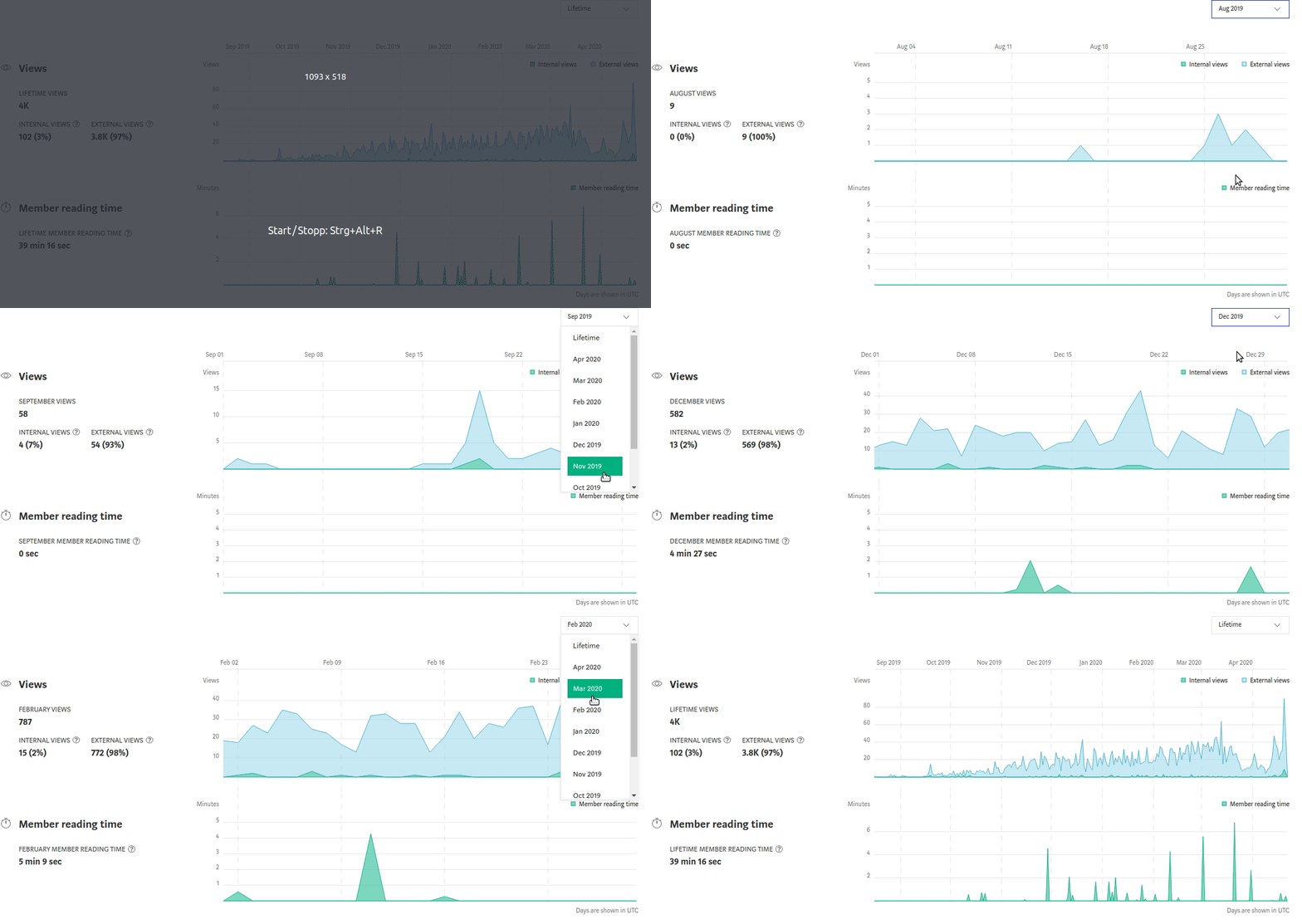
Similar to how a picture is worth a thousand words, a moving picture exponentially expand on the idea.
🧠💡 I write about engineering, technology, and leadership for a community of smart, curious people. Join my free email newsletter for exclusive access or sign up for Medium here.
You can check my video course on Udemy: How to Identify, Diagnose, and Fix Memory Leaks in Web Apps.


