
Android Studio tips & tricks -Part 3(Debugging)

This article is the continuation for the article Android Studio tips & tricks -Part 1(for beginners) and Android Studio tips & tricks -Part 2(Advanced).
In the words of the great Edsger W. Dijkstra: “If debugging is the process of removing software bugs, then programming must be the process of putting them in.”
Android Studio is a great tool not only for smart coding but also to debug the code in depth. In this article, I’m going to show you how to deal with simple to complex debugging situations. Let’s get into action.
You can start debugging by just clicking the Debug icon or press Shift + F9 after you run the app from the studio.

Debug using LogCat
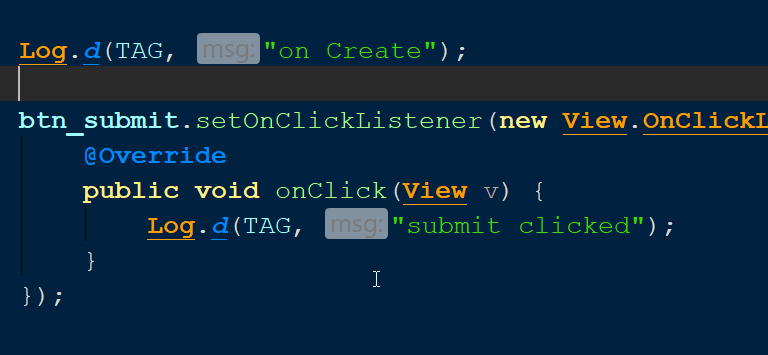
You don’t need the app in debug mode for this. The log is a two-parameter utility which will show the output in the Logcat in Android Studio. The first parameter is a TAG which can be useful in filtering the content and the Second parameter is your message.
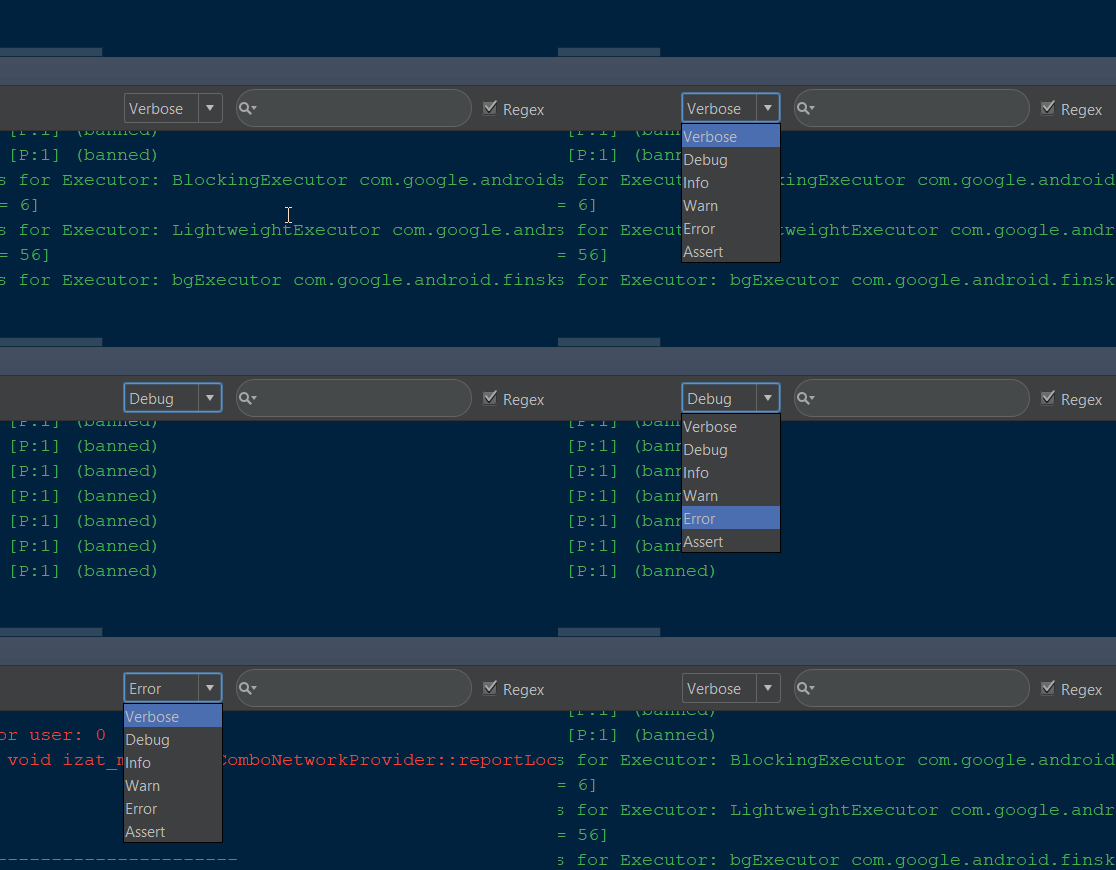
There are 6 types of logs in Android studio, they are Log.v(), Log.d(), Log.i(), Log.w(), Log.e() or Log.wtf() and there levels of verbosity (VERBOSE, DEBUG, INFO, WARNING, ERROR). You can also filter which logs to appear in the logcat as shown.
Customize Logcat
To have a clear & distinct vision on every log that was printing in the logcat, you need to customize the logcat colors
File > Settings > Editor > Colors & Fonts > Android Logcat
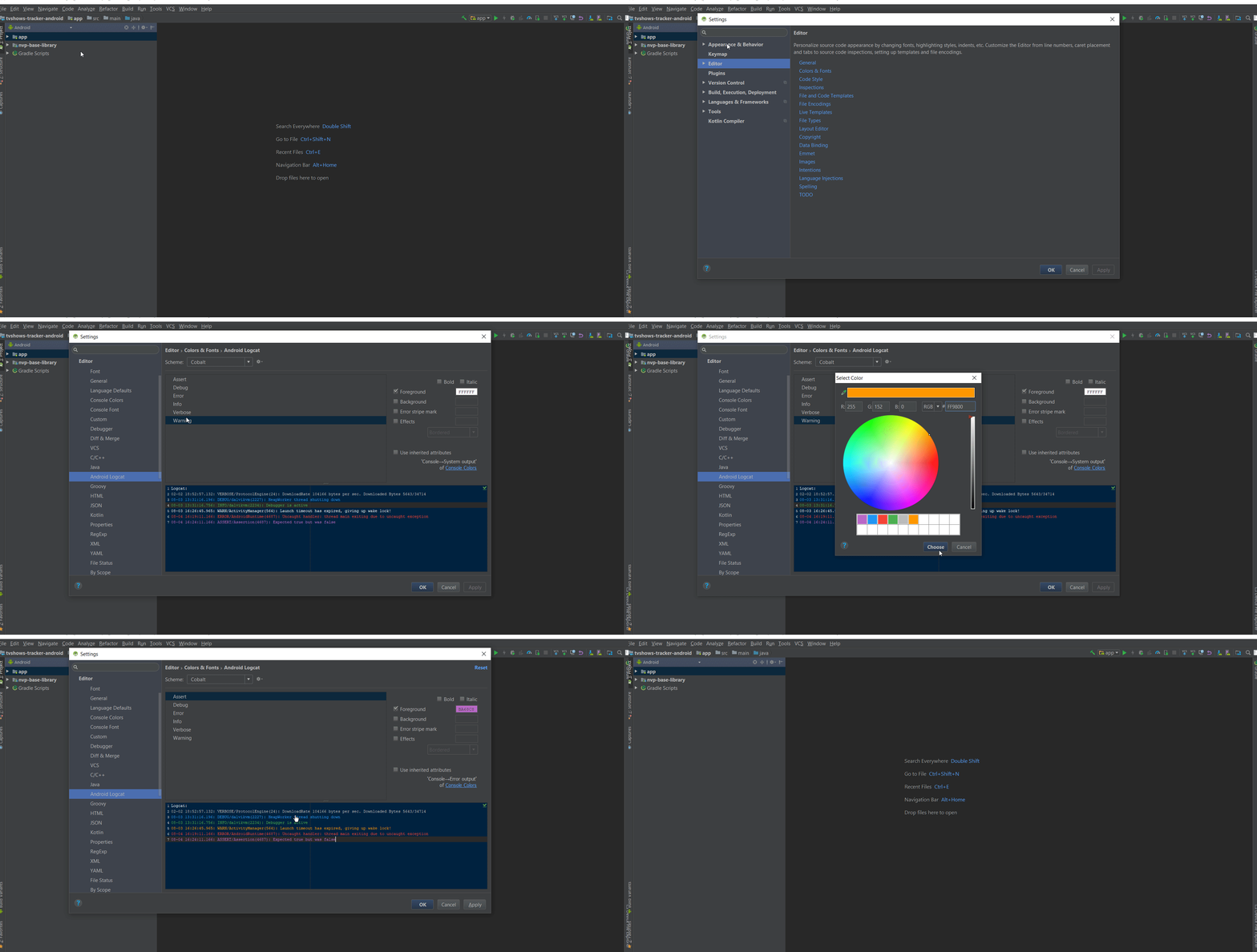
Prevent clearing the log when the app crashes
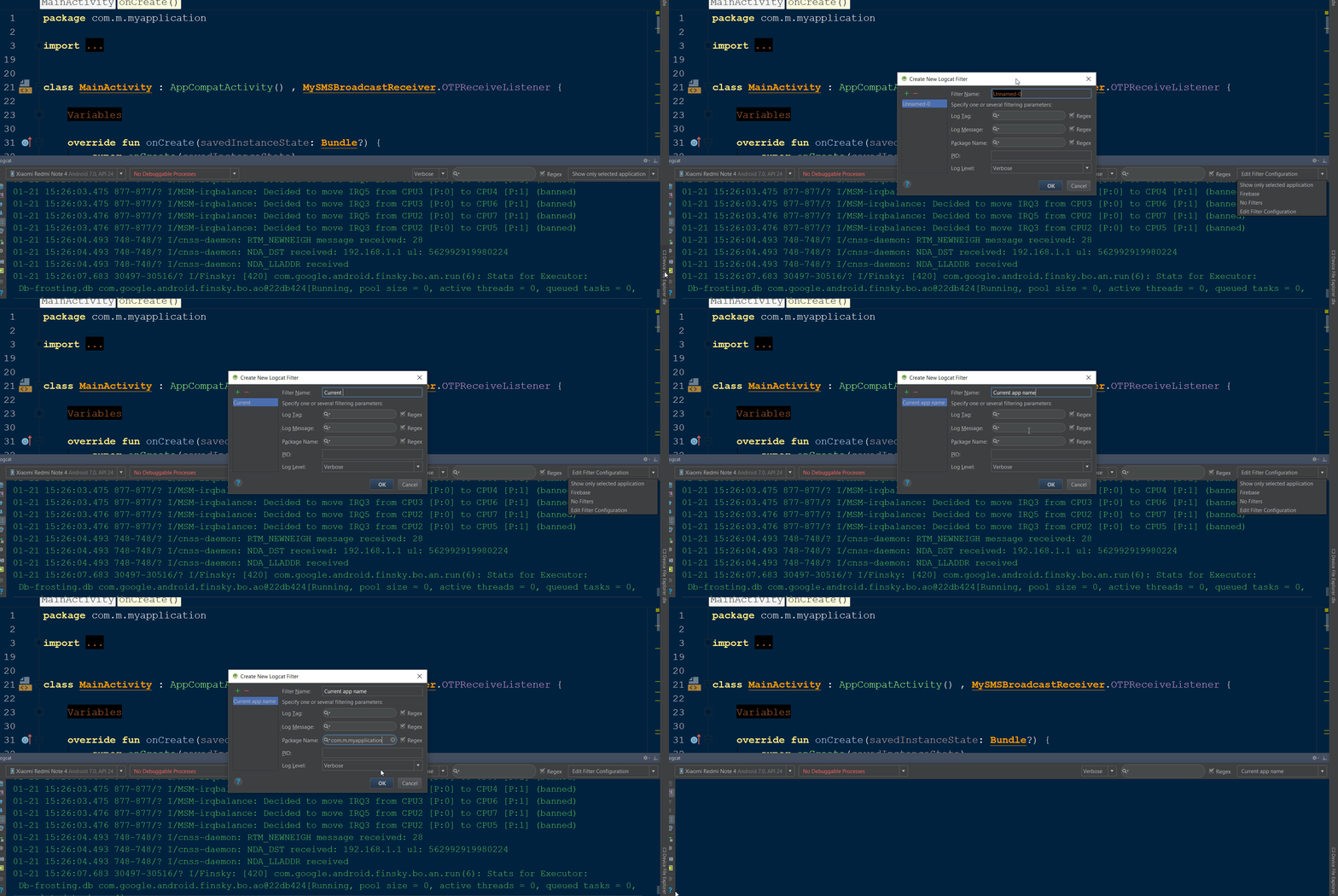
By default when the app got crashed the logcat clear’s in the android studio. To prevent this, click the right end chooser(Filter Configuration chooser) in the logcat tab then select Edit Filter Configuration option and enter current app name and package name.
Remember that if you have any sensitive data remove the logs before going to production or print logs in debug mode. It is the best practice to remove the logs before going to production.
BreakPoints
logcat is useful in the basic situations of debugging. If you want to debug step by step breakpoints is your option.
In order to use them, first set the breakpoints (Click beside line numbers in the android studio to add breakpoints ) and run the app in debug mode or run the app usually and attach the debugger (Shift + F9) then while you are using the app at the breakpoint the execution will halt and highlights the breakpoint as shown.
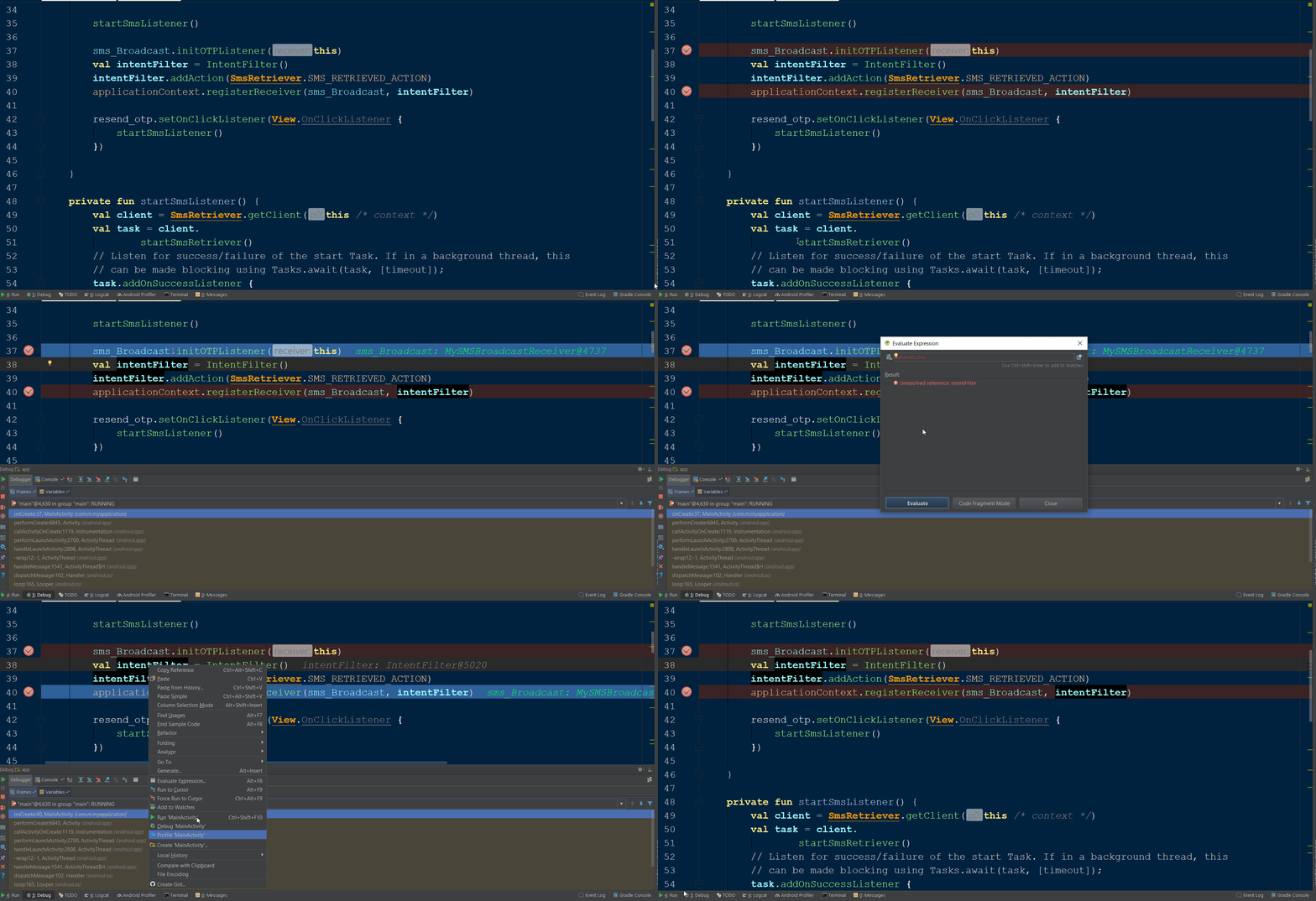
Through breakpoints, you can also see what are the values in the variables at that point of execution through Evaluate Expression option (Right the mouse to see options after selecting the variable). For example, intent-filter is null on the first breakpoint and has values when reached the second breakpoint.
Always use latest version of Android Studio
Developers at google is working hard to make studio useful in every possible way so don’t struck with any version be updated and have advantages of new features.
These are some basic debugging tools in android studio, explore Android Developers site for more info.
If you like my article, please don’t forget to click 👏👏👏 & to recommend it to others 👏👏👏.
Also, to be notified about my next articles and stories, follow me on Medium.


