avatarSiva Ganesh Kantamani

Free AI web copilot to create summaries, insights and extended knowledge, download it at here

3669

Abstract

:</h2><p id="47ec">If you’re an experienced developer you must have used POJO classes. This shortcut is to generate Getter and Setter methods for all the variables in single-shot, after declaring all variables in the class just press <b>Alt + Insert</b> and select the option of your choice. Have a look</p><figure id="09b9"><img src="https://cdn-images-1.readmedium.com/v2/resize:fit:800/1*D4V8IK6zY5b3Wxd0RIlzAQ.gif"><figcaption>Getter & setters implementation</figcaption></figure><p id="1061"><b>Windows </b>: Alt + Insert <b>Mac </b>: Control + Enter</p><h2 id="91eb">7. Build & Run in single click</h2><p id="a17c"><b>For me reducing the usage of the mouse while coding is one of the best practices</b>, the most common thing we reach for the mouse is to <b><i>build & run</i></b> the app. For this you can just press <b>Shift + F10</b>.</p><p id="8df8"><b>Windows </b>: Shift + F10 <b>Mac </b>: Cmd + R</p><p id="9969">To enable debugger just press <b>Shift + F9</b> <b>Windows </b>: Shift + F9 <b>Mac </b>: Control+D</p><h2 id="aca4">8. Trigger a method like a Pro</h2><p id="ee81">There will be times when you trigger the wrong method in a class and you want to replace it, this shortcut is the best way for that. <b>Type the method name and press TAB</b> then it will replace the existing name with you’re desired one.</p><p id="ff05"><b>Normal </b>:</p><figure id="30ea"><img src="https://cdn-images-1.readmedium.com/v2/resize:fit:800/1*GDdABRiD_6SAVBb1k90Vug.gif"><figcaption></figcaption></figure><p id="9d11"><b>Pro</b>:</p><figure id="cdb9"><img src="https://cdn-images-1.readmedium.com/v2/resize:fit:800/1*dwlgoQ40CD3hb6vTm0Lglw.gif"><figcaption></figcaption></figure><h2 id="6c42">9. Refactor</h2><p id="fef2">There will be times when you want to change the name of the variables( Textviews, buttons, literally anything) and you found out that it was used at different places in the file, that’s where Refactor comes into play, <b>Just select the label you want to rename > right click the mouse > press refactor > Press rename and finally press enter to replace the word in the entire file</b>. Is it confusing? have a look</p><figure id="5fee"><img src="https://cdn-images-1.readmedium.com/v2/resize:fit:800/1*kAIgWNuPz2lzeKln-nj9mA.gif"><figcaption>Changing broadcast variable name through out the file</figcaption></figure><h2 id="b0d5">10. Smart Coding</h2><p id="c6b1">With android studio, there is no need to write code for common usages like for loop with context to an ArrayList, if condition in context with a boolean variable, etc. Have a detailed look</p><figure id="4770"><img src="https://cdn-images-1.readmedium.com/v2/resize:fit:800/1*JwcUz2315aOXxKKt_q4rCQ.gif"><figcaption>Implementing for loop in content with arraylist</figcaption></figure><figure id="3e58"><img src="https://cdn-images-1.readmedium.com/v2/resize:fit:800/1*puhY4ayI0EycGvDVKsdcMA.gif"><figcaption>Implementing if block relating to boolean variable</figcaption></figure><h2 id="ba1e">11. Live templates</h2><p id="ffa5">This is one of my best features in Android studio, with live templates you can implement commonly used code to show Toast, print log, etc., without typing anything. Have a look</p><figure id="3e6f"><img src="https://cdn-images-1.readmedium.com/v2/resize:fit:800/1*W5TKtJCORz6tL2KejZsOmA.gif"><figcaption>Implementing Toast with Live templates</figcaption></figure><figure id="b874"><img src="https://cdn-images-1.readmedium.com/v2/resize:fit:800/1*Aqv2un2zis1_j2vjo70EvQ.png"><figcaption>These are few templates I use frequently</figcaption></figure><blockquote id="65e0"><p>You can also create your own code templ

Options

ates by using custom live templates which I’m going to explain in my future articles.</p></blockquote><h2 id="e2e0">12. Themes for Android Studio</h2><p id="132e">With the above shortcuts and smart coding you knew Android Studio is a smart editor. Now with themes, it can be customized visually too. Import themes into Android studio by following below steps</p><p id="4cce"><b>Click on File Click on Import Settings and Choose the file downloaded.</b></p><p id="0e0e">You will find as many themes as you want <a href="http://color-themes.com/?view=index">here</a></p><h2 id="8c77">13. Distraction free mode</h2><p id="241b">Do you ever felt top bars in Android studio is distracting or occupying more space? There is a way to remove them when you really want to concentrate on coding and enable them whenever you want.</p><p id="b15d"><b>Click View at top > Distraction free mode. Click View at top > Exit distraction free mode.</b></p><h2 id="d835">14. Navigate between the methods like a Pro</h2><p id="9f12">Did you ever wonder how to navigate between methods by skipping the body, yes it is possible, the shortcut for this is <b>ALT + ↓/↑</b></p><p id="8c0b"><b>Windows </b>: ALT + ↓/↑ <b>Mac </b>: Option + ↓/↑</p><h2 id="baa7">15. Fold and UnFold to see String Preview</h2><p id="49ee">It is good practice to import strings from resource files which are useful to make your app multilingual. If you want to see string resource name or the actual label this is the trick (<b>Ctrl + (+/-)</b> ). Have a look</p><figure id="6707"><img src="https://cdn-images-1.readmedium.com/v2/resize:fit:800/1*wAuqnl7_TR18HIW5VPURFw.gif"><figcaption></figcaption></figure><p id="397f"><b>Expand</b></p><p id="13c2"><b>Windows </b>: Ctrl + (+) <b>Mac </b>: Cmd + (+)</p><p id="37a4"><b>Collapse</b> <b>Windows </b>: Ctrl + (-) <b>Mac </b>: Cmd + (-)</p><h2 id="85f0">16. Remove a line</h2><figure id="d3b0"><img src="https://cdn-images-1.readmedium.com/v2/resize:fit:800/1*o4gZAGcSZ0QfReC0_rlhhg.gif"><figcaption></figcaption></figure><p id="2d39">Just press <b>Ctrl + Y</b> to remove entire line. <b>Windows </b>: Ctrl + Y <b>Mac </b>: Cmd + Backspace</p><h2 id="a3a3">17. Duplicate a line</h2><figure id="4f3f"><img src="https://cdn-images-1.readmedium.com/v2/resize:fit:800/1*_dj2rQAqkllw5SElkFZRUw.gif"><figcaption></figcaption></figure><p id="a187">Place the cursor on the line and press<b> Ctrl + D</b> which generate the duplicate line below, have a look</p><p id="1aad"><b>Windows </b>: Ctrl + D <b>Mac </b>: Cmd + D</p><h2 id="24bd">18. Navigating through cursor history</h2><p id="2833">Just press <b>Ctrl + Alt + LEFT_ARROW and Ctrl + Alt + RIGHT_ARROW</b> to move the cursor through its recent places.</p><h2 id="9ed0">19. Split the lines like a Pro</h2><figure id="e1ae"><img src="https://cdn-images-1.readmedium.com/v2/resize:fit:800/1*rN2kO6D4iszYeQ8okkp7Tg.gif"><figcaption></figcaption></figure><p id="5fcf">If you want to split the line, but you need the cursor to stay at the same position, then place the cursor at the position and press <b>Ctrl + Enter</b></p><p id="a271"><b>Windows </b>: Ctrl + Enter <b>Mac </b>: Cmd + Enter</p><p id="c55b">On my next article we will discuss about the debugging shortcuts & tricks. For basic shortcuts have a look at my previous <a href="https://readmedium.com/android-studio-tips-tricks-for-beginners-703bc9a36259">article</a>.</p><p id="8bd0">If you like my article, please don’t forget to click 👏👏👏 & to recommend it to others 👏👏👏.</p><p id="7cc5">Also, to be notified about my next articles and stories, follow me on <a href="https://medium.com/@sgkantamani">Medium</a>.</p></article></body>

Android Studio tips & tricks -Part 2(Advanced)

This is the continuation for Android Studio tips & tricks -Part 1(for beginners) where you can find tips for Android studio which can be helpful in daily usage.

Android studio has tons of shortcuts and tricks to be productive. Now, I’m gonna show you the shortcuts and tricks I use, to be productive. Let’s get into action

1.Create new methods without writing code

If you’re a developer for a while you might have encountered a situation where you write a piece of code and later decided to move that code to a separate method.

Generally, we cut & paste the code in a newly created method and call this method in the source.

But here comes a shortcut in the android studio where you press Ctrl + Alt + M and enter method name, that’s all. Have a look
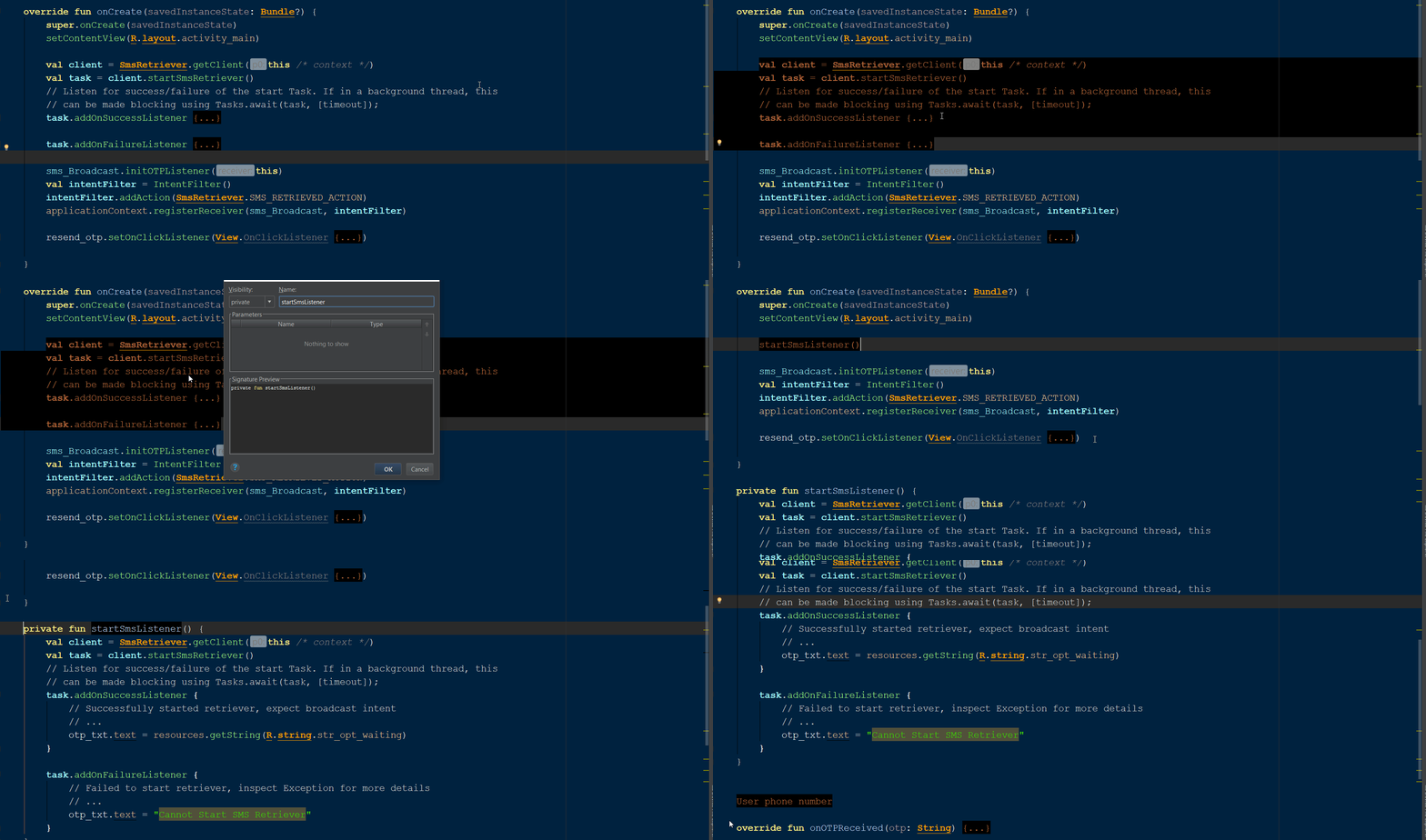
Create a new method without writing

Windows : Ctrl + Alt + M Mac : Cmd + Alt + M

2. Delete all unused imports easily than ever

We all know that there will be changes in the projects every now and then, in that process we always concentrate on new changes and forget to remove unused imports, for all those who wish to remove them in a single shot this is for you. (Ctrl + Alt + O)

Windows : Ctrl + Alt + O Mac : Ctrl + Option + O

3. Surround the code with blocks like a Pro

No matter on which platform you work, they’re gonna be some basic common code blocks like try/catch, else if condition, for loops, etc. In Android studio you don’t need to write these blocks, just select the code and press Ctrl + Alt + T that’s it, have a look.
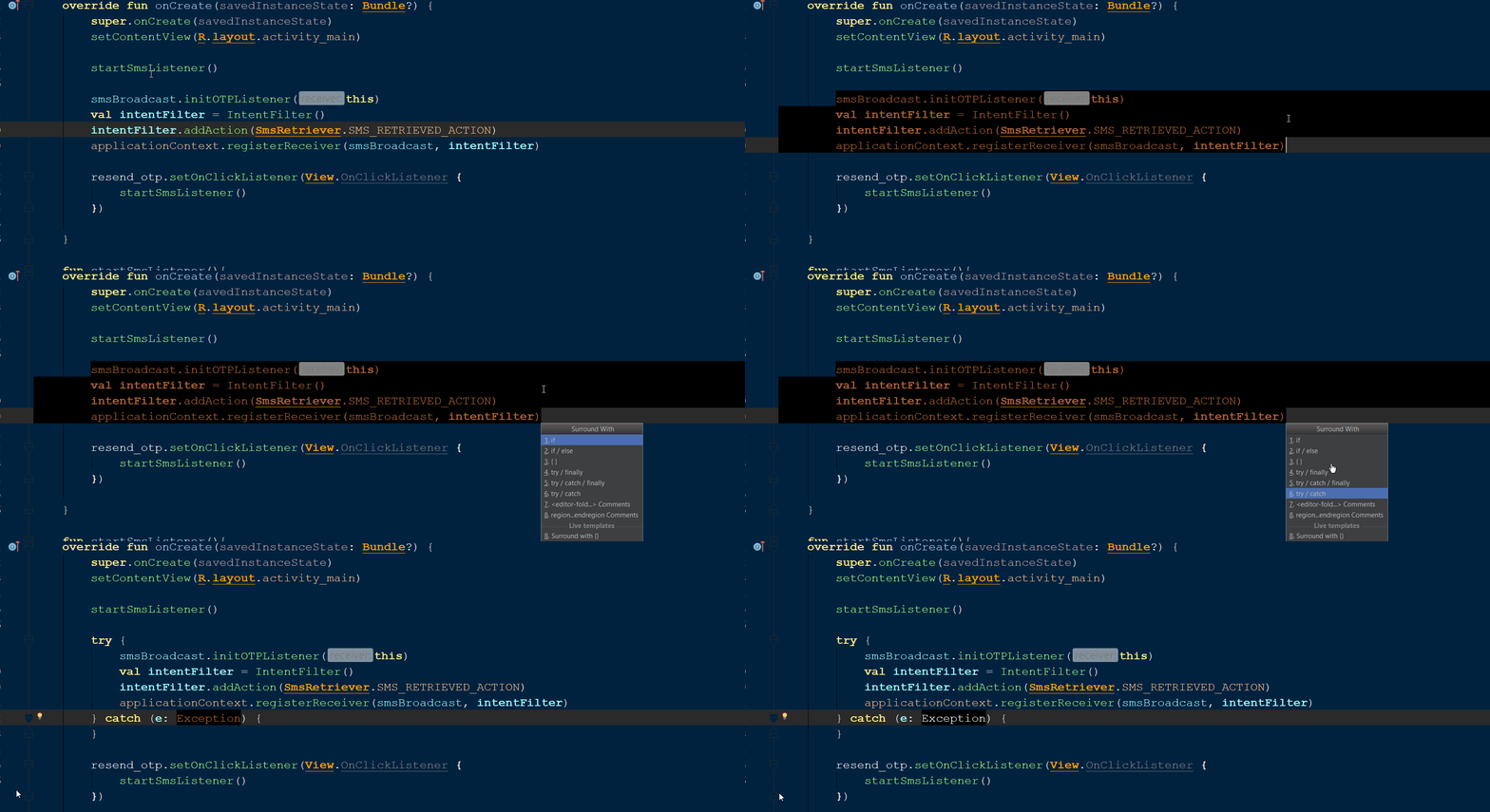
Surround the code with try/catch

This shortcut is going to be useful in different aspects based on your context. I use this shortcut mostly to insert try/catch, else if, for blocks.

Windows : Ctrl + Alt + T Mac : Cmd + Alt+ T

4. Rectangle selection is a new way to replace

At some point, we all face a situation where we need to change the data-type or access specifier of the variables. In order to do that, press Alt and drag the cursor as shown below and type whatever you want.
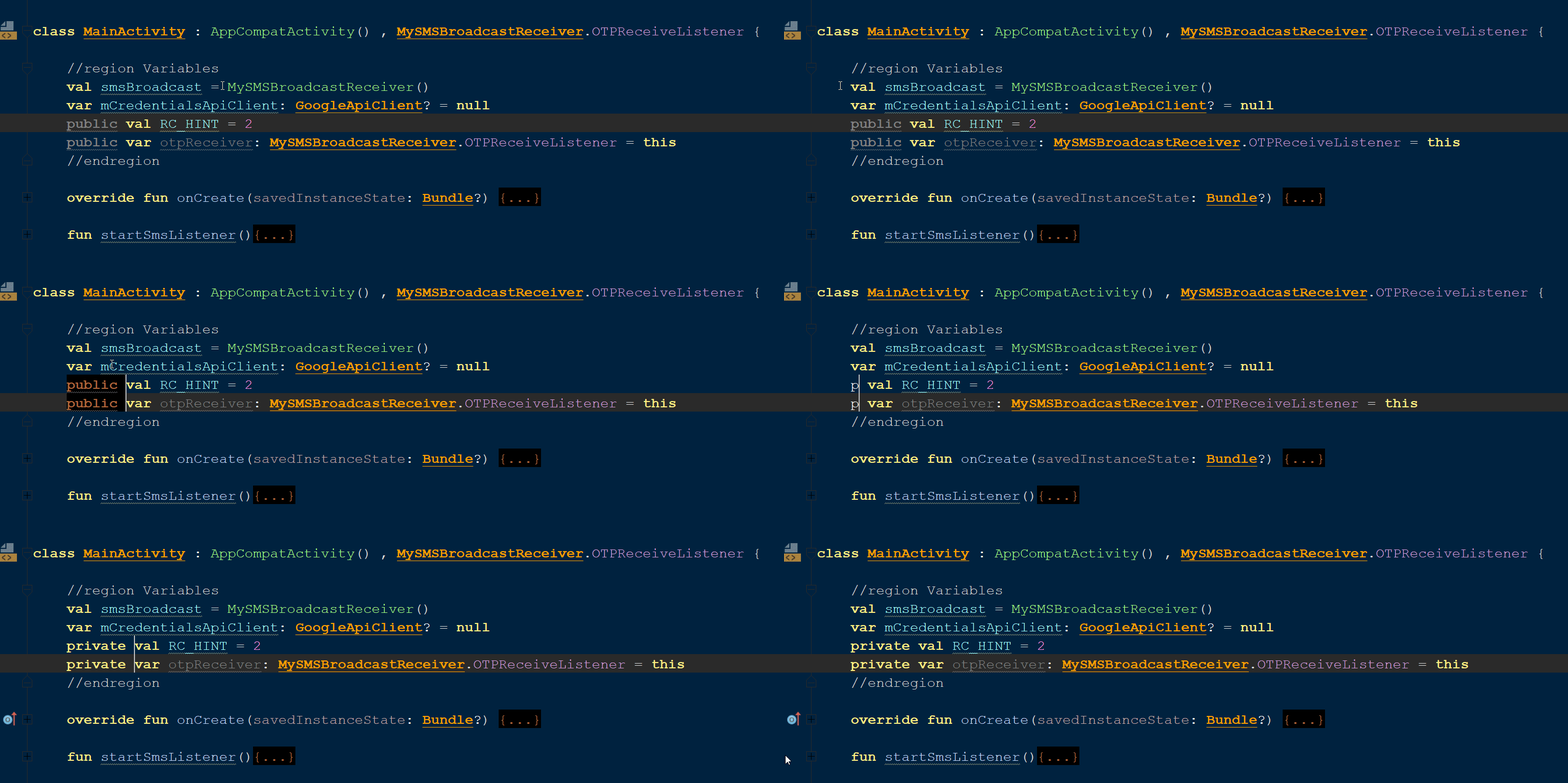
new way to edit

Windows : Alt + Drag with mouse Mac : Option+ Drag with mouse

5. Navigate to Error accurately and easily

It was very annoying to find the error if you have a bunch of lines in your file, especially when the error is because of missing semi-colon or paranthas (trust me I know) which are almost negligible for the human eye. Here comes the rescue, click on Navigation tab in the top and click Next Highlight Error or Previous Highlight Error.

6. Generate Getters & Setters in seconds:

If you’re an experienced developer you must have used POJO classes. This shortcut is to generate Getter and Setter methods for all the variables in single-shot, after declaring all variables in the class just press Alt + Insert and select the option of your choice. Have a look
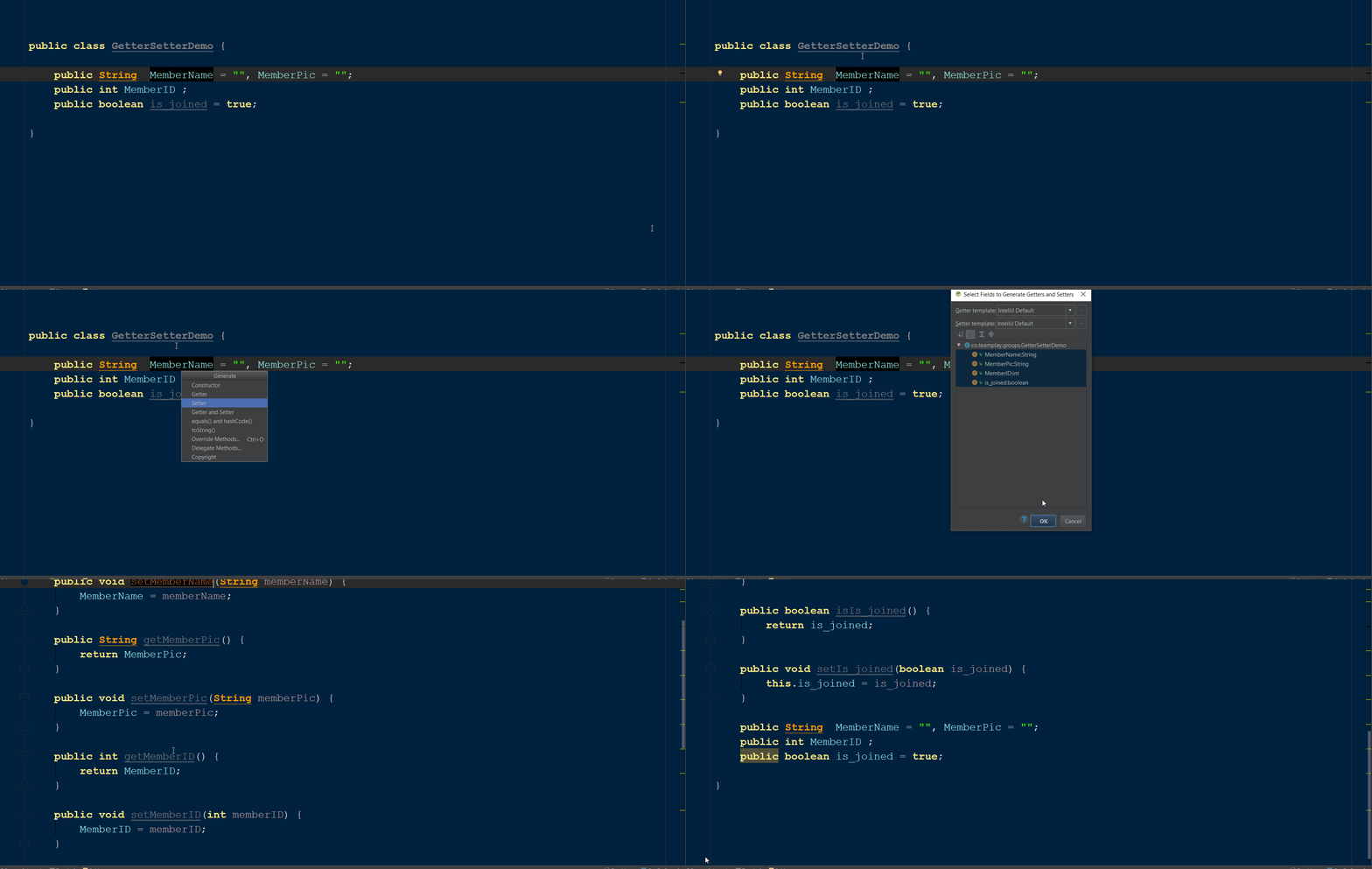
Getter & setters implementation

Windows : Alt + Insert Mac : Control + Enter

7. Build & Run in single click

For me reducing the usage of the mouse while coding is one of the best practices, the most common thing we reach for the mouse is to build & run the app. For this you can just press Shift + F10.

Windows : Shift + F10 Mac : Cmd + R

To enable debugger just press Shift + F9 Windows : Shift + F9 Mac : Control+D

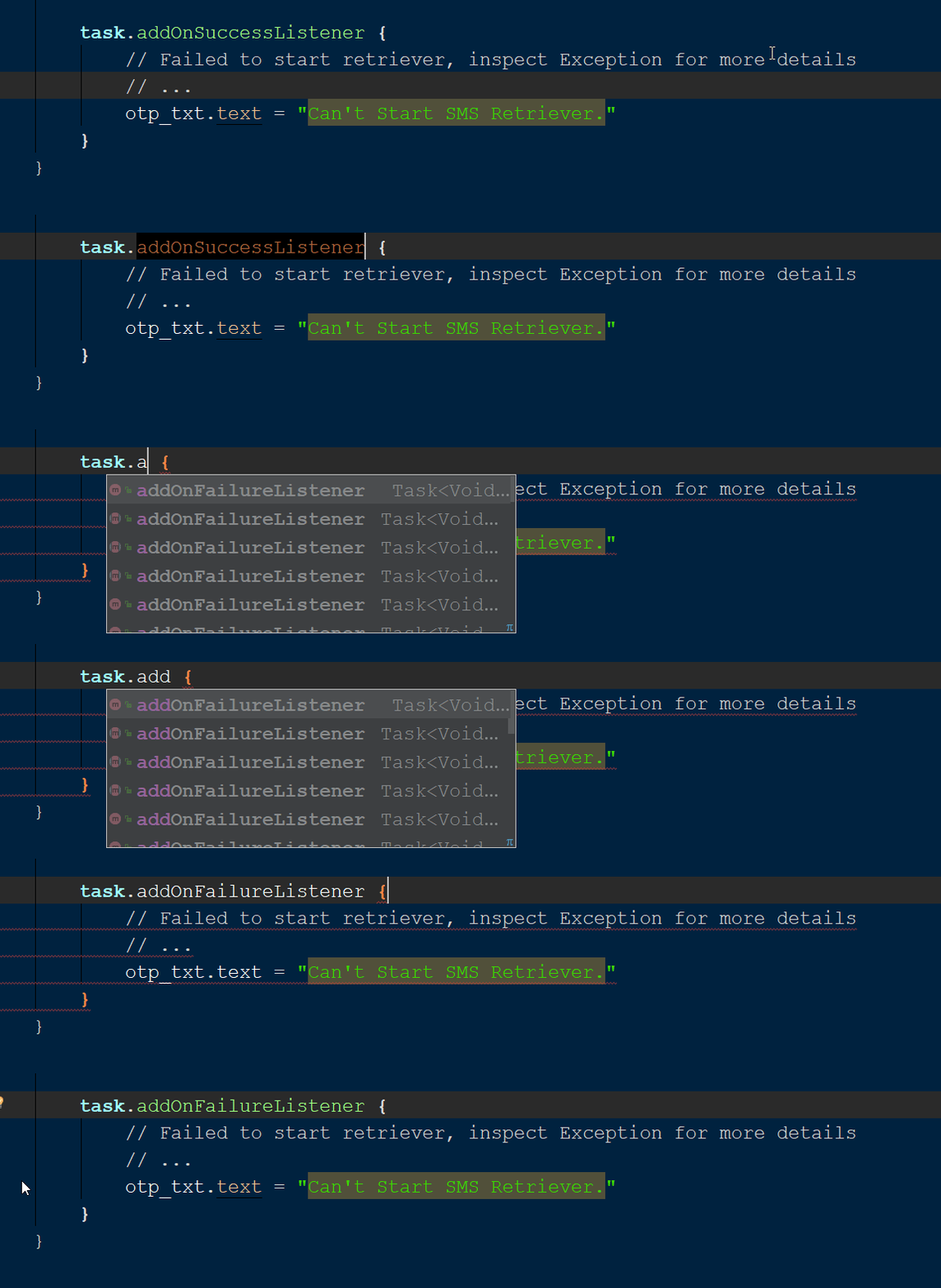
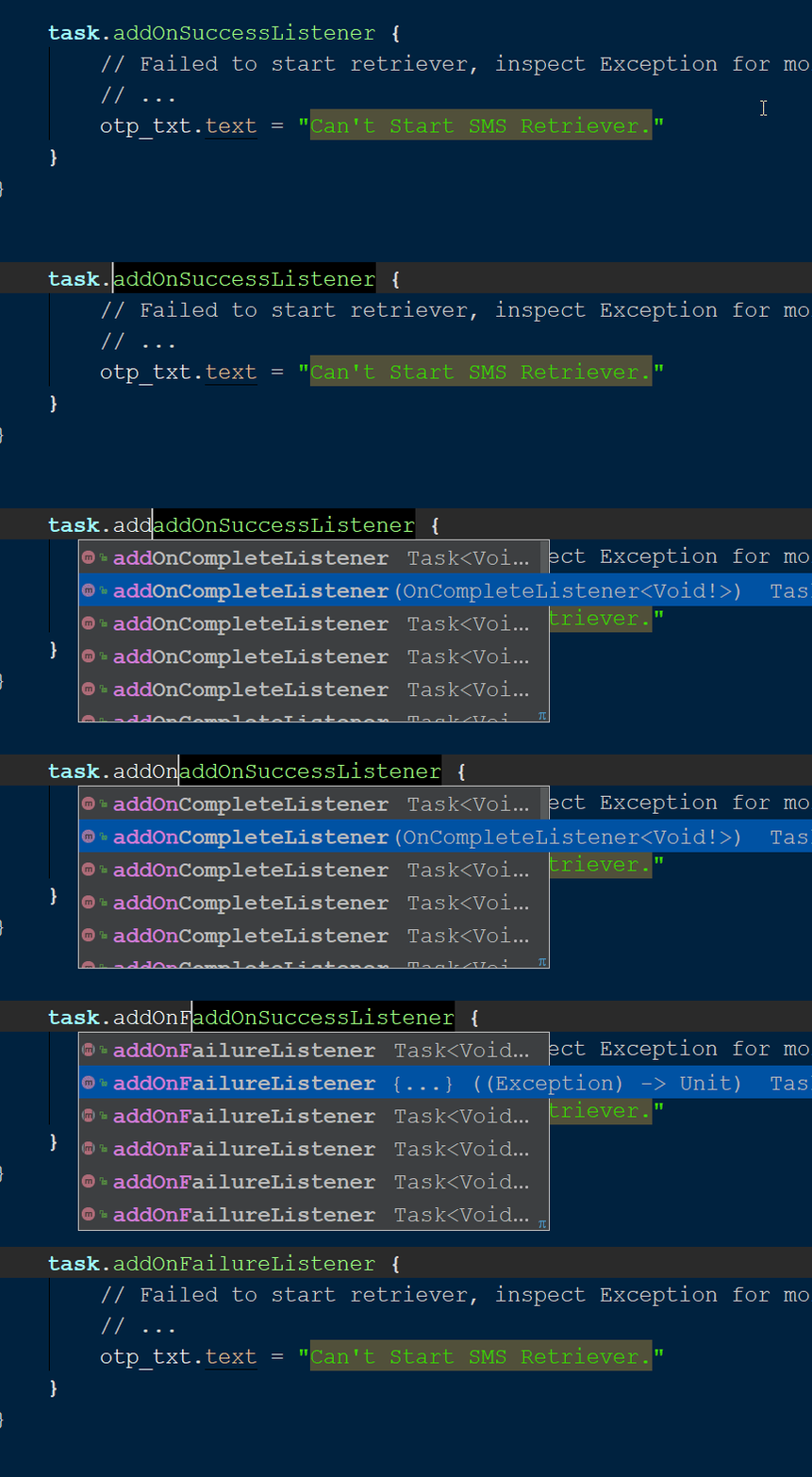
8. Trigger a method like a Pro

There will be times when you trigger the wrong method in a class and you want to replace it, this shortcut is the best way for that. Type the method name and press TAB then it will replace the existing name with you’re desired one.

Normal :
Pro:
9. Refactor

There will be times when you want to change the name of the variables( Textviews, buttons, literally anything) and you found out that it was used at different places in the file, that’s where Refactor comes into play, Just select the label you want to rename > right click the mouse > press refactor > Press rename and finally press enter to replace the word in the entire file. Is it confusing? have a look
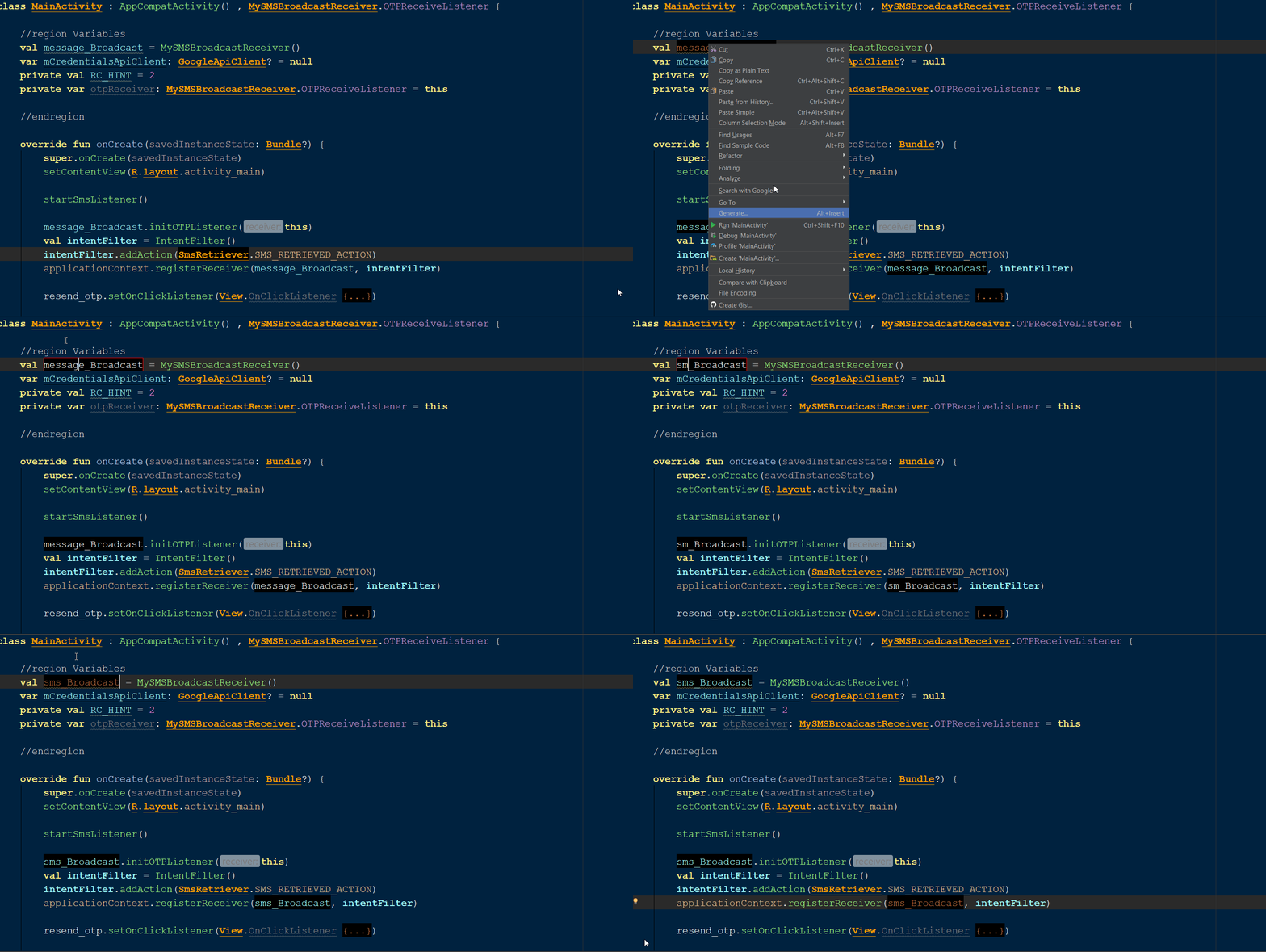
Changing broadcast variable name through out the file

10. Smart Coding

With android studio, there is no need to write code for common usages like for loop with context to an ArrayList, if condition in context with a boolean variable, etc. Have a detailed look
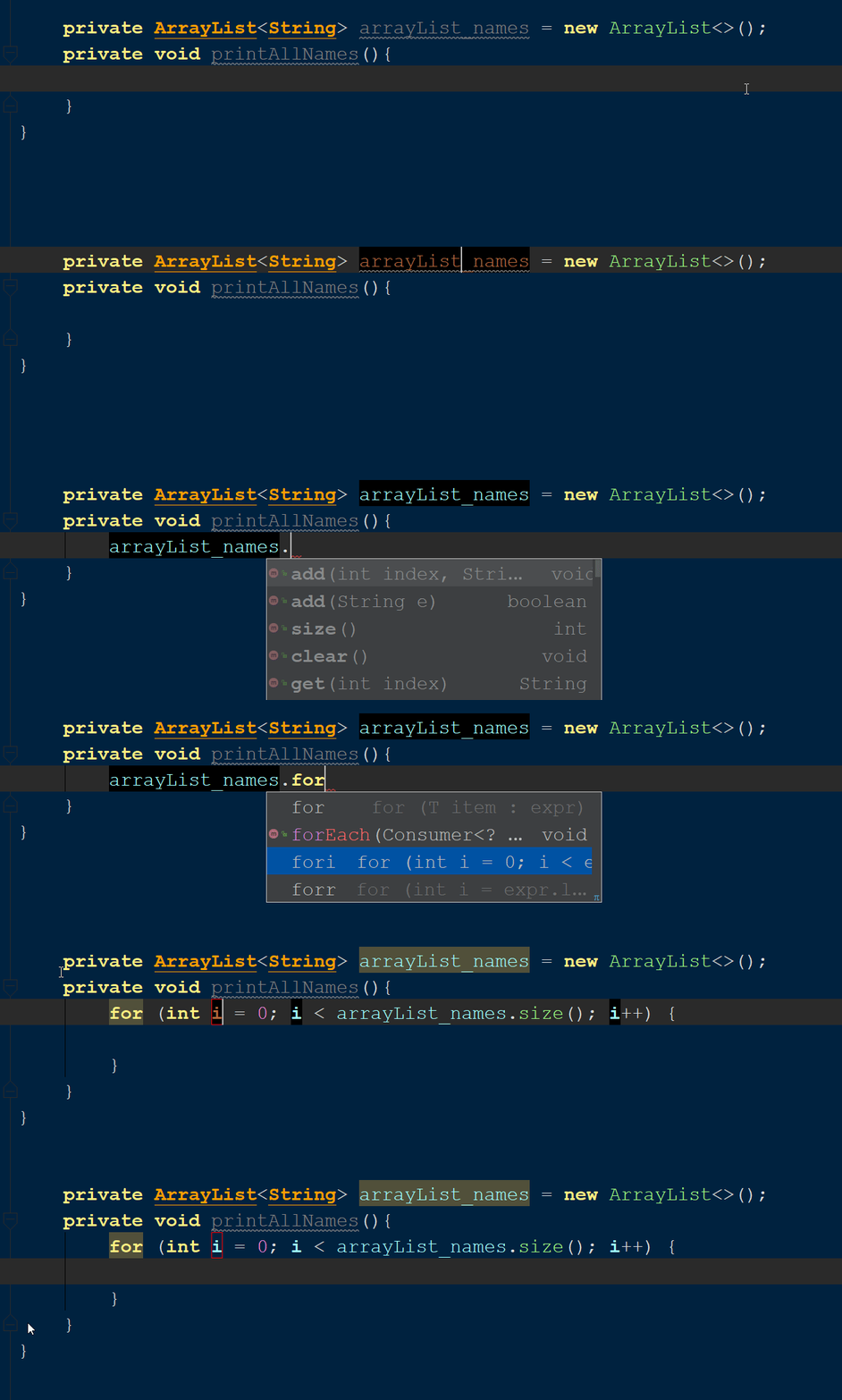
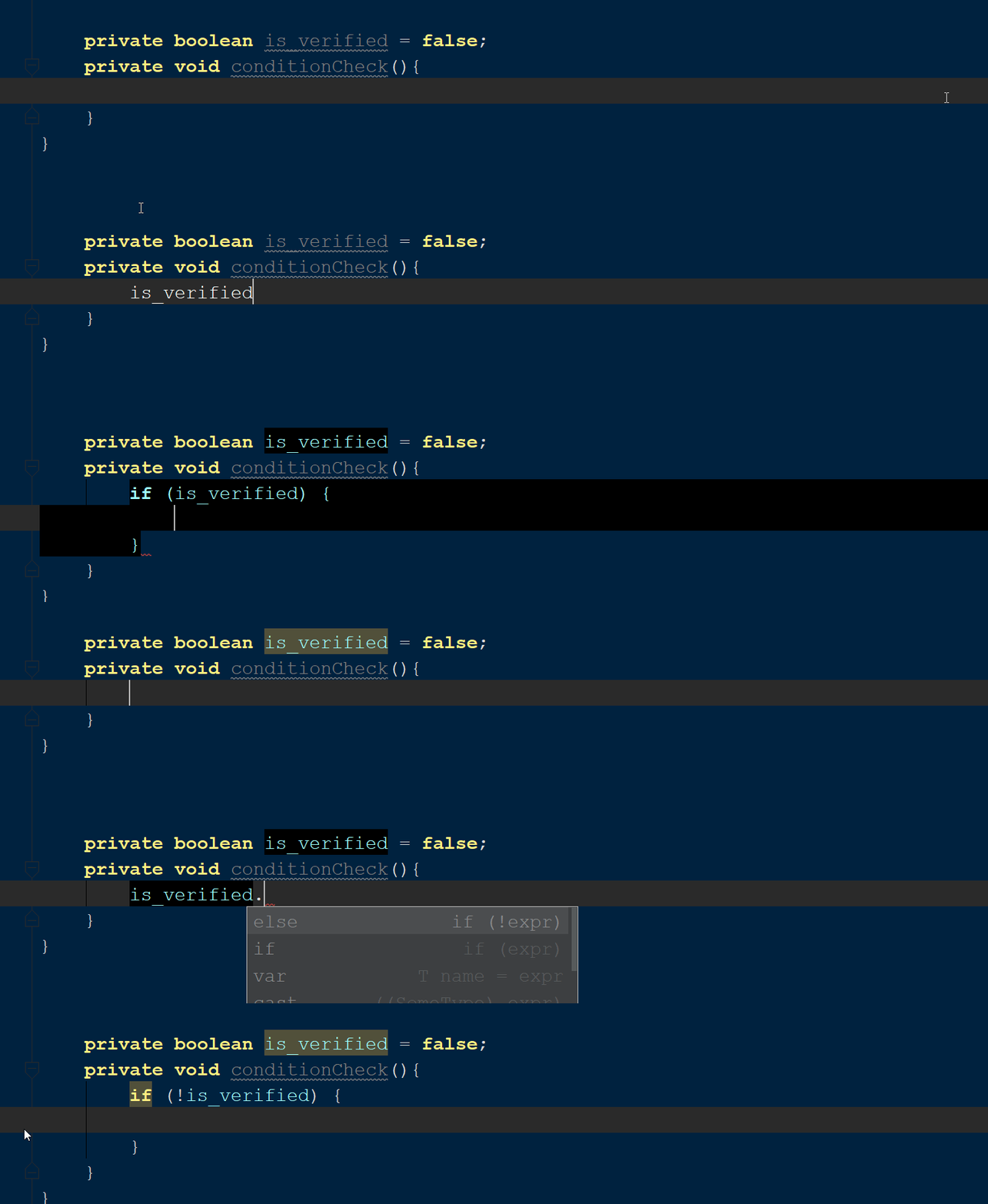
Implementing for loop in content with arraylist
Implementing if block relating to boolean variable

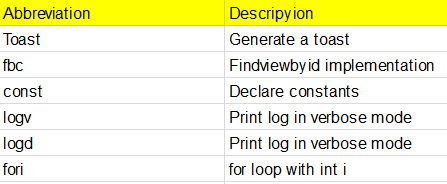
11. Live templates

This is one of my best features in Android studio, with live templates you can implement commonly used code to show Toast, print log, etc., without typing anything. Have a look

Implementing Toast with Live templates
These are few templates I use frequently

You can also create your own code templates by using custom live templates which I’m going to explain in my future articles.

12. Themes for Android Studio

With the above shortcuts and smart coding you knew Android Studio is a smart editor. Now with themes, it can be customized visually too. Import themes into Android studio by following below steps

Click on File Click on Import Settings and Choose the file downloaded.

You will find as many themes as you want here

13. Distraction free mode

Do you ever felt top bars in Android studio is distracting or occupying more space? There is a way to remove them when you really want to concentrate on coding and enable them whenever you want.

Click View at top > Distraction free mode. Click View at top > Exit distraction free mode.

14. Navigate between the methods like a Pro

Did you ever wonder how to navigate between methods by skipping the body, yes it is possible, the shortcut for this is ALT + ↓/↑

Windows : ALT + ↓/↑ Mac : Option + ↓/↑

15. Fold and UnFold to see String Preview

It is good practice to import strings from resource files which are useful to make your app multilingual. If you want to see string resource name or the actual label this is the trick (Ctrl + (+/-) ). Have a look
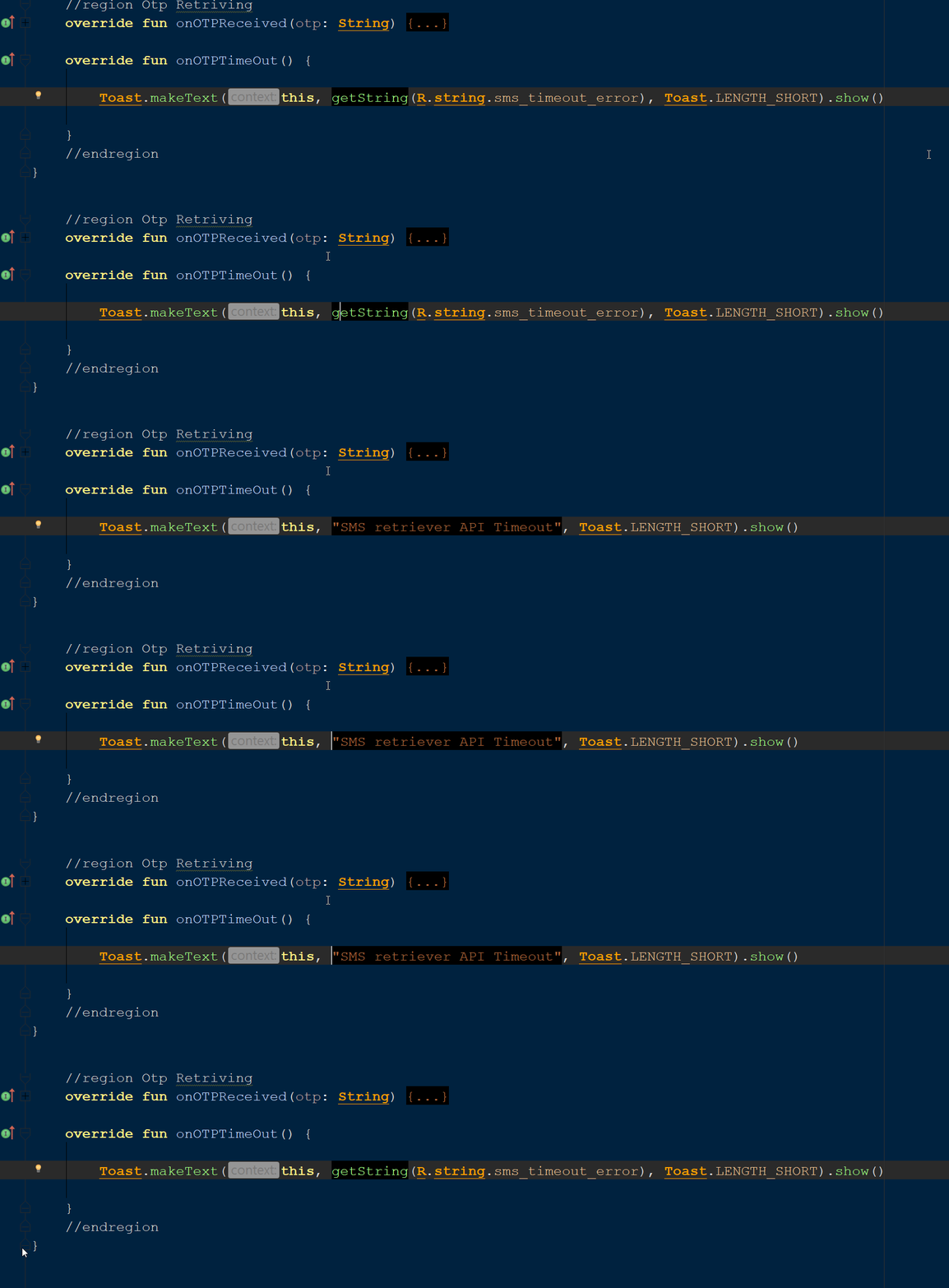
Expand

Windows : Ctrl + (+) Mac : Cmd + (+)

Collapse Windows : Ctrl + (-) Mac : Cmd + (-)

16. Remove a line

Just press Ctrl + Y to remove entire line. Windows : Ctrl + Y Mac : Cmd + Backspace

17. Duplicate a line

Place the cursor on the line and press Ctrl + D which generate the duplicate line below, have a look

Windows : Ctrl + D Mac : Cmd + D

18. Navigating through cursor history

Just press Ctrl + Alt + LEFT_ARROW and Ctrl + Alt + RIGHT_ARROW to move the cursor through its recent places.

19. Split the lines like a Pro
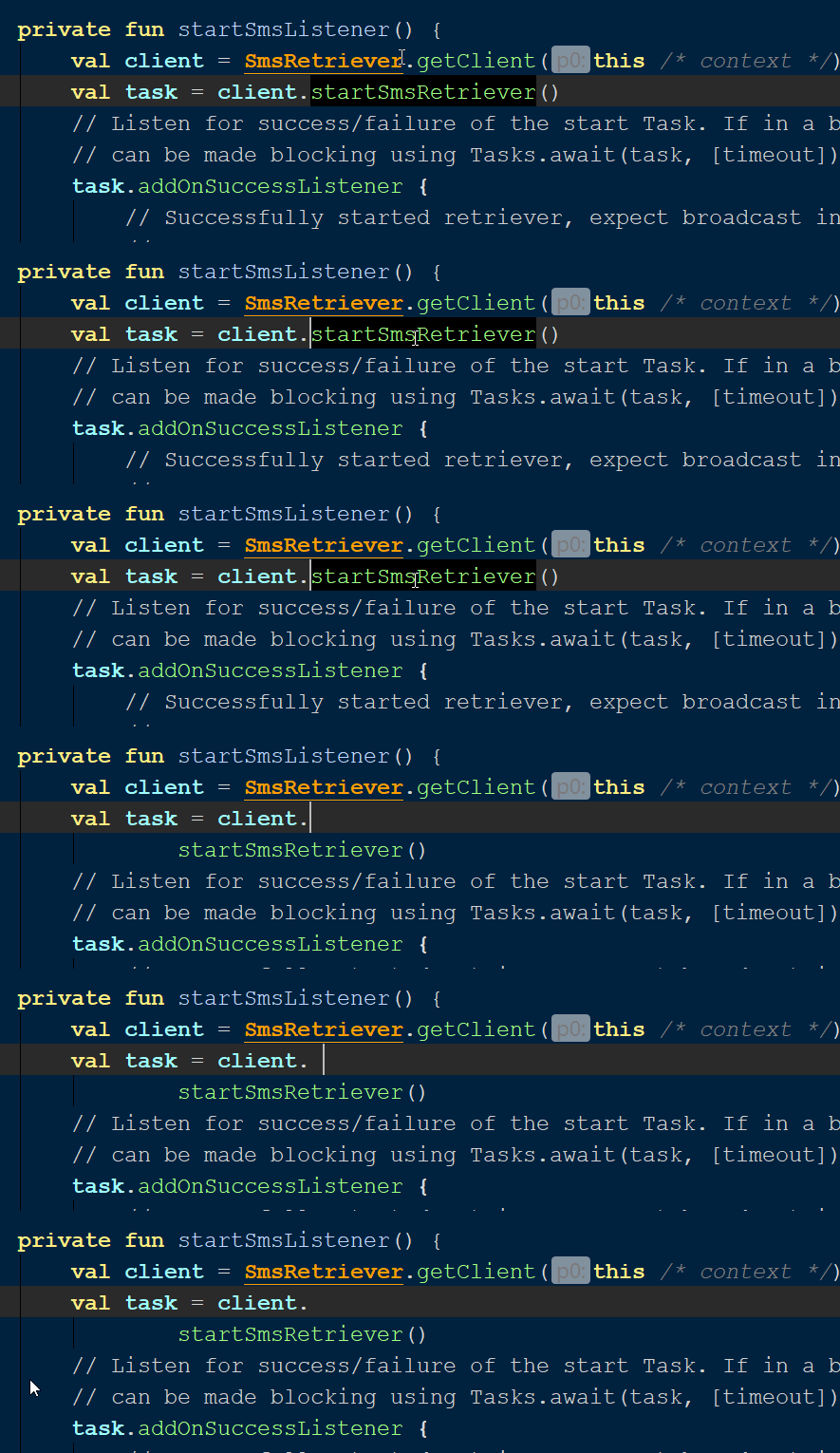
If you want to split the line, but you need the cursor to stay at the same position, then place the cursor at the position and press Ctrl + Enter

Windows : Ctrl + Enter Mac : Cmd + Enter

On my next article we will discuss about the debugging shortcuts & tricks. For basic shortcuts have a look at my previous article.

If you like my article, please don’t forget to click 👏👏👏 & to recommend it to others 👏👏👏.

Also, to be notified about my next articles and stories, follow me on Medium.

Android App Development
Android
AndroidDev
Mobile App Development
Android Studio
Recommended from ReadMedium