
Learning Android Development
Android ImageView ScaleType Fully Illustrated
Clear all confusion of Android Image ScaleType

I thought I know what Android ImageView ScaleType behavior is until I see the below. Sometimes the CenterInside is the same as FitCenter. Sometimes the CenterInside is the same as the Center. Confusing?! 🧐
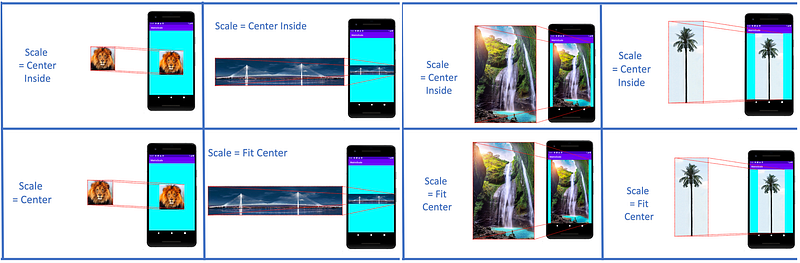
If you search the internet, the above differences are not described clearly. So I decided to flush out my confusion entirely by providing a full illustration of all ScaleType that behave differently across different sizes of images.
Images Size Type
To fully illustrated them, I have to use there are 4 types of images
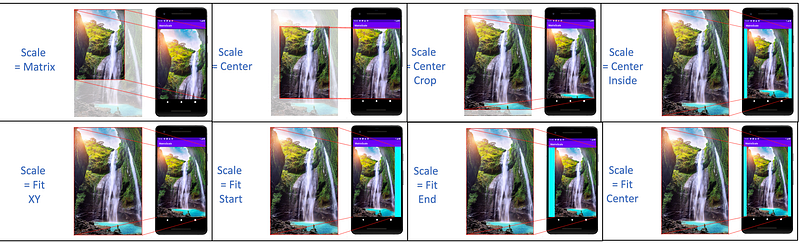
- Bigger Image: Both height and width of the image are bigger than the Device View. I use the waterfall image for this.
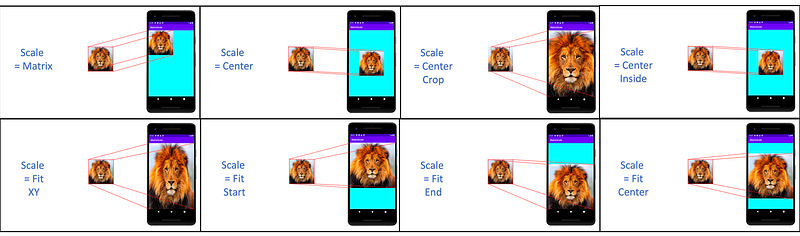
- Smaller Image: Both height and width of the image are smaller than the Device View. I use the lion image for this.
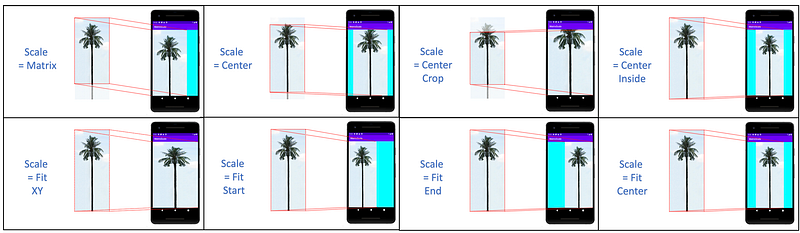
- Taller Image: Only the height of the image is bigger than the device, the width is smaller. I use the tree image for this.
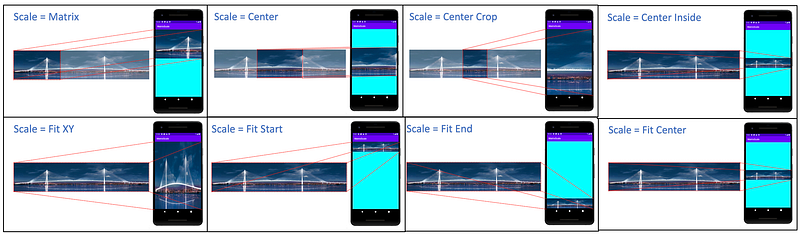
- Longer Image: Only the width of the image is bigger than the device, the height is smaller. I use the bridge image for this.
ScaleType Illustrated
There are 8 types altogether.
Scale Center
Scale Center is actually no scaling at all, but just takes the center of the image and aligns with the center of the view.
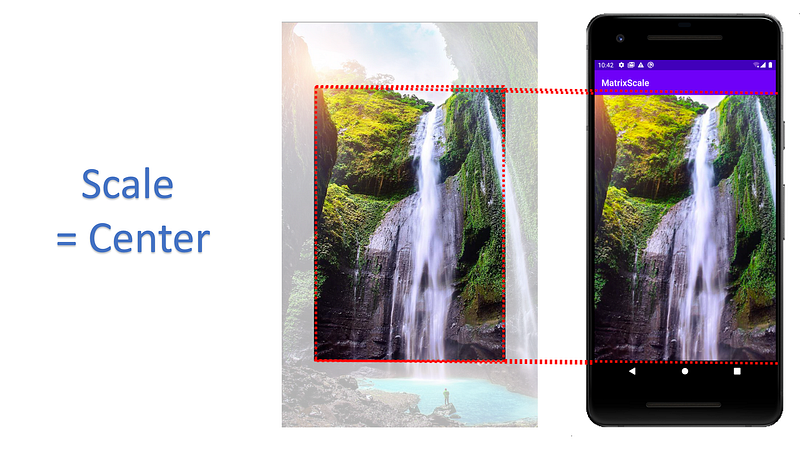
Bigger Image: only the center part of the image is cropped into the view.
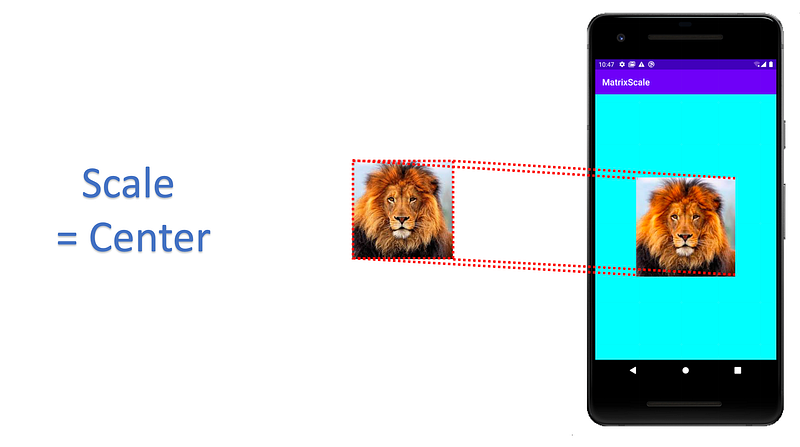
Smaller Image: the entire image got put in the device view. As the image is not scaled, the surround of it is padded.
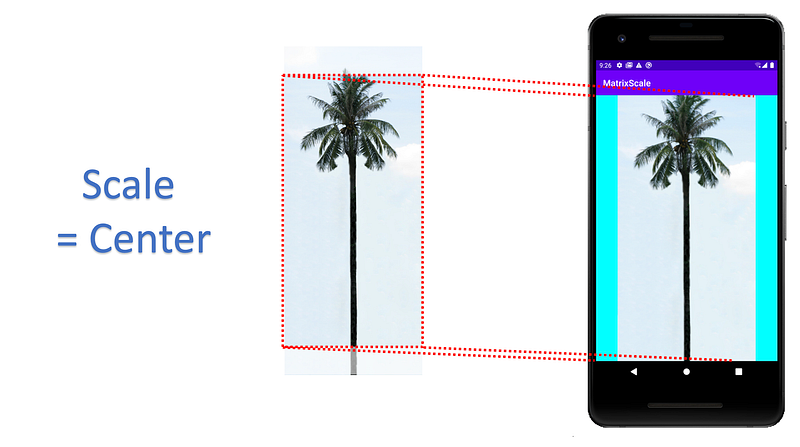
Taller Image: both the top and bottom of it got cropped away, while its sides are padded.
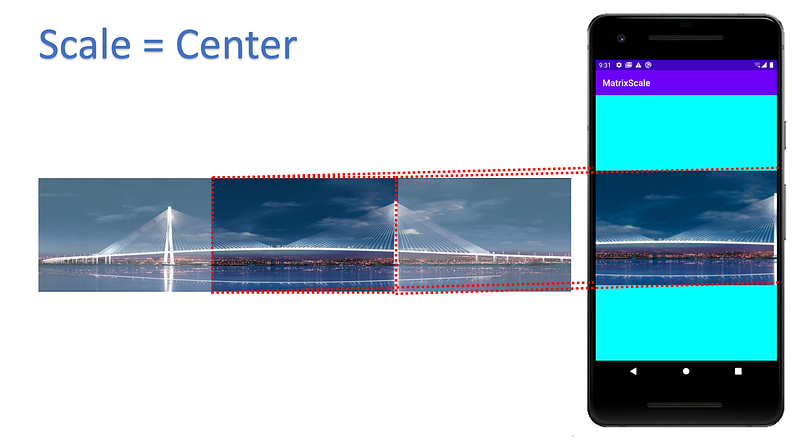
Longer Image: both sides of it got cropped away, while their top and bottom are padded.
Scale Center Crop
Scale Center Crop is to align the center of the image with the center of the view. After that, it shrinks to ensure that at least either a horizontal edge or vertical edge will fit into the view with no padding on all sides of the view.
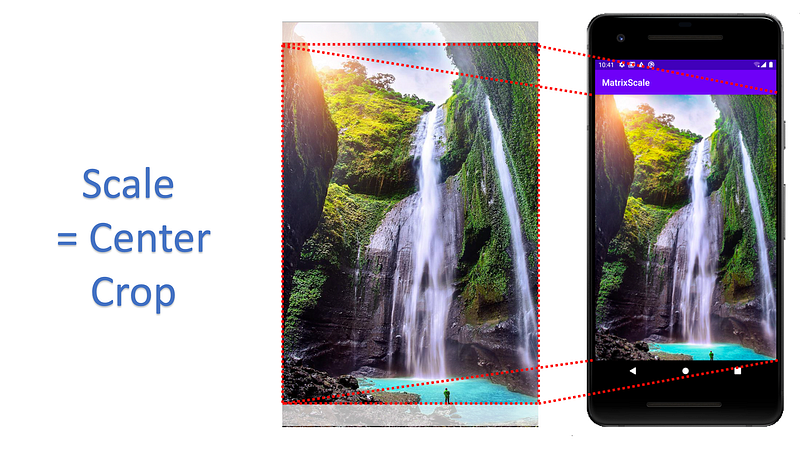
Bigger Image: it is shrunk proportionally. For the image beside, its height/width ratio is bigger than the view height/width ratio, the top and bottom got cropped away
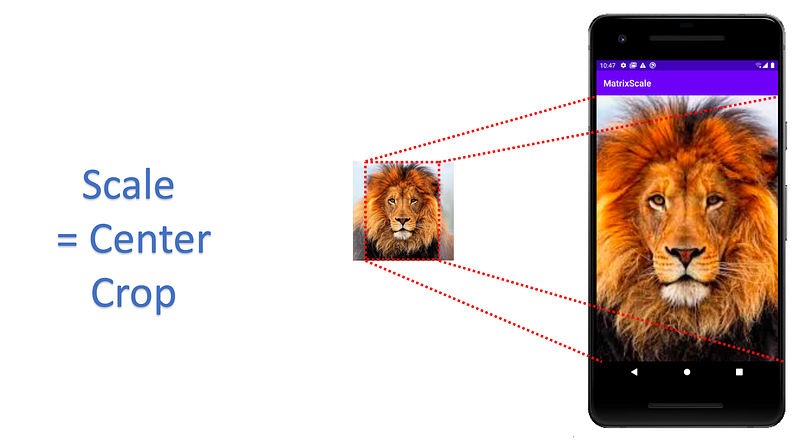
Smaller Image: it is enlarged proportionally. For the image beside, its height/width ratio is smaller than the view height/width ratio, the sides got cropped away.
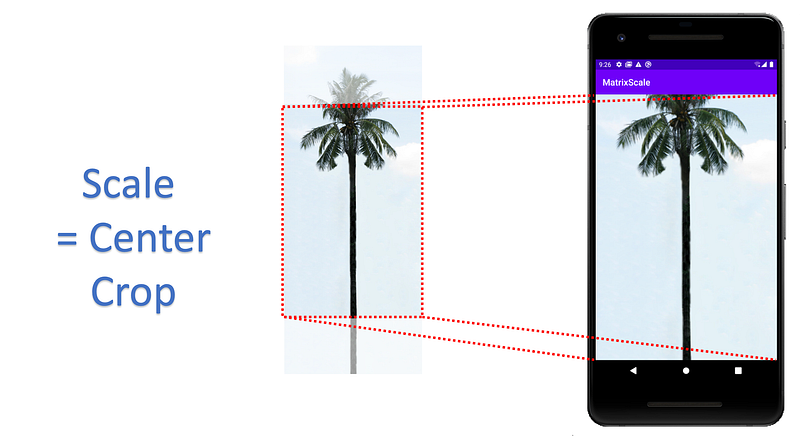
Taller Image: the image is enlarged proportionally until it’s both sides met the edge of the view. The top and bottom of it got cropped away.
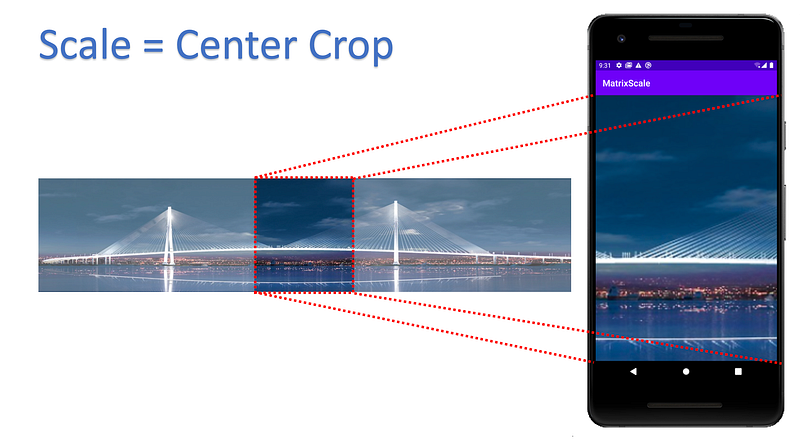
Longer Image: the image is enlarged proportionally until its top and bottom met the edge of the view. Both sides of it cropped away.
Scale Center Inside
Scale Center Inside is to align the center of the image with the center of the view. After that, if the image has any side that is bigger than the view, shrink it proportionally so the image is fully inside the view.
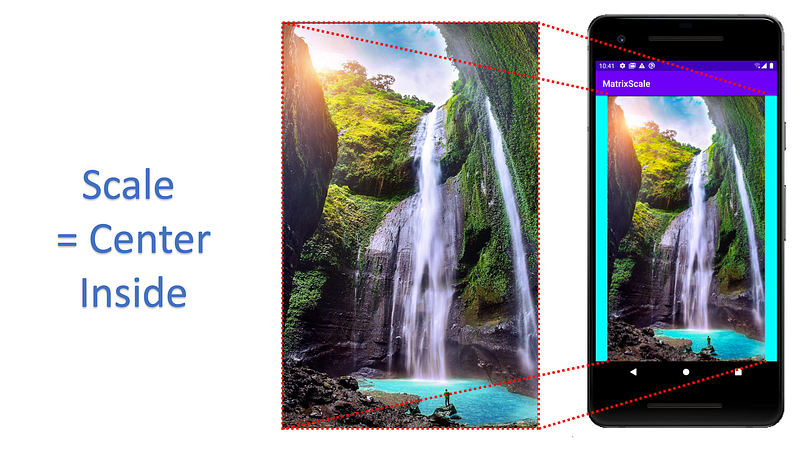
Bigger Image: it is shrunk proportionally. For the image beside, its height/width ratio is bigger than the view height/width ratio, the sides will now be padded.
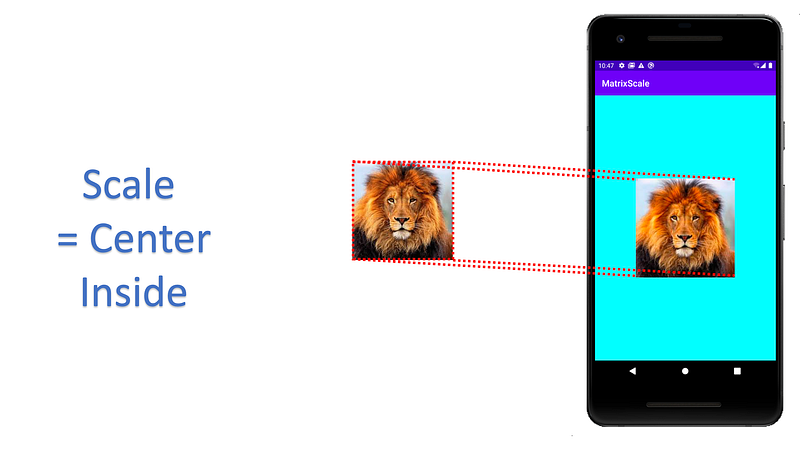
Smaller Image: no scaling is required as the image is fully inside the view.
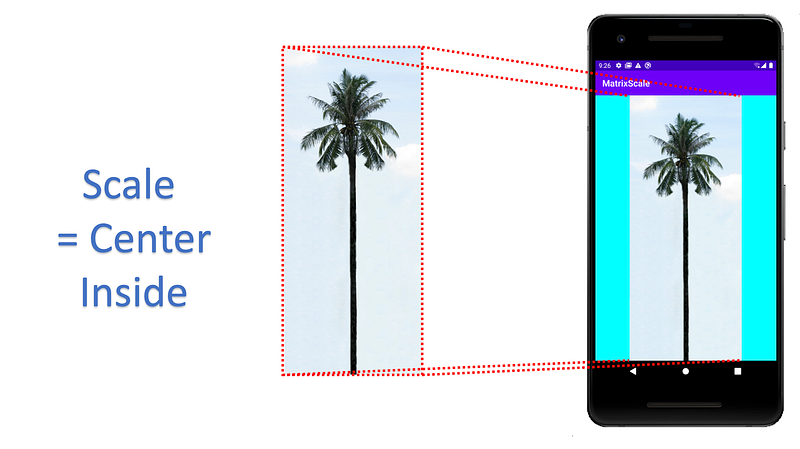
Taller Image: the image is shrunk proportionally until its height is fully inside the view. Both sides will have padding.
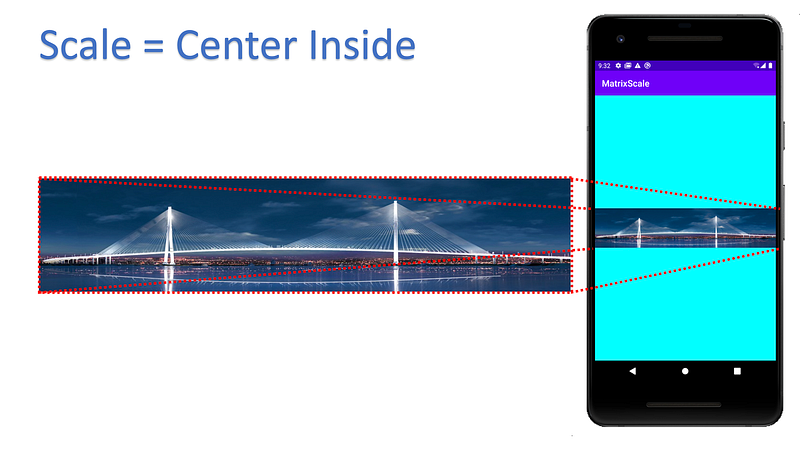
Longer Image: the image is shrunk proportionally until both sides and bottom are in view. Then the top and bottom will have padding.
Note: Center Inside has the same result as Fit Center for image that has one side larger than the view, and has the same result as Center for image that is smaller that the view.
Scale Fit Center
Scale Fit Center is to align the center of the image with the center of the view. After that, if the image is shrunk or enlarged proportionally until the
- image is fully inside the view, and
- one of the image edges (vertical or horizontal) met the side of the vie
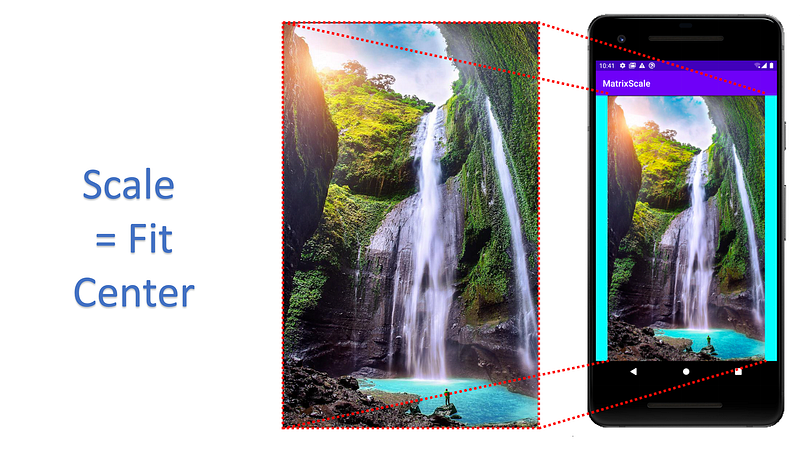
Bigger Image: it is shrunk proportionally. For the image beside, its height/width ratio is bigger than the view height/width ratio, the sides will now be padded.
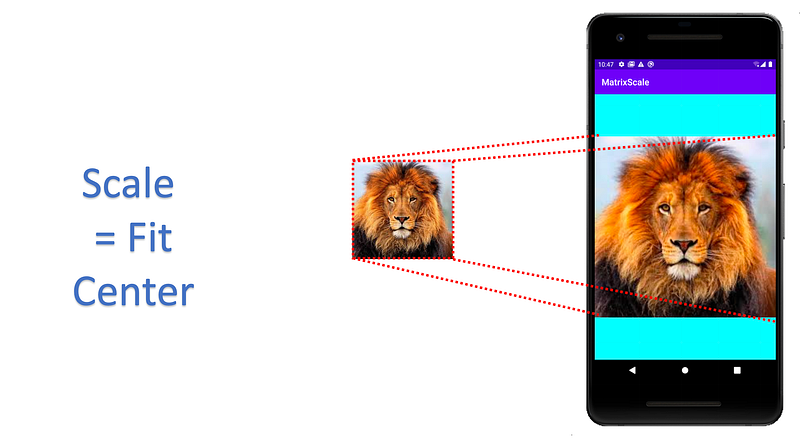
Smaller Image: it is enlarged proportionally until the edge of the image met the side of the view. For the image beside, its height/width ratio is smaller than the view height/width ratio, the top-bottom will now be padded.
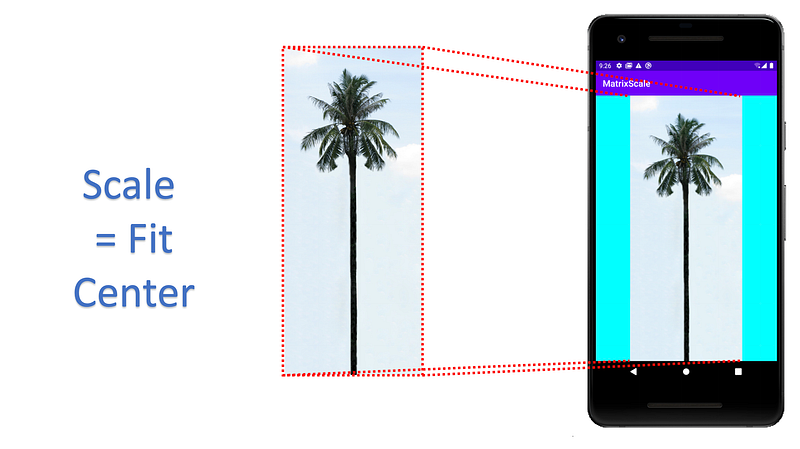
Taller Image: the image is shrunk proportionally until its height is fully inside the view. Both sides will have padding.
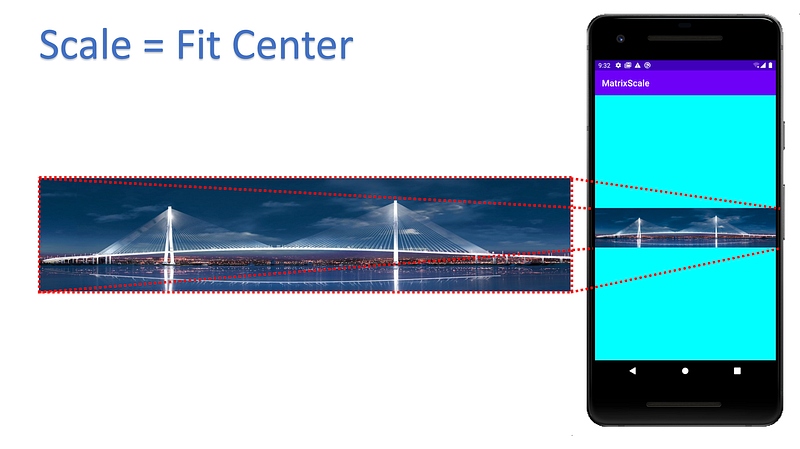
Longer Image: the image is shrunk proportionally until both sides and bottom are in view. Then the top and bottom will have padding.
Scale Fit Start
Scale Fit Start is to align the top left of the image with the top left of the view. After that, if the image is shrunk or enlarged proportionally until the
- image is fully inside the view, and
- one of the image edges (vertical or horizontal) met the side of the view
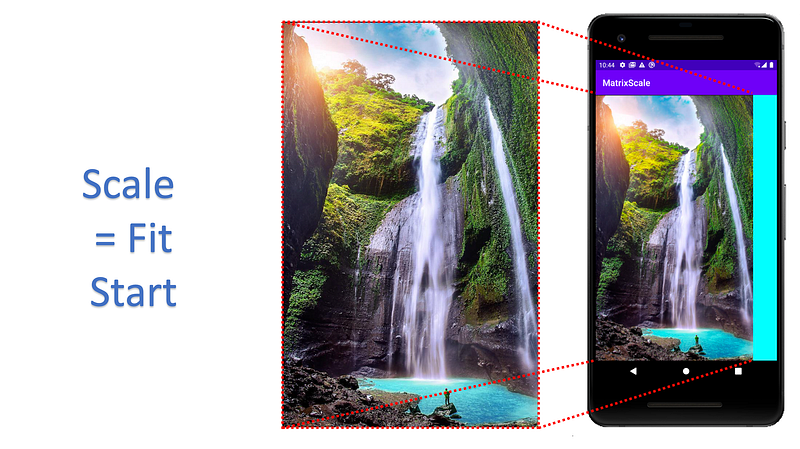
Bigger Image: it is shrunk proportionally to the top-left. For the image beside, its height/width ratio is bigger than the view height/width ratio, the right side will now be padded.
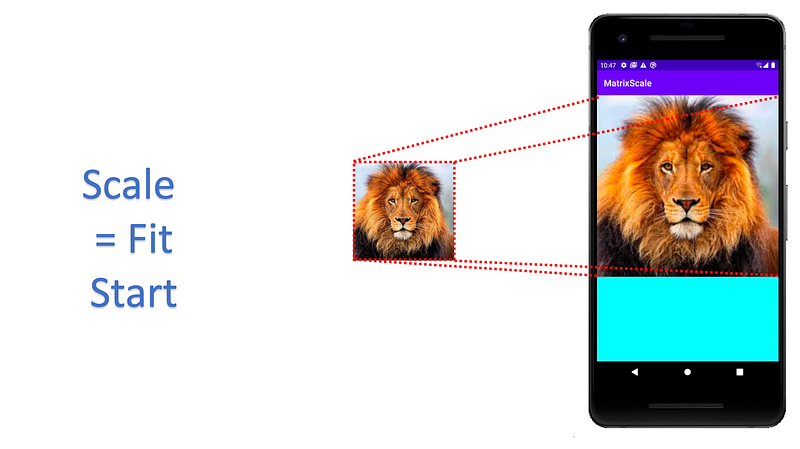
Smaller Image: it is enlarged from the top-left proportionally until the edge of the image met the side of the view. For the image beside, its height/width ratio is smaller than the view height/width ratio, the bottom will now be padded.
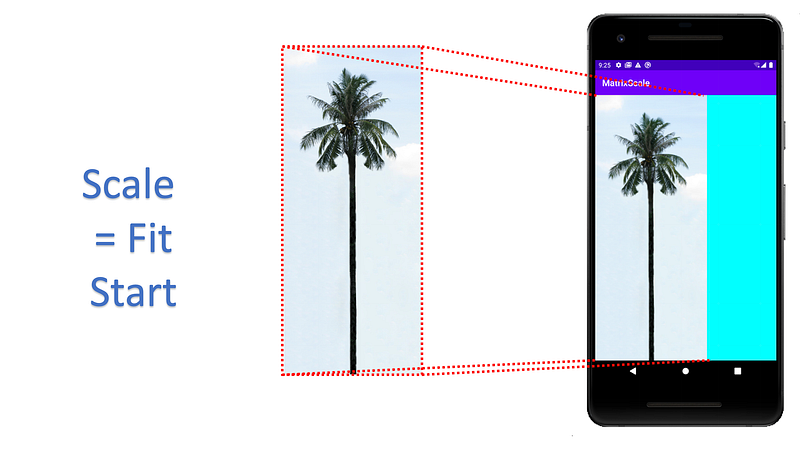
Taller Image: the image is shrunk proportionally to the top-left until it’s height is fully inside the view. The right side will have padding.
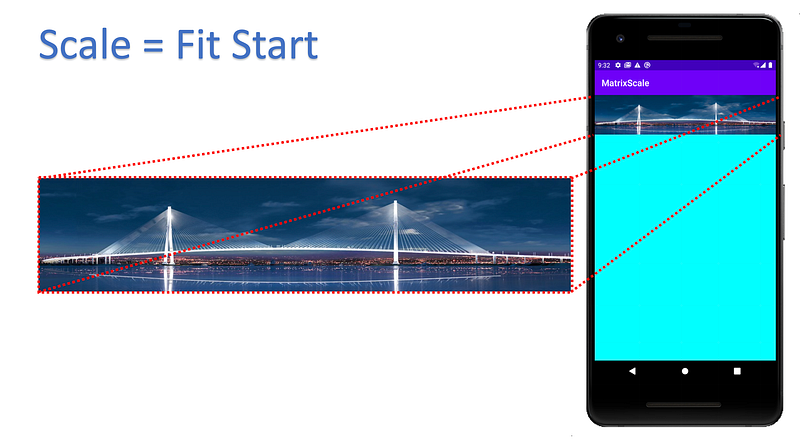
Longer Image: the image is shrunk proportionally to the top-left until both sides and bottom are in view. Then the bottom will have padding.
Scale Fit End
Scale Fit End is to align the bottom right of the image with the bottom right of the view. After that, if the image is shrunk or enlarged proportionally until the
- image is fully inside the view, and
- one of the image edges (vertical or horizontal) met the side of the view
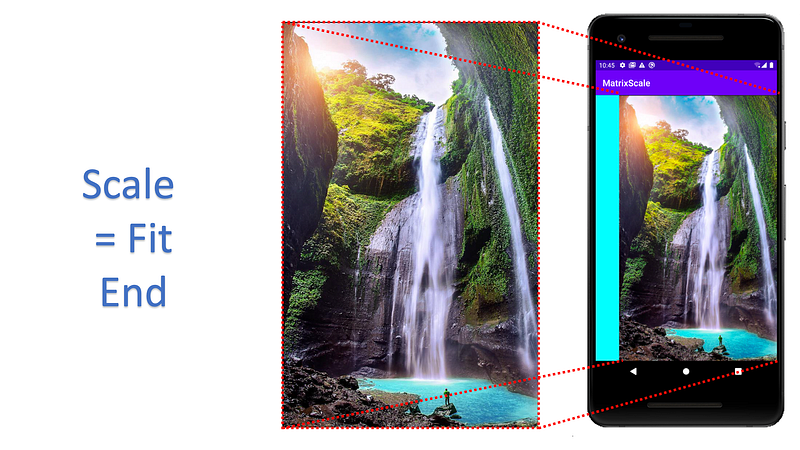
Bigger Image: it is shrunk proportionally to the bottom-right. For the image beside, its height/width ratio is bigger than the view height/width ratio, the left side will now be padded.
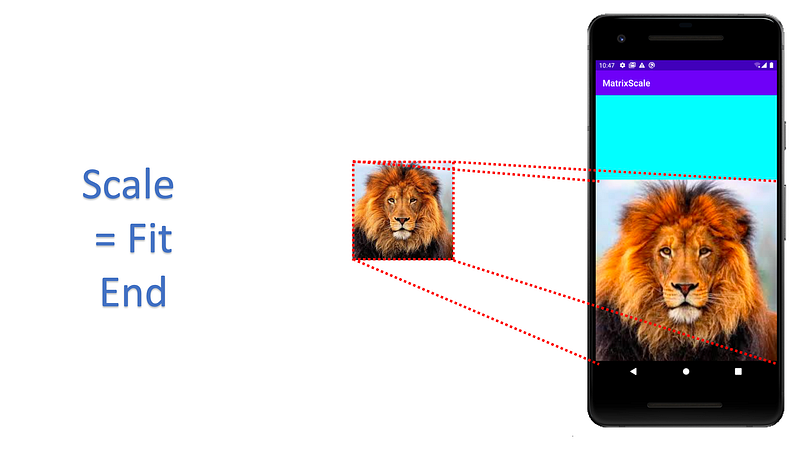
Smaller Image: it is enlarged from the bottom-right proportionally until the edge of the image met the side of the view. For the image beside, its height/width ratio is smaller than the view height/width ratio, the top will now be padded
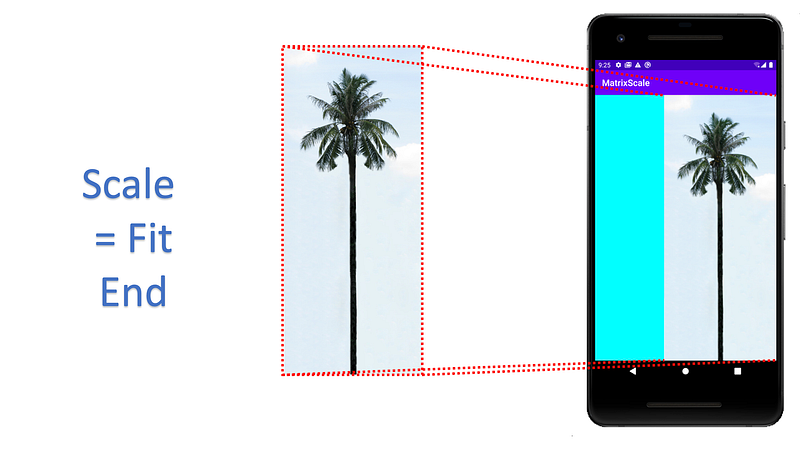
Taller Image: the image is shrunk proportionally to the bottom-right until its height is fully inside the view. The left side will have padding.
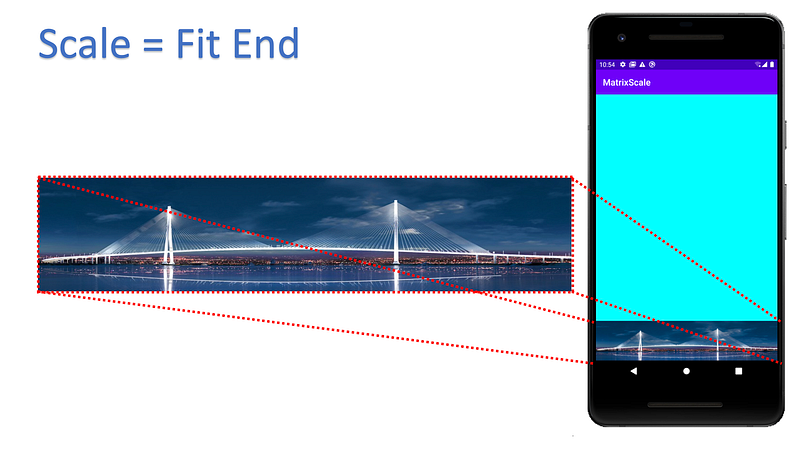
Longer Image: the image is shrunk proportionally to the bottom-right until both sides and bottom are in view. Then the top will have padding.
Scale Fit XY
Scale Fit Center is to align the center of the image with the center of the view. After that, if the image is shrunk or enlarged until
- image is fully inside the view, and
- all of the image edges (vertical or horizontal) met the side of the view
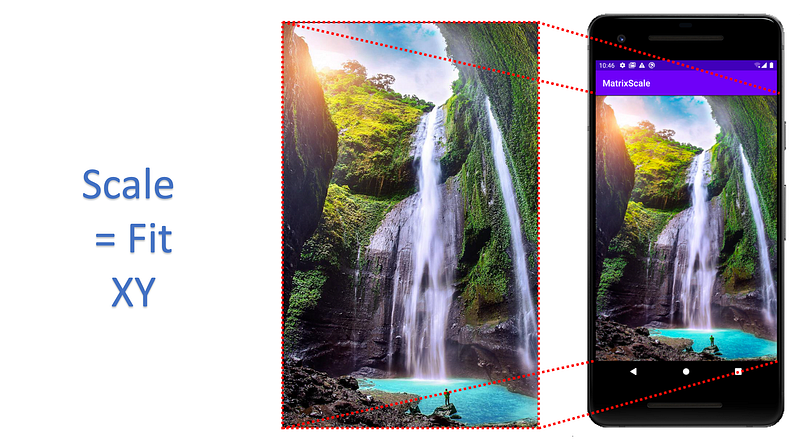
Bigger Image: it is shrunk proportionally until all side is in view. For the image beside, its height/width ratio is bigger than the view height/width ratio, so it is stretched horizontally.
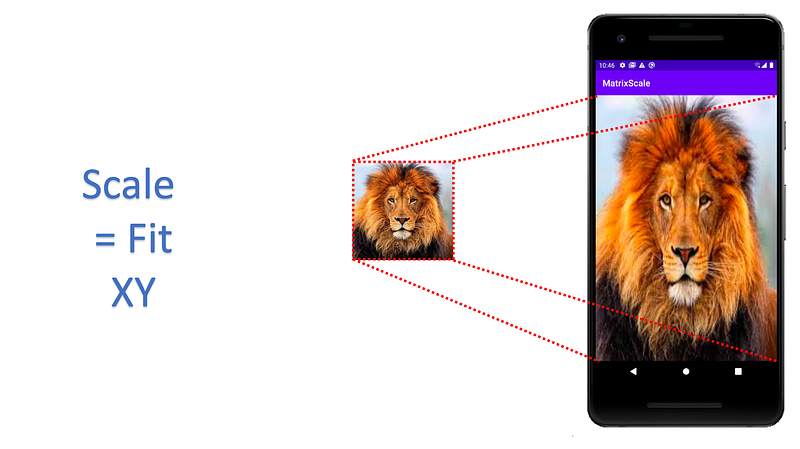
Smaller Image: it is enlarged from the bottom-right until the edge of the image met the side of the view. For the image beside, its height/width ratio is smaller than the view height/width ratio, the image is stretched vertically.
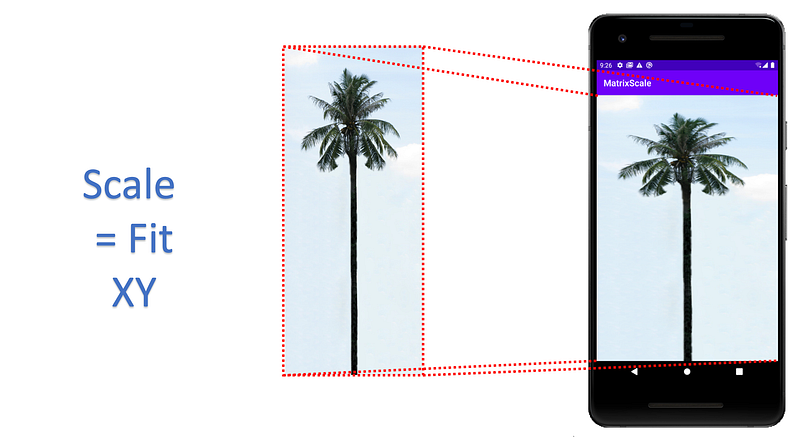
Taller Image: the image is shrunk until all it is fully inside the view. The image is horizontally stretched.
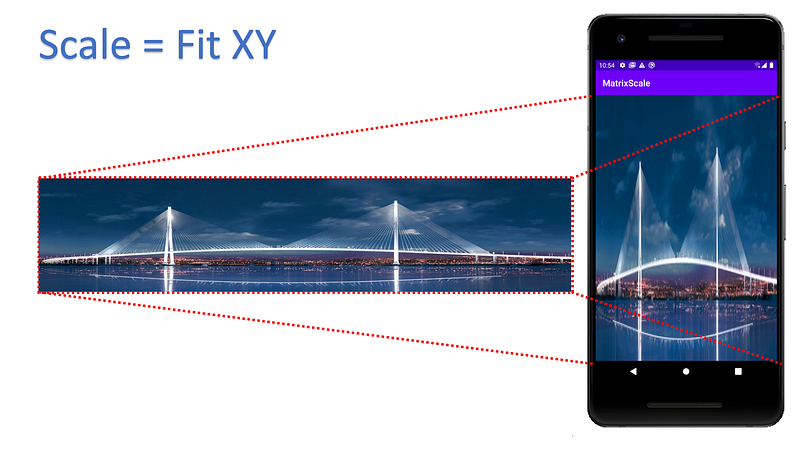
Longer Image: the image is shrunk to the bottom-right until all sides and is in view. The image is vertically stretched.
Scale Matrix
Scale Matrix is basically no scale by default. It aligns the top-left of the image with the top-left of the view. For any side of the image that is larger than the view, it is cropped. For any side that is smaller, it is padded.
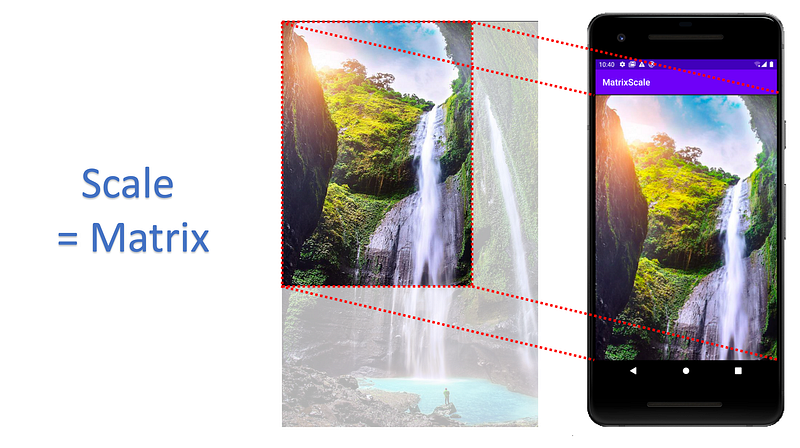
Bigger Image: the right and bottom of the images are cropped away.
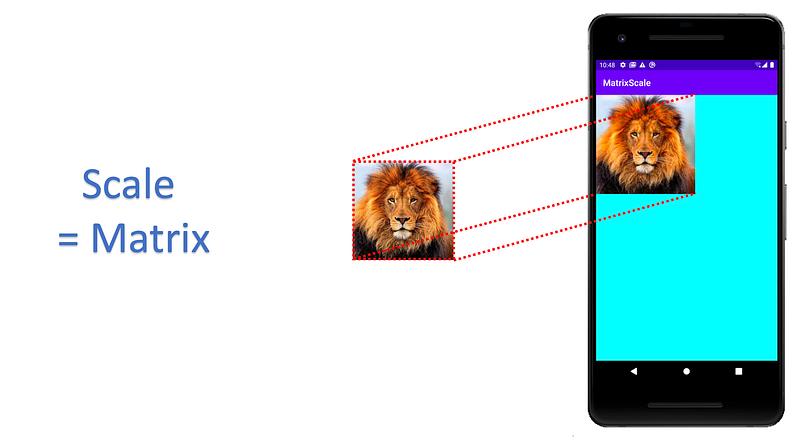
Smaller Image: the right and bottom of the view are padded
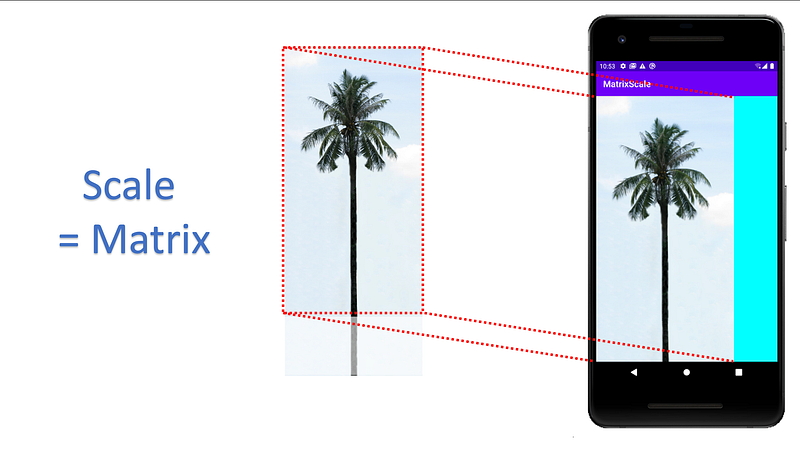
Taller Image: the bottom of the image is cropped, but the right side is padded.
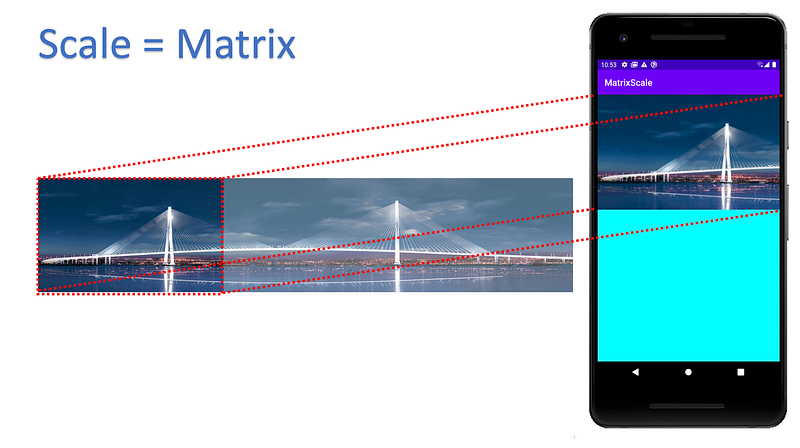
Longer Image: the right of the image is cropped, but the bottom of the view is padded
Scale Matric allows custom scaling, which I plan to cover in another blog. Stay tuned.
Summary Views
To make it easier for comparison across the ScaleType, I put them side by side for the same image type.
Bigger Image
Smaller Image
Taller Image
Longer Image
That’s it. Hopefully, this provides you with a crystal clear everything that one needs to know about ScaleType… with the exception of Matrix… and also AdjustViewBounds, which I plan to explore in my next writing.
Updated, For AdjustViewBounds, check out
For Matrix ScaleType, checkout
You can get the example app code to experiment with it.


