avatarWilliam

Free AI web copilot to create summaries, insights and extended knowledge, download it at here

2213

Abstract

mg src="https://cdn-images-1.readmedium.com/v2/resize:fit:800/1*zQgYcwB7Yuvgob-pKpt4eg.png"><figcaption></figcaption></figure><h2 id="e58b">Variations Mode</h2><ul><li>Strong and Subtle Variations: After upscaling an image, use the ‘vary’ and ‘very’ options for significant or minor modifications, respectively. This can be great if you dont know exactly what you want, but you need new inspiration</li></ul><h2 id="4f7b">Stylize Command</h2><ul><li>Adjusting Stylization: Use the stylize command (stylize 0 to 1000) to adjust the level of Midjourney’s default aesthetics on your images.</li></ul><figure id="0462"><img src="https://cdn-images-1.readmedium.com/v2/resize:fit:800/1*un3y4IWuXfKJ7dwX-mSLaA.png"><figcaption></figcaption></figure><p id="0c50">This parameter decides how creative you want midjourney to be. Unless you have a very specific and detailed prompt, i would advise you to always have this atleast at 250. Personally i always create the same prompt with different levels of stylise to see what i like.</p><h2 id="f133">New Parameters</h2><ul><li>Weird Parameter: Use the ‘weird’ command to make images appear more unusual or eccentric. Recommended values are between 250 and 500.</li><li>Turbo Mode: Use <code>--turbo</code> to enhance image rendering speed by 4X for twice the price.</li><li>Shorten Command: Use the ‘shorten’ command to analyze your prompts and get suggestions on high-ranking words.</li></ul><h2 id="4378">Prompt Optimization</h2><ul><li>High-Ranking Keywords: Keywords related to the subject, action, location, and fashion details tend to rank higher.</li><li>Syntax Importance: Place high-ranking words early in the prompt. Use underscores to prevent Midjourney from separating adjectives from nouns.</li><li>Cinematic Prompts: For cinematic images, mention critical elements like scene, subject, and action early in the prompt. Remove unnecessary words like ‘captured by’.</li></ul><h2 id="221b">Creating Consistent Characters</h2><ul><li>Zoom Out for Consistency: Use the zoom-out feature to create consistent characters in different backgrounds. Start with a portrait and use custom zoom with a rewritten prompt for different scenes.</li></ul><figure id="198a"><img sr

Options

c="https://cdn-images-1.readmedium.com/v2/resize:fit:800/1*77l-uATpSTr535Y6Lb-OYg.png"><figcaption></figcaption></figure><h2 id="121c">Conclusion</h2><p id="9be8">Midjourney V5.2 offers enhanced capabilities for creating ultra-realistic AI photos. Experiment with the new features and optimized prompt structures to create stunning images</p><div id="0e2d" class="link-block"> <a href="https://readmedium.com/30-stunning-realistic-midjourney-prompts-you-can-use-529b865a8505"> <div> <div> <h2>30+ Stunning Realistic Midjourney Prompts You Can Use</h2> <div><h3>These will blow your mind</h3></div> <div><p>medium.com</p></div> </div> <div> <div style="background-image: url(https://miro.readmedium.com/v2/resize:fit:320/1*_j8zrFEzVG5iROChZrtYkQ.png)"></div> </div> </div> </a> </div><div id="a567" class="link-block"> <a href="https://readmedium.com/how-to-master-midjourney-and-generate-stunning-images-56bea098474a"> <div> <div> <h2>How To Master Midjourney And Generate Stunning Images</h2> <div><h3>Learn how i create all those stunning photos you love so much</h3></div> <div><p>medium.com</p></div> </div> <div> <div style="background-image: url(https://miro.readmedium.com/v2/resize:fit:320/1*GitzYpoyfvuTaWxvvXGn2g.png)"></div> </div> </div> </a> </div><div id="5e18" class="link-block"> <a href="https://readmedium.com/20-crazy-midjourney-prompts-you-can-copy-3a0b66a87582"> <div> <div> <h2>20 Crazy MidJourney Prompts You Can Copy</h2> <div><h3>Number 16 will blow your mind</h3></div> <div><p>medium.com</p></div> </div> <div> <div style="background-image: url(https://miro.readmedium.com/v2/resize:fit:320/1*q6Y5TKeYhyKsFYNG_DsZJw.png)"></div> </div> </div> </a> </div></article></body>

Images created by the author on Midjourney

Advanced Midjourney Guide

Use the zoom out function to create Consistent Characters and landscapes

Midjourney V5.2 introduces several new features for creating ultra-realistic AI photos. This guide covers the new zoom out feature, improved stylize and New Wave parameter, optimized prompt structures, and more.

Getting Started

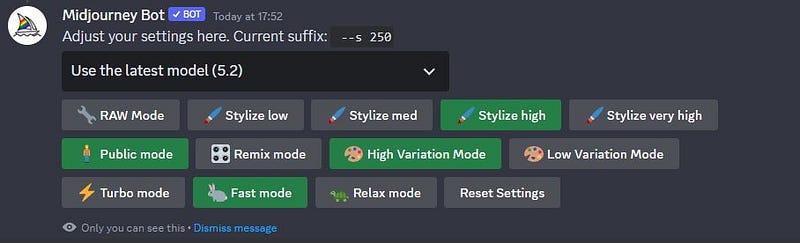
  • Version Check: Ensure you’re using Midjourney V5.2. In Discord, type /settings to check the version.
  • Initial Prompt: Start by typing your prompt in Discord. Midjourney V5.2 will generate a set of 4 images based on your prompt.

Zoom Out Feature

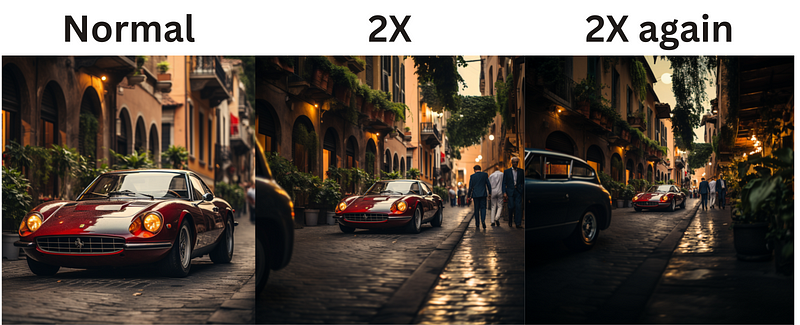
  • Standard Zoom Out: Use the zoom out 1.5x and 2x options to extend the canvas of an image beyond its current boundaries.
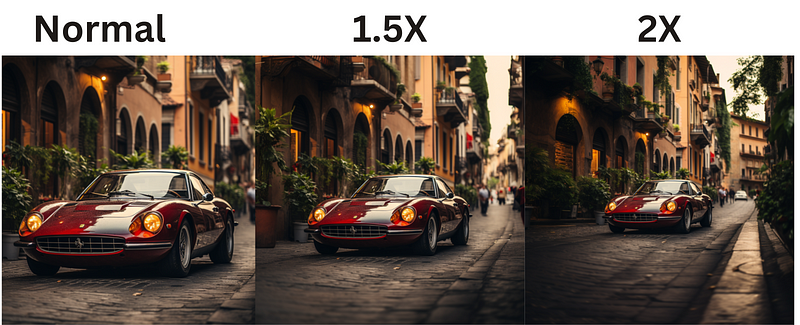
  • Custom Zoom: Now i like the 2X zoomed picture, but i feel like it’s missing something, So i Click on the custom Zoom after upscaling the image. Enter a custom value of Zoom (e.g., 1.7) and modify the prompt to my desire. Midjourney will generate a zoomed-out versions of your original image and if you change the prompt it will just add to the existing one. Great if you feel like your current image is missing something.
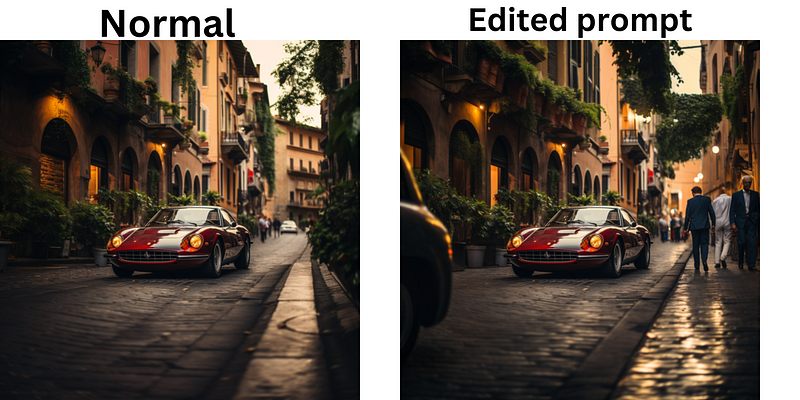
While your not allowed to zoom more than 2x at a time, you can take your original picture, zoom out 2x, upscale the one you like and then zoom out 2x again and again and again, until you got a completely different image.

Example:
Variations Mode

  • Strong and Subtle Variations: After upscaling an image, use the ‘vary’ and ‘very’ options for significant or minor modifications, respectively. This can be great if you dont know exactly what you want, but you need new inspiration

Stylize Command

  • Adjusting Stylization: Use the stylize command (stylize 0 to 1000) to adjust the level of Midjourney’s default aesthetics on your images.
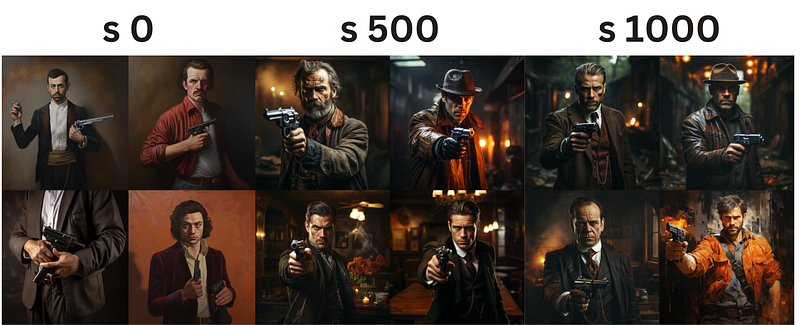
This parameter decides how creative you want midjourney to be. Unless you have a very specific and detailed prompt, i would advise you to always have this atleast at 250. Personally i always create the same prompt with different levels of stylise to see what i like.

New Parameters

  • Weird Parameter: Use the ‘weird’ command to make images appear more unusual or eccentric. Recommended values are between 250 and 500.
  • Turbo Mode: Use --turbo to enhance image rendering speed by 4X for twice the price.
  • Shorten Command: Use the ‘shorten’ command to analyze your prompts and get suggestions on high-ranking words.

Prompt Optimization

  • High-Ranking Keywords: Keywords related to the subject, action, location, and fashion details tend to rank higher.
  • Syntax Importance: Place high-ranking words early in the prompt. Use underscores to prevent Midjourney from separating adjectives from nouns.
  • Cinematic Prompts: For cinematic images, mention critical elements like scene, subject, and action early in the prompt. Remove unnecessary words like ‘captured by’.

Creating Consistent Characters

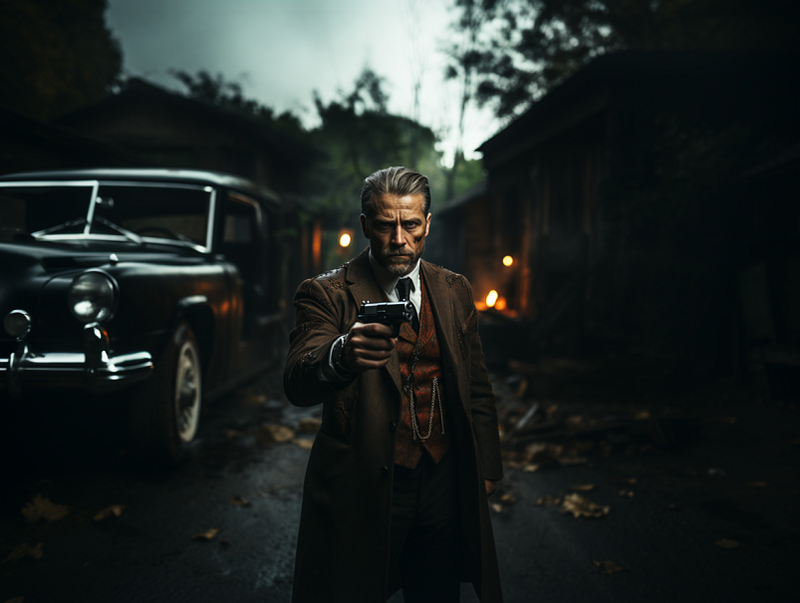
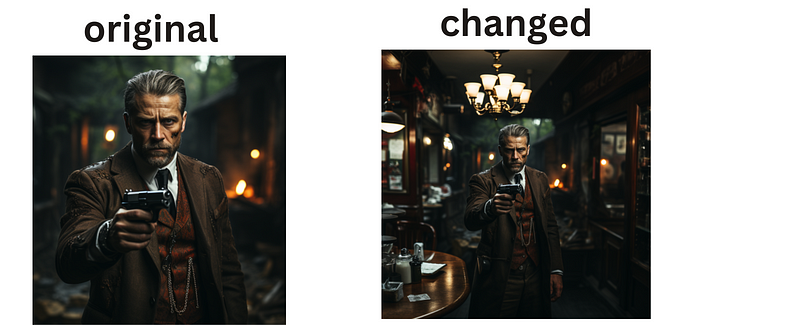
  • Zoom Out for Consistency: Use the zoom-out feature to create consistent characters in different backgrounds. Start with a portrait and use custom zoom with a rewritten prompt for different scenes.
Conclusion

Midjourney V5.2 offers enhanced capabilities for creating ultra-realistic AI photos. Experiment with the new features and optimized prompt structures to create stunning images

Midjourney
AI
Artificial Intelligence
Technology
Ai Art
Recommended from ReadMedium