
A Complete Guide To MidJourney
Learn how i create stunning images with Midjourney
Advanced Midjourney Text Prompts
Midjourney is capable of generating visuals from simple inputs like a single word, a phrase, or even emojis. But if you’re aiming for a more customized visual output, you can provide Midjourney Bot with a detailed description.
For a more tailored experience, advanced prompts can be used. These can consist of multiple textual elements, URLs of images, and specific settings. Below is a sample of an advanced text prompt that incorporates multiple textual elements and settings:
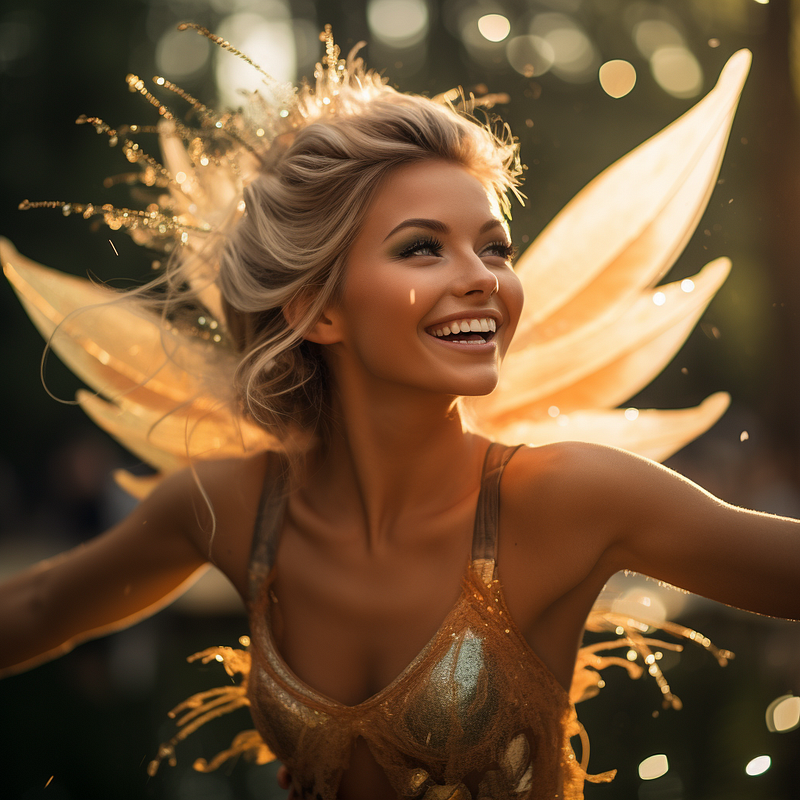
Disney Tinkerbell fairy, flying, candid moment, laughing, close-up, iridescent wings, Beautiful, stunning, gorgeous, golden hour, beautiful details, 32k
Analyzing your prompts
To assess the effectiveness of your prompts, you can use the “Shorten” command. Just enter /shorten in your Discord text bar, followed by the prompt you want to test.
Midjourney will then examine the text and offer suggestions for alternative phrasing to enhance the efficacy of your prompt.
Dividing Concepts in Midjourney Prompts
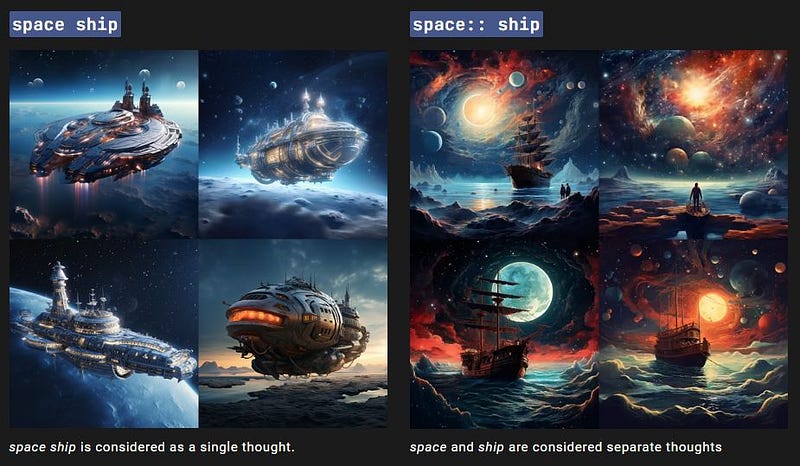
Midjourney allows you to isolate two or more distinct ideas by using a double colon (::) as a divider.
This feature is useful when you aim to concentrate on both the main subject and the backdrop or environment of an image. Below is an example demonstrating the use of a double colon in Midjourney prompts:
Key Elements for Optimal Midjourney Prompts
Wondering how to craft an effective Midjourney prompt? Here are ten factors to think about incorporating for optimal outcomes:
1. Subject
Begin by outlining the central focus of your image, such as a person, animal, place, or item.
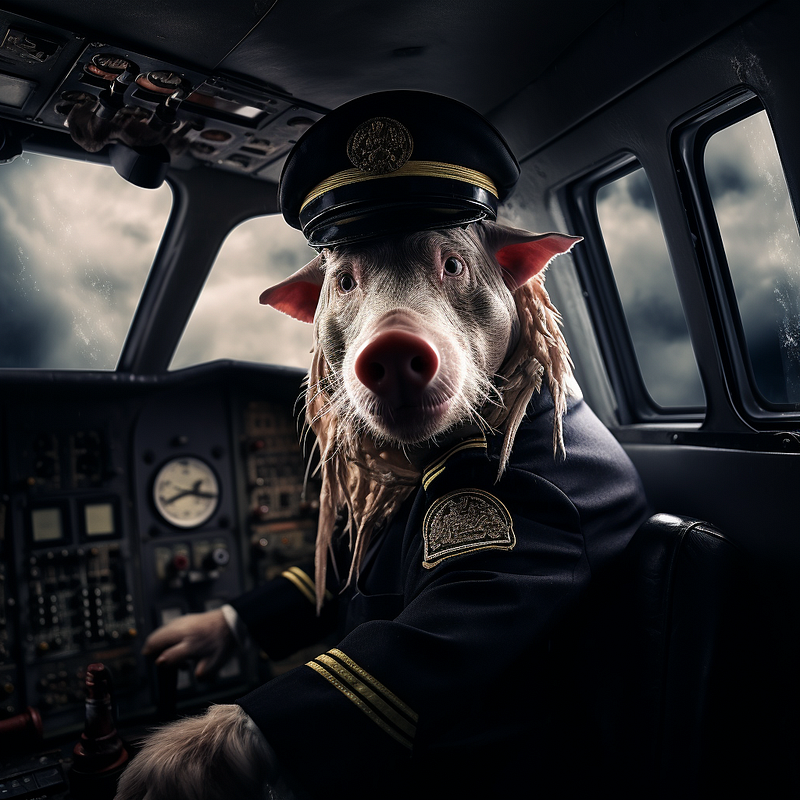
pig as captain on plane during a thunderstorm, shocked face, beautiful details, scary moment, dramatic lighting, clear imagery, crisp, ominous — s 1000 — v 5.0
2. Art Style / Medium
Select the desired format for your image, whether it’s a close-up photograph, oil painting, childs drawing, interior design style or maybe something in the style of your favorite artists?.
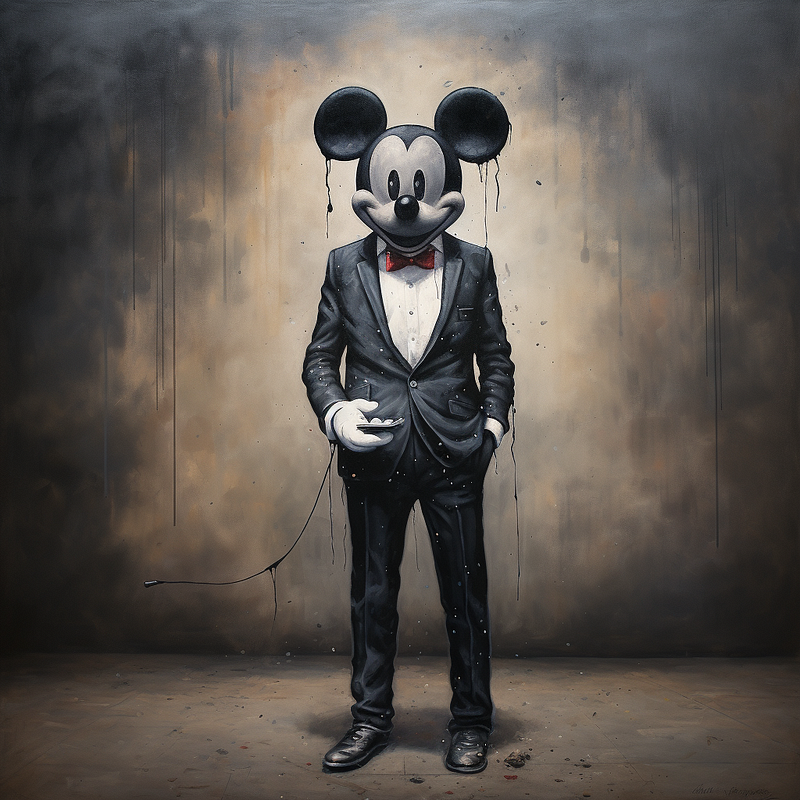
Mickey Mouse as a business man in the style of Banksy
3. Lighting Choices
Choose the mood and lighting for your visuals. You can opt for neon light, daylight, ambient light, vibrant light, soft light, or cinematic lighting.
For added depth, think about incorporating shadows. Examples could be striped shadows on a face, playful tree shadows, or soft shadows.
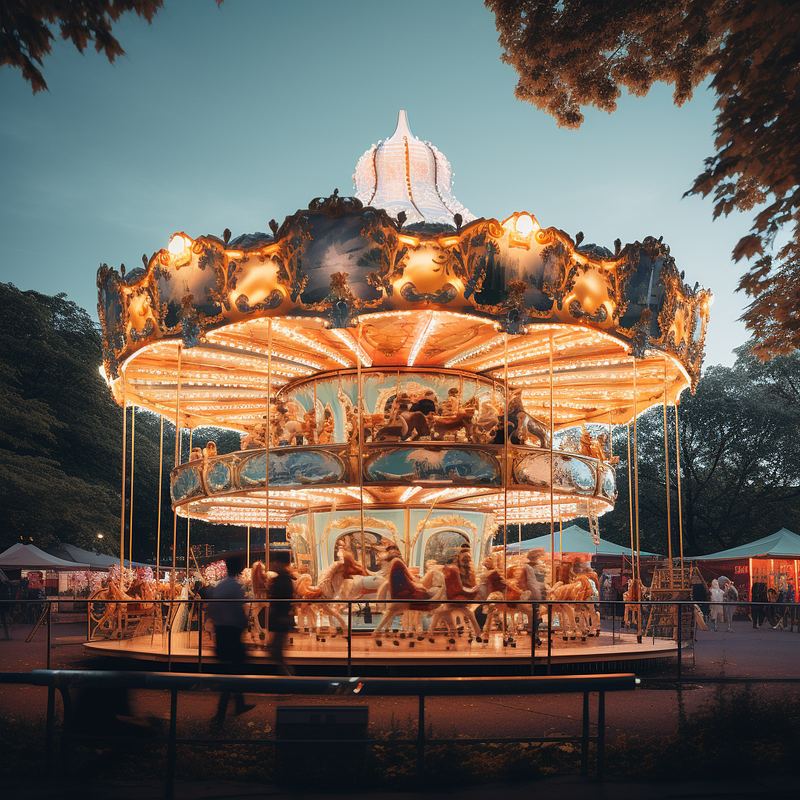
Experiment with double exposures on a Fujifilm X-T4, capturing both the carousel and the surrounding park scenery in a single image, using a 35mm lens for a wider perspective. Play with different exposure settings and shutter speeds to create a dynamic and surreal composition. hyperrealistic, 4K, Octane render, unreal engine, –q 2 –s 750 –v 5 –ar 3:2 –uplight
4. References
Shape the mood and atmosphere of your images by including references to different cultural or artistic figures.
Consider mentioning artists, movies, magazines, or photographers. For example, you could opt for Quentin Tarantino, Georgia O’Keeffe, Ansel Adams, Peter Lindbergh, Vogue, or National Geographic.
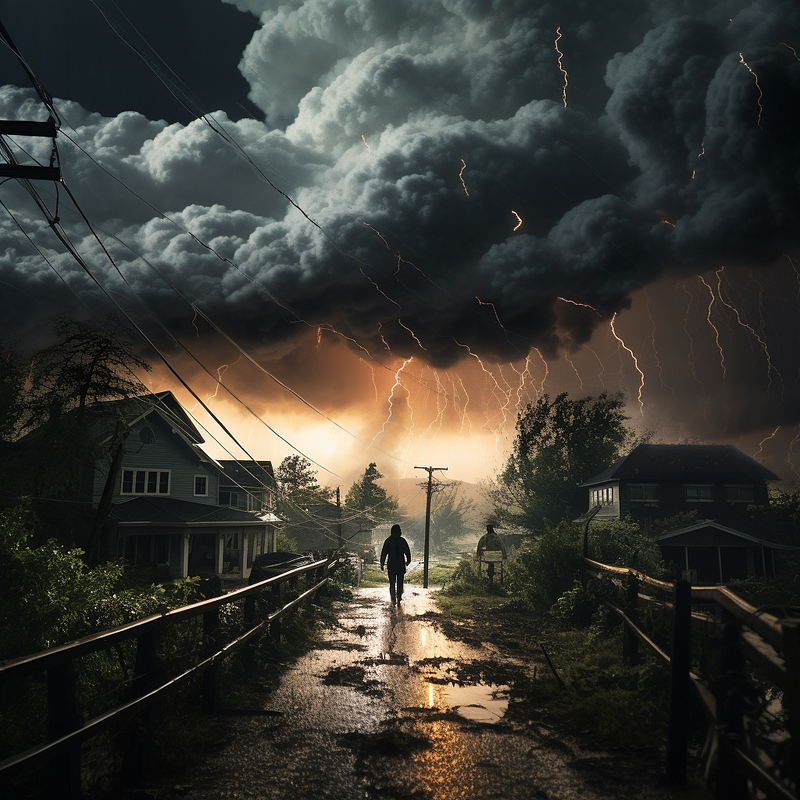
National Geographic Photography, Disaster type, location, effect (such as lightning, Insane, Color Grading, Resolution, Moody, Volumetric, Reflections cinematic VFX shot, volumetric lighting, shallow focus. — v 5 — q 2 — s 1000 — v 5
Parameters Guide
Parameters allow you to modify the default configurations for image generation. These can be used to alter aspect ratios, choose different Midjourney models, exclude certain objects, and more. Parameters should be placed at the end of your prompts.
To apply a parameter, use double hyphens ( — )
Basic Parameters
Below is an overview of fundamental Midjourney parameters to help you craft your ideal image.
Aspect Ratio Parameter
You can adjust the dimensions of the image using the aspect ratio parameter, denoted as --aspect or --ar. The standard aspect ratio is 1:1 (square).
Here are some example aspect ratios you might consider:
- 16:9 (suitable for desktop wallpapers)
- 3:4 (ideal for Instagram posts)
- 2:3 (perfect for Instagram stories)
- 4:3 (commonly used for blog post headers)
Stylize Parameter Guide
The stylize parameter, denoted by --stylize or -s <number>, adjusts the degree to which Midjourney's inherent artistic style is applied to your images. In Midjourney version 5, the default value is 100.
New Example:
A serene landscape of a mountain lake during sunset --s 150
You can go to /settings to establish default values for different levels of styling, such as low, medium, high, and very high.
Style Parameter Information
In Midjourney versions 5.1 and 5.2, a new --style raw option was introduced. This enables you to create images that possess a more natural and less polished look, diminishing some of the default artistic elements from Midjourney.
Conclusion
We hope this guide has been helpful in understanding the various parameters and options available in Midjourney for crafting your ideal images. From aspect ratios to artistic styles, the platform offers a range of customization to bring your creative vision to life.
If you found this guide useful, please give it a clap and consider following us for more insightful tips and updates. Thank you for reading!


