
A Rookie’s Guide to Using Mastodon
How do I use Mastodon? This article is a practical Beginner’s guide on using Mastodon

Table of Contents
· What is Mastodon? “How do I use Mastodon” · Important points about working with Mastodon ∘ Posts are public by default · Finding a Mastodon instance or server’s Local feed (“home page”) ∘ What are Servers? ∘ What is the Fediverse? · How do I set myself up on Me.dm ( Medium’s instance on Mastodon )? · Navigating around Mastodon ∘ What Mastodon group or instance do people belong to? · Boosting and Following on Mastodon ∘ Boost ∘ Following and blocking on Mastodon · Writing posts and replies ∘ Posting visibility ∘ Posts are public by default ∘ How to change post visibility · Sending a Private Message or a Direct Message to someone in a Mastodon group · Reading and searching for posts on Mastodon, Hashtags, Favourites (Likes) and Following · Viewing and Moderating who follows you · Privacy on Mastodon · How do you like or reply or bookmark a post by someone in another server? · Can you follow or join another server?
What is Mastodon? “How do I use Mastodon”
Mastodon is a micro-blogging platform. Think of Mastodon as a train station with many different trains. Each train has its own leader and its own aims and rules. Each train contains different groups of people who can write short posts, follow each other, email each other, and boost each other within their own train or across trains. You may ask “how do I use Mastodon?”
Think of “Mastodon” as a tool or a method for creating these networks. “Mastodon” is really made up of thousands of independent social networks called “instances.” A train station is a way for trains to arrive and depart.
Mastodon is open-source software (available for anyone to use) that is a way for people to “arrive” at their registered “instance” or group and to depart it.
This article is a practical beginner’s guide on using Mastodon.
Medium embraces Mastodon
On January 12, 2023, Medium officially posted about creating a group or an instance of Medium members using Mastodon. Medium readers and writers have to be paying members of Medium to join the Medium “instance” or group or network on Mastodon. Below is a link to the public post in Medium’s “3 Min Read” blog.
https://blog.medium.com/medium-embraces-mastodon-19dcb873eb11
Why is Medium doing this? One reason as in the post above is to “deepen people’s understanding of the world by helping to share the best ideas and best information and to help find and recommend interesting accounts.”
This sharing using Mastodon is based upon short-form posts of a maximum of 500 characters.
You can think of Medium on Mastodon as a Medium group or a Medium instance or a Medium community on Mastodon.
Important points about working with Mastodon
Posts are public by default
It’s really important to be aware that by default your posts and replies / comments to posts on Mastodon are public, meaning anyone who finds them can read them.
This means that you should never have strong identifying personal information in any of your posts or comments using Mastodon, UNLESS you “lock” or restrict your Post or Reply to your FOLLOWERS and you are okay with ALL of your Followers in the Mastodon “fediverse” seeing that information.
So don’t post your address or your bank account details, because anyone can search for an “instance” using Mastodon and if they find it, they can scroll through the Local timeline and read the posts!
The following webpage shows Mastodon instances (also referred to as “servers”) that are OPEN to new members. Scroll down the page and click on “Find a server” if you are curious about what’s open.
Note that the directory lets you search by countries and topics only. Plus, a short description about the “instance” and a “button” to create an account or join the “instance” is provided.
BUT you cannot navigate to any of the content, i.e., pages of the Mastodon instance from the Directory page. Click on “Find a server” on the page below to go to the Directory page.
If you want to look at the content, i.e., the posts in the Local timeline or feed of a Mastodon group, instructions follow.
Finding a Mastodon instance or server’s Local feed (“home page”)
Why would you want to find a Mastodon group or “server?” You join one instance which best suits your interests.
From that instance you can interact with members of the group (or “instance”) and with the “federated” members. This means Mastodon members or users can search for public content via hashtags and keywords across all open groups and interact with posts and post authors outside of one’s Mastodon instance.
Mastodon users or members, when signed into Mastodon, can find posts and people to interact with via the Explore (search) function of Mastodon and the Local timeline and Federated timeline. These search methods will be discussed later in this article.
You can go to the Local timeline of a Mastodon “instance” and browse the posts to find writers that you would like to follow. Once you find an instance’s Local timeline you should BOOKMARK it on your computer (because you can’t follow Local pages other than your own, via Mastodon), for easy access and use.
The directory above, at the time of writing this, shows “tiles” or images with the name of the Mastodon instance being the phrase with a dot between two words.
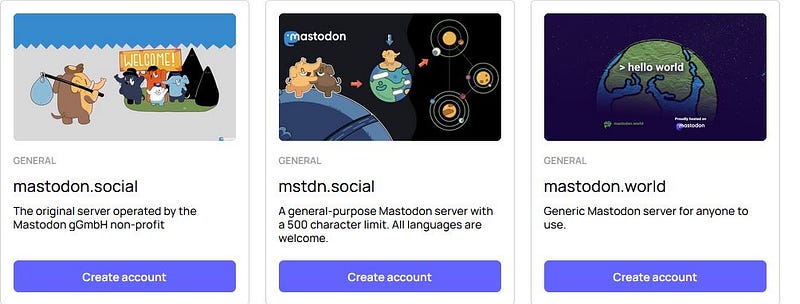
You can COPY the name of a Mastodon instance, e.g., mastodon.social and type in https:// into the browser address of your desktop computer, then paste in the name of the instance, as demonstrated below.
Then click on “Local” (or Live Feeds) which brings up the Local timeline showing public posts written by members of that instance.
There’s really no “home page” per se of a Mastodon server/instance/group. However, the LOCAL feed is where you can see the public posts by members of that “instance.”
You can see for yourself that you don’t have to be signed into a Mastodon instance in order to read the PUBLIC posts.
But to write and publish your own posts and to like and reply or comment upon others posts in your “instance” and to follow and interact with people in other “instances”, you need to sign up or register with a Mastodon “instance” and be signed into your “account.”
You won’t find Medium’s “instance” or group, called me.dm in the Mastodon directory (previously given) because it is NOT open to everyone.
Only “instances” or Mastodon communities or groups that are allowing people to apply to join them are in the directory.
Having said that, here is the link to Medium on Mastodon, which Medium has officially provided in their “3 Min Read” blog (link previously given). The web address or URL below has /public/local at the end, as it is the direct link to the Local page or timeline.
What are Servers?
It has been mentioned that a list of Mastodon servers is available by clicking on “Find a server” on the following page: https://joinmastodon.org
A server is a type of computer that receives, stores, and sends data to clients (laptops, phones, tablets). A Mastodon server “serves” information and programming applications to a defined group or “instance” of users (i.e., people using the server’s functions).
Mastodon is a micro-blogging platform made up of thousands of independent social networks called “instances.”
An instance is an instance of the Mastodon network. An “instance” is defined as an independent server hosting its own community, with its own rules, goals, and moderation.
A “server” is the infrastructure that runs an instance of the Mastodon software.
In the Mastodon world, instance and server are interchangeable meaning they both refer to the same thing.
The server or instance hosts its own community, with its own rules, goals, and moderation.
https://au.pcmag.com/social-media/97452/how-to-pick-a-mastodon-server
What is the Fediverse?
Mastodon is also referred to as a decentralized, distributed, “federated” social network system.
Decentralized means not controlled by one person or organization.
Distributed means it is not confined to one location. The Mastodon world of “instances” or independent “communities” aka groups or social networks is spread out within countries and locations and over multiple countries. For example, Medium’s Mastodon instance, called me.dm has members based in various countries.
Federated means the “instances” are connected to each other when any users in any one of the instances follow users in one or more of the other instances.
The Fediverse is a collection of thousands of independent social media servers that “talk” to each other seamlessly. This means that the millions of users on these servers can interact with each other as if they were on a single social network.
https://fedi.tips/what-is-mastodon-what-is-the-fediverse
How do I set myself up on Me.dm (Medium’s instance on Mastodon)?
You need to be a paying (Premium) member of Medium in order to post and comment in the Medium instance or group on Mastodon.
This will allow you to follow some people in other instances/groups on Mastodon and to like and reply to posts by people in other instances/groups, when those people (or users) allow you to do so.
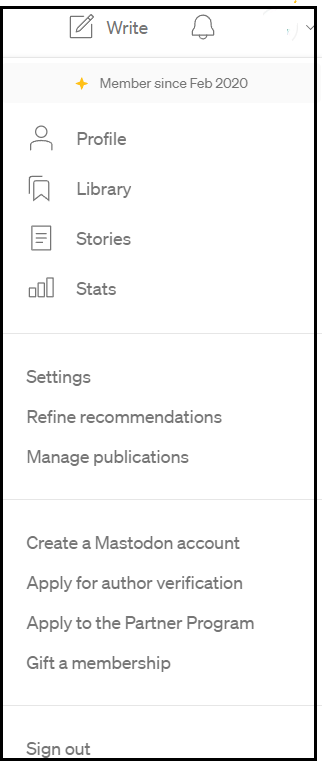
If you are a paying member of Medium, you can create a Mastodon account via Medium (i.e., join the Medium instance on Mastodon) by dropping down the Function Menu via clicking on your Avatar at the top right of the screen when you are signed into Medium.
Note that in the example below, the Avatar (round picture representing the Medium member) has been ERASED from the picture, for privacy reasons.
Click on “Create a Mastodon account.”
If you need to, go to Settings (via the menu that drops down from your Avatar at top right) on Medium, then click on Notifications and check the radio buttons next to the options under “Others from Medium” to receive FUTURE important emails from Medium.
If you are NEW to Medium and become a paying member, you will get the option to sign up with Medium on Mastodon when you SIGN UP AS A PAYING MEMBER.
To create your Mastodon account with me.dm (Medium on Mastodon), click on the link in your email, such as “create your me.dm account here” OR go to “Create a Mastodon account” under your Avatar when signed into Medium.
Your Mastodon address will automatically be generated based upon your Medium User Name.
On Medium, you have a Display Name and a User Name.
The User Name or username is part of the web-address or URL for your Medium Profile page. For example, my Medium User Name is CelineL and my Display Name was my everyday name before I changed it to a pen name, being Grace Mary Power 😛.
A User Name is the unique name you use to sign into an “account” where a User Name has to be input to access (or sign into) the “account.” An “account” is a gateway between yourself and an online “application” or program that is running.
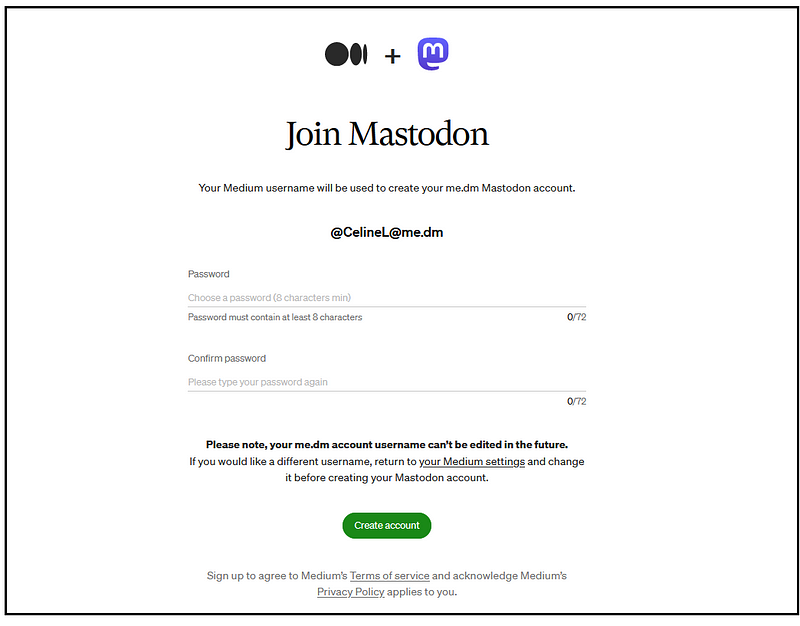
Note: your Mastodon address will reflect your Medium details. The part after the second ampersand @ is the name of the Mastodon instance that you are a part of. The part after the first ampersand @ is your User Name on Mastodon.
In this case me.dm (a play upon the sound “Me-dium”) is the NAME of Medium’s instance using Mastodon.
My Mastodon address is: @[email protected]
CelineL is my Mastodon User Name (username).
A User Name is used to reply to, mention, or message individual users (or people) on the federated Mastodon network, where permissions are set by those people to allow this.
Tip: If someone in the Fediverse gives you their address, you can paste it into the Search field at top left when signed into Mastodon. Then press Return or Enter and the person’s profile name will appear in the search results, which you can click on to go to their Profile page.
Create your password and accept the rules.
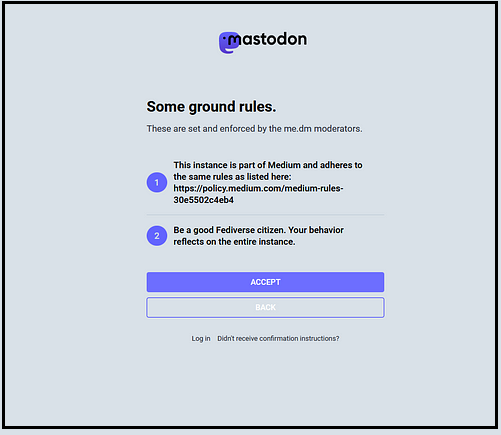
The rules can be found at the link below. Read them carefully before you click ACCEPT.
This article is a beginner’s guide on using Mastodon. If you are signing up with an “instance” or group other than Me.dm, you will see similar screens during the sign-up process (i.e., terms to accept and a data entry form for your Display Name, Username, and Password).
After you successfully register, you will get a screen telling you that you are in.
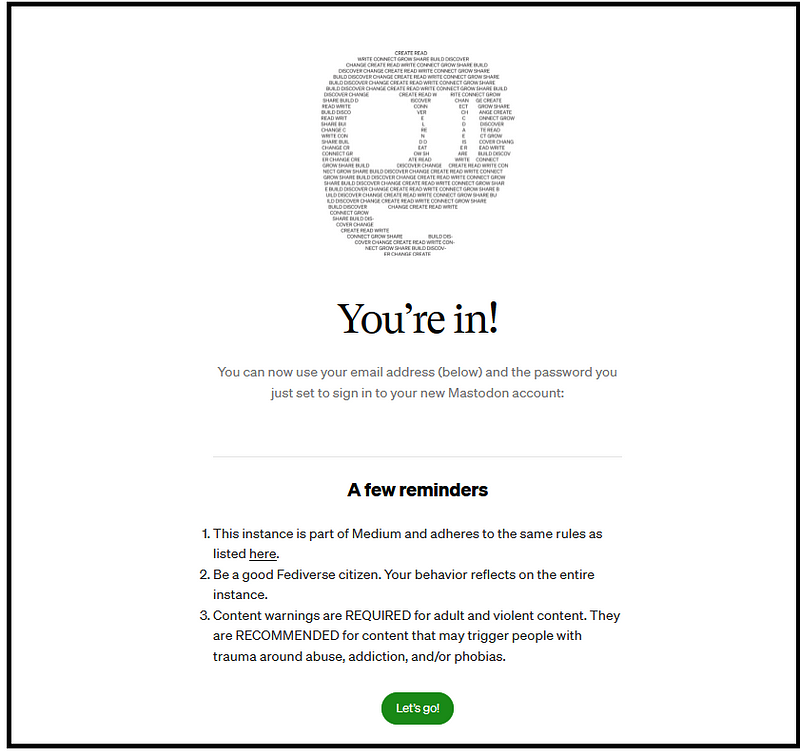
Click on “Let’s Go” and then — — let’s go!
Navigating around Mastodon

Timelines
Home: a feed or stream of posts on Mastodon of people you are following. By default, this includes posts that are “boosted” by people you are following and replies or comments by yourself and people you are following.
However, you have the option of turning off the showing of “boosts” or “replies.” To do this, click on the little lines at the top right of your Home feed, in this instance, next to “Medium” — see picture below.

This will show the following.
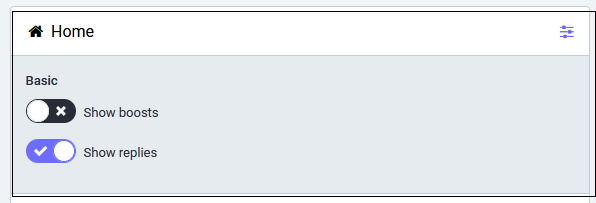
A tick means the function is turned on and a cross means the function is turned off. Click on the round white area next to your choice to “toggle” show or not show. Click on the lines again to hide the information panel.
Local: a feed or stream of posts on Mastodon of people in your Mastodon community or instance.
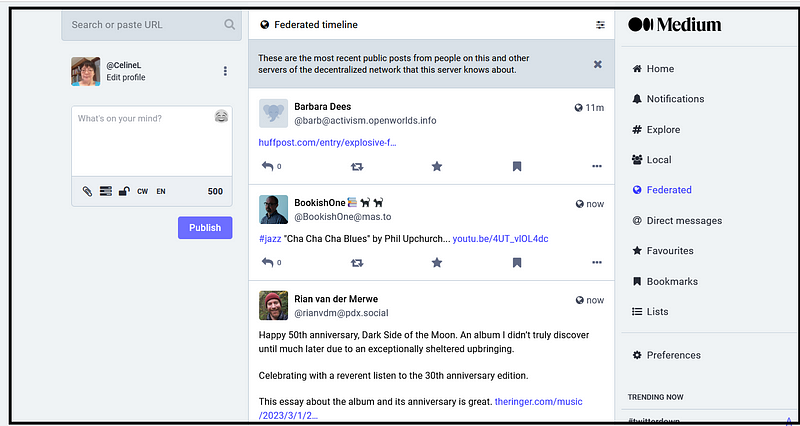
Federated: a feed or stream of posts and replies on Mastodon by people in your instance and in other Mastodon instances (or groups) that are connected to people in your instance.
The connections are made when you or someone in your “instance” follows someone in another Mastodon “instance.”
What Mastodon group or instance do people belong to?
You may ask “how do I know what instance/group/server that the people whose posts and replies appear in the Federated timeline are from?”
The answer is that the part after the second ampersand @ tells you.
For example, looking at the screenshot above, Screenshot 10, the Mastodon instance name or “server name” that Barbara Dees is a member of is Activism Openworlds Info, with her Mastodon profile address below.
You can type https:// into your web browser address field and then copy and paste or type in the Mastodon instance name to go to the Explore or About page of the instance.
https://activism.openworlds.info
If there is no second ampersand @, it means that the person is a member of the Mastodon instance that you’re a member of.
Only the person’s User Name appears, for example, @ CelineL appears in the feeds or timelines of the instance that you and I are both a member of.
In other words, you will only see the User Names in the Local feed of the instance that you are a member of. The @ me.dm part is not shown because they are in that “instance.”
You will know what instance you are signed into or are viewing because either the logo or the name of it will appear at the top of the screen OR when you go to the Local timeline of an instance that you’re not a member of, you will see a banner at the top. It will be a message “These are the most recent public posts from people whose accounts are hosted by [ instance name ].”
Boosting and Following on Mastodon
Boost
Boosting means anyone can BOOST a post or a reply/comment so that it will immediately appear in the Home feed of their followers. If you don’t have any followers outside of your instance, you shouldn’t really boost posts published in your own instance (at least not the same day as the publication date of the post you want to boost).
This is because the members of your instance can see posts in the Local timeline as they are posted. Speaking for myself, I can find useful or interesting posts in my Local feed myself.
Fortunately, one can hide the boosted posts on their Home feed.
Boosting is an endorsement akin to a re-tweet on Twitter.
Be sparing with boosting because users may see the same post twice within a short timeframe, once in the Local feed and once in their Home feed, and some of your followers may not care about the content that you boost!
I recommend waiting for 12 hours at least before boosting a post that has been published in your own instance because it may be annoying to someone to read a post in their Local timeline and then go to their Home timeline (which is like a Facebook profile’s news feed showing posts of people you are following) to see the exact same post.
Boost a post by clicking on the second (2nd) icon from the left beneath a post. It looks like a “recycling” symbol.
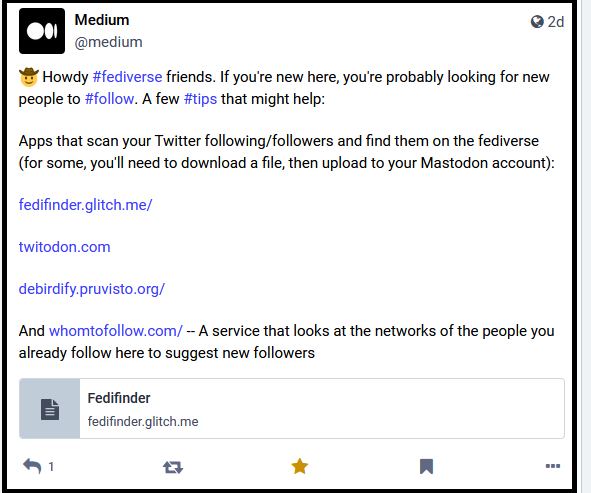
You can hide boosts from your Home feed or timeline. See instructions under “Timelines — Home” above.
Following and blocking on Mastodon
Click on a person’s name for someone in your Mastodon instance to go to her or his Profile page.
You can attempt to follow a person by going to their profile page then clicking on Follow. The person may have “Require follow requests” enabled, meaning that requests to follow must be authorized by the person you want to follow.
If a Mastodon user’s Profile page has a padlock picture on it, it means that they have got “require follow requests” turned on.
You will know that following has to be authorized because a small notice or alert pops up after you click on “Follow”, saying “Approval waiting”. And when you go to the person’s profile page you will see a green “button” to withdraw your follow request if you want to.
There is information about how to see your list of Followers and about moderating Followers later in this article, under the heading “Viewing and moderating followers.”
Unfollow someone by going to “Preferences” in the list of menu options at the right side (under the word Medium) and clicking on “Follows and Followers”, then tick or check the box next to the person you want to stop following. Then click on “Unfollow selected users” then click on OK.
You can also go to the Federated timeline and follow a person outside of your instance. Click on the person’s name to go to their profile page and click on Follow.
Remember that the Federated timeline consists of posts and replies by people in your group or instance and by people who you and others in your instance follow!
You can mute or block someone by going to their profile page and clicking on the 3 little dots. MUTE means you won’t see their posts or replies in the Timelines, and BLOCKING means in addition to this that they won’t see your posts or replies in the Timelines.
You can also use “Block Domain” which blocks everyone who is on the same instance as the person you are blocking.
Writing posts and replies
Posting visibility
A text post on Mastodon is called a “toot”. These posts or “toots” can be up to 500 characters in length. A posting box appears at the top left when you are signed into a Mastodon instance.
Check your post’s or reply’s visibility, as described below. Type your post into the posting box. Then click on Publish.
Use a hashtag to facilitate finding or discovery of your post within and outside of your instance, if you want more discoverability.
To reply to a post, click on the left-ward pointing curving arrow, first icon on the left beneath a post.
The post will pop up on the left with a posting box below it for your reply. The posting box will automatically have @ followed by the name of the post writer in it. This “mention” or “alert” using the ampersand @ will notify the post writer of your reply.
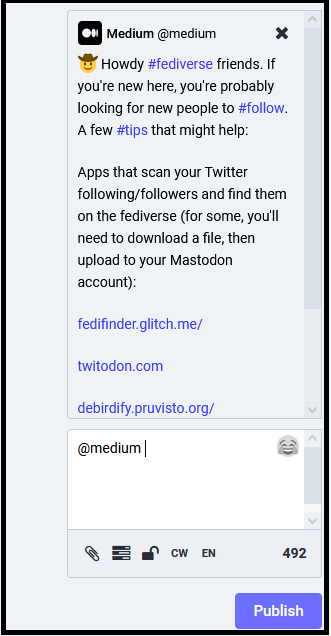
Check your reply’s visibility, as described below.
Note that a Reply is treated as a “post” for visibility purposes.
Posts are public by default
By default, your posts and replies/comments are all PUBLIC.
This means that, as well as people in your Mastodon instance/group, even someone not registered with a Mastodon instance and someone who is, but is not logged in to their Mastodon instance, who comes across your post or reply, will be able to read it.
You can make all of your posts and replies visible only to your followers by default OR you can change the setting for individual posts and replies.
Click on the link below for instructions on changing the global setting for all of your posts and replies regarding visibility. Make sure you click on “Save changes” if you make a change.
A global setting means one setting for every post and reply that you make on Mastodon, by default.
It is a good idea to get into the habit of checking the visibility of each “post” that you create, keeping in mind that in Mastodon language, a “post” is a text field, so it is a Post OR a Reply.
How to change post visibility
When creating a Post OR a Reply, click on the third icon from the left at the bottom of the posting area and change the default post visibility just for that Post.
In this example, the visibility can be changed to Public by clicking on “Public.” The visibility options are listed below the following picture.
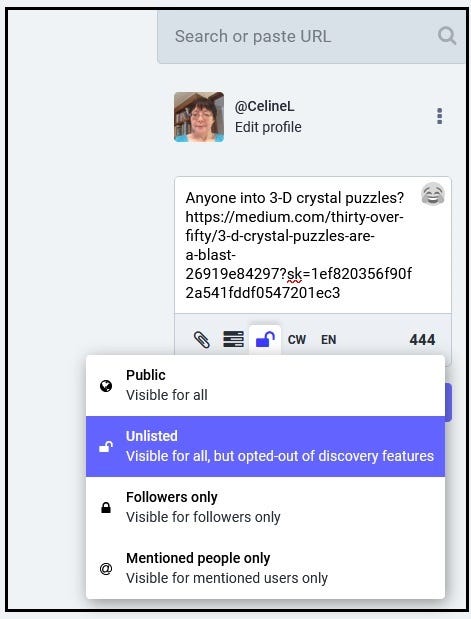
To change the visibility of a post, click to highlight your desired option. Type in your text if you haven’t already, then click on Publish.
Public — This is the default setting for posts and comments that you’re happy to be broadcast (visible) to everyone in the Fediverse and in the human Universe. See the details given above under “Posts are public by default.”
Unlisted — Anyone who comes across the post or comment can see it, but it won’t appear in the Explore, Local or Federated tabs.
This can be useful for replying in threads, so that you’re not filling people’s timelines unnecessarily. Keep in mind that all POSTS (meaning posts and replies) made by you are visible to your Followers in their Home timelines.
Also, as replies on Mastodon automatically contain @ followed by the name of who you’re replying to, the person whom you are replying to will be “alerted” (by the @ mention tag). So, if you leave the @ [ name ] in the text box before typing in your reply, the person you’re replying to will get a Notification that you replied.
If you are following someone, you will see their unlisted posts and replies to you and anyone else in your Home feed, unless you have turned off “Show replies.” See screenshot 9 referring to hiding replies under the Home timeline.
Likewise, if someone is following you, they will see your unlisted posts and replies in their Home feed, unless they have turned off “Show replies.”
Also, be aware that even if a post or a reply/comment is unlisted, if someone not on Mastodon finds and goes to your Mastodon Profile page, they will be able to see or read your unlisted posts and replies (on the “Posts and replies” tab of your Profile page).
An unlisted post or comment is indicated by an open lock icon. Don’t think that Unlisted means your post or reply will never be found by anyone. They can be seen on your Profile page even to people not signed into Mastodon.
Note that hashtags in unlisted posts are not searchable.
Note that unlisted posts and comments can be boosted to your followers.
Unlisting is just a way of hiding posts and replies from the Explore, Local and Federated timelines.
Followers — this will lock the post or comment so that only your Followers will see it. The post won’t be visible in the Local or Federated timelines. I have tested this, and these posts DON’T show up on your Profile page. These posts appear in the Home timeline of your Followers.
Mentioned people only — Select or click on this option so that ONLY people you use @ within your post or your reply can see this kind of post.
Be aware when posting or replying, ONLY use the “mention” or “alert” function (i.e., the ampersand @) if you want the person you’re mentioning to receive a notification of your post or reply.
Don’t use the @ to refer to someone if you don’t want them to be alerted to your post or reply! Mentioning means alerting or notifying a person of your post.
This function is used only when you really want only one or a few people whom you “mention” or alert, using the ampersand i.e., the @ symbol, to read your post and to receive a Notification on Mastodon. The post won’t appear in the Local, Federated, or Explore feeds or on your profile page.
Important to note about using the “mention” ampersand @ is that there’s a difference between using the @ in a public post and setting a “post” (post or reply) to “Mentioned people only” visibility status.
If you use the “mention” or “alert” ampersand @ within a public post, everyone will see the post in the Local timeline and it will be visible in other timelines, e.g., the Federated timeline (though that doesn’t mean anyone will see it or read it because of the rate of posts appearing in the Federated timeline and other factors).
You can verify this for yourself by going to the Home feed in your instance, where you will be able to see Posts by your followers, containing or with an alert mentioning a particular user, if the visibility has been set or defaulted to PUBLIC (where or if these posts exist).
Also, Replies by yourself and others to posts (of course, when there are replies), will be seen, for Replies set to PUBLIC, unless you have “Hide replies” turned on to hide replies from your Home feed.
Posts which are replies can be identified in a Home page/timeline because they have the @ followed by a name at the start of the post, and when you click on the post you can see that it is a reply.
This is because when you do a reply on Mastodon, a “mention” or “alert” is automatically inserted into the posting box (to alert, i.e. notify the person whom you are replying to). By default, these are public posts with the visibility set to “Public.”
To make a post visible to a specific person only, you MUST set visibility to “Mentioned people only.” In fact, this sort of post is a Direct Message.
See more information about identifying replies and messaging later in this article.
Keep in mind that if your post or reply has Public or Unlisted visibility status AND you use the @ to alert or mention a person (Mastodon user), that it doesn’t make the post/reply visible only to the person you used the @ with.
This means that unless you set your post OR reply to “Mentioned people only” or to “Followers” only, the post will be visible in the Local timeline to all people in your instance (whom you haven’t blocked).

Sending a Private Message or a Direct Message to someone in a Mastodon instance
The best way to send a PM or a DM, when you are signed into your Mastodon instance, is to click on the 3 little dots at the bottom right of the post of a person on Mastodon whom you want to send a message to. OR go to a person’s profile page and click on the 3 little dots at the top right.
Then click on “Direct message @ [ person’s name ] and look at the posting box on the left. It will have @ [ person’s name ] filled in.
If you click on the 3rd icon from the left, you will see the post visibility automatically set as “Mentioned people only.” Write in your message and click Publish.
You will be able to see messages that you sent and messages from people by clicking on “Direct messages” in the sidebar on the right.
You will also see these messages in your Home feed or timeline.
You can see messages that you sent on your Profile on the “Posts” tab.
Only you can see DM posts in your Home feed, so your message appearing there doesn’t mean that anyone can see it. Messages won’t appear publicly on your Profile page or in the Explore, Local or Federated timelines.
If you have Email notifications enabled, you will get an email with the sender being “Noreply” and in the Subject “[ name ] mentioned you.”
To send a Direct Message to a specific person only, the visibility of your message must be set to “Mentioned people only.” Therefore you should use the “Direct message” function under a person’s post or from the person’s Mastodon profile page to send them a message.
You can send a DM to any writer of a post that you see in the Home, Local, and Federated timelines when you’re signed into Mastodon.
If you want to DM someone who is not in your instance or connected to it, click on their name if you see a post from them in the Federated timeline, or find out their Mastodon address e.g. @[email protected] .
Type or paste the address into the Search box at the top left when you are signed into Mastodon. Then hit the Return or Enter key and the name will appear on the right of the search box.
Click on the name to go to the person’s Profile page, then click on the 3 dots to select “Direct message [ name ].”

Reading and searching for posts on Mastodon, Hashtags, Favourites (Likes) and Following
To see a Reply to a “toot” (or post) click anywhere in the “toot” to open up the “thread.”
The 3 Timelines have been described above: Home, Local, and Federated.
Scroll through these Timelines to your heart’s content to find posts to read and posts and people you want to interact with.
You can “Like” or Favourite a post by clicking on the “star” icon, 3rd from the left underneath a post. See screenshot 12 above. The star will turn yellow, showing you that you have favorited it.
The writer of the post can find out who has favorited her or his posts. This is explained further below in this article.
You can BOOKMARK a post instead of Favoring it, which means the writer of the post WON’T see that you have added it (to your bookmarks). Click on the “bookmark ribbon” 4th from the left, next to the 3 little dots to bookmark a post. The “ribbon” will turn orange/red.
Click on Favourites or Bookmarks in the right-hand sidebar when you’re signed into Mastodon to see the posts (meaning posts and replies) that you have favorited or bookmarked.
Your Notifications will tell you when someone LIKES or favourites your post, as long as you have your Settings set up to receive this type of notification.
To go to your Notifications, click on Preferences at the bottom of the right-hand list on any page when you are signed into Mastodon.
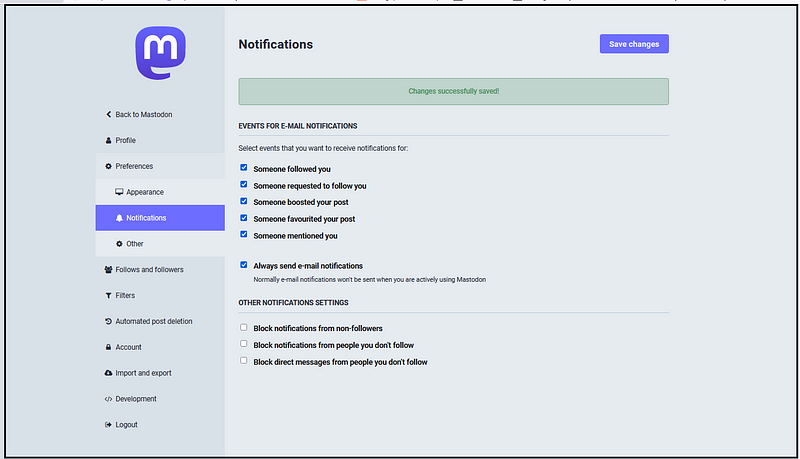
You can see who has favourited your post or someone else’s post by clicking on the post and if you see a number next to the “star” (favouring) icon, that means one or more people have liked the post.
Click on the number to see the names of people who have favourited the post. Note you won’t see the number of Likes (or favors) at the bottom of posts displayed on the Timelines. You have to click on a post to see if a post has been liked. Clicking on a post will open up the “thread” or conversation (if any), i.e. the post and replies to it.
The Explore feature lets you explore people, hashtags, and posts across your server or instance and the servers or instances connected with your instance. As the “instance” or group that you’re a member of grows, so will your “federation” grow.
Remember that interactions of yourself and all members of the “instance” that you’re in will generate follows and posts and replies by Mastodon users or people outside of your instance. The posts and replies will appear in the Federated timeline.
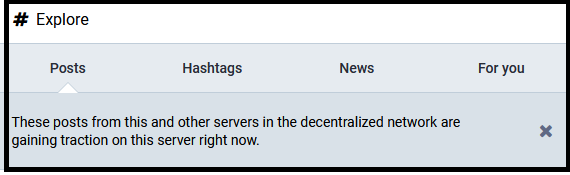
You can use the Explore function by clicking on Posts or Hashtags or News or For you to bring up posts in your federation, trending hashtags or links to external news sites or recommendations of people to follow.
Click on Explore in the sidebar on the right to do a search upon a word or phrase. Typing a word or a phrase into the search box on the left will bring up matching results under All.
These can include Display Names of users in your Mastodon instance and connected to your instance and hashtags and posts containing the search word(s).
Click on a name to go to that person or user’s Profile page to view their posts and to follow them. You can then Follow or interact with the person, i.e., like or bookmark a post or reply to or boost a post.
To follow a hashtag, meaning to follow or see posts with a particular hashtag, click on the hashtag name, then click on the “follow” icon at the top right. It looks like a person with a plus. See screenshot 17.
IMPORTANT: when you follow a hashtag, this will bring up a lot of posts in your Home timeline (using that hashtag) which may clutter your feed and/or confuse you. Furthermore you CANNOT see a list of hashtags that you are following!
I advise that you record the hashtags that you are following, so that you can easily un-follow them if you want to. You may choose just to search upon hashtags, without following them (the latter of which I would only do if it was super important to me to do so).
One way that you may be able to see what hashtags you are following is to look for the hashtags in the posts that appear in your Home timeline. This may jog your memory!
Click on a hashtag and look at the black icon at top right that looks like a person. Hover your mouse over it to see if “Unfollow hashtag” pops up. If you want to stop following the hashtag, click on the icon.

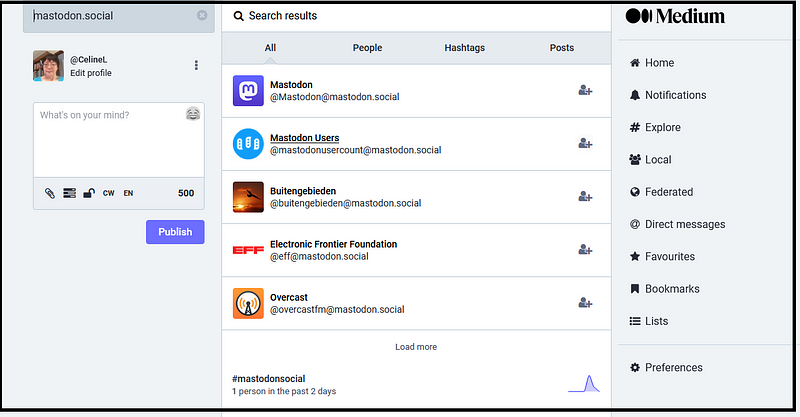
You can type in a search word or phrase into the Search field at top left of any Mastodon page or timeline.
In the example below, Mastodon Social has been typed into the search field. The first entry “Mastodon” is the Display Name of the person who runs Mastodon Social.
Clicking on the first “Mastodon” below takes you to a User Profile page and NOT to the home page of the instance or server. As said before, the instances don’t really have home pages.
The example below shows the results under “climate” in the search field.
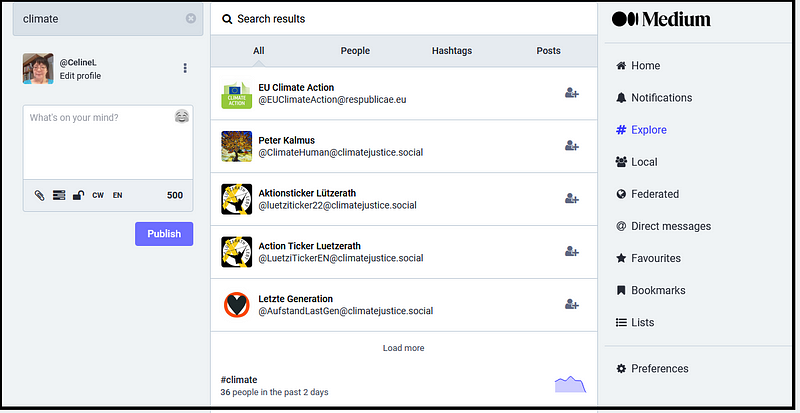
You can interact with any posts or hashtags that show up in your “Explore” feed, i.e., reply to, like, or bookmark posts, and follow hashtags.
You can reply to, like, favourite, or bookmark posts in the Home, Local and Federated feeds of your instance. You can try to follow anyone whose posts you see in the feeds.
Viewing and Moderating who follows you
You can attempt to follow a person on Mastodon by clicking on their name to go to their Profile page, then clicking on Follow.
Please see the section “Following and blocking” in this article for instructions on how to follow someone. Right-click on the link below and open the page in a new tab.
https://readmedium.com/a-rookies-guide-to-using-mastodon-4efd79862faf#50dc
You can see who you are following and who is following you by clicking on “Preferences” on the right (at the bottom of the list under Medium), then on “Follows and Followers.” Alternatively, click on the 3 little dots next to your name at top left, then click on “Preferences.”

The “Follows and Followers” page lets you:
Click on “Following” to see who you are following.
Click on “Followers” to see who is following you.
Click on “Mutual” to see who is following you and whom you are following (i.e., reciprocal following, with you following each other).
It also lets you choose a sort order by person or organisation most recently followed by you or by the last active person or organisation whom you are following.
You can moderate who follows you.
If you want to approve who follows you, by researching them, i.e., looking at their Mastodon profile page, etc. you can do that!
Click on the 3 little dots next to your name and picture at the top left, then click on “Edit profile.”
Tick “Require follow requests” underneath your Bio information.
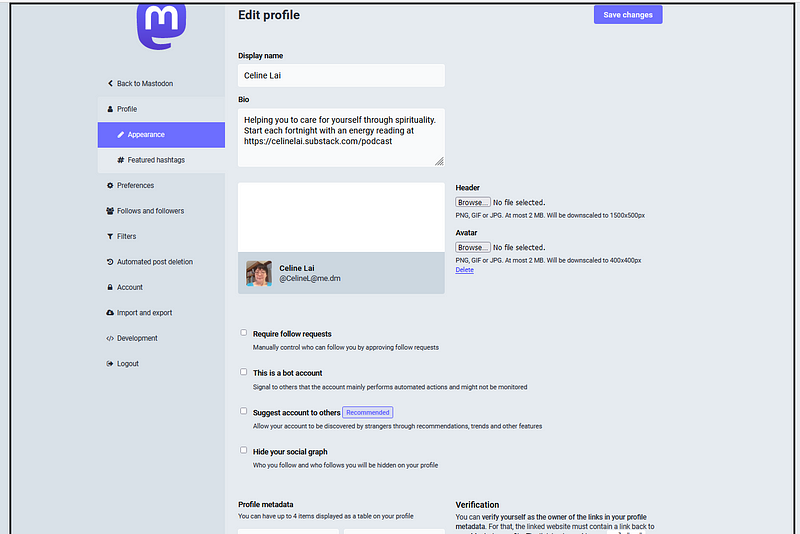
This will turn on a padlock icon on your Profile page.
When you see a padlock icon on someone else’s Profile page, you will know that means they have “Require follow requests” turned on.
Now when someone tries to follow you, you will receive a Notification on Mastodon of a follow request when you are signed into Mastodon, and you can approve or deny the request.
Approve it by clicking on the tick and deny it by clicking on the cross.
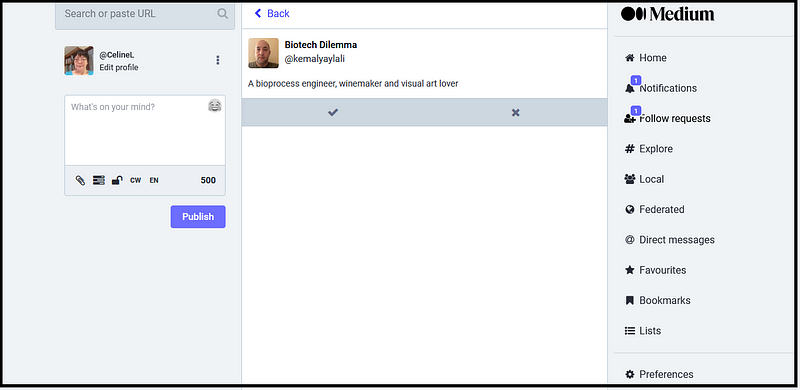
To receive EMAIL NOTIFICATIONS of a Follow request, make sure that under your “Notifications” setting that you have “Someone requested to follow you” checked. The correspondent or sender will be “noreply” and the subject of the email will contain “Pending follower [ name of person who wants to follow you ].
Click on “Preferences” at bottom right, then on “Notifications”, OR click on the 3 little dots next to your name at the top left, then click on “Preferences” then on “Notifications.” See screenshot 15 to view the “Notifications” screen.
You can hide your lists of Followers and who you are Following so that other people can’t see them.
Click on the 3 little dots next to your name at top left, then on Edit Profile. Scroll down and tick the box next to “Hide your social graph.”
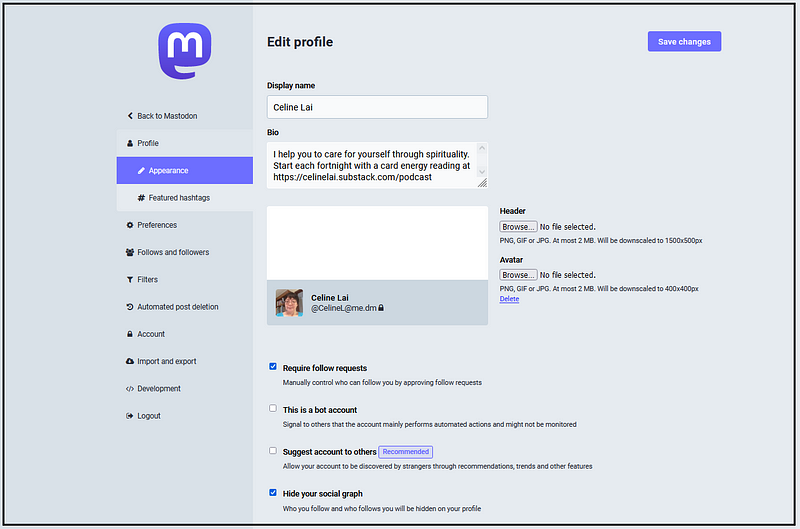
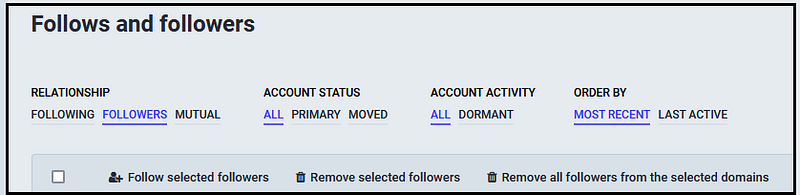
You can REMOVE unwanted followers. Do that by clicking on “Preferences” on the right at the end of the list under “Medium”, then on “Follows and followers.”
Click on the “Followers” link. Check the box next to the person you don’t want following you. Then click on “Remove selected followers” as shown below in screenshot 23.
A message will pop up, asking “Are you sure?” If you are, click OK.
You may choose to let anyone follow you (i.e., not turn on authorization of follow requests) and be happy with the power to remove unwanted followers.
From my research, I think that followers don’t get a notification that they have been removed. But if they go to their list of “Follows and followers” they will not see your name in their “following” list.
However, maybe they won’t remember that they followed you.
If you remove a follower, you can consider turning on “require follow requests” at least for a week (in the hope that the former follower doesn’t notice and thus doesn’t try following you again).
If you really don’t like the person you can block the person you have removed. Go to the person’s Mastodon profile page, click on the 3 little dots at the top and click on “Block [ name ].”
It’s up to you if you are satisfied just with the ability to remove followers or if you want to approve follow requests.
Privacy on Mastodon
The web page below gives good information on changing your privacy on Mastodon. If you just want to interact with users / people within the “instance” that you are registered with, and don’t want to automatically allow anyone to follow you or to message (notify) you, the instructions in the page below will help.
How do you like or reply or bookmark a post by someone in another server?
You can interact with a person or user in another instance or with a post by someone in another instance by interacting with their content if you see it in the Home or Federated timeline of your instance.
If there’s no content in the Federated timeline from people in an instance outside of the instance that you’re a member of, that you are interested in, you can search for posts by people in another “instance” by typing in the URL or web-address for the name of the instance into the address bar of your browser.
See “Finding a Mastodon instance or server’s Local feed”. Right-click on the link below and open the page in a new tab.
https://readmedium.com/a-rookies-guide-to-using-mastodon-4efd79862faf#3df0
Go to the Local timeline of the Mastodon server or instance other than your own, that you may want to interact with (i.e., like or reply to or bookmark a post or follow a post writer).
For example, you go to the Local page of Mastodon Social. You can try this out yourself by copying and pasting or typing in the URL below into your browser’s address bar, then clicking on Local.
https://mastodon.social/
Let’s say you want to reply to a post by “HealthNews.” When you click on the reply icon (or on the Favourite or Boost or Bookmark icon) a pop-up appears.
If you are not a member of the server that HealthNews is a member of, click in the box next to “Copy” and then click on the Copy button which will turn green “Copied.”
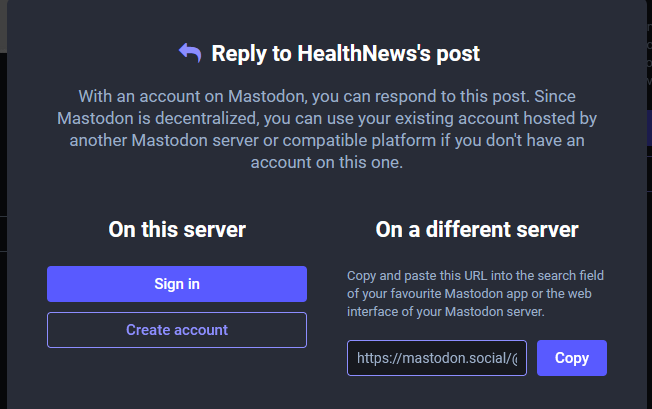
Next, head over to a page of the Mastodon instance that you are a member of and PASTE the information into the Search field at the top left.
Press the Return key on your keyboard and then voila, you are then able to reply or like the post! You can go to the person’s profile page to see if you can follow them. If you follow a person this way, her or his posts will show up in your Home feed.

For those technically minded, the URL for this example is given below. You can work out that the numbers at the end comprise the Posting ID. If you delete the numbers from the Search box and press Return, it will take you to the post writer’s profile page. Of course, you can just click on their name at the top of their post to go to their profile page. This snippet of information just shows a little about how things work on Mastodon!
https://mastodon.social/@Healthnews_informacao/109981498565705640Can you follow or join another server?
No, at the moment a Mastodon user can only follow individual users or people, not an entire “server.”
You can look at another server’s Local and About pages as long as the administrators of the server that you’re with haven’t blocked that server.
Find another server name by going to Mastodon’s home page and clicking on “Find a server” or through other search methods.
When you see a post or reply under your Federated timeline look at the part after the second ampersand. It is the name of the server that the person belongs to.
To go to the Local timeline (the feed of public posts) of another server, type https:// into your web browser address field and paste in the part after the ampersand.
For example, type in https:// and then type or paste in mastodon.social to get https://mastodon.social and then click on Local to see the public posts. If you type /about after the web-address, it will take you to the About page of the server / instance.
If you try to reply to a post or like or bookmark a post, you will see the “Sign in” message. The sign-in option is only for those who have an account with the server.
If you see “Create account” you can try clicking on “Create account” to see if you can sign up with the server.
You can apply to join as many Mastodon servers or instances as you want (that allow registrations or sign ups). However being a member of just one may be okay with you, given the federated nature of Mastodon.
For any tech buffs interested in how Mastodon connects to other social networks in the Fediverse, the links below may interest you.
If you have any questions to ask about working with Mastodon, try asking them in a reply to this article. And I will try, as soon as I can, to give my best answer! Your claps or likes of this Guide will be greatly appreciated and will show me that someone has got use from this guide!
And last but not least, you can find links to Directories of Mastodon servers by clicking on the link below and scrolling to the bottom of the page.
Hi 😄 If you liked this article and want to read more, signing up as a member of Medium will mean you can read all stories on Medium. Click here to become a member!


