A Demo on Terraform: Create Azure Resource Group
In my previous article, I gave a high level introduction of Terraform to my readers. The article was focused on:
- Advantages and Need for IaC (Infrastructure as a code)
- Introduction to Terraform
- Different components of a Terraform project
- Terraform Config file
- Installation
No amount of theory is good enough to learn a new technology. Hence, let’s get our hands dirty with a demo.
Demo Time
In this demo, I will create a Terraform project to provision an Azure Resource Group. So let’s get started.
Step 1: Terraform Configuration File
Terraform configuration file is the most important component. It contains the code which is primarily responsible to provision resources on Cloud.
The configuration file will contain two main elements. Variables and Resources
Set up Variables
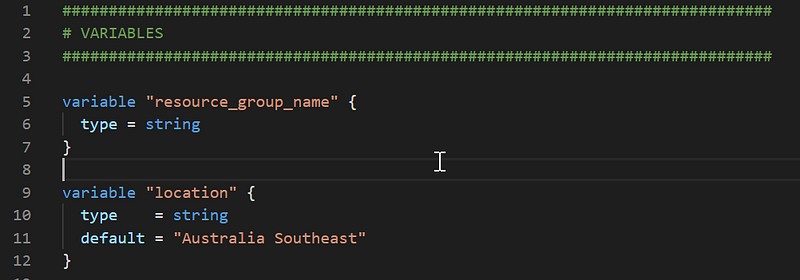
Variables are used to store important values in a Terraform Configuration file. We will need two variables to store Resource Group Name and the Location.
- resource_group_name : The value will be passed at run time
- location: Default value of the location will be provided as ‘Australia Southeast’
Set up Provider
A provider is responsible for creating resources on a cloud platform. To provision Azure Resource group, we will azurerm.
Create Resources
With variables and provider in place, its time to create resources:
############################################
# RESOURCES
############################################
resource “azurerm_resource_group” “newrg” {
 name = var.resource_group_name
 location = var.location
}
Step 2: Apply changes
Login using Az Cli
Use ‘Az login’ command to login into your Azure subscription.
Important points to be noted before we move on to the next step:
- Az Cmdlets should be installed on the machine
- In case there are multiple subscriptions associated with the account, choose the subscription where the resource should be created. Az command to set a particular subscription is:
az account set --subscription "My Demos"
Initialize Terraform project
Once the configuration file is ready, it time to apply the changes. If the tf file is executed for the first time, it needs to be initialized with the command
terraform init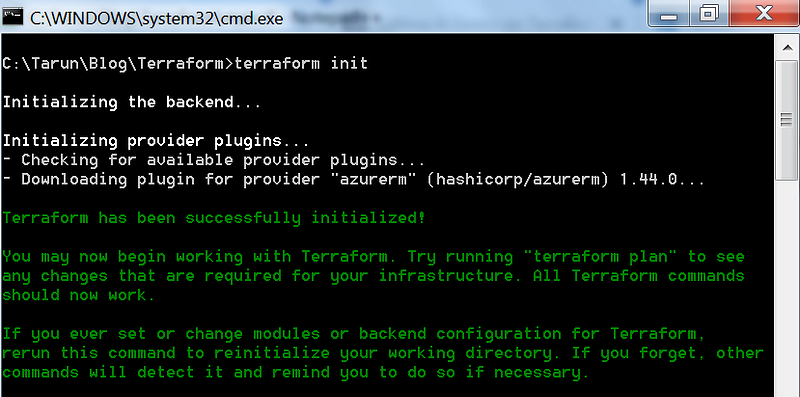
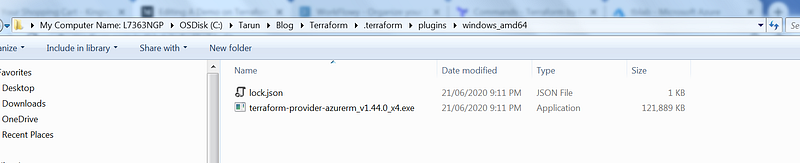
Terraform init created a .terraform folder which consists of all the plugins needed to run the terraform tf file.
Apply Changes
The configuration file is ready and the plugins has been downloaded. Its time to run the tf file using the command
terraform apply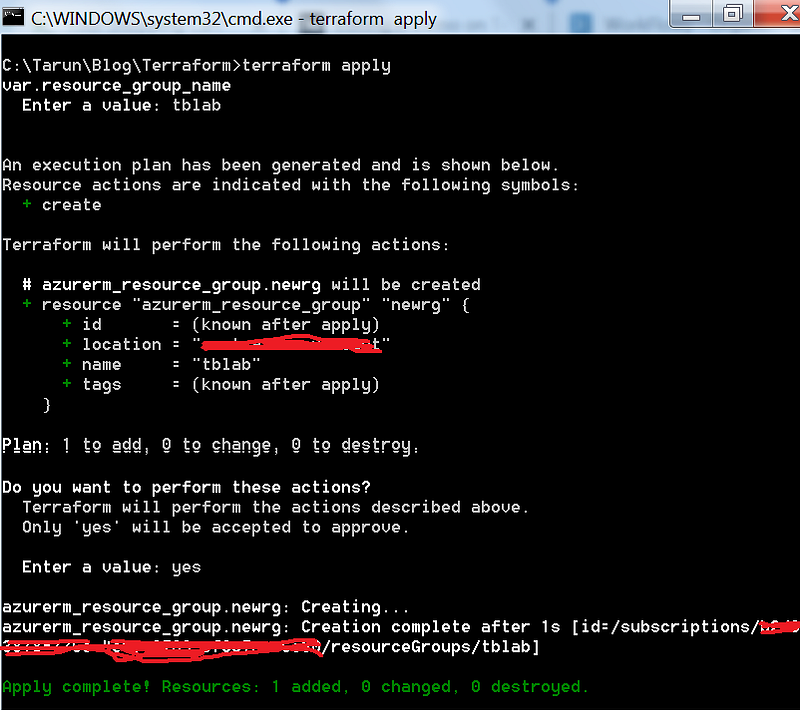
Verify Resource
Login to Azure portal and the new resource group (tblab) should be present.
Terraform State and Backup files
Terraform apply will also create a terraform.tfstate file. State files are used to store the current state of configuration file. When a configuration file is used to provision resources, the state of the configuration file is saved in the state files.
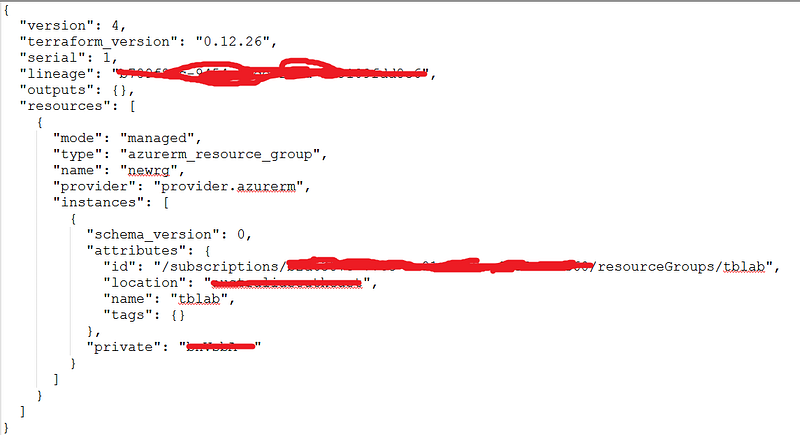
The easiest way to understand the significance of the state file is to re-run the apply command and change the name of the resource group at runtime.
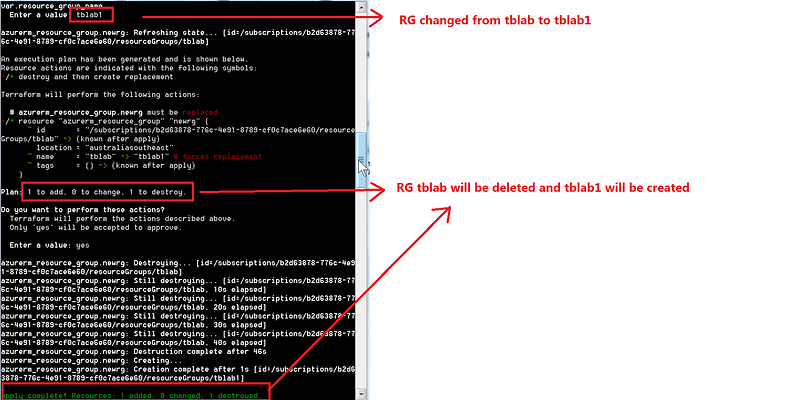
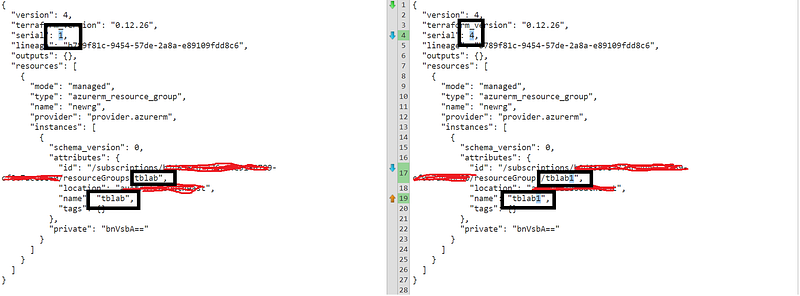
A new file terraform.tfstate.backup is also created. The backup file will store the state of the terraform project before the apply command was executed. A quick comparison with the newly created state file will look like:
In the coming articles, I would cover some complex scenarios. Hopefully this article was of help for readers new to Terraform.
Link to access files for this project is here.
Regards Tarun
P.S — Medium is an excellent platform to read, write and learn from fellow authors. If you want to join me in this journey, Join medium today.
References:


