
A Deep Dive Into Draggable and DragTarget in Flutter
A tutorial to the power of Draggable and DragTarget in Flutter
This article is the sixth in a series of articles which take an in-depth look at Flutter’s built in widgets.
In this article, we will look at Draggable and DragTarget.
Exploring Draggable and DragTargets
Draggable and DragTarget allows us drag a widget across screen. First we will look at the basics of Draggables and DragTargets then dive into details of customizing them.
Draggable
A “Draggable” makes a widget movable around the screen. Let’s use a chess knight as our example.
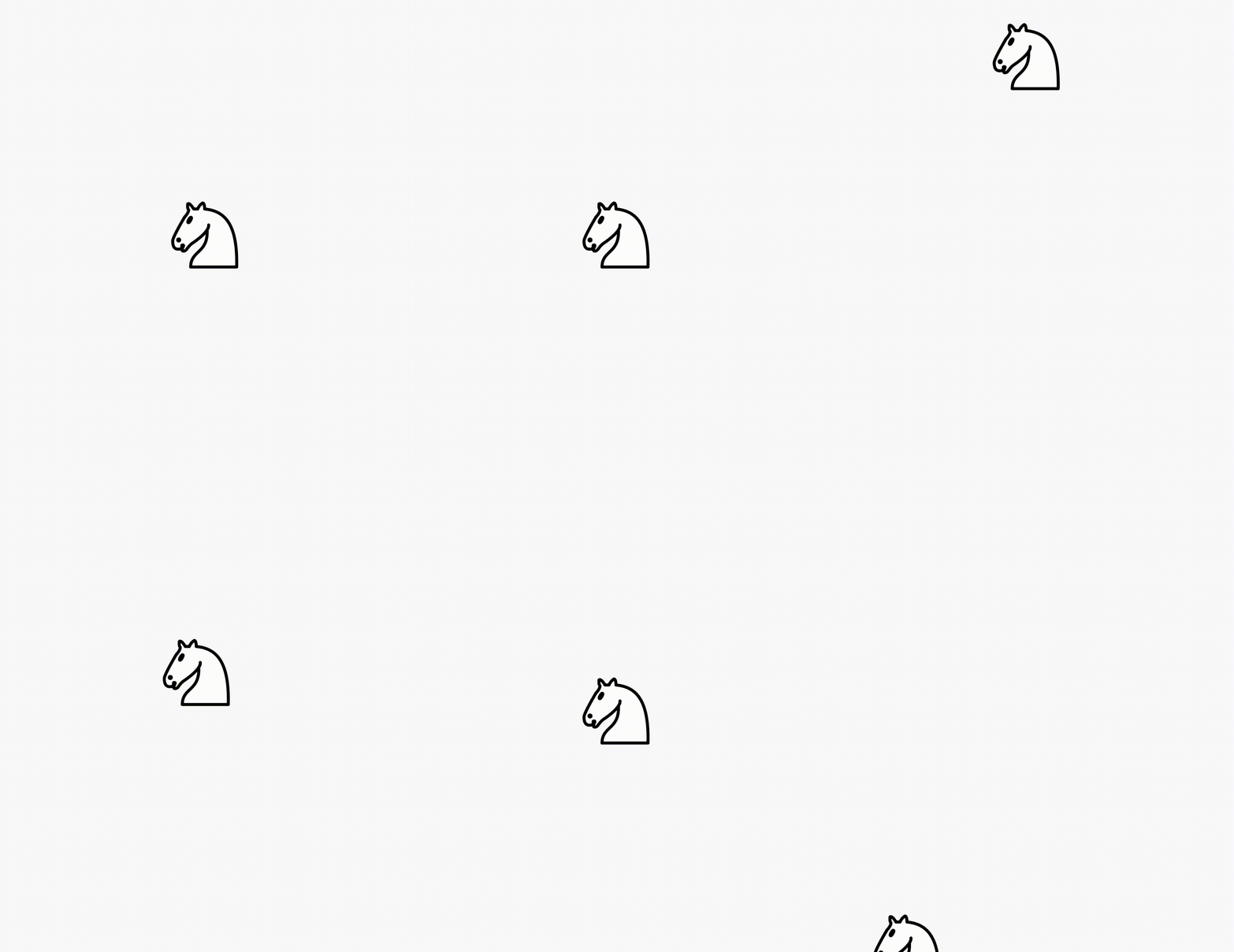
The code for this is relatively straightforward:
Draggable(
  child: WhiteKnight(
    size: 90.0,
  ),
  feedback: WhiteKnight(
    size: 90.0,
  ),
  childWhenDragging: Container(),
),
There are three main parts to the Draggable widget:
- Child: The child parameter is the widget that will be displayed when the draggable is stationary
- Feedback: The feedback is the widget that will be displayed when the widget is being dragged.
- Child When Dragging: The childWhenDragging parameter takes the widget to display in the original place of
childwhen the widget is being dragged.
In the example above,we have a white knight as the child.When the knight is being dragged, we show an empty Container in its place.
Let’s customize the widget
First, let’s change the feedback parameter.
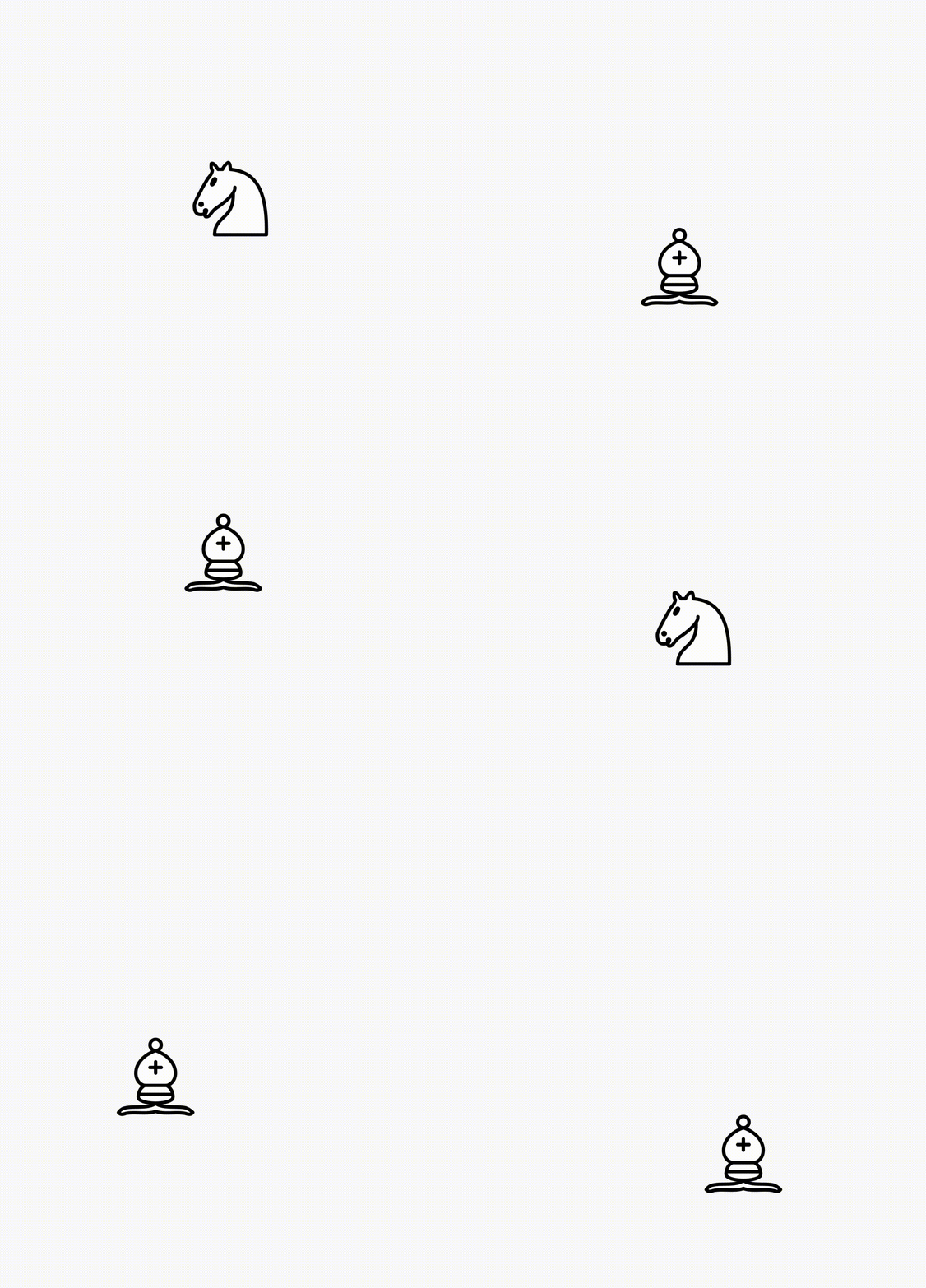
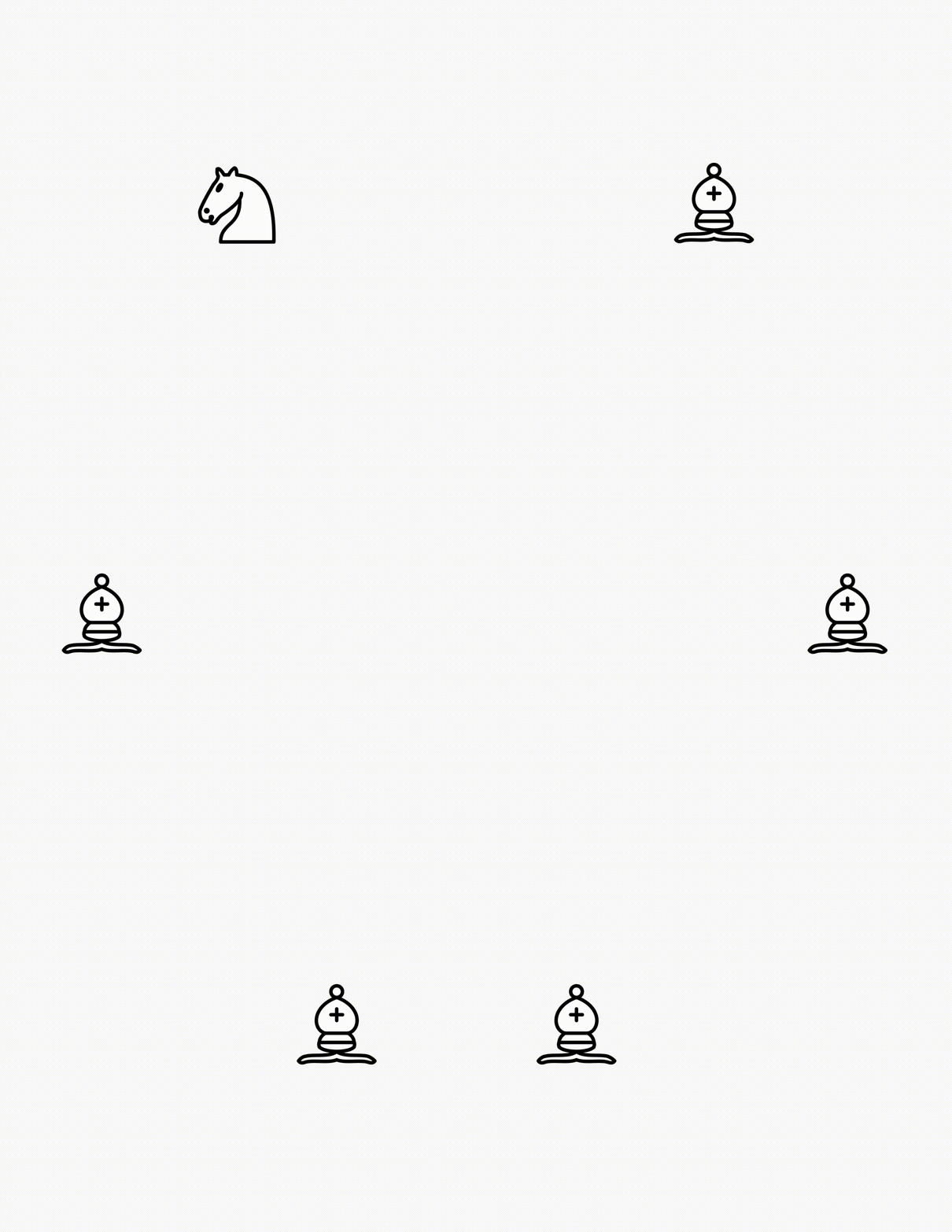
In the example below, we change the feedback parameter to a white bishop. Now, when the widget is not being dragged, a white knight is shown however as you start dragging, our bishop is shown.
Draggable(
  child: WhiteKnight(
    size: 90.0,
  ),
  feedback: WhiteBishop(
    size: 90.0,
  ),
  childWhenDragging: Container(),
),
Result of the above code:
Now let’s move on to the third parameter, childWhenDragging. This takes a widget to be displayed in the original position of child as the widget is being dragged.
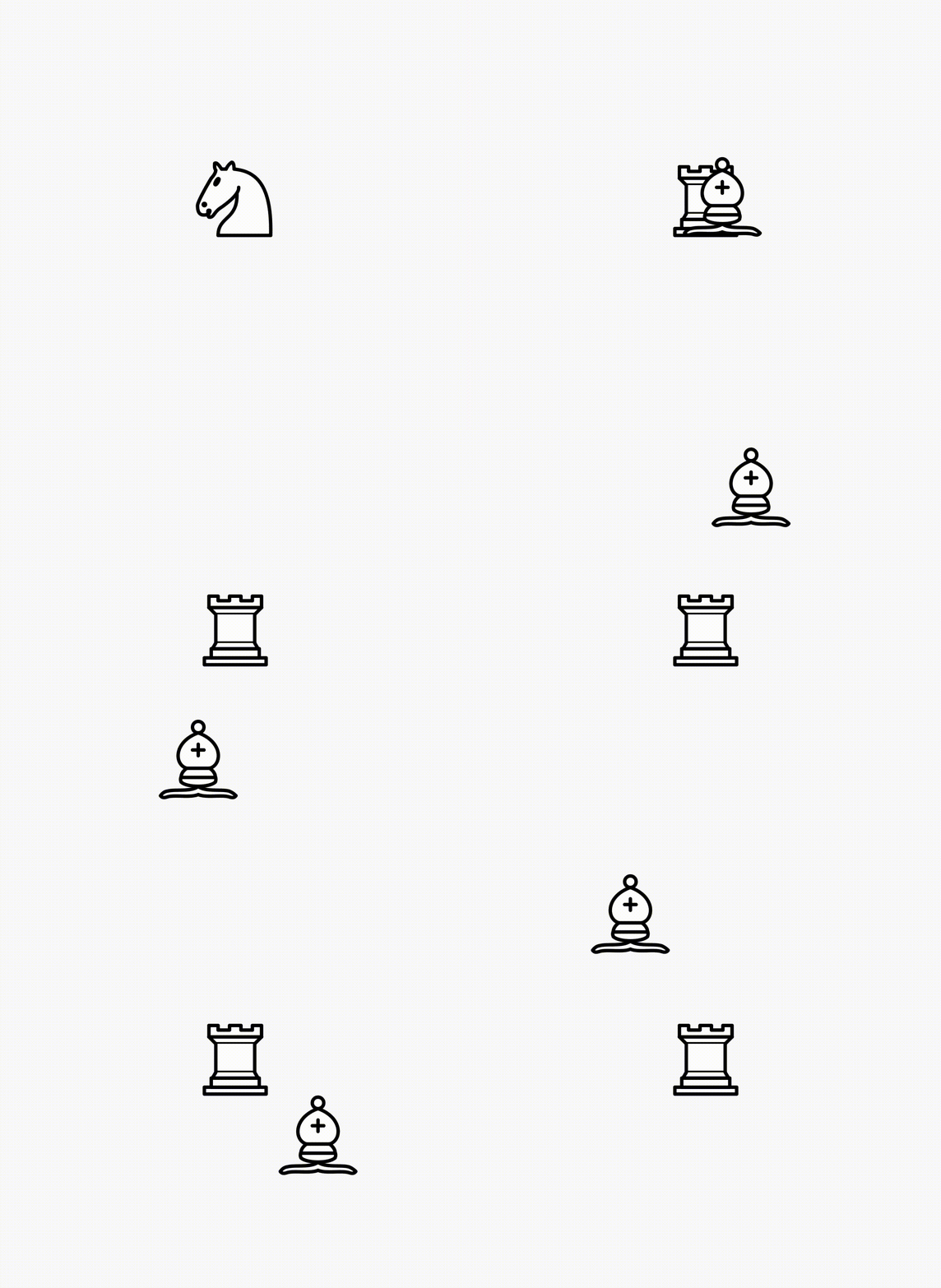
We’ll display a white rook when the widget is being dragged:
Draggable(
  child: WhiteKnight(
    size: 90.0,
  ),
  feedback: WhiteBishop(
    size: 90.0,
  ),
  childWhenDragging: WhiteRook(
    size: 90.0,
  ),
),
This becomes:
Restricting motion for Draggables
Setting the axis parameter helps us restrict motion in one dimension only.
Axis.horizontal makes the feedback widget on,y move in the horizontal axis.
Draggable(
  axis: Axis.horizontal,
  child: WhiteKnight(
    size: 90.0,
  ),
  feedback: WhiteBishop(
    size: 90.0,
  ),
  childWhenDragging: Container(),
),
Similarly, we also have Axis.vertical for vertical movement.
Adding data to Draggable
Data can be attached to a Draggable. This is useful to us since we use Draggables and DragTargets.
Considering our example, if we were to have multiple chess pieces, each piece would need to have unique data associated with it. Pieces would need properties such as color (White, Black) and type (ie: Rook, Bishop, Knight).
Below shows an example of how data can be attached to a Draggable for use with DragTarget.
We will take a look at this more in-depth in the DragTarget section.
Draggable(
  child: WhiteKnight(
    size: 90.0,
  ),
  feedback: WhiteKnight(
    size: 90.0,
  ),
  childWhenDragging: Container(),
  data: [
    "White",
    "Knight"
  ],
),
Callbacks
The draggable widget supplies callbacks for actions on the widget.
These callbacks are:
onDragStarted : This is called when a drag is started on a widget.
onDragCompleted : When a draggable is dragged to a DragTarget and accepted, this callback is called. We will look atDragTarget is in the next section.
onDragCancelled : When a draggable does not reach a DragTarget or is rejected, this callback is fired.
DragTarget
While a Draggable allows a widget to be dragged, a DragTarget provides a destination for the draggable.
For example, in chess, a chess piece is a draggable whereas a square box on the chessboard is a drag target.
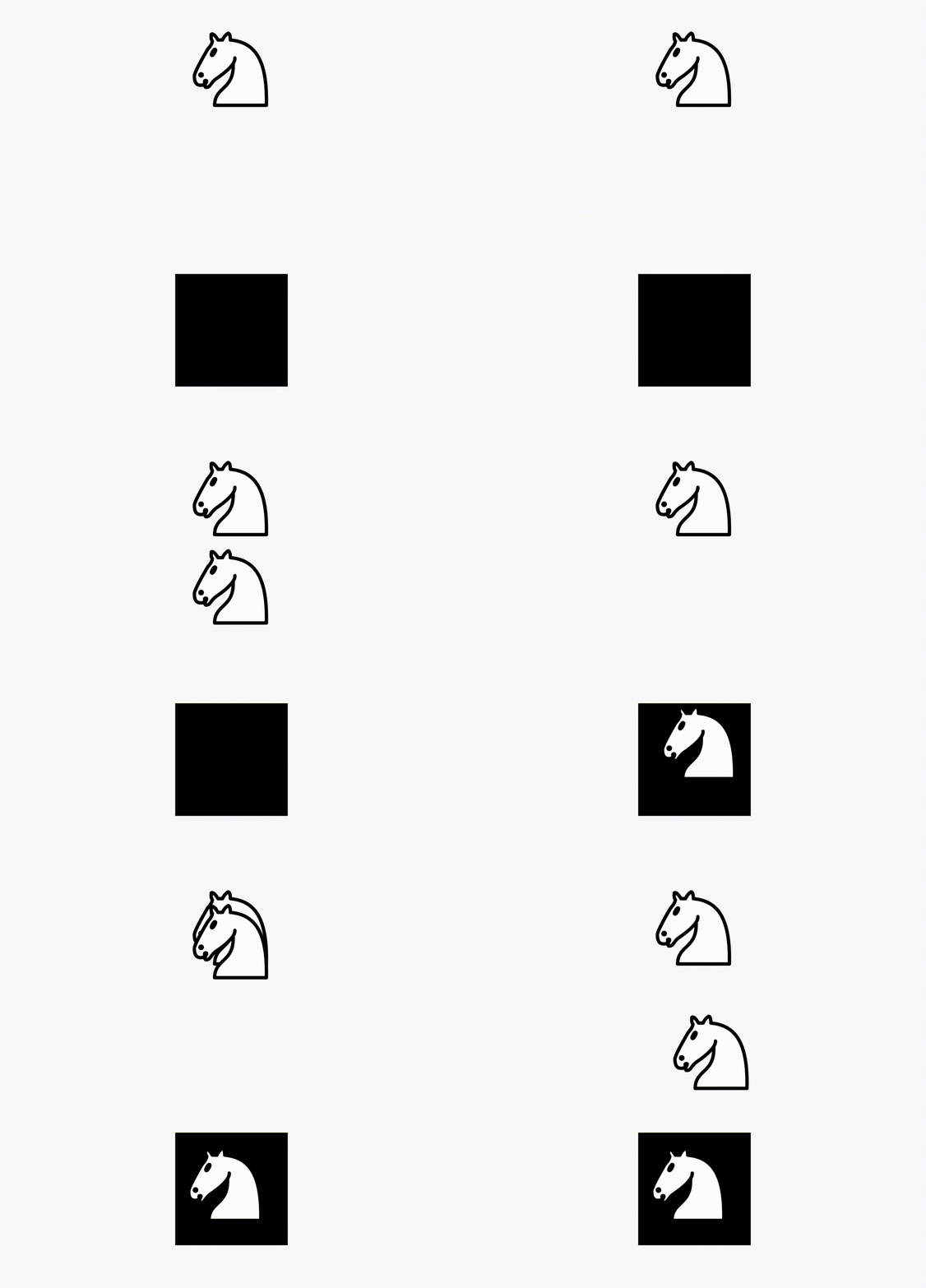
Here, the knight is accepted by the DragTarget.
The code for this example goes:
bool accepted = false;DragTarget(builder: (context, List<String> candidateData, rejectedData) {
return accepted ? WhiteKnight(size: 90.0,) : Container();
}, onWillAccept: (data) {
return true;
}, onAccept: (data) {
accepted = true;
},),NB: The DragTarget is surrounded by a black colored container which is not shown in the code for brevity.
Let’s look at the parameters of the DragTarget in more detail.
Note: The “data” in the following sections refers to the data parameter of the Draggable.
Builder
The builder builds the actual widget inside the DragTarget. This function is called every time a Draggable is hovered over the DragTarget or is dropped onto it.
This function has three parameters, context, candidateData and rejectedData.
candidateData is the data of a Draggable whilst it is hovering over the DragTarget, ready for acceptance by DragTarget.
rejectedData is the data of a Draggable hovering over a DragTarget at moment it is not accepted.
Note that both of these are dealing with Draggables which are hovering over the DragTarget. At this point, they are not dropped onto it yet.
Now, how does the DragTarget know what to accept?
onWillAccept
onWillAccept is a function which gives us the Draggable data for us to decide whether to accept or reject it.
This is where the data we attached onto the Draggable becomes important. We use the data passed to accept or reject specific Draggables.
For example if our Draggable is:
Draggable(
  data: "Knight",
  // ...
),
then we can do:
DragTarget(
  // ...
  onWillAccept: (data) {
    if(data == "Knight") {
      return true;
    } else {
      return false;
    }
  },
),
This will only accept the Draggable if the data is “Knight”.
This function is called when the Draggable is first hovered over the DragTarget.
onAccept
If the Draggable is dropped onto the DragTarget and onWillAccept returns true, then onAccept is called.
onAccept also gives us the data of the Draggable and is usually used for storing the Draggable dropped over DragTarget.
onLeave
This was not implemented in the example. onLeave is called when a Draggable is hovered over the DragTarget and leaves without being dropped.
A Demo
Let’s create a simple demo app where the user is given a number and they are required to sort it as either “even” or “odd’. Depending on the choice, we will then display a message stating whether the choice is correct or wrong.
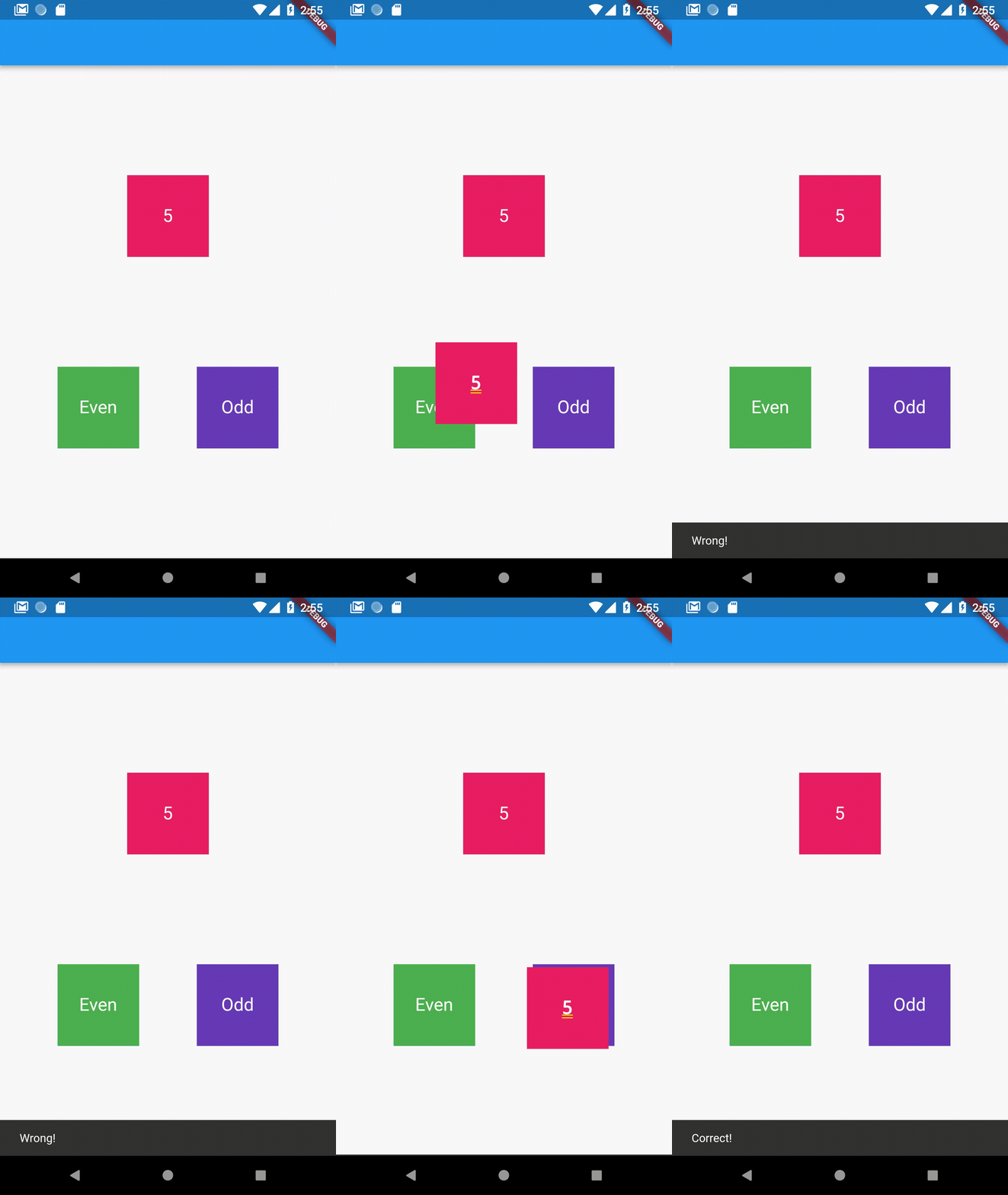
Source code:
A few more things
Draggable customisations
Draggable gives us a few more customizations.
One such customization is maxSimultaneousDrags. Multi-touch devicesare able to drag the same Draggable with two or more pointers and hence we can have multiple feedback on screen. For instance if the user is using a second finger to drag a child while one drag is already progress, we receive two feedback widgets at the same time.
maxSimultaneousDrags lets us decide the maximum number of times a draggable can be dragged at one time.
The feedbackOffset property also lets us set the offset of the feedback widget that displays on the screen.
Common error: DragTarget not accepting data
In the builder function, consider giving a type to the parameter candidateData. It returns a List by default, so if the data you’re passing is a string, the type would be List<String>.
builder: (context, List<String> candidateData, rejectedData) {
  // ...
}
This solves a few type errors that occasionally comes up when passing data.
A more complete real-world example using Draggable and DragTarget
Sometime ago, I wrote a complete chessboard package using Draggables and DragTargets.
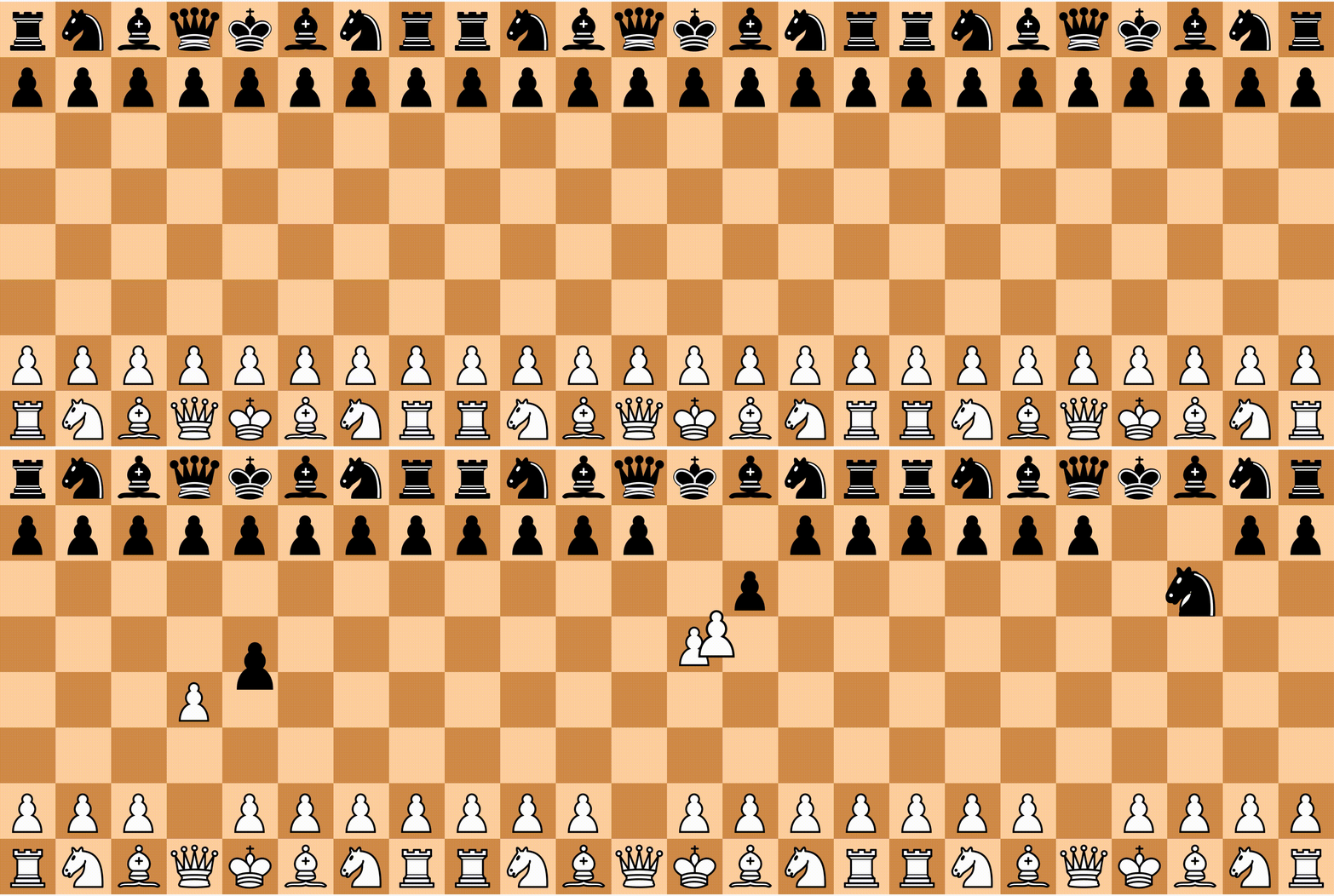
For the complete source code, you can check it out here.
Note: There is an update coming up to the package which includes a better architecture for the package, more boards, etc.
I used the chess_vectors_flutter package for the examples on this article.
That’s it for this article! I hope you enjoyed it, and leave a few claps if you did. Follow me for more Flutter articles and comment for any feedback you might have about this article.
Feel free to check out my other profiles and articles as well:


