avatarCharles E.

Free AI web copilot to create summaries, insights and extended knowledge, download it at here

6369

Abstract

an> <span class="hljs-keyword">func</span> <span class="hljs-title function_">configConstraints</span>() {

<span class="hljs-type">NSLayoutConstraint</span>.activate([ profileImage.topAnchor.constrnnaint( equalToSystemSpacingBelow: view.safeAreaLayoutGuide.topAnchor, multiplier: <span class="hljs-number">1</span>), <span class="hljs-comment">// this ^^^^^^ line</span> <span class="hljs-comment">// constraintconstraint(</span> <span class="hljs-comment">// equalToSystemSpacingBelow: safeAreaLayoutGuide.topAnchor,</span> <span class="hljs-comment">// multiplier: 1)</span>

<span class="hljs-comment">// means that the top of the image</span> <span class="hljs-comment">// is set to the top of the parent view</span> <span class="hljs-comment">// within the safe area (below the iPhone's notch/dynamic island),</span> <span class="hljs-comment">// by a multiplier of 1, (which is equivalent to 8 pts)</span>

profileImage.leadingAnchor.constraint( equalToSystemSpacingAfter: view.leadingAnchor, multiplier: <span class="hljs-number">3</span>),

<span class="hljs-comment">// leadingAnchor.constraint(</span> <span class="hljs-comment">// equalToSystemSpacingAfter: leadingAnchor, multiplier: 3)</span>

<span class="hljs-comment">// this means that the left of the image</span> <span class="hljs-comment">// is set to the side of the parent view,</span> <span class="hljs-comment">// by 24 pts (multiplier of 3. 3 * 8 = 24)</span>

profileImage.heightAnchor.constraint(equalToConstant: <span class="hljs-number">32</span>), profileImage.widthAnchor.constraint(equalToConstant: <span class="hljs-number">32</span>), <span class="hljs-comment">// this sets the height and width to 32</span> <span class="hljs-comment">// which along with the corner radius previously set to 16</span> <span class="hljs-comment">// gives the image the full circular shape</span>

greetingLabel.centerYAnchor.constraint(equalTo: profileImage.centerYAnchor), greetingLabel.leadingAnchor.constraint( equalToSystemSpacingAfter: profileImage.trailingAnchor, multiplier: <span class="hljs-number">1</span>),

<span class="hljs-comment">// The greeting label's Y anchor is equal to the Y anchor of profile image,</span> <span class="hljs-comment">// aligning them horizontally</span> <span class="hljs-comment">// the greeting label's left side</span> <span class="hljs-comment">// is set to 8pts awy from the profile image's right side</span>

notificationButton.heightAnchor.constraint(equalToConstant: <span class="hljs-number">32</span>), notificationButton.widthAnchor.constraint(equalToConstant: <span class="hljs-number">32</span>), notificationButton.centerYAnchor.constraint(equalTo: greetingLabel.centerYAnchor), view.trailingAnchor.constraint( equalToSystemSpacingAfter: notificationButton.trailingAnchor, multiplier: <span class="hljs-number">3</span>),

<span class="hljs-comment">// this means that the right side of the parent view</span> <span class="hljs-comment">// is set to 24 (3 * 8) pts</span> <span class="hljs-comment">// from the notification button's right side</span> ]) }</pre></div><p id="3128">Next, there’s a large title (spanning two lines), below that there’s a search bar (with placeholder text and a custom icon within it) and lastly, some “pills” containing words, matching the width of the search bar above it.</p><figure id="ef2f"><img src="https://cdn-images-1.readmedium.com/v2/resize:fit:800/1*juk1DIcIpo3m0kh3ojAB1w.jpeg"><figcaption>Title, search bar, ‘pills’</figcaption></figure><div id="0e86"><pre><span class="hljs-comment">// Create the views</span> <span class="hljs-comment">// Title label is assigned a value of 2 for its 'numberOfLines' property</span> <span class="hljs-comment">// and 'lineBreakMode' is set to '.byWordWrapping'</span> <span class="hljs-comment">// This allows it to span multiple lines</span> <span class="hljs-comment">// I then set the size to Apple's 'largeTile' fontsize, </span> <span class="hljs-comment">// which you can already guess what this does</span> <span class="hljs-keyword">let</span> titleLabel: <span class="hljs-type">UILabel</span> <span class="hljs-operator">=</span> { <span class="hljs-keyword">let</span> label <span class="hljs-operator">=</span> <span class="hljs-type">UILabel</span>() label.numberOfLines <span class="hljs-operator">=</span> <span class="hljs-number">2</span> label.lineBreakMode <span class="hljs-operator">=</span> .byWordWrapping label.text <span class="hljs-operator">=</span> <span class="hljs-string">"Discover your favorite products?"</span> label.textColor <span class="hljs-operator">=</span> .black label.font <span class="hljs-operator">=</span> .preferredFont(forTextStyle: .largeTitle) label.translatesAutoresizingMaskIntoConstraints <span class="hljs-operator">=</span> <span class="hljs-literal">false</span> <span class="hljs-keyword">return</span> label }()

<span class="hljs-comment">// An empty uiview with a corner radius of 25, </span> <span class="hljs-comment">// I'll revisit this shortly</span> <span class="hljs-keyword">let</span> searchView: <span class="hljs-type">UIView</span> <span class="hljs-operator">=</span> { <span class="hljs-keyword">let</span> searchView <span class="hljs-operator">=</span> <span class="hljs-type">UIView</span>() searchView.backgroundColor <span class="hljs-operator">=</span> .white searchView.layer.cornerRadius <span class="hljs-operator">=</span> <span class="hljs-number">25</span> searchView.translatesAutoresizingMaskIntoConstraints <span class="hljs-operator">=</span> <span class="hljs-literal">false</span> <span class="hljs-keyword">return</span> searchView }()

<span class="hljs-comment">// UIButton, with an SF symbol and background color, </span> <span class="hljs-comment">// similar to the notification button earlier</span> <span class="hljs-keyword">let</span> searchIcon : <span class="hljs-type">UIButton</span> <span class="hljs-operator">=</span> { <span class="hljs-keyword">var</span> button <span class="hljs-operator">=</span> <span class="hljs-type">UIButton</span>() <span class="hljs-keyword">let</span> image <span class="hljs-operator">=</span> <span class="hljs-type">UIImage</span>(systemName: <span class="hljs-string">"magnifyingglass"</span>) button.setImage(image, for: .normal) button.backgrou

Options

ndColor <span class="hljs-operator">=</span> .black button.tintColor <span class="hljs-operator">=</span> .white button.layer.cornerRadius <span class="hljs-operator">=</span> <span class="hljs-number">16</span> button.translatesAutoresizingMaskIntoConstraints <span class="hljs-operator">=</span> <span class="hljs-literal">false</span> <span class="hljs-keyword">return</span> button }()

<span class="hljs-comment">// Textfield to input text</span> <span class="hljs-keyword">let</span> searchTextField: <span class="hljs-type">UITextField</span> <span class="hljs-operator">=</span> { <span class="hljs-keyword">var</span> textField <span class="hljs-operator">=</span> <span class="hljs-type">UITextField</span>() textField.attributedPlaceholder <span class="hljs-operator">=</span> <span class="hljs-type">NSAttributedString</span>(string: <span class="hljs-string">"Search your product"</span>, attributes: [.font: <span class="hljs-type">UIFont</span>.preferredFont(forTextStyle: .callout),.foregroundColor: <span class="hljs-type">UIColor</span>.systemGray4]) textField.borderStyle <span class="hljs-operator">=</span> .none textField.translatesAutoresizingMaskIntoConstraints <span class="hljs-operator">=</span> <span class="hljs-literal">false</span> <span class="hljs-keyword">return</span> textField }()

<span class="hljs-keyword">func</span> <span class="hljs-title function_">configViews</span>(){ view.addSubview(profileImage) view.addSubview(greetingLabel) view.addSubview(notificationButton)

<span class="hljs-comment">// Add the title label and search view to parent view</span> view.addSubview(titleLabel) view.addSubview(searchView)

<span class="hljs-comment">// the icon and textfield are ADDED TO the searchview </span> <span class="hljs-comment">// the previously empty UIView</span> searchView.addSubview(searchIcon) searchView.addSubview(searchTextField) }

<span class="hljs-type">NSLayoutConstraint</span>.activate([ <span class="hljs-comment">// The large title is anchored 32 pts below the first set of items,</span> <span class="hljs-comment">// 24 pts from the left of the parent view,</span> <span class="hljs-comment">// 32 pts from the right of the parentview</span>

titleLabel.topAnchor.constraint( equalToSystemSpacingBelow: greetingLabel.bottomAnchor, multiplier: <span class="hljs-number">4</span>),

titleLabel.leadingAnchor.constraint( equalToSystemSpacingAfter: view.leadingAnchor, multiplier: <span class="hljs-number">3</span>),

view.trailingAnchor.constraint( equalToSystemSpacingAfter: titleLabel.trailingAnchor, multiplier: <span class="hljs-number">4</span>),

<span class="hljs-comment">// SearchView is set to 24 pts below the large title</span> <span class="hljs-comment">// and 32 pts from the left of the parent view</span> searchView.topAnchor.constraint( equalToSystemSpacingBelow: titleLabel.bottomAnchor, multiplier: <span class="hljs-number">3</span>),

searchView.leadingAnchor.constraint( equalToSystemSpacingAfter: view.leadingAnchor, multiplier: <span class="hljs-number">4</span>),

<span class="hljs-comment">// Height anchor set to 50</span> <span class="hljs-comment">// Remember the corner radius was set to 25?</span> <span class="hljs-comment">// this will give it the circular look</span>

searchView.heightAnchor.constraint(equalToConstant: <span class="hljs-number">50</span>),

view.trailingAnchor.constraint( equalToSystemSpacingAfter: searchView.trailingAnchor, multiplier: <span class="hljs-number">4</span>), <span class="hljs-comment">// Remember, the search icon is placed WITHIN the searchview</span> <span class="hljs-comment">// its Y anchor is then set to the searchview's own, centering it horizontally</span>

searchIcon.centerYAnchor.constraint(equalTo: searchView.centerYAnchor), searchIcon.heightAnchor.constraint(equalToConstant: <span class="hljs-number">32</span>), searchIcon.widthAnchor.constraint(equalToConstant: <span class="hljs-number">32</span>),

<span class="hljs-comment">// since it is to the RIGHTmost side of the searchview...</span> <span class="hljs-comment">// set the SEARCHVIEW's trailing anchor to be 16 pts from the icon's trailing</span> <span class="hljs-comment">// looking at that piece of code may confuse you, so think of it as...</span> <span class="hljs-comment">// the right of the search icon is set to 16 pts FROM the right of the search view</span>

searchView.trailingAnchor.constraint( equalToSystemSpacingAfter: searchIcon.trailingAnchor, multiplier: <span class="hljs-number">2</span>),

<span class="hljs-comment">// Remember, the textfield is placed WITHIN the searchview</span> <span class="hljs-comment">// so it's Y anchor is set to the searchviews, centering it horizontally</span> searchTextField.centerYAnchor.constraint(equalTo: searchView.centerYAnchor), searchTextField.leadingAnchor.constraint(equalToSystemSpacingAfter: searchView.leadingAnchor, multiplier: <span class="hljs-number">3</span>) ])</pre></div><p id="b688">Let’s take a look at what we’ve got so far shall we?</p><figure id="d7ab"><img src="https://cdn-images-1.readmedium.com/v2/resize:fit:800/1*iBHyhASuFH0E5JpsrDLAig.png"><figcaption>We got to this point in under 10 minutes? Not bad.</figcaption></figure><p id="7d3a">But wait a second….what about the ‘pills’??</p><p id="c045">We will cover that in Part 2 of this series.</p><div id="b6a0" class="link-block"> <a href="https://readmedium.com/recreate-a-dribbble-app-design-with-uikit-4fb07a8102c5"> <div> <div> <h2>Recreate A Dribbble App Design With UIKit </h2> <div><h3>This article will guide you through my thought process and approach to programmatically recreating a cool UI design…</h3></div> <div><p>medium.com</p></div> </div> <div> <div style="background-image: url(https://miro.readmedium.com/v2/resize:fit:320/1*SeUsqq1SEujeVY9KYAH-Tg.png)"></div> </div> </div> </a> </div><p id="026d">Everything covered so far is available in the <a href="https://github.com/CharlesAE/YT-DribbbleUI-One/tree/part_one">GitHub</a> repo, in case you might have missed something.</p><p id="01c9">Thanks for reading!</p></article></body>

Recreate a Dribbble App Design with UIKit Episode 1 — Part 1

This article will guide you through my thought process and approach to programmatically recreating a cool UI design.
Recreating Dribbble Designs

Earlier this week, I stumbled across this youtube video by AJ Picard recreating a design he randomly found on Dribbble using SwiftUI, and it immediately had me thinking:

  1. That’s kinda interesting, seeing him basically bringing the design to life.
  2. I should probably try my hand at that, (I think we all should brush up on our UI skills from time to time) but using UIKit.

So, I went and did some scrolling of my own on Dribbble and this Digital Product Store App design caught my eye.
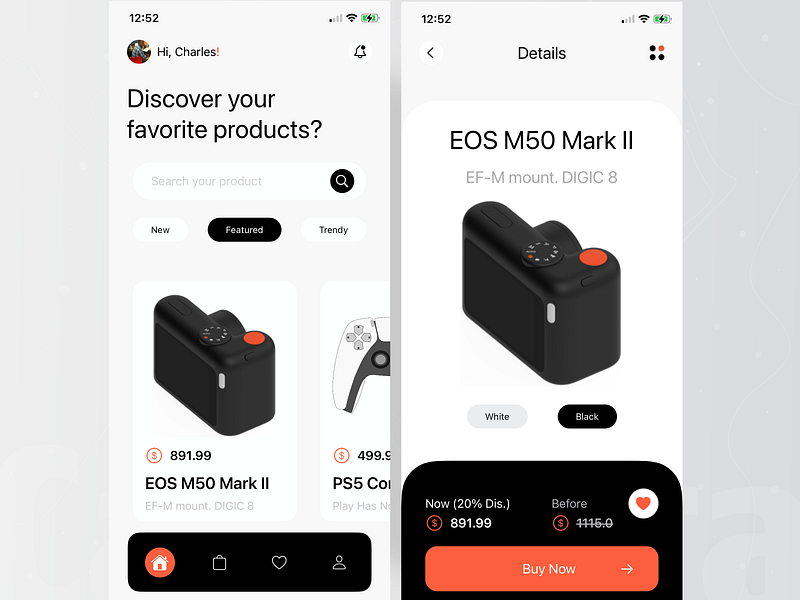
My recreation

Before jumping into the code, lets quickly take a second to analyze and perhaps break down this design into smaller sections. I found it fitting to name these sections : the header, body & footer (if these sound familiar, it’s because I am also a web developer).
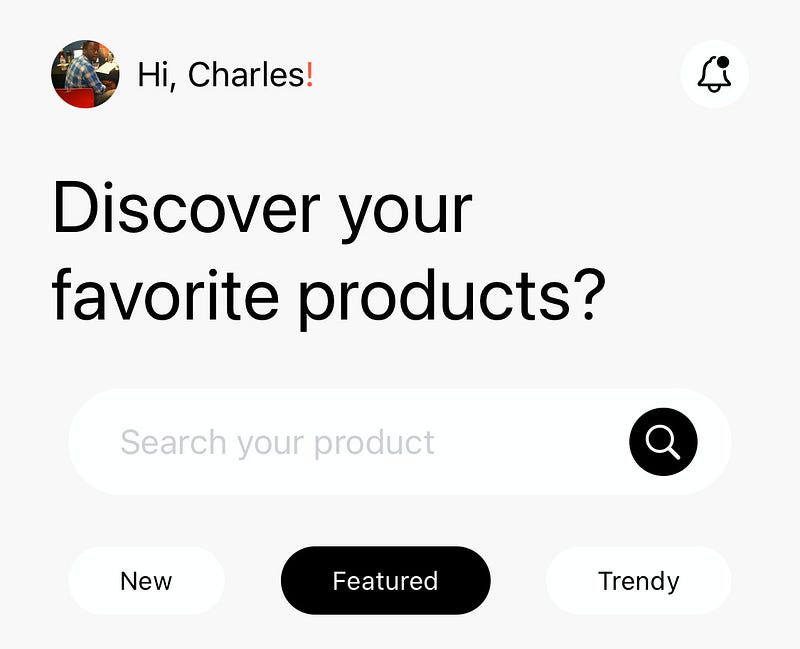
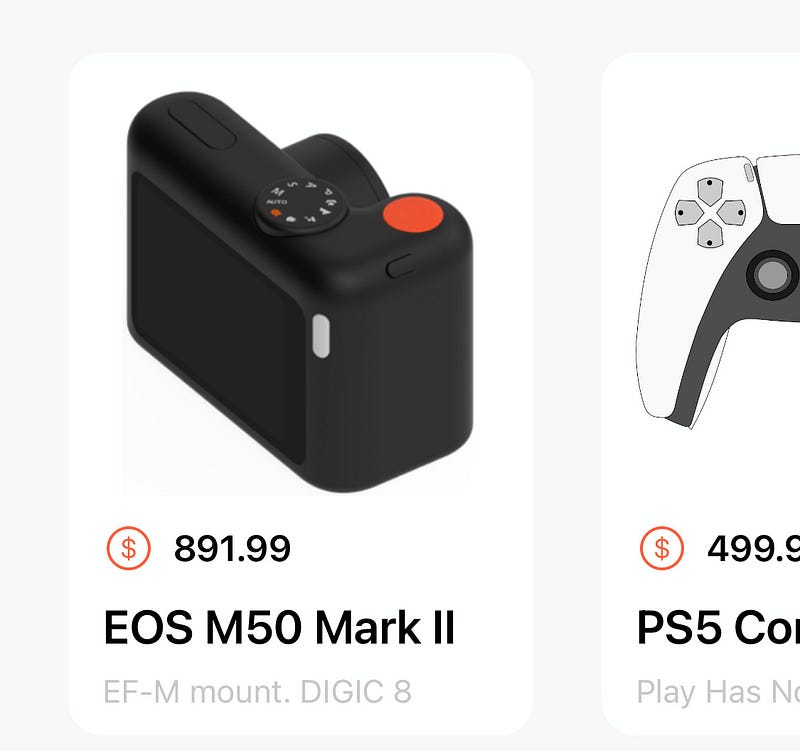
The “Header”
The “Body”
The “Footer”

The Header

Right off the bat, there are a few things to note, a custom navigation bar is being used…actually no, the area where the navigation bar would be is replaced with (from left to right) a small circular image(with the user’s profile picture), a greeting, and a notification button. My approach for this was: a UIImageView, a UILabel and a UIButton

UIImageView, a UILabel and a UIButton
override func viewDidLoad() {
        super.viewDidLoad()
        view.backgroundColor = UIColor(named: "bgGray")
        configViews()
        configConstraints()
        
    }

// Create the views

// UIImageView was assigned an image file named "charles"
// from the assets folder, and given a corner radius of 16
let profileImage: UIImageView = {
  let imageView = UIImageView()
  imageView.image =  UIImage(named: "charles")
  imageView.layer.cornerRadius = 16
  imageView.clipsToBounds = true
  imageView.translatesAutoresizingMaskIntoConstraints = false
  return imageView
}()

// The greeting label
let greetingLabel: UILabel = {
  let label = UILabel()
  label.textColor = .black
  label.text = "Hi, Charles!"
  label.font = .preferredFont(forTextStyle: .callout)
  label.translatesAutoresizingMaskIntoConstraints = false
  return label
}()

// The UIButton has an SF Symbol image attached,
// a tint of black, background color of white, and rounded corners
let notificationButton: UIButton = {
  var button = UIButton()
  let image = UIImage(systemName: "bell.badge")
  button.setImage(image, for: .normal)
  button.backgroundColor = .white
  button.tintColor = .black
  button.layer.cornerRadius = 16
  button.translatesAutoresizingMaskIntoConstraints = false
  return button
}()

// Add the views to the parentview
func configViews(){
  view.addSubview(profileImage)
  view.addSubview(greetingLabel)
  view.addSubview(notificationButton)
}

// Add some contraints, to arrange them out horizontally
func configConstraints() {

NSLayoutConstraint.activate([
  profileImage.topAnchor.constrnnaint(
  equalToSystemSpacingBelow: view.safeAreaLayoutGuide.topAnchor, multiplier: 1),
// this ^^^^^^ line
// constraintconstraint(
// equalToSystemSpacingBelow: safeAreaLayoutGuide.topAnchor,
// multiplier: 1)

// means that the top of the image
// is set to the top of the parent view
// within the safe area (below the iPhone's notch/dynamic island),
// by a multiplier of 1, (which is equivalent to 8 pts)

  profileImage.leadingAnchor.constraint(
            equalToSystemSpacingAfter: view.leadingAnchor, multiplier: 3),
         
// leadingAnchor.constraint(
// equalToSystemSpacingAfter: leadingAnchor, multiplier: 3)

// this means that the left of the image
// is set to the side of the parent view,
// by 24 pts (multiplier of 3. 3 * 8 = 24)

  profileImage.heightAnchor.constraint(equalToConstant: 32),
  profileImage.widthAnchor.constraint(equalToConstant: 32),
// this sets the height and width to 32
// which along with the corner radius previously set to 16
// gives the image the full circular shape

  greetingLabel.centerYAnchor.constraint(equalTo: profileImage.centerYAnchor),
  greetingLabel.leadingAnchor.constraint(
  equalToSystemSpacingAfter: profileImage.trailingAnchor, multiplier: 1),

// The greeting label's Y anchor is equal to the Y anchor of profile image,
// aligning them horizontally
// the greeting label's left side
// is set to 8pts awy from the profile image's right side

  notificationButton.heightAnchor.constraint(equalToConstant: 32),
  notificationButton.widthAnchor.constraint(equalToConstant: 32),
  notificationButton.centerYAnchor.constraint(equalTo: greetingLabel.centerYAnchor),
  view.trailingAnchor.constraint(
  equalToSystemSpacingAfter: notificationButton.trailingAnchor, multiplier: 3),

// this means that the right side of the parent view
// is set to 24 (3 * 8) pts
// from the notification button's right side
])
}

Next, there’s a large title (spanning two lines), below that there’s a search bar (with placeholder text and a custom icon within it) and lastly, some “pills” containing words, matching the width of the search bar above it.
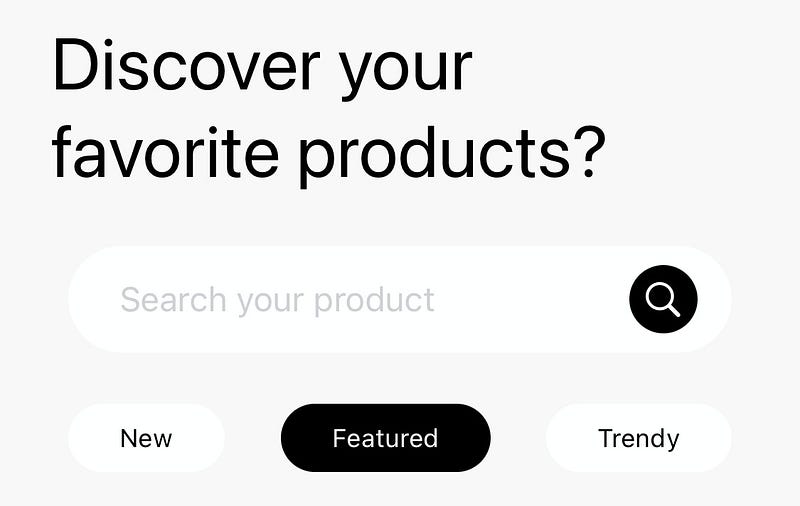
Title, search bar, ‘pills’
// Create the views
// Title label is assigned a value of 2 for its 'numberOfLines' property
// and 'lineBreakMode' is set to '.byWordWrapping'
// This allows it to span multiple lines
// I then set the size to Apple's 'largeTile' fontsize, 
// which you can already guess what this does
let titleLabel: UILabel = {
  let label = UILabel()
  label.numberOfLines = 2
  label.lineBreakMode = .byWordWrapping
  label.text = "Discover your favorite products?"
  label.textColor = .black
  label.font = .preferredFont(forTextStyle: .largeTitle)
  label.translatesAutoresizingMaskIntoConstraints = false
  return label
}()

// An empty uiview with a corner radius of 25, 
// I'll revisit this shortly
let searchView: UIView = {
  let searchView = UIView()
  searchView.backgroundColor = .white
  searchView.layer.cornerRadius = 25
  searchView.translatesAutoresizingMaskIntoConstraints = false
  return searchView
}()

// UIButton, with an SF symbol and background color, 
// similar to the notification button earlier
let searchIcon : UIButton = {
  var button = UIButton()
  let image = UIImage(systemName: "magnifyingglass")
  button.setImage(image, for: .normal)
  button.backgroundColor = .black
  button.tintColor = .white
  button.layer.cornerRadius = 16
  button.translatesAutoresizingMaskIntoConstraints = false
  return button
}()

// Textfield to input text
let searchTextField: UITextField = {
  var textField = UITextField()
  textField.attributedPlaceholder = NSAttributedString(string: "Search your product", attributes: [.font: UIFont.preferredFont(forTextStyle: .callout),.foregroundColor: UIColor.systemGray4])
  textField.borderStyle = .none
  textField.translatesAutoresizingMaskIntoConstraints = false
  return textField
}()


func configViews(){
  view.addSubview(profileImage)
  view.addSubview(greetingLabel)
  view.addSubview(notificationButton)
  
// Add the title label and search view to parent view
  view.addSubview(titleLabel)
  view.addSubview(searchView)

// the icon and textfield are ADDED TO the searchview 
// the previously empty UIView
searchView.addSubview(searchIcon)
searchView.addSubview(searchTextField)
}


NSLayoutConstraint.activate([
// The large title is anchored 32 pts below the first set of items,
// 24 pts from the left of the parent view,
// 32 pts from the right of the parentview

  titleLabel.topAnchor.constraint(
  equalToSystemSpacingBelow: greetingLabel.bottomAnchor, multiplier: 4),
  
  titleLabel.leadingAnchor.constraint(
  equalToSystemSpacingAfter: view.leadingAnchor, multiplier: 3),
  
  view.trailingAnchor.constraint(
  equalToSystemSpacingAfter: titleLabel.trailingAnchor, multiplier: 4),

// SearchView is set to 24 pts below the large title
// and 32 pts from the left of the parent view
  searchView.topAnchor.constraint(
  equalToSystemSpacingBelow: titleLabel.bottomAnchor, multiplier: 3),
  
  searchView.leadingAnchor.constraint(
  equalToSystemSpacingAfter: view.leadingAnchor, multiplier: 4),

// Height anchor set to 50
// Remember the corner radius was set to 25?
// this will give it the circular look
        
  searchView.heightAnchor.constraint(equalToConstant: 50),
  
  view.trailingAnchor.constraint(
  equalToSystemSpacingAfter: searchView.trailingAnchor, multiplier: 4),
// Remember, the search icon is placed WITHIN the searchview
// its Y anchor is then set to the searchview's own, centering it horizontally

  searchIcon.centerYAnchor.constraint(equalTo: searchView.centerYAnchor),
  searchIcon.heightAnchor.constraint(equalToConstant: 32),
  searchIcon.widthAnchor.constraint(equalToConstant: 32),

// since it is to the RIGHTmost side of the searchview...
// set the SEARCHVIEW's trailing anchor to be 16 pts from the icon's trailing
// looking at that piece of code may confuse you, so think of it as...
// the right of the search icon is set to 16 pts FROM the right of the search view

  searchView.trailingAnchor.constraint(
  equalToSystemSpacingAfter: searchIcon.trailingAnchor, multiplier: 2),

// Remember, the textfield is placed WITHIN the searchview
// so it's Y anchor is set to the searchviews, centering it horizontally
        searchTextField.centerYAnchor.constraint(equalTo: searchView.centerYAnchor),
        searchTextField.leadingAnchor.constraint(equalToSystemSpacingAfter: searchView.leadingAnchor, multiplier: 3)
])

Let’s take a look at what we’ve got so far shall we?
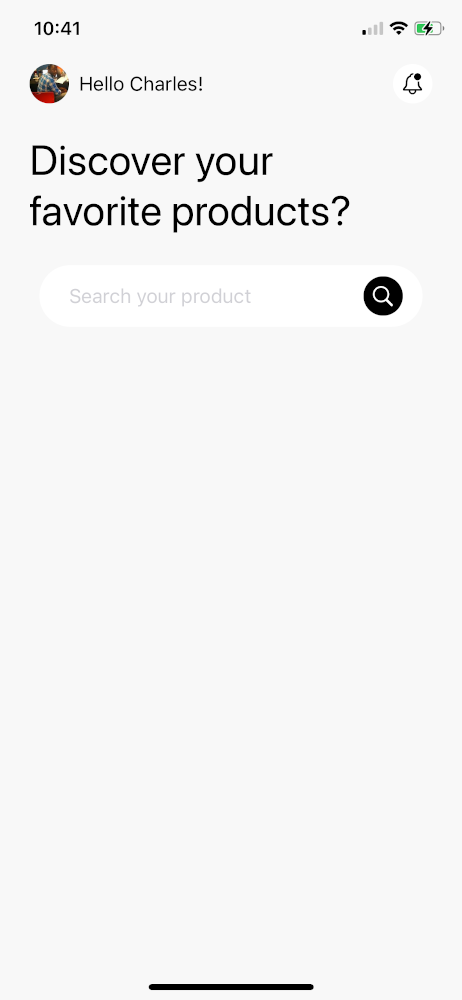
We got to this point in under 10 minutes? Not bad.

But wait a second….what about the ‘pills’??

We will cover that in Part 2 of this series.

Everything covered so far is available in the GitHub repo, in case you might have missed something.

Thanks for reading!

iOS App Development
iOS Development
Swift
UI Design
Swift Programming
Recommended from ReadMedium