
Run the First Program in Python: Python Complete Course — Part 7
Before we start let me tell you that:
- This article is a part of the Python Complete Beginner to Expert Course which you can find it here.
- All resources are available in the “Resources” section below.
- This article is also available as a YouTube video here.
Introduction
Since you are here, then you should have Python and PyCharm IDE installed on your machine, and you are ready to run your first program in Python.
This article will cover the following outlines:
1. How To Create a Project Using PyCharm IDE
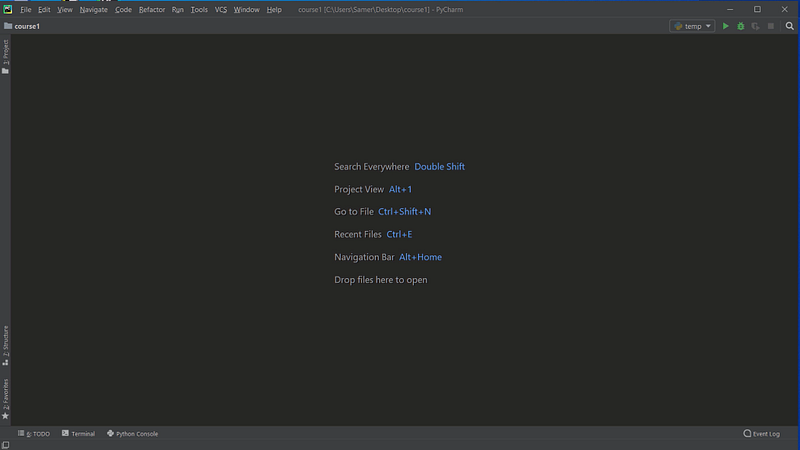
When you open PyCharm for the first time, you will get a window like this through which you will create a new PyCharm project to start coding.
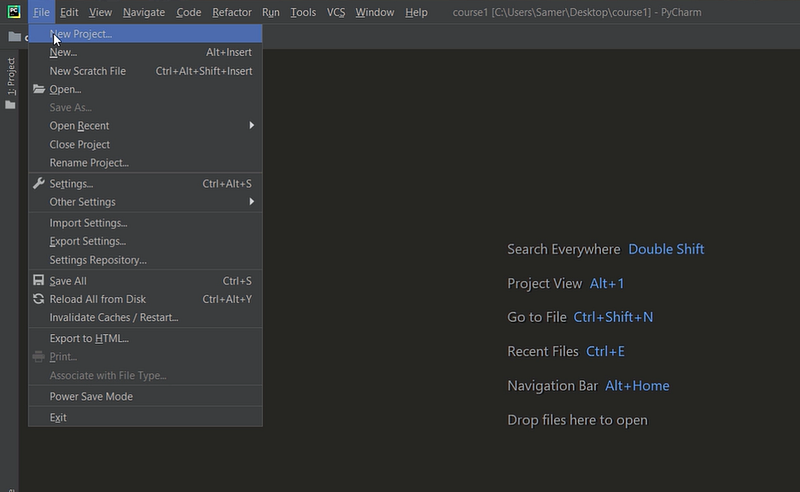
To create your first project:
1. Go to File and select a New Project. Refer to Figure1.
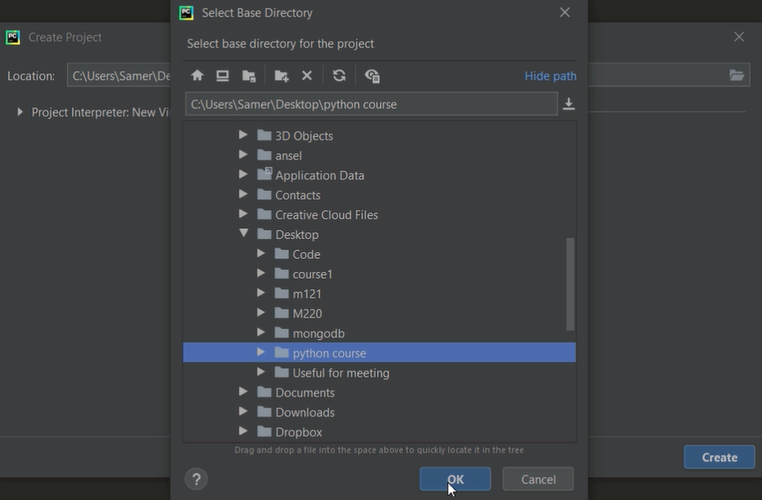
2. Select the directory in which you want to save the project files. For example Desktop — python course, click ok and then create. Refer to Figure 2.
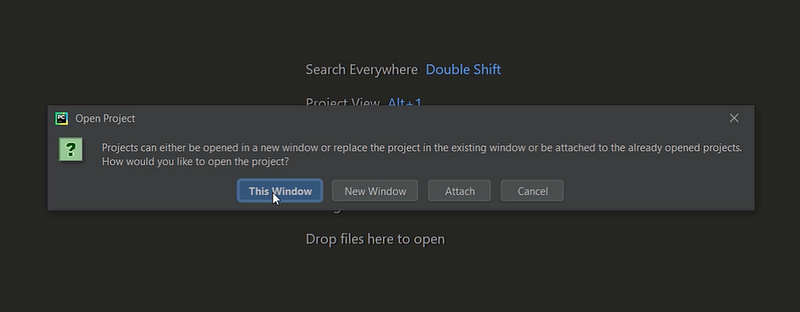
3. After that you can choose This Window if you want to open your project on your current window or choose New Window if you want to open it in another PyCharm window. For now, let us choose the This Window option. Refer to Figure 3.
You should wait a little bit until your project is created.
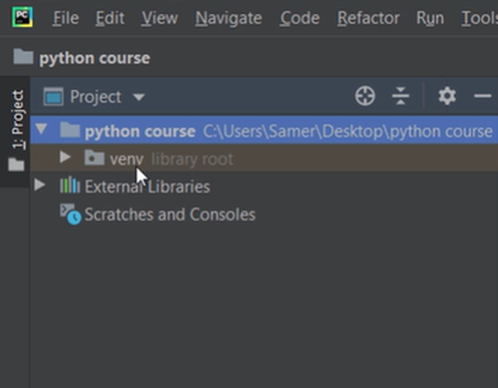
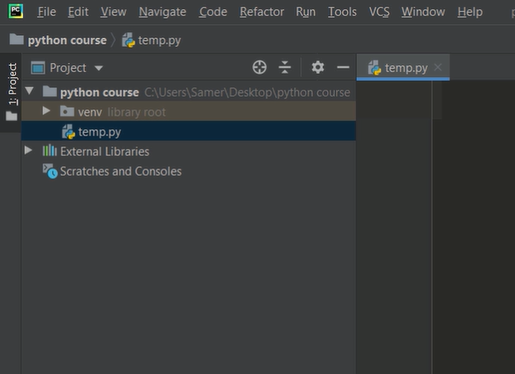
4. Once it is created, you will find your project files and the virtual environment (which will be clearer in the future) for that project in the left corner area. Refer to Figure 4.
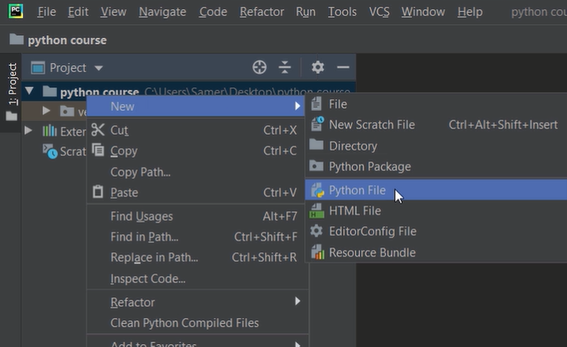
5. Now let us create a Python file to start coding. Right-click on the “python course” project, and choose New then Python file. Refer to Figure 5.
6. Finally, give your file a name. For example temp.py, then enter. You will see that a new file will be opened and this file will be empty. Refer to Figure 6.
Now, let us print Hello World on the console.
2. Hello World Program

To display the message “Hello World”, you must use the function “print”. print() is a built-in function in Python, and you can use it to display a message on the screen.
Input:
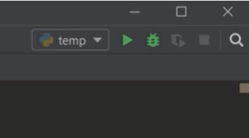
print('Hello World')To run this code and get the output, press right-click, then select Run ‘temp’, Or use the green triangle in the upper right corner. Refer to Figure 7.
Output:
Hello WorldIf you follow these steps without any problem, this means that you correctly installed Python and PyCharm IDE.
Congratulations! You are ready now to start your journey with your Python programming language.
Now, let us summarize what we have learned in this article:

In this article you have learned:
- How to create a new project using PyCharm IDE.
- How to write your first program in Python to print “Hello World”.
P.S.: A million thanks for your time reading my story. Before you leave let me mention quickly two points:
- First, to get my posts in your inbox directly, would you please subscribe here, and you can follow me here.
- Second, writers made thousands of $$ on Medium. To get unlimited access to Medium stories and start earning, sign up now for Medium membership which only costs $5 per month. By signing up with this link, you can directly support me at no extra cost to you.
To get back to the previous article, you can use the following link:
To move on to the next article, you can use the following link:
Resources:
- GitHub here.


