
7 iPhone Settings You Might Wanna Change | TweakIt#1
Recently, I came across some interesting tweaks while fiddling with iPhone settings. These 7 iPhone settings change, tweaks will surely bring a better experience, security, and privacy. So, let’s get right into it.
1. Open Links in Background in Safari
Apple users mostly use Safari as their default web browser, it’s fast, secure. But, if you’re someone who opens the link in a new tab so that you could finish the current article. Well, Safari automatically switches to the new tab and I’m not a fan of that behavior. Here’s how you can fix it.
- Head into Settings, scroll down, click on Safari.
- Scroll down and under the Tabs section, click on Open Links
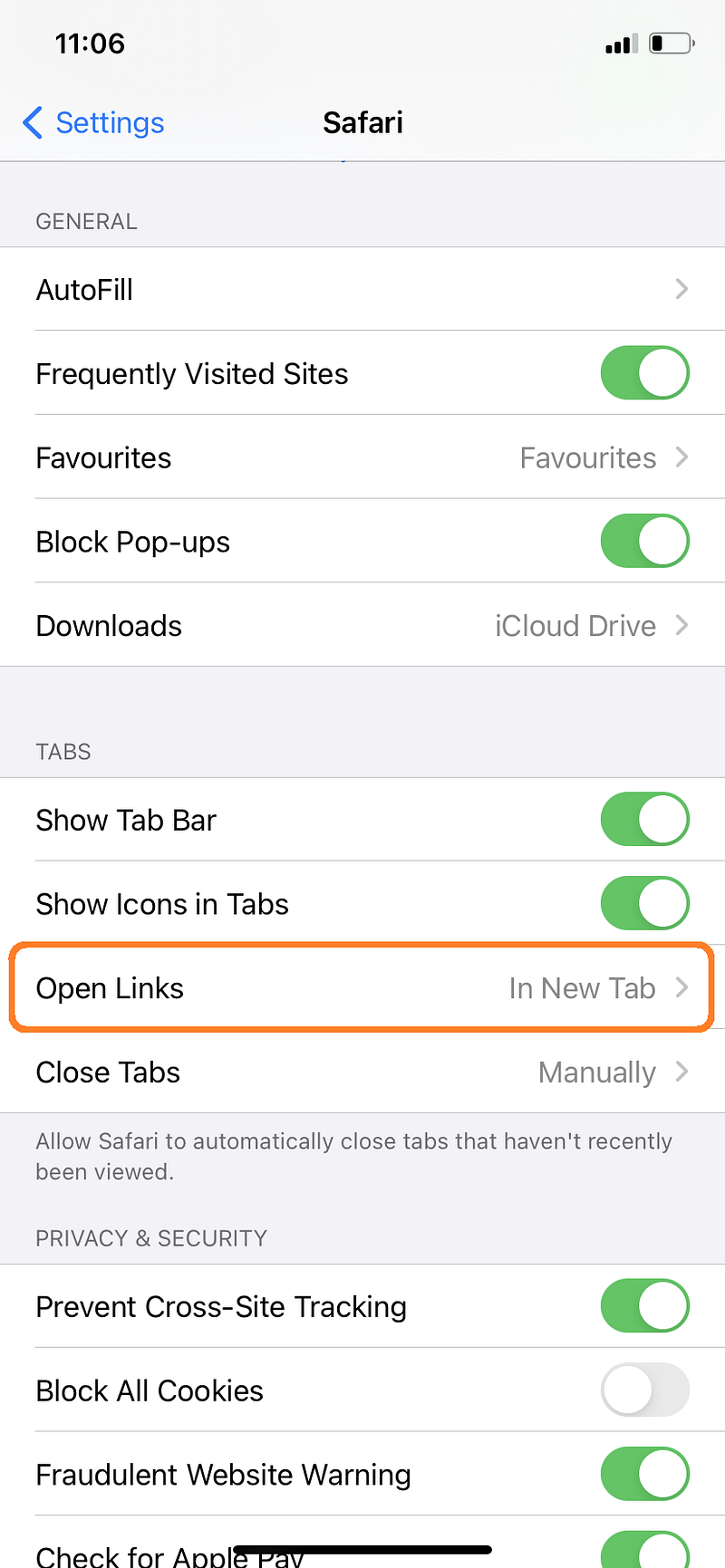
- Change it to ‘In Background’ and now a new link will open in the background while you can continue surfing.
2. Disable Control Centre in Lock Screen
Even when the iPhone is locked, it lets anyone access your control centre, and your notifications, which is something I wouldn't want and you wouldn’t too. Here’s how you can change it.
- Go to Settings, scroll down, click on ‘FaceID and Passcode’
- Enter your passcode, and now scroll down and under ‘Allow access when locked’
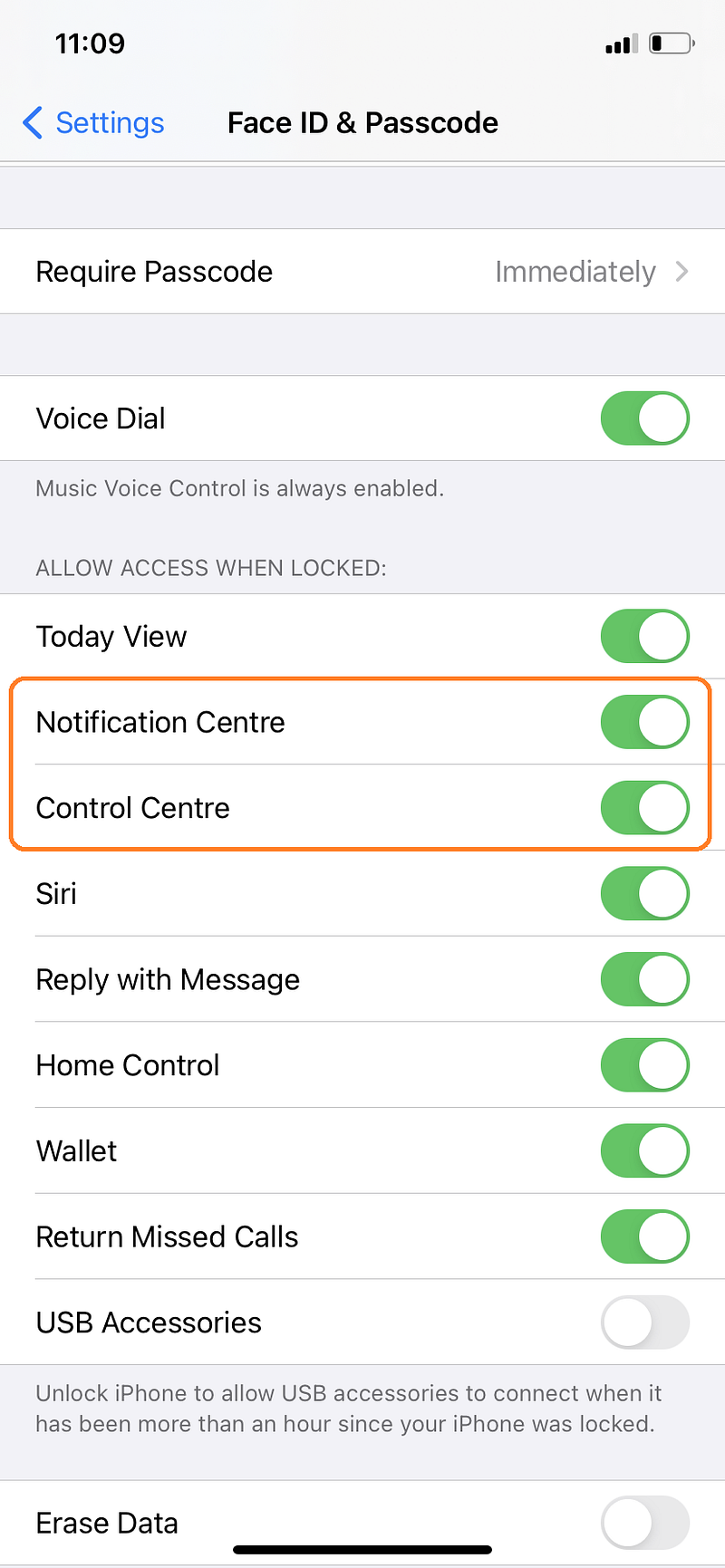
- Turn off the toggle for ‘Notification Centre’ and ‘Control Centre’
- That’s it, now nobody will be able to go through your notifications and control centre when it's locked.
3. Hide the ‘Hidden’ Album in Photos
👆🏻, ironic right? Now, while you can hide photos in iPhone, but the way it hides the photos is quite stupid, and drives attention. If you have some hidden photos, you probably know that it goes inside the ‘Hidden’ album which is just sitting in the open sight under the ‘Utilities’ section. Here’s how you can actually “hide” it.
- Go to Settings, scroll down, click on Photos.
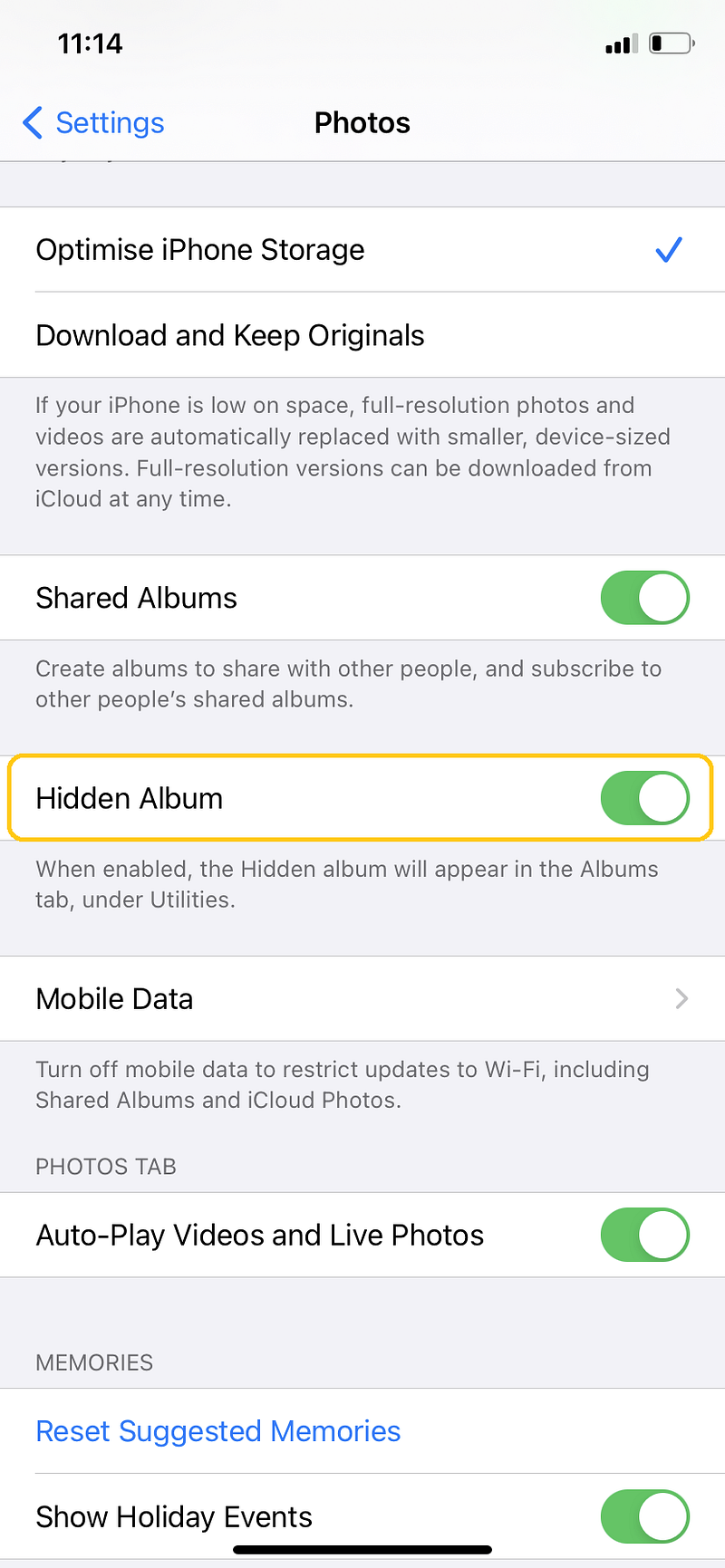
- There, you will see Hidden Album, turn that off. Now, they are “hidden”.
4. Mirror Front Camera
If you ever wonder how to disable the feature that inverts or mirrors your selfie, this is it.
- Head into Settings, scroll down, and click ‘Camera’
- Under the ‘Composition’ section, there is ‘Mirror Front Camera’
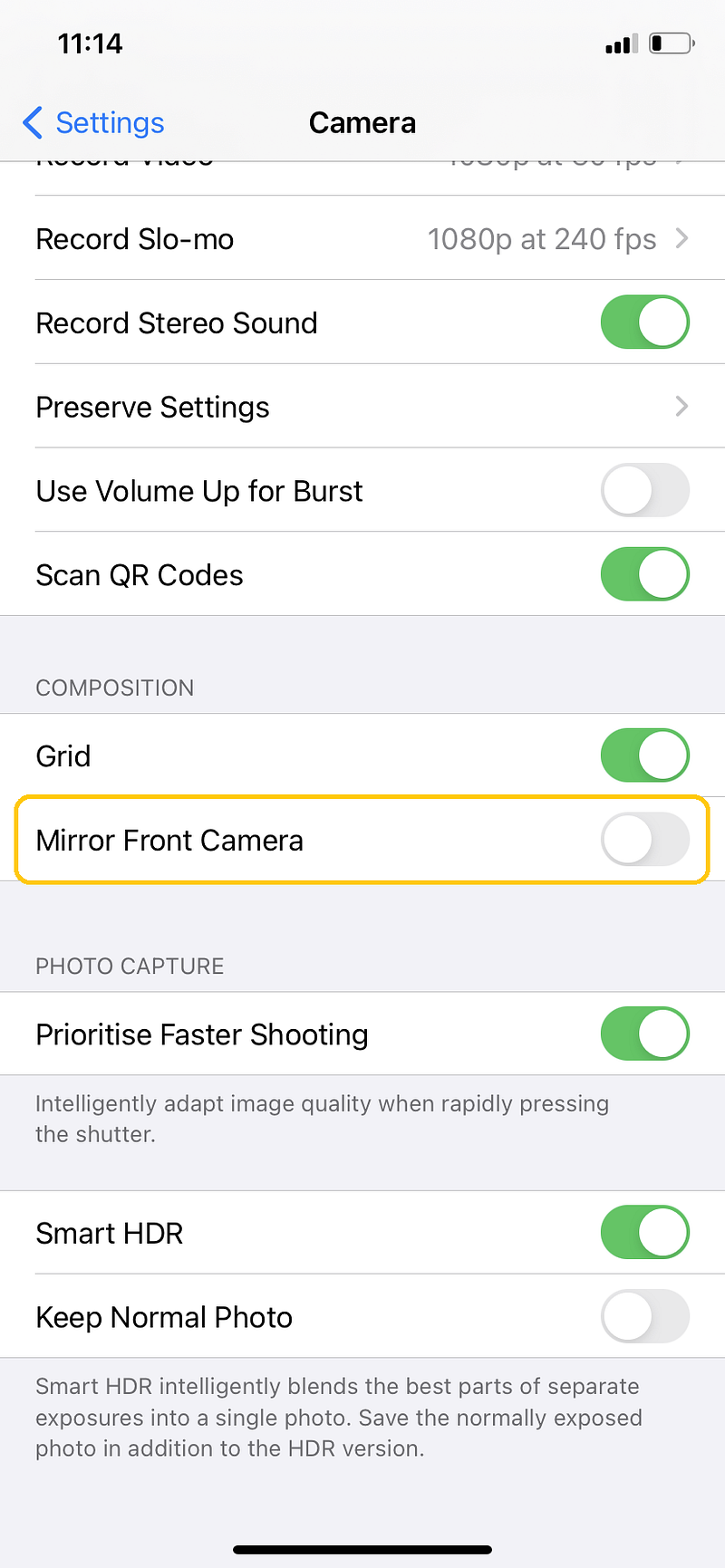
- Turn that off. Now, the selfies won’t come inverted.
5. Disable HEIF Photos
Apple adopted a new format to encode the photos shot in iPhone, HEIF. While this format gives you efficient storage meaning it makes images of relatively less size whilst preserving all the image information such as details. But sharing becomes a pain, other non-Apple devices, even earlier Macs can’t encode this format. Well, here’s how you can change it to good ol’ JPEG.
- Go to Settings, scroll down, and click ‘Camera’
- At first, there is the ‘Formats’ option. Click on it.
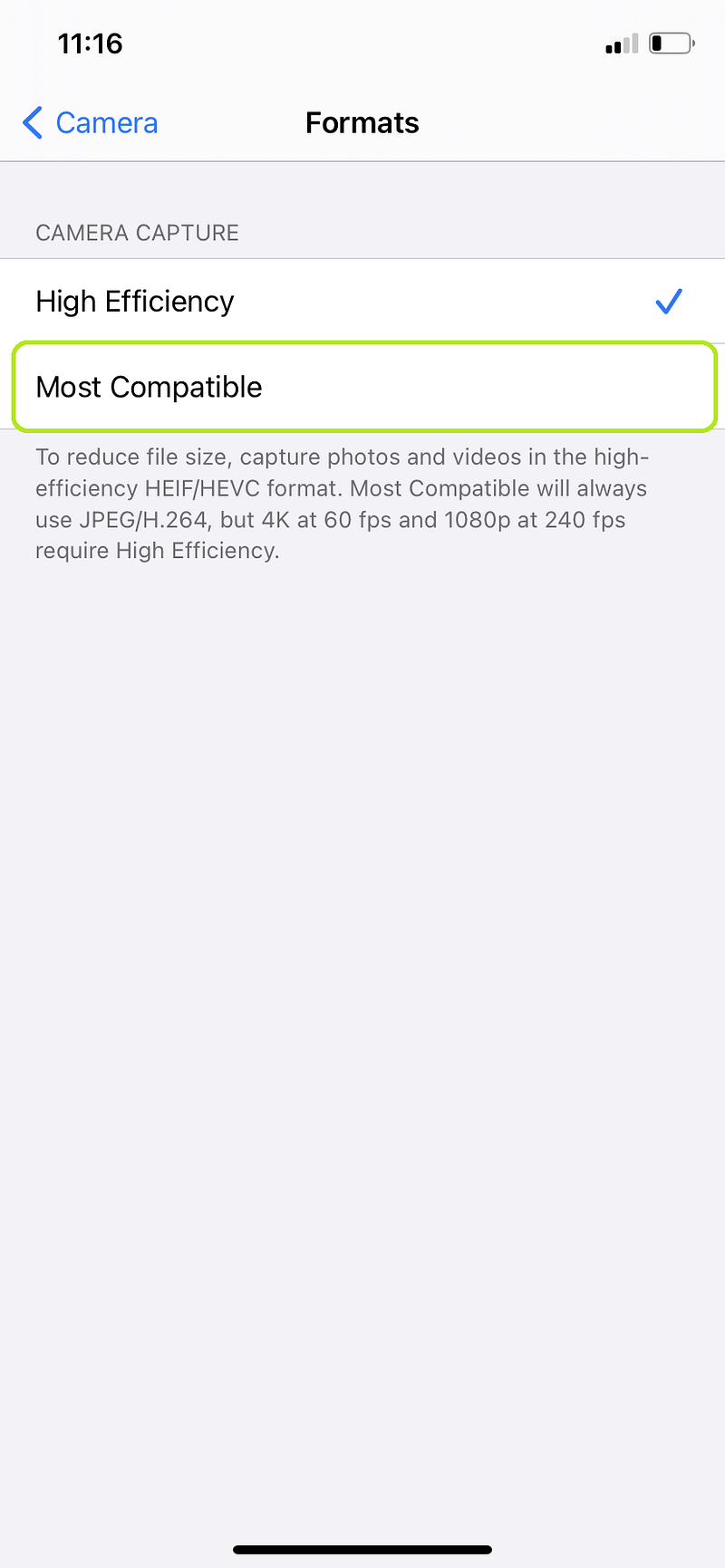
- Change it to ‘Most Compatible’, and you’re good to go.
6. Enable Grid in Camera
This is a tweak you don’t know you need. This can help you with better framing the subjects/objects. Also, the leveler comes in handy when you take photos from above the subject, telling you if the iPhone is completely horizontal. Let’s enable this.
- Go into Settings, scroll down, and click ‘Camera’
- Under the ‘Composition’ section, there is ‘Grid’
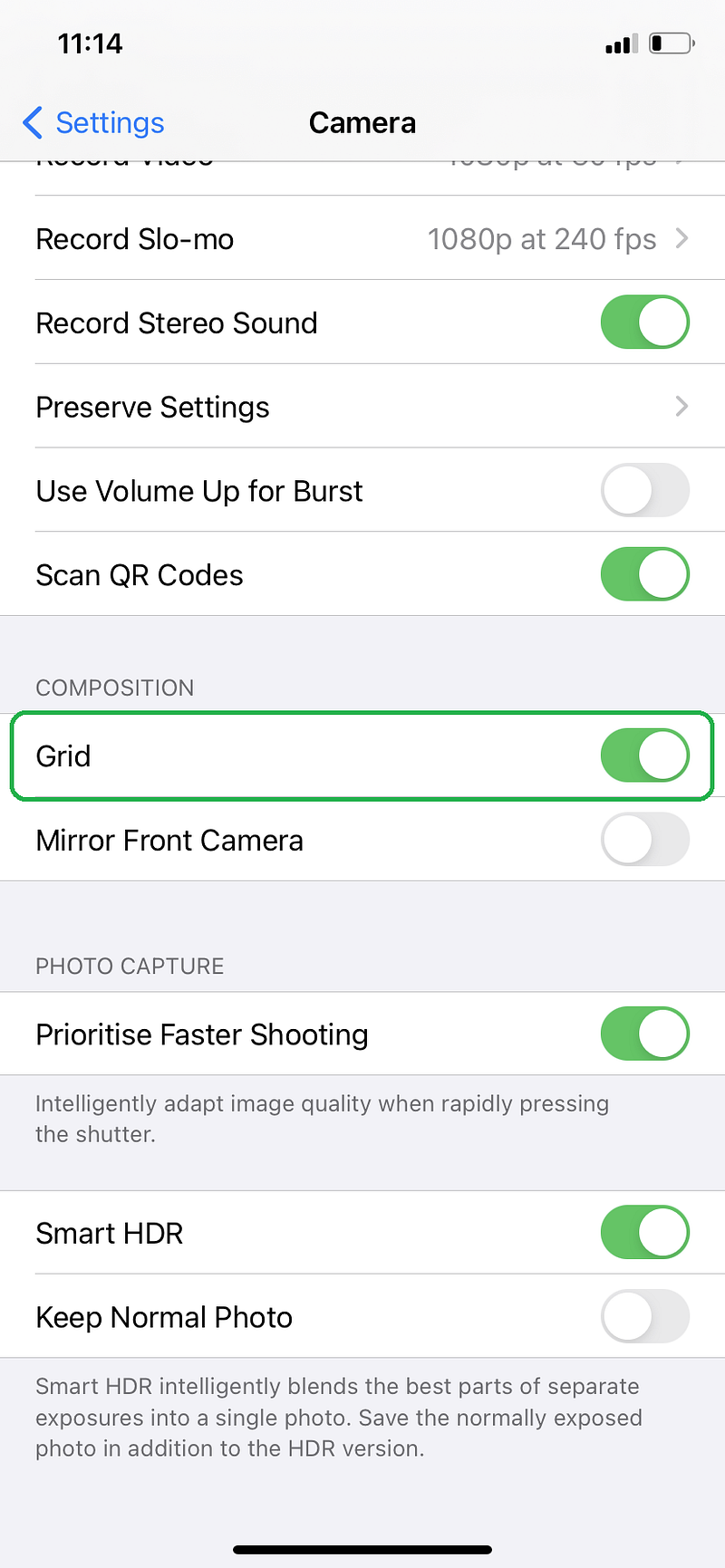
- Turn that on, and up your photography game.
7. Disable System Services
Now, this one is important as it involves your data. Privacy is Important. Many system services are running in the background that you don’t need. Here’s how to disable them —
- Head into Settings, then click on ‘Privacy’.
- Click on ‘Location Services’, scroll all the way down. And, then tap on ‘System Services’
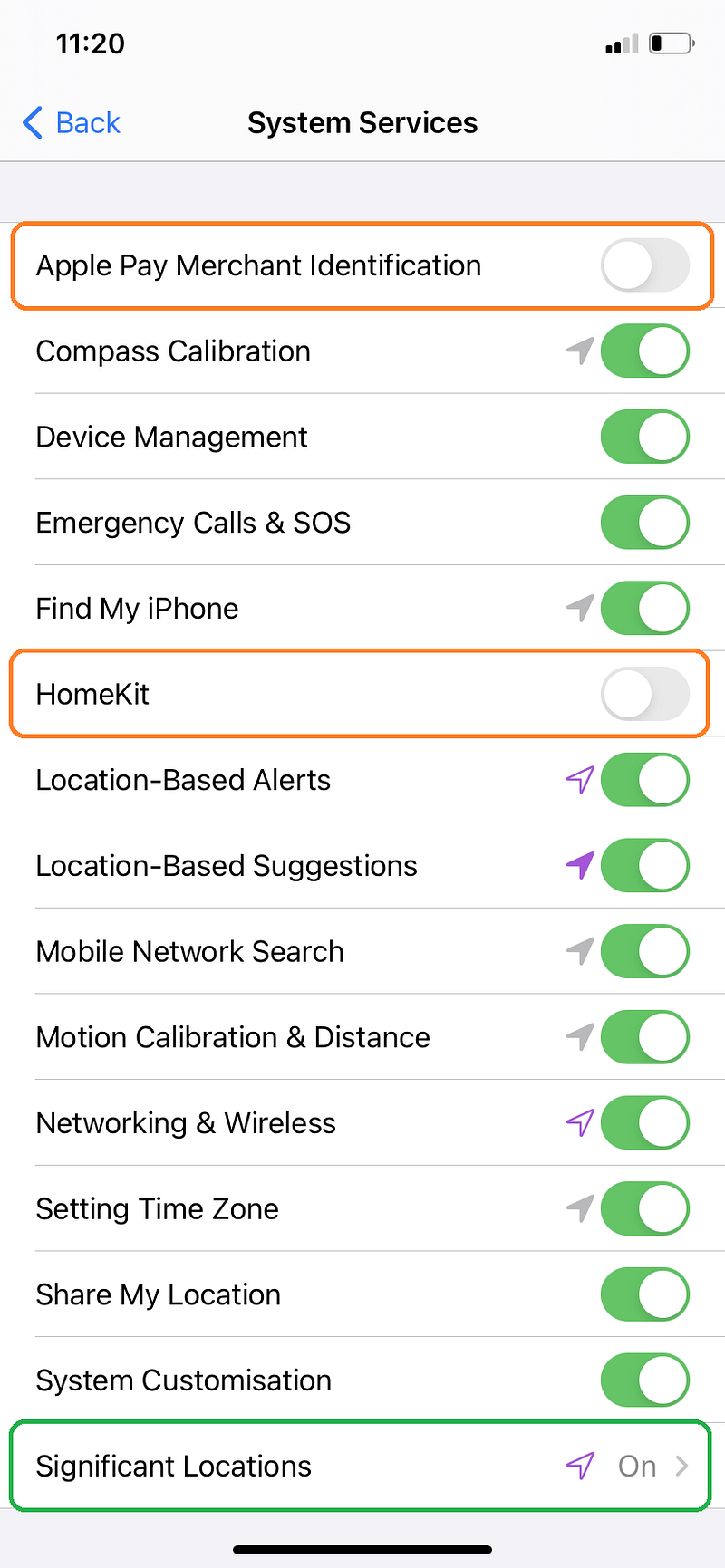
- Now, you can turn off ‘Apple Pay Merchant Identification’ if you are based in India, because Apple Pay isn’t even available in India.
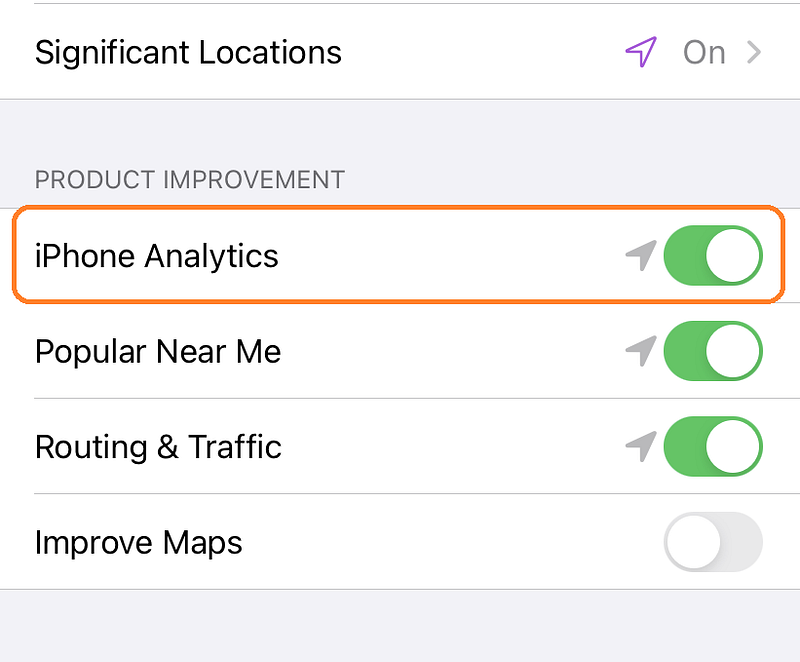
- You can turn off ‘HomeKit’, and iPhone analytics too.
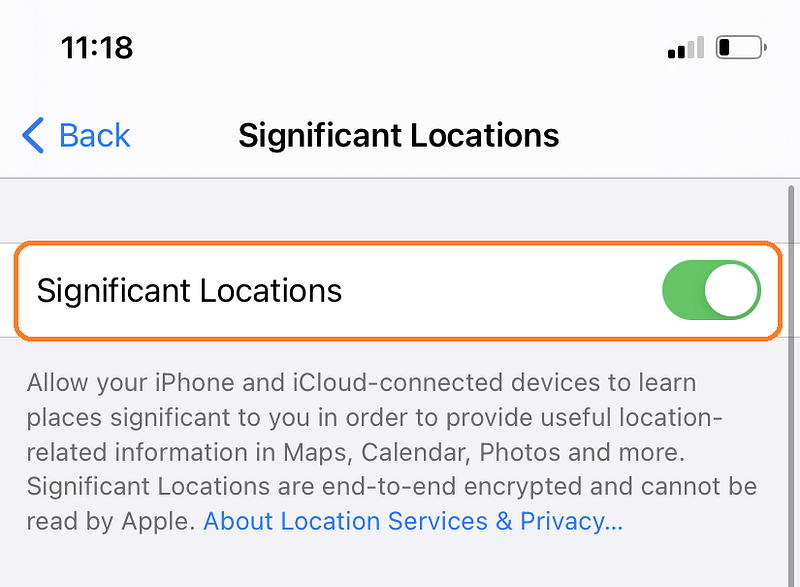
- Now, head to ‘Significant Locations’ and turn that off(India) as most people in India don’t use Apple Maps.
Phew, those were lots of toggles! There’s more.
- Head back to ‘Privacy’, scroll down and click on ‘Analytics & Improvements’
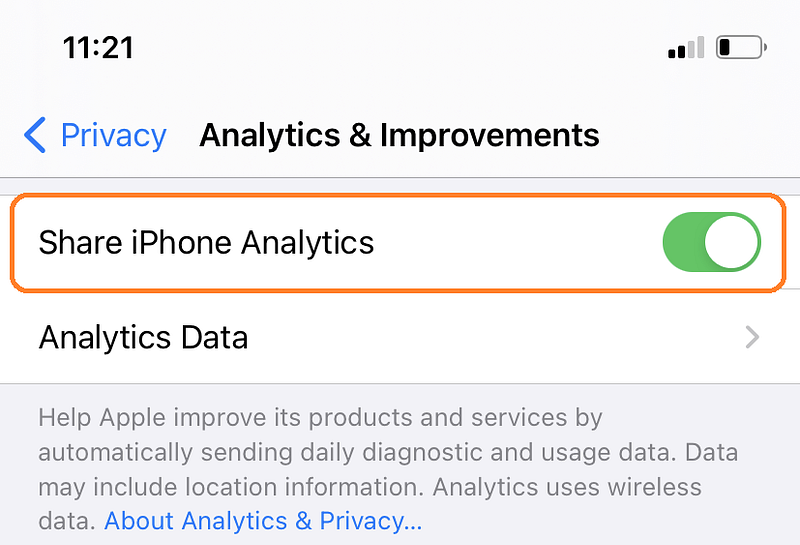
- Turn off ‘iPhone Analytics’ (in yours it may be iPhone and Watch). This will send even fewer data to Apple.
Now, we’re done with toggles and all. So, these were the 7 iPhone settings. I hope this was useful. Let me know how it went. That’s it. Thanks for reading. ☮
My other Apple Stories you should read…


