
6 Simple Steps to Copy & Paste Medium Article to WordPress
I found a simpler way on how to transfer a Medium article post to your personal WordPress blog with images.
Folks, I am not saying that you have to move out from Medium. What I am saying is if you want to use articles you’ve written in Medium and bring them over to your personal WordPress blog, there is a simpler way.
Here are the steps:
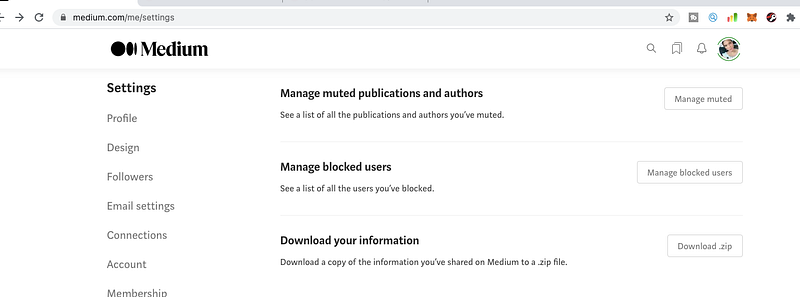
Step 1.
Go to your Medium dashboard and scroll down until you see “Download Information”. Click on it. (see sample image above).
Step 2
Click on export. (see sample image below).
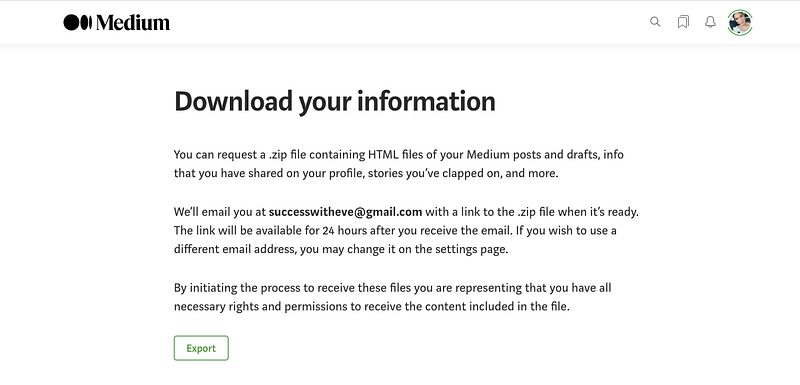
When you click on the download information, Medium will send you a link to your email address you provided to download a zip file. Check a few minutes later or maybe an hour.
These files contain all information and all activity you have from the beginning till to the current time you request to download your information.
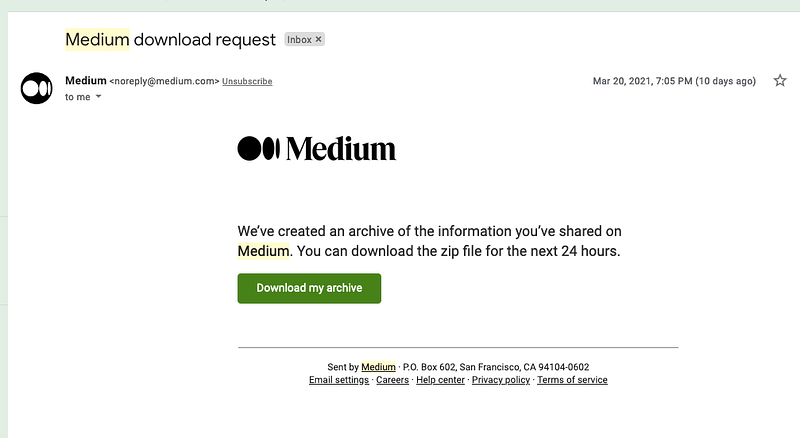
Step 3
You will click on “Download my archive.” You are downloading a zip file. The file is called “Medium - Export”, you can change the name upon downloading if you want to.
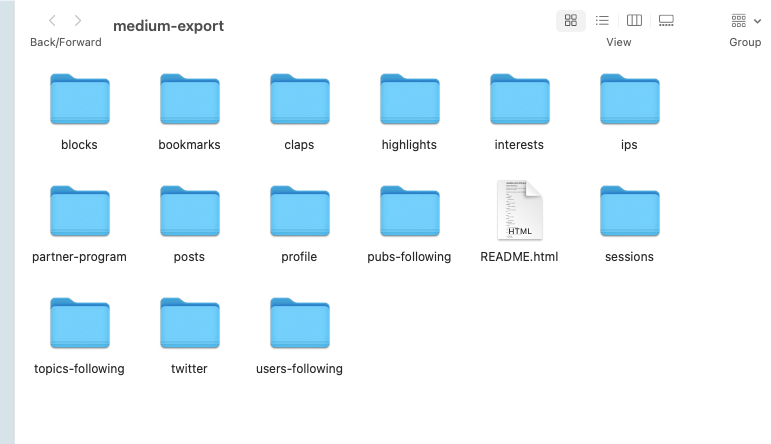
On the image above, most likely your folders will look like mine. That is what I mean that all activity from the time you started with Medium till to the current date you downloaded. Content of all information in a separate folder.
Step 4
Your articles can be seen on folders called “Post”.
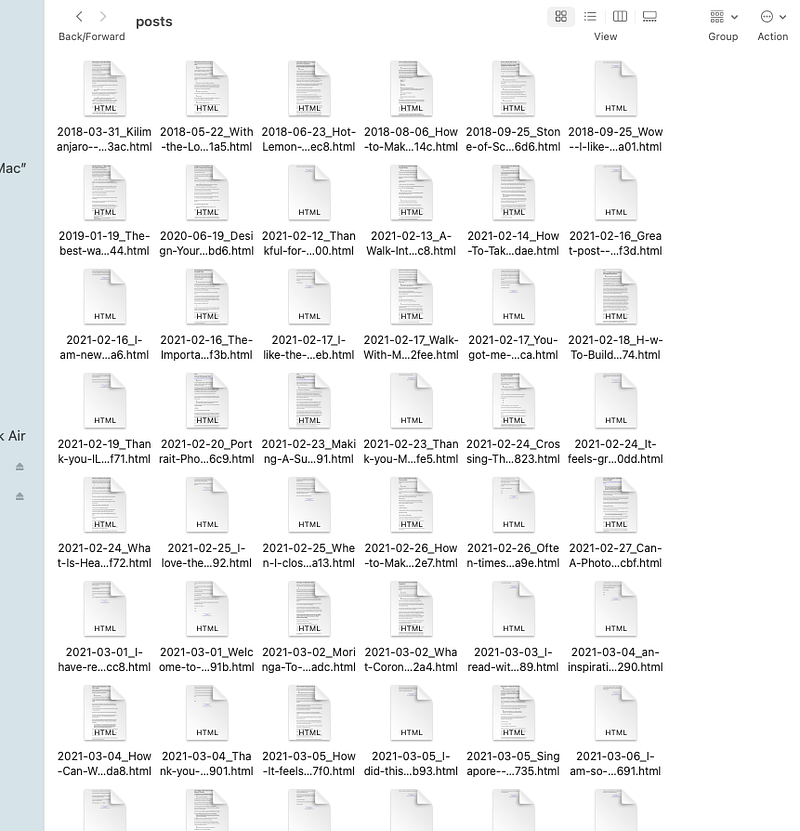
When you open the folder called “Post”, that is what you see. All posts you have written on Medium. Those are HTML files that you can easily Copy and Paste to your Word Press personal website.
Additionally, if you are not using WordPress personal website, in case you are using Blogger blog from Google which I also use to monetize all my content, you can do as well.
Step 5
Once you have that HTML file, you can keep on your computer. Post it anywhere you want.
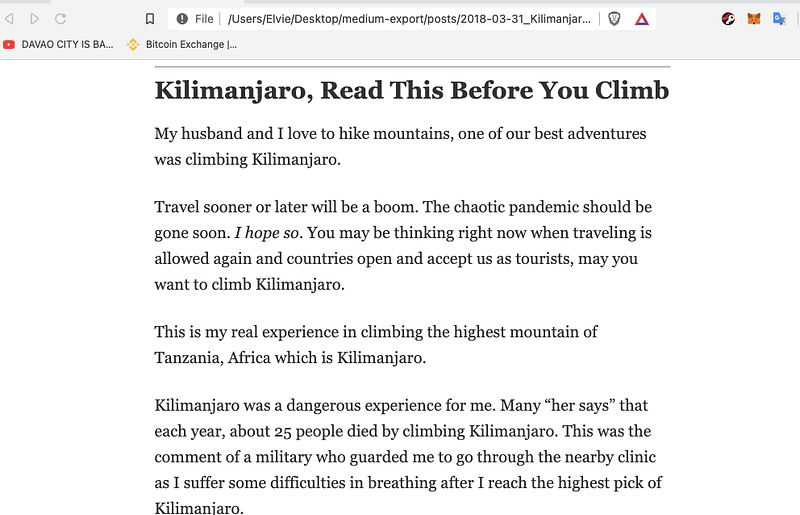
Example of an article from the HTML file I have downloaded.
Step 6
Copy and paste it over to Word Press.
In your WP Dashboard, go to Post — create new and a page like below should appear.
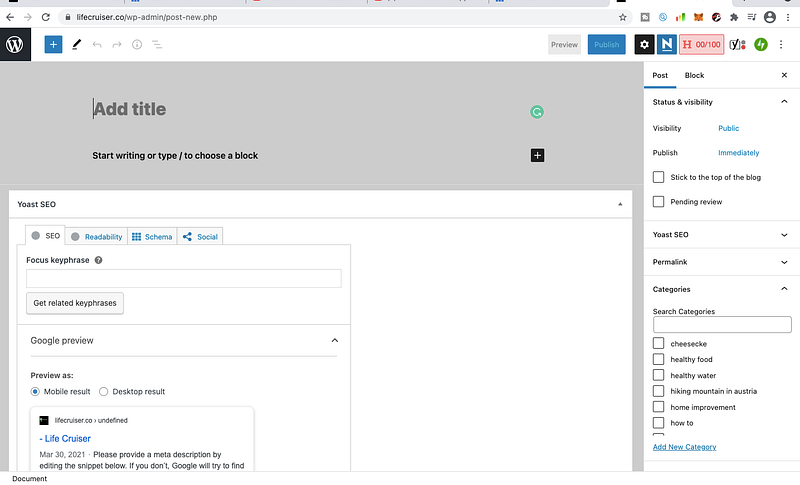
Paste it over the new open page, check your article, and making sure it is well aligned and in good order. Add your tags and categories or change the featured image.
Congratulations! You are now publishing that article.
My advice is that your article should be published first on Medium. Wait for 3 to 5 days at least before you can publish that article on your WordPress blog.
I am sharing this information as I face problems when I was doing mine over to WP.
My purpose in transferring articles over to WordPress is to get more exposure to my articles and of course to make more money.
Elvie Lins is a Singapore-based photographer. An educator, motivator to others. Covering articles related to true-to-life experiences. Create travel videos to be able to share her experiences that may provide and inspired others to do better in life.
I have written articles that may interest you:


