
5 Ways to Log an Object to the Console in JavaScript
Like all JavaScript developers, I love to use the console to inspect variables while I’m coding. Here are 5 methods to output an object’s keys and properties to the console window.

If you are like me, you’ve run into the issue of trying to log a JavaScript object or array directly to the console — but what’s the best way?
There is the argument that we should just use the debugger statement and inspect variables and objects in the Dev Tools’ debugger window.
But personally, when figuring out an algorithm or trying a new code syntax, I like to prototype quickly in the console. (Sue me! 🙂)
Here are 5 ways to log JavaScript objects directly to the console window.

Method 1 — Use console.log(object)
When developing in a browser, the console.log() method called with an object or objects as arguments will display the object or objects.
“The
Console methodlog()outputs a message to the web console. The message may be a single string (with optional substitution values), or it may be any one or more JavaScript objects.” — MDN Docs
Check out a code snippet using console.log(object):
And here is the screenshot resulting from that code:

console.log(object)That object’s properties can be further inspected by clicking the arrow at left:

console.log(object)Of course, not all JavaScript is developed in or can be debugged in browsers — so developers may be using alert() instead of console.log().
And alert(object) does not work the same way at all — it instead shows an alert that reads [object Object]:

alert(object)The next method discussed works for both console.log() and alert().

Method 2 — Use console.log(JSON.stringify(object))
A popular method discussed online for turning objects into JavaScript strings in order to inspect them is the JSON.stringify() method.
“The
JSON.stringify()method converts a JavaScript object or value to a JSON string, optionally replacing values if a replacer function is specified or optionally including only the specified properties if a replacer array is specified.” — MDN Docs
This is super useful if you need to substitute alert() for console.log().
Some useful tips and tricks are to use ,null,2 as additional arguments for nicely formatted indenting: console.log(JSON.stringify(obj,null,2)).
And, you can use a second argument to stringify to print only properties matching those keys: console.log(JSON.stringify(obj,["key"])).
Note that the object’s .toJSON() method will be called if it is present.
Here are a few code examples using console.log(JSON.stringify(object)):
And the screenshot resulting from those code examples:

console.log(JSON.stringify(object))JSON.stringify is great but not perfect
But watch out! JSON.stringify(object) only works with JSON-compatible data, which means certain value types can be lost.
Specifically, stringify only works for some primitives: booleans, numbers, strings, and null — but not undefined, functions, NaN, or Infinity.
Also, the stringify method also won’t work for many objects. For example, Date objects will be stringified, and RegExp objects will be simply lost.

Method 3 — Use console.dir(object)
While console.log() will work for objects, there is a method specifically meant for displaying objects to the console called console.dir().
“The
Console methoddir()displays an interactive list of the properties of the specified JavaScript object. The output is presented as a hierarchical listing with disclosure triangles that let you see the contents of child objects.
In other words,
console.dir()is the way to see all the properties of a specified JavaScript object in console by which the developer can easily get the properties of the object.” — MDN Docs
Check out this code example using console.dir(object):
And here is the resulting screenshot:
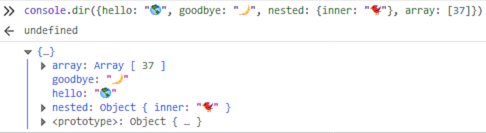
console.dir(object)Honestly, I have trouble telling the difference between console.dir(obj) and console.log(obj), at least in Firefox’s console, but both methods do exist.
Next, I cover a human-readable method meant to display tabular data.

Method 4 — Use console.table(object)
The lesser-known console feature console.table() is perfect for displaying object data in the console window.
“This function takes one mandatory argument
data, which must be an array or an object, and one additional optional parametercolumns.
It logs
dataas a table. Each element in the array (or enumerable property ifdatais an object) will be a row in the table.
The first column in the table will be labeled
(index). Ifdatais an array, then its values will be the array indices. Ifdatais an object, then its values will be the property names. Note that (in Firefox)console.tableis limited to displaying 1000 rows (first row is the labeled index).” — MDN Docs
Here is a code snippet using console.table(object):
And the resulting screenshot, showing the tabular formatting:

Personally, I really like console.table() for quick object inspection! 💖 💯

Method 5 — Use Object.entries(object)
The ES6 helper method Object.entries() can be called with an object as an argument, resulting in an array of key-value pairs.
“The
Object.entries()method returns an array of a given object's own enumerable string-keyed property[key, value]pairs, in the same order as that provided by afor...in loop. (The only important difference is that afor...inloop enumerates properties in the prototype chain as well).
The order of the array returned by
Object.entries()does not depend on how an object is defined. If there is a need for certain ordering, then the array should be sorted first, likeObject.entries(obj).sort((a, b) => b[0].localeCompare(a[0]));.” — MDN Docs
The resulting key-value array can be iterated through using a for...of loop, allowing for more customization in terms of outputting to the console.
Check out this code using Object.entries(object) and console.log():
Here is a screenshot of the resulting output:

Object.entries(object) and console.log()Note that before ES6, you had to use a for...in loop, as Object.entries() (and the related Object.keys() and Object.values()) are ES6 features:
Here is the resulting screenshot — it works the same as for..in:

console.log() inside a for...in loopAgain, you’ll want to explicitly use the var keyword — or let or const — because otherwise var will be implicitly declared in the global scope.
Another thing to note is that a for...in loop will loop through inherited properties (see this part of the MDN Docs) unless you check the Object.prototype.hasOwnProperty() method for each property.
The methods Object.entries(), Object.keys(), Object.values() and Object.getOwnProperties() do not loop through inherited properties.
Of course, developers who need support for Internet Explorer can just use Babel as a polyfill instead of memorizing old code patterns. 😁

Conclusion
Every JavaScript programmer has probably output an object to the browser’s JavaScript console using console.log() at some point.
However, there are many other ways to achieve the same result — including console.dir() and my personal favorite, console.table().
The console.log(JSON.stringify(obj)) method can be useful for logging the object to the console as string, as long as the data in the object is JSON-safe.
For complex objects, the method Object.entries(obj) is a way of looping through an object that can be used to log the object to the console.
When developing outside of a browser, you may prefer to use alert() — in which case alert(JSON.stringify(obj)) and Object.entries using alert() will be the best choices to log the contents of the object inside the alert.
Whatever method you use, it is a useful skill to master the JavaScript console in order to speed up your development process. Happy coding! 💻🏆🙌

Further reading
- Flavio Copes reviews several methods of inspecting objects on his blog:
- John Au-Yeung discusses console debugging in Level Up Coding:
- Alligator.io covers console tips and tricks in their article on the subject:
- Darryl Pargeter explains the console in-depth at freeCodeCamp.org:
- Zell Liew offers a variety of ways to loop through JS objects on his blog:

Dr. Derek Austin is the author of Career Programming: How You Can Become a Successful 6-Figure Programmer in 6 Months, now available on Amazon.


