avatarPrateek Singh

Free AI web copilot to create summaries, insights and extended knowledge, download it at here

3216

Abstract

“id”:”1002",”type”:”<span class="hljs-type">Chocolate</span>”},{“id”:”1003",”type”:”<span class="hljs-type">Blueberry</span>”},{“id”:”1004",”type”:”<span class="hljs-type">Devil</span>’s <span class="hljs-type">Food</span>”}]},”topping”:[{“id”:”5001",”type”:”<span class="hljs-type">None</span>”},{“id”:”5002",”type”:”<span class="hljs-type">Glazed</span>”},{“id”:”5005",”type”:”<span class="hljs-type">Sugar</span>”},{“id”:”5007",”type”:”<span class="hljs-type">Powdered</span> <span class="hljs-type">Sugar</span>”},{“id”:”5006",”type”:”<span class="hljs-type">Chocolate</span> with <span class="hljs-type">Sprinkles</span>”},{“id”:”5003",”type”:”<span class="hljs-type">Chocolate</span>”},{“id”:”5004",”type”:”<span class="hljs-type">Maple</span>”}]}</pre></div><p id="edea">It is difficult to find the <i>name </i>key in the log as there is a lot of useless info displayed on the console. When the object grows bigger, difficulty increases. The 2nd argument of stringify function comes into the rescue. Let’s rewrite the code again & see the result.</p><div id="a2f5"><pre>console.<span class="hljs-built_in">log</span>(JSON.stringify(<span class="hljs-built_in">product</span>,[‘<span class="hljs-keyword">name</span>’]);</pre></div><div id="e02e"><pre><span class="hljs-comment">//RESULT</span> <span class="hljs-punctuation">{</span><span class="hljs-attr">"name"</span> <span class="hljs-punctuation">:</span> <span class="hljs-string">"Cake"</span><span class="hljs-punctuation">}</span></pre></div><p id="340d">Problem solved, instead of printing the whole JSON object we can print only the required key by passing it as an array in the 2nd argument.</p><h1 id="e151">2: The second argument (Function)</h1><p id="53da">We can also pass a 2nd argument as a function. It evaluates each key-value pair according to the logic written in the function. If you return <code>undefined</code> the key-value pair will not print. See this example for a better understanding.</p><div id="38f0"><pre>const <span class="hljs-keyword">user</span> <span class="hljs-title">= { “name</span>” : “Prateek Singh”, “age” : <span class="hljs-number">26</span> }</pre></div><figure id="c7e2"><img src="https://cdn-images-1.readmedium.com/v2/resize:fit:800/1*V3EQcCdgRLDish8PkY0s5A.png"><figcaption>Passing function as 2nd argument</figcaption></figure><div id="af6b"><pre><span class="hljs-comment">// Result</span> <span class="hljs-punctuation">{</span> <span class="hljs-attr">"age"</span> <span class="hljs-punctuation">:</span> <span class="hljs-number">26</span> <span class="hljs-punctuation">}</span></pre></div><p id="3850">Only <code>age</code> is printed as our function condition return <code>undefined</code> for the value <code>typeOf</code> String.</p><h1 id="1a24">3: The third argument as Number</h1><p id="f5cb">The third argument controls the spacing in the final string. If the argument is a <b>number</b>, each level in the stringification will be indented with this number of space characters.</p><div id="2b8b"><pre><span class="hljs-symbol">Note:</span> <span class="hljs-comment">'--' represnts the spacing for understanding purpose</span></pre></div><div id="eed9"><pre>JSON.stringify(user, null,

Options

<span class="hljs-number">2</span>); <span class="hljs-regexp">//</span>{ <span class="hljs-regexp">//</span>--<span class="hljs-string">"name"</span>: <span class="hljs-string">"Prateek Singh"</span>, <span class="hljs-regexp">//</span>--<span class="hljs-string">"age"</span>: <span class="hljs-number">26</span>, <span class="hljs-regexp">//</span>--<span class="hljs-string">"country"</span>: <span class="hljs-string">"India"</span> <span class="hljs-regexp">//</span>}</pre></div><h1 id="727e">4: The third argument as String</h1><p id="af8d">If the third argument is a <b>string</b>, it will be used instead of the space character as displayed above.</p><div id="df61"><pre>JSON.stringify(user, null,<span class="hljs-string">''</span>); <span class="hljs-regexp">//</span>{ <span class="hljs-regexp">//</span><span class="hljs-string">"name"</span>: <span class="hljs-string">"Prateek Singh"</span>, <span class="hljs-regexp">//</span><span class="hljs-string">"age"</span>: <span class="hljs-number">26</span>, <span class="hljs-regexp">//</span><span class="hljs-string">"country"</span>: <span class="hljs-string">"India"</span> <span class="hljs-regexp">//</span>} Here * replace the space character.</pre></div><h1 id="5a07">5: The toJSON method</h1><p id="df4c">We have one method named <code>toJSON</code> which can be a part of any object as its property. <code>JSON.stringify</code> returns the result of this function and stringifies it instead of converting the whole object into the string. See this example.</p><div id="33ef"><pre><span class="hljs-keyword">const</span> user = { firstName : <span class="hljs-string">"Prateek"</span>, lastName : <span class="hljs-string">"Singh"</span>, age : <span class="hljs-number">26</span>, <span class="hljs-title function_">toJSON</span>(<span class="hljs-params"></span>) { <span class="hljs-keyword">return</span> { <span class="hljs-attr">fullName</span>: <span class="hljs-string"><span class="hljs-subst">${<span class="hljs-variable language_">this</span>.firstName}</span> + <span class="hljs-subst">${<span class="hljs-variable language_">this</span>.lastName}</span></span> };</pre></div><div id="1aee"><pre>}</pre></div><div id="4615"><pre>console.log(<span class="hljs-type">JSON</span>.stringify(<span class="hljs-keyword">user</span>));</pre></div><div id="3279"><pre>RESULT <span class="hljs-regexp">//</span> <span class="hljs-string">"{ "</span>fullName<span class="hljs-string">" : "</span>Prateek Singh<span class="hljs-string">"}"</span></pre></div><p id="c435">Here we can see instead of printing the whole object, it only prints the result of <code>toJSON</code> function.</p><p id="bc80">I hope you learned some awesome features of our little friend <code>stringify()</code> .</p><p id="3237">If you find this article useful, please hit the ‘clap’ button and follow me with more exciting articles like this. And get more similar content by <a href="https://www.youtube.com/channel/UCtipWUghju290NWcn8jhyAw?sub_confirmation=true"><b>subscribing to our YouTube channel</b></a><b>!</b></p><p id="20a4" type="7">Thanks For Reading</p><p id="9aae" type="7">Happy Coding || Write 2 Learn</p></article></body>

5 Secret features of JSON.stringify()

Credits: Kirmeli.com

The JSON. stringify() method converts a JavaScript object or value to a JSON string.

Being a JavaScript developer, JSON.stringify() is the most common functions used for debugging. But what is the use of this, can’t we use our friend console.log() alone for the same? Let’s give it a try.

//Initialize a User object
const user = {
 “name” : “Prateek Singh”,
 “age” : 26
}
console.log(user);
RESULT
// [object Object]

Oops! console.log() didn’t help us print the desired result. It prints [object Object] because the default conversion from an object to string is “[object Object]”. So we use JSON.stringify() to first convert the object into a string and then print in the console, like this.

const user = {
 “name” : “Prateek Singh”,
 “age” : 26
}
console.log(JSON.stringify(user));
RESULT
// "{ "name" : "Prateek Singh", "age" : 26 }"

Generally, developers use this stringify function in a simple way as we did above. But I am gonna tell you some hidden secrets of this little gem which will make your life easy.

1: The second argument (Array)

Yes, ours stringify function can have a 2nd argument also. It’s an array of keys to the object which you want to print in the console. Look simple? Let’s take a closer look. We have an object product & we want to know the name of the product. When when we print it as: console.log(JSON.stringify(product)); it gives the below result.

{“id”:”0001",”type”:”donut”,”name”:”Cake”,”ppu”:0.55,”batters”:{“batter”:[{“id”:”1001",”type”:”Regular”},{“id”:”1002",”type”:”Chocolate”},{“id”:”1003",”type”:”Blueberry”},{“id”:”1004",”type”:”Devil’s Food”}]},”topping”:[{“id”:”5001",”type”:”None”},{“id”:”5002",”type”:”Glazed”},{“id”:”5005",”type”:”Sugar”},{“id”:”5007",”type”:”Powdered Sugar”},{“id”:”5006",”type”:”Chocolate with Sprinkles”},{“id”:”5003",”type”:”Chocolate”},{“id”:”5004",”type”:”Maple”}]}

It is difficult to find the name key in the log as there is a lot of useless info displayed on the console. When the object grows bigger, difficulty increases. The 2nd argument of stringify function comes into the rescue. Let’s rewrite the code again & see the result.

console.log(JSON.stringify(product,[‘name’]);
//RESULT
{"name" : "Cake"}

Problem solved, instead of printing the whole JSON object we can print only the required key by passing it as an array in the 2nd argument.

2: The second argument (Function)

We can also pass a 2nd argument as a function. It evaluates each key-value pair according to the logic written in the function. If you return undefined the key-value pair will not print. See this example for a better understanding.

const user = {
 “name” : “Prateek Singh”,
 “age” : 26
}
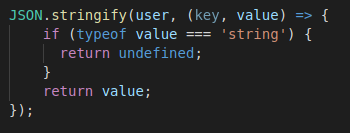
Passing function as 2nd argument
// Result
{ "age" : 26 }

Only age is printed as our function condition return undefined for the value typeOf String.

3: The third argument as Number

The third argument controls the spacing in the final string. If the argument is a number, each level in the stringification will be indented with this number of space characters.

Note: '--' represnts the spacing for understanding purpose
JSON.stringify(user, null, 2);
//{
//--"name": "Prateek Singh",
//--"age": 26,
//--"country": "India"
//}

4: The third argument as String

If the third argument is a string, it will be used instead of the space character as displayed above.

JSON.stringify(user, null,'**');
//{
//**"name": "Prateek Singh",
//**"age": 26,
//**"country": "India"
//}
Here * replace the space character.

5: The toJSON method

We have one method named toJSON which can be a part of any object as its property. JSON.stringify returns the result of this function and stringifies it instead of converting the whole object into the string. See this example.

const user = {
 firstName : "Prateek",
 lastName : "Singh",
 age : 26,
 toJSON() {
    return { 
      fullName: `${this.firstName} + ${this.lastName}`
    };
}
console.log(JSON.stringify(user));
RESULT
// "{ "fullName" : "Prateek Singh"}"

Here we can see instead of printing the whole object, it only prints the result of toJSON function.

I hope you learned some awesome features of our little friend stringify() .

If you find this article useful, please hit the ‘clap’ button and follow me with more exciting articles like this. And get more similar content by subscribing to our YouTube channel!

Thanks For Reading

Happy Coding || Write 2 Learn

JavaScript
Programming
Web Development
React
Angular
Recommended from ReadMedium