
GoodNotes is the Best App for Your Interactive Planner
…So why did I choose Noteshelf instead?
GoodNotes is an excellent choice for interactive digital planners, but it has some sticking points that might find you looking elsewhere, as I did.
Now that I think about it, the rebel in me may have been looking for a reason to steer away from this unofficially crowned king of the handwritten notes apps. To boldly explore and conquer exciting, unfamiliar territory!
But let’s start at the beginning. Here are 5 reasons to choose — or stick with — GoodNotes for your planner.
🥳 1. Elements (built-in sticker collections)
This is a new feature, and it’s blown my mind into beautiful chunks of graphic-powered balls of bliss. I LOVE IT.
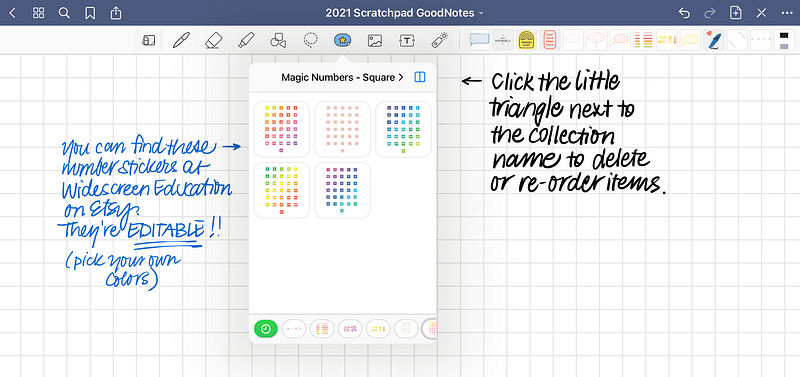
Elements is a built-in sticker catalog that you can add images and graphics to, in tidy collections. This is ideal for decorating planners, and super-cool for teaching online! Add some cute Etsy sticker purchases, or create your own.
At first, I couldn’t see how to delete unwanted elements, so if you’re in that boat too you’ll be glad to learn there is a way. Click on a collection of elements, then click on the right-pointing arrow next to its name. That will bring up all the elements within that collection, and you’ll be able to delete, add to, or reorder them.
Exciting tip: I’ve discovered there’s now a range of editable stickers available for GoodNotes! This is a game-changer!! These babies not only give you practical shapes and pictures to work with, they also allow you to infinitely adjust the colour of the border and fill to match your style.
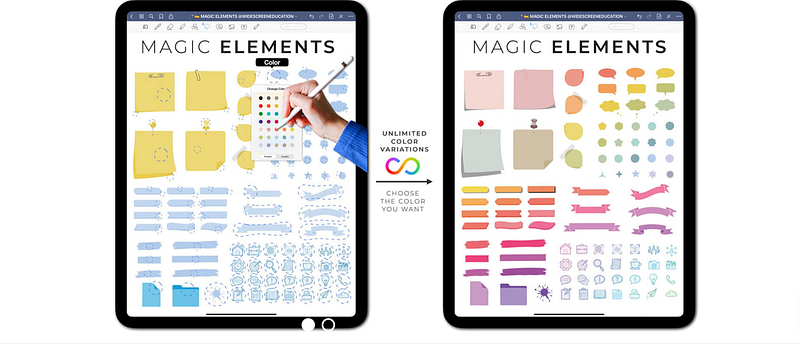
The Magic Number stickers are perfect for setting up an undated interactive planner, like the Teacher’s Weekly Planner that I’ve been selling for many years in hardcopy form. Next year will be our second year with an interactive version of this planner, and I’m happy to recommend these stickers to people looking for an attractive, time-saving alternative to those bundled with our digital book. (external link)
The creator of these “Magic” stickers is a teacher himself, and uses them daily. Check out the range on his Etsy store. Disclosure: No affiliate links, but I did receive a free copy of a range of Magic Elements stickers for review purposes.
🥳 2. Ease of dragging in images and files
GoodNotes uses the awesome split-screen feature on the iPad to its full advantage. It’s very quick and easy to pull up a folder of files or images, and drag them straight onto the page, or as a new file.
There’s not much more to say about this feature. It works, and it’s something I very much wish Noteshelf could do.
🥳 3. Adjustable line spacing
Out of the big three, Notability, Noteshelf and GoodNotes, the latter is the only one that allows granular control over line spacing. It’s ideal for typing out lists to fit the space your planner has allowed, rather than entering each list item in a separate text block.
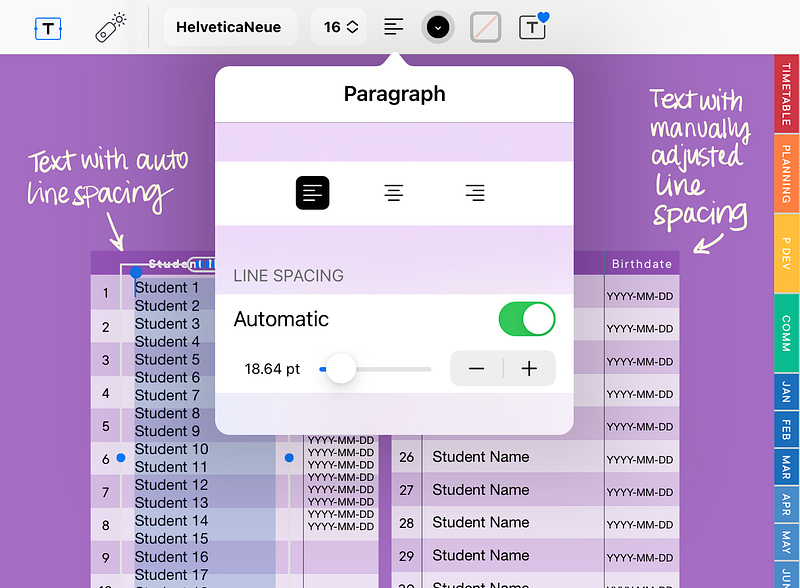
Well done, GoodNotes! This is a feature every app should have. A workaround for Notability and Noteshelf would be to fill in the names in your favorite PDF editing software before importing the interactive file, or in GoodNotes, before exporting the file as a PDF and importing it into your app of choice.
I’d like to see GoodNotes allow direct editing of the line spacing—ie. let us type in the number—as it’s too difficult to move the slider accurately in tiny increments by hand The plus/minus buttons get the job done, but they’re a painfully slow way to make changes.
🥳 4. Page thumbnail view shows many pages at once and allows for document outlines
I didn’t realise what a great feature this was until I moved away from GoodNotes. A 16-spread scrollable grid is an efficient way of displaying pages, much preferable in my opinion to a single scrollable column where you can only see 6 or 7 pages at a time.
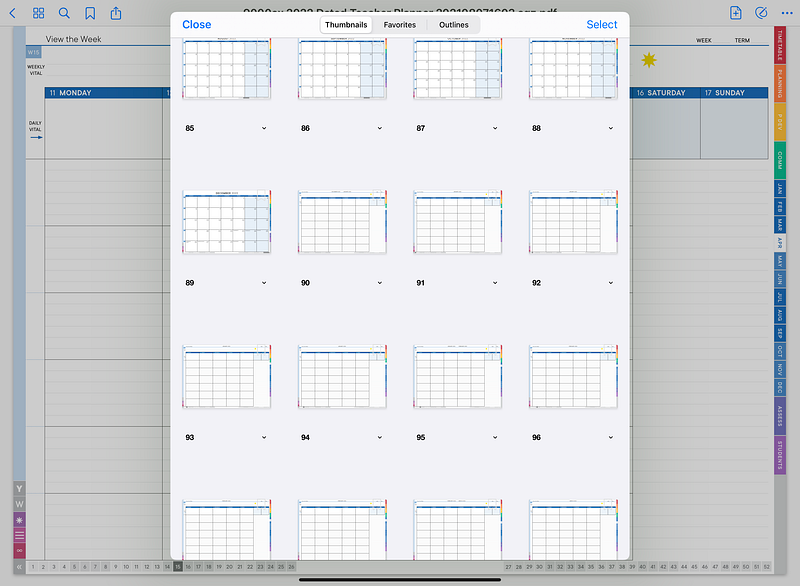
The more expansive view makes it quicker and easier to find specific pages where you may have used a particular graphic or some other unsearchable element.
Notability shows bookmarked pages, Noteshelf shows bookmarked pages and the PDF table of contents (if there is one), but only GoodNotes allows you to create your own outline of important pages, separate and in addition to bookmarks.
I tend to use bookmarks to define the start and end of terms, plus important dates. Outlines are more for revisiting information recorded on significant past dates that I’ll need to access again; a bit like the index page in a Bullet Journal.
🥳 5. Better selection tool
In my opinion, the lasso tool in GoodNotes is superior to that of both Noteshelf and Notability, though the latter comes a close second. GoodNotes has toggles for selecting or ignoring text boxes, images, and the highlighter, in any combination.
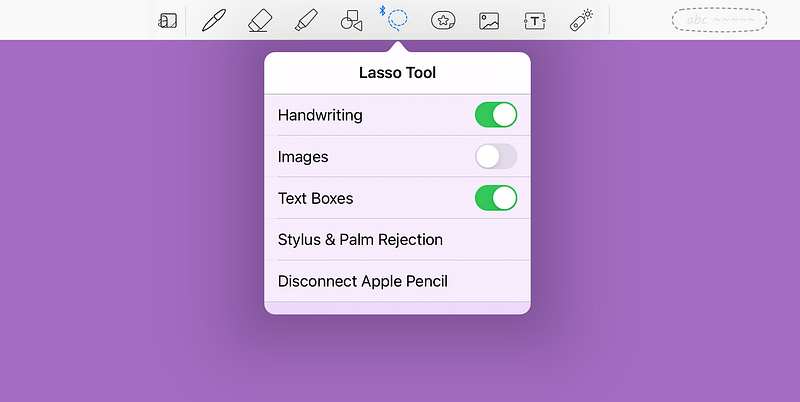
This is essential for moving, resizing or changing the color of various elements of your digital page. It’s definitely something else I’d like Noteshelf to implement, but not a dealbreaker.
Are you convinced? Is GoodNotes the perfect app for your planner? After all, some of the most beautifully designed interactive planners have been designed specifically for GoodNotes, so it makes sense to join the GN club.
Here are four things to be aware of before committing, in case they’re dealbreakers for you.
😞 1. No user-added clickable URLs / Internal links aren’t responsive in edit mode
Dear GoodNotes, would it be so hard to let the links I paste into my lesson plans be live URLs??
Elementary stuff, I’d have thought, but it’s not something GoodNotes has chosen to implement. Yet. Both Notability and Noteshelf have clickable user-added URLs.
Internal links in GoodNotes can be opened in edit mode, but it’s a multi-step process instead of a quick tap and off you go. To open an internal link (like a planner tab, or a week or day on a month page) while GoodNotes is in edit mode you’ll need to long-press on the link, then tap Open Link.
Select the pencil icon in the top right corner of GoodNotes to exit edit mode, and you’ll find internal links are lightning-fast. As they should be—all the time. They’re probably even faster than in Noteshelf, but it’s a right royal pain to have to exit edit mode each time I want to experience that responsiveness.
😞 2. Drawing and writing tools are inferior
Look, the pen tools in GoodNotes are pretty good. No real complaints. Their fountain pen is lovely, the brush pen is wonderful for modern calligraphy, and they even give you some control over pressure sensitivity and tip sharpness.
The problem is that since I’ve become used to the superior drawing tools in Noteshelf, I just don’t want to go back! Their pencil tool is the clincher. That tool alone is what keeps me away from GoodNotes as my everyday planner app. If you love handwriting and sketching, give it a try and see if you feel the same way.
😞 3. Only 3 saved writing tools
GoodNotes is really behind the 8-ball here. Both Notability and Noteshelf have a favorites bar where you can store the type, width and colors of your favorite writing tools and highlighters.
GoodNotes only offers three, stored on the toolbar. That’s less than a third of the much more flexible solutions offered by their competitors.
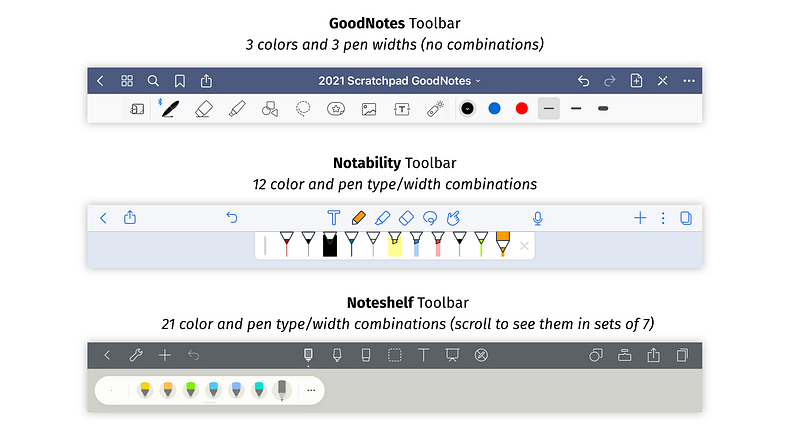
When you have a color-coded system for marking your planner and you have more than one favorite writing tool profile, those slots will be filled very quickly. Please listen to your users, GoodNotes! Three slots are simply not enough.
😞 4. No ability to lock images
Noteshelf can do this, and it opens up a whole new world of interacting with images and screenshots!
One use case is the year summary page in our undated teacher’s planner. We provide a free download for the current year with matching colors, ready to import and place on the hyperlinked year page. Without the ability to lock the imported image, you’ll lose the ability to draw on the image without accidentally moving it 50 times a minute.
In GoodNotes you can import the current calendar as a new page in the document, but you’ll lose the handy direct link.
Summary and Final Thoughts
Here’s a truth pill: there is no “best app” for a handwritten, digital interactive planner. There are only varying feature sets that either will or won’t meet your needs.
Reasons to choose GoodNotes:
- Elements (stickers on steroids)
- Ease of dragging in images and files
- Adjustable line spacing
- Page thumbnails show many pages at once and allow for document outlines
- Better selection tool
Reasons to choose something else:
- No user-added clickable URLs, and internal links aren’t instantly clickable in edit mode
- Drawing and writing tools are inferior to Noteshelf
- Only three saved colors and line widths
- No ability to lock images
As a designer who loves handwriting and sketching, my recommended alternative to GoodNotes is Noteshelf. That’s what I’ll be continuing to use, despite the wonderful new features GoodNotes has come out with.
This is almost solely because of Noteshelf’s superb writing tools — especially the pencil. They are a delight to use on my iPad Pro 12.9 inch (complete with Paperlike screen protector) with the silky smooth Apple Pencil.
I could have lived with the other cons, but I’m not willing to compromise on the superior writing and drawing experience that Noteshelf offers. You might be interested to hear that I haven’t found a better app for teaching online than GoodNotes, so I’ll be continuing to use it for all my Zoom classes.
Still not sure if GoodNotes is—or isn’t—the one you’re looking for? Try listing everything you expect an app to allow you to do in your interactive planner, then separate the must-haves from the nice-to-haves. You’ll soon hear the best app for you calling your name.
Any one of the Big Three — GoodNotes, Notability and Noteshelf — would be a great choice for an interactive planner. Click below to read more about why you might choose one over the other if a superb drawing and handwriting experience is high on your list of priorities.