
Python Setup on Windows: Python Complete Course — Part 4

Before we start let me tell you that:
· This article is a part of the Python Complete Beginner to Expert Course which you can find it here.
· This article is also available as a YouTube video here.
Introduction
To start learning Python, you should get Python installed on your machine. Also, you need an editor to write and run your code.
If you are a Windows user this article is for you. The following articles are for Linux and macOS users.
This article will cover the following outlines:
1. Python Setup on Windows
To get Python on your Windows follow these steps:
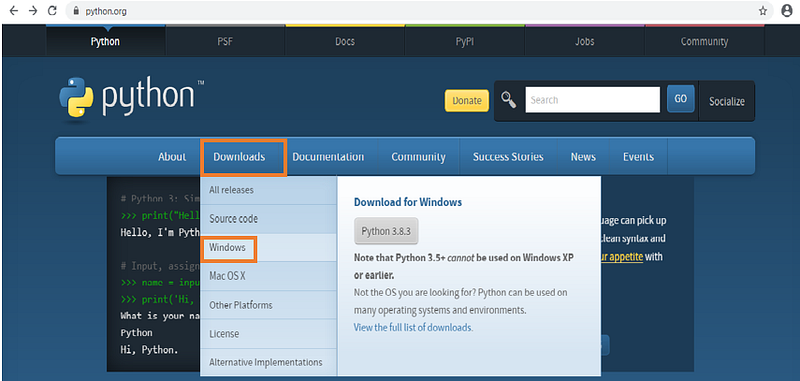
- Go to the official Python site Python.org and select Windows from the Downloads dropdown menu. I will use version 3.6. in this article but, please feel free to pick your versions. Refer to Figure 1.
2. Then, select the Python release and download Windows x86–64 executable installer (amd64.exe file). If you use a machine with 32 bits only, you have to select the one with X86 only.
3. Once the amd64.exe file has been downloaded on your computer, open the downloaded file.
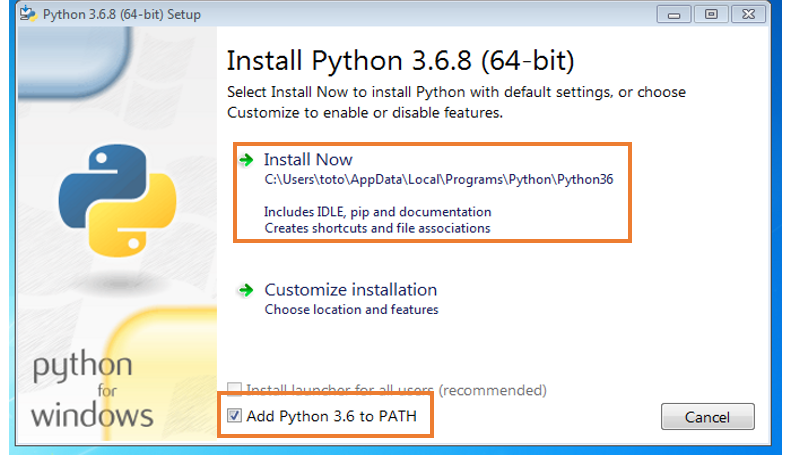
Now you can see the installation wizard install Python on your computer. Click on Install Now in the setup window after you check the option “Add Python 3.6 to PATH”. Refer to Figure 2.
4. After the setup progress is completed, click close. Refer to Figure 3.

Now, the wizard has successfully installed Python on your computer.
To make sure that everything went OK :
- Open the command prompt ‘cmd’ from the Start menu.
- Type:
python –versionClick enter to run the command.
3. If you find Python 3.6.8, that means you are ready now to use Python. Refer to Figure 4.

4. To exit from the interpreter, type Ctrl + Z.
Let’s move on and install PyCharm IDE.
2. PyCharm Setup on Windows

Simply, follow the steps:
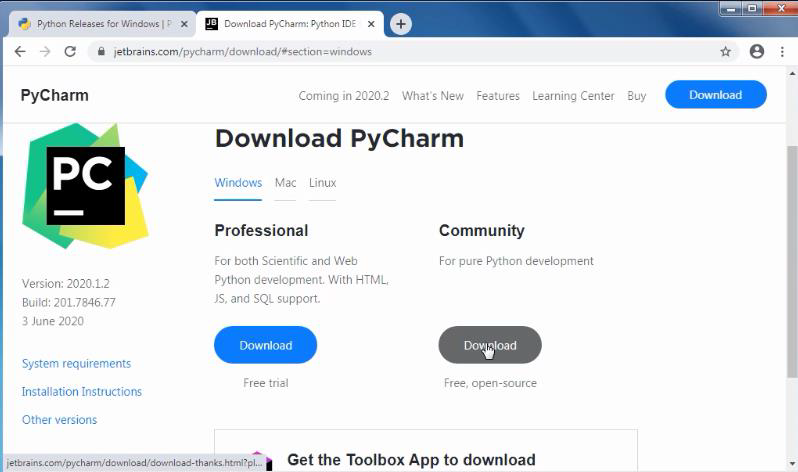
- Visit the PyCharm download page from your Internet browser.
- Select the Community version then click download. Refer to Figure 5.
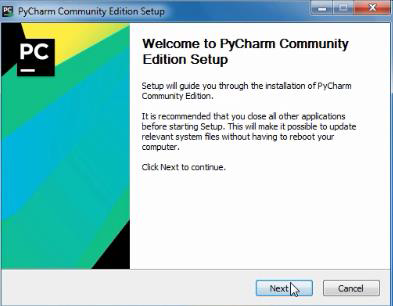
3. Once the exe file has been downloaded on your computer, open the downloaded file and click Next. Refer to Figure 6.
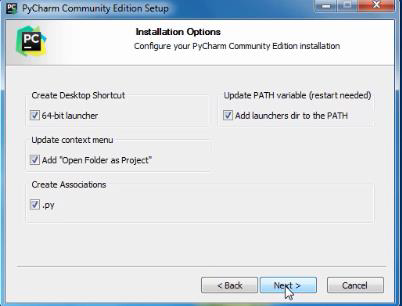
4. Click another Next after you choose the installation location. Refer to Figure 7. Do not forget to check your installation options by selecting these options:
- Create a desktop shortcut.
- Add launcher directory to the PATH.
- Add “open folder as project”.
- Create association.
Then click Next — Install.
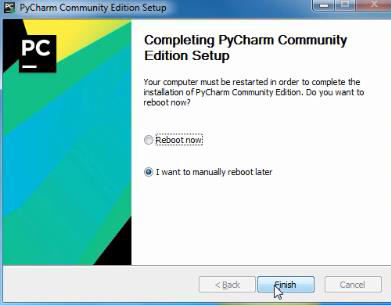
5. Once it’s completed, it will ask you to reboot your device or not. It’s not a problem to reboot, later on, then click Finish. Refer to Figure 8.
6. Next, you will find a PyCharm on your desktop. Double-Click to open the program.
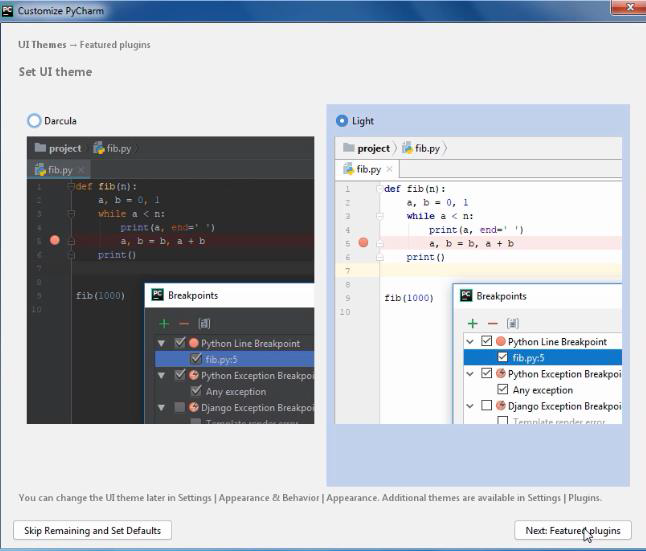
7. After that, you can choose which theme you want to use (Dracula theme which is a dark or light theme). Refer to Figure 9.
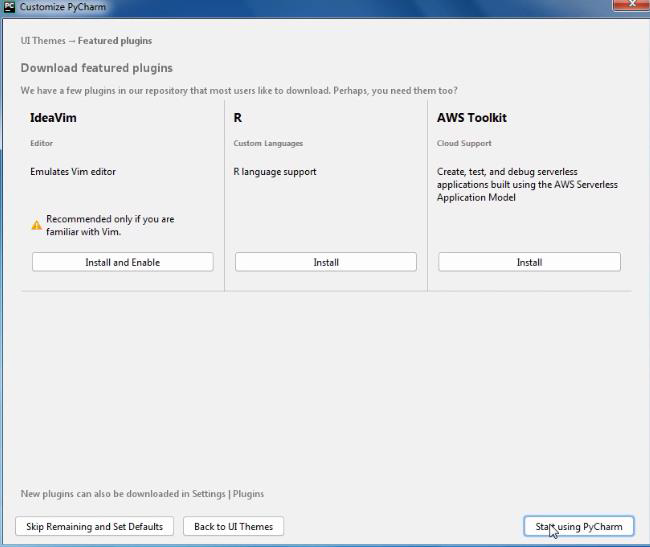
8. Finally, you can download and install any of the PyCharm plugins or skip that. Click Start using PyCharm to create your first project. Refer to Figure 10.
Congratulations! You can start coding on your computer…
Now, let us summarize what we have learned in this article:

In this article we have talked about:
- How to Setup Python on Windows.
- How to Setup Pycharm IDE on Windows.
P.S.: A million thanks for your time reading my story. Before you leave let me mention quickly two points:
- First, to get my posts in your inbox directly, would you please subscribe here, and you can follow me here.
- Second, writers made thousands of $$ on Medium. To get unlimited access to Medium stories and start earning, sign up now for Medium membership which only costs $5 per month. By signing up with this link, you can directly support me at no extra cost to you.
To get back to the previous article, you can use the following link:
To move on to the next article, you can use the following link:


