
How to Embed a Monaco Editor in a React App
An editor that supports 78 languages, with syntax highlighting, autocompletion, autocorrection, etc.

Introduction
The Monaco Editor is a browser-based code editor provided by Microsoft. It is licensed under the MIT License and is supported in Edge, Chrome, Firefox, Safari, and Opera, but it is not supported in mobile browsers or web frameworks. The Monaco Editor powers Visual Studio Code, an influential IDE for Windows, Linux, and macOS.
Currently, the Monaco Editor supports 78 languages, with syntax highlighting, autocompletion, autocorrection, and many more advanced features. It can be used to create an IDE as sophisticated as Visual Studio Code or as code to display a tool in web applications.
A React app can deploy monaco-editor directly or import some React-wrapped packages. There are two popular packages, @monaco-editor/react and react-monaco-editor.
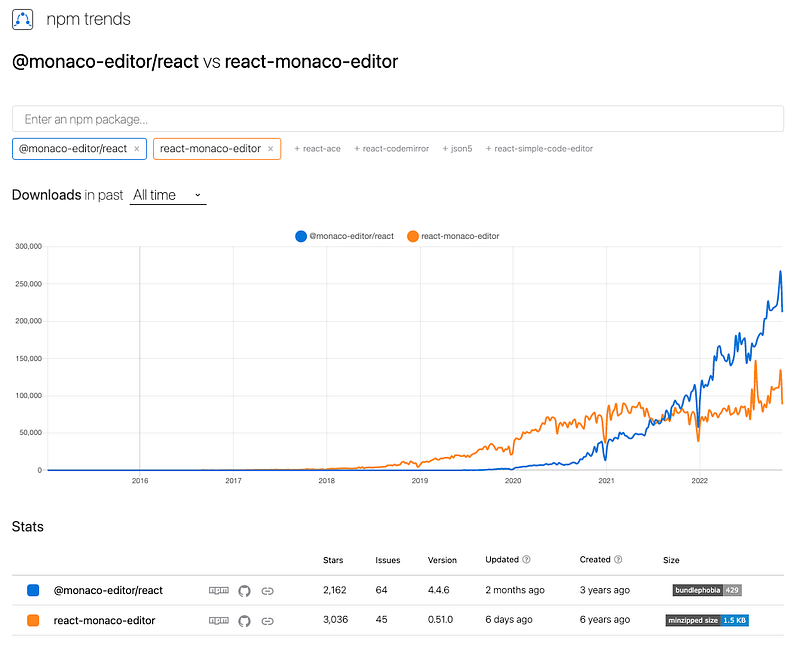
react-monaco-editor has been available for six years, with 3,036 stars. It has been very actively managed. It requires webpack changes, which is inconvenient for some applications, such as Create React App.
@monaco-editor/react has been available for three years, with 2,162 starts. It has been fairly actively managed. The appeal of this package is that it does not need any changes besides installing the package itself. An app like Create React App does not require the app to be ejected or rewired. By default, it uses CDN to download monaco-editor. However, importing monaco-editor as an npm package may require additional webpack plugins, like monaco-editor-webpack-plugin.
At this moment, @monaco-editor/react is more popular. We will take it as a base to embed a Monaco Editor inside Create React App.
Dependencies in @monaco-editor/react
@monaco-editor/react is a Monaco Editor for React. It uses monaco-editor in a React application without needing to set up plugins or modify configuration files for webpack, rollup, parcel, or any bundler.
The Monaco Editor provides a script called loader, which supplies tooling to download monaco sources. The library, called @monaco-editor/loader, handles the configuration and loading part. It also provides easy-to-use APIs to interact with. With the help of loader, it takes one line of code to embed a Monaco Editor.
Here is package.json of @monaco-editor/react:
- At line 22, it declares a dependency,
@monaco-editor/loader, which will be installed tonode_modules. - At lines 14 and 15, it declares
peerDependencies ofreactandreact-dom. ApeerDependencydeclares the compatible version of the package. If thepeerDependencyalready exists innode_moduleswith the right version, nothing will happen. Otherwise, the installation shows a warning. - At line 13,
@monaco-editor/reactis also declared as apeerDependency. If it does not exist, the installation will show the following warning.
warning " > @monaco-editor/[email protected]" has unmet peer dependency "monaco-editor@>= 0.25.0 < 1".The code works without @monaco-editor/react. But it works without TypeScript definitions for monaco-editor. If you want to have type definitions handy, monaco-editor needs to be installed.
Set Up The Working Environment
We are going to embed a Monaco Editor into the Create React App. The following command creates a React project:
% yarn create react-app react-monaco-editor
% cd react-monaco-editor
We install @monaco-editor/react and monaco-editor.
% yarn add @monaco-editor/react monaco-editorAfter the installation, these packages become part of dependencies in package.json:
"dependencies": {
  "@monaco-editor/react": "^4.4.6",
  "monaco-editor": "^0.34.1"
}
The work environment is ready.
Embed a Monaco Editor Inside React App
Indeed, it takes one line of code to use the Monaco Editor if the import line does not count.
Here is the modified src/App.js:
- At line 1,
Editoris imported from'@monaco-editor/react'. - At line 5, the Monaco Editor is created with
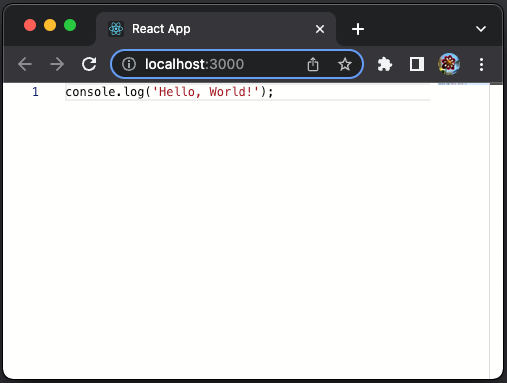
100%view height (vh). It specifies thatlanguageisjavascript, andvalueisconsole.log('Hello, World!');.
Execute yarn start, and the Monaco Editor is embedded in the React app, with predefined content.
IntelliSense Capabilities and Supporting Languages
Try to remove some characters in the above editor, and it shows a validation message: Unterminated string literal.
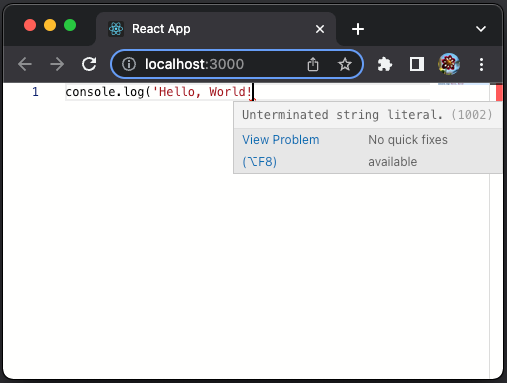
Yes, the editor has validation capability.
IntelliSense is a general term for various code editing features including code completion, parameter info, quick info, and member lists. IntelliSense features available in Visual Studio Code are also available in the Monaco Editor. Out of the box, IntelliSense is ready for typescript, javascript, css, less, scss, json, and html.
Currently, the Monaco Editor supports 78 languages, which are imported in monaco.contribution.ts. The list continues growing as time goes on.
Monaco Editor Options
The default editor is editable with line numbers. Let’s provide a longer code to be embedded in src/App.js:
- At lines 4–29,
valueis assigned with the content of the originalsrc/App.js. - At line 32,
valueis displayed in the editor.
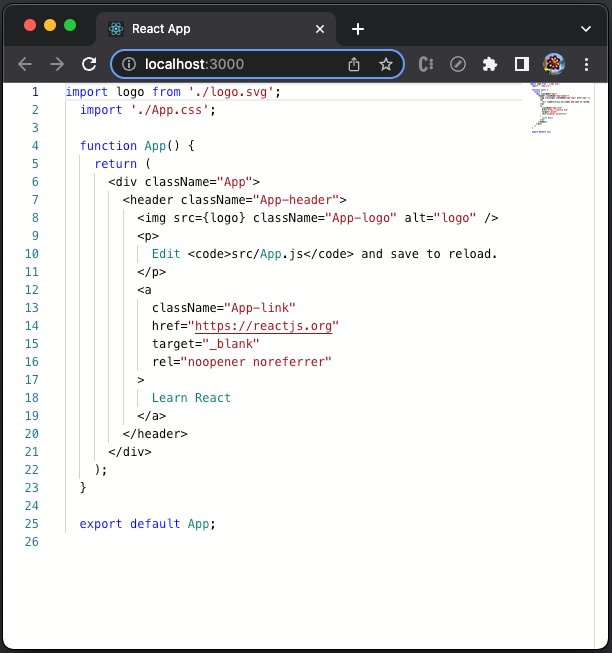
Execute yarn start, and the Monaco Editor shows line numbers. If you try to modify the code, it is editable.
Add the prop, options, to the editor.
<Editor
  height="100vh"
  language="javascript"
  value={value}
  options={{ readOnly: true, lineNumbers: 'off' }}
/>
The editor becomes read-only without line numbers.
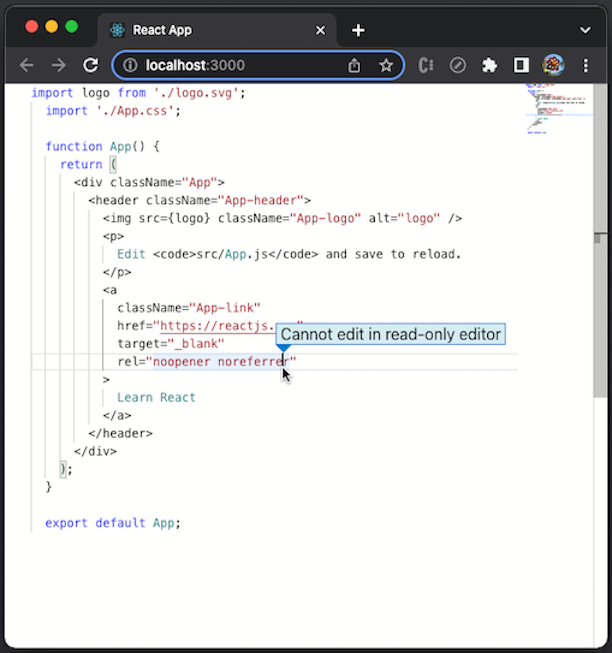
Besides readonly and lineNumbers, there are many options in the interface, IEditorOptions.
Fetch a File to a Monaco Editor
We hardcoded value in src/App.js above, which is not a good practice. One of the options is to use a File Uploader to load files dynamically.
Here is the modified src/App.js:
- At lines 4–6, the component,
FileUploader, is defined using<input type="file">, which is the file-select field with aChoose Filebutton for file uploads. Upon selecting a file, theonFileLoadfunction is triggered (line 5) tosetFile(line 24). - At line 9, the state,
file, is created for the selected file. - At line 10, the state,
value, is created for the selected file content. - At lines 12–20,
useEffectis triggered uponfilechanges. It creates aFileReader(line 14), reads the file content (line 18), andsetValueto the file content (line 16). - At line 24,
FileUploaderis added. - At line 25, adjust the editor’s height to
90vh.
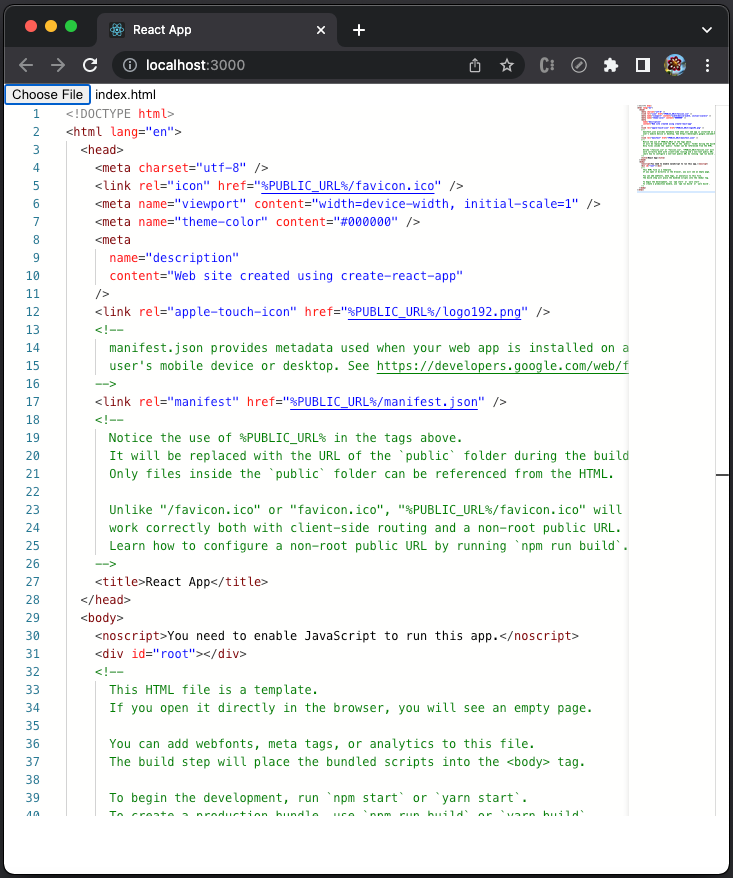
Execute yarn start, and click the Choose File button to load the Create React App’s src/index.js:
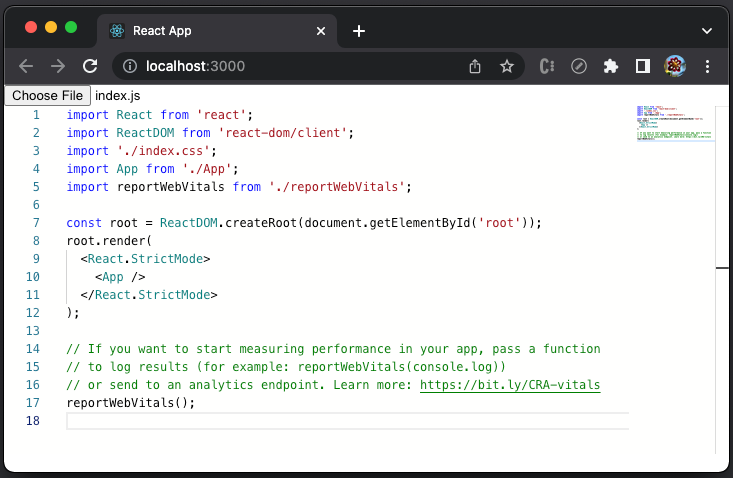
Isn’t dynamic loading neat?
Load src/App.css:
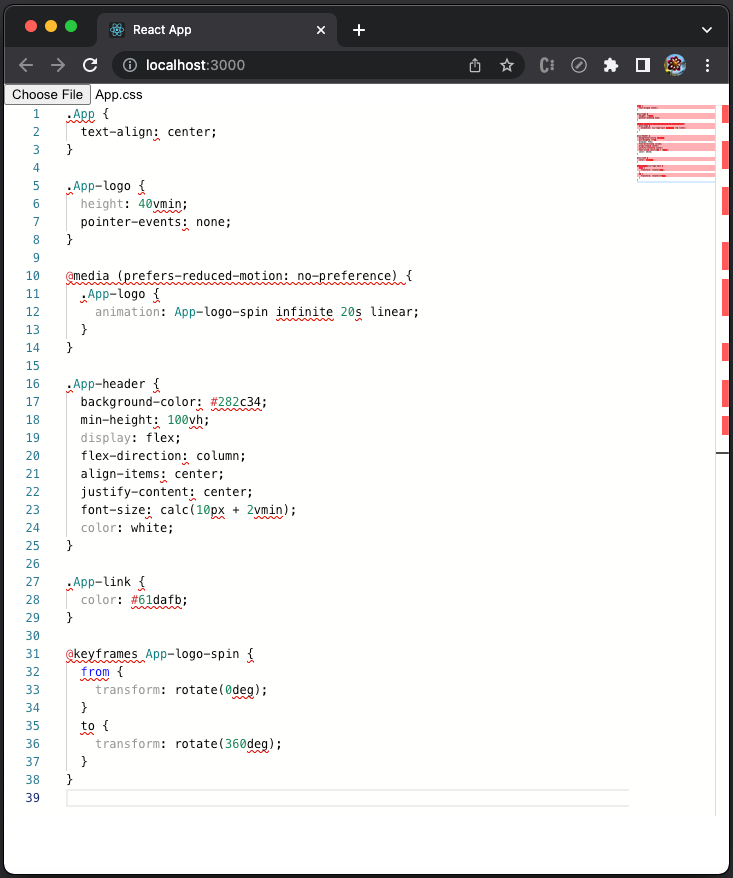
We see quite a lot of syntax errors. What is wrong?
It is because we have hardcoded language to javascript. It needs to be adjusted based on the type of the loaded file. file has a name field with file extension and a type field. A file extension could be 'js', 'css', 'html', 'json', etc. A type field could be "text/javascript", "text/css", "text/html", "text/json", etc.
We use file extensions to set the file type. Here is the modified src/App.js:
- At line 11, the state,
language, is created for the chosen language, which is used at line 34. - At lines 20–27, the file extension is evaluated to generate
newLanguage, which is used tosetLanguage(line 27).
Load src/App.css again, and there are no syntax errors.
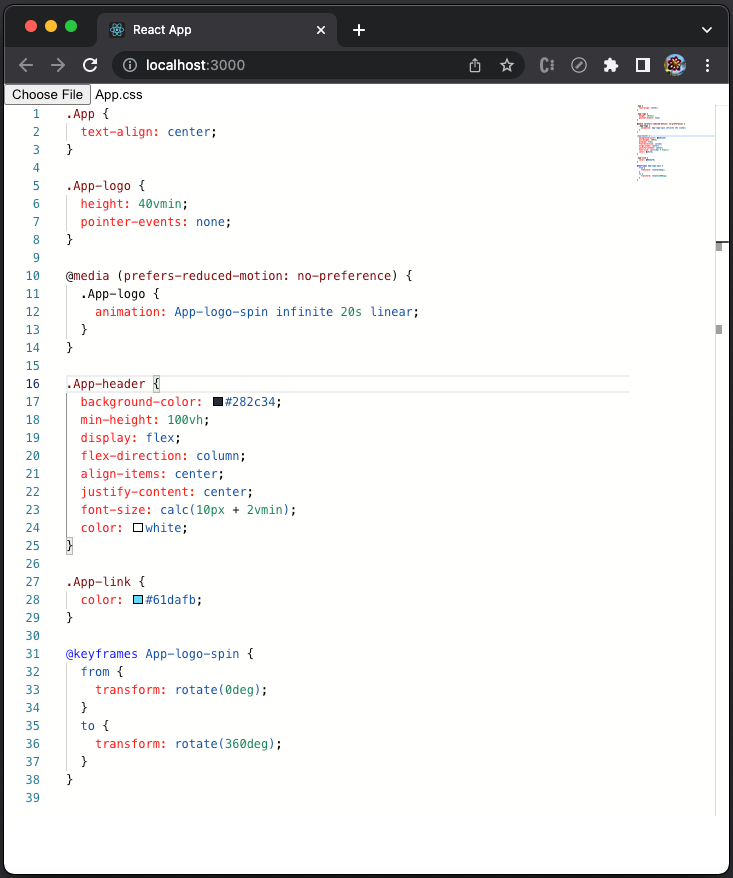
Load public/index.html:
Create Your Own Language
Although a Monaco Editor supports many languages, you may want to create your own language. We show an example of how to do it.
As we have mentioned that @monaco-editor/loader handles the configuration and loading part, loader.init() handles the whole initialization process and returns the instance of monaco. The Editor component uses this utility — gains access to monaco and creates the editor.
The following example is adapted from the office website, which turns on colors for specific content in a log file.
- At lines 4–40, it defines a function to return the log file content.
- At lines 43–119,
useEffectcallsloader.init()to defined a new language,mySpecialLanguage. – At line 46, the new language is registered. – At lines 49–58, it defines four tokens based on regular expressions,custom-error(line 52),custom-notice(line 53),custom-info(line 54), andcustom-date(line 55). – At lines 61–73, it defines themyCoolThemetheme that contains rules for the language,custom-infois grey (#808080, line 65),custom-erroris red (#FF0000) andbold(line 66),custom-noticeis orange (#ffa500, line 67),custom-dateis green (#008800, line 68), and the default color is black (#000000, line 71). – At lines 76–108, it registers some autocompletion shortcuts,simpleText(lines 79–83),testing(lines 84–90), andifelse(lines 91–104). – At lines 110–117, it creates the editor with the specified theme (myCoolTheme, line 113), value (getCode(), line 114), and language (mySpecialLanguage, line 115). The condition at line 111 ensures that the editor is added once. - At line 121, it creates the
containerdivwith the height of100vh.
Execute yarn start, and we see the colored log file in the editor.
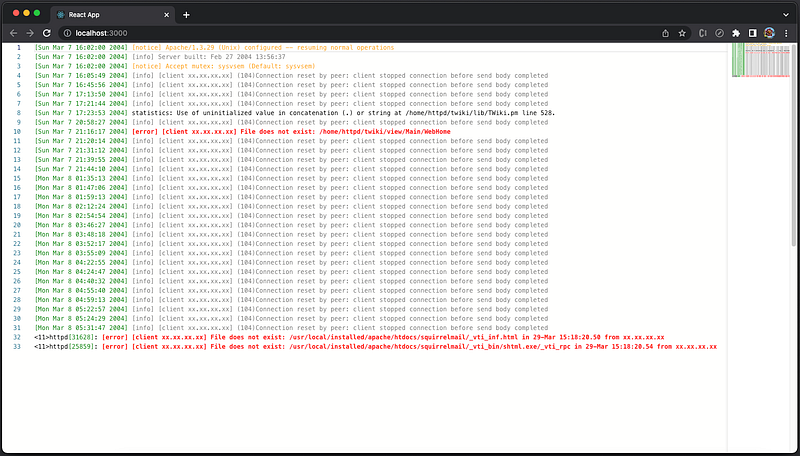
This example registers some autocompletion shortcuts, simpleText, testing, and ifelse. The following video shows how it works:
Use Monaco Editor to Diff Files
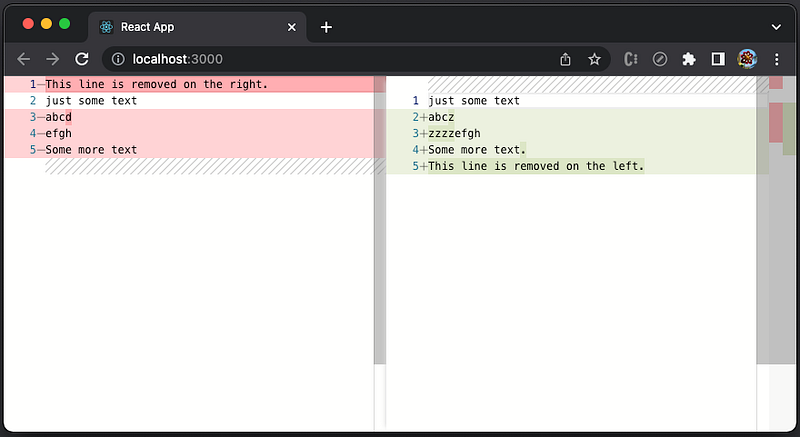
The Monaco Editor offers a diff editor that compares two files. The usage is straightforward.
Here is the modified src/App.js:
- At line 1,
DiffEditoris imported from'@monaco-editor/react'. - At lines 5–9,
DiffEditoris used, with the props of theoriginalandmodifiedcontents.
Execute yarn start, and we see the code diff.
Conclusion
We have embedded a Monaco Editor inside React App. It supports almost all popular languages, with syntax highlighting. For typescript, javascript, css, less, scss, json, and html, it provides IntelliSense that includes code completion, parameter info, quick info, and member lists. In addition, we can create our own language for additional features, such as color themes, autocompletion, and autocorrection.
We have shown examples of how to display one hardcode file in Editor, one dynamically loaded file in Editor, and two files in DiffEditor.
If you only need syntax highlighting, you may want to take a look at Prism, a lightweight and robust JavaScript library that performs syntax highlighting.
Thanks for reading.
Thanks, S Sreeram and Siddhartha Chinthapally, for working with me on Monaco Editor.
Want to Connect?

If you are interested, check out my directory of web development articles.


