
10 Absolutely Useful MacOS Apps You’ll Probably Never Stop Using
Apps that put your productivity on steroids
Get a Setapp subscription using my affiliate link. (Try it free for 30 days!)
I’ve always lived with classic macOS apps all my life. I used to be a hard-core minimalist. Yet, when I lately discovered some ridiculously useful apps, I repent for my past sentiments.
These apps made my life really easier. They put my productivity on steroids, and I hope you’ll feel the same too.
Here I explain you about 10 of them. Ahem.
#1. NightOwl (Free)
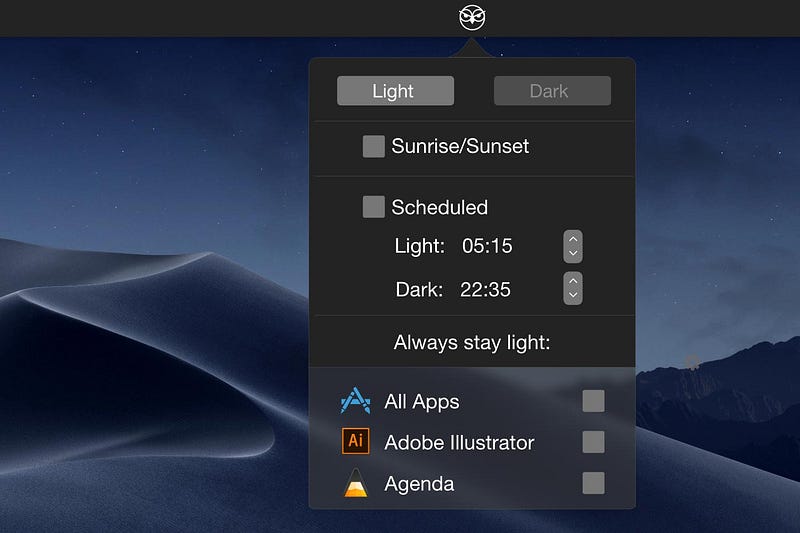
If you’re a person who wants light mode for certain apps and dark for the rest, install NightOwl, and specify which apps should stay in light mode, while your Mac still runs wholly dark.
NightOwl is a menubar app that provides easy and automated way to
- switch between light and dark modes,
- schedule it, and
- specify apps for always-on light mode
irrespective of the preset mode for the entire macOS.
#2. Gestimer ($3.99 for lifetime)
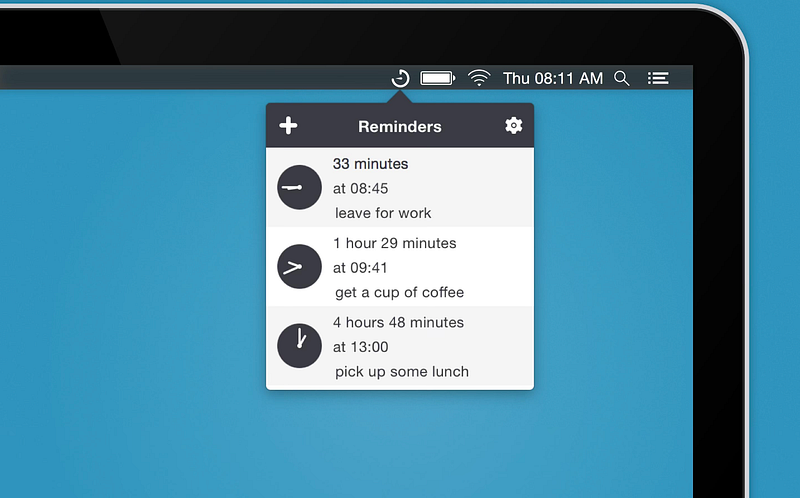
Gestimer is a very simple menubar app that lets you add timers just by dragging the icon down. The longer you drag, the longer the timer’s set.
You may want to use this to remind yourself
- to drink water,
- of a guest arrival, or
- to leave for work.
Or,
If you’re someone who follows the 20–20–20 rule* of working before screens, this will greatly help you remind yourself.
*For every 20 minutes of gazing at a screen, look away at some object 20 feet away for 20 seconds. Following this helps prevent digital eye strain.
#3. ImageOptim (Free)
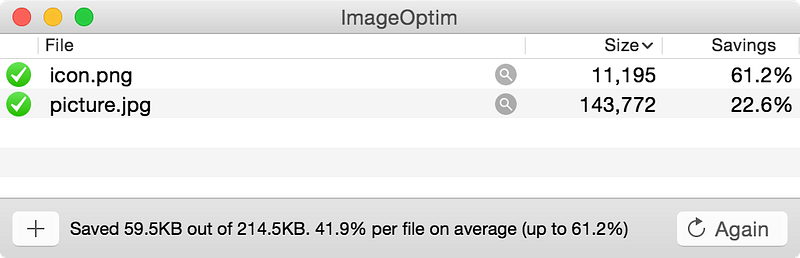
ImageOptim is one of my most loved apps. With this, you can zero-fuss-ly reduce the size of an image or gif just by dragging and dropping with absolutely zero loss of quality.
The default settings do well, but if you need, you can adjust the compression level of the app too.
And yes, it’s completely offline.
#4. TextSniper
($7.99 for 1 Mac. $9.99 for 3 Macs. $11.99 for unlimited license | Available on Setapp)
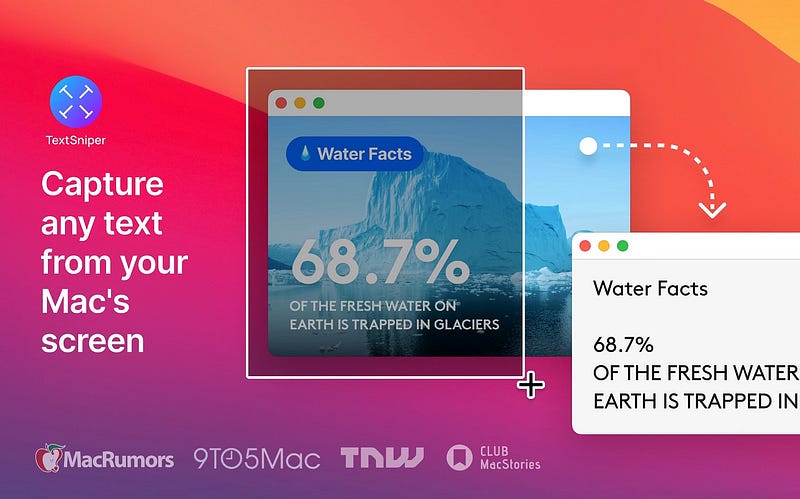
TextSniper is a light-weight screenshot reader that often comes handy. I’m sure you needed it sometime before.
With this, you can easily snip a portion of your screen and get the text instantly copied to your clipboard.
That’s not all. You can also:
- Scan barcodes,
- Copy text even from protected pdfs,
- Get the text spoken out, and
- Generate alt-text for the images you post online,
Did I mention TextSniper can recognise seven languages?
#5. DropZone 4 (Free)
(For Pro, $1.99 a month. Or $35 for lifetime | Available on Setapp)
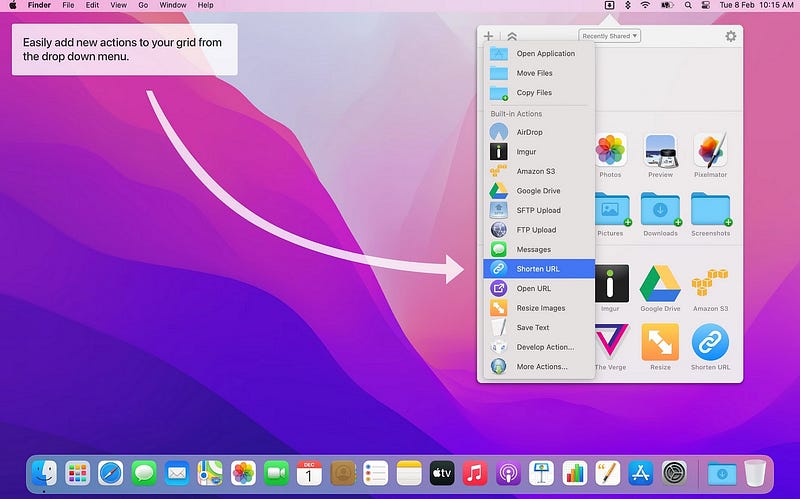
If you’re vexed of managing myriad of folders, cloud drives, and ftp clients on your Mac, this app is for you.
DropZone is a handy menubar app that brings all your file locations to a single place.
Simply link all of your services and you can quickly upload files by dragging and dropping onto the specific service.
You can also send a files via iMessage, Mail, AirDrop, or copy files to a different local location with this app.
#6. Paste
($0.99 a month. Or $9.99 a year | Available on Setapp)
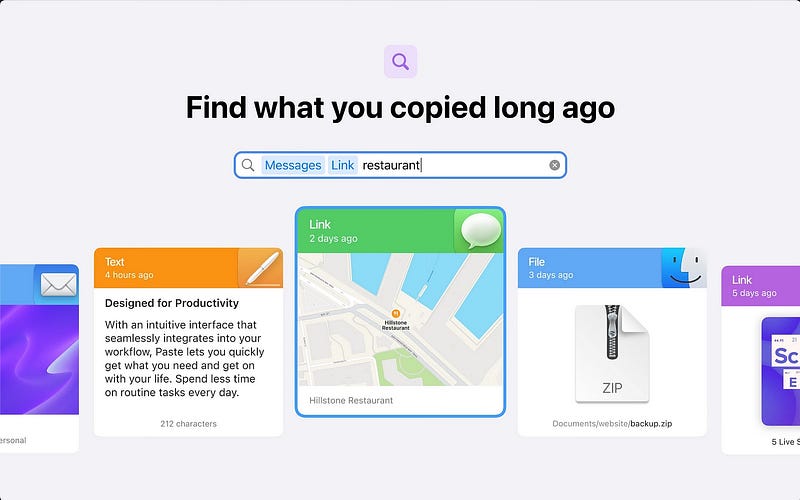
The one thing I always hate about Apple is that it doesn’t have a clipboard history feature yet, and there’ll surely be no convincing explanation for it.
This app called ‘Paste’ pacifies my discontentment. By this app, you’ll have a handy clipboard manager synced between all your devices via iCloud.
Paste helps you store all your copied text and files and retrieve them whenever you need. You can optionally convert the copied formatted text to plain one too.
You can search for the old items by type or by the app where you copied them from.
#7. Alttab (Free)
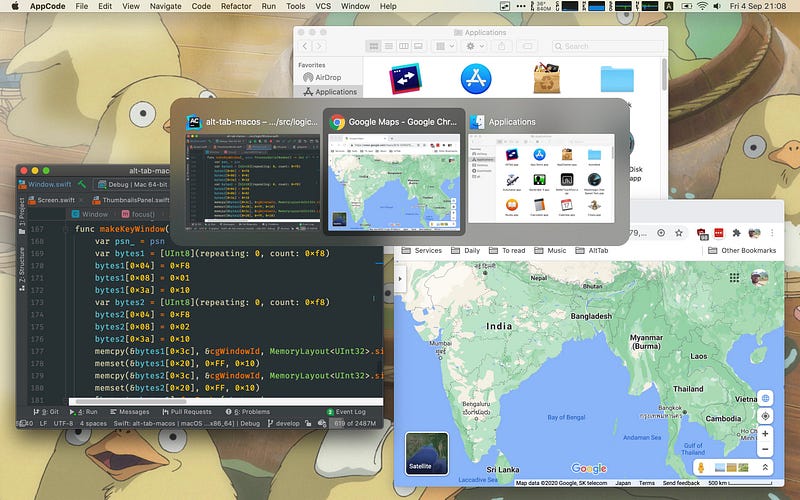
This is a free, yet a very helpful app. If you’re a former windows user, you might remember having app previews in the tab switching menu, instead of app icons.
Click ‘⌘ + tab’ to know what I mean.
You might often feel annoyingly difficult when you have multiple Finder or Safari tabs open, as it’s confusing to find the exact tab you need.
Alttab helps you avoid it by showing you the previews of all the open apps so you can easily switch among them.
#8. Unclutter
($19.99 for lifetime | Available on Setapp)
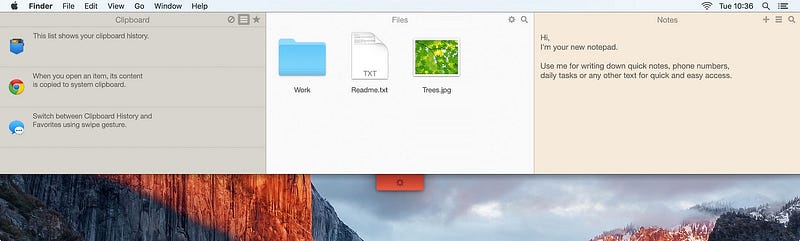
Unclutter creates a handy space for you for storing frequently accessed files, clipboard history, and notes, side-by-side. Best part, they sync between your Macs!
To access Unclutter, all you need to do is to move your mouse pointer to the very top of your desktop. Simple.
#9. Transmit ($45 for lifetime)
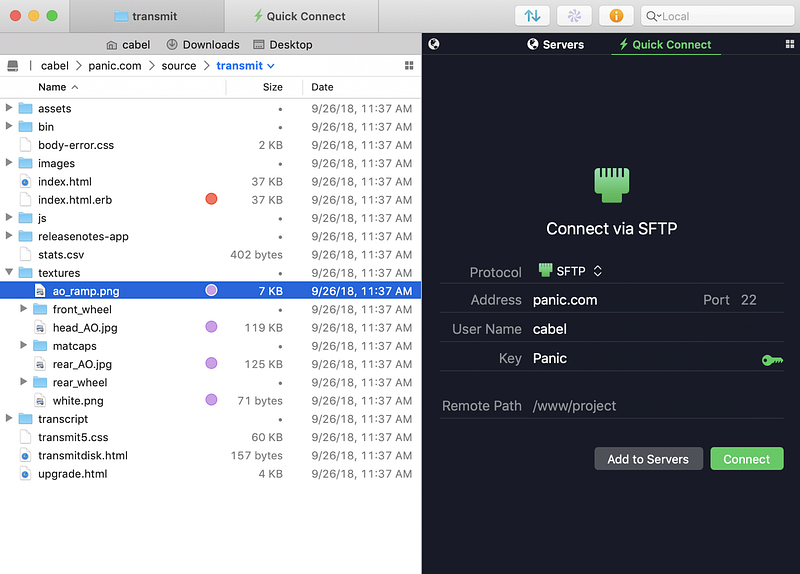
The DropZone 4 (in #5) helps only upload files to servers, and many more. But Transmit is designed exclusively for super-easy file syncing to cloud servers and ftp clients and even managing the files inside there.
That’s not all, you can even edit docs and sync them real-time to your clouds. You can also easily batch rename your files.
#10. Bear (Free)
(For Pro, $1.49 a month, or $14.99 a year)
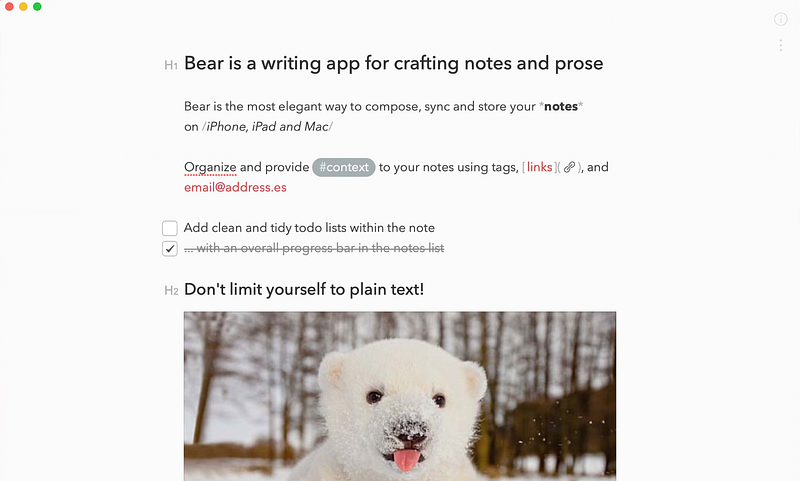
Bear feels like an enhanced version of classic Apple Notes app.
The interface looks so clean and beautiful you’ll never want to stop taking notes (Pun intended). By this app, you can elegantly create notes and sync between all of your devices, even on Apple Watch!
By this app, you can
- Format text,
- Use tags to segregate notes,
- Use Touch or Face ID to encrypt notes,
- Use Siri to take notes,
- Draw pics using your finger or Apple Pencil, and
- Export your notes to a variety of formats.
So there ends the list of 10 really useful Mac apps, which you’ll probably find very useful — to the level you’ll never want to close.
If you liked this story, you might also like:
Finally,
If you love exploring new Mac apps (like me), consider subscribing for Setapp. You’ll get access to a curated collection of 240+ amazing apps for just $9.99 a month, which rather cost hundreds of dollars if purchased individually.
Use my affiliate link to start your Setapp journey! (It’s free for 30 days)
Hey! If you enjoyed this story, sign up for Medium as a member using my referral link! It’s just $5, and you get access to all of Medium.
Also, you can join 75+ others to get notified whenever I publish. Grab a free copy of my ebook “A Tech Blogger’s Guide” to write tech better!
This post contains affiliate links.


