
Zooma! Zoom! Zoom!
Zooming in the cloud for potentially improved security
~~~~~~~~~~~~~~~~~~~~~~~~~~~~~~~~~~~~~~~~~~~~~~~~~~~~~~~~~~~
💻 Free Content on Jobs in Cybersecurity | ✉️ Sign up for the Email List
~~~~~~~~~~~~~~~~~~~~~~~~~~~~~~~~~~~~~~~~~~~~~~~~~~~~~~~~~~~
Note: If you schedule a consulting call with me through IANS Research to answer a security question I do not use Zoom.
I’ll admit. Video has never been my preferred form of communication, and I’ve been a little adverse to video in the past. I used to cringe when people sent me a link for Zoom, GoToMeeting, Skype, WebEx, or Google Hangouts. There are multiple reasons for that, but let’s focus on the security implications for the moment. I wanted a solution that would help protect from possible attacks. [Note: If you already know about my solution and why I do this, you can jump to the step by step instructions to use Zoom on Amazon Workspaces, which is currently having some issues.]
Let’s do some threat modeling. What could go wrong? First of all, some of this video software runs software like a web server on your local laptop, which may have vulnerabilities. It may expose open ports to the Internet, and if you are at home with not the greatest networking set up now, someone can try to attack that open port. Attackers can also see that traffic going to the Zoom video conferencing server depending on what network you are using, and if the attackers have access to it. Hopefully it is properly encrypted and not infiltrated so they cannot see the actual content, but they may be able to decipher what software you are using and where you are connecting, if you are not using a VPN.
I talk all about networks, ports, protocols, and vulnerabilities in my book on cybersecurity if you are not familiar with those terms and all the other words in bold in this blog post. I explain the reasons why lack of network security is a threat, how it can be one of your best defenses, and how it can help you find attackers already on your systems if you set up networking properly and review your logs.
What if the videoconferencing software has vulnerabilities in it? Of course, most companies try to keep their products secure. But things happen. Several CVEs have surfaced in Zoom in the past few years. In this age of everyone using Zoom, the product is undoubtedly receiving some new focus as a potential attack vector by those with malicious intent. A lot of people running laptops on insecure networks are potential targets because, without proper network security, their laptops will be exposed to the Internet directly.
Some of the attacks come in the form of phishing. Someone could send an invalid link that, when clicked, causes your computer to give an attacker remote control. Perhaps the link downloads malware or takes advantage of some flaws in the software. Maybe it is zero-day malware not on the list in the link I just provided, so people don’t even know it exists. Maybe your meeting organizer sent a perfectly valid link, but an attacker altered it in transit via a man-in-the-middle (MITM) attack by an attacker.
What are the chances of this happening? For many people, the risk may be low. If you have a high-value target, an APT (Advanced Persistent Threat) may be trying to figure out right now how to do all these things. Additionally, some people who are not necessarily high value will get hit by widespread scanning of the Internet when attackers are looking for low-hanging fruit and easy targets.
As other articles have already covered, Zoombombing is the new term for someone intercepting your video meeting and inserting some unwanted content. Recently, hackers took over a zoom conference run by the Utah Republican Party in the United States and inserted some unwanted content (to put it mildly). Many articles have already explained how to protect yourself from this particular issue.
Follow those precautions when setting up a meeting to enable proper authorization for your meeting to prevent those particular attacks. You also may have concerns about Zoom privacy, as the company may have shared some data with Facebook. Additionally, other privacy issues exist if you chose to use this type of software. C|net covers topics like recording the meeting, attention tracking features, and other snoopy issues. Someone on Twitter posted that Zoom allowed remote administrators to see what software you are running on your laptop, but I don’t know if that’s true.
We can’t solve every problem. With every technology that enables us to do something useful, risks and trade-offs exist. But what about those client-side attacks that occur on your laptop or potential traffic interception? What about the exposure of your local machine to the Internet? We can do something about that. As with almost any security solution, we trade old risks for new risks but try to find the least risky solution possible. Eliminating the need to open potentially malicious links and installing software on client computers will probably help eliminate several high risks. Additionally, the ability to inspect network traffic related to the video could also help spot unwanted traffic going to alternate sources.
I don’t want any software I don’t need running on my laptop. I want to click on as few links as possible from email or elsewhere. I want to minimize connections from my laptop to remote applications. In the past, I’ve logged into a cloud computer to click on a Zoom link. That way, if the link has anything malicious in it, the malware goes onto a cloud computer I’m going to ditch at the end of the call. I set up restrictive networking to make it very difficult for anything on that cloud host to attack my local laptop. Then I dial into the call with my phone and only use the Zoom connection to view video presentations.
That works when I only have to watch a presentation, and it is pretty easy to do. The challenge became, what if I need to participate in a video? What if I need Zoom to access the data coming from my laptop web camera? That’s a bit more challenging. Last night I started testing out the theory that I could somehow stream my camera to the cloud virtual machine, where I connected to the Zoom meeting. I got my nephew online to help me test this out. I could have probably tested it myself, but it’s more fun to experiment with someone else. Initially, things weren’t looking promising. He sent me a link, and I connected. I couldn’t see any settings to stream the content over to the cloud. Later, I found documentation saying it wasn’t possible on one of the types of cloud computers I was attempting to use.
In a way, this is good. I wouldn’t want my camera to unknowingly stream data to the cloud. I would prefer it if the operating systems made it more obvious when your camera is in use. They should also provide a way to turn this functionality off to make sure you aren’t inadvertently recording yourself, and someone is then watching. Why can’t I turn off my camera as easily as I can turn off my microphone on my laptop? But I digress.
After scouring the Internet, I did find a solution. Once again, this is a trade-off. I’m going to set up a solution where I can receive and click on video links on a cloud computer instead of clicking links in emails on my laptop. I will copy the link over to the cloud computer instead, where I will open up a meeting. That way, any malware in the link will go on the cloud computer, not my laptop. I will be able to set up strict networking and monitor network traffic any suspicious or unwanted connections produced by any of the video software I am running in the cloud. I can lock down the ports to only what is required. The remote video systems will not have information about my local laptop.
The new risk I’m introducing is the software I found that enables me to do this. I found this software called Webcam for Remote Desktop from FabulaTech, which can run on Amazon Workspaces. Then you install the client software on your laptop, which enables your computer to stream video content to the server software on your cloud computer.
I’ve never heard of this company before. I did a bit of research, and it appears to be a UK-based company. It looks legitimate. Their software is running in the AWS Marketplace. I did some research on the company and looked up the founder, who seems to be a pretty smart and interesting person. I found many references online, bios, and a LinkedIn profile. If I had a large company that was going to deploy this software for all my employees, I’d do a more thorough investigation and risk assessment. For my purposes, I’m going to install this software on a laptop that I only used for presentations and travel, not my work computer. I installed the software and investigated the network traffic and, on initial investigation, did not see anything suspicious.
I took the risk as a trade-off for all the others above. I’ll continue to monitor the software over time. I use a product called MicroSnitch from Objective Development to monitor camera and microphone activity. I found out about that company via a product recommended by a security researcher a couple of years ago at the RSA conference in San Francisco. Full disclosure, the person who recommended it works for the NSA if that concerns you, but I have found their products to be very helpful. I talk about these issues with spying products and the pros and cons in my book as well. Everything is a trade-off.
The next day, I had a meeting set up to test video streaming for an upcoming podcast on OWASP DevSlop where I’m going to be on talking about Serverless security. I got permission to post this photo from my meeting organizer, @nanzgtweets, where I tested this out, and it works! Nancy has a snazzy background using a new feature from Zoom. I, on the other hand, just rolled out of bed and looking fancy in my 2nd Sight Lab sweatshirt.
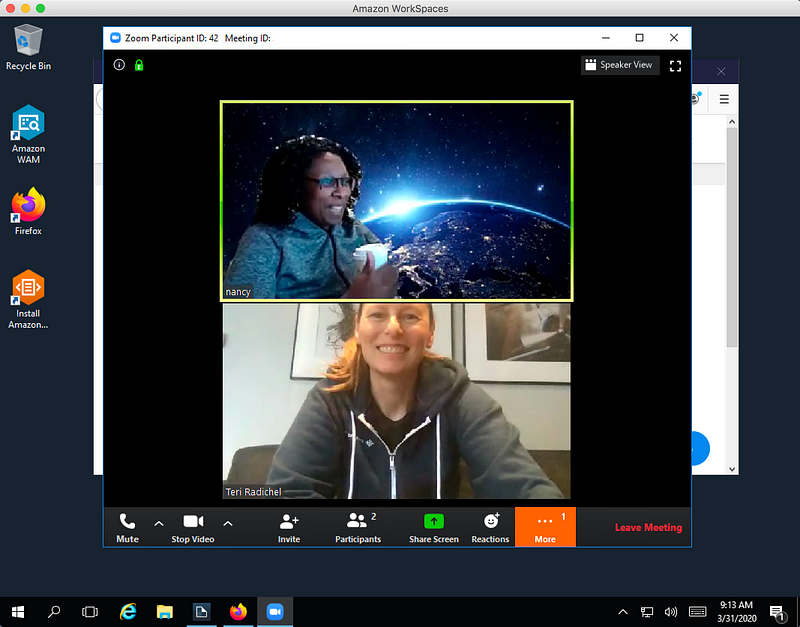
To get this working, I had to subscribe to the software in the AWS Marketplace. I had to install the software on the AWS Workspace using Application Manager. First, you enable the software for the Workspaces user in AWS. Then you use the application manager on the Workspaces instance to install the server software. Next, I downloaded and installed the client software on my laptop. It worked like a charm. I opened up the Zoom link in my Amazon Workspaces instance, and Nancy and I had a lovely chat!
If you’d like to watch the upcoming podcast, “Secure Your Serverless! Offense and Defensive Measures” you can check it out on Sunday, April 5, 2020, at 1 PM ET/10 AM PT. You might have a chance to win a free copy of my new book!
Follow for updates.
Teri Radichel | © 2nd Sight Lab 2020
About Teri Radichel:
~~~~~~~~~~~~~~~~~~~~
⭐️ Author: Cybersecurity Books
⭐️ Presentations: Presentations by Teri Radichel
⭐️ Recognition: SANS Award, AWS Security Hero, IANS Faculty
⭐️ Certifications: SANS ~ GSE 240
⭐️ Education: BA Business, Master of Software Engineering, Master of Infosec
⭐️ Company: Penetration Tests, Assessments, Phone Consulting ~ 2nd Sight Lab
Need Help With Cybersecurity, Cloud, or Application Security?
~~~~~~~~~~~~~~~~~~~~~~~~~~~~~~~~~~~~~~~~~~~~~~~~~~~~~~~~~~~~~
🔒 Request a penetration test or security assessment
🔒 Schedule a consulting call
🔒 Cybersecurity Speaker for PresentationFollow for more stories like this:
~~~~~~~~~~~~~~~~~~~~~~~~~~~~~~~~~~~~~~~~~~~~~~~~~~~~~~~~~~~~~
❤️ Sign Up my Medium Email List
❤️ Twitter: @teriradichel
❤️ LinkedIn: https://www.linkedin.com/in/teriradichel
❤️ Mastodon: @teriradichel@infosec.exchange
❤️ Facebook: 2nd Sight Lab
❤️ YouTube: @2ndsightlab


