
You’re Using Midjourney Wrong! Here’s How to Create Better Images than 99% of Midjourney Users
Generate amazing images by learning how to create better Midjourney prompts.
I used to use Midjourney wrong.
My prompts lacked details and styles, resulting in generic and inaccurate images. I also never added parameters to customize the default behavior of Midjourney.
If you’re a Midjourney user, probably you’re also making these and other mistakes, but today I’ll show you some techniques that will help you produce better images and make Midjourney understand what’s on your mind.
Note: In case you’re new to Midjourney, you can read this guide to learn how to create an account and get started with basic Midjourney commands.
First things first — Change the default settings
Midjourney by default is good, but you should adjust your settings if you want to make the most of it. To do so, use the /settings command.
Once the Midjourney settings pop up, turn on the “MJ version 5” to use the latest version of Midjourney and “Remix mode” to modify the versions of the images you get.
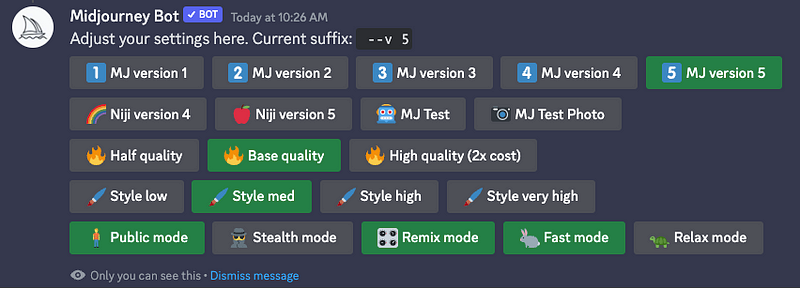
Now every time you type a prompt, you’ll get the --v5 at the end and also you’ll be able to edit the prompts for the images that you generated with Midjourney.
The Midjourney prompt formula
A simple and short Midjourney prompt typically results in images that are taken directly from the Midjourney training data, while a more detailed prompt can create entirely new and unique images.
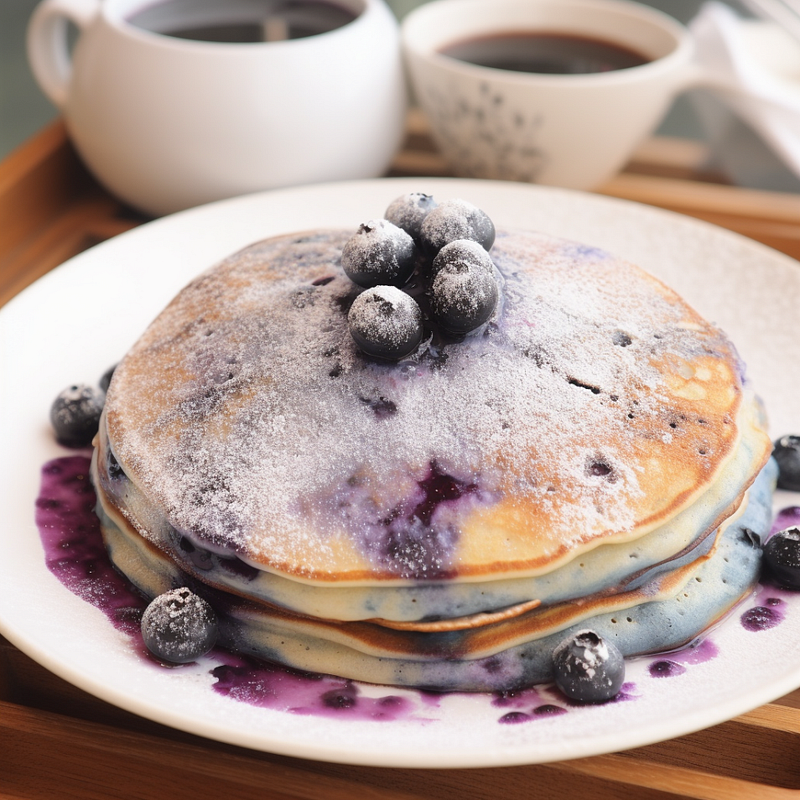
Let’s see an example. Here’s a short prompt for a blueberry pancake.
Sugar dust of blueberry pancake — v 5
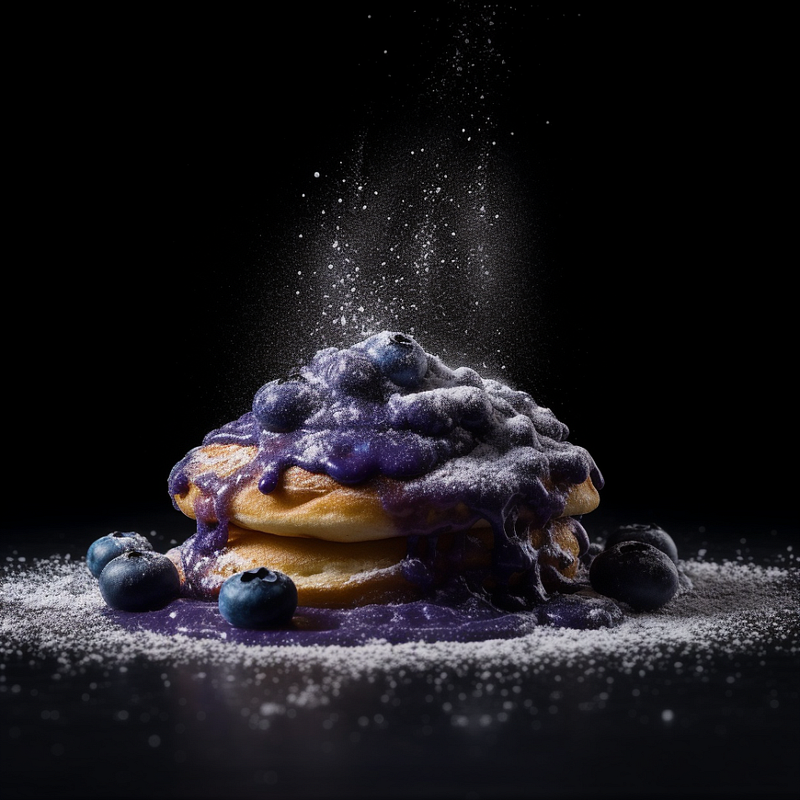
And here’s the same prompt but with more details.
Commercial photography of sugar dust of blueberry pancake, with studio light, hyper-detailed, on black isolated plain, pro color grading, white lighting, Shot on 70mm lens, Canon camera, 8k — v 5
You see the difference?
The level of detail in your prompt directly impacts the uniqueness of the generated image. This is why we should be specific in describing what we want, including details such as the background, lighting, camera lens, format, and other relevant elements to ensure the desired outcome.
You can use the formula below for your Midjourney prompts, but note that you might not always need every single element of the formula.

In case you don’t have so much creativity to come up with all the details for the prompt, you can make ChatGPT write prompts with lots of details and even different styles as I show in this guide.
Now let’s focus on the most important parameters that will help you create better images than most Midjourney users.
1. Prompt Weights
When you’re working with a complicated prompt that has different objects, you can give more weight to a particular object by using :: followed by a number. The higher the number, the more weight it has in the final output.
Let’s see some examples.
Forest::2 Lake::1 Airplaine::3
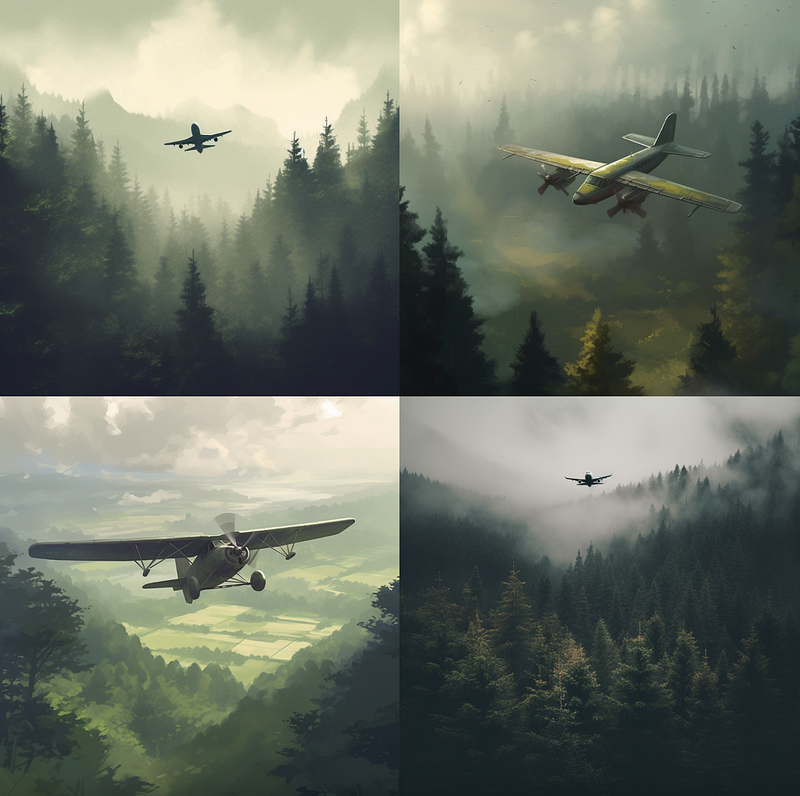
I tried using the same words but with different weights, and here are the results.
Forest::2 Lake::3 Airplaine::1
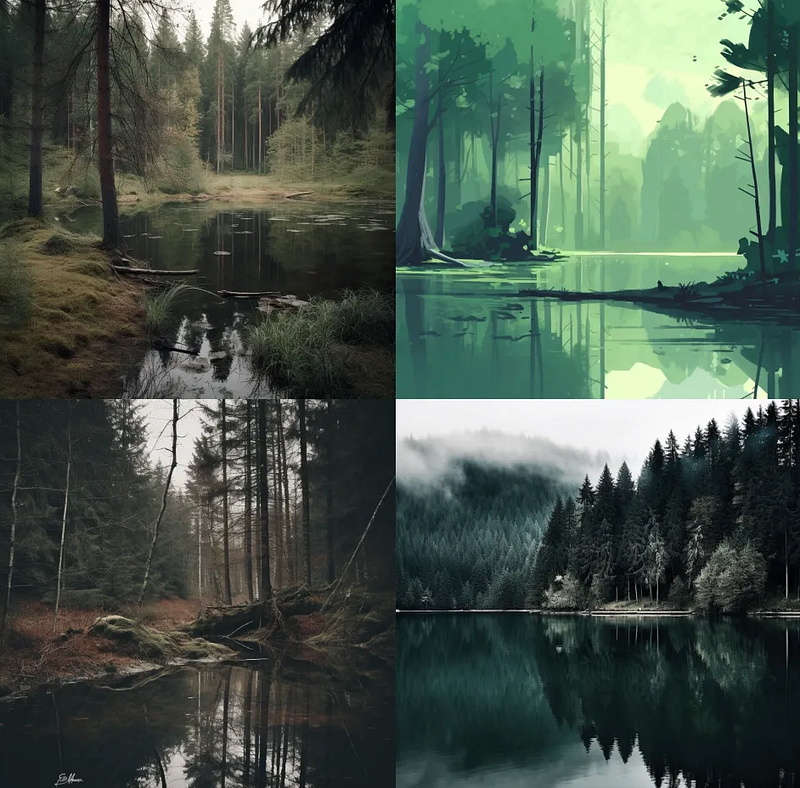
As you can see, the higher the number, the more visible the object is in the final image.
2. Negative prompting
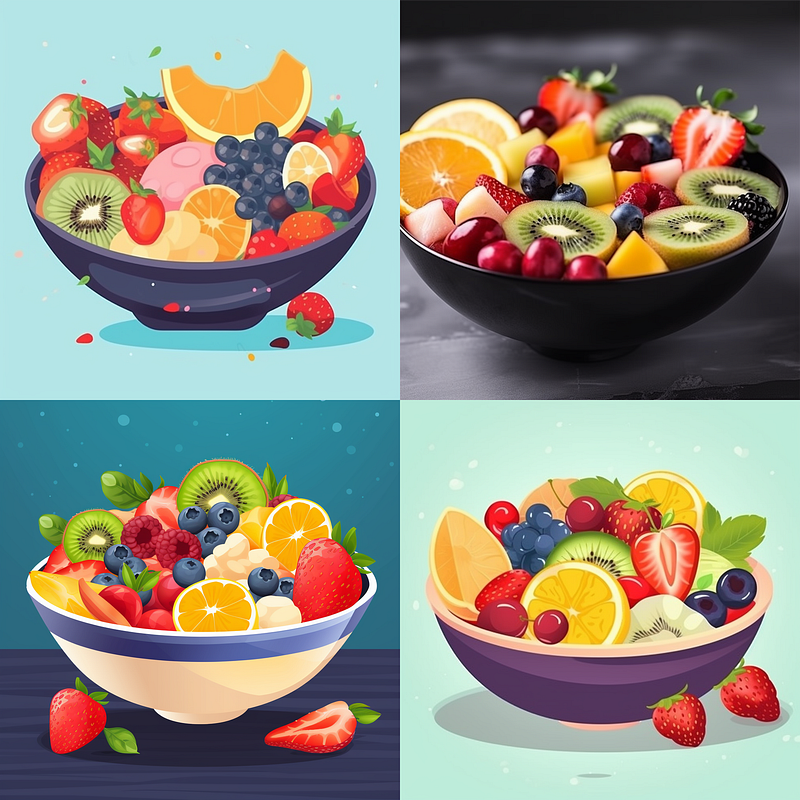
We add the --no parameter when we don’t want a specific object in our final image.
Say we want a bowl of fruit without apples in it.
bowl of fruit --no apples
3. Stylize
Stylize determines how artistic a Midjourney image will be.
Midjourney models are trained to create art forms, color schemes, and compositions. We can control this using --stylize or --s followed by a number: --s [0-1000].
Higher numbers will make your image look more artistic but the image might be less connected to the prompt, while lower numbers will create an image that closely matches your prompt but may be less artistic.
By default, the average level of stylization is set to --s 100.
Let’s see some examples.
A beautigul girl with brown hair and green eyes --s 1000
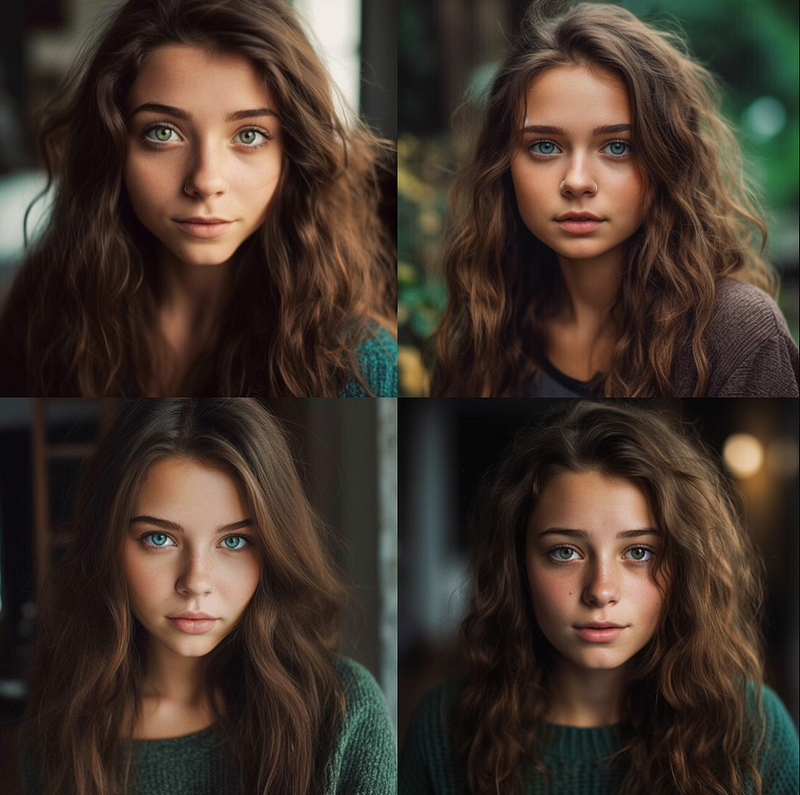
It looks quite artistic, and can even be confused with a real photo.
Let’s decrease the value of stylize.
A beautigul girl with brown hair and green eyes --s 500
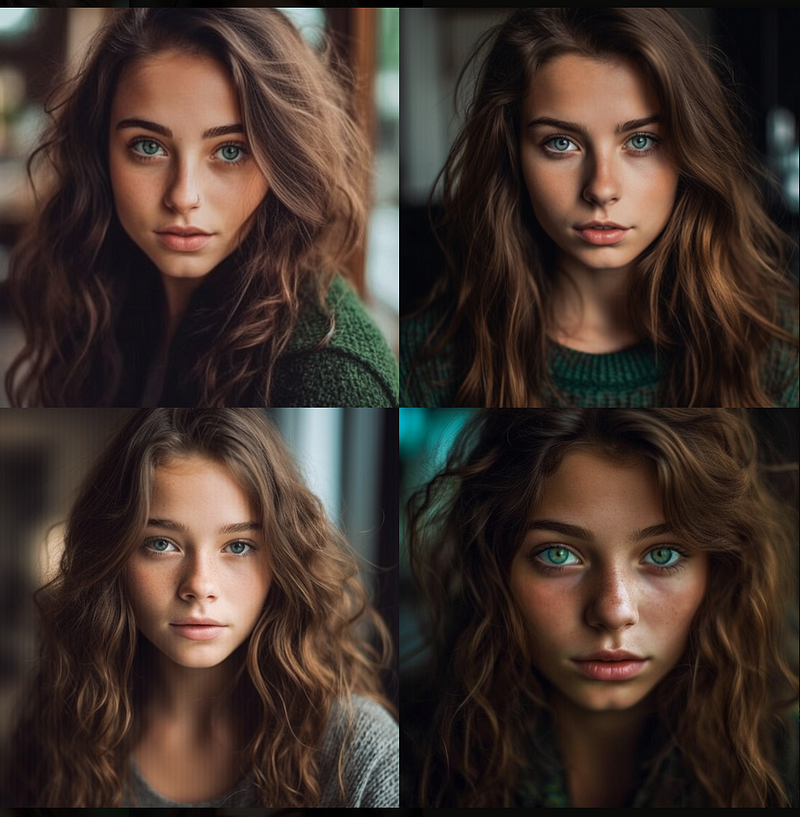
In these examples,500 performed just as well as 1000. Now I’m going to set the parameter to the default --s 100.
A beautigul girl with brown hair and green eyes --s 100
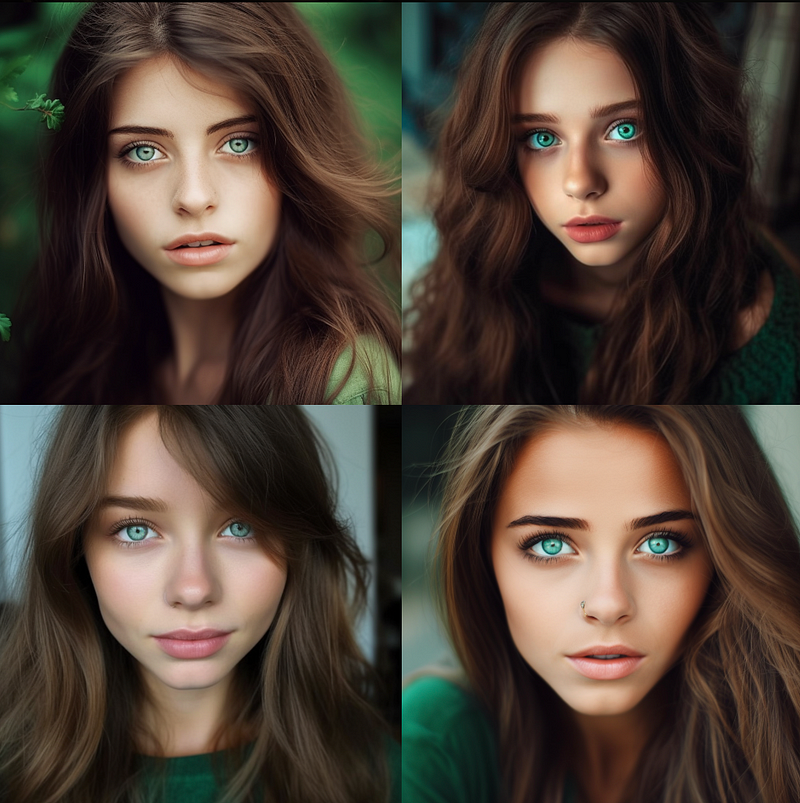
Now we can already see the difference. Only one of the four images turned out to be good, but it’s still not as good as the previous images.
4. Chaos
Chaos determines the level of variation in the results displayed in the grid. Higher values of this parameter will yield more unusual and unexpected results, while lower values have more reliable, repeatable results. The default value is 0: --c [0-100]
Let’s see some examples.
dog under the water looking at the camera --c 0
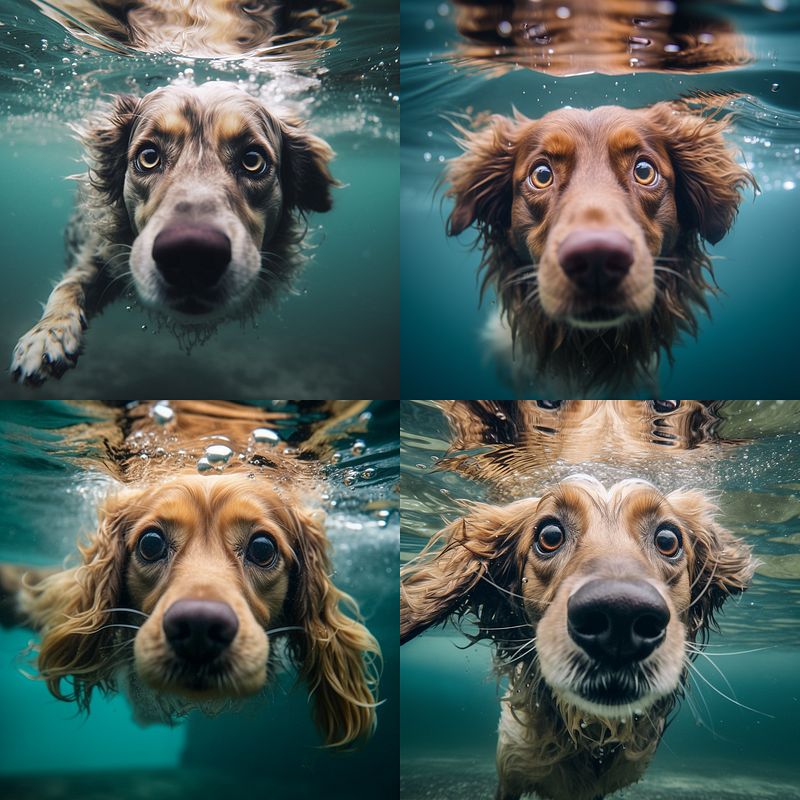
When the chaos was 0, we got reliable results. Let’s see what happens when we set the chaos to 100.
dog under the water looking at the camera --c 100
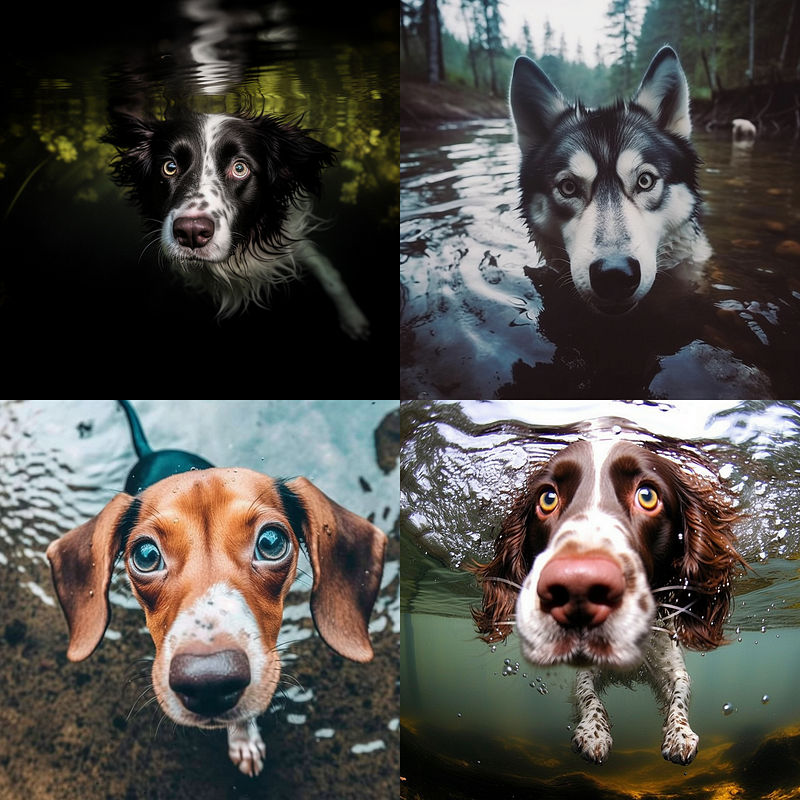
As you can see, most of the images we got with chaos 100 were not what we wanted.
This is an original piece from my Substack Artificial Corner. Subscribe for more tech and AI articles in plain English, in-depth tutorials to make the most of ChatGPT (and other AI tools), and stay up to date with the latest on AI & tech.
5. Quality
Quality determines the level of image processing by Midjourney (or how much time is spent generating an image). Higher values will result in images with more details, but it will also use more of your subscription’s GPU minutes.
The default value for quality is 1, but you can choose from different options such as 0.25, 0.5, 1, 2, or 5.
Let’s see some examples.
Flowers --q 0.25
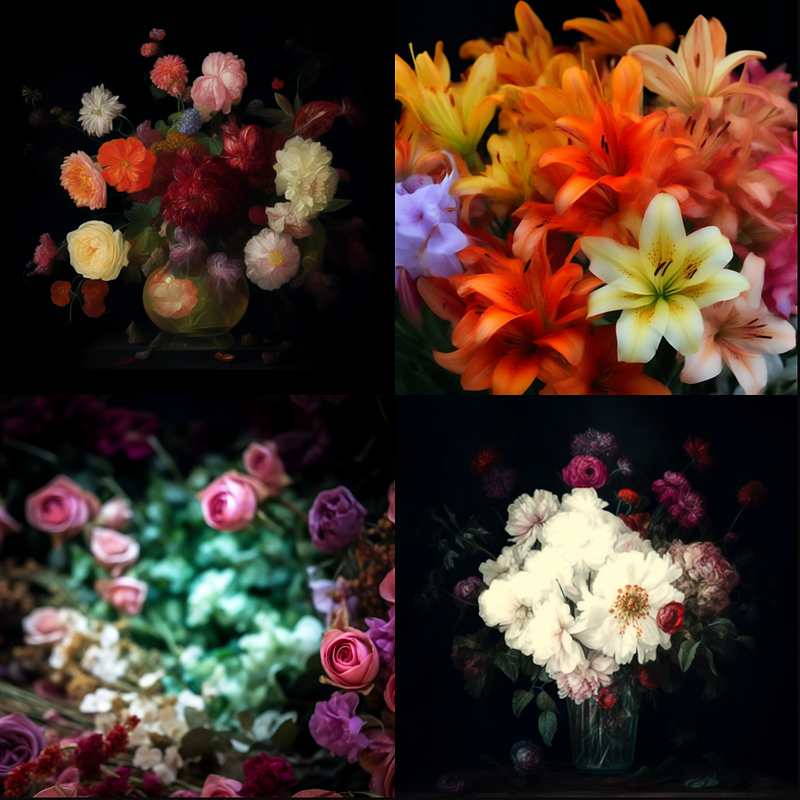
With --q 0.25 we got images four times faster than the standard option, more cost-effective, and simplistic.
Now let’s try 0.5.
Flowers --q 0.5
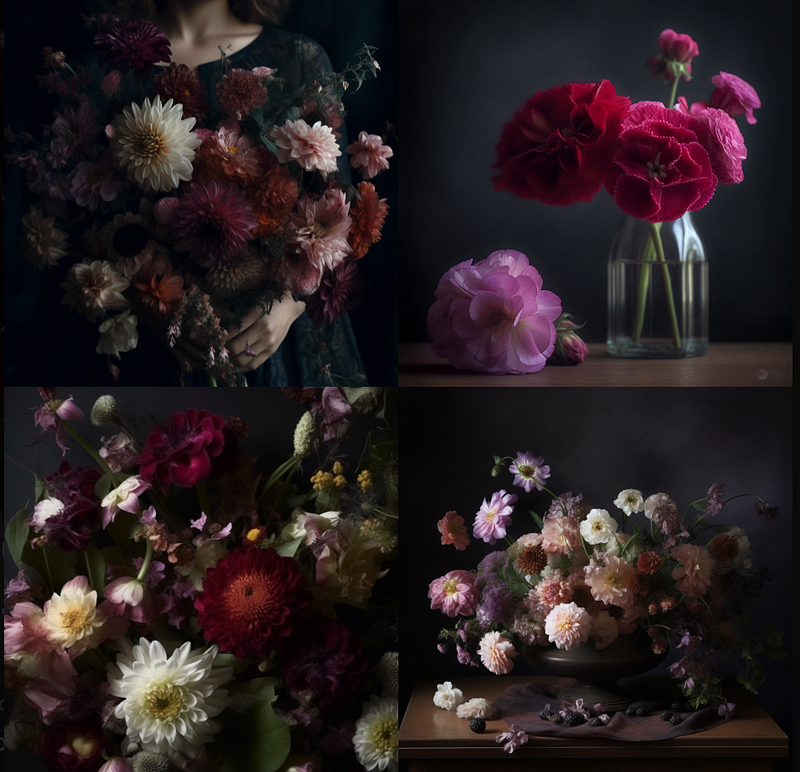
With --q 0.5 we got images twice as fast as the standard option, more cost-effective, and with a reduced level of detail.
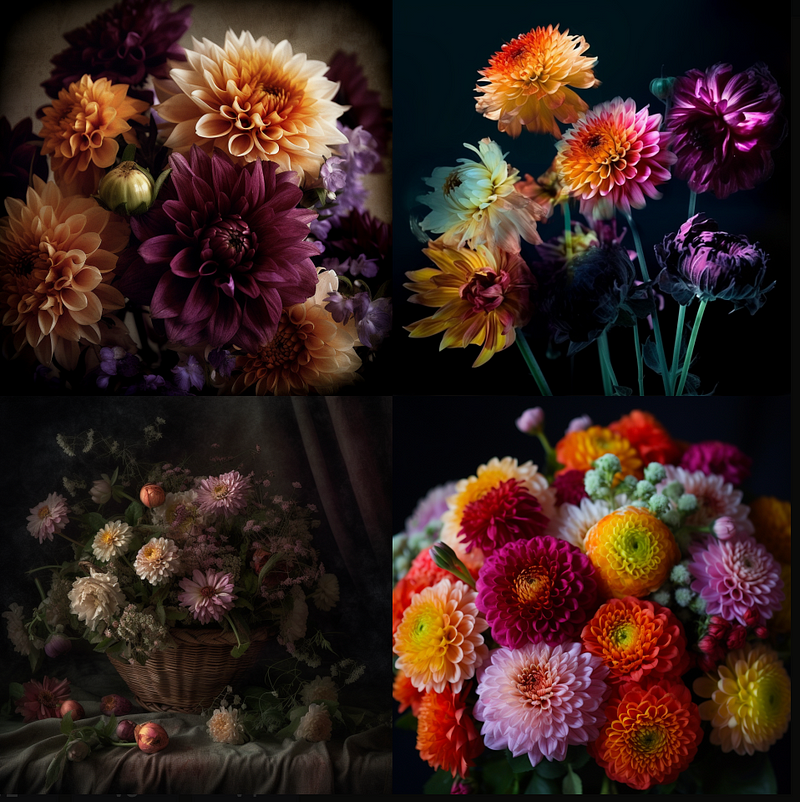
Finally, let’s add much more detail with 1, 2, and 5.
Flowers --q 1
Flowers --q 2
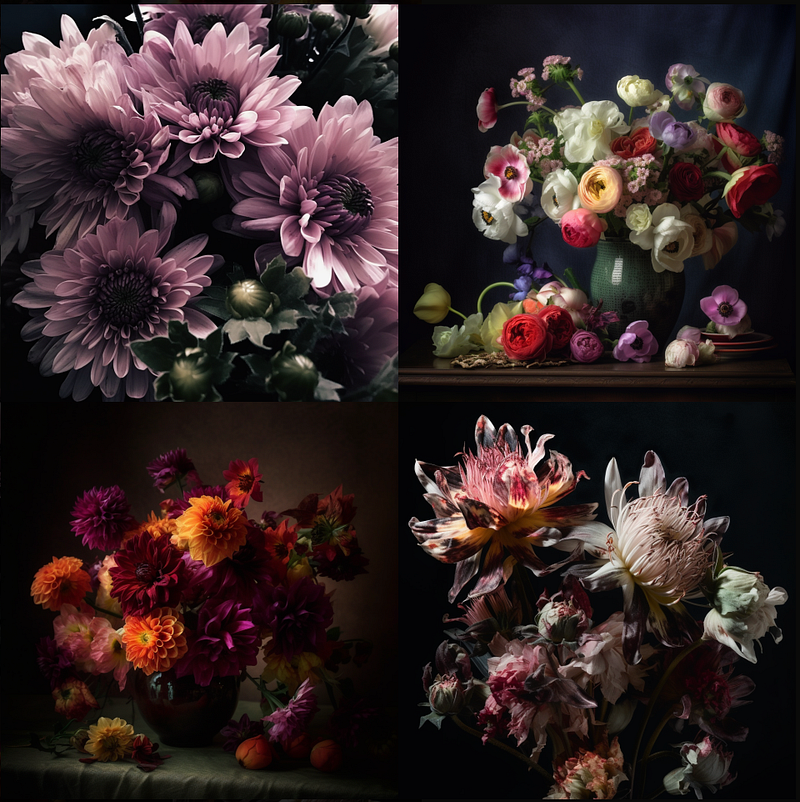
Flowers --q 5
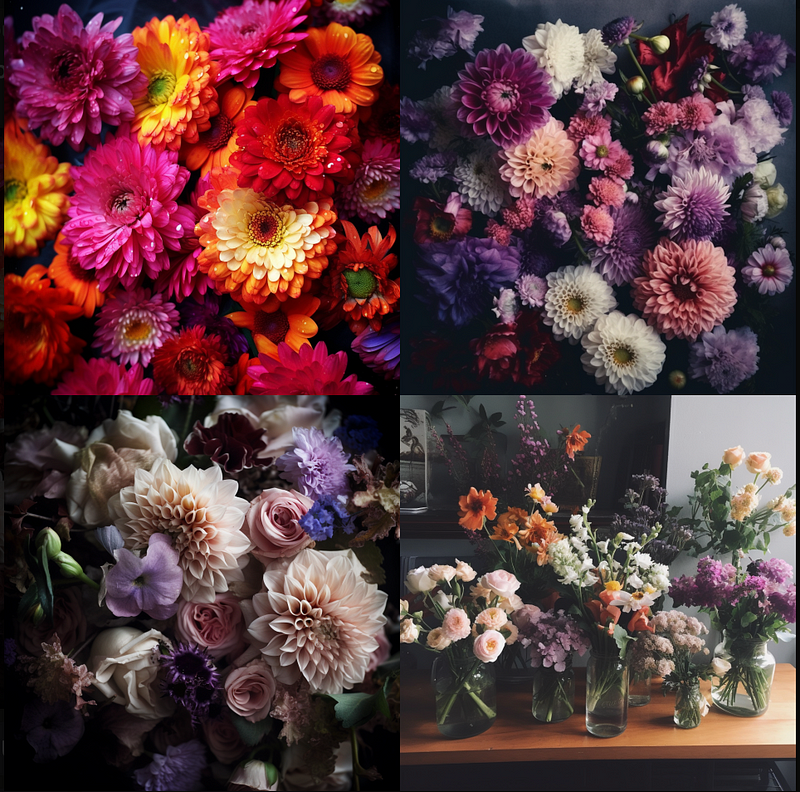
With --q2 and --q5, I noticed a superior level of detail. However, I didn’t see a significant difference between --q2 and --q5.
6. Ratio
By default, Midjourney generates all images in a square format, with a 1:1 aspect ratio. However, if you need a different format, you can specify it using the aspect ratio parameter: --ar[ratio]
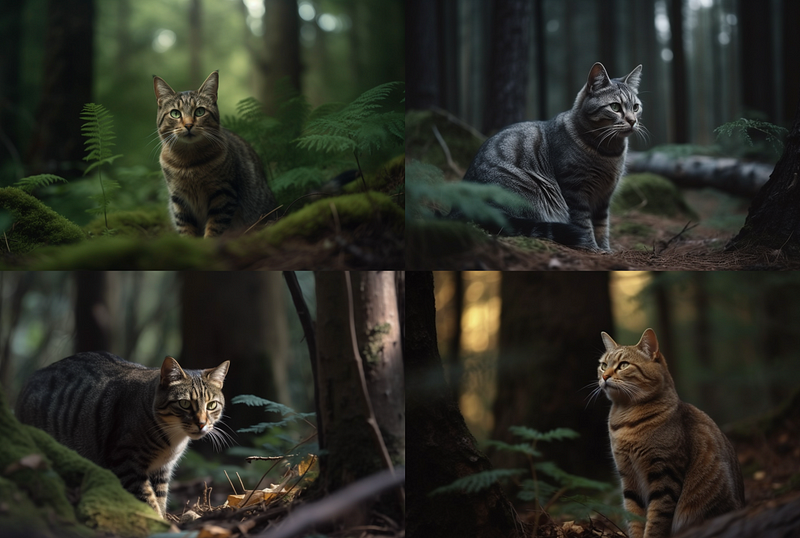
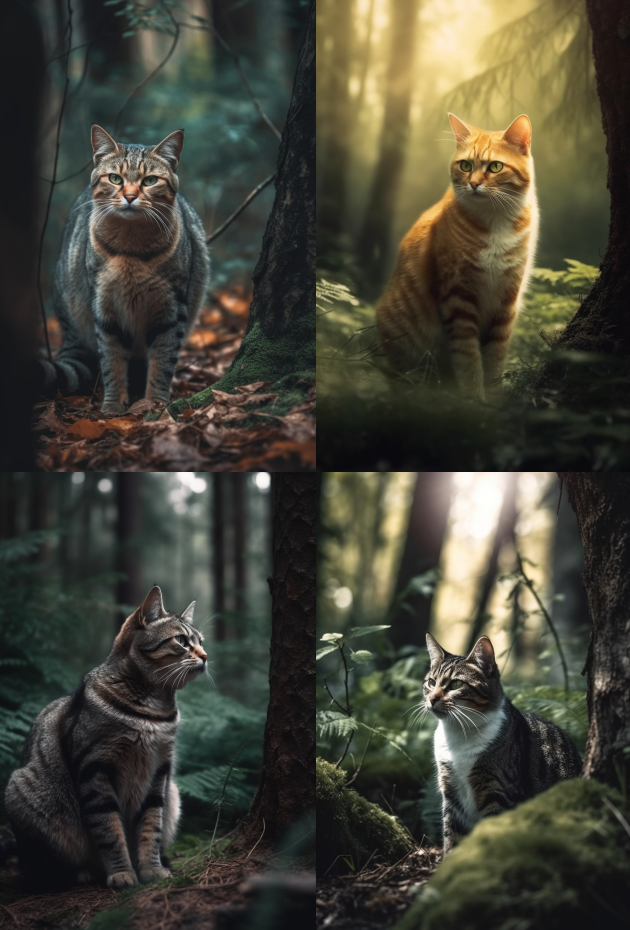
For a horizontal image, you can add --ar 3:2 at the end of your prompt, while for a vertical image, you can add --ar 2:3.
a cat in the forest, — ar 3:2
a cat in the forest, — ar 2:3
There are other aspect ratios you can use like 16:9, which is used for YouTube thumbnails, and 9:16, which replicates a selfie picture from a smartphone.
Extra resources
On this website, you can find a list of styles for your Midjourney prompts from fashion designers to photographers and painters, while on this GitHub repo, you’ll find more styles and keywords reference.
Join my newsletter with 30K+ people to get my free ChatGPT cheat sheet.
If you enjoy reading stories like these and want to support me as a writer, subscribe to my Substack. It’s $6 a month, giving you unlimited access to exclusive tech articles written by me.


