
MidJourney V6 Deep-Dive Series
Your Friendly Guide to MidJourney’s New “Describe” Feature — Image-to-Text Made Easy! 🖼️ → ✍🏻
Easy Step-by-Step Guide, Attractive Visual Examples & 5 Pro Tips to Master the Brand-New “Describe” Feature on MidJourney!
If later you find any value in this article, throw me some Medium love! 🥰 To support my work: Clap up to 50 times, leave a message to share your thoughts & Be sure to follow for more future content like this one! 💌
Hello, awesome creators! Our favorite AI text-to-image generator, MidJourney, just turned the tables on us — with the latest release of its updated “Describe” feature, instead of turning words into images, it now allows us to transform any images back into words! 🤯
🖼️ → ✍🏻
You’re probably thinking, “Wait, what? How does that work?” Don’t sweat it if this sounds like rocket science; I’ve got your back!
💁🏻♀️ This friendly guide will explain what “Describe” is all about and how to use it to make your AI image creations on MidJourney better, easier and more fun.
I’ll walk you through the whole process via an easy step-by-step guide; it’s also complete with attractive image examples and 5 of my own pro tips to help you become a “Describe” pro in no time!
Alright, enough chit-chat — let’s dive in and start exploring this amazing new MidJourney feature! 🚀✨
📌 If you’re new to MidJourney V6, don’t worry! Here is <Your Quick Start Guide> to get started:
🤔 What Exactly is the “Describe” Feature?
“Describe” is a long-existing feature on MidJourney:
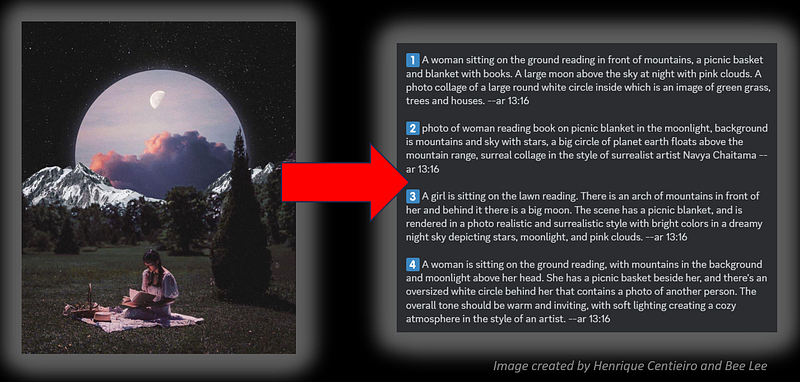
By uploading any image to MidJourney, the AI will ‘describe’ the image for you, providing a clear guidance for what should be included in the prompt if you wish to create a similar image.
However…
The older version of “Describe” didn’t always generate prompts that accurately reflected the uploaded images, which is why it was less popular among MidJourney users, with many unaware of its existence. 😣
Not only that, with the prompting method in MidJourney V6 differing significantly from the previous MidJourney versions, the “Describe” feature is due for an update! 🆙
🚀 What’s Special about the New Version of “Describe”?
On March 8, the updated “Describe” feature was released, as announced by MidJourney’s founder, David Holz, on the platform’s Discord channel:
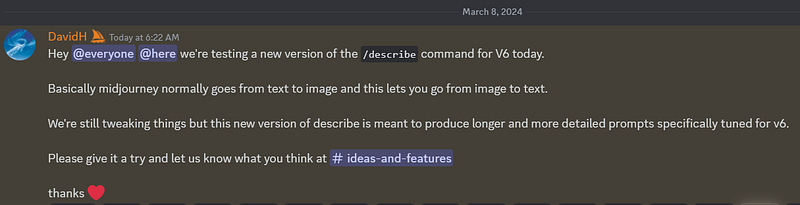
🌟 Here are some enhancements featured in the new “Describe” for MidJourney V6:
- It is fine-tuned to align with the V6 prompting style, favoring natural language and more descriptive terminology over abstract ‘vibey’ words.
- The feature generates longer, more detailed, and descriptive prompts.
- Accuracy has significantly improved. The prompts now more closely mirror the uploaded images, outperforming the precision of the previous version.
💁🏻♀️ Why Should You Use “Describe” on MidJourney?
1) Reverse-engineer prompts 🤖
If you find an inspiring image online and wish to replicate its essence on MidJourney, “Describe” can analyze the image and suggest the optimal prompts to get you started.
2) Improve your prompting skills 🧠
Gain insights into the MidJourney bot’s ‘thought process’ when generating images, helping you learn how to craft better prompts.
3) Find new inspiration ✨
Whenever you hit a creative wall or seek to infuse new life into your prompts, “Describe” can offer fresh inspiration and additional ideas for your prompts.
👣 Easy Step-by-Step Guide to the “Describe” Feature
Step 1 — Find an image you like
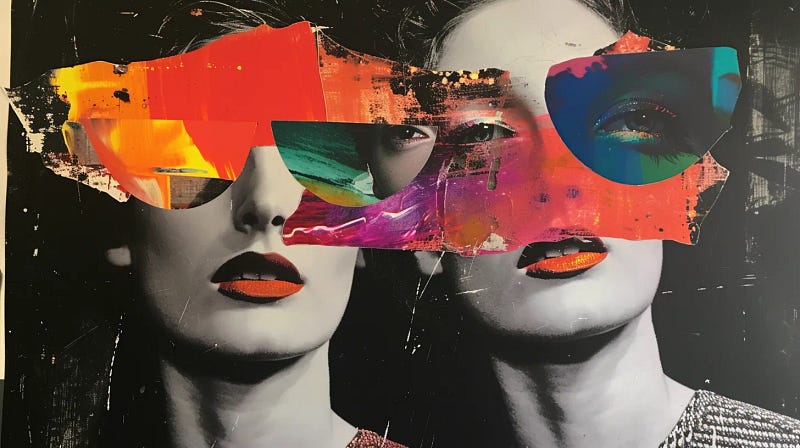
You can use any image, whether it’s one of your own or one you’ve found on the internet. For this step-by-step guide, I’ve chosen an image that I’ve created recently on MidJourney, and I really love its vibe:
Step 2 — Upload the image to MidJourney
Now, go to the MidJourney Discord, type /describe and hit ENTER. You will see two options pop up: “image” and “link”:
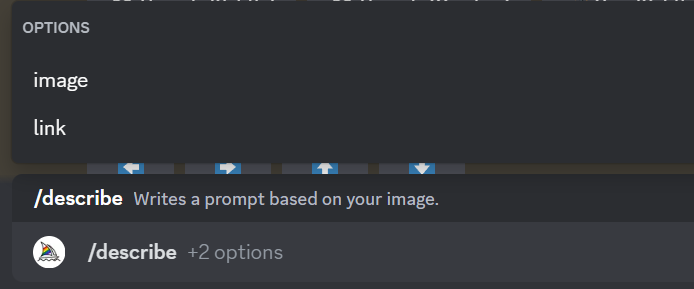
- If you select “image”: Simply upload the image directly from your computer.
- If you select “link”: Paste the image’s URL. In most browsers, right-click or long-press an image and select Copy Image Address to get the URL.
Step 3 — Let the MidJourney bot work its magic
After uploading the image or pasting the image URL, press ENTER. Within a few seconds, the MidJourney bot will provide 4 different prompt suggestions based on your image:
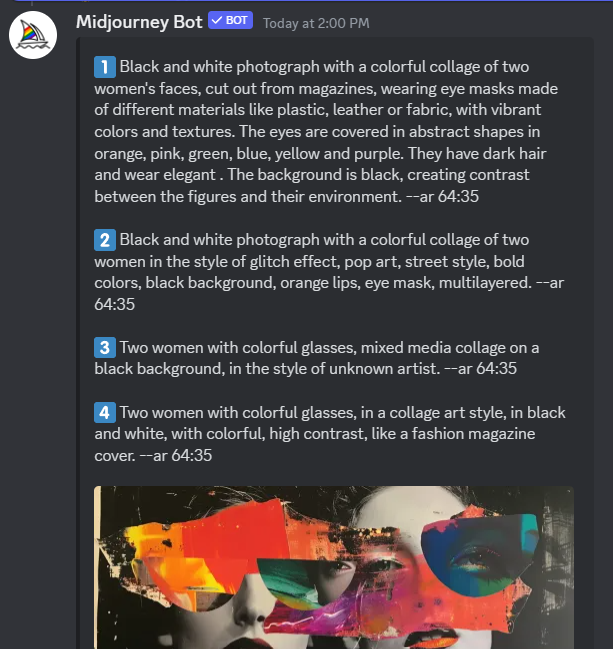
Step 4 — Choose your preferred option
Beneath the 4 prompt suggestions, you’ll find the following options:
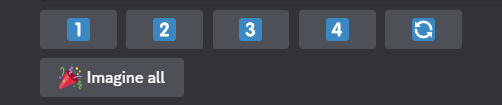
1️⃣,2️⃣,3️⃣,4️⃣: Select one of these to create images from your chosen prompt out of the 4 suggestions.
🔁: Not satisfied with the suggestions? Click this to generate a new set of 4 prompts.
🎉Imagine all: Click this to simultaneously generate 4 new set of images from all 4 suggested prompts.
Step 5 — Enjoy your new image!
In this example, I selected the first prompt suggestion, and here’s the result:
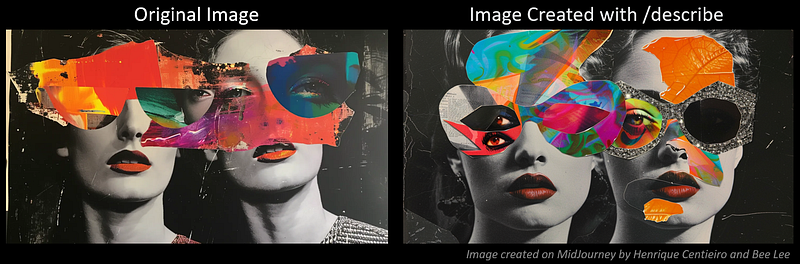
Not bad at all, right? 🤩 Now that you understand how “describe” works, let’s take a look at some cool visual examples I’ve prepared for you!
🎨 Visual Examples Using “Describe” on MidJourney
All the original images featured in these examples were created by me using MidJourney. Also, you’ll find all the suggested prompts from the “Describe” feature that I used. Enjoy! 😉
A woman sitting on the ground reading in front of mountains, a picnic basket and blanket with books. A large moon above the sky at night with pink clouds. A photo collage of a large round white circle inside which is an image of green grass, trees and houses. --ar 13:16 --v 6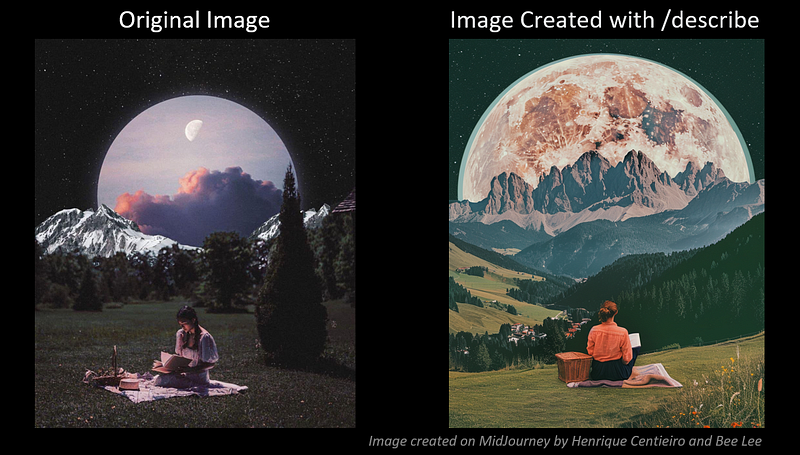
Double exposure photography of two woman's heads with orange peonies, surrealistic photography with a double exposure effect, vibrant colors, blue background, floral and human face double exposure --ar 4:3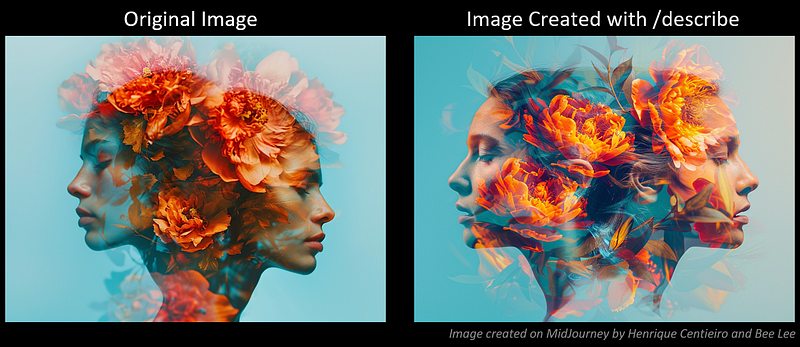
A very old photograph from the early 20th century shows a man dressed in a suit and tie, dancing with his arms outstretched while wearing a pineapple hat on his head at a parade. The photograph appears to capture the man dancing in the style of Fred Astaire. --ar 21:32 --v 6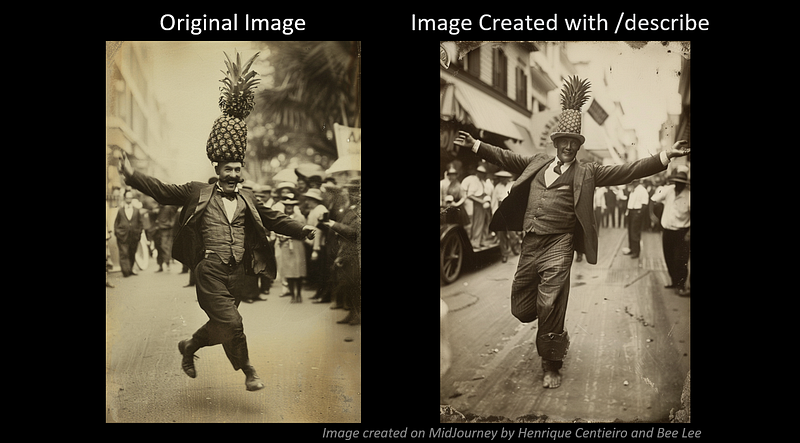
Vintage screengrab of a young couple holding hands and walking across the street in Los Angeles from the movie horns, white car behind, palm trees, 70s vibes, golden hour, retro aesthetic. The woman is wearing blue jeans and a oversized mustard yellow sweater with shoulder-length bob hair and blonde bangs. The man has short brown hair and tan pants and a brown sweatshirt. The woman carries her bag in one hand, and they both have smiles on their faces. Cinematic. -- ar 64:35 --v 6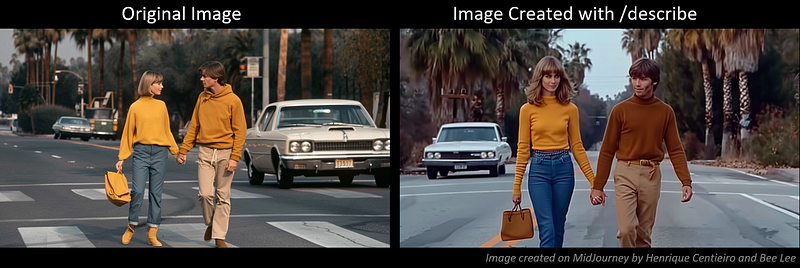
High contrast surreal collage, pastel colored paper clippings depicting an exotic landscape with an ocean and beach scene. Two lovers are walking hand in hand on the sand, with a fiery red volcano erupting behind them. Large bold black roses in the sky and tropical plants are in the foreground, with a broken down stone house burning in the background. The collage has high detail and vibrant colors, with cutouts from magazines in the style of surrealist artists. --ar 64:27 --v 6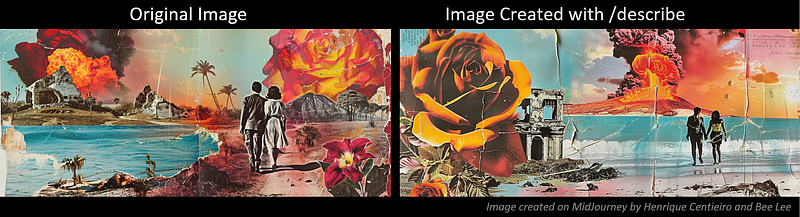
Portrait of a happy Latin woman holding a yellow coffee mug in front of a turquoise wall, looking at the camera and smiling, wearing a yellow dress, lifestyle photography with natural lighting and sunkissed skin tone that looks cute and dreamy. --ar 4:3 --v 6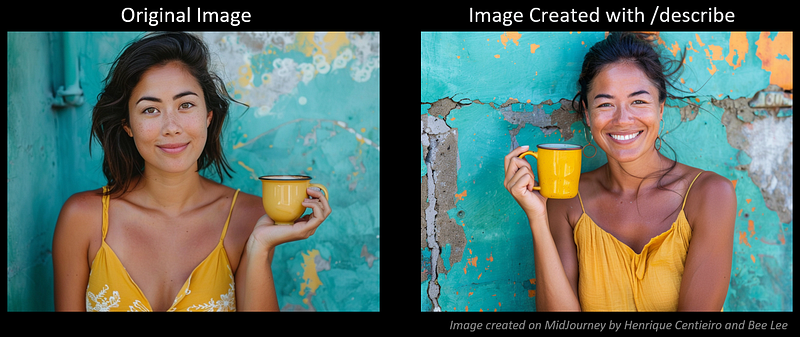
Strange colorful psychedelic desert castle in the style of Moebius and giger, pink desert at night, pastel colors in the style of Moebius, Satoshi Kon and Peter Max --ar 21:32 --v 6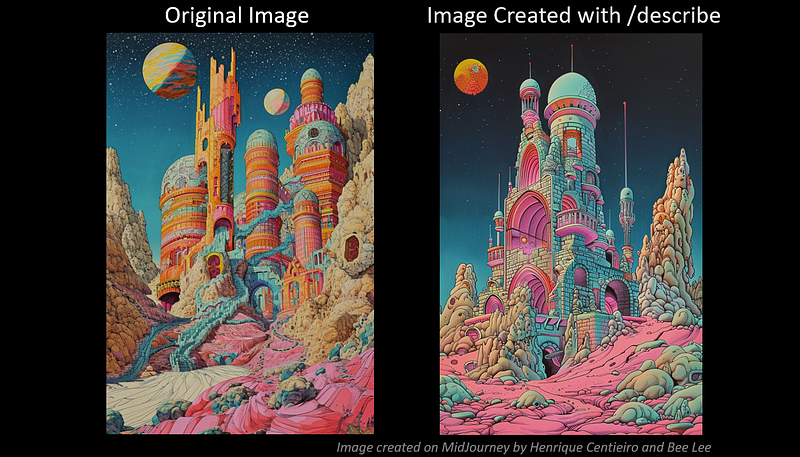
💡 My 5 Pro-Tips to Master “Describe” on MidJourney
🎓 Use it as a learning tool
- Although it’s not perfect, the accuracy has significantly improved over previous versions. “Describe” can offer new insights on how to better describe the details of an image, helping you to enhance your prompting skills on MidJourney.
✍🏻 Refine suggested prompts
- If you’re aiming to replicate a similar image, it’s crucial to review and adjust the suggested prompts. Tailor specifics as needed, such as adding or removing details, combining various prompt suggestions, changing certain parameters like aspect ratios, etc.
🖼️ Combine with “Image Prompt”
- To recreate an image with extra accuracy, consider merging the “Describe” prompt with an “image prompt” to capture the composition, style, and colors. Experiment with different Image Weights (
--iw) to find the ideal balance (the range must be between 0 and 3.0 for MidJourney V6).
🫱🏻🫲🏻 Combine with the “Style References” feature
- To capture the general style and ‘vibe’ of an image, I suggest combining the “Describe” prompt with the new “Style References” feature. Adjust the Style Weight (
--sw) to your liking (the range must be between 0 and 1000), with my personal preference being around 800 for a pronounced stylistic influence. - 💡Just in case you missed it, “Style References” is a new powerful feature that MidJourney recently released — you can now replicate any art style with just a reference image. To gain a deeper understanding and to see some stunning visual examples, don’t miss out on this Ultimate Guide:
🚀 Anticipating future enhancements
- I’m eagerly awaiting the integration of the improved “describe” with the soon-to-be-released “Character References” for character consistency and the enhanced “Style References” features.
- The combination of all these updates promises to create a more seamless and stylistically consistent image-creation experience on MidJourney! Rest assured, I’ll be at the forefront, bringing you the latest updates and my personal tips. 😍
😊 Thank you for staying with me to the end.
I hope to have provided you with fresh insights (and some visual delights 😍) regarding the new MidJourney “Describe” feature!
Stay tuned and enjoy your creative journey!
— Bee Lee 💃🏻
🥰 If you found any value in this article, why not throw me some Medium love? To support my work: Clap up to 50, leave a message to share your thoughts & Be sure to follow for more future content like this one! 💌

🤗 Hiya! I’m Bee Lee — An 8X Top Writer on Medium and a (seriously) Passionate Enthusiast of Generative AI
My passion lies in creating beautiful things and exploring the boundless creative possibilities offered by Generative AI and MidJourney. Sharing the insights and knowledge I’ve accumulated on this incredible journey with you fills me with immense joy! ❤️😊 Why not join me as we dive deeper into the fascinating world of AI together? 🎨🤖⛵ Learn more about me here.

⚠️ To maximize the potential of MidJourney’s “Style References”, be sure to check out this secret hack that I recently discovered:
📌 Here is the folder for all the articles in my
📌 Feel free to check out all my other articles here to learn more Tips and Tricks on using MidJourney:
📌 To learn more about how to create ultra-photorealistic MidJourney images, this is my highly-rated series where I shared my prompting formula and 100+ cheat codes:
🌞 Stay in touch: