avatarJulian Cosky

Free AI web copilot to create summaries, insights and extended knowledge, download it at here

3808

Abstract

wn Draft</figcaption></figure><h2 id="d327">Filing System</h2><p id="cb98">One thing about other systems is that you have to choose where to store your notes / documents.</p><p id="db55">I prefer to use tags, so I don’t need to think about where to store my documents.</p><p id="50af">The filing system within Drafts is as flexible as you want to make it.</p><p id="2dda">They’re called Workspaces and, unsurprisingly, they’re driven by tags.</p><p id="dd24">Once you add a tag, you can set up Workspaces to reflect the tags you desire. In essence, each Workspace is a glorified filter.</p><p id="2346">Within each Workspace there are four sections:</p><ul><li><b>Inbox</b>: This is where all drafts, with the specified tag, will appear by default</li><li><b>Flagged</b>: If you’ve added a flag to the draft, this is the filter for those</li><li><b>Archive</b>: This is a place to ‘hide’ drafts that you don’t need day-to-day</li><li><b>All</b>: As the name suggests, this is all of them.</li></ul><p id="d20d">When you set the parameters for the Workspaces, you have very (and I mean VERY) granular control over what is displayed, and how it’s displayed.</p><h2 id="a370">With Great Power Comes…</h2><p id="2cf5">The real power of Drafts is in the Actions, and there are hundreds (if not thousands) of them in the directory.</p><p id="8418">You can also create your own.</p><p id="eda9">The beauty of the Actions is that they can be customised for your own needs, and you can even set them do certain things after the Action has been run; e.g. archive the draft, leave it, or delete it.</p><p id="f7da">Here are some examples of what I do, but there are so many more.</p><h2 id="7ffd">Examples</h2><p id="2719">I use Drafts to write my daily journal.</p><p id="4735">My journalling app is Day One — I love how it collates all my entries, and I can look back over time.</p><div id="6af0" class="link-block"> <a href="https://jcosky.medium.com/seven-tips-to-keeping-a-journal-aa786e16516f"> <div> <div> <h2>Seven Tips For Keeping A Journal</h2> <div><h3>As I post this, I’ve been keeping a journal for 308 consecutive days.</h3></div> <div><p>jcosky.medium.com</p></div> </div> <div> <div style="background-image: url(https://miro.readmedium.com/v2/resize:fit:320/1*CTczMYxfjiYtL6Q0Mo4gNw.jpeg)"></div> </div> </div> </a> </div><p id="65f7">Using an Action in Drafts allows me to just type whatever I want in Drafts, then run the action to post the entry into Day One.</p><p id="bc1d">It’s ideal for keeping notes on the go, and then publishing to the journal at the end of the day.</p><h2 id="cec9">WhatsApp, Messages or Email</h2><p id="d7f1">There are many integrations like this, such as sending a WhatsApp message.</p><p id="0748">Emails can be composed too. The first line is used as the Subject, with the rest as the body of the email.</p><p id="d009">Again, just type my text into Drafts and fire the Action.</p><h2 id="061e">Task Management</h2><p id="98ce">Need to add a task to Todoist? There’s a great Action that captures the task, the description and even enables you to set the project and label.</p><p id="9278">You can add to Craft, Things, Obsidian and more.</p><h2 id="79c6">Cloud Storage</h2><p id="7449">I also store Drafts in Google Drive, or you could use Dropbox, or other cloud storage services.</p><h2 id="3bbf">Twitter</h2><p id="5d88">There is a great set of Twitter Actions, and I’ve created and posted many a tweet or tweet storms (multiple tweets) in Drafts.</p><p id="ca0c">If you capture text but don’t really know what to do with it once captured, then Drafts gives you the flexibility.</p><p id="3e2f">

Options

Capture the text and get it out of your head. The Draft will sit in the default Inbox until you decide what to do, if anything.</p><p id="d0ff">Maybe, it’s transient, and once you’ve reviewed it, you can just delete it.</p><p id="51fd">For others, when you get the time, review the notes, add tags and they will automatically sort themselves out.</p><p id="1d3f">Using Drafts means that I don’t need to think about which app to use to write things down.</p><ul><li>Docs?</li><li>Todoist?</li><li>Apple Notes?</li><li>Wherever.</li></ul><p id="bc2f">Drafts lets me keep moving.</p><h2 id="1ff9">Functionality</h2><p id="88c5">To be totally honest, I haven’t even scratched the surface of some of the functionality.</p><p id="7c19">Here are a few more…</p><ul><li>The editing tools allow you to re-arrange the draft by block, line or sentence. This drag-and-drop is perfect for editing long-form writing</li></ul><figure id="492d"><img src="https://cdn-images-1.readmedium.com/v2/resize:fit:800/1*2duzL5Nl6qmlLhJ_YXG-lA.png"><figcaption>There are various options to help edit a draft</figcaption></figure><ul><li>Keeping focus, means you can opt to keep the current draft active, BUT the default means a new, blank, draft is created after 60 seconds if there is no activity.</li><li>Sidebars are collapsible. Work on your draft with the minimum of fuss.</li><li>Preview mode: See your draft as you intend your audience to view it; removing the markdown to read a clear version of your work.</li></ul><p id="b2e7">There is so much more.</p><h2 id="d545">The Cost</h2><p id="fd9e">Drafts is free to download and use. However, if you want to get the full experience, then you do need to pay. It’s not expensive; £17.50 (per year) for the full, unadulterated app.</p><p id="5747">It’s worth every penny.</p><p id="9ecd">Have a look <a href="https://getdrafts.com">here</a>.</p><p id="49ff">There is a terrific Community that offers help and support for everything related to Drafts.</p><p id="bd13">One last thing…</p><p id="5eb3">I am not affiliated to Drafts, and have not been recompensed for this story.</p><p id="5559">I just love to talk about apps and services that make my life easier.</p><p id="f780">If you are looking for something inspiring to read, then check out this story by <a href="undefined">Frederik Verhagen</a></p><div id="9577" class="link-block"> <a href="https://readmedium.com/breaking-language-barriers-490b80ef1716"> <div> <div> <h2>Breaking Language Barriers</h2> <div><h3>Musing the idea of sharing one language with the entire world.</h3></div> <div><p>medium.com</p></div> </div> <div> <div style="background-image: url(https://miro.readmedium.com/v2/resize:fit:320/1*zDK4LETY2VC2Fy-uF0hDUA.jpeg)"></div> </div> </div> </a> </div><h2 id="baa2">Thank you for reading</h2><p id="4d8c">👉🏻 <a href="http://jcosky.medium.com/subscribe"><b>Click here</b></a> if you’d like to receive my articles directly into your inbox</p><p id="d6c3">👉🏻 <a href="http://jcosky.medium.com/membership"><b>Sign up with this link</b></a> for access to everything on Medium, and you’ll support me directly with a portion of your fee, it won’t cost you a penny more.</p><p id="f6c5">👉🏻 If you’d prefer, <a href="https://ko-fi.com/jcosky"><b>please buy me a coffee</b></a> to show your appreciation. 20% of payments received will be donated to Cancer Research UK.</p><p id="667f">My <a href="https://bit.ly/3th5Ots"><b>Productivity Playbook</b></a> is 22 pages with hints and tips to help you achieve more.</p><p id="e304">You can get your copy now. Enter <b>MEDIUM20</b> at the checkout for 20% off the price.</p></article></body>

You Must Use This App To Capture It All

A single place to write everything. I mean, everything.
Photo by Mika Baumeister on Unsplash

It’s an app that I love to use, and over the last few months I’ve actually seen the light and found more inventive ways to embolden my use.

If you haven’t yet had the pleasure, Drafts App is a writing tool on MacOS and iOS.

There are tons of writing apps, a couple that spring to mind are Ulysses and Craft. If you want to be really inclusive there’s also Microsoft Word. Evernote, Google Docs, Scrivener — all apps that allow you to get your words down.

I have to admit, I haven’t tried them all, and I’m not here to compare and contrast the apps. Each has their pros and cons; and each has their supporters and detractors.

However, I discovered Drafts some years ago, and have been an on/off user ever since.

It’s a markdown editor and has been billed as the Swiss Army Knife of text.

I used to use it at its basic level. That is, I just took notes. I didn’t dig deeper.

If you don’t know, markdown is a lightweight language that you can use to add formatting elements to plain text text documents. Markdown is now one of the world’s most popular markup languages. You can find out more here.

However, I had a ‘light bulb’ 💡 moment, and started to invest more time into getting it set up the way I like it.

I wrote recently about how I have implemented an integration between Drafts and Alfred to start my review sessions with team members, but I have also discovered more ways to use it.

I’m not a ‘techie’ and intriguingly, I had to install Homebrew on my MacBook Pro, so I could utilise some of the functionality offered by Doctor Drafts.

Doctor Drafts is an Alfred workflow to help support you interact with the Drafts app. It’s written by Stephen Millard and I urge you to check it out here if you want to know more.

A Use Case

Within Drafts, I created a specific note for each of my team members. The title is their name.

Simple.

I then created a workflow in Alfred, where I just type their name, and additional text. When I press ‘Enter’ the text is added to their note. The workflow includes the UUID (the unique reference for the draft) for each person’s note.

I even created one for my boss, so that I can add notes in between our catch ups, as discussion points.

This means I don’t need to search for a note each time. Just type and go.

I use the CMD+Space to trigger the Alfred dialogue box, enter the name of the team member then type the note.

When I add them into the note, I append the date too, so I know when it was added.

Since this is an on-going note, I can delete content when it’s no-longer required, or I’ve taken action on something.
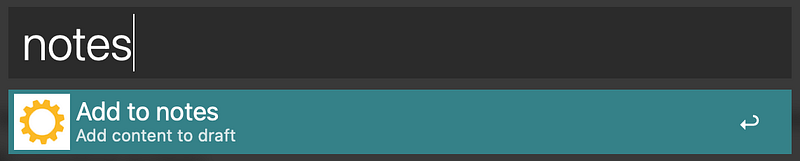
My Alfred dialogue box where I can capture general notes into its own Draft

Filing System

One thing about other systems is that you have to choose where to store your notes / documents.

I prefer to use tags, so I don’t need to think about where to store my documents.

The filing system within Drafts is as flexible as you want to make it.

They’re called Workspaces and, unsurprisingly, they’re driven by tags.

Once you add a tag, you can set up Workspaces to reflect the tags you desire. In essence, each Workspace is a glorified filter.

Within each Workspace there are four sections:

  • Inbox: This is where all drafts, with the specified tag, will appear by default
  • Flagged: If you’ve added a flag to the draft, this is the filter for those
  • Archive: This is a place to ‘hide’ drafts that you don’t need day-to-day
  • All: As the name suggests, this is all of them.

When you set the parameters for the Workspaces, you have very (and I mean VERY) granular control over what is displayed, and how it’s displayed.

With Great Power Comes…

The real power of Drafts is in the Actions, and there are hundreds (if not thousands) of them in the directory.

You can also create your own.

The beauty of the Actions is that they can be customised for your own needs, and you can even set them do certain things after the Action has been run; e.g. archive the draft, leave it, or delete it.

Here are some examples of what I do, but there are so many more.

Examples

I use Drafts to write my daily journal.

My journalling app is Day One — I love how it collates all my entries, and I can look back over time.

Using an Action in Drafts allows me to just type whatever I want in Drafts, then run the action to post the entry into Day One.

It’s ideal for keeping notes on the go, and then publishing to the journal at the end of the day.

WhatsApp, Messages or Email

There are many integrations like this, such as sending a WhatsApp message.

Emails can be composed too. The first line is used as the Subject, with the rest as the body of the email.

Again, just type my text into Drafts and fire the Action.

Task Management

Need to add a task to Todoist? There’s a great Action that captures the task, the description and even enables you to set the project and label.

You can add to Craft, Things, Obsidian and more.

Cloud Storage

I also store Drafts in Google Drive, or you could use Dropbox, or other cloud storage services.

Twitter

There is a great set of Twitter Actions, and I’ve created and posted many a tweet or tweet storms (multiple tweets) in Drafts.

If you capture text but don’t really know what to do with it once captured, then Drafts gives you the flexibility.

Capture the text and get it out of your head. The Draft will sit in the default Inbox until you decide what to do, if anything.

Maybe, it’s transient, and once you’ve reviewed it, you can just delete it.

For others, when you get the time, review the notes, add tags and they will automatically sort themselves out.

Using Drafts means that I don’t need to think about which app to use to write things down.

  • Docs?
  • Todoist?
  • Apple Notes?
  • Wherever.

Drafts lets me keep moving.

Functionality

To be totally honest, I haven’t even scratched the surface of some of the functionality.

Here are a few more…

  • The editing tools allow you to re-arrange the draft by block, line or sentence. This drag-and-drop is perfect for editing long-form writing
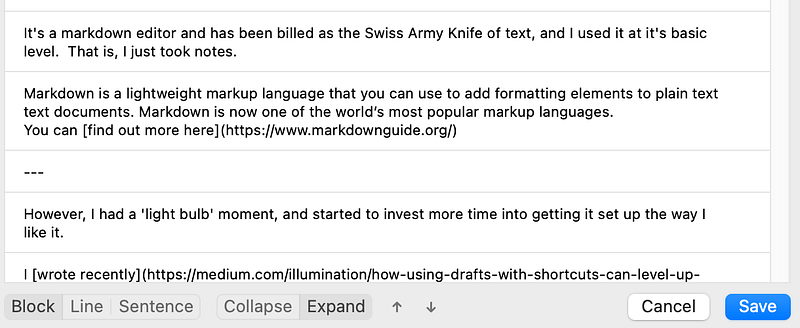
There are various options to help edit a draft
  • Keeping focus, means you can opt to keep the current draft active, BUT the default means a new, blank, draft is created after 60 seconds if there is no activity.
  • Sidebars are collapsible. Work on your draft with the minimum of fuss.
  • Preview mode: See your draft as you intend your audience to view it; removing the markdown to read a clear version of your work.

There is so much more.

The Cost

Drafts is free to download and use. However, if you want to get the full experience, then you do need to pay. It’s not expensive; £17.50 (per year) for the full, unadulterated app.

It’s worth every penny.

Have a look here.

There is a terrific Community that offers help and support for everything related to Drafts.

One last thing…

I am not affiliated to Drafts, and have not been recompensed for this story.

I just love to talk about apps and services that make my life easier.

If you are looking for something inspiring to read, then check out this story by Frederik Verhagen

Thank you for reading

👉🏻 Click here if you’d like to receive my articles directly into your inbox

👉🏻 Sign up with this link for access to everything on Medium, and you’ll support me directly with a portion of your fee, it won’t cost you a penny more.

👉🏻 If you’d prefer, please buy me a coffee to show your appreciation. 20% of payments received will be donated to Cancer Research UK.

My Productivity Playbook is 22 pages with hints and tips to help you achieve more.

You can get your copy now. Enter MEDIUM20 at the checkout for 20% off the price.

Productivity
Technology
Writing
Task Management
Recommended from ReadMedium