
You Gotta Keep ’Em Separated
The Mayday Project, Day 20 — Organizing my digital life


Over the past few years with some tweaking this month, I have developed an organization structure for my digital life. As we advance technologically, more and more of our lives is spent on a smart phone, computer, tablet and less time is spent on paper. The great benefit of digital files is that they take up no physical room so you can theoretically store everything with little space forever. However, the down side of keeping everything is that it can be hard to find.
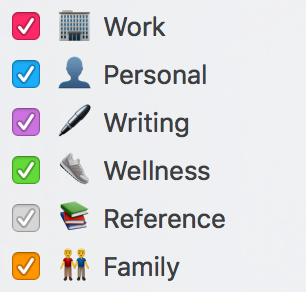
I have organized my digital life for clarity and simplicity. By having one set organization structure, I can spend less time worrying about items and automatically go to the right place. I have organized my life in the following areas: Work, Personal, Wellness, Writing, Family, Reference.
Calendars
I have six primary categories for calendars divided into different areas. My Work calendar is only for meetings and events at work. My Writing calendar is to mark out time for writing. The Wellness calendar is to mark out time for wellness, exercise and any appointments like doctors, dentist, optometrist. The Reference calendar is for events that I want to track but might not be something I pay attention to. The Family calendar is a shared calendar for family events. Finally, the Personal calendar is a catch all for all personal events that are not wellness, writing, family or reference. I’ve had this structure for a long time with red for work or school and blue for personal. I created the calendars for writing and wellness to give them a special priority in my planning and the ability to look at a glance at my life balance.
Notes: Folders
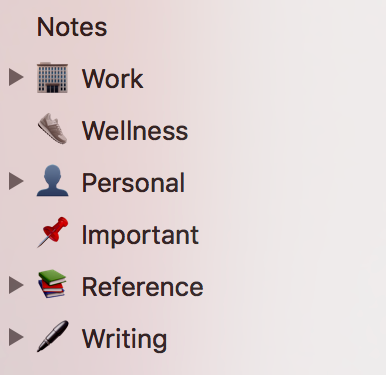
In my Notes app on my devices, I have the same folders that match the calendars. I can quickly find notes because I have sorted them already in my mind. The one addition here is the Important folder, which is just anything I might need for quick reference without hunting through the other folders. To maintain speed of finding important notes, this is always the leanest folder.
Finder: Tags
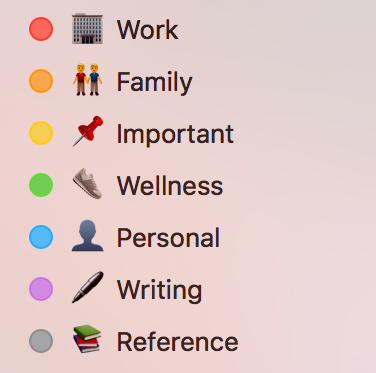
In macOS, files can be tagged with one or more colored label. I have renamed the colored labels so they match my calendars and the Important tag from my notes. By keeping the same name, emoji and color, it’s easy to recognize at a glance what a file is. I always know that a file with a purple dot next to it is for writing on any device.
Bookmarks
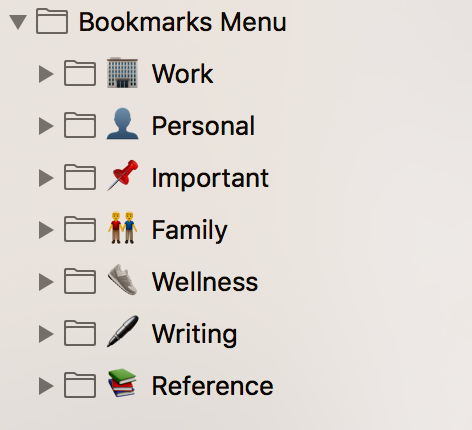
As you can see, the bookmarks folders follows the same pattern as above. This keeps me organized and able to quickly compartmentalize bookmarks.
Mail: Flags
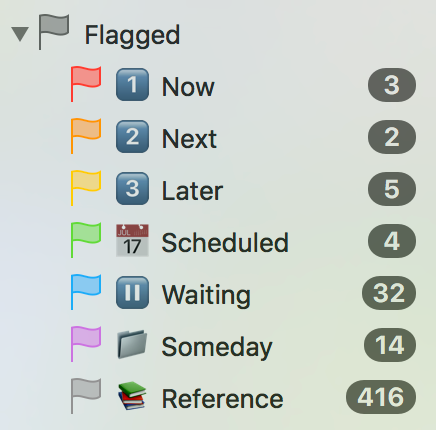
Mail is one area where the color scheme is different from above. Instead of area, I use the flags in the mail app for prioritization. I am always at inbox zero and it’s because I prioritize emails constantly. The Now flag means I should act or review the email as soon as possible, this is generally considered important and urgent (see Steven Covey’s four quadrants.) This should always have the fewest number of emails. Next is important but not urgent and Later is urgent by not important. The Someday flag is for emails that are neither urgent nor important. The Scheduled flag is one of my newer flags and I use this to keep track of any events that are scheduled, which I might need for reference, but does not require action, such as a medical appointment or dinner reservation. The Reference flag is to retrieve important emails quickly so I don’t have to search my entire history. The most important flag is the Waiting flag, which may be familiar to those who have read David Allen’s Getting Things Done. This flag is for any items that I need to check on or follow up on but there is no action from me at this time as the proverbial ball is in someone else’s court, so to speak. These might be delegated tasks, waiting for responses, or anything that requires another action before proceeding.
Things
I use the app Things to track to-dos online. This app makes it easy to list everything that needs to be done and organize accordingly. Things and it’s basic premise follows the Getting Things Done (GTD) philosophy closely.
Things: Areas
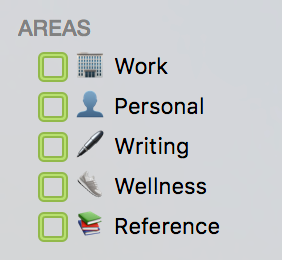
In Things, I have created areas that match my calendars except family. These areas are where all of my recurring tasks and projects take place. These are not physical areas, but constructs that separate and prioritize different actions.
Things: Tags
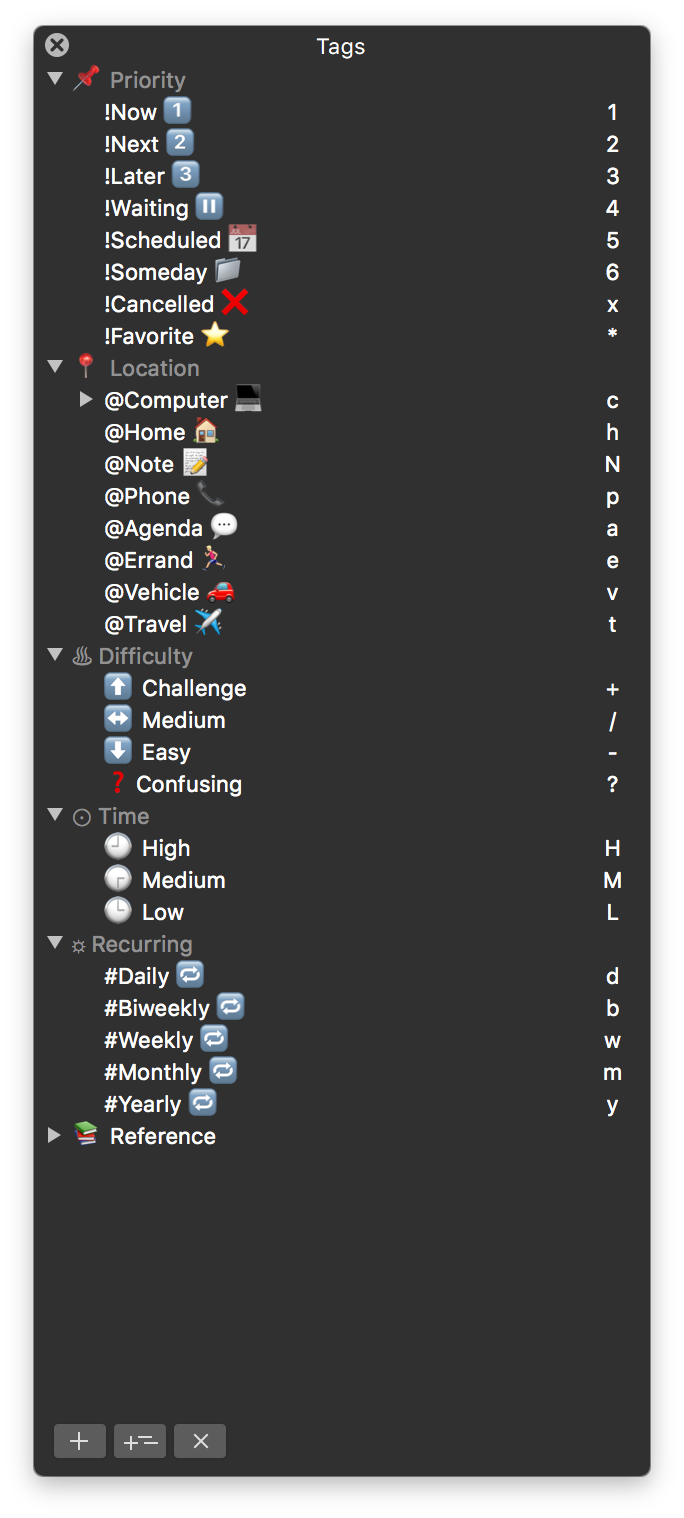
Tags in Things can serve a number of purposes. I have organized the tags to meet several organizing needs. Prioritization is first, and as you can see, these match the priority flags in my email. Location or context is very important in reviewing to-dos. For example if you have a to-do such as “mow the lawn” that can only be accomplished at home, so there’s no point worrying about that at work. Likewise, an errand can only be completed when not at work and at home. I have also grouped to-dos by difficulty, time to complete and recurring interval.
Summary
This is how I have organized my digital life over the years. Others would organize their lives totally differently based on their goals and needs. For example, parents could probably use an area for each kid or children in general. My recommendations for everyone is be consistent, consistent folders, areas and colors are key to keeping things organized. If Johnny is red and Polly is yellow, then it is always easy to distinguish between the two in calendar or note or to-do. When possible, use emoji, images or symbols as a shortcut. I find that often just putting these images and symbols to a label reinforces the concept. Finally, review often and make changes as needed. Nothing is set in stone. If something isn’t working, then change it. I have changed my calendars, folders, tags, flags and labels several times before I found the right set. I even had a different email flag structure until recently and a review revealed I wasn’t using it efficiently.
The Mayday Project is a personal, total wellness plan. These essays will track my progress and development of the plan. Please follow for tips, ideas, inspiration and what not to do when you’re changing your life.
If you liked this, please click the 💚to encourage others to read this.
Sign up at Tiny Letter to have This Charming Rant delivered directly to your inbox.