
You Can Now Generate Your Future Kid with Midjourney!
InsightFace ‘s New Face Mixing Feature is Mind-blowing!
Not long ago, I introduced to you Insight Face, a face swap-bot to use with Midjourney that allows you to swap faces quickly and easily, creating a digital likeness of yourself.
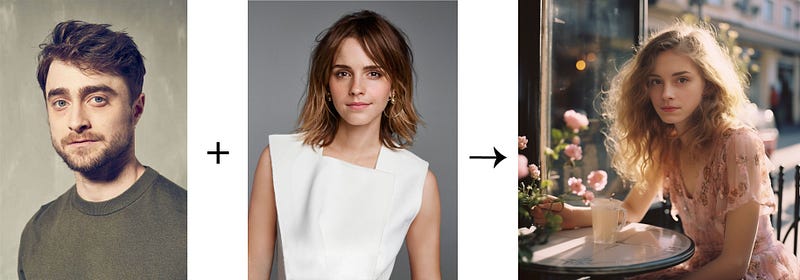
Recently, they have introduced a new feature called ID Mixing in which you can combine multiple IDs using the “+” symbol to create fascinating outcomes like a mixture of two people.
All it takes is a few simple steps and you’ll be able to have your very own masterpiece in no time!
Insight Face
InsightFace is an open-source library for 2D & 3D face analysis. It offers state-of-the-art algorithms for facial recognition, detection and alignment which are designed to optimize performance for both training and deployment purposes. It is free to use!
InsightFaceSwap Discord Bot simplifies the process of swapping faces and makes it a breeze to complete with only a few steps like the example below.
Follow this quick guide and prompts if you are new to Midjourney
Insight Face — ID Mixing
Today, I will be walking you through the process of combining faces to create a digital representation of your future child in a breeze!
Let’s get started!
Make sure you have Midjourney Bot in your server. If not, you can always create your server in simple steps.
Refer to this post here for detailed instructions.
1. Invite Insight Face Bot
First, you will need to invite Insight Face Bot to your server.
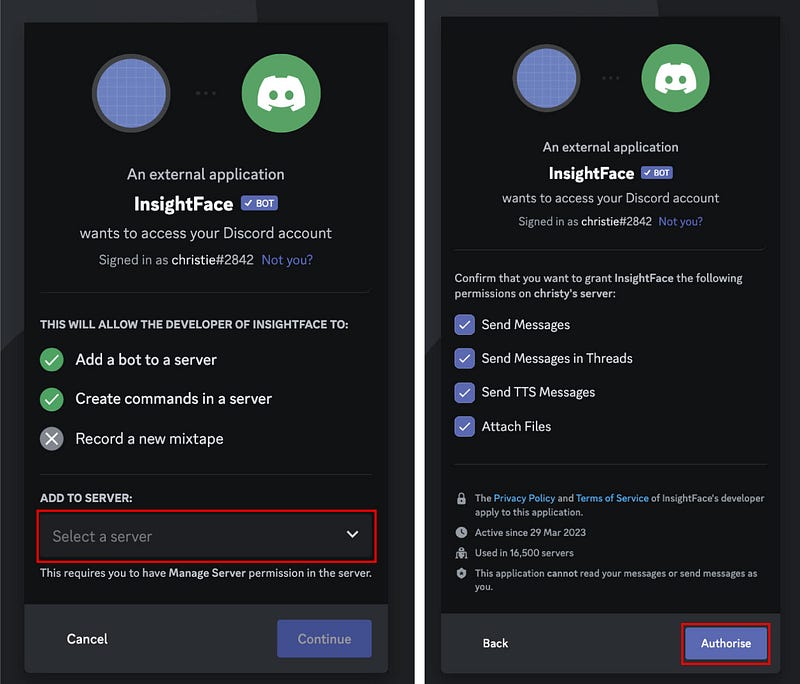
2. Register the Identity — “/saveid”
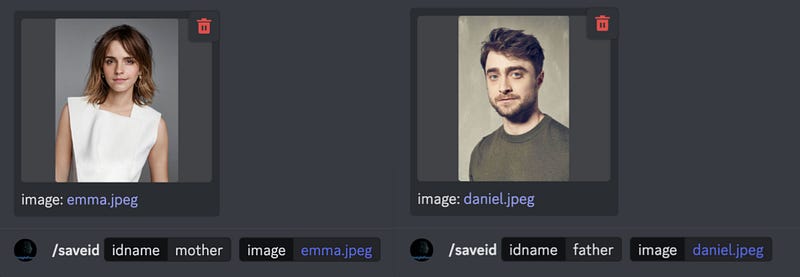
After adding Midjourney Bot and Insight Face Bot to your server, upload an image and use the command “/saveid” to register the identity for face swapping.
The registered name can be a combination of alphabets or numbers and up to 10 characters long
📌 Note that front-view, no glasses, no heavy bangs photos are preferred
To create a digital representation of the kid, let’s set the id names as “father” and “mother”.
We are using the photos of Emma Watson and Daniel Radcliffe as examples
3. Set the ID for mixing
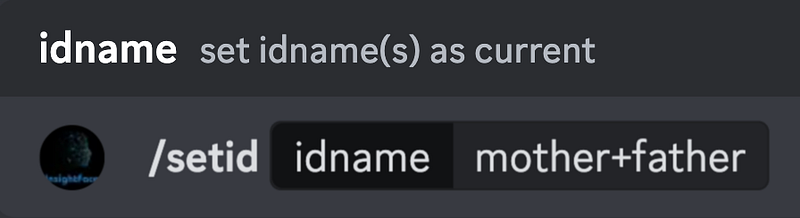
After, we will need to set the identity with the command “/setid” together with the symbol “+” to link multiple id names.
4. Create a Portrait
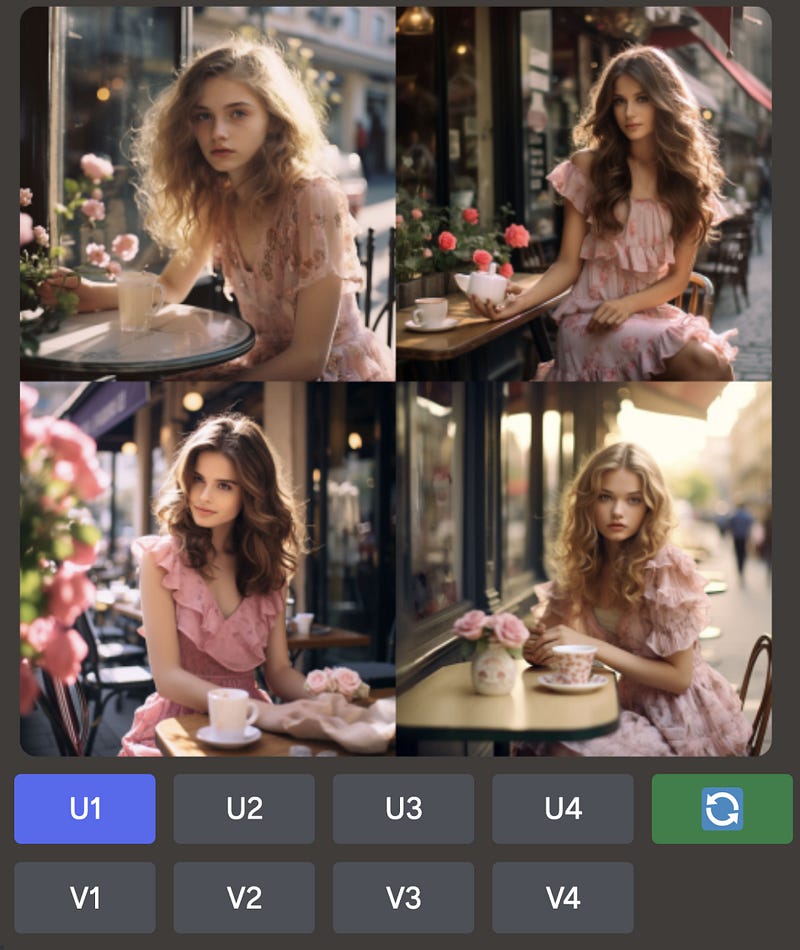
After setting the identities, create a portrait with Midjourney and pick one that you like to upscale it.
Here, I pick the first one and upscale it with U1.
If you want to learn how to create photorealistic images, be sure to check out this article with over 50 prompts
5. Use “INSwapper”
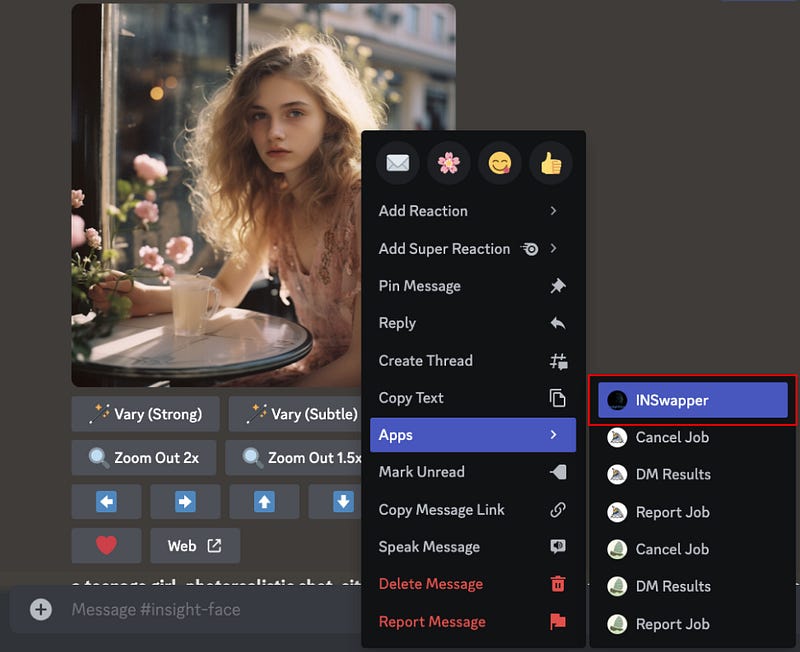
Now, let’s cast the magic with “INSwapper” to quickly generate a combination of both people.
To use the INSwapper application, right-click on the image, then select “Apps — INSwapper” from the drop-down menu.
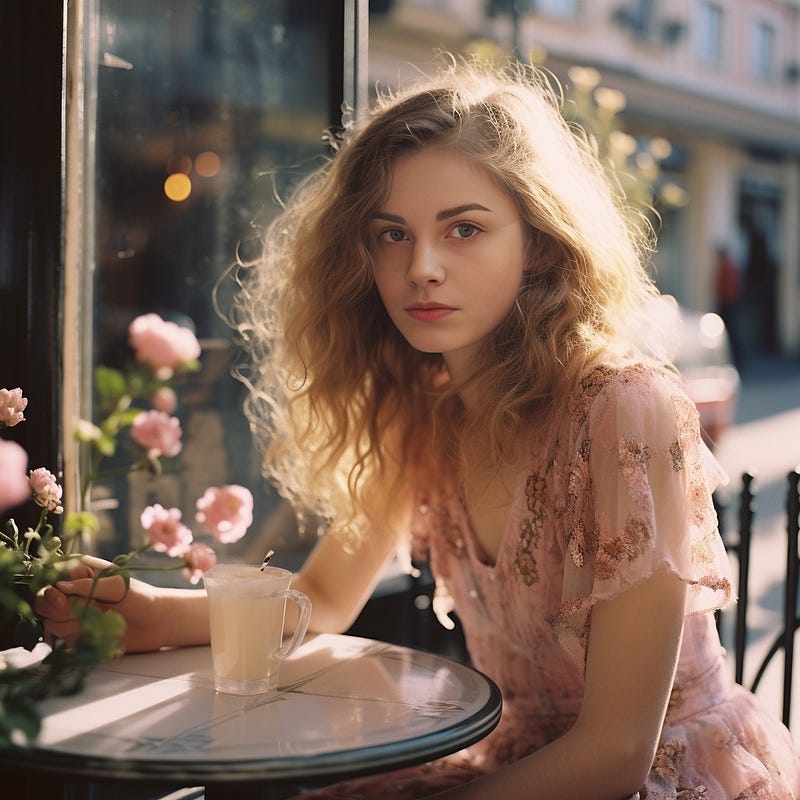
Here you go, an image of Emma and Daniel!
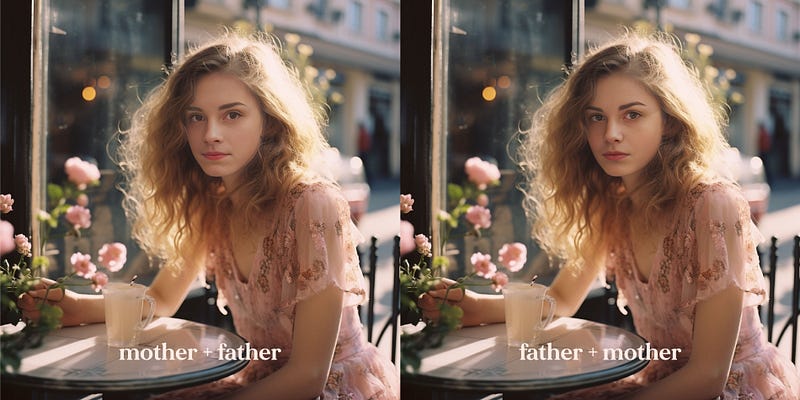
🌟 The order of the “+” links influences the result
For instance, using /setid father+mother might generate an image resembling their father, while /setid mother+fathercould produce a picture resembling their mother more
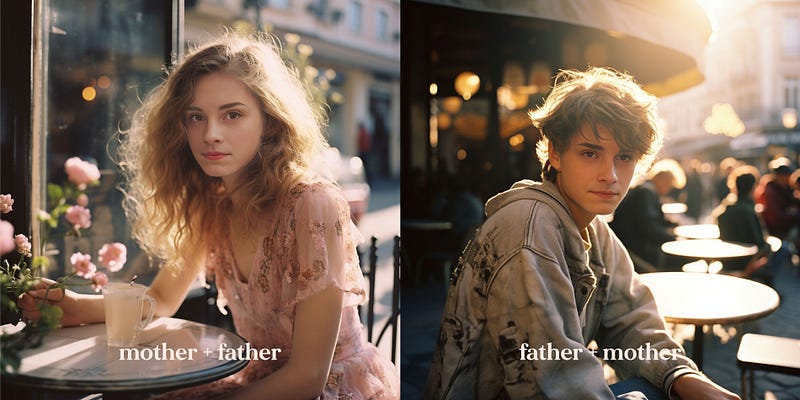
You can also use portraits of different gender
🌟 3 IDs
Add up to 3 IDs to generate interesting results. For instance, you can enhance the mother ID’s features by utilizing /setid mother+mother+father
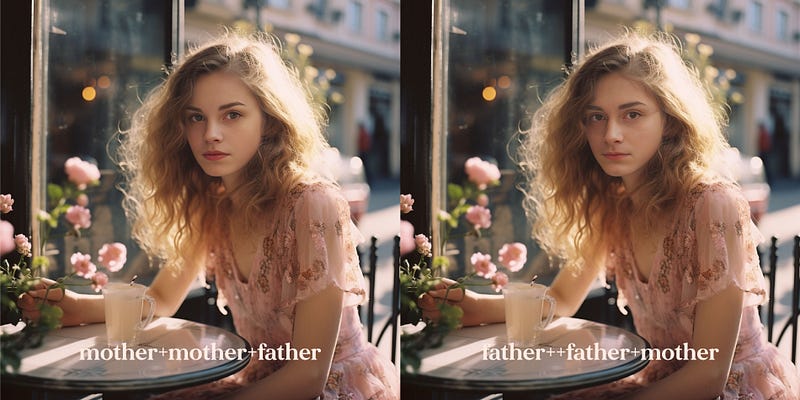
/setid mother+mother+father
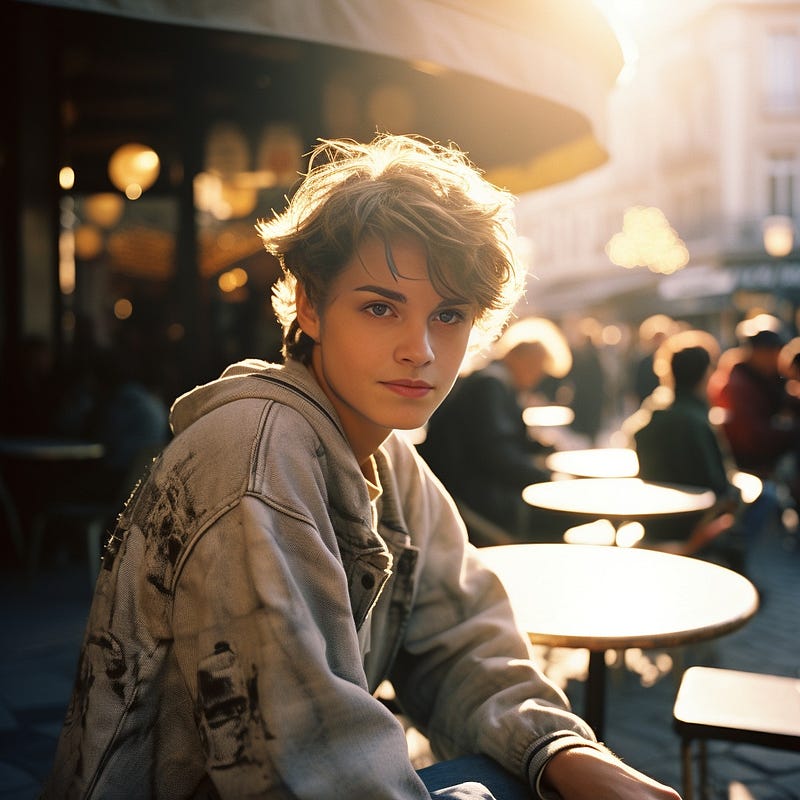
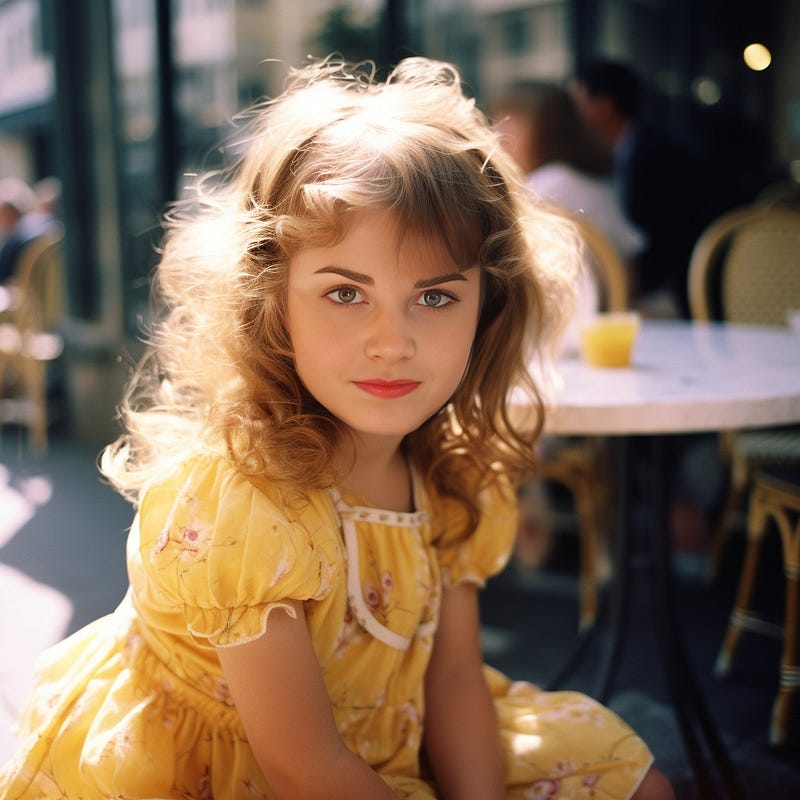
It’s important to mention that if you use an image of a baby and a kid, the result will come out weird, like the one below.
Creative Usage — A Family Photo
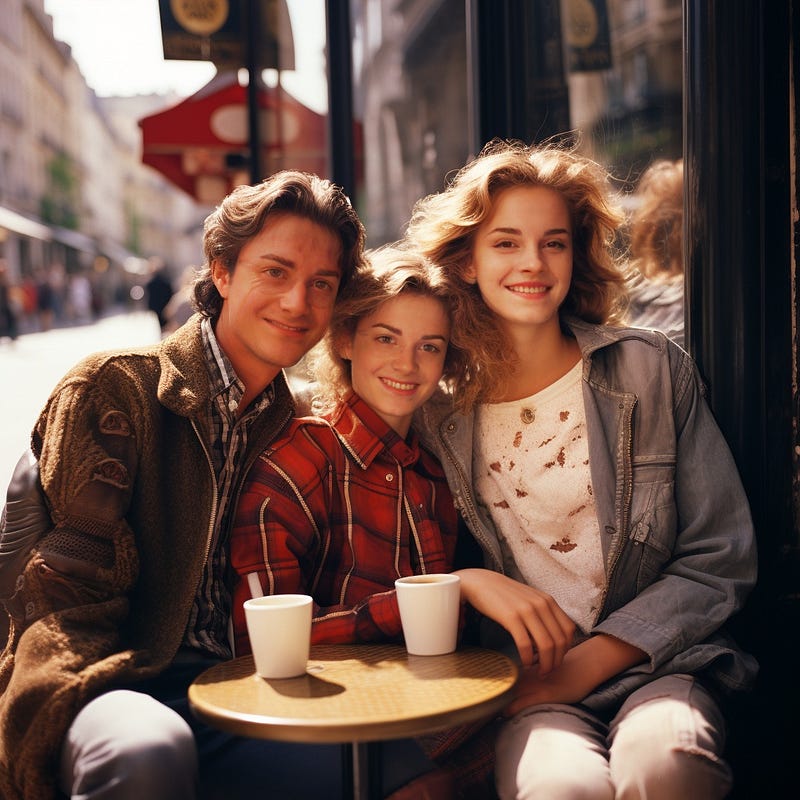
You can set multiple ID names with “commas” to separate them. For instance, using /setid mother,mother+father,fathercan generate a resemblance of a family.
Major Commands of Insight Face
- /saveid name upload-ID-image Upload an image and register the ID
- /setid name(s) Easily set the identity name(s) for image generation. You can specify multiple IDs by separating them with “,” or use “+” to link multiple ID names.
- /swapid name(s) upload-ID-image Replace the face with the registered identity name(s) on target image.
- /listid List all registered identity names. You can create up to 20 distinct IDs!
- /delid name Delete specific identity name.
- /delall Delete all registered names
How to get good results?
1. Use high-quality pictures from the front, without glasses and heavy bangs.
2. Use greedy mode for increased identity resemblance. To set greedy mode, use /setid --greedy to enable greedy mode and /setid --nogreedy to disable it.
3. Ensure that the target image has facial features proportionate to those of real humans.
Learn how to swap faces instantly with InsightFace here:
The “INSwapper” feature can also be used on uploaded images within your Discord channel, providing a great deal of convenience. Note that occasionally, the job’s completion time might vary based on the number of users running the command.
I hope you enjoy today’s post. Remember, front-view, high-quality ID photos without glasses or heavy bangs are preferred.
Join me and thousands of other great writers on Medium. Read unlimited content and earn money with your writing. Start today!
I share tips, tricks and insights on AI tools for the design and creativity industries, focusing particularly on Midjourney. If you found this article valuable, make sure to:
🎨 Follow me and learn more about AI and Midjourney 💌 Subscribe and never miss a post!