
You Can Create A Phone App for Your Story Ideas
I’ll show you how using Google Forms.
Source of All Images: Screenshots by Randle Moore
Background
If you are like me, you have an excellent idea for a story one minute, then 5 minutes later you can’t remember what that brilliant thought was. Was it inconvenient at the time to write it down? You had a pen, but no paper? You had something to write on, but no pen. You had neither?
I know just how you feel. I bet other people have felt the same way. Over the years, I’ve found ways to mitigate my fleeting memory for those excellent but speedily vanishing ideas. I used to keep a note pad and pen by the bed for those unique thoughts that come in the night. But in a house with a family, it would be only a matter of days before the pen or paper would walk off to who knows where. Perhaps it had a date with a missing sock.
And when I was younger and a bit more nerdy, I kept a small spiral pad and pen in my shirt pocket. But, again, pad and pen rarely survived the day together.
When I did succeed with a note pad, I had orphaned pieces of paper. I never quite could keep up with them, or have them in the right place at the right time.
I’ve now developed a working system. I use my Google drive and Google tools to record my ideas, store them, write my drafts, store files, and polish my stories.
Let me tell you how I implement the system.
First
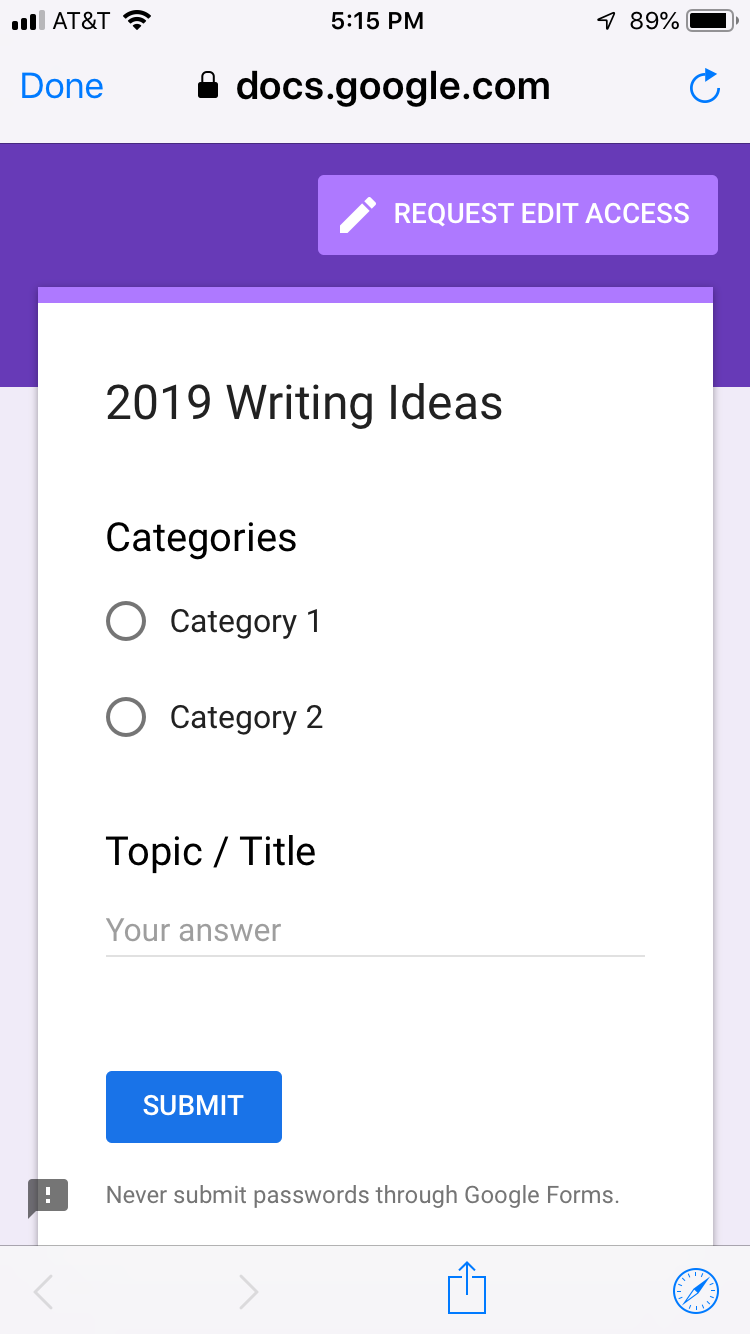
When an idea pops into my head, I grab my phone and type it into the Google form I created. Then I hit submit. A spreadsheet is instantly updated. It also notes the date and time. Date and time are nice to have for tracking my most creative times.
Second
When I am in my home office, at my keyboard, my notes are immediately available on my Google Drive. I don’t have the search for pieces of paper or the right folder. I can color code my Medium writing folder, create subfolders, and be as obsessive as I want to be in organizing my work. When I lose something, I can search for it using control-f (windows). Everything I need is right where I need it when I need it.
Third
Once I’ve polished my story, spell checked it, and run it through a grammar checker a dozen times, it is a simple matter to upload it to Medium.
Instructions for creating your Story Idea App
Step #1: After logging into Google or Gmail, click on the Google Apps matrix in the upper right-hand corner. The screenshot below shows how to access the Google Apps matrix via Gmail. See the red circle. Click on the Google Apps matrix.
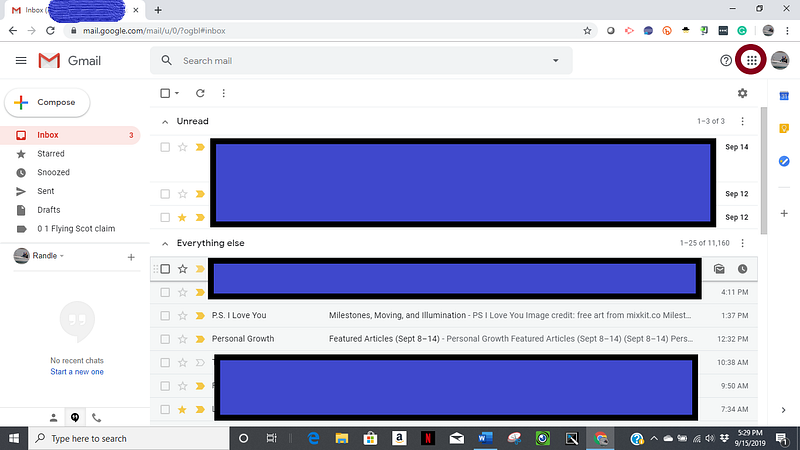
Step #2: After selecting the Google Apps matrix, the screen will look like the image below.
Step #3: Select the Drive icon. It is a green, yellow, and blue triangle.
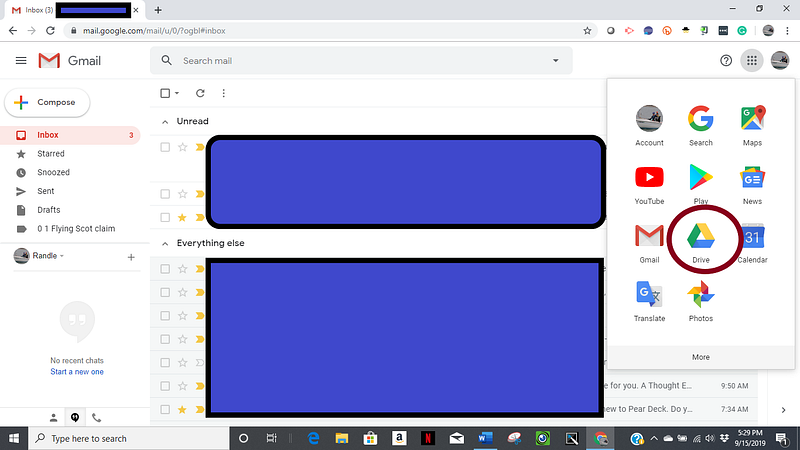
Step #4: Once you’ve clicked on the Drive icon, your screen will look something like the image below. The next step is to create a new Google Form. In the upper left-hand corner, you’ll see a multiple colored plus sign, Beside the plus, it says, “New.” Click on New.
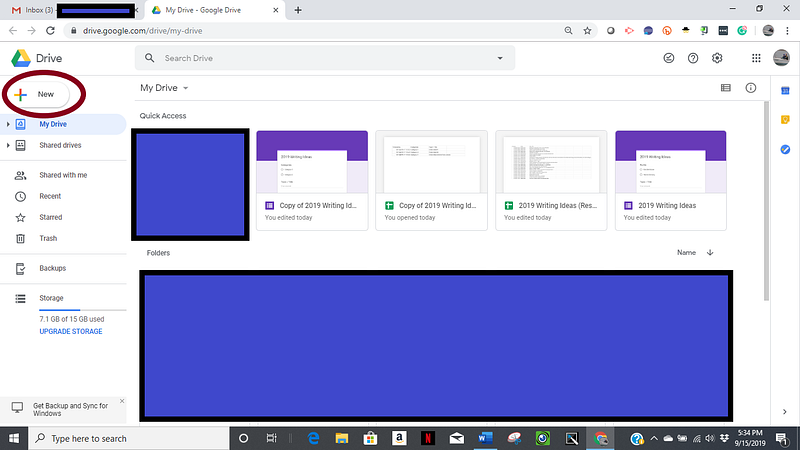
Step #5: Click on More. Then click on Google Forms.
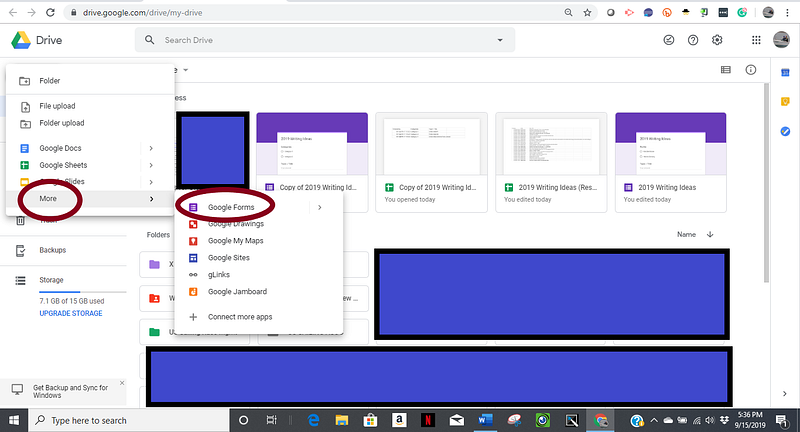
The image now looks like the one below.
Step #6: Now, you can build your form the way you want it. I have chosen two questions for my app. The first question will be multiple choice categories. Categories could be different profiles if you write both under your name and a pen name, or interests such as Technology, Creativity, Productivity, Writing, etc. The second question, “Topic / Title” is to be answered by a short paragraph response.
Step #7: Create a spreadsheet to store and view your ideas. To do that, click the tab “RESPONSES” located at the top of the white form.
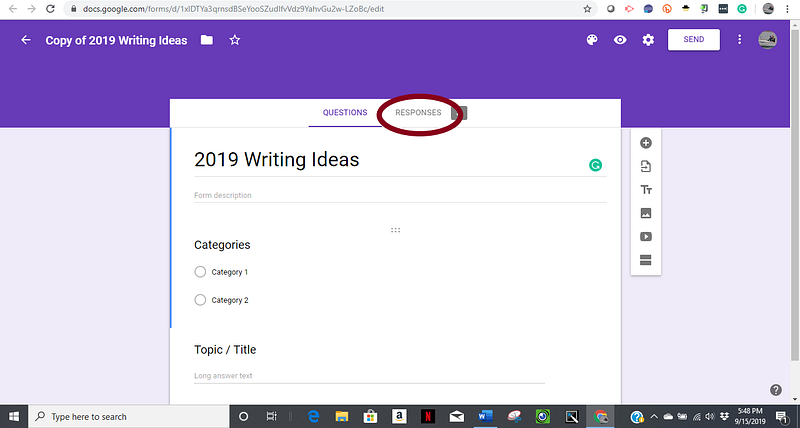
The image below is a model similar to the one you will see. Step #8: Click on the “sheets” symbol.
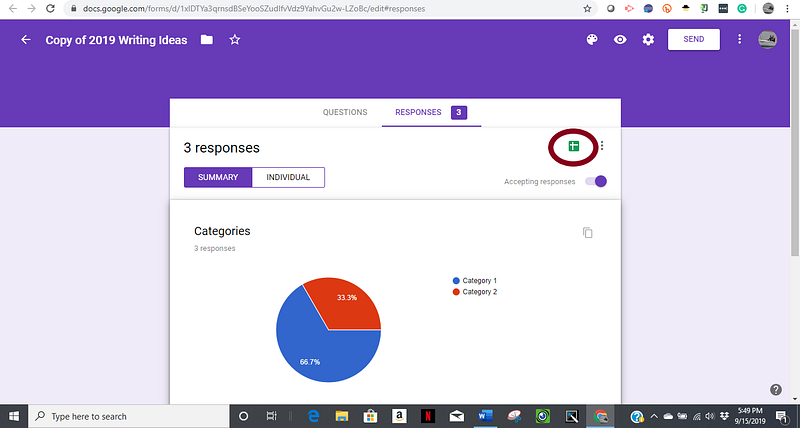
You will see an image similar to the one below.
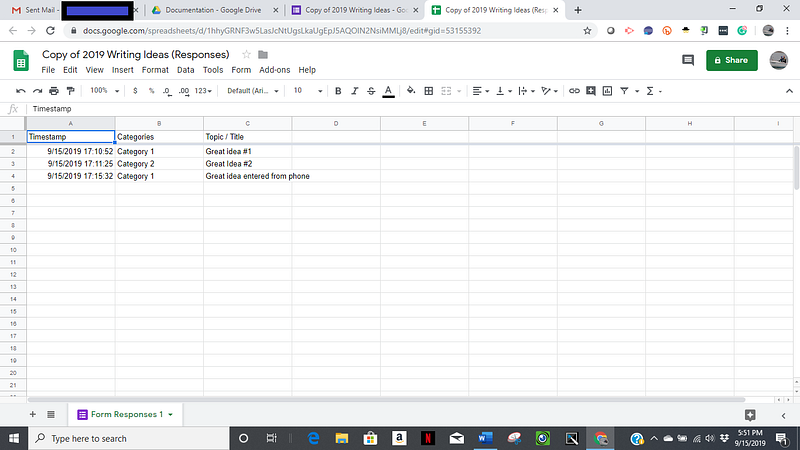
By loading the apps of Google Drive, Google Forms, and Google Sheets onto your phone, you can enter your ideas and review them on your phone. You’ll have all your story ideas in a single place accessible by most internet-accessible devices.
More help is available on YouTube.com to create Google Forms.