
Writing for Quora Spaces: A Tutorial
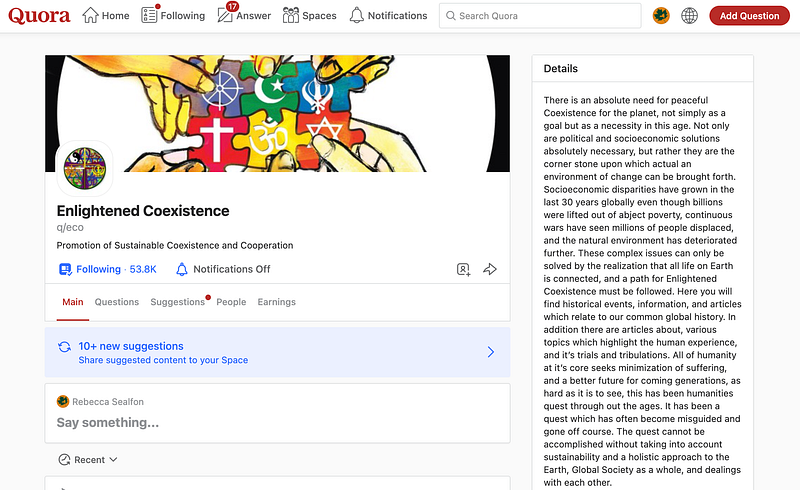
The website Quora.com is known as a question-answering website, but about two years ago, it added a rather different new feature called Spaces. Spaces are basically collaborative blogs where a curated community can post and share information about a specific topic.
I started and maintain a number of popular Quora Spaces, some with over a million views and one with hundreds of thousands of followers. Spaces about topics people are passionate about can host strong communities. A Quora Space I started about the Israel-Palestine dynamic, Unity is Strength, has spread to WhatsApp and Discord. Recently, it became the first Space to be awarded grant money from an external organization and also the first Space to become a United Religions Initiative (URI) Cooperation Circle. For many of the Palestinians and Israelis in this community, it is the only point of contact they have with the other cultural group. Unity is Strength is one of many Spaces that connect their interest-based communities across geographical and cultural barriers.
I realize many people outside and even inside the Quora community do not know how to write for Spaces. Some time ago, I wrote an introductory tutorial, “How to Write and Contribute to Spaces on Quora,” discussing how to sign up for Quora, follow Spaces, make a couple of types of posts, and apply to Spaces for a more formal writer status. If you have not done these things, you probably want to take a look at that tutorial.
Since then, the format for how to contribute to a particular Space has changed. This piece will teach you how to share various types of content.
Part 1: Making a Post to a Quora Space
Unless the Admins have chosen to close the Space to outside contributors, most Spaces will let you write something and submit it.
Go to a Space called World of Water. Follow it if you’d like. I recommend you make your first post to that Space. It’s a fast-growing Space I help maintain, open to anything reputable that is related to the ocean or any other body of water. I’d like to give you a good experience when you submit your first post. World of Water covers an especially broad and non-controversial topic, tends to have a fast turnaround time on accepting or rejecting submissions, and should be keeping the setting that anyone can submit.
On my computer, World of Water looks like this. It’s grown quite a bit since I wrote the first tutorial about Spaces. It’s got almost five times as many followers.
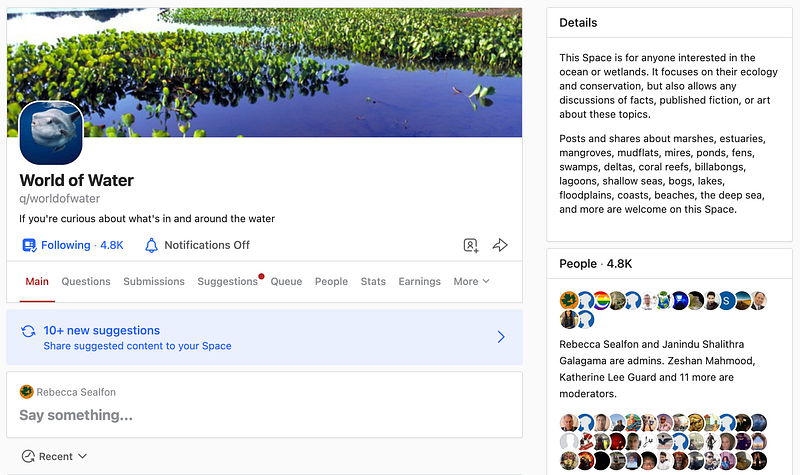
Click on the box that says “Say something…” — it’s in the bottom left corner of the photo above.

In that box, you can start to type something you might want to share. Perhaps you can write a bit of information about yourself — where you come from, for example, and an experience you had that was related to the water. The post will be accepted to World of Water if it’s reasonably well written and you can connect it to any aspect of the water. Here’s a sample post, introducing me.
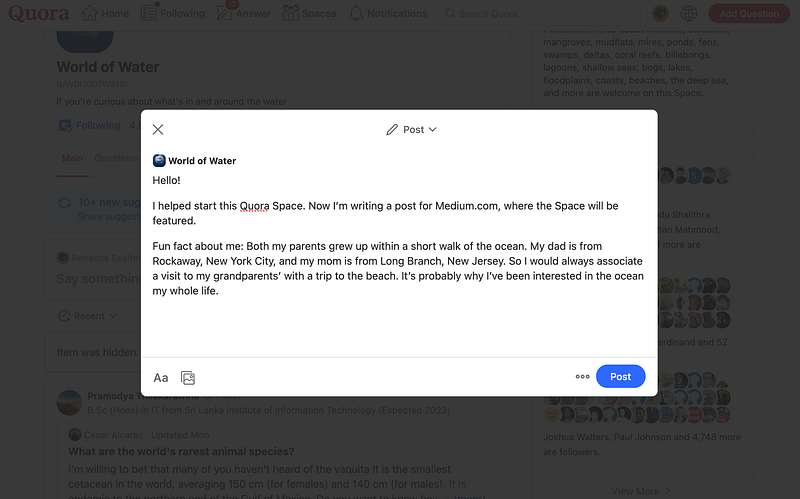
When you click “Submit” and it is approved by the Admins and Moderators, your post will be shown on the Space. My screenshot says “Post” rather than “Submit” because I have Contributor privileges, which enable me to post to this Space without Admin or Moderator approval. In fact, I am more than a Contributor to this Space — I am the admin. So if you submit to World of Water, your post could end up being accepted there by me.
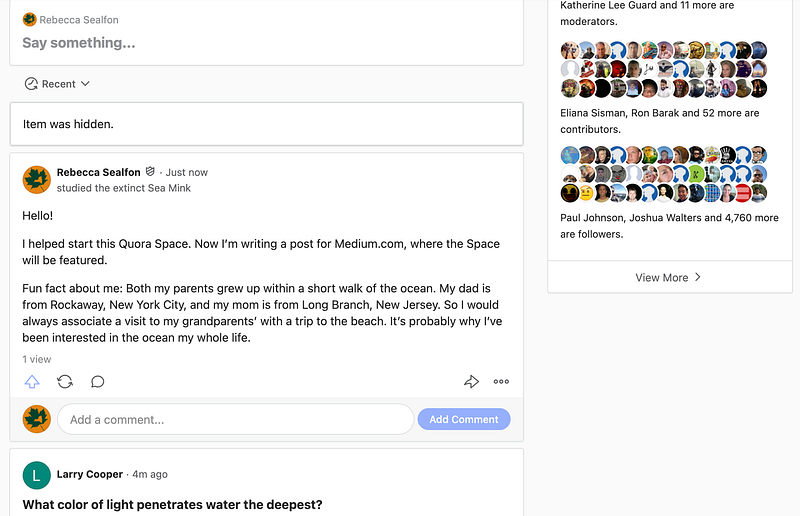
Congratulations! You’ve made your first Space post.
I assume you’ve not done anything special — no headers, no links, no images, just some text. If you scroll through Spaces, you’ll see a lot of posts with much fancier formatting. The next sections will teach you how to do that.
Part 2: Editing Your Post
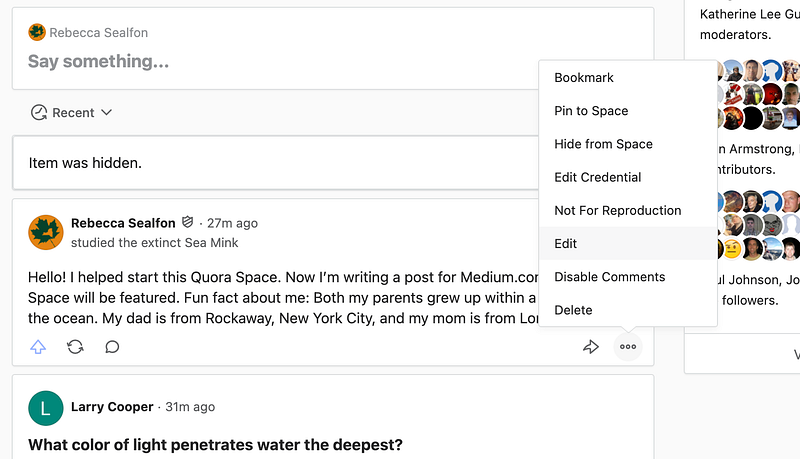
If you are a Contributor, Moderator, or Admin, you can click on the three dots in the bottom right of the post. It will show a menu, and from that menu, you can select “Edit.” This will enable you to edit posts you have already shared.
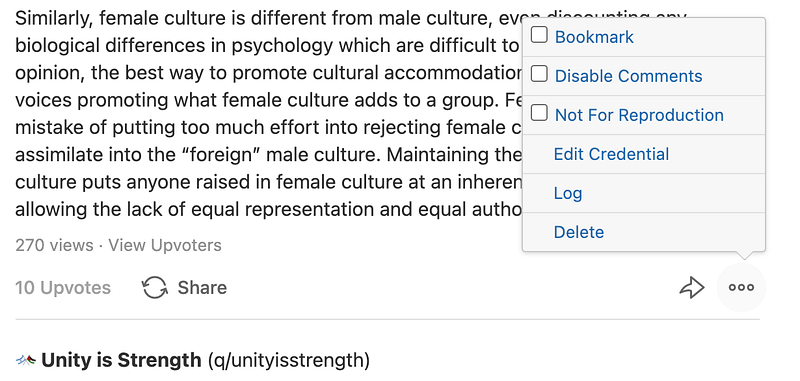
If you are not at that level, you won’t see “Edit,” and the menu will look like this.
Regardless, either edit your old post — as I will in this demo — or start a new post, and I’ll show you how to add the fancy formatting.
Part 3: Jazzing It Up
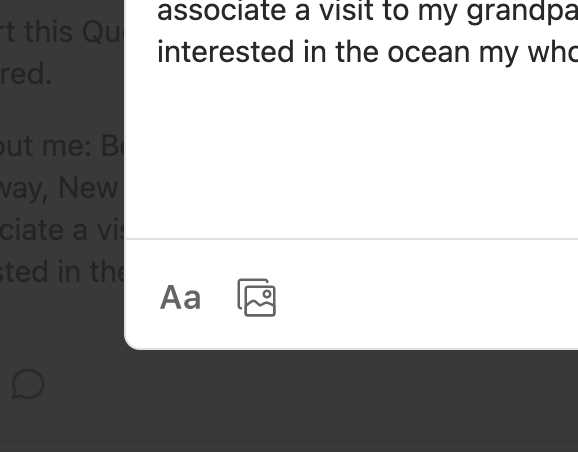
Now that we’re back in the editor, the first things I want you to notice are the two buttons, one with “Aa” and the other with an image, in the bottom left. That’s where to specify most of the formatting.
Adding an image
First, download an image you want to use, saving it on your computer. Then press the image button, which is the button to the right of “Aa.” Navigate to the folder the image is in, and select the image. This is what I get when I press the image button, navigate to the Downloads folder on my computer, and select an image I just downloaded today.
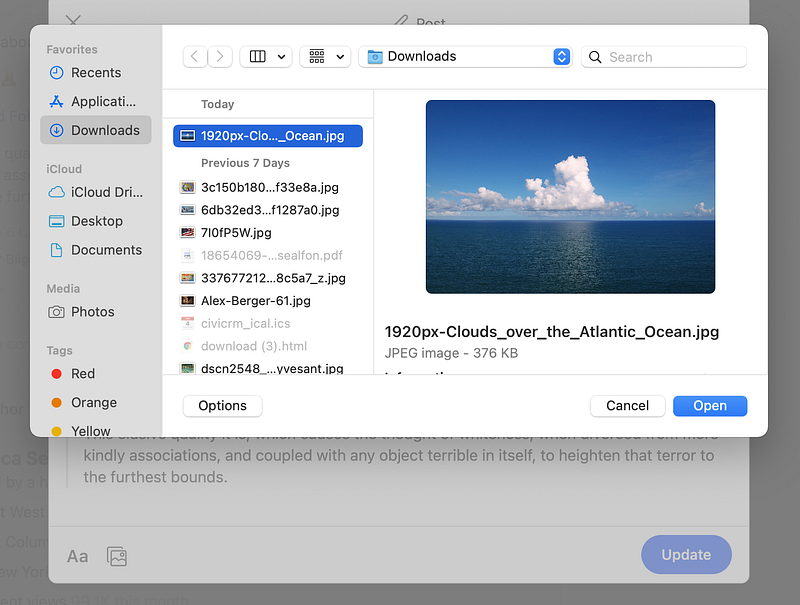
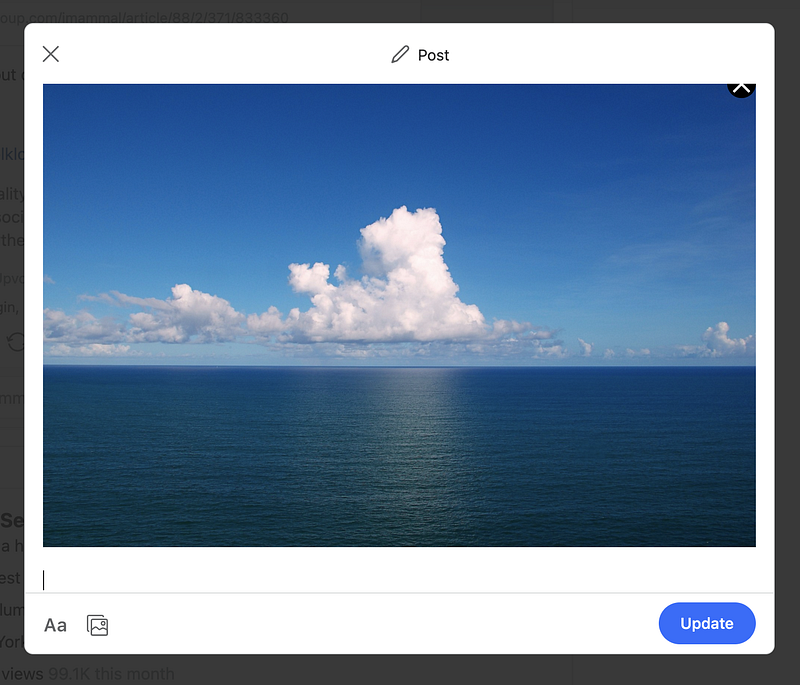
Then when you click on “Open,” the image appears on the post, at the place where your cursor is.
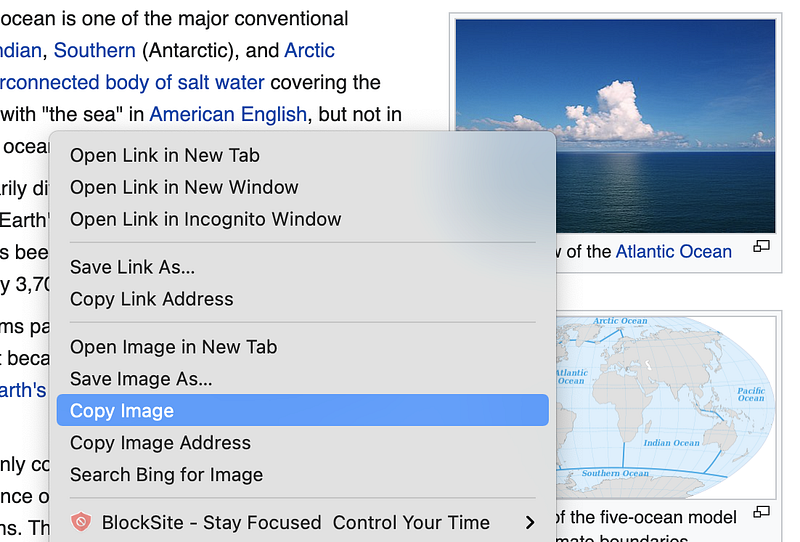
Another way to add an image does not use the image button. Right-click or control-click the image with your mouse, select “Copy Image” from the menu, and paste the image onto your post. Here is the menu for the thumbnail of the image above, with “Copy Image” selected. Note that I am copying and pasting this image directly from Wikipedia’s website.
When I paste this image at the end of my post, the post looks like this.
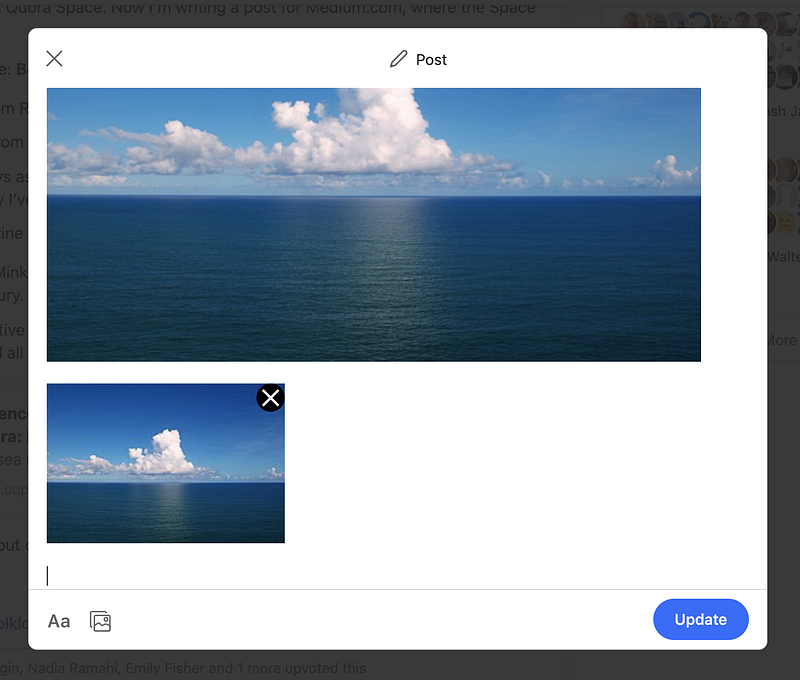
Yet another way to copy the image is to select the image if you can, and press ⌘-C. Copying and pasting works for videos, too. By copying and pasting an image or video, you can avoid the hassle of downloading.
Formatting the text
Select the button on the left, “Aa.” You’ll see a lot of options. (Click the down arrow, the leftmost option, to get out of that menu.)

Adding a header
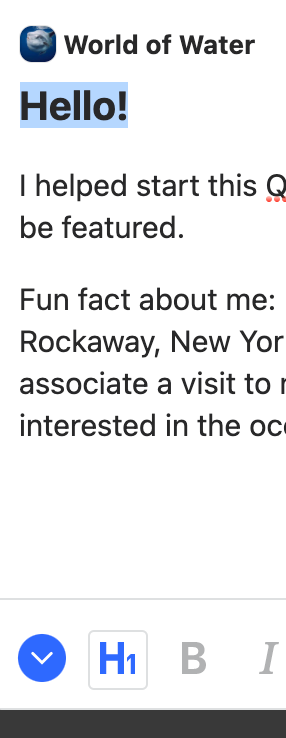
Select some text, then click “H1.” If it’s the first line of your post, that text becomes a clickable title that takes you to the full post on the Space.
Making text bold or italic
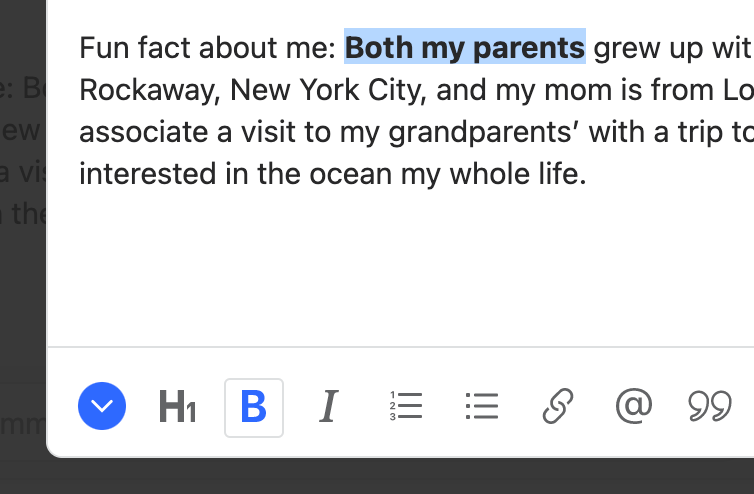
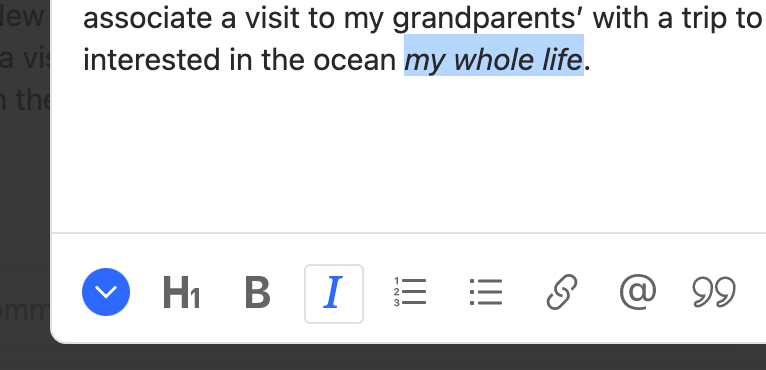
You can bold and italicize text in a similar way, using the “B” and “I” buttons next to “H1.” (⌘-B and ⌘-I also work.)
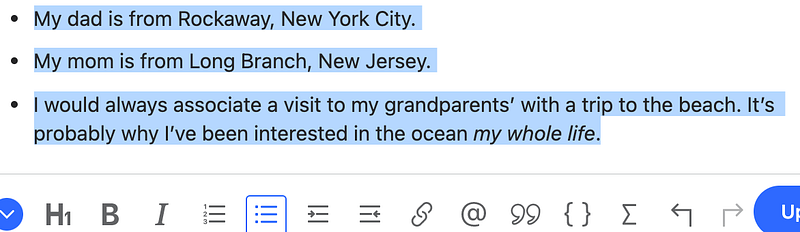
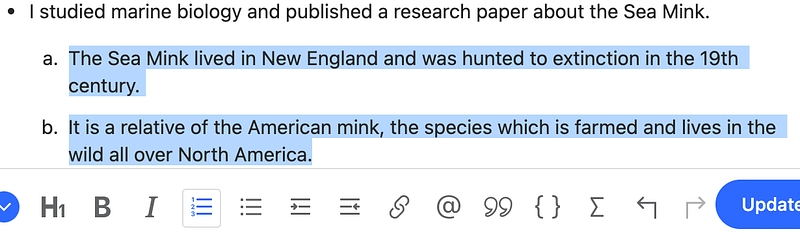
Adding a numbered or bulleted list


Adding a link
Yes, as you might be able to tell we’re going through what each button under “Aa” does from left to right. The link button is the next one, after the list buttons. First, click on this button and type a URL you want to add.


Change the text from “Smithsonian Ocean” to customize what the link says.
Another tip: You can also highlight text, click on the link button, and the link will be added to the text you have highlighted.
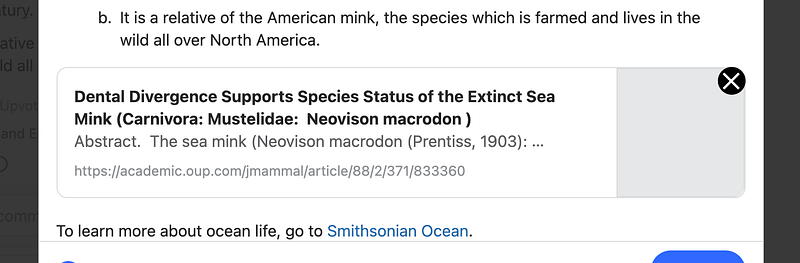
Another way to add a link is to just add the URL to the post without using the link button. When I copy and paste the URL https://academic.oup.com/jmammal/article/88/2/371/833360, “Dental Divergence Supports Species Status of the Extinct Sea Mink (Carnivora: Mustelidae: Neovison macrodon),” into the post, it automatically formats to look like this:
Mentioning someone or something
Click on the “@” button, or type “@.” Then type the name of who or what you want to mention. First, we’ll add a mention of another Quora writer, Nadia Ramahi.
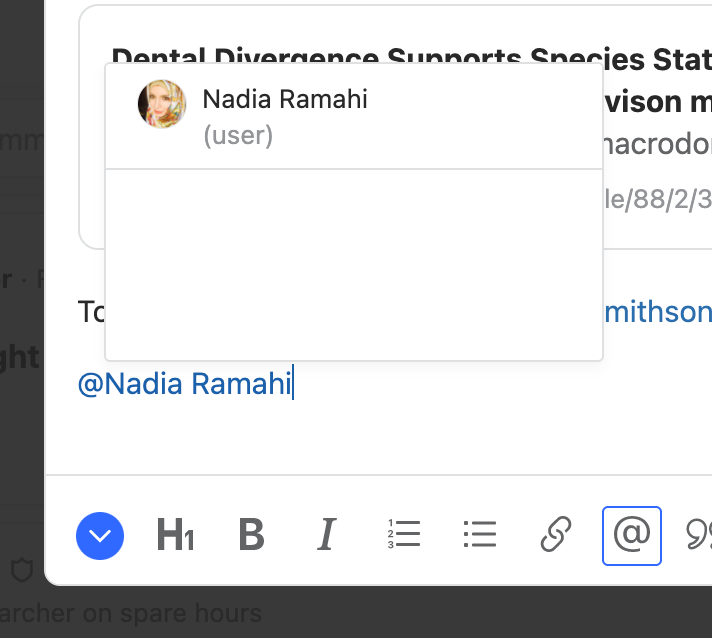
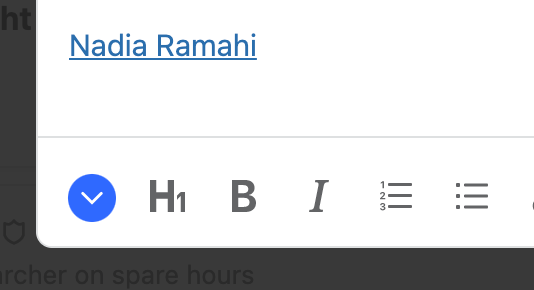
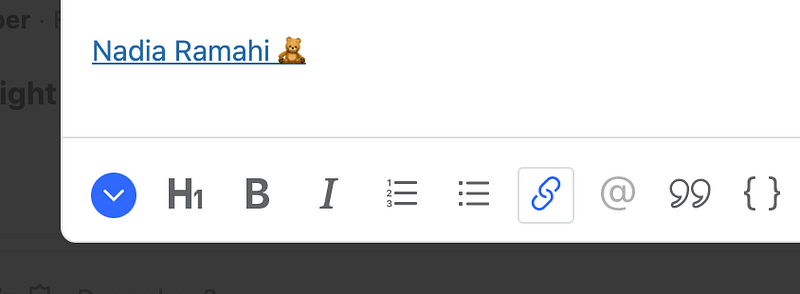
Nadia is from the United States and enjoys talking with people from different cultures online. Some of these cultures are hostile to hers. An emoticon, which you are not supposed to put in a Quora username, can help communicate the image she might want to convey. So I’m adding the 🧸 emoticon copied from https://emojipedia.org/teddy-bear/ to the link to her profile. You might want to read some of her work.
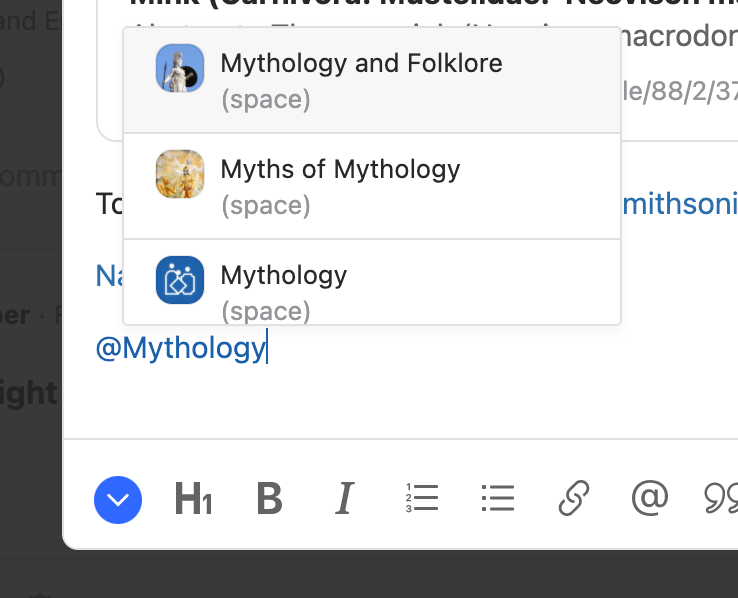
You can also mention another Space, creating a link that will go to the Quora Space you mention.
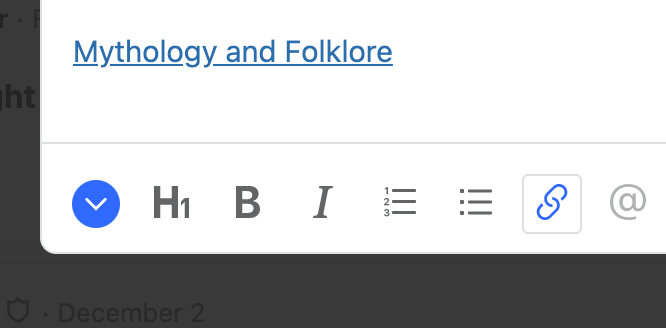
Topics can be mentioned using this feature, too. You might want to create a topic link, go to that topic, and explore.
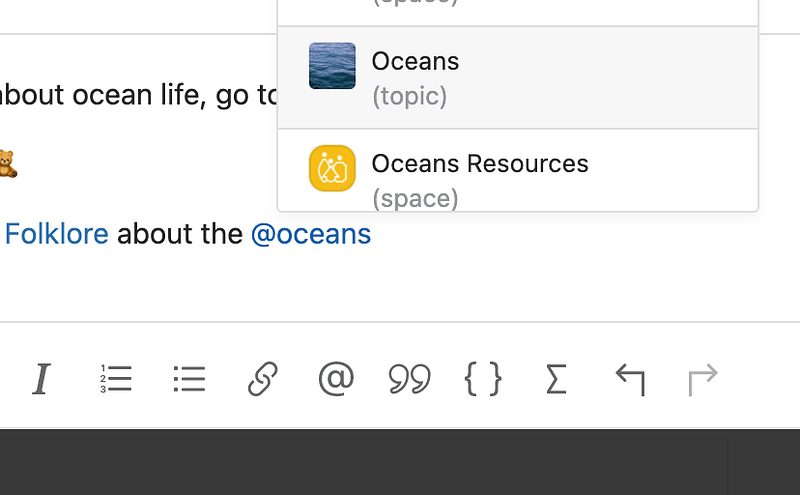

Note: Using “@” for mentioning does not always work, and you will sometimes need to copy and paste the link to what you would want to mention instead.
Adding a quote
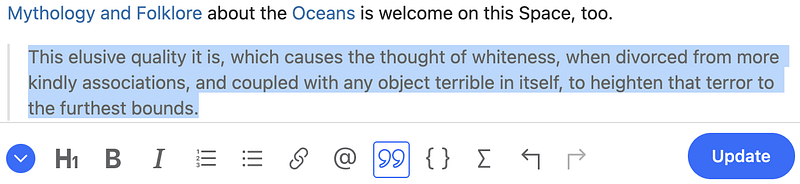
Here is a quote from the chapter “The Whiteness of the Whale” in Herman Melville’s classic novel “Moby Dick” added to the post. In order to format it as a quote, highlight the text and click the quote button, to the right of the “@.”

Adding computer code
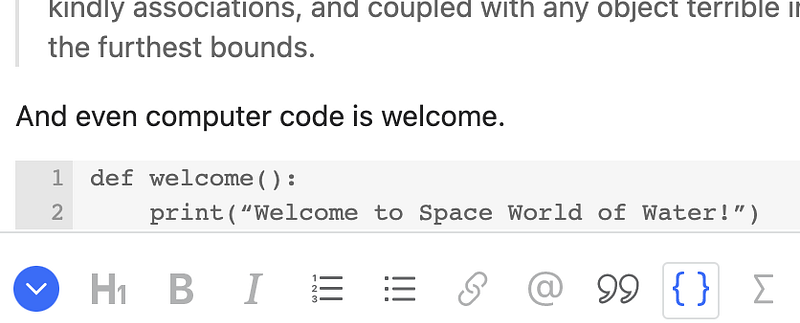
Highlight some text and click on the “{}” button to the right of the quote button, and you can format text as code. Here’s a bit of Python code I added to the post, below the quote.
Adding mathematical formulae
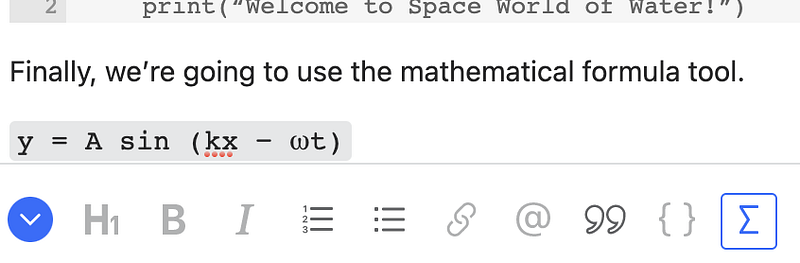
Finally, the “Σ” button to the right of the “{}” will let you formulate text as a mathematical formula. Again, highlight the text and click on this button.
Part 4: Sharing Published Content to a Quora Space
Quora Spaces are also places for posts from other Spaces, external links, or answers to Quora questions. Quora is mostly a question-answering website and Spaces are a convenient place to share this type of content. Here is how to put existing content on a Quora Space.
Links
Copy and paste a URL and add it to a post. Here, I’m adding the URL of Project Gutenberg’s full text of the public-domain novel “Moby Dick,” https://www.gutenberg.org/files/2701/2701-h/2701-h.htm. I’m including a short header.
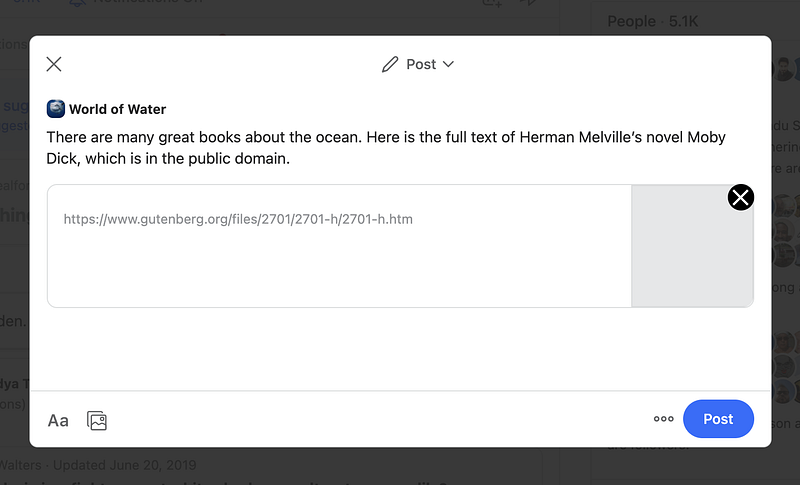
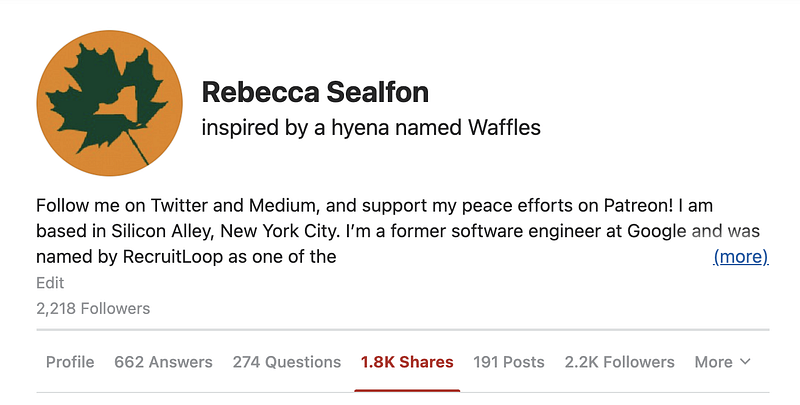
Note that I don’t specially format the text, including not italicizing or underlining the book title. If the header has no special formatting and is under 250 characters, the post automatically formats as a share. Shares are listed in a different section of your Quora profile than posts, which are described in Part 3 of this tutorial. Here’s my Quora profile.
Also, see “Adding a link” in Part 3 of this tutorial.
Posts, question answers, and reshares
At the bottom of a Quora question answer, post, or share anywhere on the site, you will find the 🔄 button. It will say “Share” for posts and question answers. Click on it, perhaps write a header, specify the Space you want it added to, click on “Share,” and it will appear as a share.
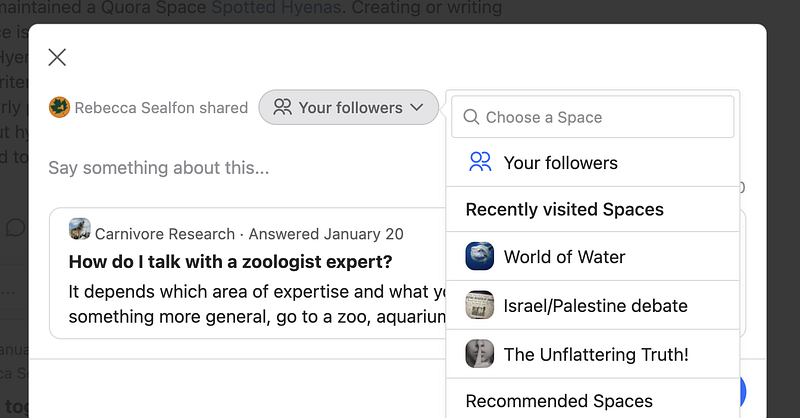
This button is “Reshare” for shares. With a reshare, the share and its header can be posted elsewhere, also as a share.
Shares are easy
Shares are much quicker to create than most other types of content, which is why I’ve made so many. They’re a good way to stay involved in a Space. You don’t need to research the topic beyond the source you found and decided to share, you just need to have found it interesting. As a result, shares are key in keeping many Spaces alive and useful for online learning. With shares and their comments, beginners and experts can both gain from the same discussion of a topic.
Part 5: Asking Questions on a Space
Quora is mostly a question-answering website, and this aspect of it is part of Spaces as well. It’s possible to ask a question to a Quora Space rather than to the site as a whole. This means the answers will appear as posts on the Space.
The questions that have already been asked on the Space are found in the “Questions” tab. Here are the most recently asked questions on World of Water. You can click on “Answer” there and write an answer.
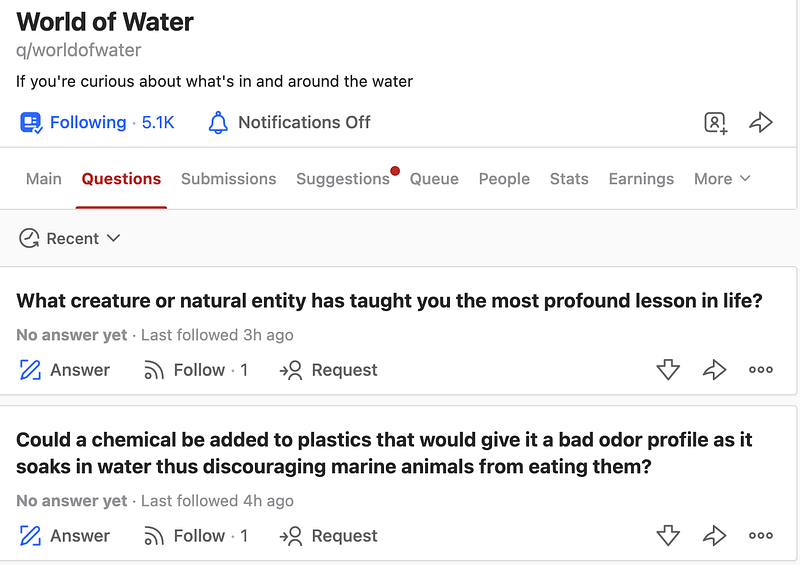
There are two ways to ask a new question.
Here’s one way. Click on the box that says “Say something…” (see Part 1 of this tutorial if you can’t find that box).
Then go to the menu at the top of the box that appears, and select “Question.”
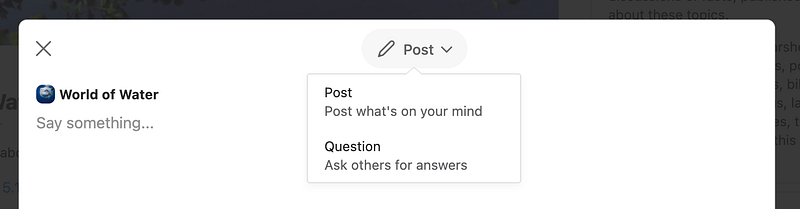
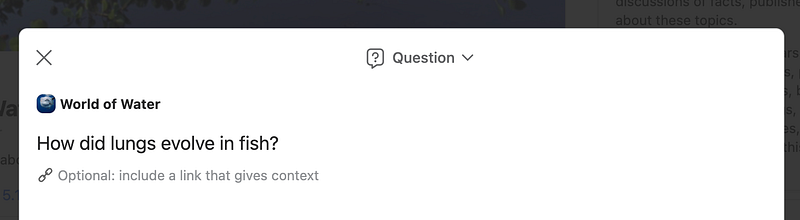
Write a question you want to put on the Space, and submit it.
The other way to ask a question on a Space is new. You can ask a question on the site by clicking on “Add Question.” On the desktop computer, this button is at the top right of your browser. Pressing it brings up a box where you can type the question.
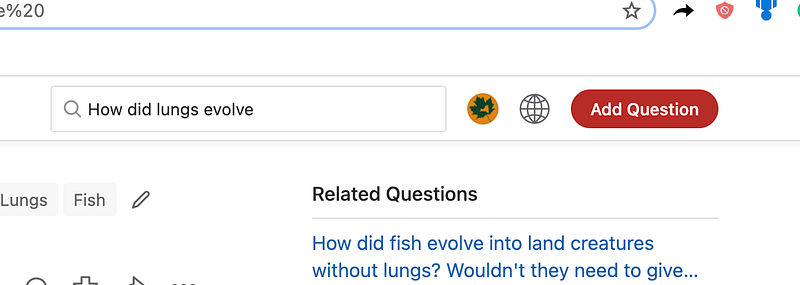
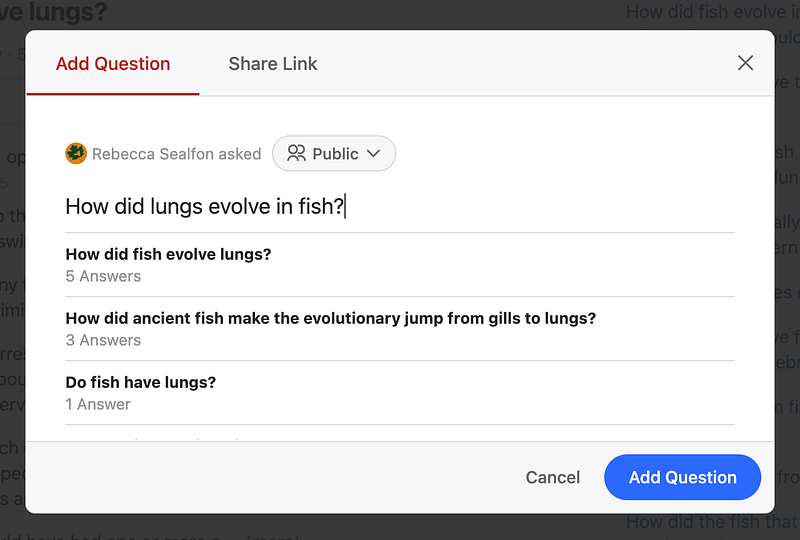
Once you’ve asked the question, click the “Request” button. For a while now, you are able to request answers from specific people.

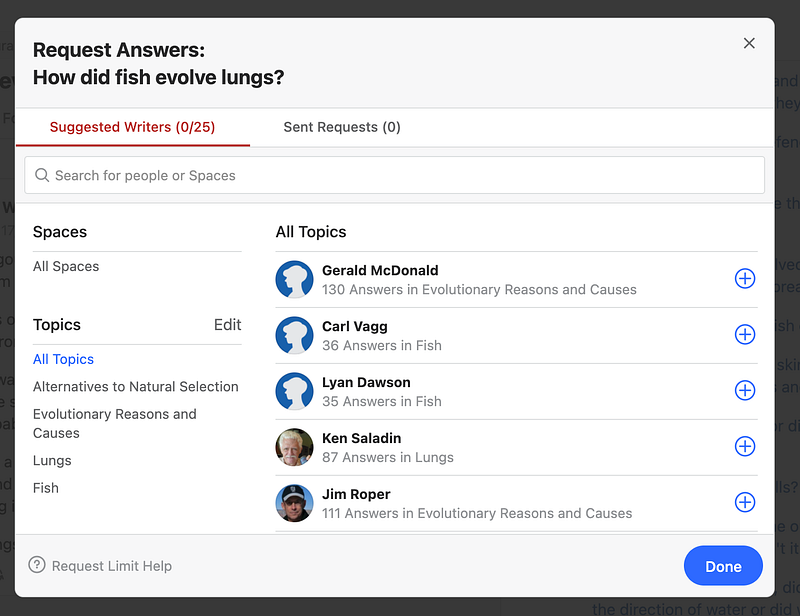
You’ll see this pop-up. (Click “+” to the right of a writer’s name to request an answer from that writer.)
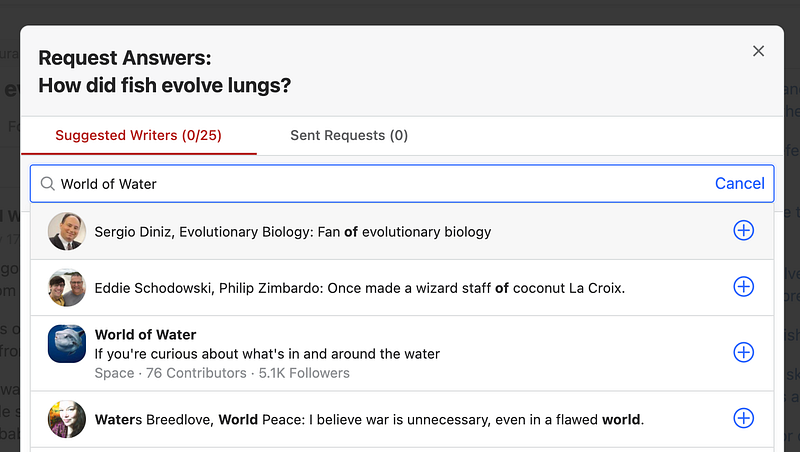
The new feature is that using the Request button, you can now put the question on a Space. Note that “World of Water” comes up on the list when you type its name in the search box.
Since I’ve clicked “+,” put it into World of Water, and have Contributor privileges there, this question now appears as the most recently asked one on the Space.
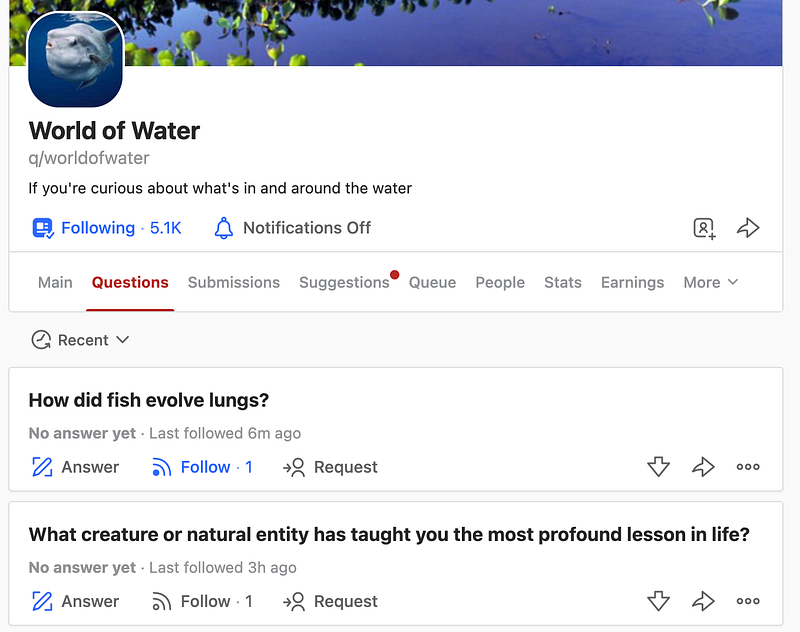
Congratulations! You’ve finished this. Now that you’ve learned how to post and share to a Quora Space and how to ask about how fish evolved lungs, treat your own lungs. Go out and give them some fresh air.
We’ve covered all the types of content and formatting you can add to a Quora Space, as well as how to add them. It’s a lot of information, but if you know much of it, you know more about how to add content to a Quora Space than most people who write for Spaces. If you’re interested in writing for Spaces, you might want to bookmark this tutorial as a reference. You might also want to become a Contributor to a Quora Space. For each format and style in this tutorial that you want to learn to use, make a new post in that format or using that style until you are familiar with the technique.
Writing for Spaces will help you navigate them and explore. I have found them to be very good for learning in-depth about a new field or topic. Spaces can connect people with formal expertise to people who are just beginning to learn about an area. Sometimes, they can even connect you with world experts in a field. If you try this tutorial, I hope you can experience this!
Here is more about my experience writing for and running Spaces.


