
3 frameworks into one — Write your next paper with R Studio!
I published an earlier version of this post on my personal data science blog, ds-econ.com.
Here, I will show you my current workflow to writing research papers in my studies. This is an approach to come up with a coherent and simple setup, which weaves together the literature and data related aspects of a project. In more detail, this approach tries to interconnect the initial literature review and note-taking (
Notion), the collection of references (Zotero) and all the necessary data analysis and writing (R Studio). We combine these three threads with the helps ofR Markdownandbookdowninto a research paper and presentation slides.
R-Studio
R integrates seamlessly with the writing process thanks to R Markdown, knitrand bookdown and makes writing your paper more coherent and more efficient.
Let’s consider a typical issue in the process: In your final proofread, you discover that you have a typo in the x-axis label of your most important plot. If you are writing your paper in “Word” and use a software package for your analysis (e.g., R, Stata, SPSS, Matlab …), you face some painful steps:
- Re-run your analysis script
- Adjust your plot’s code
- Export the new (hopefully correct) plot as an image file
- Copy and paste the image into Word
- Fidget with your word editor until you get the formatting right
- (punch a whole in the wall because the new image messed up your whole document)
Here, R Markdown can help greatly: It allows you to weave together your analysis code and the text of your paper into one file. Do you need to rename your x-axis label? No problem. Just adjust the label directly in the code of your plot and compile your code – done.
Even better: If you write your own plotting functions, you could also adjust, e.g., the colour schemes of all of your plots by changing one function. Not only is this more efficient, but also coherent and less error-prone than adjusting each plot manually yourself. Furthermore, R Studio 1.4 adds a “Visual Editor”, which makes editing more beginner-friendly.
To tailor R Markdown towards the writing of academic papers, I am using bookdown and a custom project template, which is derived from Lucy D'Agostino McGowan’s fantastic blog post: “One year to dissertate”. The template’s formatting is based on a Latex, and hence you can simply import the parameters from your current Latex preamble to the bookdownproject.
McGowan’s template can be found here, and my derivation of it can be found here (my version adds an extension for Beamer slides).
Zotero
I collect my literature library in Zotero. It is an open-source software, which allows you to easily build up your database of research papers. While there are many other software packages which allow you to do this, Zotero has a direct integration with R Studio.
You will be able to automatically cite any paper in R, which is filed away in your Zotero database. I prefer to use a paper’s DOI, to easily import it into Zotero — in 90% of the cases this is enough to generate a complete reference to the respective paper.
Notion
For creative note-taking, I use Notion. Basically, it is just a note-taking app with a gorgeous UI. Notion’s advantage over other note-taking software is, that it allows you to quickly link ideas and make connections between the content you collect.
Notion integrates well with the software mentioned above, namely Zotero. The very handy community plug-in Notero syncs your Zotero database with a designated page in Notion, making it easy to take extensive notes on your literature. Make sure to visit their GitHub, as they also provide a great Notion template for this!
There are endless possibilities of clever note-taking with Notion: Connecting different research papers, summarising their findings, comparing papers in tables, or creating a Kanban board to keep track of your reading progress. This structure facilitates creativity and mitigates the risk of losing your notes.
The Big-Picture
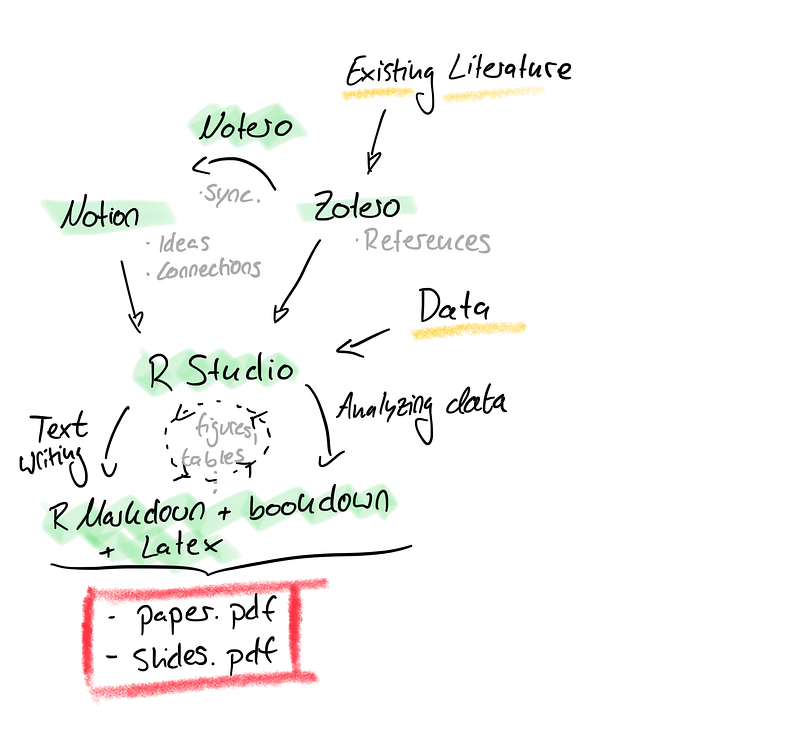
Below, I tried to visualise the general idea behind this setup. Notice, how the existing literature and your data are the “only” two external inputs. Your intellectual work (mainly) takes place in Notion, while you conduct your data analysis in R. The core of this whole mechanism is in fact R Markdownas it ties together all these different preprocessing steps into one paper.pdf or slides.pdf.
Some other Things I learned
- Search for literature in bulk, then download the papers and pass their DOIs to Zotero. It helps, if you come up with a file naming convention. For me, I use: “{first author}_{year}”. Similarly, for the respective bibtex key, I use: {first author}{year}. This helps not to lose track of a file and the respective citation.
- Make use of websites like https://elicit.org/search and https://www.researchrabbit.ai, which employ AI to help you find the literature you are looking for.
- Take notes in Notion and use the provided property fields in the “advanced template”, so you can display information at a glance in tables. Link papers to each other, if they refer to each other, or if you see a connection between them.
- If your computer has a “dictation” feature, then dictate your first draft of text with it. Editing is easier than writing from scratch, hence “speak something” onto the page first.


