
Working with App State and Event Listeners in React Native
How to manage app state with event listeners and React hooks

This article introduces the concept of App State, and explores common scenarios where App State is used in React Native — that is accessed via the AppState object supplied by the framework.
We’ll cover how event listeners can access a component’s most up to date state via refs and the useRef hook, that can in turn prepare your app for the background or foreground. AppState changes will also be demonstrated in conjunction with React context and a Timer class, that will measure how long an app is in the background or foreground.
Although the subjects talked about can be applied to both iOS and Android, the demos in this article have been tested solely on iOS. These useful tools and concepts that will undoubtedly be useful as you develop React Native apps. Let’s get started with AppState.
How to Use App State
AppState is a simple API supplied by the react-native framework, so is most likely readily available in your React Native projects now. In it’s most basic usage, we can simply refer to the current App State using its currentState property, that will either be active, inactive or background:
// get current app state from `AppState`import React, { useState } from 'react'
import { AppState } from 'react-native'const App = (props) => {
const [appState, setAppState] = useState(AppState.currentState);
...
}In the above example, the App component will store the current state of the app as it is rendered — which will almost certainly be active.
This alone is not too useful — the app needs to know when this state changes, which in turn needs to be reflected in the above useState hook. To tackle this, event listeners can be attached to AppState, that gives the component the opportunity to update with the underlying value:
// `AppState` event listeners within `useEffect`
const handleAppStateChange = (state: any) => {
  console.log(state);
}useEffect(() => {
AppState.addEventListener('change', handleAppStateChange);
return (() => {
AppState.removeEventListener('change', handleAppStateChange);
})
}, []);A useEffect hook has been introduced here with an empty dependency array, ensuring the event listeners will only mount upon the component’s initial render. useEffect’s return function is executed when the component unmounts, giving the component an opportunity to remove the event listener.
Let’s make this slightly more intelligent by updating the AppState within handleAppStateChange, and use another useEffect hook to console.log that value upon the subsequent re-render:
// listening to `AppState` changes
const [appState, setAppState] = useState(AppState.currentState);const handleAppStateChange = (state: any) => {
setAppState(state);
}useEffect(() => {
AppState.addEventListener('change', handleAppStateChange);
return (() => {
AppState.removeEventListener('change', handleAppStateChange);
})
}, []);useEffect(() => {
console.log(appState);
});With this simple setup, we already have the means to handle updates to the App State from within a component. However, there are indeed some limitations to our event listeners in this setup, as they will only ever be aware of the component state at the initial render. We will explore why this is the case further down the article.
But when do these “changes” actually occur? Let’s examine this next in order to understand exactly when these events are firing.
When AppState changes happen
The three values of AppState (active, inactive and background) are toggled between two key events:
- Minimising and opening the app, to and from the Home screen. Upon doing so, the app switches between
activeandbackground, with a temporary state ofinactiveas the app is being minimised. - Entering the app switcher from the app itself. If this is done from within the app, the app state will persistently change to
inactiveuntil the user leaves app switcher.
To demonstrate this, I have copied the example code from above into the Dashboard screen of an app I personally develop. Notice the changes between App State as I change from foreground to background, and as I enter the app switcher:
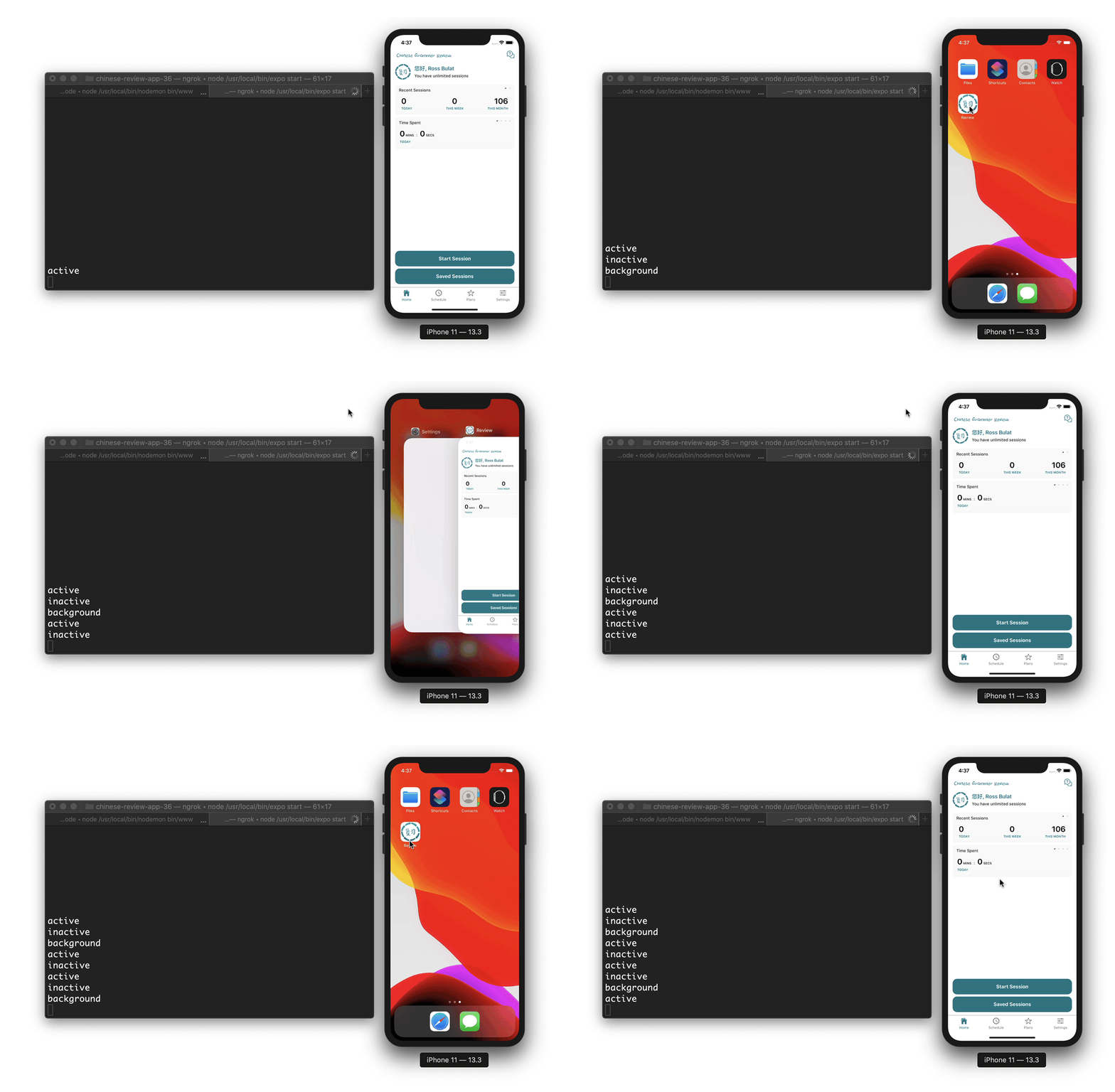
What you may have noticed is that we always have a period of inactive when minimising the app to the device’s Home screen, before changing again to background. In addition, this inactive state is only triggered from within the app. If you attempt to go into the app switcher while on the device’s Home screen, the app will remain in the background state, until it is opened to the foreground again.
Notice how some apps blur their screens in app switcher?
It is in the temporary inactive period that you can make some interesting changes to the app, such as overriding the current screen with a placeholder screen, in the event that the current screen contains confidential information — such as a banking app or FinTech app.
This can be handled simply be rendering a different screen if AppState.currentState is inactive. If you want this behaviour globally, you could wrap your entire app around a component, say, an <AppStateManager> component, that will re-render the app from the top level when the state changes to inactive:
// render `inactive` screen via top-level `AppStateManager` component
export const AppStateManager = (props: any) => { const [appState, setAppState] = useState(AppState.currentState); const handleAppStateChange = (state: any) => {
setAppState(state);
} useEffect(() => {
AppState.addEventListener('change', handleAppStateChange);
return (() => {
AppState.removeEventListener('change', handleAppStateChange);
})
}, []); return (
{appState === 'inactive'
? <View><Text>Inactive Screen!</Text><View>
: <>{props.children}</>
}
)
}This adds a certain level of security within React Native apps — an arguably compulsory feature for more sensitive applications.
With a high level understanding of AppState, let’s now examine how to overcome the limitation of event listeners, that only read component state from the render the event listeners are initialised. This can be solved with Refs.
Using Refs with Event Listeners to Access True State Values
As mentioned above, event listeners will only be aware of the state of the component at the initial render. Because the event listeners are not updated upon subsequent re-renders (when state changes), they will not be aware of those changes taking place.
To see this problem in action, we can increment a counter that will exist in useState, and log that counter within an event listener as it is being incremented. As the event listener is not aware of state updates after it is initialised, the counter will always log zero.
The following snippet sets this demo up with an event listener added to react-navigation’s didFocus event.
For testing purposes, React Navigation’s didFocus and didBlur events are really useful for testing component logic, that are triggered as screens are visited and left.
This event is initialised as the screen in question is visited for the first time — it is the state at this point that will be logged:
const [counter, setCounter] = useState(0);// update state every 2 secondssetInterval(() => {
setCounter(counter + 1);
}, 2000);// console.log `counter` within event listener every 2 secondsuseEffect(() => {
this.focusListener = props.navigation.addListener('didFocus', async () => {
setInterval(() => {
// this will always be 0
console.log(counter);
}, 2000);
});
return (() => {
this.focusListener.remove();
})
}, []);Concretely, the event listener will not have access to updated state values. This is an inherent issue to React’s relationship to event listeners in general, and is not just related to AppState.
To overcome this, we can use the useRef hook, as well as React.createRef(), to access real-time state values (from the most recent update), from useState or from DOM elements.
Firstly visiting useRef, we can give event listeners a true state value by making a couple of small changes from the above code:
- Creating a reference to
counterwithuseRef, and use that inside event listeners instead of usingcounterdirectly. - Defining a custom
setCountermethod that will update the ref’scurrentvalue as well as thecounterstate value. To do this, we can change the name of useState’ssetCounterto_setCounter, and use this inside our customsetCountermethod.
That may be hard to visualise — here is the updated counter example with useRef integrated:
With these changes made, the current state values can now be accessed from within event listeners — event listeners that were initialised on the initial component render.
This is a necessary workaround when it comes to AppState, allowing you to refer to current state values when determining your app state switching logic, where you may need to access local state or updated global state from a Redux store or similar.
What about getting current HTML / JSX element state within event listeners?
In the above example, useState values were referenced with useRef. But what if we wanted to fetch attributes of rendered elements, such as form elements, or even state from React Native components likeScrollView, where the event listener may need to know the current scroll position. A slightly different approach is needed here.
Let’s take this Scroll View scenario. We can take the following steps to solve this:
- Create a ref to the Scroll View element with
React.createRef. This will act as a pointer to the element. - Wrap the above ref with a
useRefhook, and use this reference within event listeners, and within therefprop of<ScrollView />.
In this scenario we are wrapping a ref with a useRef hook — that may appear confusing, but highlights that the two implementations act differently. Let’s drill down why both APIs are being used.
The first difference is the syntax itself:
const scrollview = React.createRef();
const scrollviewRef = React.useRef(scrollview);
Now, if we ignored scrollviewRef and simply assigned scrollview to the <ScrollView /> ref prop, and tried to refer to this value within event listeners, we would get a value of null.
Try this yourself with the following snippet:
// INCORRECT: attempting to assign `scrollview` as ref and use within event listenerconst scrollview = React.createRef();useEffect(() => {
this.focusListener = props.navigation.addListener('didFocus', async () => {
// this will be `null`
console.log(scrollview.current);
});
return (() => {
this.focusListener.remove();
})
}, []);return (
<ScrollView
ref={scrollview}
...
/>
);The issue here is due to the same reason as the previous counter example — at the time the event listeners are being initialised, scrollview.current is still null, and is yet to be linked to the <ScrollView /> component.
What we can apply here is the same useRef solution, and use that reference as the ref prop of <ScrollView />:
// CORRECT: accessing `ScrollView` ref within event listenerconst scrollview = React.createRef();
const scrollviewRef: any = React.useRef(scrollview);useEffect(() => {
this.focusListener = props.navigation.addListener('didFocus', async () => {
// this will now successfully reference <ScrollView />
console.log(scrollviewRef.current);
});
return (() => {
this.focusListener.remove();
})
}, []);return (
<ScrollView
ref={scrollviewRef}
...
/>
);Now our event listeners will successfully reference JSX elements, using useRefs ability to persist its reference object for the majority of the component’s lifetime.
Perhaps a clearer way to think about this solution is that scrollview acts as the pointer to <ScrollView /> on the DOM level, whereas scrollviewRef acts as a pointer on the component level.
How does this apply to AppState?
AppState changes are managed within event listeners, the functions of which will need access to the latest component (and in cases, element) state in order to handle logic needed for when the app is moving into the foreground or background.
With the ability to access the most up to date state using the solutions above, you will be able to do things such as:
- Automatically pause a game, or automatically notify a live chat that the person is no longer active.
- Handle real-time scenarios (often scenarios where a websocket or RxJS events are continuously updating state) with ease.
- We already mentioned replacing the current screen content with a placeholder screen for sensitive applications, while the app is in the background. This concept can also be expanded by saving sensitive text or form data, and re-inserting it when the app opens again.
- Starting or stopping a timer to calculate how long a user is in app or out of the app. For the former approach, the timer needs to be paused when the user minimises the app, and vice-versa for the latter scenario.
This timer use case is a fun way to further demonstrate how classes can be used with AppState to derive more information about the state change in question. Let’s lastly integrate a simple Timer class to work with AppState, pause the timer when the app is minimised, and resume when the app is bought back into the foreground.
Working with a Timer and AppState
This final section demonstrates how to use a Timer class in conjunction with AppState. Because classes do not adhere to React state rules, we do not need to create a reference to a particular class object to access its current property values.
Defining the Timer class
The Timer class (of which the full implementation will be included below in a Gist) can be used within any JavaScript project.
moment has been used to further simplify the syntax of the class, and is the only dependency of Timer. Simply install moment with yarn within your project directory to test Timer:
yarn add momentTimer implements start, pause, resume and finish methods, as well as active startTime, totalTime and ended properties to persist the state of the timer. All times are formatted as UNIX values to simplify it further:
With Timer now defined, we can go ahead and instantiate timers within React Native components, and use them in any way you require.
However, before using Timer with AppState, let’s make it possible to access it in more React-like fashion — as a context.
Wrapping Timer in a Context Provider
The following Gist wraps Timer in a context, also defining a newTimer() method, included in the context provider, to instantiate a new Timer. On top of of this, a useTimer useContext hook is defined, as well as the <TimerContextProvider /> component that should wrap your entire component tree needing access to the timer:
Controlling a Timer with AppState
This final Gist demonstrates how to start, pause and resume a timer based on AppState, with the following logic:
- The timer starts after the component’s initial render. Also upon the initial render, the
AppStatechangeevent listener is initialised. - When
AppState.currentStatechanges,Timerwill either resume or pause. If the app goes into the background or becomes inactive, timer will pause. And when the app is opened in the foreground again, the timer resumes.
The timer object is accessed via the useTimer context hook defined previously. Here is the implementation:
In Summary
This article has acted as a comprehensive overview of AppState, documenting its use cases in conjunction with event listeners and the React framework.
Where up-to-date state needs to be accessed in event listeners, refs can be used to point to those particular state values. In the event you need to reference DOM elements, the React.createRef and useRef APIs can be used together to achieve the same result.
We also covered a use case when working with classes, via the Timer class. It can be useful to time how long the user stays outside (or inside) the app, or being able to pause a particular activity when the app becomes inactive, and resume when in the foreground again.
I hope this article has been helpful, and that the reader can now effectively manage their app whether in the foreground or background.
Further Reading
To read more about React’s useRef Hook, check out my overview article:
To read up on refs in general, including forwarding and callback refs, I have published another article dedicated to the subject:


