avatarDew Langrial

Free AI web copilot to create summaries, insights and extended knowledge, download it at here

2043

Abstract

are always in the ‘now.’ Your readers know it.</p><h1 id="f99d">Really</h1><p id="9bf4">Grammarly’s hounds are always ready to kill this pesky little word.</p><h1 id="d1ce">Quite</h1><p id="174b">The first cousin of ‘Very,’ and ‘Really.’</p><h1 id="1dce">Get/Got</h1><p id="f5c5">In this <a href="https://www.oxfordlearnersdictionaries.com/definition/english/get?q=get">dictionary</a>, ‘get’ has 27 meanings. You can replace it with a more direct verb.</p><h1 id="97cb">Definitely, certainly, probably, actually, basically, virtually.</h1><p id="df54">If your sentence makes sense without any of these, remove them.</p><h1 id="bbc6">Felt/Feels</h1><p id="a5d6">Instead of saying, “He was feeling sad,” you could say, “His heart almost stopped as he heard the tragic news.” You should explain what your character was feeling in more detail.</p><h1 id="8026">Rather, somewhat, somehow.</h1><p id="22e8">Their use shows the lack of confidence. “A rather dull day,” is the same as “a dull day.”</p><h1 id="e8b3">Part 2: How to find the words</h1><p id="221b">If you’re using Microsoft Word or Pages on Mac, it’s straightforward to find these useless words. First, on Medium editor or Pages on Mac, hit Ctrl+F.</p><figure id="28f8"><img src="https://cdn-images-1.readmedium.com/v2/resize:fit:800/1*tj-5QEEyXBnNF_cig6JAWg.png"><figcaption>Hit Ctrl+F. Type the word you want to find. Use Replace & Find to see every highlighted word occurrence.</figcaption></figure><p id="e512">On Microsoft Word, go to <b>Edit > Find > Advanced Find and Replace</b>. Click Replace and the down arrow.</p><figure id="278b"><img src="https://cdn-images-1.readmedium.com/v2/resize:fit:800/0*vptblPRAVqqafX3a"><figcaption></figcaption></figure><p id="edae">When you are in the Replace tab, click <b>Format > Highlight</b>.</p><figure id="3f69"><img src="https://cdn-images-1.readmedium.com/v2/resize:fit:800/0*SclenWxU0_IjMAZj"><figcaption></figcaption></figure><p id="ec39">Never use Replace All. Because the same word — say <i>that</i> — can be necessary

Options

in a sentence.</p><p id="281d">Repeat the process for every unnecessary word. If you decide to delete these unnecessary words, you may have to restructure your sentences to improve readability.</p><h1 id="ed29">Final Thoughts</h1><p id="4e0f" type="7">“A clear sentence is no accident. Very few sentences come out right the first time, or even the third time.” ~ William Zinsser</p><p id="6123">Every word you write is <i>not</i> correct. Your work needs your help. Your story will shine more if you polish it more.</p><p id="90bb">You can read <a href="https://readmedium.com/my-curated-stories-on-medium-that-encourage-me-to-keep-on-writing-8520435e81f"><i>my curated stories here</i></a><i>.</i></p><div id="1674" class="link-block"> <a href="https://readmedium.com/editors-choice-top-10-how-to-pitch-your-article-to-a-big-publication-c1cfbeddf7db"> <div> <div> <h2>How To Pitch Your Article to a Big Publication</h2> <div><h3>Let’s have a look at our Top 10 stories today</h3></div> <div><p>medium.com</p></div> </div> <div> <div style="background-image: url(https://miro.readmedium.com/v2/resize:fit:320/1*jpiMlhNujvZgBZl8ejhHYA.png)"></div> </div> </div> </a> </div><div id="7cd3" class="link-block"> <a href="https://readmedium.com/how-to-write-10x-engaging-stuff-within-24-hours-with-a-simple-habit-change-f713bd75b2e9"> <div> <div> <h2>How to Write 10x Engaging Stuff Within 24 Hours With a Simple Habit Change</h2> <div><h3>Your writing spirit will come alive to write winning stories</h3></div> <div><p>medium.com</p></div> </div> <div> <div style="background-image: url(https://miro.readmedium.com/v2/resize:fit:320/0*yTRrAZXkuVElyNnf)"></div> </div> </div> </a> </div></article></body>

Notes on editing

Why Not Delete Some Useless Words Before You Hit Publish

Some words are born to be killed

By Ervins Strauhmanis on Flickr

Your reader’s time is money.

If you can reach your point with fewer words, do it. What’s the best way to do that? Learn to press the delete key more often.

Part 1: The list of words

Hit CTRL +F keys. Find and delete these unnecessary words:

Very

The best way to think about this word is by remembering what Mark Twain said: “Substitute ‘damn’ every time you’re inclined to write ‘very;’ your editor will delete it and the writing will be just as it should be.”

That

Check your that-count. If you are using it more than two or three times, you need to restructure some of your sentences.

Utilize

Use ‘use.’ Utilize looks unnatural.

Just

Grammarly hates this word. And you should too.

Thing

Unless you don’t know what the thing is, please don’t write about it. I am guilty of using this word more times than any other.

Totally, completely, absolutely, literally.

These words don’t add to a sentence. For example, “The carton was completely full of garments.” means the same as, “The carton was full of garments.”

-ing words

Using -ing words weakens your writing. Sometimes it is necessary, but you can often find a more clean way. “He was telling me,” can be replaced with “He told me.”

Now

You are always in the ‘now.’ Your readers know it.

Really

Grammarly’s hounds are always ready to kill this pesky little word.

Quite

The first cousin of ‘Very,’ and ‘Really.’

Get/Got

In this dictionary, ‘get’ has 27 meanings. You can replace it with a more direct verb.

Definitely, certainly, probably, actually, basically, virtually.

If your sentence makes sense without any of these, remove them.

Felt/Feels

Instead of saying, “He was feeling sad,” you could say, “His heart almost stopped as he heard the tragic news.” You should explain what your character was feeling in more detail.

Rather, somewhat, somehow.

Their use shows the lack of confidence. “A rather dull day,” is the same as “a dull day.”

Part 2: How to find the words

If you’re using Microsoft Word or Pages on Mac, it’s straightforward to find these useless words. First, on Medium editor or Pages on Mac, hit Ctrl+F.
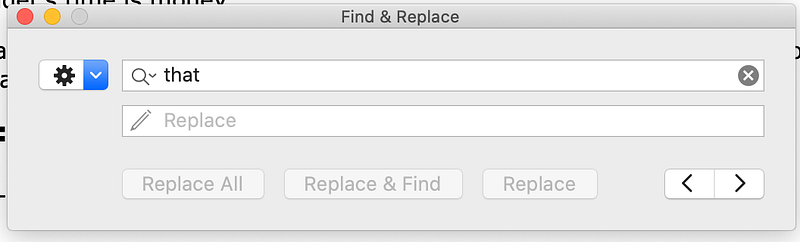
Hit Ctrl+F. Type the word you want to find. Use Replace & Find to see every highlighted word occurrence.

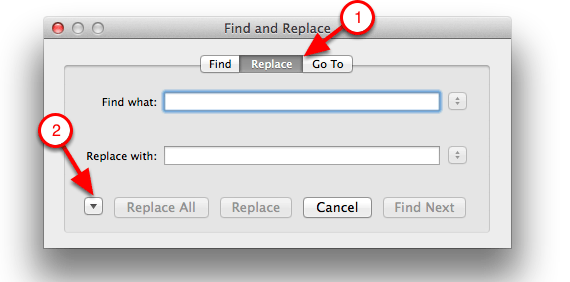
On Microsoft Word, go to Edit > Find > Advanced Find and Replace. Click Replace and the down arrow.
When you are in the Replace tab, click Format > Highlight.
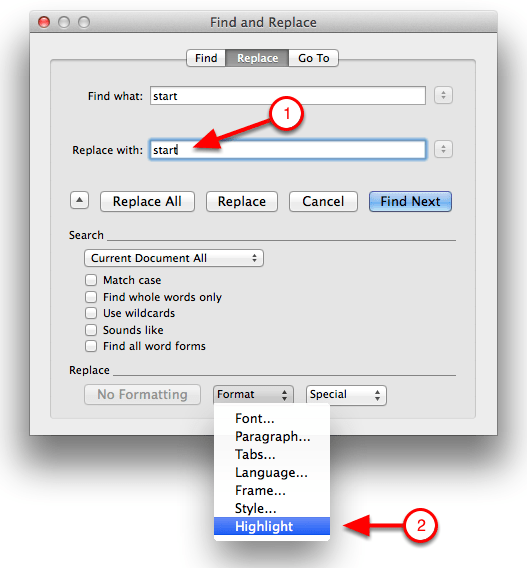
Never use Replace All. Because the same word — say that — can be necessary in a sentence.

Repeat the process for every unnecessary word. If you decide to delete these unnecessary words, you may have to restructure your sentences to improve readability.

Final Thoughts

“A clear sentence is no accident. Very few sentences come out right the first time, or even the third time.” ~ William Zinsser

Every word you write is not correct. Your work needs your help. Your story will shine more if you polish it more.

You can read my curated stories here.

Writing
Editing
Editing Tips
Writing Tips
Editing And Proofreading
Recommended from ReadMedium