avatarMark Ellis

Free AI web copilot to create summaries, insights and extended knowledge, download it at here

3902

Abstract

only, some have video only, and some have both video and audio. And also they’re available in multiple formats. For video there is AVC (which is apparently H.254), VP09, and AV01. And for audio there’s Mp4a and Opus. I don’t know what Opus is but apparently it is noticeably better than Mp4a. So if you’ve ever gone to a YouTube download page and seen a million download options that’s why. Although I hide the redundant ones and just display the one with the lowest file size at that quality level (usually VP09 or AV01).</p><p id="b96b">It’s actually pretty cool to see AV01 as I talked about it <a href="https://readmedium.com/why-apple-adding-av1-support-is-a-big-deal-faa46a356f3c">here</a>. And it does compress videos a little better than VP09 and a lot better than AVC.</p><p id="d170">Also apparently YouTube does something called DRC, dynamic range compression (Not Democratic Republic of Congo). It makes the quiet sections louder and the loud sections quieter. Apparently people really hate it and I guess there must be a way to disable it because I have not been able to find a music video with DRC enabled. I’ve never heard anyone talk about this before though.</p><p id="e027">So now that we have the formats we can just download them. Each format has a download link oddly enough. I did not expect that. Just keep in mind that the YouTube download links expire in 6 hours.</p><p id="3fc9">Of course here we run into a problem. When I saw this I was like, “Great, let’s just download an audio-only track if we only want audio or a video+audio track if we want video.”</p> <figure id="dd49"> <div> <div> <img class="ratio" src="http://placehold.it/16x9"> <iframe class="" src="https://cdn.embedly.com/widgets/media.html?src=https%3A%2F%2Fgiphy.com%2Fembed%2FMvioOPqhOm6b4BI0FQ%2Ftwitter%2Fiframe&amp;display_name=Giphy&amp;url=https%3A%2F%2Fgiphy.com%2Fgifs%2Ffallontonight-jimmy-fallon-tonight-show-MvioOPqhOm6b4BI0FQ&amp;image=https%3A%2F%2Fmedia0.giphy.com%2Fmedia%2Fv1.Y2lkPTc5MGI3NjExa203NTd1dnVhNGpveHByMmxsOGRzZGxsejhsZzh2Zjk5N20xMTYwbSZlcD12MV9pbnRlcm5hbF9naWZfYnlfaWQmY3Q9Zw%2FMvioOPqhOm6b4BI0FQ%2Fgiphy.gif&amp;key=a19fcc184b9711e1b4764040d3dc5c07&amp;type=text%2Fhtml&amp;schema=giphy" allowfullscreen="" frameborder="0" height="435" width="435"> </div> </div> </figure></iframe></div></div></figure><p id="9eda">If you do that you’re restricted to at most 720p 30fps. Or so I’m told. I haven’t been able to find a file with both video and audio over 360p. And some videos don’t have any video+audio tracks at all. So that means we’re going to have to download a video file and an audio file (preferably without DRC) and merge them together.</p><p id="e01b">And this is perhaps the first really big problem I ran into. If I was doing this locally it would not be that big of a problem because there’s a nice command line package called <code>FFmpeg</code> that will just do it for you. Unfortunately it’s a bit more complicated when you’re working with Node.js because you have to do a bunch of file manipulation stuff.</p><p id="12d8">I ended up deciding to just download the files from Google’s servers separately and then merge them locally. Apparently Flutter has a package called <code>FFmpeg-kit</code> that will do this. Unfortunately it only works on Android, iOS, and MacOS.</p><p id="fdbf">Although Android will not be getting YouTube downloading because Google is really strict about that.</p> <figure id="eaa2"> <div> <div> <img class="ratio" src="http://placehold.it/16x9"> <iframe class="" src="https://cdn.embedly.com/widgets/media.html?type=text%2Fhtml&amp;key=a19fcc184b9711e1b4764040d3dc5c07&amp;schema=twitter&amp;url=https%3A//twitter.com/EzraDuown/status/1776352074449530961/&amp;image=" a

Options

llowfullscreen="" frameborder="0" height="281" width="500"> </div> </div> </figure></iframe></div></div></figure><p id="7c7c">In fact the app mentioned above, NewPipe, is not available on the Google Play store. So that means that the only platform able to benefit from YouTube downloading is iOS. There is no macOS version of the app but you can run the iOS app on an Apple Silicon Mac. Web users will be restricted to downloading audio or downloading 360p videos. Oh well. Maybe I’ll improve this feature in the future.</p><p id="cae5">And another problem. YouTube throttles some of the downloads. Not all of them though which is weird. I thought it was broken at first. Nope, it’s just that the downloads were really really slow.</p><p id="74fe">Although there’s a way around this too. Flutter has its own package for downloading YouTube videos called <code>youtube_explode_dart</code> and this one has gotten around the throttling issues. It’s listed as issue #180 and fixed in pull request 185.</p><figure id="c76e"><img src="https://cdn-images-1.readmedium.com/v2/resize:fit:800/1*R0QbSVVKcpNt1NDnlL-7Qg.png"><figcaption></figcaption></figure><p id="4a2c">And it works great now. Well, for the streams it supports. It doesn’t support all the streams. But it supports enough.</p><p id="7308">And, one more thing <code>youtube_explode_dart</code> doesn’t actually do everything <code>youtube-dl</code> does. <code>youtube-dl</code> actually gives you a lot more information on the actual files (such as if the audio is DRCed). So I’m still going to have to use it. But I can use <code>youtube_explode_dart</code> to actually download the files.</p><p id="8fe6">I do feel a little silly for wasting so much time on this feature. Like, I built an RSS reader to watch YouTube videos, not to download them. And the only people that can really take advantage of this feature are iOS users.</p><p id="9388">It’s funny. Everyone thinks iOS is the locked-down one. But in this one specific case Android is more locked down. Because if you look up YouTube downloaders on iOS there are pages and pages of them.</p><p id="0e6e">I could see myself taking advantage of this feature. Stratum 3.0.0 also introduces the ability to add external links. So I could find a YouTube video I like that I want to download and I could just download it.</p><p id="01c9">And this experience has taught me a lot about the inner workings of YouTube. Mostly the subtitles. I had no idea the method I was using to get subtitles before was so suboptimal. It works and there’s nothing wrong with it but it could be better.</p><p id="7e7d">I’m pretty happy with Stratum’s YouTube functionality now. I was happy with it before, to be honest, I just went down a ‘YouTube Rabbit Hole’. But I did have one more feature planned: automatic YouTube summary generation.</p><p id="5b0e">Because since adding YouTube summaries I’ve been watching a lot more YouTube. I mean summarizing a lot more YouTube. There are a lot of channels I’m interested in but can’t get to due to time restrictions. Like TED and DW News. Guess what? I follow both of those sources of news now and just read the summaries. But you know what I don’t like? Tapping on the button to generate the summaries.</p><p id="8a38">Well, those are some future plans. It will be expensive though, which is also why I’m planning to announce new pricing for Stratum soon.</p><p id="f6db">If you liked this post and would like to stay updated with my future articles consider using my RSS app Stratum on <a href="https://apple.co/3rZyh9B">iOS</a> and <a href="https://play.google.com/store/apps/details?id=com.amorfatite.keystone">Android</a>. Also check out my language learning app Litany (<a href="https://apple.co/45prCDA">iOS</a>, <a href="https://play.google.com/store/apps/details?id=com.amorfatite.litany">Android</a>).</p></article></body>

Why I Turned off Head Tracking for Spatial Audio

In some instances, it’s just silly
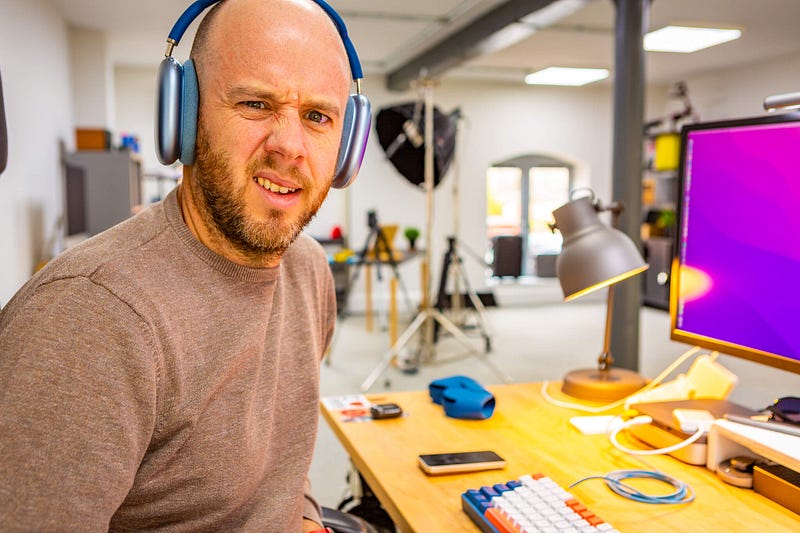
Image courtesy of author

Earlier this year, Apple introduced Spatial Audio and Dolby Atmos for selected tracks in the Apple Music library.

It’s super-impressive stuff — if a little weird when applied to music.

In essence, Dolby Atmos creates the effect of watching a movie or listening to music in a theatre or concert hall, respectively. It adds virtual height and extra width to the soundstage and enables engineers to project sounds at you from several angles.

Even though you can experience Spatial Audio by itself, Apple has designed it to work best with Dolby Atmos. Whereas the latter delivers the room-filling, multi-directional sound, Spatial Audio places you virtually inside that room. In theory, this enables you to ‘move around’ and experience the effect that has on the sound — just like being physically in the room.

And that’s where it all goes a bit wrong. It’s also why I turned off head tracking in Spatial Audio for music.

There are two examples of where head tracking literally messed with my head.

The desk problem

There’s no doubting the sheer technical brilliance of Spatial Audio. It makes it near impossible not to utter the words, “how is it doing this?!” when you first experience it.

If you’ve got a pair of AirPods and an iPhone — give it a go. Find a piece of Spatial Audio enabled content on Apple TV and move your head around as it plays. No matter what you do with your head, the audio will appear to always be emanating from the phone.

So, Spatial Audio = super cool.

But there’s a problem. Because if you experience Spatial Audio in any other setting (i.e. anything other than sitting on your couch watching something on your iPhone), it’s teeth-itchingly annoying.

I’m sitting here right now, AirPods Max on, listening to music from my iPhone, which is placed just to the left of my keyboard. Everything sounds normal because I’m not listening to Spatial Audio content with head tracking turned on. If I switch to something featuring the latter and move my head back to the monitor in front of me, the audio will shift slightly to illustrate that it is playing from the phone.

That’s just weird. It makes sense if you’re playing music from a radio in the corner of the room, but not while you’re wearing headphones.

It corrects itself after a while, which I find amusing. Give it about a minute or so, and the off-axis audio will slowly return to a more balanced output from the left and right speakers in your AirPods. It’s as though it’s saying “oops — sorry, I bet that was annoying. Sorry, I was just showing off. Here — have a normal headphone listening experience again”.

Running with head tracking turn on

I set off for a run recently and slapped on my favourite rock playlist.

A few minutes into the run, the unmistakable guitar top line from Sweet Child O’ Mine blasted through my AirPods Pro. Excited, and in need of an immediate boost during a cold November morning, I upped my pace, fuelled by Slash’s face-melting antics.

Then, I turned my head to check for traffic and it all went a bit weird. Suddenly, Axel Rose appeared to be sitting on my left shoulder, along with the rest of the band. It took me a while to realise that this was all down to Spatial Audio and, more specifically, the head tracking feature, which had reacted to my head swivel and left the audio ‘in place’ on my upper left arm, to which the iPhone was strapped.

That knocked a few seconds off my 5K time, I can tell you.

At least, that’s my excuse.

These two examples of head tracking in action reveal why it is resolutely suited to one use case, which is, in my opinion, video content, while the user is stationary. In every other scenario, head tracking is very silly and entirely off-putting.

Unfortunately, the default setting Apple has opted for enables head tracking for all forms of Spatial Audio content.

So, how do you turn it off?

How to switch off head tracking for Spatial Audio

The good news is that if you like Spatial Audio, you can listen to it without head tracking. Even better, you can tell your iPhone to only use the latter for specific types of content.

It’s not in the most obvious location, though. To find it, head into Settings > Accessibility > AirPods > [Your AirPods] > SPATIAL AUDIO HEAD TRACKING. You can turn it off completely, reserve it solely for video content, or have it on for both audio and video (that’s the default option).

Mine is now set to Video Content. Sorted.

Just bear in mind that you’ll need to do this for each pair of AirPods you have because the setting is applied to the headphones, rather than the iPhone.

Before you go

Join my behind-the-scenes mailing list

If you enjoy my writing, it’s only a snippet of what’s on Medium. I’m a paying member myself and highly recommend joining. Click here to join (a portion of your membership fee will be sent my way and therefore directly support my work!).

Originally published at https://markellisreviews.com on November 9, 2021.

Technology
Apple
Music
Headphones
Gadgets
Recommended from ReadMedium